

Image credit: Screenshot via Suzanne Kantra, composited by ChatGPT
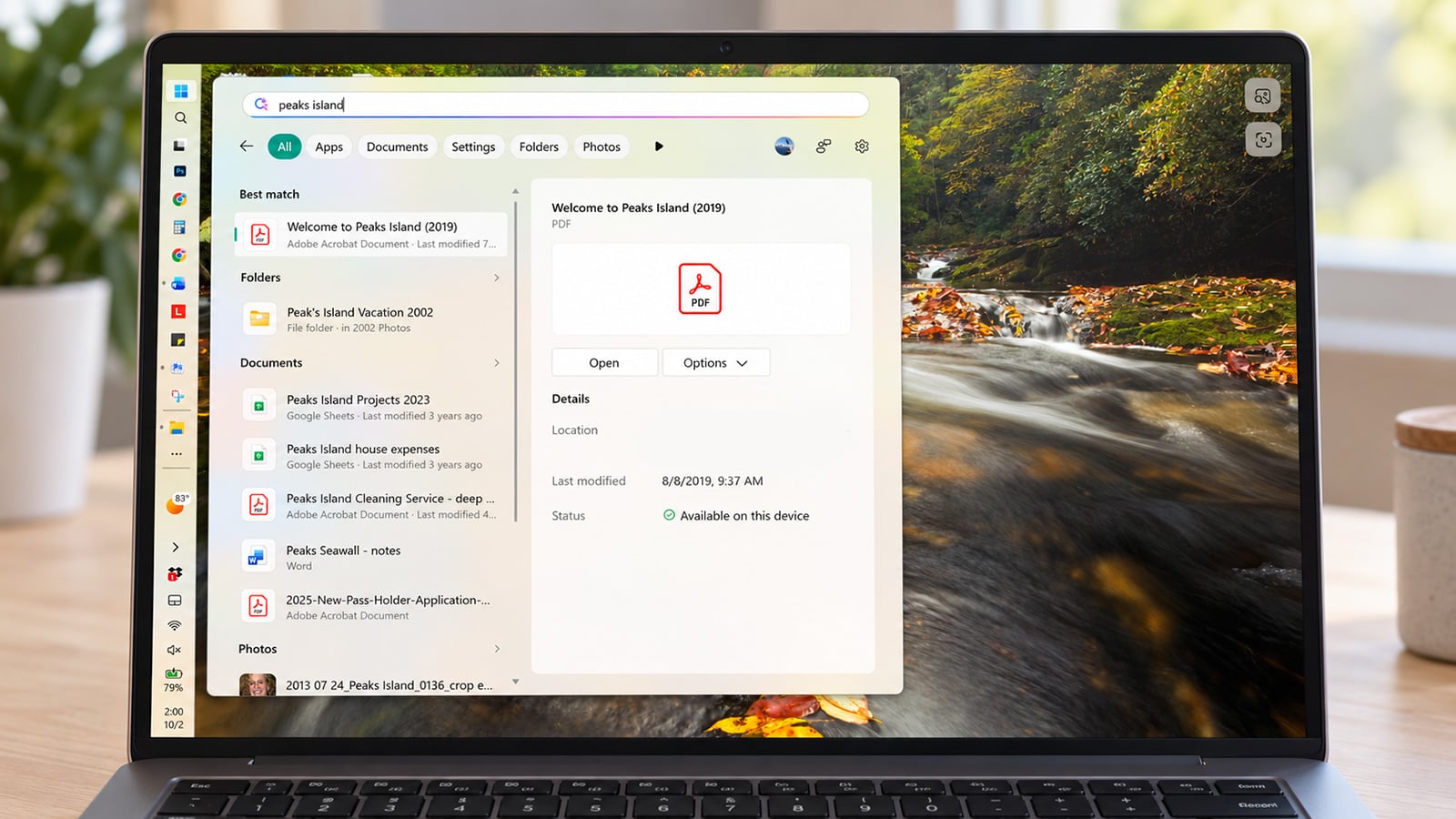
Every fall, Microsoft rolls out a batch of new Windows features, and this year there are some key upgrades you won't want to miss. My favorites: you can finally move the taskbar to the side and you can now customize what you see on the Start menu.
The big fall feature rollout used to mean a big download, a long install, and bugs that early adopters were bound to find. So, in the past, I told people to wait at least a few weeks before installing. But Microsoft changed how it delivers its fall Windows update this year, and my recommendation is that everyone should update now.
The reason is that Microsoft spent the year delivering the new code in ordinary monthly updates with the features switched off. So your PC has been running much of the underlying code for months. Installing the latest Windows 11 2026 Update (version 26H2) is the moment Microsoft flips the switch.
As a result, on my laptop, the update only took three minutes to download. And because most of the underlying code has been running on consumer PCs in the wild, Microsoft has had months of real-world use to find and fix problems.
The taskbar finally moves
Until now, Windows 11 shipped with the taskbar locked to the bottom edge of the screen, and for years the only way to move it was a registry hack or a third-party app (not something I recommended). Finally, you can now position the taskbar at the bottom, top, left, or right. You can also shrink the icon size and taskbar height. You cannot drag it; you choose the position and size in Settings > Personalization > Taskbar.
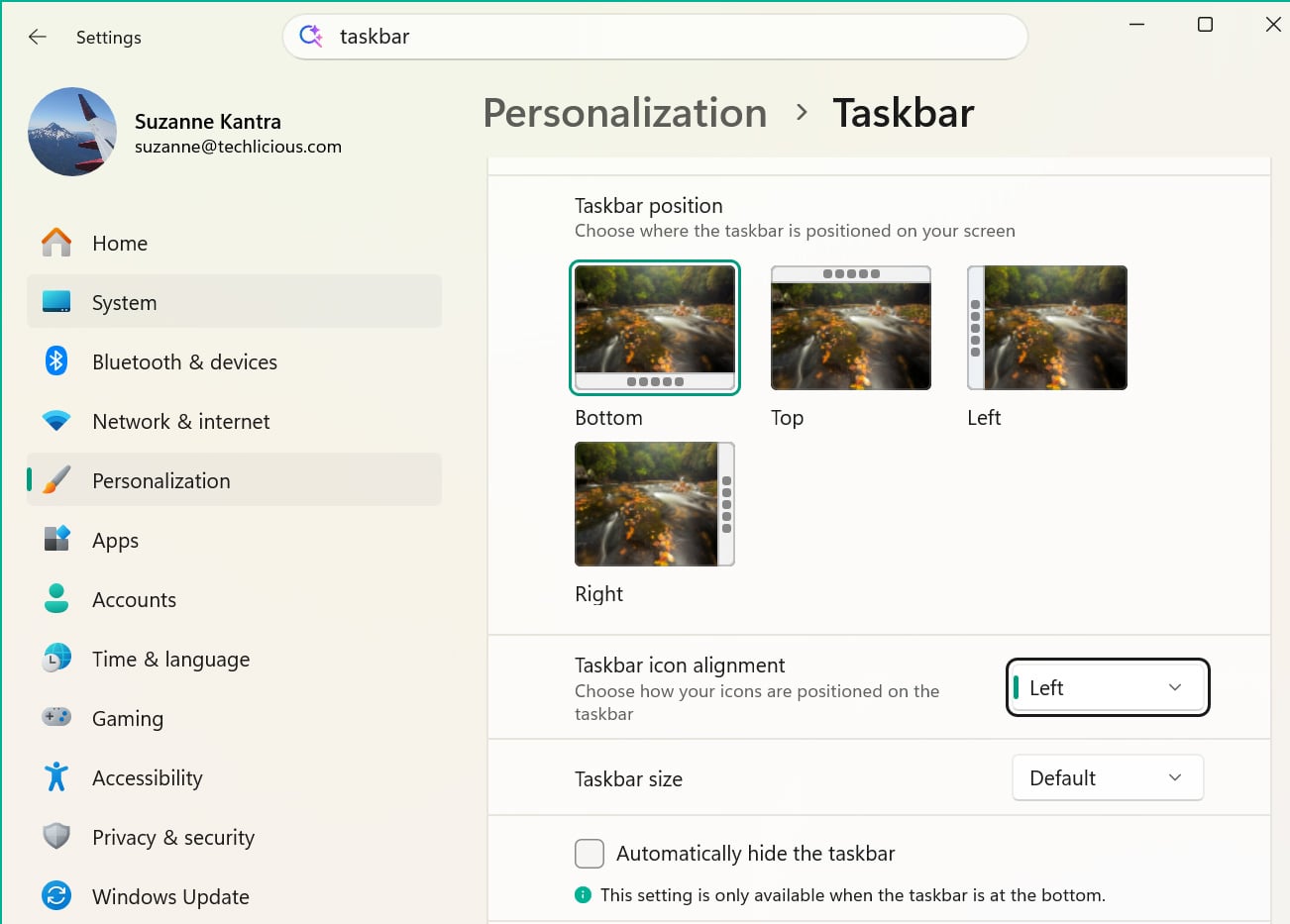
Image credit: Screenshot via Suzanne Kantra
On a widescreen laptop, where height is scarce and width is not, a taskbar on the left or right hands back a strip of vertical space for documents and spreadsheets. This was the first setting I changed on my PC after updating.
A Start menu you can customize
The Start menu design covers close to 90 percent of the screen's height on some laptops. The redesigned menu has a scrollable All section with category and grid views, and a layout that adapts to your display size. Under Settings > Personalization > Start, you can set the menu to Small, Large, or Automatic, and you can choose which sections you want to see – Pinned, Recent, and All – and the order in which you see them.
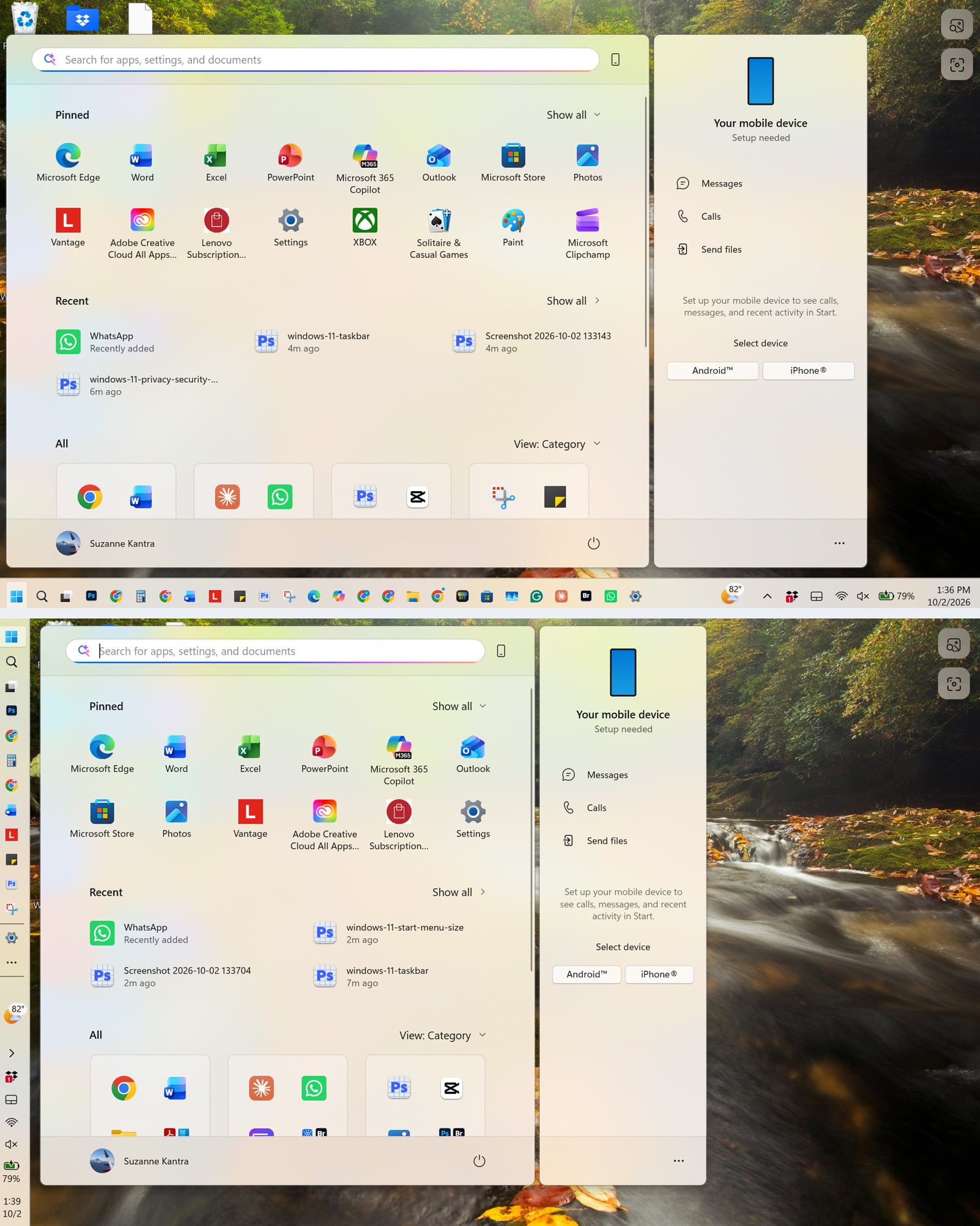
The old Start menu (top) and the new one (bottom) shows a significant reduction in size.
Image credit: Screenshots via Suzanne Kantra
Search the Start menu without seeing web results
If you prefer to only see your own media and files when searching your computer, without a bunch of web clutter included from Microsoft, the latest update lets you do that.
For example, previously, if you wanted to find photos you took from a ferry during your vacation, typing ‘ferry boat pictures’ into the Start menu would deliver photos Microsoft found on the web. Now, you can turn off web results and Microsoft Store results so you only get results from your computer.
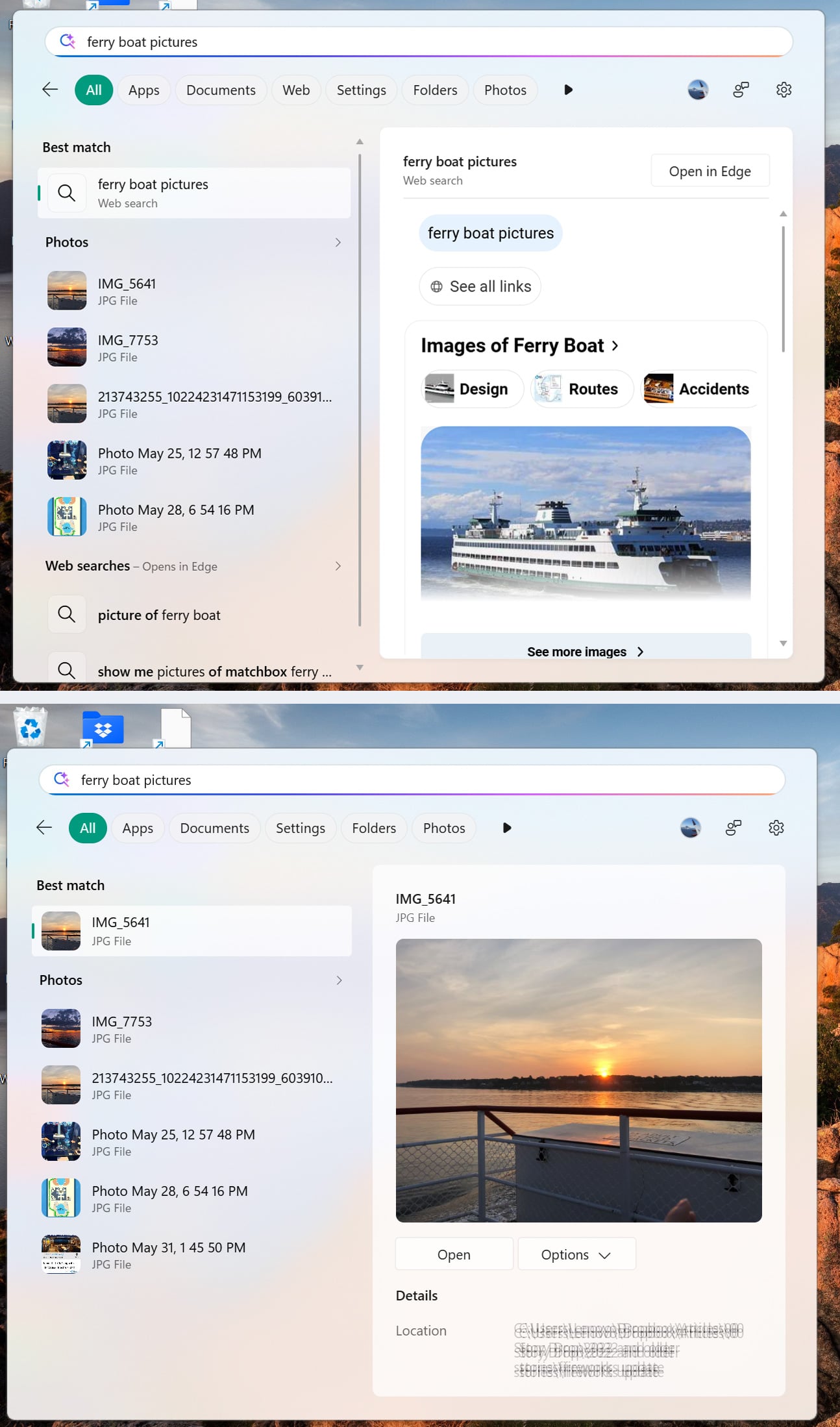
Windows 11 Search default setting shows web results (top). With web results disabled (bottom), the same search only shows results from your PC.
Image credit: Screenshots via Suzanne Kantra
Smaller upgrades you may appreciate
Webcams allow multi-app access
Until now, a webcam could usually serve only one app at a time. If you were on a video call and tried to record yourself in a second app, such as a screen recorder or a live-streaming program, the second app would often report that the camera was busy. Multi-app camera lets both programs use the webcam at the same time.
Bluetooth updates
Bluetooth headsets and earbuds should connect more reliably: Devices reconnect after your PC wakes from hibernation, and the mute button on your headset stays in sync with Windows.
Simpler Windows updates
Windows Update now installs eligible updates together with the monthly security update when possible, which means fewer restarts.
Installing Windows 11 26H2
For most people, Microsoft is rolling out 26H2 now, so if the option doesn't show up for you, it will soon. Some newer laptops, including models with Qualcomm Snapdragon X2 processors, came with a special version of Windows 11 called 26H1. Those laptops will skip 26H2, and continue receiving regular security updates. Their next major Windows upgrade is expected 2027, though Microsoft hasn’t confirmed the timing.
PCs running the Windows 11 24H2 lose support on October 13
Microsoft says that Oct. 13, 2026, is the last day of security updates for Windows 11 24H2 Home and Pro. Installing 26H2 gives you another 24 months of updates, protecting you until Oct. 10, 2028.
If you're not sure which version you have, type “winver” in the Start menu search box. If it says 24H2, install the 26H2 update now. If it says 25H2, you are covered until Oct. 12, 2027, but there's no reason to wait a year.

