
We may earn commissions when you buy from links on our site. Why you can trust us.

Lockly Zeno Latch review: a solid lock for doors without deadbolts
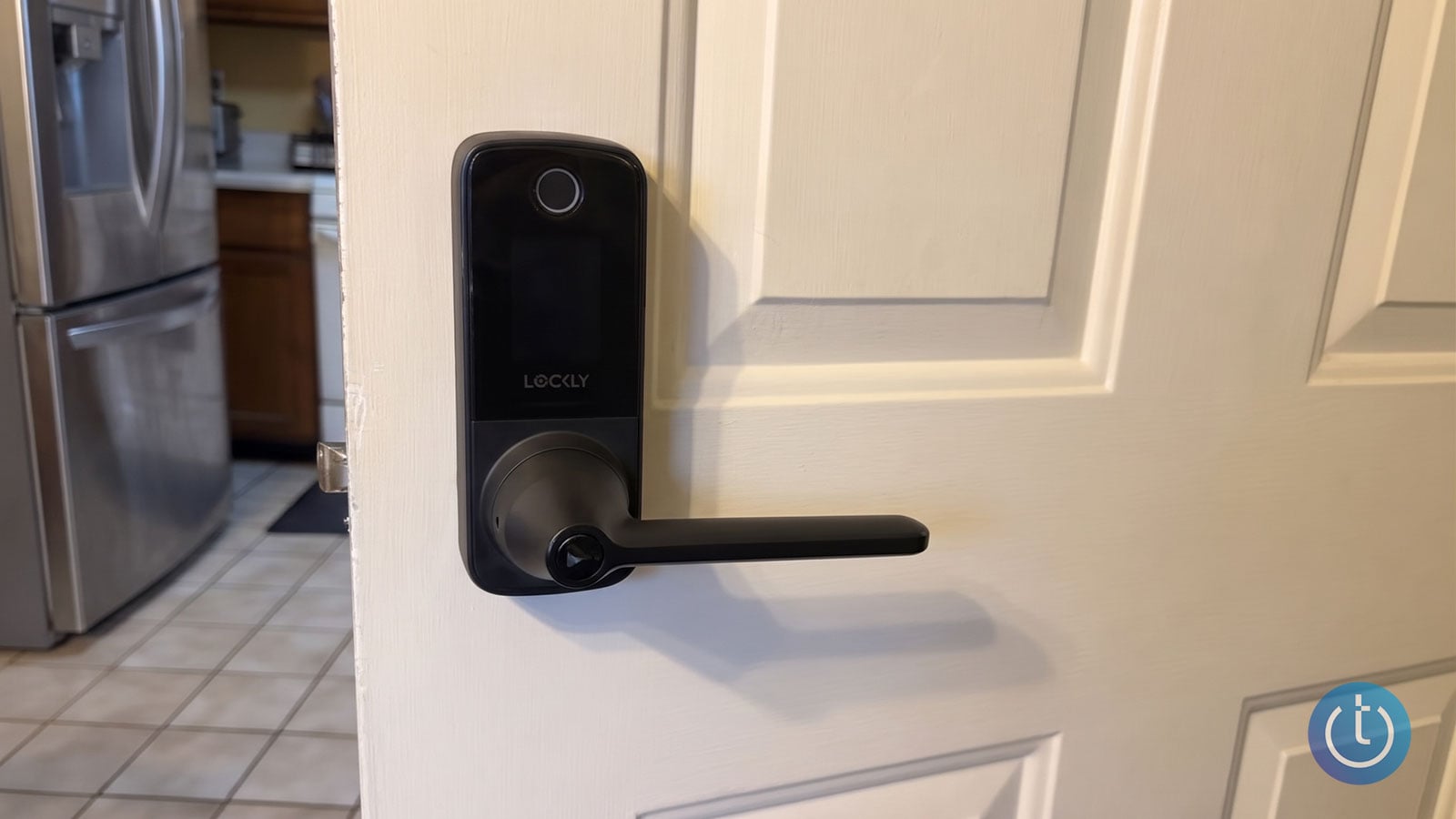
The Lockly Secure Pro Zeno Latch replaces the lever on a latch-only door.
Image credit: Adam Doud/Techlicious
The Lockly Secure Pro Zeno Latch ($329.99) is a smart lock for doors that have a latch and no deadbolt. The vast majority of smart locks replace your deadbolt and leave the existing knob or lever in place. The deadbolt handles the security, and the latch just makes sure that when you close your door, it stays closed so the deadbolt can engage. If your door doesn’t have a deadbolt and you don’t want to drill an extra hole just for one, a latch-only smart lock is the perfect choice.
I have three doors in my home, and two of them already have Lockly smart locks. The Secure Pro Zeno Latch now secures the third, a latch-only door separating my attached garage from my kitchen. After a couple of weeks of testing, I’ve found it to be a reliable smart lock with a peccadillo or two you’ll need to navigate.
Design and setup
The Lockly Secure Pro Zeno Latch comes in Matte Black (as reviewed) or Satin Nickel. It’s a very solid piece of engineering, and everything you need to set it up is in the box. I had mine installed in a little under 30 minutes. Setup was a little complicated for someone like me who doesn’t do this very often, but Lockly has a helpful online tutorial, and the contents of the box were nicely organized.
On the outside, you have a screen for the code and a fingerprint sensor. On the inside are a small switch, a Lockly button, and a battery compartment, which holds four AA batteries that Lockly rates at up to five months of regular use.
Fingerprint sensor and keypad
The fingerprint sensor is…fine. It’s not as accurate as I would normally like a biometric lock to be. I’d say it correctly identifies my thumbprint about 85% of the time. No one else in my family has had similar trouble, so I suspect it’s just me.
If the fingerprint scan fails, you can tap the screen on the outside to turn on the keypad as your backup. That keypad is fast and accurate, so there’s that.
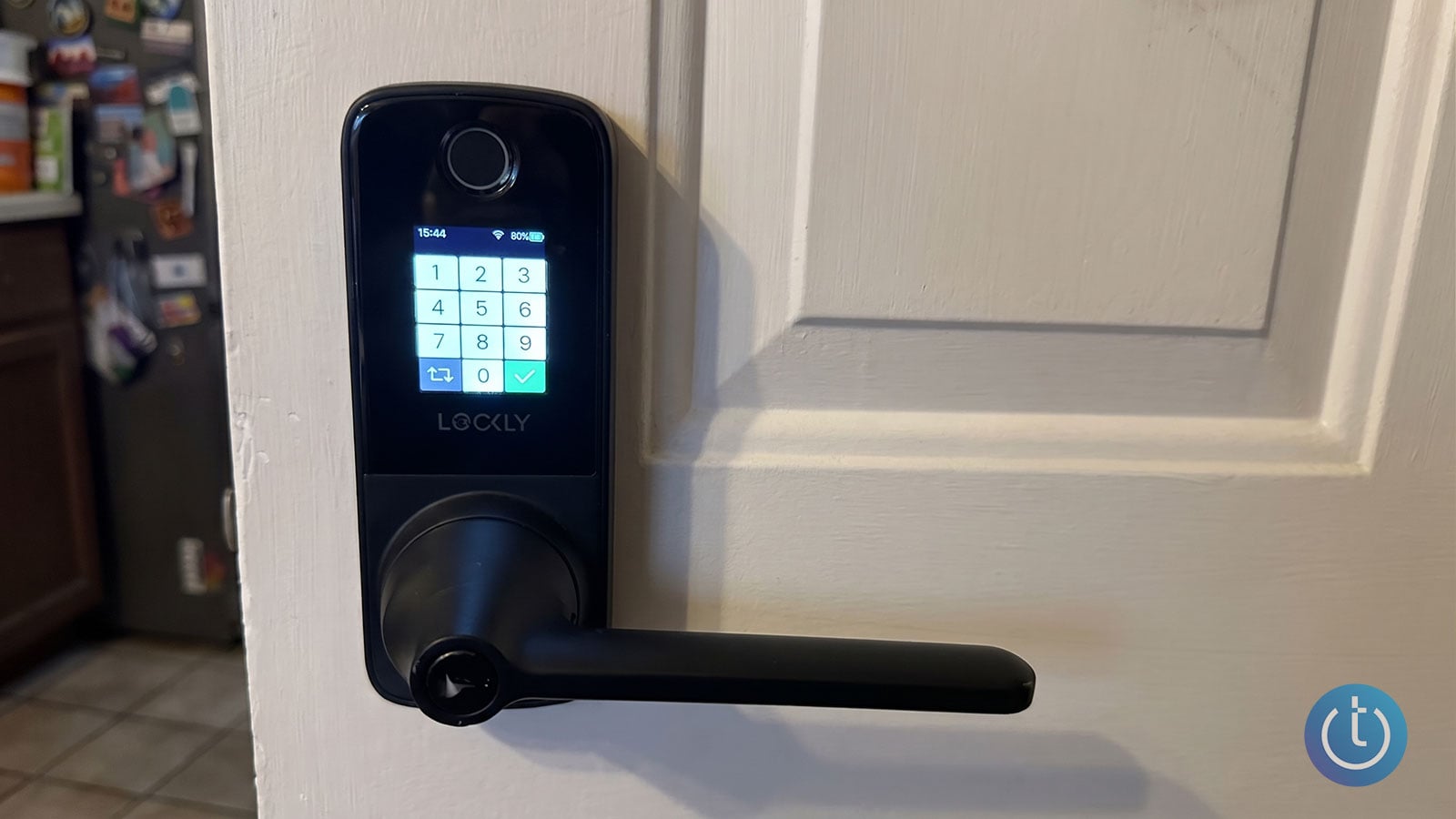
Tap the screen, and the touchscreen lights up for PIN entry.
Image credit: Adam Doud/Techlicious
On the inside, the Lockly button locks the door when you press it, and the small toggle switch disables the outside keypad.
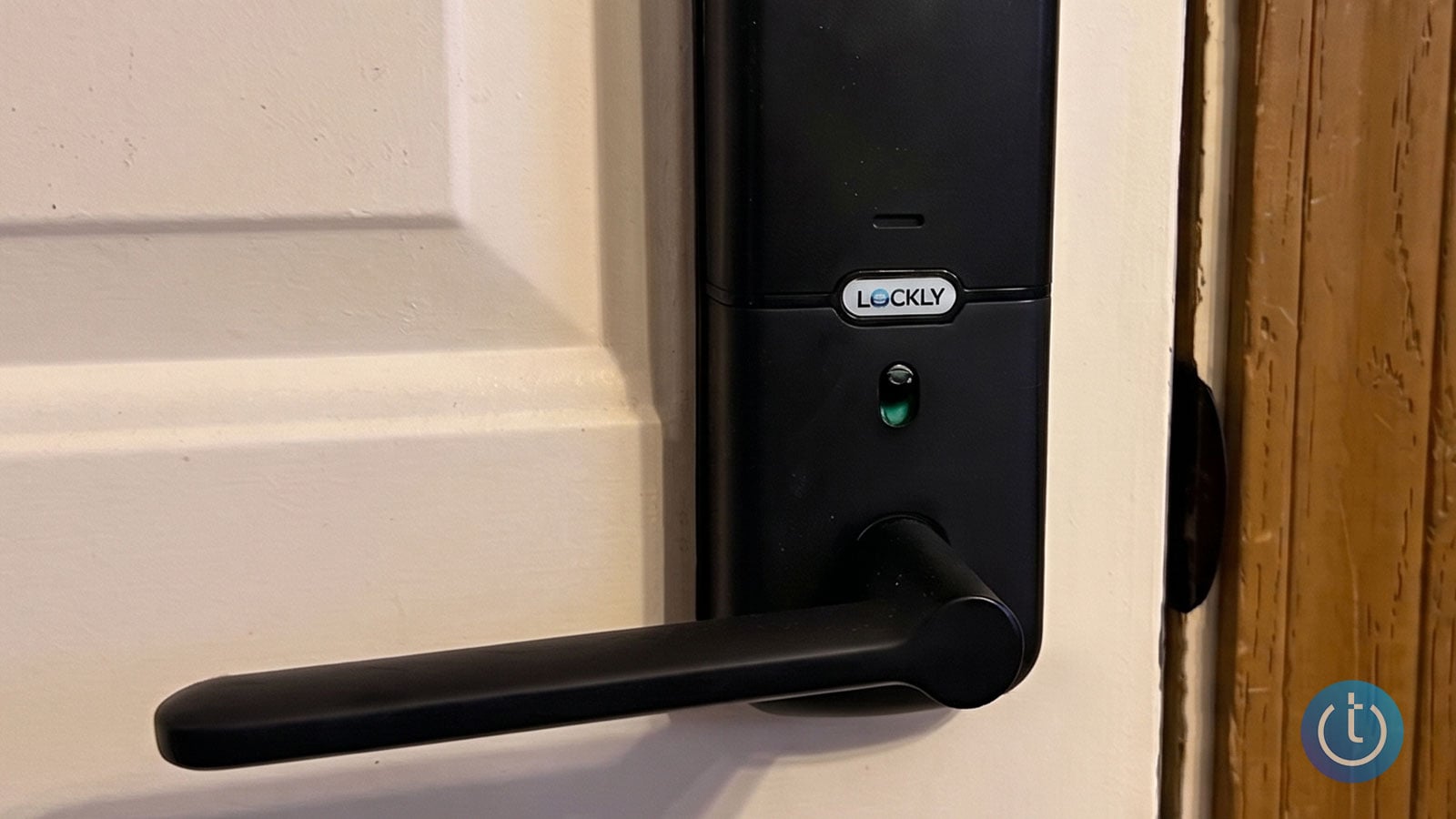
Press the Lockly button to lock the door, or flip the switch to disable the outside keypad.
Image credit: Adam Doud/Techlicious
App and Welcome Mode
The Lockly Home app is set up very nicely and is easy to understand. Your home page has a list of all the Lockly locks that you manage. Tap on each one and you’ll enter the settings. You also get a log of activity for each lock, so you can see who is coming in and when. The lock connects to your home’s 2.4 GHz Wi-Fi network, and no hub is required.
Since I already have Lockly locks, I was happy to find that you can import accounts from one lock to another (Lockly calls the feature Air Transfer). My family still had to re-register their fingerprints, but their accounts were already there. That was a nice bonus.
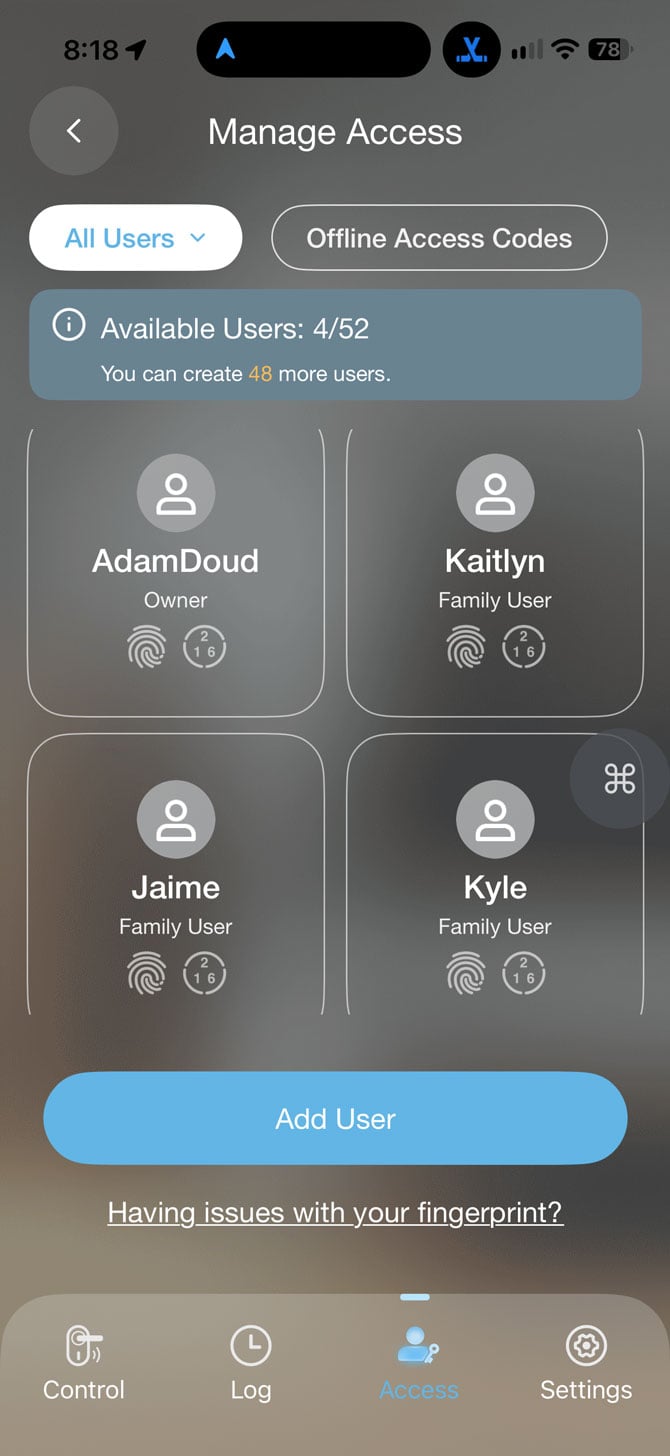
Managing user profiles, fingerprint credentials, and access codes inside the Lockly app.
Image credit: Adam Doud/Techlicious
The app also lets you set up a Welcome Mode, which temporarily disables the auto-locking function, keeping the door unlocked for a time period you specify. For doors you only need secured overnight, like my door into the kitchen, you can set up a very liberal Welcome Mode. With Welcome Mode set from 8 a.m. to noon, I had to unlock the door the first time I came in after 8 a.m. It then stayed unlocked until noon.
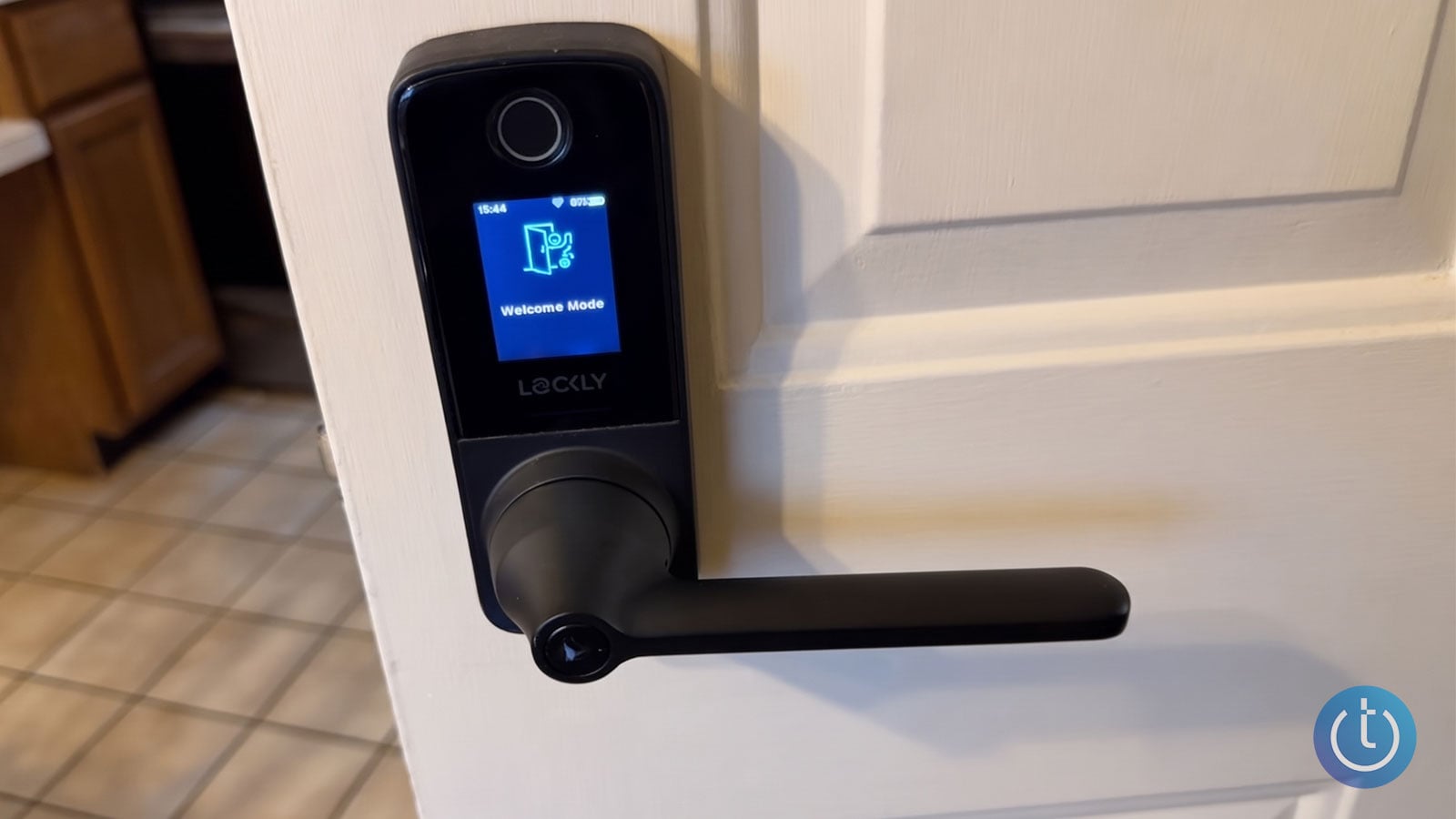
'Welcome Mode' is displayed on the lock's screen when active.
Image credit: Adam Doud/Techlicious
You can also activate a widget to unlock your door with a tap. I’m not positive how that beats scanning my fingerprint, but it does let you unlock the door for someone who comes over while you’re inside. I’m more of an “answer the door personally” kind of guy, but I won’t judge. Better to have it and not need it.
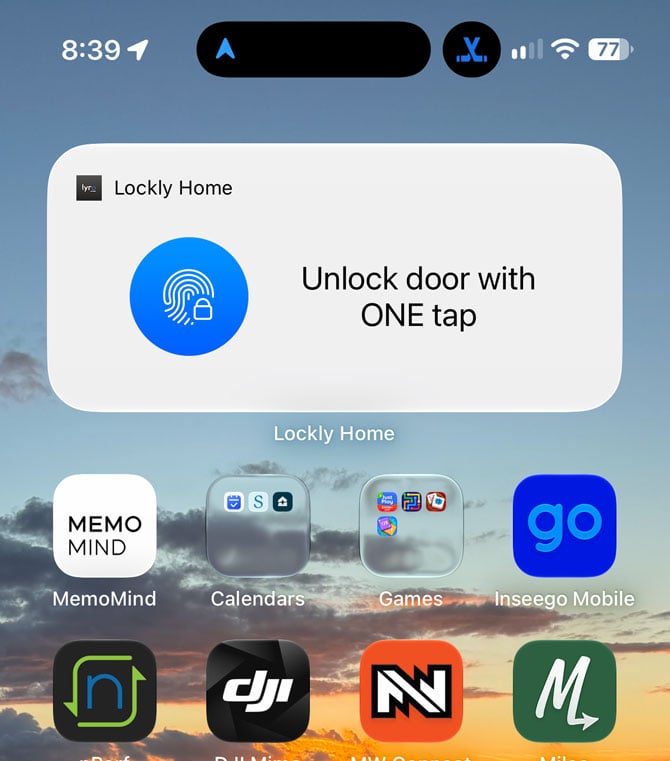
You can unlock the door with one tap from your iPhone’s Home Screen.
Image credit: Adam Doud/Techlicious
TapCom
Lockly sent a TapCom Plate ($19.99) along with the Secure Pro Zeno Latch. You mount the NFC plate on the outside of your home, and visitors tap their phone to it or scan its QR code to start a call with you. You can then unlock the door remotely.
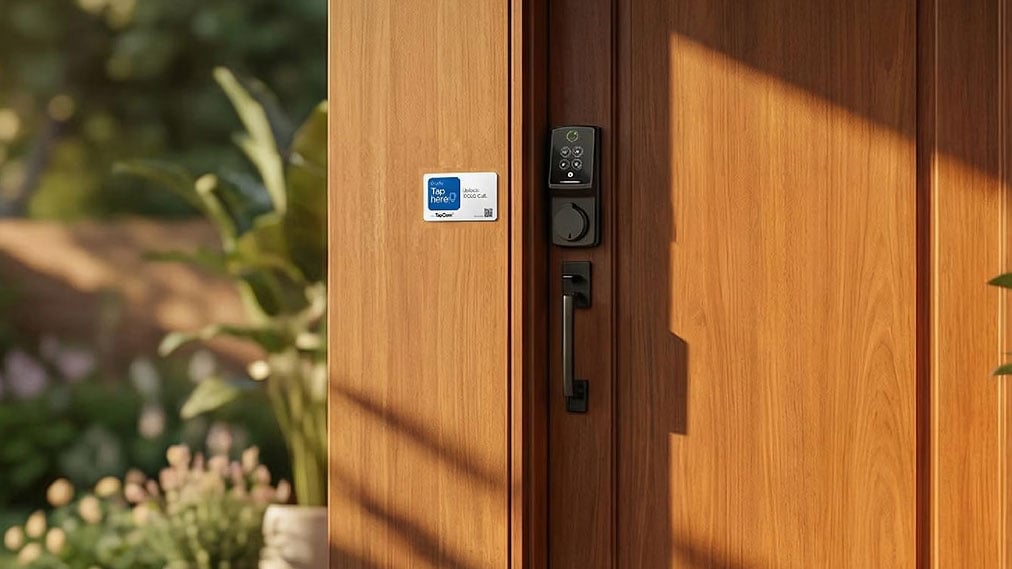
Visitors can tap their phone against the TapCom Plate or scan its QR code to call you.
Image credit: Adam Doud/Techlicious
Every TapCom plate comes with a free premium trial: six months with a compatible Lockly lock, or three months with a supported lock from another brand. Premium includes video calling, scheduled access codes, and up to a year of activity history. After the trial, Lockly owners can keep Premium starting at $1.99 a month or switch to the free basic service, which includes audio-only calling, one-time access codes, and a 90-day activity history. TapCom also works with non-Lockly locks, including Kwikset, Yale, and more (Lockly’s compatibility list has the full roster), but the free tier is limited to Lockly locks. After the trial, keeping Premium on a supported third-party lock starts at $3.99 a month.
Verdict
I’m pretty happy with the Lockly Secure Pro Zeno Latch. I wish the fingerprint sensor worked more reliably for me, but I’ve always been able to get in, though it sometimes takes more than one scan, which can be annoying.
I like how easy the app is to use and how easy the lock is to set up. Most of all, I love not having to carry keys anymore. A key fob for my car is about as close as I get these days. One day that might come back to bite me, but in the five years I’ve had smart locks, it has been glorious.
If you need a smart lock for a latch-only door, the Secure Pro Zeno Latch should definitely be a contender.

