

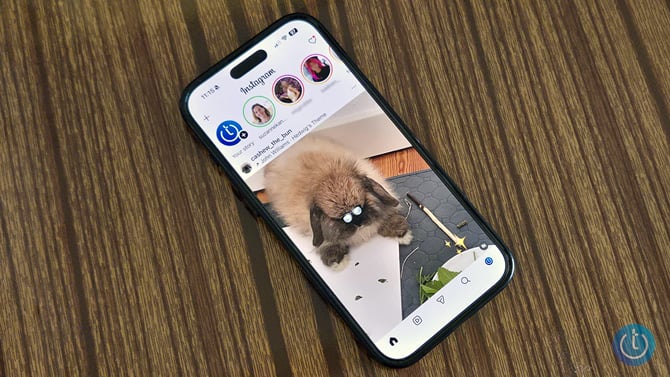
Instagram runs almost entirely on icons. There are no labels on most of them, the app gets redesigned every year or two, and the symbols that confuse people most, the ones in your DMs and on story rings, are the ones you really want to know. This guide covers all of them, organized by where you encounter them in the app.
What the colored rings on Instagram stories mean
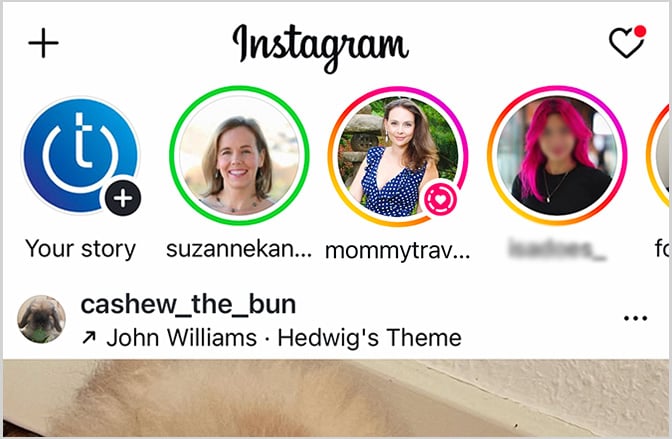
The ring around a profile picture in your story tray tells you whether there's a story to watch and what kind it is, before you tap anything.
A pink and orange gradient ring means there's a new story from that account you haven't watched yet. Once you watch it, the ring turns gray. That's the whole system for regular stories.
The one that surprises people is the green ring. If you see a green circle around someone's profile photo, it means they posted a story specifically to their Close Friends list. And you're on it. Instagram doesn't send a notification when someone adds you as a Close Friend. The green ring on their story is the only indication. Seeing it once means you're in; if you stop seeing green rings from someone you used to see them from, they've quietly removed you. There's no notification either way.
When an account is actively broadcasting live video, their profile photo gets a ring with the word "Live" on it. Tapping it takes you directly into the stream.
A few things story rings won't tell you: they don't indicate who views your story most, they don't reveal whether someone restricted you, and there's no special ring that means someone posted a story but hid it from you. If someone hides their story from you or removes you as a follower, you simply don't see their profile in the story tray at all.
Instagram post icons: heart, comment, share, and save

The heart likes the post. The speech bubble opens the comments. The paper plane shares the post. Tap it and you get options to send it via DM to specific people, share it to your own story, or copy the link. The bookmark in the far right corner saves the post to a private collection that only you can see.
One that people miss: the three-dot icon in the top right corner of any post. That's where you'll find options to hide the post, report it, mute the account, or copy the link, depending on whether it's your own post or someone else's.
Icons inside an Instagram story
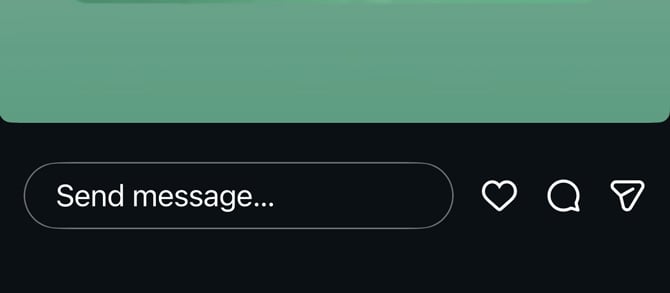
The text field at the bottom of a story is for sending a private reply directly to the person's DMs. The heart icon likes the story privately. They'll see it in their viewers list, but it won't show up publicly anywhere. The paper plane shares the story (if the account allows sharing). The three dots give you options to report the story, mute the account, or copy the link.
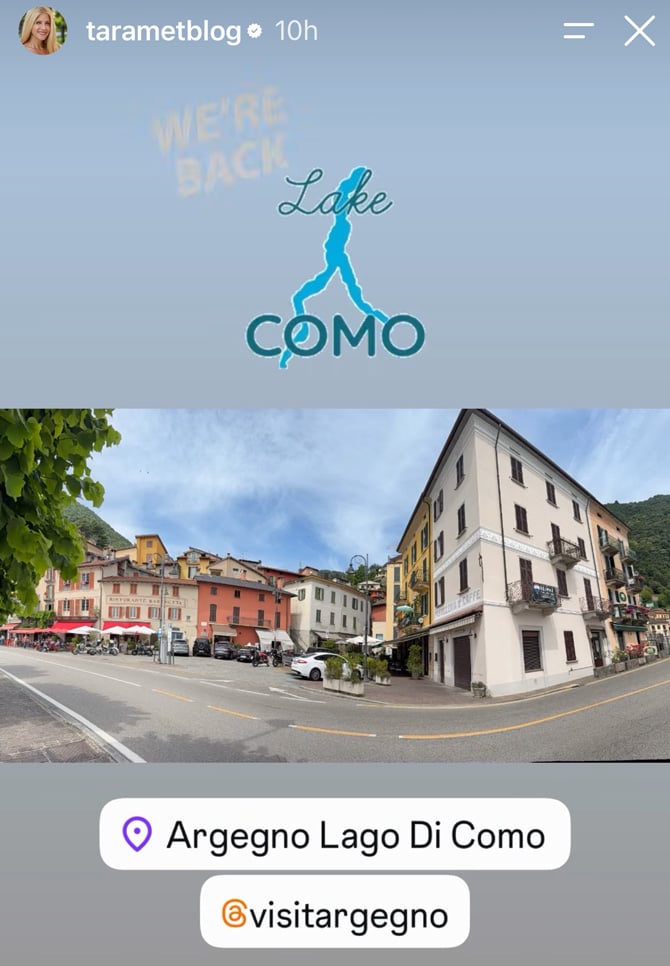
The icons that appear within the story itself are used by the person who created it (sticker icons, link stickers, question boxes, polls) and tapping them lets you interact with whatever interactive element they've embedded.
Instagram DM inbox icons
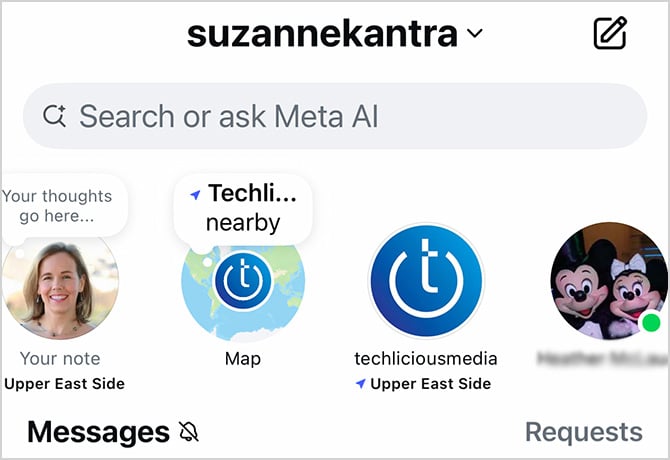
When you open DMs, there's a row of profile photos across the top before the conversation list. This is where you'll see the green dot and map icon indicators. The green dot on a profile photo means that person is currently active on Instagram. Instagram calls this Activity Status, and it's only visible if both you and the other person have it enabled. If you can see someone's green dot, they can see yours. You can turn this off in Settings under Messages and story replies.
The map icon on a profile in that bar opens location-based posts from that person.
Below the profiles bar is your conversation list. The pencil icon at the top right starts a new message.
Instagram DM message status: what Sent and Seen mean
A blue dot next to a conversation in your list means you have an unread message from that person.
In the list of DMs, Instagram uses text timestamps rather than icon indicators to show message status. After you send a message, you'll see "Sent just now" beneath the recipient's name, which updates to "Sent 5m ago" and so on as time passes. When they've read it, that changes to "Seen just now" or "Seen 5m ago." There's no guessing – the label tells you exactly what happened and when.
Whether someone is currently online is shown by the green dot on their profile photo in the list of DMs. No green dot means they're offline or have Activity Status turned off.
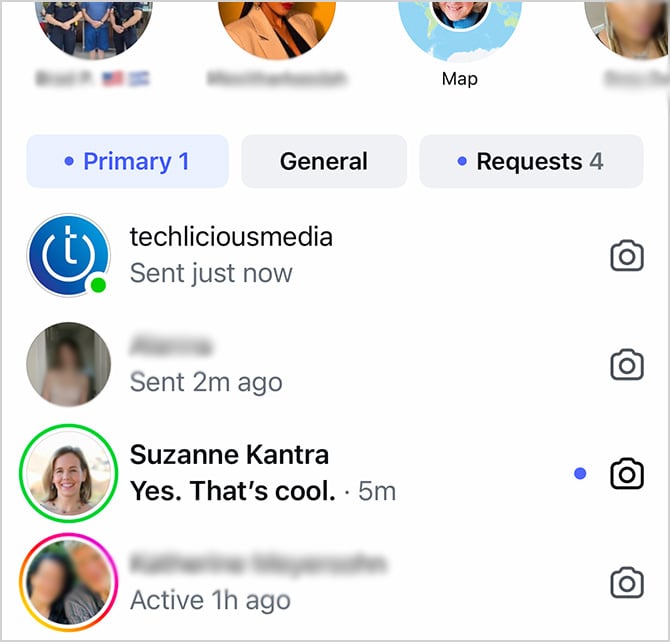
The camera icon next to the conversation gives you quick access to send a photo DM.
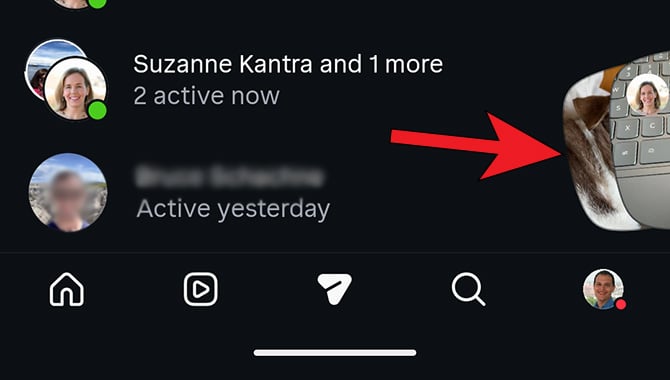
Instagram's new Instants, photos and videos that disappear after they have been viewed, get their own indicator. There is a tab in the lower right of the Messages screen above the navigation bar. You see a + when you don't have any Instants. When someone sends you an Instant, you'll see a thumbnail preview. Once you've opened it, the thumbnail disappears.
Instagram DM conversation icons
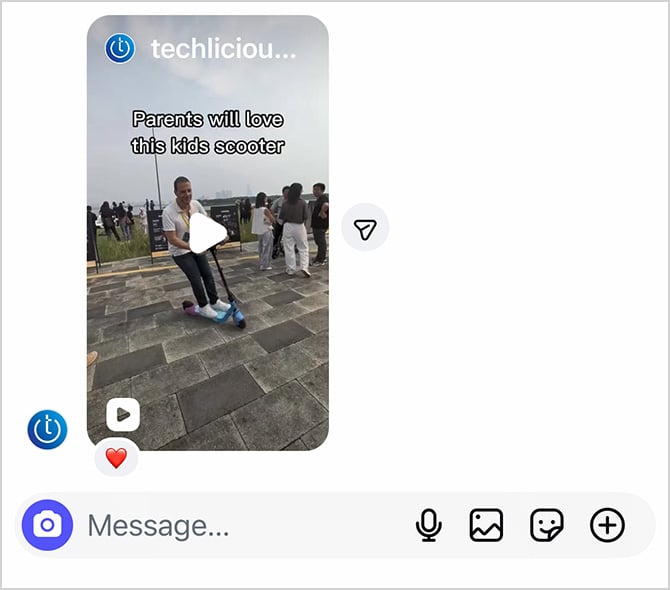
To the left of the text input box in a chat, you'll see a camera icon. Tapping it opens your camera so you can take a photo or video and send it directly. This is different from the photo picker (which lets you send from your camera roll).
The microphone icon lets you record and send a voice message. Hold it down to record, release to send.
The photo icon lets you select pictures from your camera roll to share.
The smiley icon lets you add stickers.
The plus icon lets you add your location, add a free-hand drawing, or add an AI-generated image.
The phone icon in the top right corner of a conversation starts an audio call. The video camera icon starts a video call. Both happen inside Instagram rather than through your carrier. Instagram has also rolled out a Blend feature, which lets you collaborate with other accounts to see each others Reels and new Reels based on your chat.
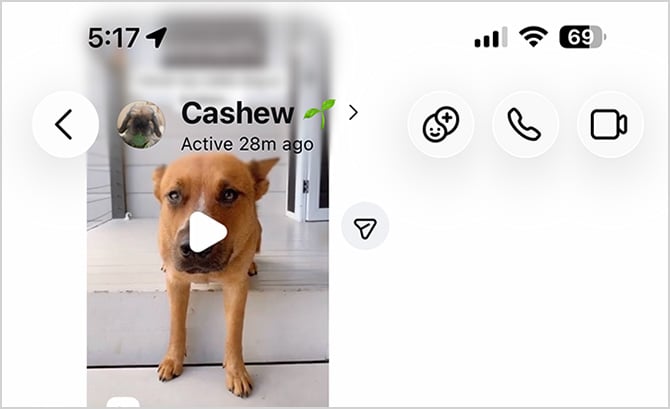
Instagram navigation bar icons
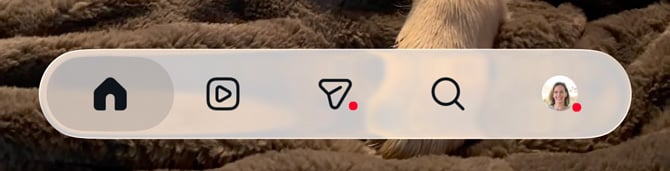
The icons across the bottom of the app include: the house (home feed), a square with a play triangle (Reels), a plus sign (create a post, story, or Reel), a paper plane (DMs), a heart (notifications: likes, comments, follows, mentions), and your profile photo (your profile). If there's a red dot on the heart, you have new activity.
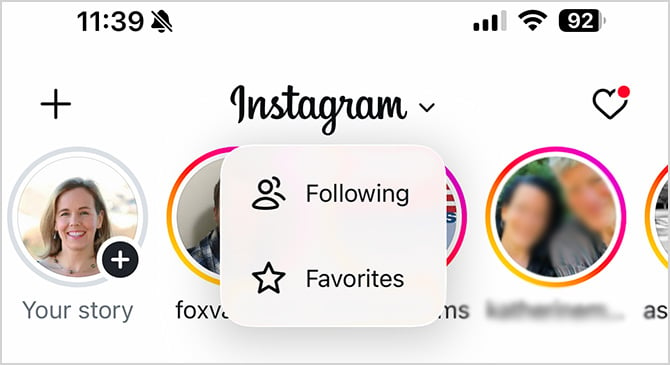
Instagram home feed icons: Following, Favorites, and the red star
A dropdown arrow next to the Instagram logo at the top of your feed lets you switch between your Following feed (only accounts you follow) and your Favorites feed (a curated list of up to 50 accounts whose posts appear in chronological order).
If you see a small red star next to an account name in your regular Home feed, that account is on your Favorites list. Their posts are prioritized higher in the algorithm even when you're not using the Favorites feed view.
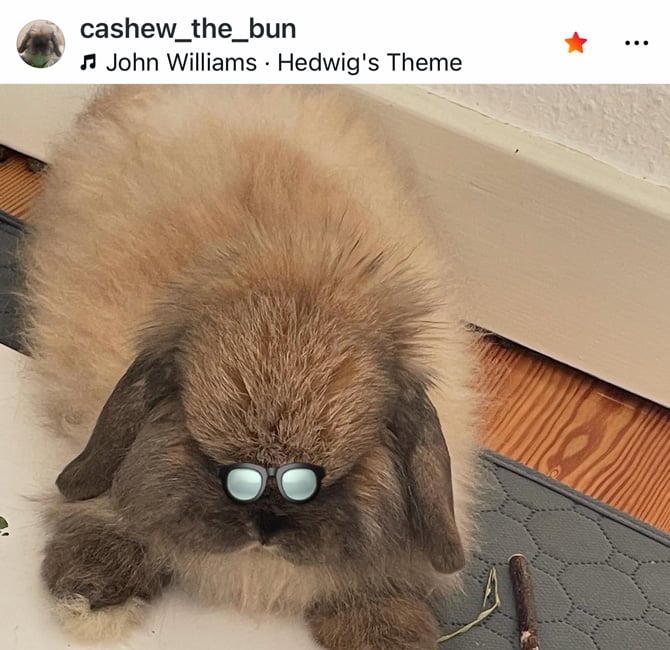
To add someone as a Favorite, go to their profile, tap Following, and choose "Add to Favorites." You can also manage the full list through Settings > What you see > Favorites, where you can search for and add anyone you follow.
Instagram profile badges: blue checkmark, gold checkmark, and account labels
The blue checkmark next to an account name means Instagram has verified that account as authentic, typically for public figures, celebrities, and major brands. It's a confirmation of identity, not quality or endorsement.

A gold checkmark marks accounts subscribed to Meta Verified, which is a paid subscription. It means the account owner paid to get a badge, not that they were independently verified by Instagram. It does include some account protection features, but it's a different thing than the original blue checkmark.
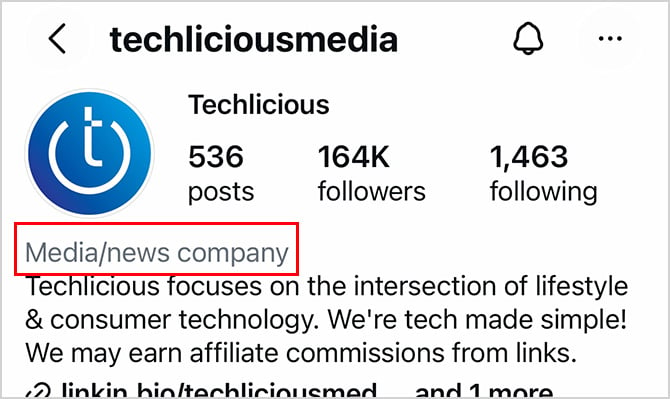
Category labels under an account name on their profile page – "Media/news company," as you'll see on our @TechliciousMedia account – are self-selected by the account owner. Instagram does not assign them.
Instagram privacy settings: turning off read receipts and activity status
Activity Status (the green dot that shows when you're online) and read receipts can both be disabled. Go to Settings, then Messages and story replies, then Who can see you're online. Turn off Activity Status and your green dot disappears for everyone, but you also lose the ability to see anyone else's. Turn off read receipts and neither side will see when a DM has been read.
Story views (who can see your story viewers list) can be restricted, but you can't hide individual viewer names from yourself if you go looking.
Instagram icons and symbols: common misconceptions
A few things worth clearing up. The order of your story viewers is not a ranking of who views your profile most, despite a persistent belief that it is. Instagram has never confirmed any such ranking, and it changes based on factors like recency and whether someone interacted with your story. Don't read into it.
There is no special symbol that appears on a post or in a DM if someone has restricted you. Restricted accounts can still see your profile and follow you, but they can't see when you're active and their comments show up as hidden to everyone else. The only way to tell if you've been restricted is indirectly: your comments on their posts are only visible to you, not to others viewing the post.
If you try to DM someone who has blocked you, the message simply won't show delivered. Your past messages with them remain visible in your inbox, but sending new ones won't work.
[Image credit: Screenshots via Techlicious]


From TechEnthusiast on July 12, 2026 :: 9:18 am
Great breakdown of the interface. Have there been any recent updates to the DM icons in the latest app version?
Reply