

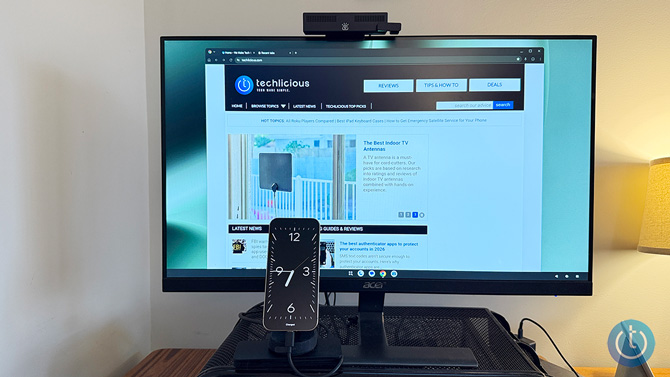
Your phone is already one of the most powerful computers you own, so why can't you use it like one? You can. Google has offered a bare-bones version of Desktop Mode on its Pixel phones since 2019, but it was designed as a tool for app developers and wasn't optimized for consumer use. The company spent the following years on improvements and, as part of the March 2026 Feature Drop, rolled out a mature, functional version of Desktop Mode.
Desktop Mode now looks and operates more like a computer with a taskbar, a multi-window interface, and support for keyboard and mouse. There's support for data transfer, 4K video, and charging simultaneously through your phone's USB-C port, so you can use a single cable to plug into the monitor.
This means you can now use Desktop Mode to turn your phone into a PC for a full-screen desktop experience when needed. You can use a monitor in your hotel’s business center to get real work done or give a PowerPoint presentation without carrying a laptop. And you don’t face the security risks of using a public computer; you’re using the device you already have in your pocket, with all your apps and files ready to go.
How to set up and use Pixel Desktop Mode
Google's Desktop Mode requires your Pixel phone’s USB-C port to support DisplayPort Alt Mode (DP Alt Mode), which enables data, power, and video to travel together over a single USB-C cable. Currently, Pixel 8, Pixel 9, and Pixel 10 series phone have this feature. Your Pixel phone also needs to be running Android 16 (March 2026 Feature Drop) or later.
Read more: Pixel 10: Big AI Leap and Magnetic Charging Upgrade
Next, you need the appropriate hardware to connect your phone to an external display. You can use a USB-C cable to connect your monitor, as long as it specifically says it supports DP Alt Mode, like the StarTech.com 3ft USB-C to USB-C Cable with DP Alt Mode ($25.99) . However, you're more likely to encounter displays with an HMDI input. So, I recommend investing in a small USB-C hub with HDMI output, like the Anker 555 8-in-1 ($35.99). It's a reliable product we use at Techlicious, with verified DP Alt Mode support and sufficient PD passthrough at 100W. And with its multiple USB-C and USB-A ports, you can easily connect a wired keyboard and/or mouse.
Last but not least, you must have a mouse and keyboard to navigate and type. I recommend going with wireless options for a clutter-free experience. We're fans of the Logitech Keys-To-Go 2 ($79.99): it's slim, has a protective magnetic cover, and can pair with up to three devices so you can switch between your phone, tablet, and laptop without re-pairing. For the mouse, our go-to is the Logitech MX Anywhere 3S ($79.99), which works on virtually any surface, connects via Bluetooth or a USB receiver, and is compact enough to put in a jacket pocket.
Once you've paired your mouse and keyboard to your phone, connect your Pixel phone to the display. Or, if you’re using a wired keyboard and/or and mouse, plug them into the USB-C hub and then plug the hub into your phone's USB-C port.
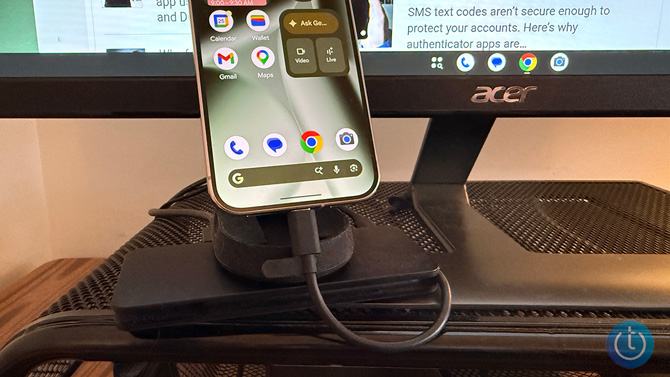
You should now see a notification titled “Connect to external display” on your screen. Select the “Desktop” option, and you should see Pixel UI’s desktop view on your external display.
With Desktop Mode active, you’re now all set. However, for a better experience, I suggest you configure a couple of display settings. You can adjust the display size and resolution to your preference by opening the “Settings” app and go to Connected devices > External displays > Beyond TV. You may also want to increase the screen timeout duration to prevent the phone from locking and, in turn, pausing Desktop Mode.
Desktop Mode supports multitasking, so you can work on multiple apps at once. While Google doesn’t specify how many apps you can open on the screen at once, you’re essentially only limited by your external display’s screen size and the phone’s RAM.
You can also open apps in different workspaces to keep them isolated. Desktop Mode currently lets you open up to four desktops active at once. To access the option, click the “Recents” button, then hit the square icon with a plus sign. You now have a new desktop, where you can open more apps. When you want to switch desktops, repeat the same steps and click the desktop you want to access.
Last but not least, master keyboard shortcuts to efficiently navigate your phone in Desktop Mode. Pressing the Windows key + / will pull up a list of keyboard shortcuts.
Pixel's Desktop Mode isn't perfect, yet
As of writing, Pixel’s Desktop Mode isn’t anywhere close to being a replacement for your main computer. It’s just a handy feature for one-off use cases that require larger screen estate. Part of the reason is the hardware limitations: while Google’s Tensor G chips can handle tasks decently well on a phone, they struggle to deliver the same performance when pushed in Desktop Mode. I noticed that web browsing and editing pictures in Lightroom were really slow.
Among other things, Pixel’s Desktop Mode lacks a wireless display mode, and it doesn’t let you use your phone’s screen as a trackpad. You also can't customize the wallpaper or choose widgets, like you can on your Pixel's home screen. At times, changing mobile wallpaper in Desktop Mode breaks things, and you end up with a gray background. Scaling and text size inconsistencies are some other issues I experienced with Desktop Mode during my testing.
These are all problems that Google can and will resolve. Desktop Mode is part of a broader strategy to eventually merge Android and ChromeOS into a single platform. In fact, Google is actively developing Aluminium OS with with plans to launch this fall, as Google's Sameer Samat, President, Android Ecosystem, confirmed in an interview with Android Authority earlier this month.
With additional reporting by Suzanne Kantra
[Image credit: Suzanne Kantra/Techlicious]

