

Updating your iPhone to the new version of iOS isn't like just a routine software upgrade – it’s a reset of how your phone looks, behaves, and sometimes even how you interact with it dozens of times a day. With iOS 26, Apple has made some of the most visible interface changes we’ve seen in years, alongside new AI-powered tools that quietly change what your iPhone can do behind the scenes. Some of those changes are genuinely useful. Others are… less welcome, at least at first.
If you’ve just upgraded to iOS 26, the smartest move isn’t to immediately start hunting through every menu. It’s to focus on a handful of settings and features that will either make the experience more comfortable right away or unlock things you might not have noticed during the update prompt. Here are the first things I recommend doing after installing iOS 26 – based on what actually improves day-to-day use, not what looks flashy in a keynote.

1. Tone down Liquid Glass
When Apple released iOS 26, it was met with mixed reactions. The hallmark feature, the new Liquid Glass user interface, which gives most interface elements a transparent, glass-like feel, isn’t the most legible, and many want to revert it to a more familiar look. Fortunately, you can tone down Liquid Glass in iOS by going to Settings > Display & Brightness > Liquid Glass. From there, you can change liquid glass from clear to tinted, which will result in much better legibility across the system if that’s what you prefer.
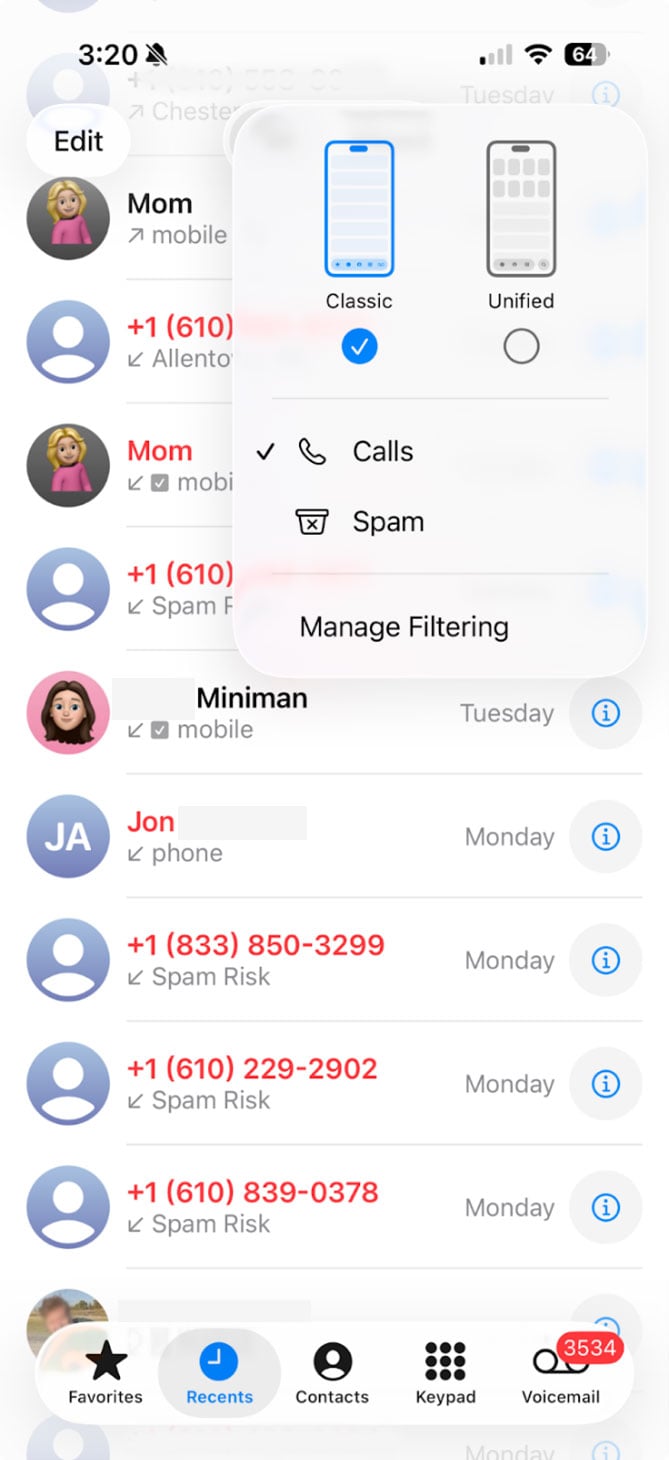
2. Restore the Phone app to the way it was before
In iOS 26, the phone app has been condensed and made more graphical. If you’re anything like me, you probably just want the phone app to look the way it did before. To do this, go into the phone app, go to “Recents,” then click the three-dot menu in the upper right corner, and choose “Classic.”
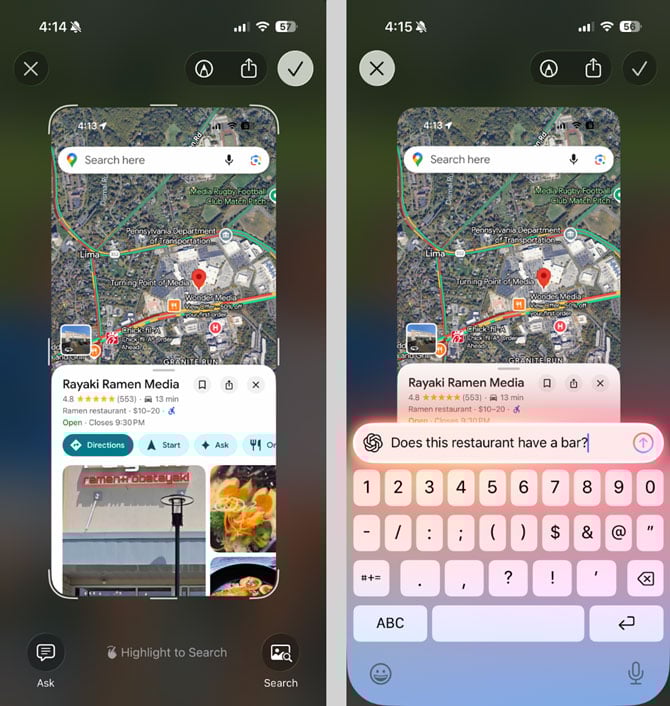
3. Try out Visual Intelligence for Screenshots
This one is very cool. When you take a screenshot of something in iOS 26, you now have an “ask” button in the bottom right corner. You can literally ask ChatGPT a question about whatever is on your screen. Want to know if a restaurant you’re looking at has a bar? Ask! Want to summarize a long article and find out the main points? Ask! Want to know what kind of dog is in a picture someone sent you? Ask! To take a screenshot, just hold down the power and volume up buttons, and in iOS 26, you’ll have the new “ask” button.
[Image credit: screenshots via Brandon Miniman/Techlicious, phone mockup via Canva]


From Linda Finley Belan on December 25, 2025 :: 5:32 pm
Besides the vision issues with Liquid Glass, which your excellent advice has fixed for me, the clock face on my apps page is now so delicate that I have a difficult time seeing it. Is there a way to get a bolder clock face version?
Reply
From Suzanne Kantra on December 26, 2025 :: 1:38 pm
There is nothing specific for the clock face, but you can turn on bold text, which should make it more legible. Go to Settings > Accessibility > Display & Text Size and toggle on “Bold Text.” You’ll see how it will appear when you toggle it on.
Reply