What a difference a year makes. The new Recap feature in Google Photos (debuting today), pulled together dozens of photos into a lively slideshow with music, to remind me of all the fun things I did do in a 2025 that wasn't always so fun. It appears right at the top of your Photos page when you open the app.
In mine, it recollected a family cruise we took to celebrate my mom's 90th birthday, sunset on Lake Erie, more family gatherings, and pictures of my friend's band. It also reasoned that my "True Passion" was "Exploring arts and culture" – featuring photos I took at the Metropolitan Museum of Art and Sotheby's Auction House. (I was just looking.)
It also showed me a photo of a luggage claim check from said cruise, pictures from a dull business meeting, and a video of a misbehaving radiator valve I had sent to my building superintendent. This was all set to the boppy, danceable 2025 song, "Enjoy Your Life" by Oby Onyioha. And, I guess Recap did capture a lot of my life – including the humdrum. By the way, this was the result even with the AI power of Google's Gemini in Photos feature turned on. That said, the vast majority of the photos it selected were very nice.
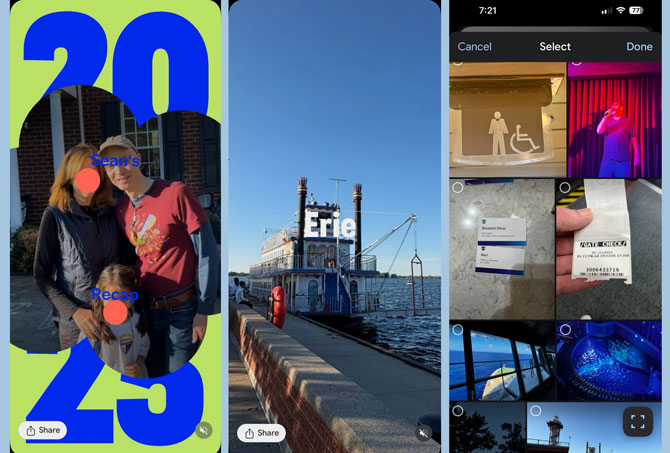
Photos Recap does allow you to edit the slideshow, removing people or individual photos. That let me easily get rid of those former coworkers at the meeting, the claim check, the valve, and other detritus. I do appreciate that capability, as it quickly yielded a much nicer presentation – one that's worth sharing. It's a lot easier to refine a premade video slideshow than to make one from scratch. Photos can export your Recap to a video file (mine was 39 MB) or a link to a download that you can send off using message apps such as email, Google Chat, and WhatsApp.
Read more: Google Maps Gets Chatty with Gemini AI Integration
If your Recap doesn't appear immediately, Google suggests the following steps to enable it. (These are based on my tests with an iPhone 16 running iOS 26 and a Pixel 9 with Android 16.)
Make sure online backup is enabled: Click your account icon in the upper right, then Backup.
Enable the face groups feature and designate the “me” face group (that's you): Go to Collections tab at the bottom, then People & pets, tap the photo of someone you want to include, then tap the three dots in the upper right and then "Select."
Enable Gemini in Photos (available in the U.S.): account icon > Photos settings > Preferences > Gemini features in Photos. Click on the toggles next to Use Gemini in Photos and Gemini-powered memories.
Ensure Memories are enabled: Go to account icon, Photos settings > Preferences > Memories > Memory types. Toggle on what and how you'd like content to be included. Then click Creations and toggle on the effects you'd like to see.
[Image credit:Screenshots by Sean Captain/Techlicious]