

There’s an email scam going around that’s alarmingly easy to fall for. Hackers are sending fake invitations – for a party or work-based activity – that install a backdoor into everything on your computer. If you make the mistake of clicking and installing it, you’ve just handed control of your PC to hackers.
Here’s how the scam happens
I came close to falling for this scam myself. When a colleague emailed me recently asking for feedback on a project, I clicked the provided link. That took me to a page which prompted me to download the invitation.
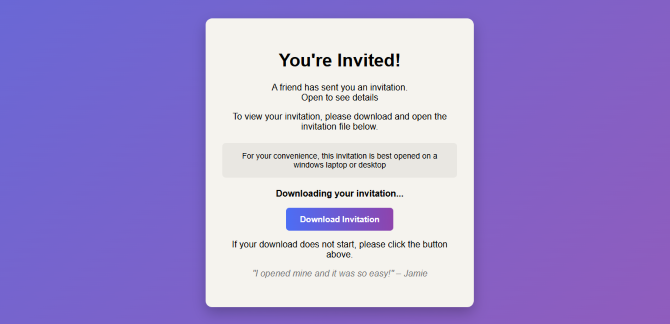
This started to make me suspicious because I expected to be taken to a feedback form, not a file download. But I went ahead and downloaded the file called “invites.msi”. An MSI file is a Windows Installer package – essentially a standardized format Microsoft uses to install software on Windows PCs. This, too, was unusual for an invitation, and I strongly suspected a scam at this point.
I ran the MSI file in a safe environment and determined that it would have installed ScreenConnect, a legitimate remote support tool widely used by IT teams. In the wrong hands, however, that same software would allow an attacker to view your screen, access files, deploy additional malware, and harvest saved credentials.
Because the tool is legitimate and often digitally signed, Windows doesn’t treat it as inherently suspicious and antivirus programs may not block it (mine didn’t). When I ran the installer file through VirusTotal, only six out of sixty-three security engines flagged it as malicious. By the time you realize something’s wrong, someone else is already inside your PC.
What to do if you’ve already fallen for this scam
If you’ve already fallen for this scam, you have to assume you have a full system compromise. The steps to fix it aren’t pleasant, but they are necessary.
The first step is to disconnect the affected computer from the internet. Turn off Wi-Fi or unplug the Ethernet cable. If remote access software was installed, this would cut off the attacker’s active session and prevent further data transfer.
Next, check whether remote management software was installed. On Windows, open Settings > Apps > Installed Apps (or “Apps & Features” on older versions) and look for unfamiliar entries, especially anything labeled "ScreenConnect Client," "ConnectWise," or similarly named remote support tools. If you see it, uninstall it.
After uninstalling, verify that the associated Windows service is gone. You can do this by pressing Windows key + R, typing services.msc and checking for any service related to ScreenConnect or a randomly named remote client. If it’s still present after uninstalling, that’s a red flag.
Then run a full antivirus or endpoint security scan using a reputable security tool (I use Bitdefender). Even though the installer may have been legitimate software, attackers sometimes use remote access to deploy additional malware.
Once the system is scanned, assume that any passwords used on that computer may have been exposed. From a separate, clean device – not the potentially compromised PC – change passwords for:
- Email accounts
- Banking and financial services
- Cloud storage
- Social media
- Work accounts
- Password manager (if installed on that PC)
Enable two-factor authentication on all critical accounts, especially email. If email is compromised, attackers can reset other passwords and reestablish access.
If the affected computer is used for work, notify your IT department immediately. In business environments, remote access compromise can lead to lateral movement inside company systems.
If the machine contained sensitive financial data, crypto wallets, or confidential work documents, a full Windows reset may be the safest course. Once someone has had interactive remote access, it’s difficult to be certain what they installed, modified, or extracted.
To reset Windows, go to Settings > System > Recovery > Reset this PC and choose the option to remove everything. Reinstalling the operating system ensures any persistence mechanisms are eliminated.
Finally, monitor financial accounts and email activity closely for several weeks. Watch for unfamiliar login alerts, password reset attempts, or new devices appearing in account security settings.
How this scam started
Once I determined that this was a real email from my colleague and hadn’t been spoofed, I followed up with him and confirmed his email account had been hacked.
Read more: How to Tell if an Email Has Been Spoofed
Once attackers got access to his inbox, they had a trusted platform to target his contacts. And the attackers weren’t just sending out the malicious link. They were actively monitoring his inbox and responding to people who questioned the email, reassuring them it was legitimate.
In my colleague’s case, either his credentials were phished or a shared password was revealed in a data breach. The root problem, though, was basic security hygiene. He didn’t have two-factor authentication enabled on his email account and he wasn’t using a password manager.
Enabling two-factor authentication (2FA) for email would almost certainly have prevented this from occurring. Even if his credentials were accidentally revealed, hackers would not have been able to gain access to his account. Setting up 2FA for your email should be considered non-negotiable.
Read more: How to Use a Passkey to Protect Your Accounts
Secondly, a password manager serves both to enable strong, unique passwords for every one of your accounts, as well as prevent phishing. Password managers won’t fill in information on phishing sites, raising a big red flag to get your attention that the site you’re on may not be legit.
I recommend 1Password (it’s what I’ve been using for years). Dashlane, as well as Apple Password and Google Password are fine options, too.
How to avoid falling for this scam
There’s one simple rule to remember: legitimate online invitations do not require you to download and run an installer file. If an “invitation” prompts you to download or open an .msi or .exe file to see the details, stop. That’s not how reputable invitation services work. More broadly, never allow any program to install on your computer unless you know exactly what it is and why you are installing it.
So, slow down when any email – even one from a colleague or friend – asks you to download and run a file. In this case, a simple “invitation” could open the door to something very, very serious.
[Image credit: Josh Kirschner/Techlicious, Techlicious via ChatGPT]


From Debbie Cole on February 26, 2026 :: 11:11 pm
I got this email and , sadly, downloaded it. It took 2 months of changing passwords, accounts, etc. Google froze my gmail account. I think the hackers were repeatedly sending the infected party invite from my email and in 2 months never gave me access to my account. After 8 weeks, I finally caught the Screen Connect on my screen with the mouse moving all over the screen. No telling how many times they were in my computer as we always left it on all night. Had to have my computer guys take the computer and they were able to repair it. The hackers got into my bank account and withdrew money from my ZELLE. Now I have her name and phone number. She also got into my Amazon and Costco accounts. Thankfully, Amazon stopped her purchases and there was no credit card in my Costco to purchase with. The 3rd time she tried my Amazon account, she left her email address. I turned this all over to the police. I sure hope they’re searching for the whole ring of them instead of just her. And, I know who she is from a return I did and never got a refund. I suspect all this is tied to that … for me anyway.
Reply