 Scammers are hijacking LinkedIn comment threads with believable fake alerts that direct you to credential-stealing sites. Get our practical tips to protect your profile.
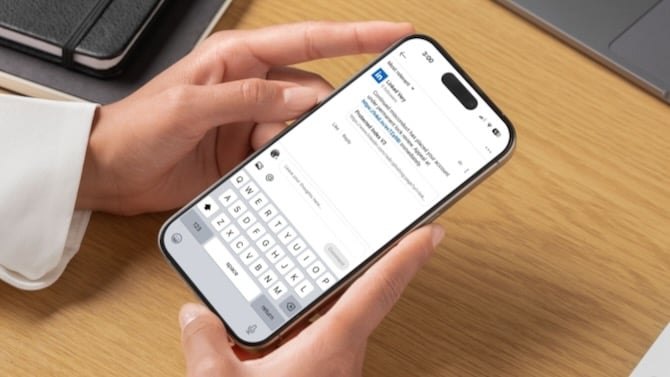
Scammers are targeting LinkedIn users with fake comment replies designed to steal login credentials, according to a report from Bleeping Computer. The comments, posted by bot accounts impersonating LinkedIn, claim your account has been "temporarily restricted" and urge you to click a link in the message to fix the problem. Some even use LinkedIn's own lnkd.in URL shortener to make the phishing links look legitimate.
LinkedIn told Bleeping Computer it is aware of the campaign and is taking action. The company also made clear that it never communicates policy violations through public comments.
How to spot phishing on LinkedIn
This scam is a reminder that phishing isn’t limited to email. It can arrive through texts, and social platforms are fair game, as well. Here's what to watch for.
Whenever you get an alert with urgency or threats, think twice. Scammers want you to panic and click immediately, so quite often these fake alerts are designed to scare you. If you see any message or comment claiming your account is restricted, suspended, or at risk, treat it with suspicion. This is especially true if it pushes you to act immediately.
If you accidentally click a link, don’t enter any personal information, and close the tab immediately.
If you're worried about your account, don't click links in comments or messages. Open a new browser tab and type "linkedin.com". If your account is restricted, you’ll see a full-screen banner indicating that. If your account is working normally, you won’t see the banner.
Read more: Google Fights $1B Text Scam Surge With New Anti-Phishing Protections
How to protect yourself from scams on LinkedIn
If you want to go the extra mile to ensure your accounts are harder to compromise, there are a few settings you can tweak.
Turning on two-step verification is the single most important thing you can do for any online account. Even if someone steals your password, they won't be able to log in without the verification code. Click your profile icon on the web or in the mobile app and go to "Settings & Privacy" (or just "Settings" on mobile) > "Sign in & security" > "Two-factor verification." LinkedIn gives you the option of using an authenticator app like Microsoft Authenticator or Google Authenticator or receiving codes by SMS texts.
You should also review where your account is logged in. Under "Settings & Privacy" > "Sign in & security" > "Where you're signed in," you can see every device currently logged into your account. If anything looks unfamiliar, sign it out on that page and change your password.
If you see what looks like a phishing comment, click the three-dot menu and select "Report post." For phishing emails claiming to be from LinkedIn, forward them to phishing@linkedin.com.
[Image credit: Screenshot by Palash Volvoikar/Techlicious, phone mockup via Canva]