This week was the final nail in the coffin for wirelessly streaming video from Netflix's mobile apps to your TV. Back in 2019, Netflix removed the ability to send video over AirPlay from iPhones and iPads. Now, it's eliminated the ability to "cast" from most Android devices (except a few older devices, mainly Chromecast sticks). Why did it do this? According to Wired, a spokesperson said that not enough Netflix members were using the feature to make it worth maintaining. In most cases, people will have to use Netflix's apps for smart TVs or add-on streaming boxes or sticks from the likes of Amazon and Roku.
That's fine if you have that gear and are in your own home. But older or cheaper non-smart TVs are still kicking around, as are computer monitors. And what if you want to watch your Netflix account on a TV at a hotel or at the homes of friends and family?
One good option is to use a small, inexpensive streaming stick, such as the Roku Streaming Stick HD 2025 (currently $19.99 on Amazon), our recommended budget product in this category. Not only is it light for travel, but you can power it through the TV’s USB port or a portable charger (it only draws 4 to 5W power).
Another is to simply use a cable.
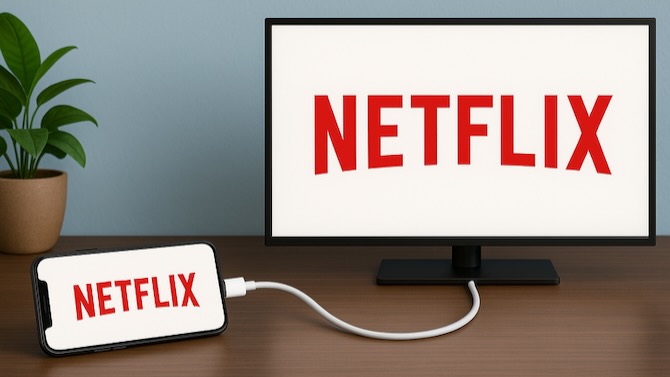
Most smartphones and tablets can output digital video and audio from their USB-C or Lightning (Apple) ports. All you need is an adapter cable that fits one of those ports on one end and a TV, projector, or monitor's HDMI port on the other. (Prices for adapters range from about $16 to $50.)
Read more: All of the Roku Streaming Players Compared
This doesn't just apply to Netflix, of course. In many cases, you can send video from other streaming apps like HBO or Disney+ over a cable, but some apps block certain adapters or connections, so success isn’t guaranteed.
Netflix's help page specifies only that cables must support high-resolution video playback, using USB version 3.1 or later. You're likely to find this on flagship models from the past few years, such as the Samsung Galaxy S21 and higher, the OnePlus 10 and higher, and the iPhone 15 Pro and higher. Netflix also states that devices with Apple's Lightning port will work, although it only guarantees success with one of Apple’s Lightning Digital AV Adapter models A1438 and A1621. See Netflix's help page for details.
In our tests, we successfully played Netflix on an LG 27MN60T monitor and a Samsung Neo QLED 8K QN900D TV, but it was not a plug-and-play experience. The Samsung TV wanted to set up the phones as devices to be operated by the TV. We had to wait until the TV gave up, select that we’d set up our devices later, and then select the HDMI input again to solve the problem. Also, the Android phone we used for testing required that we mirror the display. So you’ll want to ensure you have your phone plugged in while you watch.
For our testing, we used the following setups:
- An iPhone 14 Pro with the $29.99 (list price $49.00) Apple Lightning to Digital AV Adapter
- An iPhone 16 Pro Max and Google Pixel 10 Pro Android phone with the Anker USB C to HDMI Cable for Home Office (there’s a newer version, the Anker HDMI Cable, 4K@60Hz Ultra-Fast Nylon-Braided USB C to HDMI Cord).
Netflix's help page recommends the Belkin Connect USB-C to HDMI Adapter ($40.99, list price $49.99) for Apple devices, although any quality adapter or cable that meets the standards it specifies should work.
Read more: Take Advantage of Your TV's Big Screen to View Your Photos
Very important: You will also need an ad-free Netflix account. We got a blank screen and an error message when trying to play videos from the ad-supported tier from an iPhone 16 to a 2023, 43-inch Vizio V435M-K04 TV using an Apple USB-C Digital AV Multiport Adapter (model A1621). However, we could play videos from other apps: Apple TV and Hulu (on the ad-supported plan). You also can't stream Netflix from a mobile-only plan.
Fortunately, retailers such as Amazon offer free returns, typically 30 days (often longer around the holidays), in case you don't succeed with a particular adapter.
To reduce the chance of failure, check with the phone maker if your model supports USB version 3.1 or later and video output. Also look for a cable described as supporting digital rights management, content protection, or HDCP. Premium content is often encrypted and requires decryption on a display that can enforce its licensing terms. All the adapters we've mentioned here support rights management. Also check if the manufacturer specifies particular phone or tablet models it supports.
[Image credit: Illustration by Sean Captain/Techlicious via ChatGPT]