We may earn commissions when you buy from links on our site. Why you can trust us.

Best Budget Backup Phones (Unlocked) for Emergencies
For many of us, phones are our lifelines to our work and personal lives. If that phone goes AWOL - whether lost or stolen, accidentally broken in a drop, or deactivated due to a SIM swap - we would be facing a communications disaster.
Additionally, losing access to your phone hampers other essential tasks. For instance, since you no longer have access to the phone that has your password manager and 2FA apps, you won’t be able to log in or authenticate yourself and will, in turn, find yourself locked out of your banking or other online accounts. Similarly, you’d lose access to ride-hailing and navigation apps and may not be able to book rides and navigate your way around the city. Being unable to make online payments can be another pain point, especially in a foreign country.
Having a backup phone with a different SIM installed can prove to be a lifesaver in such scenarios. It’ll bring you online instantly and allow you to inform your contacts about your whereabouts or request help if needed. Similarly, it’d ensure you have access to all your online accounts as well as essential apps, such as those for banking, navigation, ride-hailing, and payments.
While any phone on the market can be a backup phone if your budget permits, it isn’t a wise financial choice. Read on as we break down what to look for when buying a backup phone to get the best value and share our top picks that you can consider buying.
What To Look For in a Backup Phone
You can evaluate whether the phone you’re considering as a backup phone is a solid choice if it satisfies the following conditions.
Capable of everyday tasks
You must keep your everyday workflow in mind when choosing a backup phone. Does your work primarily involve taking calls and replying to messages? A feature phone could serve you just fine. Do you need to click photos or videos, reply to emails, attend team meetings via Zoom, or stay in touch with your team on Slack? You strictly need a smartphone. Essentially, choose a phone that can serve as your main one until your primary phone is fixed or you get a new one.
Good battery life
The battery on your backup phone should last multiple days. That way, if you forget to charge it every day, you can rest assured that there’ll be enough juice to power the device when you pick it up for use. Good battery life can also help during emergencies, such as when you get stranded in an area with a power outage or where charging outlets are scarce.
Dual-SIM support
A dual-SIM backup phone serves two purposes. First, it allows you to keep a functional secondary SIM on the device, which you can use when your primary number is unusable. Second, it lets you insert your primary SIM into the backup phone when your primary phone is unusable or lost, ensuring your communication isn’t affected.
Carrier unlocked
Carrier-locked phones are often available at enticing prices, but you should refrain from buying them, as they lock you down to just one carrier. You want your backup phone to be carrier-unlocked, as it offers flexibility across networks and ensures you can insert a SIM card from any carrier, no matter where you are in the world, and it’d work just fine.
Our Top Budget Backup Phone Picks
Now that you know what to look for, you can research and find a backup phone yourself online. However, to save you the hassle, we’ve picked some of the best budget backup phones you can buy under $200. These phones are catered towards users with different needs. Choose one based on your requirements.
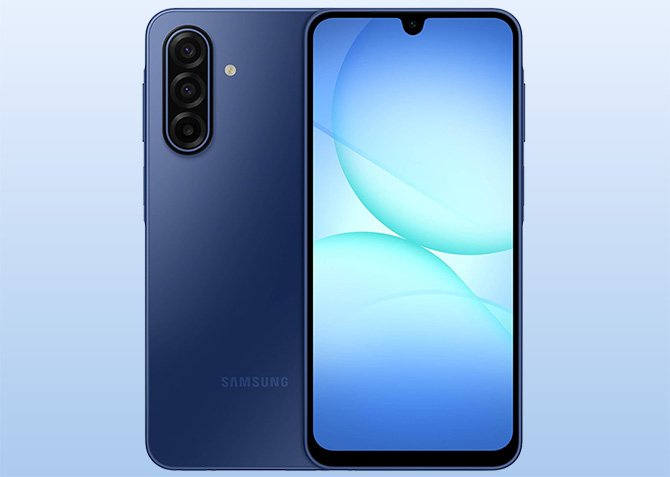
Samsung Galaxy A17 5G
The Samsung Galaxy A17 5G (just under $200) is a solid choice if you need a backup smartphone. It features a 6.7-inch vibrant display with a 90Hz refresh rate, rich colors, and good contrast, making it useful for editing photos and consuming media. Under the hood, there’s an Exynos 1330 chipset, coupled with 4GB of RAM, which is enough to handle most everyday tasks. Powering the internals is a 5,000mAh battery, promising a full day’s use on a single charge.
Out of the box, the Galaxy A17 runs One UI 8 (based on Android 16). Samsung promises six years of major OS upgrades and security patches for the device. This alone makes the Galaxy A17 stand out from other phones, as it ensures you don’t have to worry about upgrading your backup phone for the next few years.
Price: $199.99
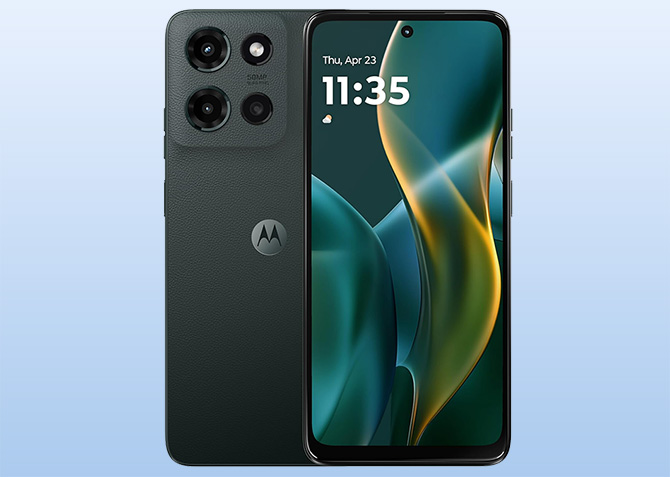
Motorola Moto G 2025
While the Galaxy A17 is a solid backup phone option, it runs One UI, infamous for bloating the software experience. If this bothers you, consider the Moto G 2025 instead (also just under $200), which offers a relatively clean Android 16 experience. Although it, too, has a 5,000mAh battery, Moto’s optimization allows it to last two days with moderate use.
As for other specs, the Moto G 2025 features a 6.7-inch 120Hz LCD display, making it suitable for media consumption. It’s powered by a MediaTek Dimensity 6300 chipset and has 4GB of RAM. While this chipset could struggle with slightly demanding tasks, such as video editing, it can endure basic everyday tasks just fine. Motorola promises two years of major updates and three years of security updates for the Moto G 2025, so you’re good until 2027.
Price: $174.99
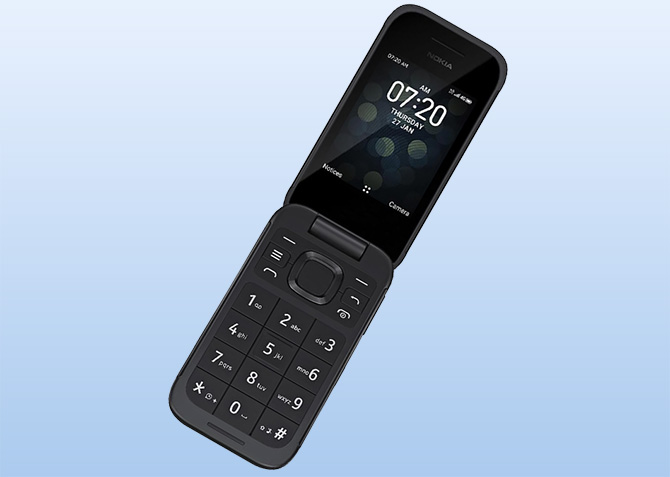
Nokia 2780 Flip
If your work primarily involves taking calls or replying to messages, you’ll be fine with a feature phone. It’s also a wise choice if you want a cheap, compact phone that you can easily throw in your bag or pocket – and not have to worry about taking care of.
While there are many feature phones available on the market, the Nokia 2780 Flip stands out with its clamshell-style design. It evokes nostalgia from the early 2000s, allowing you to relive the classic flip-to-answer and snap-to-shut actions that many of us grew up loving.
Nokia offers two screens on the 2780 Flip: a 2.7-inch TFT screen on the inside and a 1.77-inch display on the outside for quick glances. It uses a Qualcomm Snapdragon 215 processor and has 512MB of RAM. There’s a 1,450mAh removable battery, which Nokia claims offers seven hours of talk time and 18 days of standby time on a single charge, so you don’t need to charge it nearly as frequently as a smartphone.
Price: $98.99
Get Your Backup Phone Ready for Use
After you've bought a backup phone, it's time to set it up. The basic setup typically involves buying a secondary SIM card (if you don’t already have one), installing it on your device, and completing the initial setup.
You can pick a SIM card with a prepaid or postpaid plan, depending on your usage and preference. A prepaid plan, where you recharge your account upfront for a fixed amount of service, is ideal for light to moderate users. On the other hand, if you need an unlimited and uninterrupted plan, a postpaid plan makes more sense, as it bills you at the end of each month based on your usage.
Now, if you’ve purchased a feature phone, you’re all set. However, if it’s a smartphone, there are a few additional steps you should take. These will safeguard the phone against privacy and security risks, ensuring it can serve you well when your primary phone isn’t available.
1. Set up your key online accounts
Setting up key online accounts – the ones you use on your primary phone, such as Google, Samsung, and banking apps – on your backup phone is a crucial step. It ensures you don’t lose access to important communications. Similarly, it ensures you have access to verification codes or account recovery options. That way, you don’t face downtime or get locked out of other accounts when your primary phone is lost or inaccessible. You can also set up the phone using Google’s Android Backup. Though these backups can be huge and may overload the storage on your secondary device
2. Install your password manager app
For times when you can’t access your primary phone, it’s important to install your preferred password manager app, such as 1Password, Dashlane, or Bitwarden, on your backup phone. This way, you continue to have access to all your online account credentials and can log in to them when needed.
3. Install and set up an authenticator app
If you use a 2FA app like Google Authenticator or Authy, install and set it up on your backup phone. This instance of the app will act as a backup and help avoid account lockouts when your primary phone fails, ensuring you can use the TOTPs (Time-based One-Time Passwords) to authenticate yourself and log in to your online accounts, even when there’s no cellular coverage.
4. Store copies of critical information
There could be times when you may find yourself stuck in places where there’s no internet. For such times, it’s best to store copies of critical information on your backup phone, so they’re always readily available. This can include your account recovery keys and emergency contacts, among other things, which you can save easily in your password manager, as long as it supports them. Besides, you should also scan and save copies of identification and other critical documents on your device.
Stay Prepared!
Buying a backup phone and setting it up is one thing, but you should also check on it regularly so that it’s ready for use when needed. This typically includes keeping the phone fully charged, updating it to the latest software, keeping the installed apps updated, and ensuring that the secondary SIM has an active plan.
[Image credit: Samsung, Motorola, Nokia]