
We may earn commissions when you buy from links on our site. Why you can trust us.

The best authenticator apps to protect your accounts in 2026
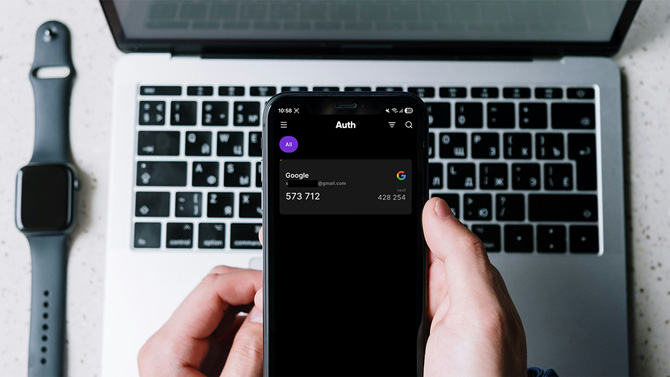
Using a strong password is critical to keeping your online accounts secure. However, it isn’t enough on its own in today’s online threat landscape. Even the strongest passwords can fail in the face of data breaches and are susceptible to keylogging, phishing, and other online threats.
That makes enabling two-factor authentication (2FA) on your accounts essential. Once done, your account prompts you for a second verification after entering the correct password. This ensures that even if someone has your password, they won’t be able to log in until they authenticate successfully.
You can enable two-factor authentication on your accounts in multiple ways: SMS codes, email codes, authenticator apps, push notifications, and hardware security keys. Below, we break down why that is the case and what to look for when choosing a 2FA app. We’ll also share our top recommendations for authenticator apps at the end.
Why choose authenticator apps over other 2FA methods?
Authenticator apps generate codes locally on your device. So they work even without a cellular or Wi-Fi connection, and they aren't tied to your phone number. That means SIM swapping can’t touch them. Codes typically refresh every 30 seconds, which gives any would-be attacker an extremely narrow window to act. And because there are no push notifications to approve, you avoid the risk of accidentally approving a fraudulent login request. However, there is still the risk of being phished or being infected with malware that can capture codes in real time.
For a deeper look at how 2FA works and how the different methods stack up, see our complete guide to two-factor authentication.
How to choose the right 2FA app
There are dozens of authenticator apps out there, and they’re not all created equal. Some skip features you’ll actually miss; others bolt on extras that add complexity without adding security. Here’s what actually matters when you’re choosing one.
Security audits and open-source code: The most trustworthy 2FA apps are regularly audited by independent security firms – outside experts paid to find vulnerabilities before bad actors do. Open-source code adds another layer of accountability: when an app’s code is publicly available, any developer or researcher can inspect it for hidden flaws or backdoors. Both matter, but third-party audits are the higher bar. An app can be open-source and never audited; an app that undergoes regular independent audits has actually proven its security claims, not just asserted them.
Easy to set up and use: You want your 2FA app to have a clean interface, so you can quickly get in and check or copy the code without having to navigate multiple menus. Additionally, you want it to follow a simple setup process, as a complicated setup can often discourage you from setting up 2FA for all your accounts, leaving them vulnerable to online threats.
Most apps simplify the setup process by allowing you to scan a QR code. But that’s not enough. You also want other options in case your phone’s camera is broken, or you’re setting up 2FA on the same device. Look for apps that also offer the option to manually enter a secret key or import a QR code from your phone gallery.
Essential features: Look for a search bar, manual sorting, and the ability to import and export your codes. Import lets you bring your accounts over from another app; export means you’re never locked in. App lock is non-negotiable – it prevents anyone who picks up your unlocked phone from reading your codes. Tap-to-copy and next code preview (which shows the incoming code before the current one expires) are small conveniences that add up fast.
Secure and encrypted backups: Backup is another non-negotiable feature in an authenticator app. It ensures your secret keys for all accounts are backed up online in an encrypted manner. That way, if your device breaks, gets lost, or is stolen, you don’t get locked out of your accounts, nor do you have to manually reset two-factor authentication on every single account. You simply need to restore the secret key on another device, and the app will start generating fresh codes immediately.
While having the backup feature is essential, it’s equally crucial for a 2FA app to secure and encrypt the backups. It prevents unauthorized access to the secret keys, keeping your accounts secure even if someone manages to get hold of the backup.
Multi-platform support and cross-device sync: If you use more than one device or plan to switch ecosystems, you want an app that works across Android, iOS, macOS, and Windows – and keeps your codes in sync across all of them automatically. That way, adding a new account on your phone shows up on your computer too, with no manual copying required.
Best authenticator apps to protect your accounts
If you’ve read about 2FA, you’ll have most likely heard about Google Authenticator, Microsoft Authenticator, and Codes in Apple's Passwords app. All of these apps sync with the cloud, making it easy to keep your codes backed up. However, there are a couple of good reasons to choose an independent 2FA app.
Authenticators tied to your Google, Microsoft, or Apple account are convenient because your codes sync automatically. But that convenience comes with a trade-off. If someone gains full control of your account – not just your password, but enough access to pass its security checks – they could potentially load your codes onto another device.
There are also differences in how these platforms handle security. Apple and Microsoft protect authentication data with end-to-end encryption addition, while Google has said that end-to-end encryption is coming for Authenticator. However, it's unclear whether encryption is currently in place.
That doesn’t make these apps unsafe. But if you want to keep your second factor fully independent, an authenticator that isn’t tied to a major account – or that gives you more control over how backups are handled – can offer better separation between your password and your 2FA codes.
Ente Auth
Best for: users who switch between platforms
Ente Auth is the most versatile of our three picks. It stores your account seeds – the secret keys the app uses to generate your login codes – in its own encrypted cloud, so your codes sync seamlessly across every device and platform you use. And unlike most apps that make that claim, Ente Auth backs it up with regular independent security audits.
As for usability, the Ente Auth app has a sleek interface that’s easy to navigate. It offers multiple ways to set up 2FA, easy import options to quickly import your account seeds from other 2FA apps, and organizational features like tagging and pinning. Other notable features include next code preview, a search bar for finding accounts, and notes to add important information to your entries. You also get the ability to securely share specific codes with others.
Ente Auth offers native apps for all major platforms: Android, iOS, Linux, macOS, and Windows. Plus, there’s a web version, accessible via a web browser.
2FAS
Best for: users who want maximum privacy and stick to one ecosystem
2FAS is another open-source and privacy-focused 2FA app. Unlike Ente Auth, it doesn’t use its own cloud service for backups. Instead, it creates an encrypted file containing your account seeds and stores it on Google Drive (on Android and Windows devices) or iCloud Drive (on Apple devices), allowing authentication codes to appear across all devices within the same ecosystem. As such, if you hate signing up for new services and don’t like the idea of having all your data stored on a central server, 2FAS is your best bet.
That said, 2FAS’s added security comes at a cost. If you want to access codes on two different devices, like an Android and an iPhone, you’d have to set up 2FAS on one device, then copy the backup file and move it to the other device’s cloud storage. Similarly, changes like adding a new account or removing an existing account won’t be synced automatically; you’d need to copy the backup file over again.
On the desktop, 2FAS offers a browser extension that simplifies entering authentication codes. Once you’ve paired the extension with your app, it detects the 2FA box and sends a push notification to your phone. Approve the request, and your phone sends the code to the browser, where it’s typed into the field automatically.
Moving on to other features, the 2FAS app offers multiple app lock options, quick search, next code preview, custom groups to organize accounts, and the ability to hide codes. For those with an Apple Watch, there’s a native 2FAS app that shows your authentication codes right on the wrist for quick entry.
Proton Authenticator
Best for: existing Proton users or Google/Apple/Microsoft skeptics
Proton Authenticator is the newest of our three picks, launched in 2025 by the Swiss privacy company behind Proton Mail and Proton VPN. It’s the natural choice if you already use other Proton services and want your 2FA app under the same trusted roof, with end-to-end encrypted sync across all your devices. It also works entirely without a Proton account, making it a strong option for anyone who distrusts Google and Microsoft but wants a cross-platform app with a proven privacy track record. Note that it’s still a relatively young app – some users have reported minor sync and import bugs – so if rock-solid reliability is your top priority today, Ente Auth is the safer bet.
Similar to Ente Auth, Proton Authenticator offers end-to-end encrypted backup and sync, ensuring your account seeds are unreadable. This also means your codes are in sync at all times, and any changes you make are immediately synced across all devices, regardless of the ecosystem. Similarly, Proton Authenticator has undergone third-party security audits, offering added peace of mind.
With the Proton Authenticator app, you get multiple options for setting up accounts, as well as a quick and easy import method for importing accounts from various apps. Among other features, the app offers quick search, next code preview, and the option to hide codes. You can also lock the app to prevent unauthorized access. Proton Authenticator offers native apps on Android, iOS, macOS, Linux, and Windows. Plus, there’s an Apple Watch app to view your codes directly on your wrist.
Want to level up security? Get a hardware key
A 2FA app is a straightforward and secure way to protect your accounts with two-factor authentication. Based on your preference, you can use any of our suggested 2FA apps or find one that ticks the boxes shared above to strengthen the security of your email, bank, and various other accounts.
That said, if you want even greater security, perhaps because you need to access high-stakes accounts or your accounts hold sensitive data, a hardware security key will serve you better. Anyone trying to hack your accounts would need physical possession of your key, and the key itself verifies your identity, so there’s no code to intercept in a typical phishing attack. It's quicker than typing in a code, but you have to remember to carry your key. You can get a hardware security key, like the Yubico Security Key for as little as $29.
Read more: How to Use a Hardware Security Key to Protect Your Accounts
[Image credit: Screenshots via Techlicious, phone mockup via Canva]

