


Installing Google Calendar as a Chrome web app lets you receive appointment notifications while working in other Windows applications, without keeping a browser tab open.
Image credit: Josh Kirschner/Techlicious
I've been incredibly frustrated with Google Calendar notifications. When I'm heads-down working, I regularly lose track of time and end up missing meetings because I'm not getting appointment reminders on my Windows desktop. And this is despite having desktop notifications enabled in Google Calendar's settings.
It turns out the problem wasn't my notification settings. Google Calendar has a frustrating limitation: It needs to be open in your browser for desktop notifications to work. Close the Calendar tab, and you may stop getting reminders, even if Chrome or other Google apps, like Gmail, are still running.
That seems like a pretty significant limitation for a calendar service that's supposed to help you stay on schedule.
To solve this problem, I could just leave Google Calendar open in a browser tab all day. But I already have far too many tabs cluttering my browser, and I don't want to keep another one open just to make sure I don't miss a meeting (or risk closing it by mistake and missing my meetings again).
Fortunately, I found a workaround that doesn't require installing Outlook or switching calendar services. You can install Google Calendar as a standalone Chrome web app and configure it to launch automatically when you sign in to Windows. That lets you minimize Calendar to your taskbar while keeping appointment notifications working, without dedicating a browser tab to it.
Here's how to install the app and ensure everything else is set up to receive your desktop reminders.
1. Get Google Calendar notifications with the Chrome web app
Chrome lets you install websites as standalone web apps, giving Google Calendar its own window without separate browser tabs or an address bar.
- Open Chrome and go to calendar.google.com.
- Click Chrome's three-dot menu (not Calendar settings) and select Cast, save, and share > Install page as app. Depending on your version, you may also see an installation icon in the address bar.
- Confirm the installation, then right-click the Google Calendar icon on your Windows taskbar and select Pin to taskbar.
You can now minimize the Google Calendar app and still receive desktop reminders while working in other applications. Just don't close the app, since it needs to remain running for notifications to work.
Make Google Calendar start automatically with Windows
To avoid having to open Calendar manually every morning, configure it to launch when you sign in:
- Open Chrome and enter chrome://apps in the address bar.
- Right-click Google Calendar.
- Select Launch at startup, if available.
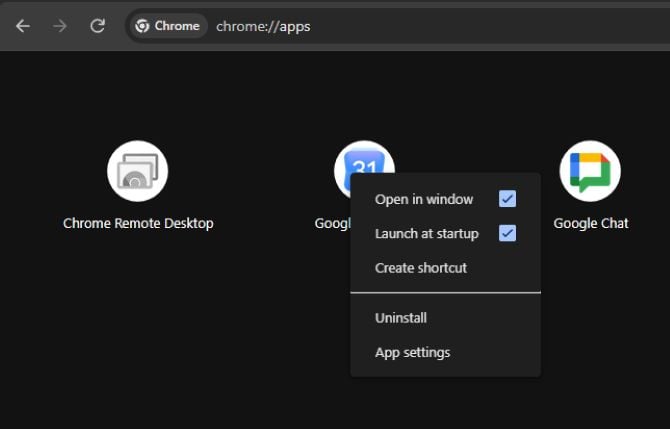
Enable Launch at startup in Chrome's Apps page to automatically open Google Calendar when you sign in to Windows.
Image credit: Josh Kirschner/Techlicious
2. Make sure Google Calendar desktop notifications are enabled
Google Calendar has two notification styles, and which you choose may make the difference between jumping on your call or carrying on blissfully unaware. Desktop notifications appear outside the Calendar window, so you will see an alert no matter what you're currently doing on your computer. Alerts only appear inside the Calendar Window, making it more likely you may miss an alert when the Calendar window is hidden.
So, make sure you have things set for Desktop. Honestly, I don't understand why Alerts is even an option.
Open Google Calendar, click the gear icon, and go to Settings > General > Notification settings. Under Notifications, select Desktop notifications, rather than Alerts.
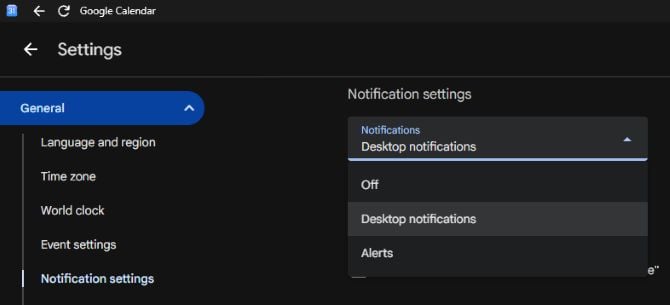
Select Desktop notifications in Google Calendar's settings to receive appointment reminders outside the Calendar window.
Image credit: Josh Kirschner/Techlicious
3. Check Chrome and Windows notification permissions
There are a few other settings that can prevent notifications from appearing, even if you have the Calendar app set up correctly.
In Chrome: Enter chrome://settings/content/notifications in the address bar. Make sure calendar.google.com is allowed to send notifications. If it's blocked, change its permission to Allow.
In Windows 11: Open Settings > System > Notifications and confirm that notifications are enabled for Google Calendar or Google Chrome, whichever appears in your list. Make sure notification banners are allowed.
Also check Do not disturb, which can suppress notification banners even when everything else is configured correctly.
Test your reminders
Create a temporary appointment about 10 minutes in the future with a notification set for five minutes beforehand. Minimize the Calendar app and switch to another program. If the notification appears, your setup is working.
The bottom line
Google Calendar's desktop notification system has an inconvenient dependency: Calendar needs to remain open to deliver reminders. That's easy to overlook, especially when you've already enabled notifications and assume they'll work whenever Chrome is running.
Installing Google Calendar as a Chrome web app and having it launch automatically with Windows solves the browser-tab problem without requiring another calendar service. The app still needs to remain running, and reminders won't appear while your computer is asleep. But once you've configured it, you can receive appointment notifications while working in other applications without keeping another tab open in your already crowded browser.
FAQs about Google Calendar notifications
Can I get Google Calendar notifications without keeping Chrome open?
Yes. You can receive Google Calendar desktop notifications without keeping a regular Chrome browser window or Calendar tab open. Install Google Calendar as a Chrome web app and leave its separate window running, even if minimized. You can also configure the app to launch automatically when you sign in to Windows.
Does Google Calendar have a desktop app for Windows?
Google doesn't offer a native Google Calendar application for Windows, but you can install Calendar as a web app through Chrome, Microsoft Edge, or Firefox. It opens in a separate window that you can pin to your taskbar, providing an experience similar to a desktop application.
Can I use the Chrome Google Calendar app while browsing with Edge or Firefox?
Yes. You can install Google Calendar as a Chrome web app while continuing to use Microsoft Edge or Firefox as your default browser. The Calendar app runs in its own window, independently of your regular browsing sessions. You don't need to keep a regular Chrome window open or make Chrome your default browser.
What's the difference between Google Calendar desktop notifications and alerts?
Desktop notifications appear outside the Google Calendar window, allowing you to see reminders while working in other applications. Alerts appear inside the Calendar window, making them easier to miss if Calendar is minimized. For Windows users, Desktop notifications are generally the better choice.
Why do I get Google Calendar notifications on my phone but not my computer?
Google Calendar's mobile and desktop notifications work independently. The Android and iPhone apps deliver reminders through their operating systems, while desktop notifications depend on browser permissions, Windows notification settings, and Google Calendar being open.
Can Google Calendar notifications wake my computer when asleep?
No. Google Calendar notifications can't wake a Windows PC from sleep. Reminders can only appear when your computer is awake and the Calendar app is running.

