
We may earn commissions when you buy from links on our site. Why you can trust us.

Lenovo Googlebook 15 review: Is it worth $1,099?
by Sherri L. Smith on November 02, 2026

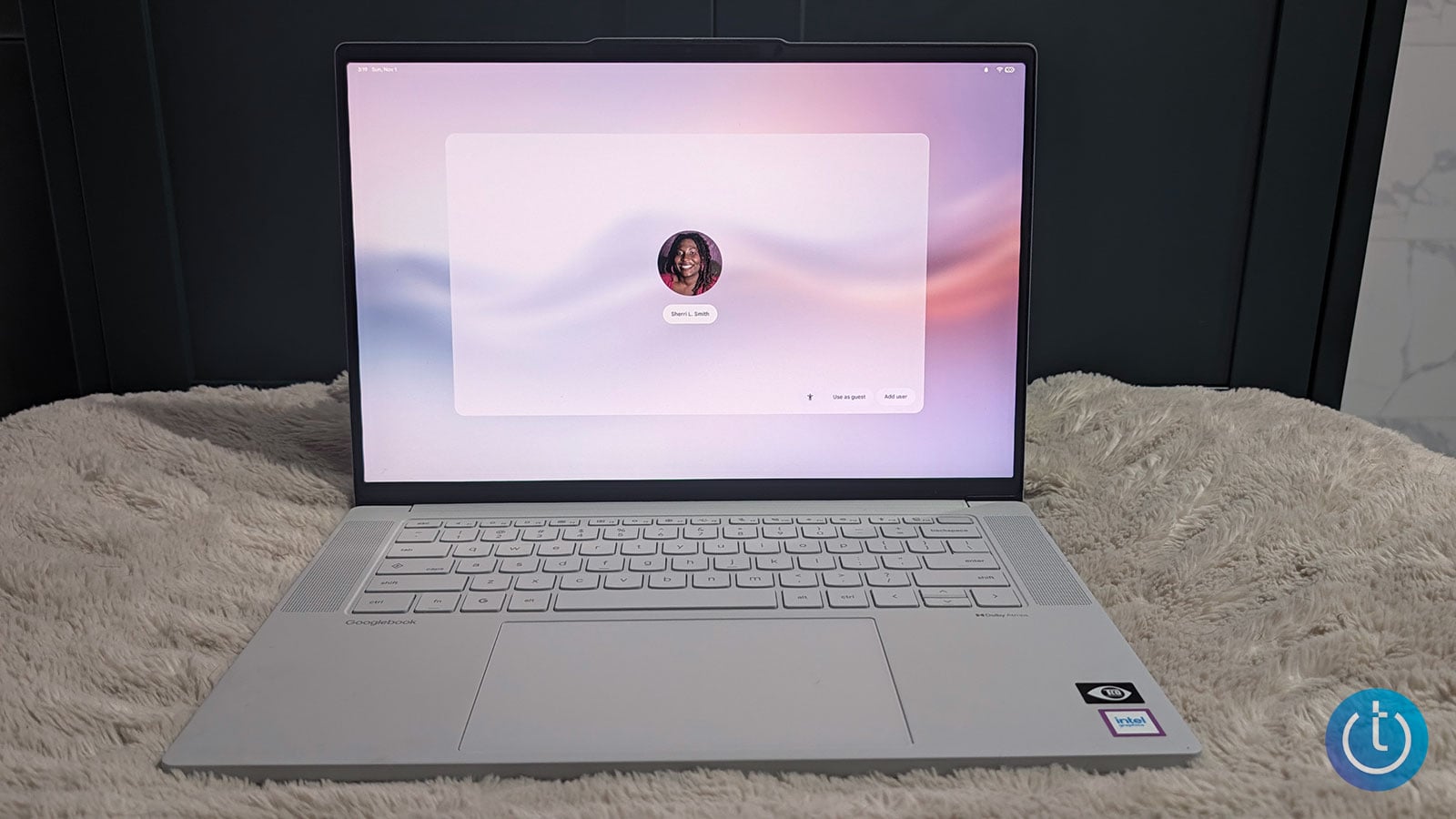
Lenovo Googlebook 15 in cloud grey.
Sherri L. Smith/Techlicious
I've been in a digital throuple for years: just me, my smartphone, and my laptop. Sure, there have been ups and downs, but it’s been a happy, stable relationship for the most part. I’d just like my main pieces of tech to communicate better. The Lenovo Googlebook 15 aims to make that happen, bringing Android apps, files, and activities onto a bigger screen while putting Gemini within easy reach. Starting at $1,099, it’s asking you to buy into Google’s vision of a more connected, AI-powered laptop.
Fortunately, Lenovo hasn’t forgotten the laptop part. The Googlebook 15 pairs a gorgeous OLED touchscreen with a lightweight, soft-touch chassis, performance that survived my Chrome tab collection, and enough battery life to get through my workday. But with an ordinary keyboard, underwhelming bass, and some AI features still finding their footing, does it do enough to earn a place beside your Android phone?
Pros:
- Elegant, durable design
- Strong performance
- Bright, vibrant display
- Good battery life
Cons:
- Mushy keyboard
- Subpar audio performance
Key Specs
The Googlebook 15 I reviewed is configured with an Intel Core Ultra 5 325 processor, 16GB of RAM, a 512GB M.2 2242 SSD, integrated Intel Graphics, and a 15.3-inch, 2.8K (2880 x 1800) multi-touch OLED display. You can get the Googlebook 15 starting at $1,099 at Best Buy.
Googlebook vs Chromebook
I know what you’re thinking. Isn’t the Googlebook just a fancy take on the Chromebook? Not exactly. Chromebooks run ChromeOS and are designed for everyday productivity, entertainment, and multitasking, with an emphasis on web apps and cloud services such as Google Workspace. Although ChromeOS does work with some Android apps, it offers limited phone connectivity.
Googlebooks, on the other hand, lean heavily into smartphone integration. So much so that your Android phone is included in the initial notebook setup, with a prominent icon for quick access. Googlebook OS blends ChromeOS and Android 17 and supports desktop windows for Android apps. That means you’ll have an easier time interacting with your smartphone apps on your desktop. Smartphone files can also be accessed easily, with instant access similar to a local drive.
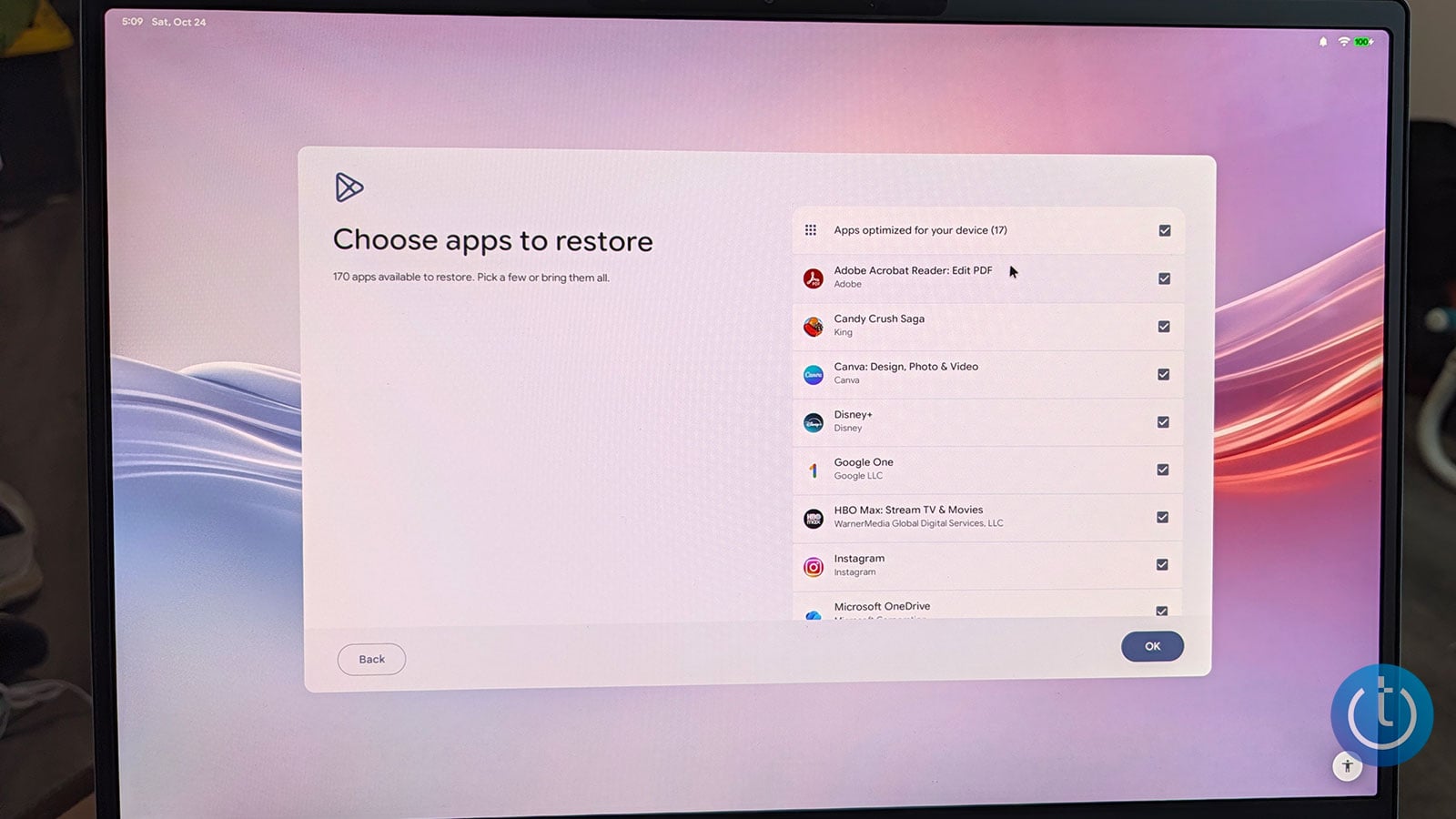
Googlebooks allow you to install apps from your phone during setup.
Sherri L. Smith/Techlicious
There are some trade-offs, though. Googlebook OS needs apps built for its desktop environment to deliver the same capabilities you'd expect from Windows or Mac software. Right now, there are only a handful of those desktop apps available. Most of the apps you'll use are Android apps, which may not have all the features or functionality of their desktop counterparts. That's worth considering if you rely on specific software for work.
Gemini and AI features
One of the biggest differences between a Googlebook and a Chromebook is that the former has Gemini Intelligence baked into the OS, offering AI-powered system tools that provide instant contextual screen analysis. Magic Pointer is the most forward-facing feature. With a quick wiggle of the cursor or a click of the button on the AI mouse, Gemini launches with context awareness, ready to interact with whatever’s on the screen. I used Magic Pointer when redeeming the GeForce NOW offer. After hovering over some copy, Gemini gave me options to explain how to redeem the offer, compare rival cloud services, or check out a list of top games.
For fans of voice dictation, there’s Rambler. Powered by Gemini, the feature captures your spoken voice and turns it into text. From there, it can organize your stream of consciousness into checklists and easy-to-read formats. Best of all, it removes those annoying filler words we sometimes rely on as we transition from one thought to the next. It’s a godsend for someone like me who ums and ahs her way through life.
Throughout the course of a device’s or software’s life, most of us have several go-to apps or features that we want to access on the fly. For those occasions, Google’s developed Create My Widget. Go to an empty section of the Home screen, right-click, select Browse widgets, and then select Create. From there, you can describe what kind of widget you want, and Gemini will make it. Keep in mind that Create My Widget is still in beta, and there are some kinks left to work out. I tried to create a widget for the games I installed, but the process failed midway and prompted me to try again later. I tried two more times with no luck.
Modern Chromebooks also utilize Google Gemini, even offering a dedicated Gemini button. However, most of your Gemini interactions take place through Chromebook Plus tools or browser tabs.
Android phone integration
In addition to AI-powered goodies, Google is big on smartphone/laptop integration. So if you have an Android phone running Android 17, you have a few features to check out.
I’m constantly downloading PDFs and slideshows for work. And since I work on both my phone and laptop, keeping track of everything can be a little overwhelming. The Files feature alleviates that headache, allowing me to search for my smartphone files and photos on the Googlebook 15, as well as open them.
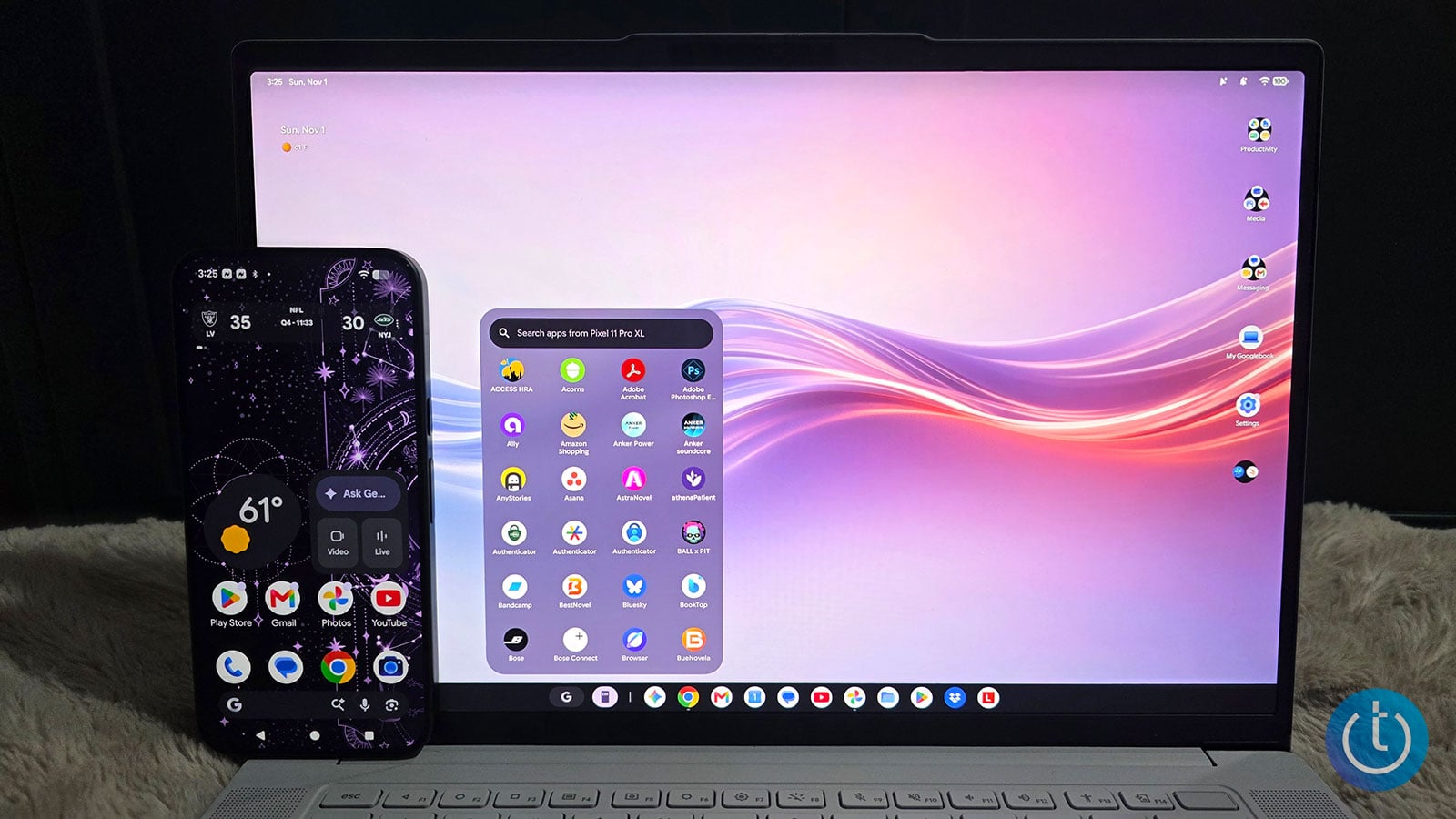
Integration with Android devices lets you easily search for files and apps on your phone.
Sherri L. Smith/Techlicious
Continue On also speaks to my work and lifestyle, which is split between devices. When enabled, Continue On will launch a notification to resume your activity from your smartphone on your Googlebook. So when I took a break from reading Tracy Deonn’s “Legendborn” on my Pixel 11 Pro XL, I saw a Google Books icon with a smaller phone icon. When I clicked on it, Google Books launched at the exact spot I left off on my phone, and I spent another hour reading on a much larger screen.
Cast My Apps is fairly straightforward. Casting a YouTube video to a television screen works the same way here, except for apps. That meant I could access my phone's apps without having to pick it up. When I signed into something that needed two-factor authentication, the notification appeared on my Googlebook. And when I wanted to be nosy and get a couple of guffaws going, I just started scrolling through my Threads feed.
Design
But while Google would have you believe we’re entering a new era of Google compute, the design says otherwise. The moment I laid eyes on the Googlebook 15, I immediately had flashbacks to 2019’s Google Pixelbook Go, especially when I saw those grooves along the undercarriage. The Cloud Gray chassis is made of magnesium-aluminum but has a soft-silk finish that makes you want to constantly run your fingers over it. Guess it’s a good thing that it’s fingerprint-resistant.
But the Googlebook 15 can take more than a heavy petting session. With MIL-STD-810H certification, the notebook can withstand a few bumps and bruises.
The lid is bare except for the chrome Lenovo emblem in the center and the Glowbar sitting just below the lid’s lip. The glowing rainbow bar is more than a pretty accent; it also serves as a status and battery indicator. A white bar indicates normal use, while a green bar means a full battery. Medium and low battery levels are indicated by yellow and red lights, respectively.
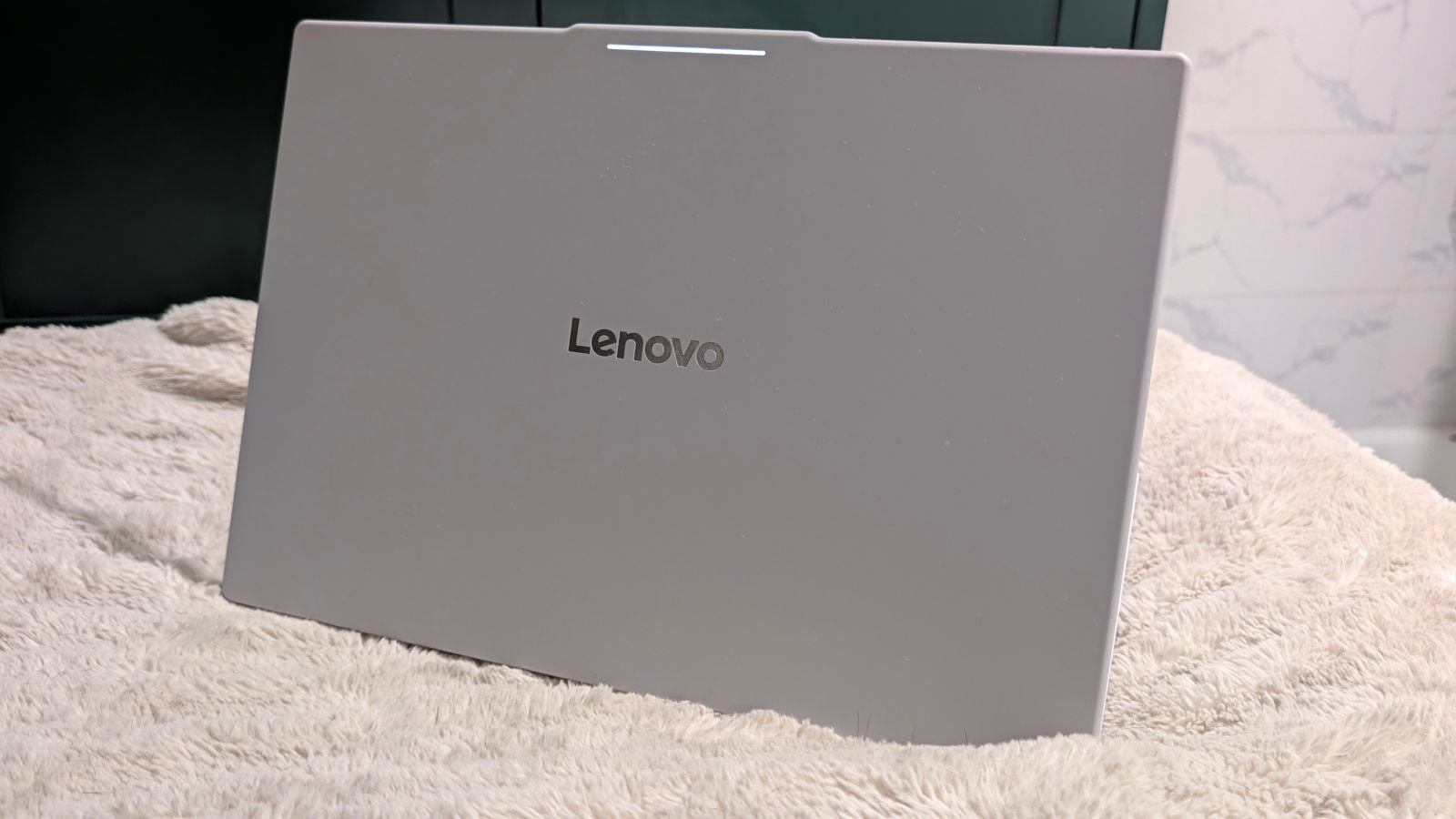
Glowbar's white color indicates everything is operating normally.
Sherri L. Smith/Techlicious
The laptop’s interior has more of that lovely soft-silk finish on the keyboard deck. The chiclet keyboard sits between a pair of speakers and above a massive haptic trackpad. The 15.3-inch display is held in place by a long hinge and surrounded by relatively thin borders. The 5-megapixel camera resides in the top bezel.
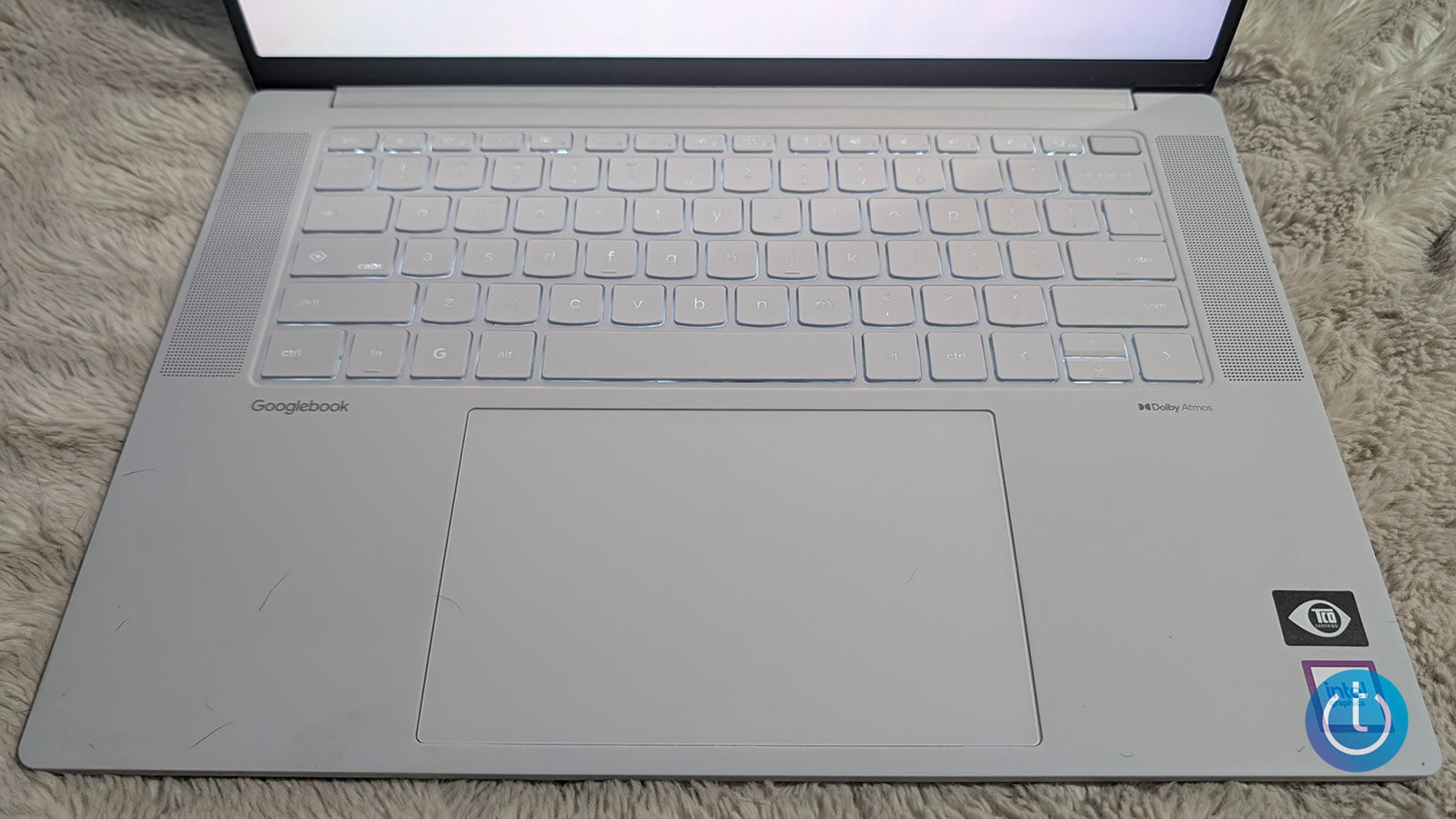
The Googlebook 15 reserves a lot of space for its trackpad, located under the backlit keyboard and Dolby Atmos speakers.
Sherri L. Smith/Techlicious
The Googlebook 15 is the largest of the five Googlebooks launched this fall; its 13.4 x 9.3 x 0.63-inch frame is pretty light at 2.84 pounds. I took it on a standing-room-only commute on the New York City subway from Brooklyn to the Bronx. Despite the discomfort of being shoulder to shoulder with my fellow New Yorkers, the Googlebook in my backpack was never a problem.
Display and Audio
They’ll never make me hate you, OLED. Not when you’re serving up such rich color and deep contrasts. Watching the trailer for “Your Mother Your Mother Your Mother,” the titular woman’s golden hijab sparkled against her skin while a slight shimmer from her pink chiffon dress gently reflected on the ridges of her gold hoop earrings. Actor Mahershala Ali’s skin gleamed like polished ebony.
As the largest Googlebook available, the Googlebook 15’s 15.3-inch, 2.8K OLED touchscreen gives users a lot more screen to enjoy. And the 120Hz refresh rate makes for smooth transitions when scrolling through websites. The refresh rate also lends itself well to gaming if you want to play some of your mobile games on a bigger screen or use a cloud gaming service like Nvidia GeForce NOW.
Although the Googlebook 15 has a quad-speaker setup with a pair of tweeters and woofers that’s got Dolby Atmos behind it, I’d still recommend investing in a pair of headphones for any serious audio quality. The speakers are definitely loud and easily filled my small apartment, but they lack true depth on the low end. The highs can be a little bright on certain tracks, and the mids are consistently warm. The soundstage is spacious enough that you can hear delicate details, such as a brush hitting a cymbal or softer plosives in a podcast or song.
Ports and Connectivity
The Googlebook 15 has just enough ports to squeak by. It has a pair of Thunderbolt 4 ports, a USB-A port, HDMI, and a combination headset jack. The power button is on the right side of the laptop, which is a bit strange since it’s not a 2-in-1 and could have easily been combined with the fingerprint scanner that I spent a good two minutes pressing while trying to turn the Googlebook 15 on initially.
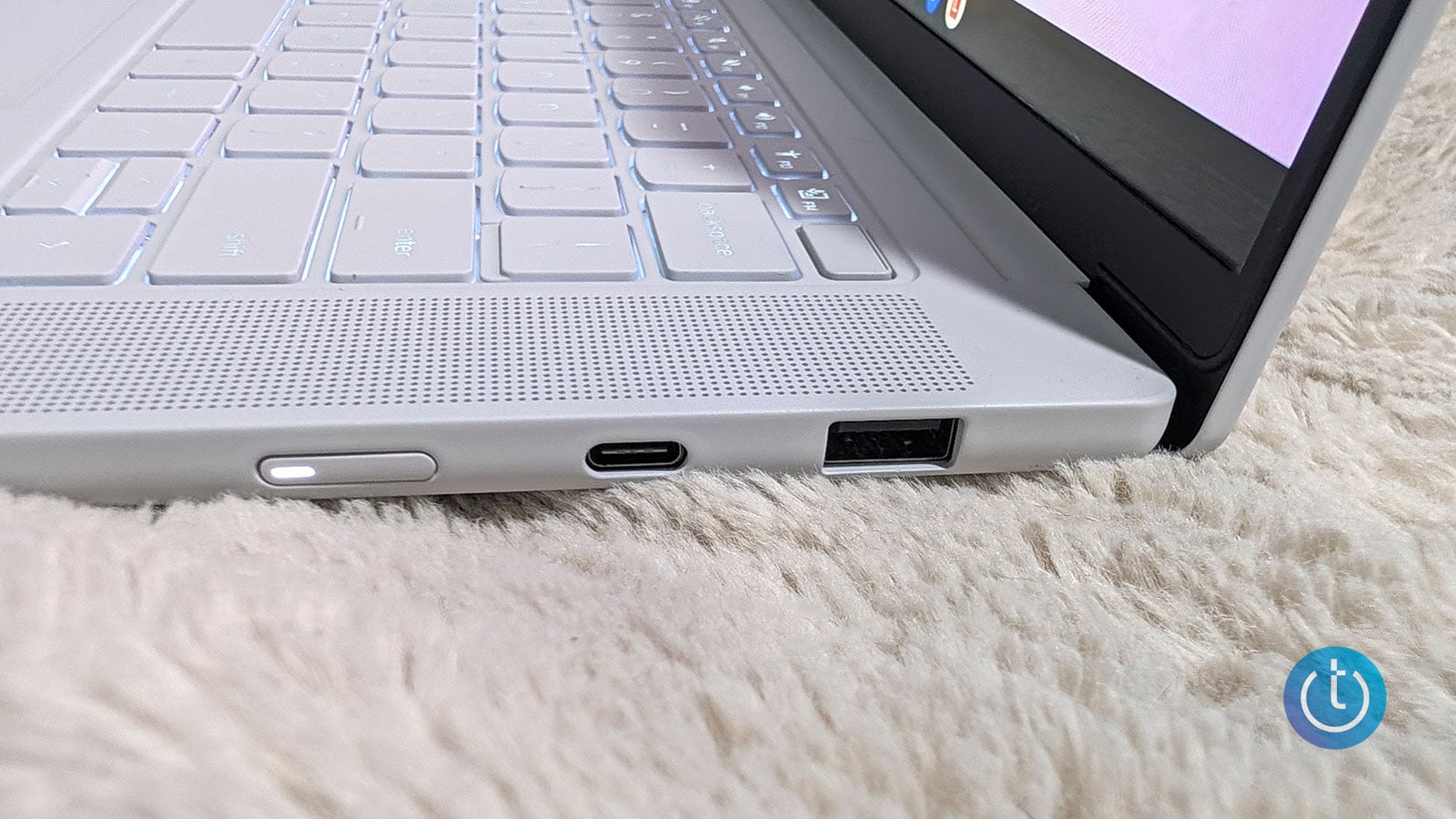
The Googlebook 15's right side houses the illuminated power button, a Thunderbolt 4 USB-C port, and a USB-A port.
Sherri L. Smith/Techlicious
The laptop supports Bluetooth 6.0 and has an 802.11be 2x2 Wi-Fi chip, which enables Wi-Fi 7.
Keyboard and Usability
I’ve been spoiled by far too many Lenovo ThinkPad keyboards, the gold standard for many laptop typists. The keyboards deliver comfort and precision. The Googlebook 15’s island-style keyboard falls into the IdeaPad category. It’s good, but not great. My fingers never bottomed out on the 1.3-millimeter key travel, but I wish the keys were just a little bit springier. Still, I hit my usual 70 words per minute on the Monkeytype typing test. The backlight is bright enough that the hunt-and-peck typists out there will have no problems shooting off an email in a dim environment.
In addition to the usual multitouch gestures such as pinch-to-zoom and two-finger scrolling, the Googlebook 15 has some gestures unique to the operating system. For instance, a downward three-finger swipe will summon the notification tray, while a two-finger upward swipe will cue up the application launcher when performed on the Home screen.
AI Mouse
Outside of clicking on an icon or performing a gesture on the trackpad, Lenovo has a faster way to interact with some of Gemini’s features. The Lenovo AI Mouse for Googlebook ($44.99 when purchased separately) bakes AI functionality into a slick-looking peripheral, making accessing Gemini that much easier.
The mouse offers one-touch access to Gemini Chat and Voice alongside Magic Pointer for contextual, on-screen AI actions. For instance, I wanted to know what brand of red dress rapper Megan Thee Stallion was wearing, or at least find something similar. I pressed the top side button instead of wiggling the mouse to launch Magic Pointer. From there, I selected the photo of the rapper in the dress and queried what brand it was. Gemini quickly answered that it was a custom gown created by Bryan Hearns for the 2019 American Music Awards.
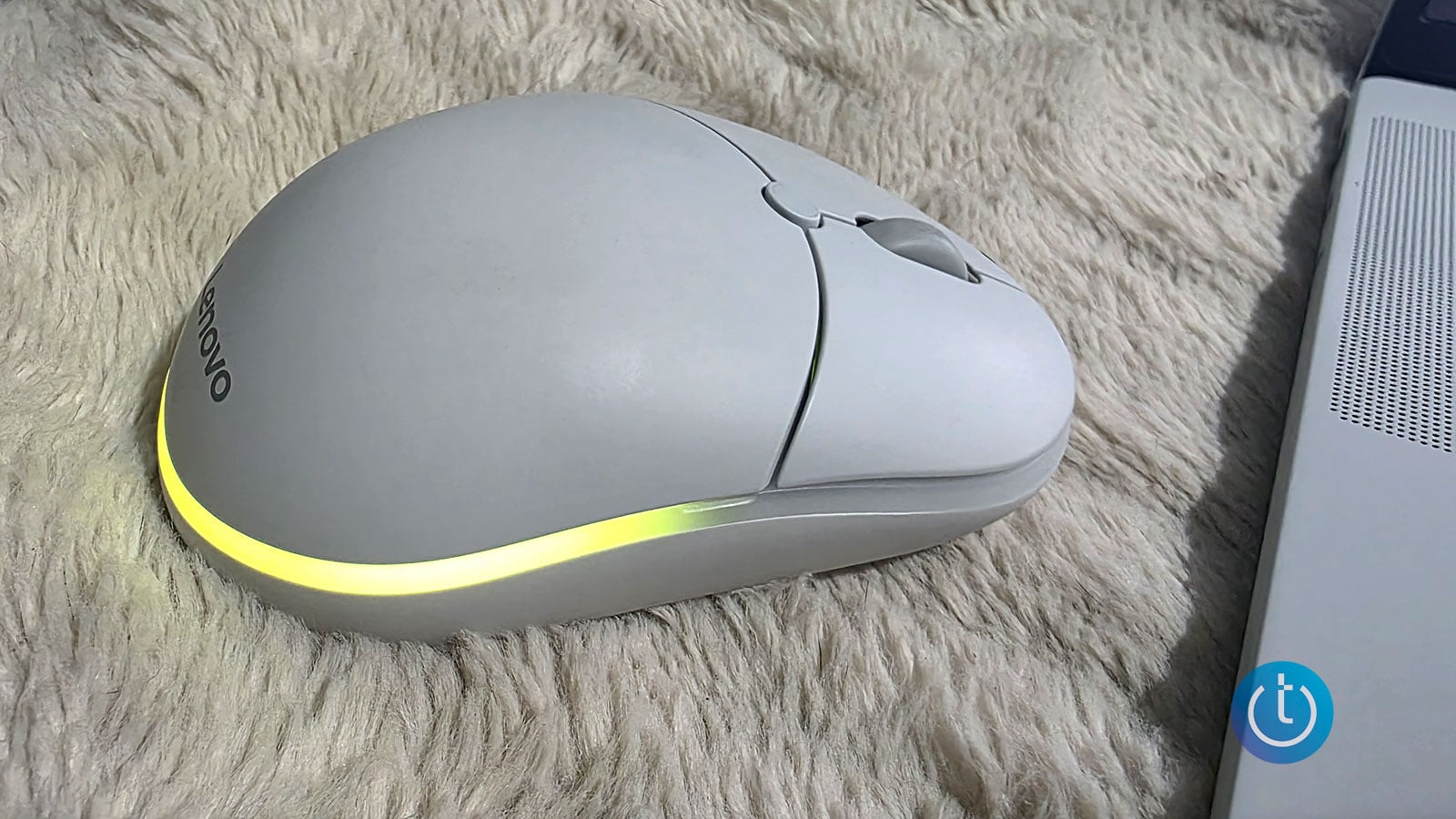
The Lenovo AI Mouse for Googlebook
Sherri L. Smith/Techlicious
A quick or long press of the Quick Insert button (diamond with a plus in it) calls up Gemini Chat and Voice, respectively. Long-pressing the back side button lets you customize the mouse's RGB light bar. You can also configure the lighting effects in Lenovo Vantage and adjust the 800–12,000 DPI sensor. Lenovo rates the peripheral for up to 40 hours of battery life (with lighting enabled), but it can be used wired or wirelessly.
In practice, the mouse is comfortable to use. I like that it has a similar soft-touch finish to the Googlebook 15. However, the mouse is definitely designed for right-handed users, which might turn off left-handed users.
Webcam
The 5MP webcam supports 1080p video calls and facial recognition. It takes passable photos. I looked a little washed out in the test shots I took, but the camera did an inordinately good job of letting me know that it’s time for a touch-up on my dye job. Although I wish the image quality were better, especially for a $1,000 laptop – the Googlebook 15’s webcam will suffice for video calls.
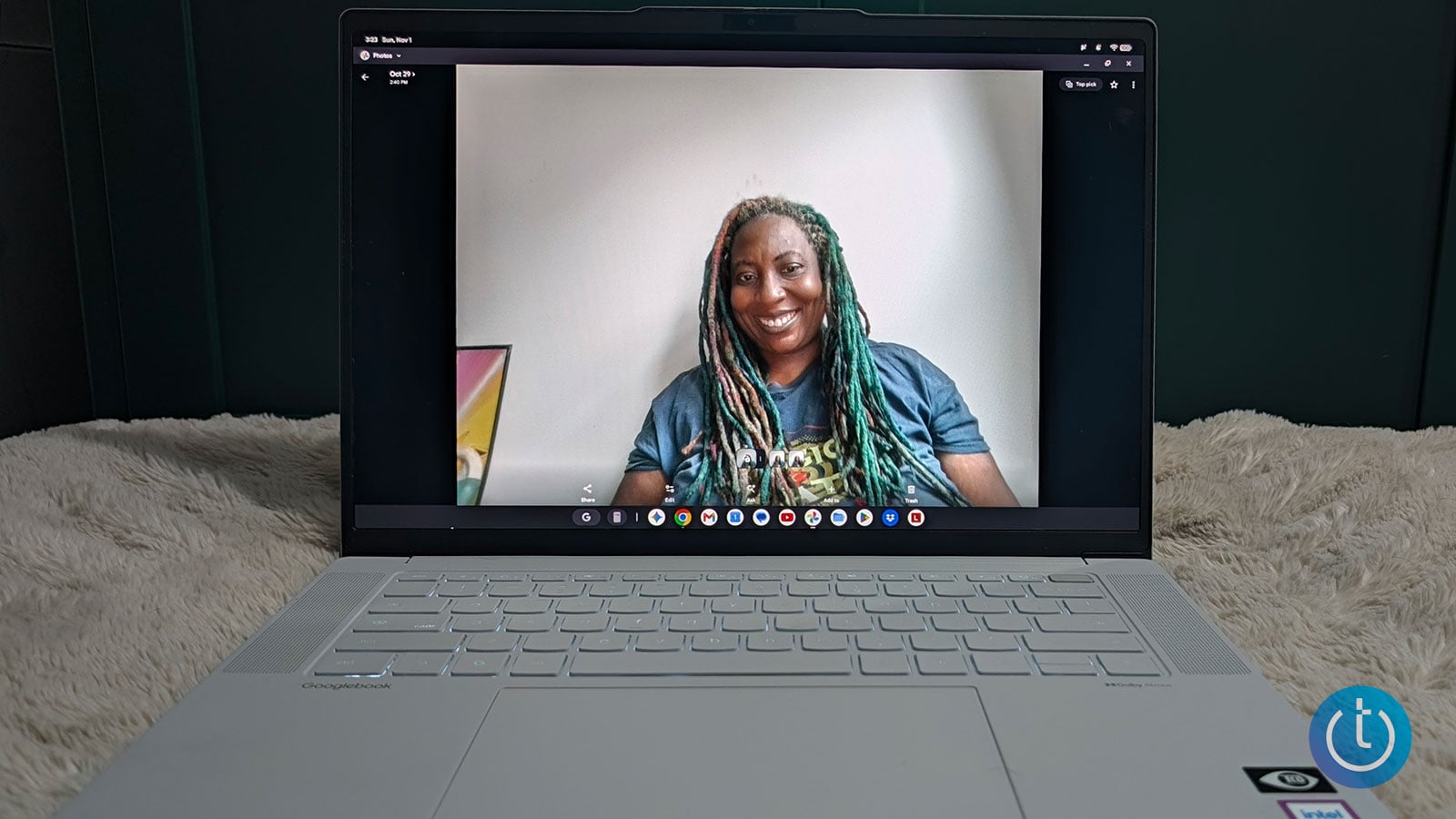
The Googlebook 15 webcam suffices for video calls, but colors are a little washed out.
Sherri L. Smith/Techlicious
Performance
The Googlebook 15 is powered by an Intel Core Ultra 5 325 processor with 16GB of RAM. It’s a midrange chip in Intel’s Panther Lake series designed to handle productivity, web browsing, multimedia tasks, light creation, and AI workloads. The integrated NPU can reach up to 47 TOPS, providing dedicated processing power for AI features designed to take advantage of it.
The laptop achieved good results on synthetic benchmarks like Geekbench 7 and 3DMark Solar Bay Extreme and Wild Life Extreme. More importantly, it held up under my tab-hoarding tendencies and kept running smoothly even with 80 open Google Chrome tabs. I even did some light batch photo editing with the web version of Adobe Photoshop without any slowdown. I also ran a few scripts in ChatGPT to help me research and organize my notes for an upcoming article.
The Googlebook 15's integrated Intel Graphics can handle lighter gaming workloads, but don't mistake it for a dedicated gaming laptop. Games like “Fortnite,” “Marvel Rivals,” and “Hades II” will depend on compatibility with Googlebook OS and the graphics settings you use. More demanding titles like “Cyberpunk 2077,” “Black Myth: Wukong,” and “Resident Evil Requiem” are better suited to a cloud gaming service like Nvidia GeForce NOW.
Which is apropos because under the Perks section in My Googlebook, you’ll find an offer for a free year of the GeForce NOW Fast Pass service. That nets you an ad-free 50 hours of cloud gaming per month.
After redeeming the code, I got in a few rounds of “Street Fighter VI,” which runs in the cloud, so I didn’t have to worry about any compatibility issues. With my Google Play Pass, I downloaded Android titles like “Dead Cells” and “Final Fantasy VII.”
Battery Life
Lenovo estimates that the Googlebook 15’s 70Wh battery will last up to 12.5 hours on a charge. Of course, that’s dependent on a number of factors, including workload and display brightness, to name a few. I squeezed out 11.5 hours of notebook time with my typical work: researching and writing articles, light photo editing, music streaming, and web browsing, with a dash of AI project management for good measure. And once I recharged the Googlebook 15, I launched “Dead Cells” and died over and over again and caught up on “VisionQuest,” all of which took 8 hours and 27 minutes before I got the low-battery notifications.
Verdict
All in all, the Lenovo Googlebook 15 is the natural evolution of the Chromebook. The Googlebook 15 makes its strongest case when it saves me from reaching for my phone. Opening downloaded files, picking up a book where I left off, and accessing mobile apps from my laptop are conveniences I can see myself using every day. Rambler and Magic Pointer add useful shortcuts, although Create My Widget still needs some work.
And the hardware gives those features a good home. You get a beautiful OLED display, a lightweight chassis, performance that kept pace with my workload, and 11.5 hours of battery life in my everyday use. I’d like a springier keyboard and fuller sound for $1,099, but neither complaint overshadows what Lenovo gets right.
For Android owners with a compatible phone who spend their days bouncing between devices and whose software needs are met by Google's ecosystem, the Googlebook 15 is a compelling proposition. The AI might get your attention, but having your files, apps, and unfinished business within reach is what makes this laptop worth considering.

