

If WhatsApp Web isn’t working, you’re usually dealing with one of a handful of common issues – a QR code that won’t scan, a browser problem, a connection error, or WhatsApp logging you out unexpectedly. I use WhatsApp Web throughout the workday to stay connected with colleagues, so I’ve had to troubleshoot this issue myself.
If you’re trying to log in for the first time, see our step-by-step guide to using WhatsApp Web.
The good news: most problems take just a minute or two to fix. Below are the most common WhatsApp Web issues and the straightforward steps to resolve them.
First: Make Sure You’re on the Official Site
Always start by confirming you’re using the correct address to connect: https://web.whatsapp.com.
There are phishing pages that imitate WhatsApp Web and ask you to enter your phone number or other information. The real WhatsApp Web site shows only a QR code for login – nothing else.
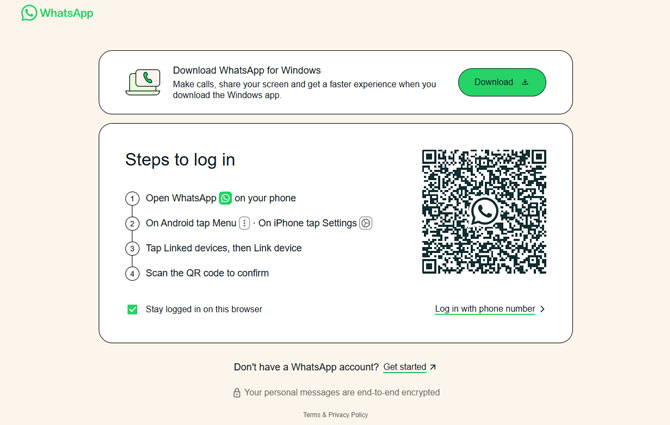
If the page looks different or asks for credentials, close it immediately.
QR Code Won’t Scan
If your phone won’t recognize the QR code:
- Increase your computer’s screen brightness.
- Clean your phone’s camera lens.
- Hold your phone slightly farther back.
- Refresh the page to generate a new QR code.
- Make sure WhatsApp is updated on your phone.
Also check that your camera permissions are enabled for WhatsApp. On iPhone, go to Settings > Privacy & Security > Camera. On Android, check App Permissions in Settings.
WhatsApp Web Keeps Logging You Out
Frequent logouts are usually caused by:
- Using private/incognito mode.
- Browser settings that automatically clear cookies.
- Reaching the maximum of four linked devices.
- Security-triggered logouts after long inactivity.
To fix this:
- Use a regular browser window.
- Allow cookies for web.whatsapp.com.
- Log out of unused linked devices in the WhatsApp app under Linked Devices.
If you’re on a work or school computer, network security software may also force sessions to expire.
“Phone Not Connected” Error
You must have internet access on your phone when linking WhatsApp Web the first time.
After linking, WhatsApp’s multi-device support allows your computer to stay connected even if your phone goes offline. However, if you see this message later:
- Open WhatsApp on your phone.
- Check that it has an active internet connection.
- Reconnect the device if prompted.
If the issue persists, log out and relink the device.
WhatsApp Web Not Loading or Showing a Blank Screen
If the page won’t load or appears blank:
- Clear your browser cache.
- Disable ad blockers temporarily.
- Try another browser (Chrome, Edge, Safari, or Firefox).
- Check whether your firewall or network blocks WhatsApp.
- Restart your browser or computer.
In corporate environments, WhatsApp Web is sometimes blocked at the network level.
Messages Not Syncing or Loading Slowly
If messages aren’t updating:
- Refresh the browser page.
- Check your internet connection speed.
- Log out and log back in.
- Update WhatsApp on your phone.
Slow syncing is usually caused by weak Wi-Fi or unstable mobile data.
WhatsApp Web Won’t Work After an Update
Occasionally, a recent WhatsApp or browser update causes temporary compatibility issues.
If problems begin immediately after an update:
- Restart your phone.
- Restart your browser.
- Check for additional app updates.
- Try logging out and relinking your device.
Major issues are typically resolved quickly through follow-up updates.
Still Not Working?
If none of the above fixes the issue:
- Log out of WhatsApp Web.
- Unlink the device from your phone.
- Restart both your phone and computer.
- Relink using a fresh QR code.
This resolves most persistent problems.
Why These WhatsApp Web Problems Happen
[Image Credit: Josh Kirschner/Techlicious, Josh Kirschner/Techlicious via ChatGPT]

