Tech Made Simple

Hot Topics: All Roku Players Compared | Best iPad Keyboard Cases | How to Get Emergency Satellite Service for Your Phone

We may earn commissions when you buy from links on our site. Why you can trust us.

author photo

What to Do if You Forget Your Android Phone Password

by Josh Kirschner on February 05, 2026

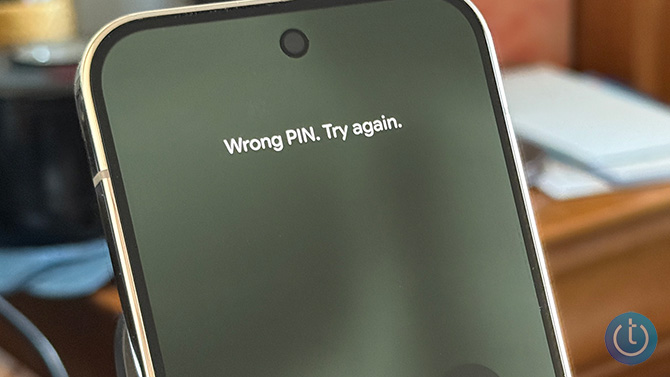
Google Pixel 10 Pro with Wrong PIN. Try again. on the screen

Forgot your Android PIN, pattern, or password? Let's get this out of the way up front: if you can’t get past the lock screen, there isn’t a secret bypass. On modern Android phones, the only reliable way to regain access is to factory reset the device and then sign back in with your Google account.

Unfortunately, this means there is no way to recover photos, contacts, or other data you haven’t backed up to your Google account; they will be gone forever after the reset. However, at least your phone will be unlocked, and you’ll be able to use it again.

If you no longer have access to the Google account used to set up the phone, you have a bigger problem. Android's built-in theft protection will permanently lock your device without it. But there is a way around that for Samsung owners.

Below are the official (and only) ways to reset a locked Android phone.

Factory resetting a locked Android phone

There are two methods to factory reset an Android phone if you’ve forgotten the password and can’t get past the lock screen. The first is to use Google’s Find Hub (formerly Find My Device), which allows you to erase your phone online remotely. If you don’t have Find Hub turned on (it should be on by default), you’ll have to use the second method below, Android’s “Recovery Mode.”

If you can’t log in to the Google account originally used to set up the phone, you won’t be able to complete the setup process after the reset. This is called Factory Reset Protection (FRP), and it’s designed to prevent stolen phones from being reused. The good news for Samsung owners in this situation is that you can take your phone to an authorized Samsung service center and they can flash it back to factory settings. You will need to prove that you are the original owner of the device with either a purchase receipt or email purchase confirmation.

How to reset your Android phone through Find Hub

  1. Go to Google Find Hub. If you’re not already, sign in to the Google account that is the main profile on your device. If you have more than one device, select the phone you want to erase at the top-left of the screen.
  2. Select "Factory reset device."
  3. Click the "Next" button.
  4. Re-authenticate your Google account.
  5. Click on the "Reset" button.
  6. Follow the steps to set up your phone again – note that you will need to verify the Google account information you originally used to set up the phone in order to proceed with setting up the device.
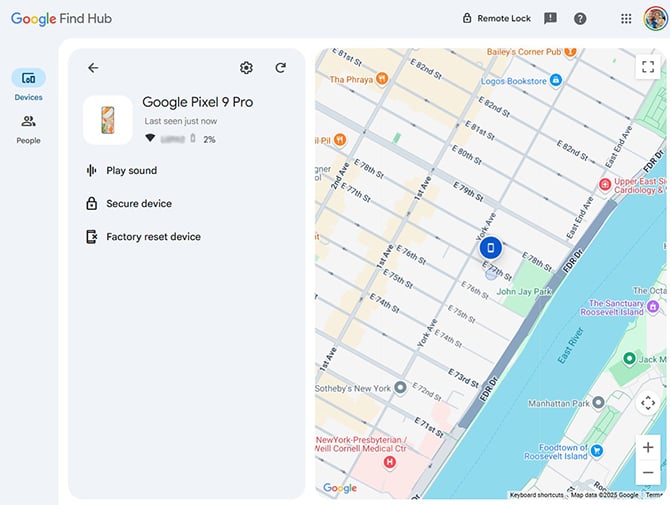
Screenshot of Google Find Hub showing the location of a Google Pixel 9 Pro with the option to Factory Reset Device

Read more: The Slim Wallet Tracker with a Battery That Goes 5 Years

How to reset your Android phone through Recovery Mode

Basic steps for resetting your Android phone are to power it off, restart your phone in Recovery Mode, and use the Recovery Mode menu to perform a factory reset/data wipe.

Most manufacturers – including current Samsung models, Google Pixel, and other stock Android devices – use the same steps to enter Recovery Mode. However, there are slight variations with older Samsung phones and some other manufacturers. Follow the steps below based on your device.

How to reset most Android phones

Google advises you to charge your phone to at least 70% before attempting to reset your locked phone.

  1. Press the Power and Volume Up buttons to bring up the Power menu. Then select "Power off" to turn off your device.
  2. Press and hold the Power and Volume down buttons for 10 to 15 seconds.
  3. Use the Volume up and Volume down buttons to navigate through the menu options until you get to "Recovery Mode," then press the Power button to select it.
  4. You’ll see an Android robot with a red exclamation mark and the words "No command."(If nothing happens, try pressing and holding Power, then quickly tapping Volume Up once.)
  5. Press and hold the Power button. While you hold the Power button, press the Volume up button. Then release both buttons quickly.
  6. A new menu will pop up. Use the Volume buttons to scroll to "Wipe data/factory reset" and use the Power button to select it.
  7. Use the volume buttons to scroll to "Factory data reset" and press the Power button to select it.
  8. When the reset is finished, you'll see "Data wipe complete." Using the volume buttons, scroll to and select "Reboot system now," and use the Power button to select it.

If your phone isn’t a Pixel and uses a customized version of Android, use the instructions below for your brand.

How to reset old Samsung phones (with a Home or Bixby button)

Samsung recommends plugging in your phone to power before going into recovery mode.

  1. Power down your phone by waiting for it to run out of battery. Then charge it to at least 25%. (For older versions of Android, you may not be able to power down your phone when it's locked without inputting your password.)
  2. For Samsung phones with a separate Power button (Galaxy S8, Galaxy S9, Galaxy S10), press and hold the Volume up button, Power button, and Bixby button until your phone vibrates and goes into Recovery mode. For Samsung phones with a physical Home button (including the Galaxy S6 and Galaxy S7), Press and hold the Volume up, Home, and Power buttons until your phone vibrates, and then release just the Power button.
  3. A screen with the recovery menu will appear. When you see this, release the remaining buttons.
  4. Use the Volume buttons to highlight "Wipe data/factory reset." Press the Power button/side key to select.
  5. Press the Power button/side key again to select "Yes," "Yes - delete all user data," or "Factory data reset."

How to reset Huawei phones

  1. Hold down the Power and Volume Up buttons and then select "Power off" to power off your device.
  2. Press and hold the Volume up and Power buttons until your phone goes into Recovery mode. (If your phone doesn't have physical volume buttons, press the Power button five times after the phone vibrates while powering on.)
  3. Use the Volume buttons to select "Recovery mode."
  4. Use the Volume buttons or touchscreen to select the option to clear data. If you're using the buttons, use the Power button to select it.
  5. Use the Volume buttons to select "restore your device to its factory settings" and use the Power button to select it.
  6. Once your phone is restored to factory settings, you'll see the Recovery screen. Select the option to restart your device.

How to reset Sony Xperia phones

  1. Hold down the Power button to power off your device.
  2. Press and hold the Volume down and Power buttons until the "Sony/Xperia" logo appears, then release the buttons.
  3. Use the Volume buttons to highlight and select "Wipe data/factory reset," and use the Power button to select it.
  4. Press the Power button/side key again to select "Yes," "Yes - delete all user data," or "Factory data reset."
  5. Your phone will reboot when it's done.

How to reset TCL phones

  1. Hold down the Power and Volume Up buttons and then select "Power off" to power off your device.
  2. Press and hold the Volume up and Power buttons until your phone goes into Recovery mode.
  3. Use the Volume buttons to highlight "Wipe data/factory reset" (or “Yes” for some phones). Press the Power button/side key to select.
  4. Press the Volume buttons to select “Factory data reset,” the Power button/side key again to confirm deleting all data.
  5. When the factory reset is complete, press the Volume buttons to select "reboot system now," then press the Power button to confirm.

How to reset Xiaomi phones

  1. Hold down the Power button to power off your device.
  2. Press and hold the Volume down and Power buttons until the "Mi" logo appears, then release only the Power button.
  3. Continue to hold Volume down until the "Android Recovery" screen appears.
  4. Use the Volume buttons to highlight and select "Wipe data/factory reset," and use the Power button to select it.
  5. Use the Volume buttons to highlight and select "Wipe data/factory reset" a second time, using the Power button to select it.
  6. Your phone will reboot when it's done.

FAQs

Can I unlock my Android phone without losing data?

In almost all cases, no. Modern Android devices encrypt data by default, which means there’s no supported way to bypass a forgotten lock screen without wiping the phone. Your only chance of keeping data is restoring from a cloud backup after the reset.

What if I forgot both my phone PIN and my Google password?

You’ll need to recover your Google account before you can set the phone up again after a reset. Start the Google account recovery process from a familiar device and network to improve your chances of verification.

Samsung owners can take their phone to an authorized Samsung service center to flash back to factory settings. You will need to prove that you are the original owner of the device with either a purchase receipt or email purchase confirmation.

Can a repair shop or my carrier unlock my phone?

Repair shops cannot bypass your Android security lock without wiping the device. If someone claims they can unlock a modern Android phone, that’s a red flag you're about to be scammed.

How many wrong PIN attempts before Android locks permanently?

Most Android phones will temporarily lock you out after multiple incorrect attempts. Lockout time increases with repeated failures. On newer devices, there is no permanent lockout – but you will eventually need to reset the phone if you can’t remember the correct PIN.

Keep your data safe before you need a reset

A few simple safeguards can keep you from losing access to your phone or your Google account – and from having to wipe a device. The most important safeguard is making sure your phone is backed up automatically.

  • Turn on Google’s built-in cloud backup so photos, contacts, and settings are saved regularly.
  • Make sure your Google account recovery email and phone number are current.
  • Store your Google password in a password manager so you can access it from another device if needed. We recommend and use 1Password and Dashlane.
  • Set up a Google trusted recovery contact to help regain access if all else fails.

If your phone is still unlocked but acting unstable – overheating or glitching – you may want to quickly copy important files before it locks you out. In that situation, a small USB-C flash drive can be useful for temporary transfers. AnchorI recommend the SanDisk Phone Drive for Android, a small USB-C flash drive that plugs directly into your phone. You can set it to automatically back up selected folders whenever you plug the drive in, and it doesn’t rely on cloud uploads or a computer. It’s available in 128GB, 256GB, and 512GB capacities, starting under $20. Standard flash drives are not encrypted by default, so they shouldn’t be your only long-term backup solution.

Updated on 2/5/2026

[Image credit: Josh Kirschner/Techlicious, screenshot via Techlicious]


Topics

Tips & How-Tos, Phones and Mobile, Cell Phones, Tech 101


Discussion loading

gravatar

From Juanita Clarke on November 10, 2020 :: 3:04 pm


My husband let his niece borrow phone until she got one. We found out she was involved in drugs so we took it away from her.she changed password and won’t tell us what it is. I have her Google account info but don’t want to loose pictures on phone, Samsung 7. Is there anyway to unlock without losing pictures

Reply

gravatar

From Josh Kirschner on November 10, 2020 :: 5:38 pm


There is no way to unlock it unless you have the password. I would see if you can convince her to give it to you by mentioning the photos. Though it’s possible she doesn’t want to unlock the phone because there are things of hers on there she doesn’t want you to see, so keep that in mind with your discussions.

Reply

gravatar

From M on November 23, 2020 :: 2:05 pm


Thank you so much! My phone broke down so I needen to use my old phone again but I forgot the password (of course). Thanks to you I can log back into my old phone!

X M

Reply

gravatar

From Em on December 05, 2020 :: 9:15 am


Have a Samsung Galaxy from a while back and cannot recall the password. Tried this, it freezes on the system recovery screen, when I select wipe data factory reset, press the power button to activate but nothing happens.

Reply

gravatar

From fran on December 29, 2020 :: 10:26 am


How can I open my phone when I can’t remember the lock screen password and email.  But I can remember the email password? I reset the phone to factory settings but it keeps asking for pin number or Google account username. It’s a new phone and I have not used the email. Please, can someone help?

Reply

gravatar

From Josh Kirschner on December 30, 2020 :: 12:41 pm


To access the phone, you need to log in to the Google account that it was originally set up with.  Is the issue you don’t remember the Google email address that was used to set it up? If not, you’re out of luck, so really try to figure that out.

Reply

gravatar

From Bhekokwakhe Hlongwa on January 27, 2021 :: 6:33 am


I m forget my email address

Reply

gravatar

From Lisa Campbell on January 07, 2021 :: 3:49 pm


I have run into the same problem. I have a Samsung Galaxy A10e. I set a screen lock, now forgot it. The phone will not turn off without the lock code or taking the battery out which on this phone is not an option.

Reply

gravatar

From Natalie burns on January 14, 2021 :: 1:32 pm


so i got a v mobile and how do you reset that

Reply

gravatar

From Marvin Wilson on February 03, 2021 :: 3:38 pm


My galaxy samsung A11 Android 10, forgot my password, when i power off it asked for password, so i use volume down and power to restart it but just keeps coming up with enter password after restarting, this A11 has no bixby or home buttons only has volume up/down and power, any idea how i can get back in?

Reply

gravatar

From Josh Kirschner on February 04, 2021 :: 10:58 am


Hi Marvin,

I added details to the article for how to reset Samsung phones without a Home button (such as Galaxy S10, Galaxy S11, Galaxy S20, Galaxy S21, Note 20). Look in the Samsung section above.

Best,
Josh

Reply

gravatar

From Marvin Wilson on February 06, 2021 :: 3:34 pm


Thank You!

Reply

gravatar

From Claude on February 06, 2021 :: 2:27 am


I’m trying to reset my phone but I have forget my email password what can I do please I only remember my email .it is Tecno pouvoire

Reply

gravatar

From Josh Kirschner on February 06, 2021 :: 3:17 pm


You have to recover your Gmail password, else you are out of luck.

Reply

gravatar

From Rickey Perrin on February 09, 2021 :: 5:29 am


What can I do if in as already factory reset my phone and I don’t know my google password

Reply

gravatar

From Philip on February 09, 2021 :: 8:44 am


Hi Josh,
Hope you can help.

My HTC U11 I have unlocked using the pattern and fingerprint recognition since new. Last week, instead of the pattern, it suddenly asked for a PIN to unlock the screen. I have never used a PIN(maybe I did at setup when new 3yrs ago but cant remember).

I followed the HTC Hardreset instructions and was hoping to be asked to enter my google a/c details but my phone still asks for the screen lock PIN.

What can I do to unlock my phone? (i also did the phone locator changing PW but this does not solve the problem).
Thank you. Philip

Reply

gravatar

From Josh Kirschner on February 09, 2021 :: 11:16 am


Hi Philip,

Want to be clear on what you’ve done so far. You did a complete factory reset per the instructions above and it is still asking for a PIN?

Josh

Reply

gravatar

From Philip on February 10, 2021 :: 4:01 am


Hi Josh,

Yes, I did the complete factory reset.
I then restarted the phone. It asked to set the language, enter the SIM card PIN and connect to WiFi. The next step was to enter the PIN again… It did not ask for my Google a/c.

Philip

Reply

gravatar

From Josh Kirschner on February 10, 2021 :: 12:51 pm


Try setting up the phone without the SIM card installed using WiFi and see if that works. Then you can put the SIM back in once it is set up.

gravatar

From Ana on March 10, 2021 :: 7:43 pm


I have a mz4 it asked for the same things and when I got to my pattern I just got it wrong a cupple times and it let be reset it

gravatar

From Isaac on February 11, 2021 :: 12:38 am


Hi,

I bought a ZTE Nubia Redmagic 5G in October last year and have been using it. Last Saturday night when I tried to change the security lock from password to pattern, it refused the new pattern. So I hard reset the phone and erased all data, but it is still asking me for a pattern, which it is still refusing to accept, and it is not giving me an option to login with my google account.

Reply

gravatar

From Randle on February 24, 2021 :: 8:08 pm


will taking out battery stop the phone from asking for pass word on star up and turn it off ?

Reply

gravatar

From Josh Kirschner on February 26, 2021 :: 10:35 am


Taking out your battery won’t affect the security required to get into your device except, in some cases, to require you to use your PIN instead of biometric tools (fingerprint, face recognition) to unlock it.

Reply

gravatar

From Melissa Wipf on February 27, 2021 :: 3:38 am


The hold the volume botton down along with the power botton is for the birds. My other phone is all cracked up and I just bought this Android phone and only got it this week. Please can someone please help me restore my password

Reply

gravatar

From Kiana on February 28, 2021 :: 4:12 pm


Hi Josh
Thank you for the thorough explanations.

I have an HTC U11, it ran out of battery and once turned on, required the pattern to log in, which I don’t remember because I always use the fingerprint. I have already used the factory reset, but still asks for Previous Pattern. I know my Google account information but during these processes, it didn’t ask for the information, it only says: Your phone was reset to factory settings. To use this phone enter your previous pattern.

I also tried to reset it via Android Device Manager but according to the tutorial, the erase and secure options are separate, but I only have them together. And even when I click on it, it says notification sent.

What can I do to unlock my phone?

Thank you!
Kiana

Reply

gravatar

From Josh Kirschner on February 28, 2021 :: 5:59 pm


You shouldn’t see the pattern request after a full factory reset. I would recommend going through factory reset process again for your HTC U11, as I describe in the article, and see if that fixes the issue.

Reply

gravatar

From Kiana on March 01, 2021 :: 12:46 am


I did try the method a few times, but the problem is still there.

Reply

gravatar

From Kiana on March 01, 2021 :: 12:47 am


Should I also wipe the cache? Till now I did the wipe all/factory reset.

Reply

gravatar

From Josh Kirschner on March 01, 2021 :: 9:40 am


Not sure why it is behaving that way. You can try wiping the cache, though I don’t think that will make any difference and it should have been wiped during the factory reset, anyhow.

Take a look at this YouTube video on resetting the HTC U11 and follow what he is doing: https://www.youtube.com/watch?v=AWJZxtwJpqs. Perhaps there is a step that you are missing or is different than what I laid out in the instructions above.

gravatar

From braeden on March 02, 2021 :: 6:43 pm


i read how too reset my phone thanks alot this is great i can get back in my phone

Reply

gravatar

From chandan on March 05, 2021 :: 11:33 am


my phone can be unlocked through fingerprint and face recognition, but i forgot the password what can be doneto know my phone lock password?

Reply

gravatar

From Josh Kirschner on March 05, 2021 :: 5:09 pm


Unfortunately, if the phone is requiring a password unlock because of a reboot, biometric authentication won’t help you. You will have to follow the steps above to regain use of your device.

Reply

gravatar

From Jesse Garland on March 08, 2021 :: 11:56 pm


My umx says security issue,I’ve done a factory reset but still same what can I do?

Reply

gravatar

From Dhaval Shah on March 18, 2021 :: 12:14 pm


I have forgotten my PIN of infocus phone. Please guide me how to unlock the same.

Reply

gravatar

From ct on March 20, 2021 :: 5:32 am


Dear Mr Josh Kirschner, thank you for the very useful guide provided. I managed to unlock my phone screen.

Reply

gravatar

From Josh Kirschner on March 21, 2021 :: 8:50 pm


Glad it worked out for you!

Reply

gravatar

From Moderator on March 20, 2021 :: 10:13 am


I used my friends phone to log into my account in find my device. Then it showed my phone and tapped reset everything. After i did everything they said reset was successful but your phone is offline now. I dont know the reason but my phone was on at that time but locked. Is it must that your phone is connected to wifi since my phone was not connected and i couldnt because it was locked. Please i need your help

Reply

gravatar

From Josh Kirschner on March 21, 2021 :: 8:54 pm


You can’t reset your device if it isn’t connected to cellular or WiFi - how would it get the command to reset from Google? If it is offline, you will need to reset it manually through recovery mode.

Reply

gravatar

From Glenn Simmons on March 24, 2021 :: 3:47 am


Good day, all I really need is to recover my voice notes from my old Samsung. Afraid if I keep guessing password it will permanently lock me out.Since which I have a new phone. Gladly looking for assistance, thanks.

Reply

gravatar

From Tristan on April 07, 2021 :: 5:41 pm


i just changed my password last night and after i woke up i forgot it
then i searched for a solution and i found this gladly

Reply

gravatar

From Javier J on April 12, 2021 :: 10:11 pm


My wife had gave my daughter a s10galaxy but she forgot her pin to open phone just want to hard reset phone but when I try to power off it takes me back to enter pin
Any suggestions

Reply

gravatar

From Josh Kirschner on April 17, 2021 :: 3:41 pm


Can you clarify - when you try to power off it asks for a PIN or when you try to power on? It should be the latter, but if you follow the steps above specifically for the Samsung S10, is it not taking you to the recovery mode menu?

Reply

gravatar

From Don Axon on April 18, 2021 :: 4:05 am


How do you power off phone, it asks for a pin, and I have forgotten it!

Also, in the section where you give directions for phones without a home button, step 2 says to hold 3 buttons, one of which is the home button, seems impossible as I don’t have one!

Reply

gravatar

From Josh Kirschner on April 18, 2021 :: 9:06 am


If you hold down the power button, it should give you the power off option, even if you don’t have the pin. Else, let it run out of battery. Recharge it, then follow the recovery steps while turning it back on.

Apologies for the confusion in the steps. That should have said “Bixby” button. I fixed it in the article. Also, I found some mentions that Android 11 devices need to be powered via USB to enter recovery mode - I have not been able to test that yet.

Reply

gravatar

From Jason on April 29, 2021 :: 7:45 am


Hey, guys when I am trying to erase my phone because I forgot my password I can’t shut it down if I don’t have the password.

Reply

gravatar

From Melissa Wipf on April 29, 2021 :: 9:04 am


Hey Josh I really need help with unlocking my phone. I’ve tried everything. Holding down the - volume along with the power button. Then holding down the - volume button along with the + volume button along with holding down the power button. Nothing seems to work. When I hold down the - and + volume button along with the power button all that happens the phone goes into Safe mode.

I’d be outta this world thankful if you could help me with unlocking my phone. Plus my IMEI NUMBER IS [redacted] if that helps

Reply

gravatar

From Josh Kirschner on April 29, 2021 :: 8:10 pm


It would be helpful to know your phone model since each one works slightly differently. Also, I removed the IMEI number from your post since that is a specific device identifier and it’s generally not a good idea to make that public.

Reply

gravatar

From Jan Yves Abalos on May 12, 2021 :: 1:39 am


I can’t fastboot the phone since it has fingerprint power button. Long pressing power and volume down leads to safe mode

Reply

gravatar

From Kyla on May 19, 2021 :: 8:24 pm


It does not work. My phone keeps going back to the lock screen.

Reply

gravatar

From Josh Kirschner on May 25, 2021 :: 1:08 pm


If you follow the steps, it shouldn’t go back to the main lock screen. What model phone do you have?

Note that when you reset it correctly, there will be a screen that asks for your previous pin, but there is an option below it to log in using your previous Google account.

Reply

Read More Comments: 1 2 3 4

Home | About | Meet the Team | Contact Us
Media Kit | Newsletter Sponsorships | Licensing & Permissions
Accessibility Statement
Terms of Use | Privacy & Cookie Policy

Techlicious participates in affiliate programs, including the Amazon Services LLC Associates Program, which provide a small commission from some, but not all, of the "click-thru to buy" links contained in our articles. These click-thru links are determined after the article has been written, based on price and product availability — the commissions do not impact our choice of recommended product, nor the price you pay. When you use these links, you help support our ongoing editorial mission to provide you with the best product recommendations.

© Techlicious LLC.