

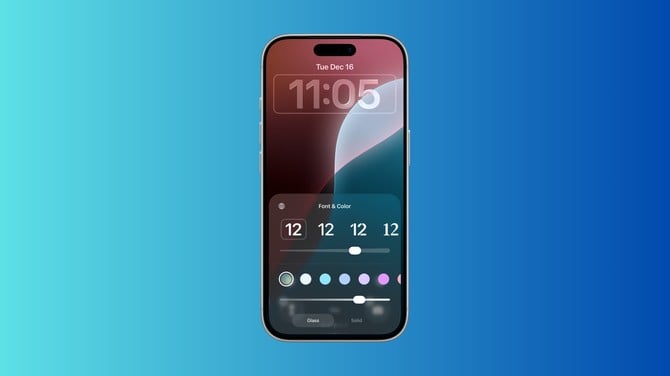
Apple released iOS 26.2 this week with yet another option to tone down Liquid Glass, its controversial semi-transparent design language for iOS 26. This update lets you change the transparency of the lock screen clock. Separately, the update also adds a screen flash option to make notifications harder to miss.
The new lock screen control is the second move Apple has made to let users adjust how Liquid Glass looks on their iPhone. The first one was iOS 26.1's system-wide Liquid Glass opacity slider. Apple had debuted that after users complained that the transparent interface affected readability. Before that, Accessibility settings were the go-to for adjusting transparency.
How to Adjust Lock Screen Clock Transparency in iOS 26.2

To change the Lock Screen clock transparency in iOS 26.2, open the wallpaper customization screen. You can do this by long-pressing the wallpaper on your lock screen and tapping Customize. You can also go to the Settings app, tap Wallpaper, which shows the background for both the lock screen and the unlocked phone. Then tap Customize on the lock-screen wallpaper shown on the left.
Read more: Smart Holiday Tech Gifts People Will Actually Use
Once you’re on the customization screen, you just have to tap the clock and move the bottom slider to your liking. The setting only affects the Lock Screen clock, not other Liquid Glass elements throughout the system.
If you want to reduce transparency across the device, make sure you are running at least iOS 26.1. Then go to Settings > Display & Brightness > Liquid Glass. On the following screen, tap Tinted.
Screen Flash for Notifications
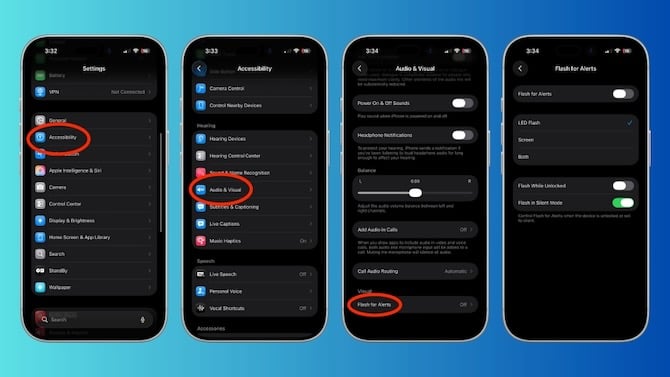
iOS 26.2 also adds a screen flash option for notifications. When enabled, your iPhone display briefly flashes at full brightness when a notification arrives. You already had the option to make the LED flash light up for notifications in a similar manner. This feature seems to be expanding upon the existing option.
To turn it on, go to Settings > Accessibility, and under Hearing click Audio & Visual, and scroll down to Flash for Alerts. You'll see the new Screen option along with the existing LED Flash choice. You can pick one or both. There are also toggles to control whether the flash happens when your device is unlocked or in silent mode.
Read more: How to Stop an iPhone from Auto-Connecting to ‘Known’ Wi-Fi Networks
If you look at your phone constantly like I do, you may not need this feature. If you find yourself missing notifications or need a stronger visual cue for them, this can be a very useful feature.
Bottom Line
Apple's gradual retreat from Liquid Glass shows the company might be reconsidering its design decisions. However, I don’t expect Apple to roll it back completely, so we’re likely to see more options to adjust transparency. The Lock Screen control is useful if you find the clock hard to read, which it can really be with some wallpapers. However, you'll still need to use the iOS 26.1 system-wide slider for other elements. The screen flash feature is genuinely helpful for accessibility and worth trying if you frequently miss notifications. A more user-friendly design, including allowing you to undo some of its new design, is a good move from Apple.
[Image credits: Palash Volvoikar/Techlicious]

