

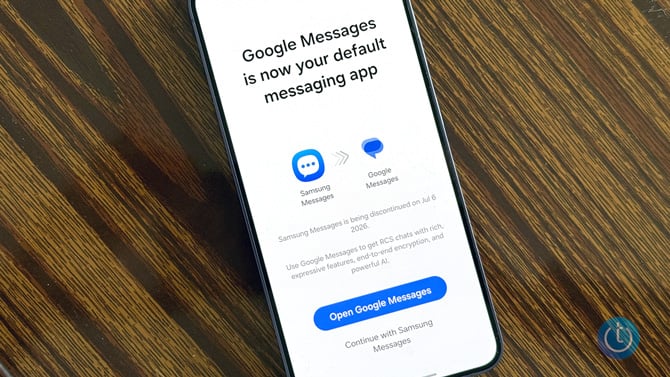
Samsung is shutting down its Messages app for US Galaxy users and forcing them to switch to Google Messages on July 6, 2026. After that date, the app will no longer send texts from your phone. The only exception is emergency service numbers and emergency contacts you've defined in your device settings. If you use Samsung's "Call & Text on Other Devices" to send messages from your tablet or PC, that feature stops working, too.
The switch to Google Messages takes about two minutes, and your existing conversations transfer automatically. Samsung warns the transfer can take up to 24 hours for large message histories, so switching before July 6 is better than waiting until the day itself. You may also see an in-app notification inside Samsung Messages guiding you through the steps. If you get one, it's legitimate.
Who needs to act
Google Messages has been the pre-installed default on select Galaxy devices since the S22 series in 2022. To check whether you're already set, go to Settings, tap Apps, then Default apps, and look at the SMS app. If it shows Google Messages, no action is needed.
If your Galaxy phone runs Android 12 or higher and Samsung Messages is still your default, you need to switch before July 6. Phones running Android 11 or older are not affected and can keep using Samsung Messages normally.
How to switch from Samsung Messages to Google Messages
If Google Messages isn't already on your phone, download it for free from the Google Play Store first. Once it's installed, open it, and you'll see a prompt to set it as your default SMS app. Tap "Set default SMS app," select Google Messages (white icon with a blue conversation bubble), then tap "Set as default."
If you're on Android 12 or 13, there's one extra step: Google Messages won't automatically move to your home screen dock when you complete the switch. Long-press the Samsung Messages icon in the dock and tap "Remove," then find the Google Messages app, long-press it, and drag it into the dock.
Things that change after you switch
If you own an older Galaxy smartwatch running Tizen OS (Galaxy Watch 3 or earlier), you'll lose the ability to see full conversation threads on the watch after the shutdown. You can still send and receive texts from those watches, but the message history view won't be there.
Samsung phones released before 2022 may temporarily lose active RCS conversations when switching to Google Messages. SMS and MMS will work normally throughout, and RCS will resume once both you and whoever you're texting are on Google Messages.
What you get with Google Messages
The most useful addition is AI-powered scam detection. Google Messages flags suspicious texts automatically and can block links in messages it identifies as spam, a meaningful upgrade from Samsung Messages' more basic filtering. RCS messaging is also stronger: chats between Android users are end-to-end encrypted by default, and as of iOS 26.5, that encryption now extends to texts between Android and iPhone users for the first time. Messages for Web lets you read and send texts from any browser on your computer without installing anything extra. And if you use Gemini, it integrates directly into conversations with smart reply suggestions and AI photo editing.
Watch out for scams
Scammers have already started targeting Samsung users with fake texts claiming your account needs verification or that you need to click a link to complete the switch, according to Fox News. Samsung's actual in-app notification never asks you to click a link or enter credentials.
[Image credit: Suzanne Kantra/Techlicious]


From BOB on July 06, 2026 :: 11:53 am
I HAVE TRIED FOR OVER A WEEK TO TRANSFER BUT WHEN I HIT THE BUTTON TO SWITCH NOW IT DOES NOTHING AND COMES UP WITH A MESSAGE TO SET DEFAULT SMS APP BUT NEVER DOES ANYTHING I KEEP TRYING BUT NOTHING HAPPENS WHAT SHOULD I DO????????
Reply