

My local cafe is very friendly to laptops, providing an outlet at every seat and fast Wi-Fi, with the password prominently displayed for anyone to see. (The coffee's great, too.) When I log on from my MacBook Air, I also turn on my VPN to secure this public connection. I have a VPN on my phone, too, but generally didn't use it, because this unshared connection to my cellular network is already secure.
Recently, I looked down and saw that my phone was also connected to the cafe's Wi-Fi network. I didn't set this up, but Apple did it silently for me. Apple devices can synchronize passwords for websites, apps, and wireless networks automatically through a service called Keychain. If you sign into iCloud on your devices using Apple’s default setup options, iCloud Keychain is usually enabled. This syncs saved passwords, including Wi-Fi networks, across your devices.
I observed this on my iPhone 16 and on a second-generation iPhone SE: both running iOS 26.1. I saw the same on an old iPhone X running iOS 18.7.2. (I reset the latter two to factory settings and logged into my iCloud to confirm that these are the defaults in those two versions of iOS.)
With virtually all web connections encrypted by default (whenever you see "https" at the beginning of the address or the lock icon on your browser), a lot of your online activity is less vulnerable to hackers, but not all of it. To close as many software gaps as possible, keep your iPhone updated with the latest versions of iOS and all your apps.
Read more: How to Update an Old iPhone
A hacker on that same public Wi-Fi network can still mount attacks, such as probing your device for open ports or shared folders to access your files or services. Or they may search for vulnerabilities in your operating system or other software, allowing them to access more of the device or install malware.
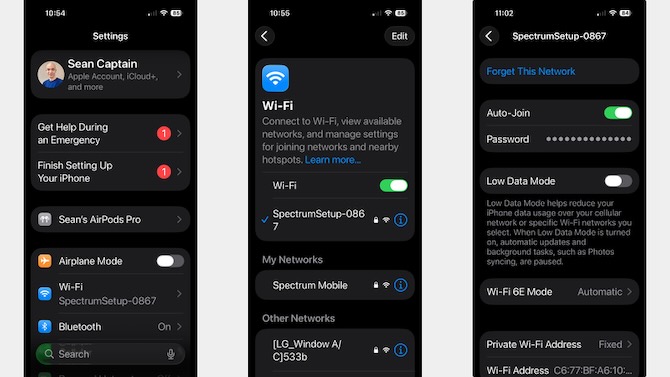
This happens because the iOS default is to auto-join known networks – any whose names and passwords are synced through Keychain. (You can see all of your saved Wi-Fi networks in the Passwords app on iPhones, iPads, and Macs.) You might not think that, though, because the default at Settings > Wi-Fi > Ask to Join Networks is "Notify."
But what that means, if you read the tiny print below, is, "Known networks will be joined automatically." (This looked the same on all three iPhones.) If you click through to the next screen, you can select "Off," "Notify," or "Ask." But these affect only whether and how your phone tells you about "new" networks – those not already in Keychain.
An Annoying Problem to Fix
Unfortunately, there's no universal setting to stop your iPhone from hooking up with any network your Mac (or iPad) told it about. So you're left with kluges.
The easiest of them is to simply toggle Wi-Fi off. Go to Settings > Wi-Fi, or swipe down from the right corner of the screen (swipe up on an iPhone SE) and click the three arcs of the Wi-Fi symbol to turn it off. The problem is that you'll have to keep doing that. If you turn on your Wi-Fi to connect at home or work, you'll have to remember to disable it when you head out the door.
Read more: How to Unlock an iPhone When You Don’t Know the Passcode
The next, and better, option is to disable auto-joining for each Wi-Fi network you encounter and don't want to connect to. Go to Settings > Wi-Fi, tap the network name in the list, then toggle off Auto-Join. You may have to toggle Wi-Fi off and on for this change to take effect.
You could also delete any Wi-Fi networks you don't want your phone connecting to. (Settings > Wi-Fi, click on the network and click "Forget This Network.") But first decide how you want this to go. If Keychain sync is on and you delete a network on one device, it will be deleted from all your Apple devices logged into the same iCloud account. That might not be ideal, for instance, if you do want to auto-connect to some of those networks on your Mac (preferably using a VPN). If you turn off Keychain sync first, the networks you delete will only be removed from that device. (Go to Settings, click your name up top, then go to Passwords and toggle off "Sync this iPhone.")
Finally, you can also install a VPN on your phone and set it to auto-launch. I've been using and liking Tunnel Bear VPN for about eight years. Techlicious also recommends Surfshark. This is not quite as secure as not connecting to a public hotspot at all, but it's a practical compromise of simplicity and security.
One important note. However you connect to Wi-Fi on any device, make sure you are connecting to the right network. A hacker in the vicinity can set up an "evil twin" that allows them to intercept all your traffic. Encryption on websites and through a VPN can protect some of this traffic, but not all of it. Here are a few ways to prevent that from happening.
Look for slightly altered names, such as Cafe Wi-Fi and Cafe_WiFi, then confirm which is the right one. A clever hacker can give an evil twin the exact same name and what appears to be the same password. But the telltale sign is that you will see both of these in the list of available Wi-Fi networks at Settings > Wi-Fi > Networks in iOS.
When in doubt, don't connect, even on your laptop. Many cellular plans and phones support Wi-Fi hotspot mode, which allows you to connect your computer or tablet to the phone over Wi-Fi and use its cellular connection to access the internet. (Check how much capacity this provides, though. Some plans offer as little as 1GB.)
[Image credit:Illustration: Sean Captain/Techlicious via ChatGPT; Screenshots: Sean Captain/Techlicious]

