


There are numerous email scams that land in your inbox every day, from malware-ridden attachments supposedly from a friend to IRS impersonators to fake calendar invitations. And what makes many of these scams harder to recognize is that they rely on a “spoofed” email address to make it appear that they are coming from someone you trust (or even your own email address) rather than a scammer 6,000 miles away. So learning how to tell if an email has been spoofed is critical to protecting yourself.
Part of the reason why spoofed emails are so prevalent is that it is incredibly easy to spoof an address. Any mail server can be set up to send from a given domain (e.g., irs.gov), and there are even websites that will let you send one-off emails using any email address for free. And while most email services will send these to spam, it's possible one may get through, or you may be wondering whether an email that landed in your spam folder is real.
Fortunately, these methods leave telltale tracks that give it away as spoofed.
To find these tracks, you need to look at the email header. The header contains critical components of every email – From, To, Date, and Subject – as well as detailed information about where the email came from and how it was routed to you. Importantly, it also contains the results of the verification process your email provider used to determine if the sending server has permission to send using that domain (i.e., is this server authorized to send emails from irs.gov?).
How to find email header information
Showing your email headers varies depending on which email service you’re using. The instructions below are all for your computer or the "desktop view" using your phone's browser.
How to show email headers for Gmail
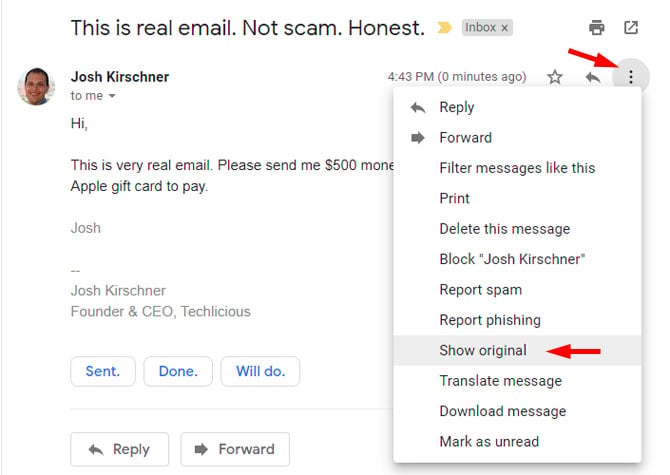
For Gmail, open the email and click on the three vertical dots next to the reply arrow and select “Show Original”.
How to show email headers for Outlook and Outlook.com
For Outlook, open the email. Click on "File" and then "Properties." The headers will show in the "Internet headers" box.
For Outlook.com, open the email. Click on the more icon (three dots) and select "View" and then "View message source." The headers will show in a pop-up box.
How to show email headers for Proton Mail
For Proton Mail, open the email. Click on the more icon (three dots) and select "View headers." The headers will show in a new window.
How to show email headers for Apple Mail
For Apple Mail, open the email. Click View > Message > All Headers. The headers will show in the window below your inbox.
How to show email headers for Yahoo! Mail
For Yahoo! Mail, open the email. Click on the more icon (three dots) and select “View raw message.” The headers will show in a new window.
How to find the header information that shows an email is spoofed
Below is an example of a spoofed email I sent using an online spoofing service, pretending it came from my own address. Looks pretty real. It says it came from my email address, and if I reply, it will go to the same address (unless the attacker set a different “Reply-To” address, which scammers sometimes use to redirect responses).
But the header information gives it away as spoofed. There’s a lot of technical stuff in here, and you can ignore most of it. The two things that matter most are the domain name and IP address in the “Received” field, and the validation results in the “Received-SPF” field.
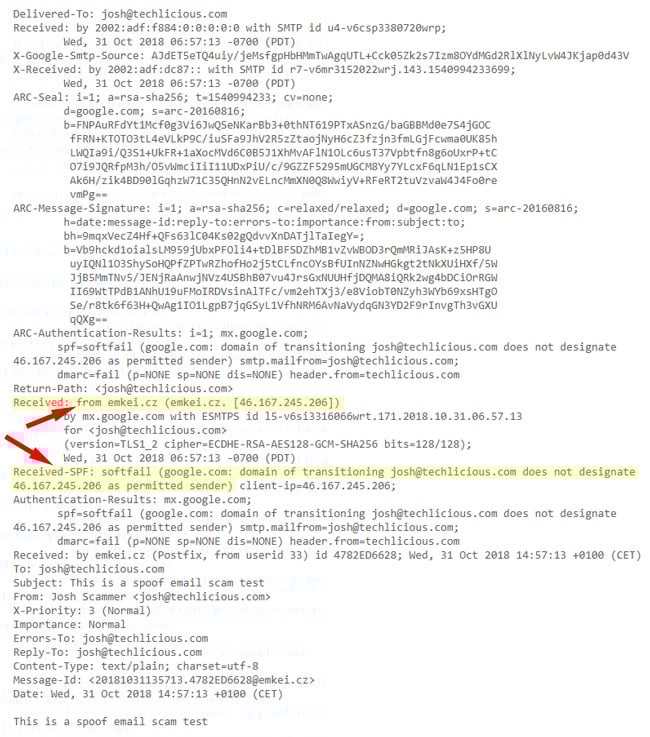
The “Received” headers show each mail server the message passed through. By examining the earliest “Received” entry (usually at the bottom), you can often identify the server that originally sent the message.
As you can see above, the domain name this email is being sent from is emkei.cz (the email spoofing site), not Techlicious.com, so that’s a dead giveaway. But if the domain name is similar or it’s listed as just an IP address, you should check the IP address too and see if it passes the smell test.
To check an IP address, go to Domain Tools and enter the “from” IP address in the Received field into the Whois Lookup. When I do that with 46.167.245.206 from the example above, it tells me this is a host called emkei.cz out of the Czech Republic – not what I would expect to see if this were really an email sent by Techlicious.
Next, look at the Received-SPF field to see whether it shows a soft fail. Sender Policy Framework (SPF) is a way for a domain (e.g., Techlicious.com) to specify what servers are permitted to send mail on its behalf. Mail sent from permitted servers will appear as “Pass” in the Received-SPF field, which is a strong indicator that the email is legitimate. If the results show “Fail” or “Softfail”, that’s a sign the email may be spoofed, though it’s not 100% certain, since some domains don’t keep their SPF records up to date, which can cause legitimate emails to fail authentication checks.
Many email services include an “Authentication-Results” line in the header that summarizes whether SPF (checks if the sending server is authorized to send for that domain), DKIM (a digital signature verifying the email was sent by that domain and wasn’t altered), and DMARC (a policy that confirms the sender domain matches the visible “From” address and instructs mail servers what to do if authentication fails) passed or failed. If all of them fail, that’s a strong sign the email may be spoofed.
Taken together, the sending IP address and SPF validation will give you a very good sense of whether an email truly comes from the person purportedly sending it. And don’t forget to trust your gut. If an email sounds implausible, it probably is. Don’t respond directly or open any attachments. If it is a company, bank, or government organization, find their contact information online and reach out to them directly to verify whether the email is legit.
Updated on 3/13/2026 with clarifications on what to look for in a spoofed email header
[Image Credit: BigStock-Woman at Computer]


From james on November 03, 2018 :: 1:55 pm
the list you show is not good for yahoo e-mail.
Reply
From Josh Kirschner on November 05, 2018 :: 10:27 am
To see the email header info in Yahoo, open the email, click the three horizontal dots in the menu at the top of the message, and then hit “View raw message”
Reply
From Petah on March 25, 2021 :: 5:32 pm
does it mean its been hacked? received more emails while I was on phone to friend checking that they were not real. They do not show in his sent folder. I can’t block his address otherwise won’t receive his legitimate emails. what can he do? what can I do?
Reply