We’ve all been there – you take a great photo on your Android phone, and your friend with an iPhone asks you to send it. Until now, that usually meant sending it through a messaging app or uploading it to Google Photos and sharing a link. Both work, but both add friction and you may end up with a compressed version of the image.
Google’s latest update to Quick Share changes that – at least for Pixel devices. It now works directly with AirDrop, so you can send full-resolution files back and forth between a Pixel and an iPhone, iPad, or Mac.
With Quick Share to AirDrop, the devices use a combination of Bluetooth and peer-to-peer WiFi to connect and transfer files. Since the files don’t pass through an external server, there’s no uploading, downloading, or waiting. Every transfer requires approval from the recipient, so you stay in control of what you receive. Google’s implementation isn’t officially supported by Apple, but Google says it was independently tested by NetSPI, a penetration testing firm, and found to be secure.
For now, this feature is available on the Pixel 10 series, including the new Pixel 10a, and rolling out to the Pixel 9 series, excluding the Pixel 9a. It doesn’t work with Samsung or other Android phones yet, though Google says broader support is coming.
Read more: Pixel 10: Big AI Leap and Magnetic Charging Upgrade
How to send files from your Pixel to an iPhone
Before you start, the person with the iPhone needs to set AirDrop to receive from everyone. They can do that by opening Control Center, tapping “AirDrop,” and selecting “Everyone for 10 Minutes.”
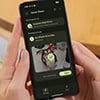
On your Pixel, open the photo, video, or file you want to share. Tap the “Share” button, then tap “Quick Share.” Your friend’s iPhone should appear in the list of nearby devices. Tap it to send.
The iPhone will show a pop-up asking whether to accept the file over AirDrop. Once they tap “Accept,” the file transfers immediately at full resolution.
You can also start from the Quick Share panel. Swipe down from the top of your screen to open Quick Settings and tap “Quick Share.” Tap “Send” at the bottom, choose the files you want to share, and select the nearby iPhone from the list.
How to receive files from an iPhone on your Pixel
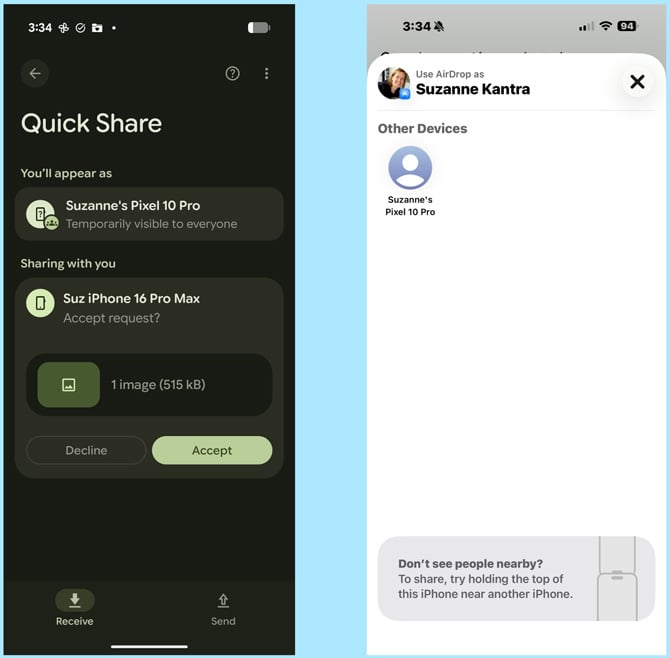
Before you can receive files from an iPhone, you'll need to make your Pixel visible. Swipe down from the top of your screen to open Quick Settings and tap “Quick Share.” Tap “Receive” at the bottom. Your Pixel will display a message that it’s temporarily visible to everyone.
The iPhone user can then AirDrop as usual. They open the file they want to send, tap “Share,” and then “AirDrop.” Your Pixel should appear under “Other Devices” on their AirDrop screen. They tap your device name to send the file.
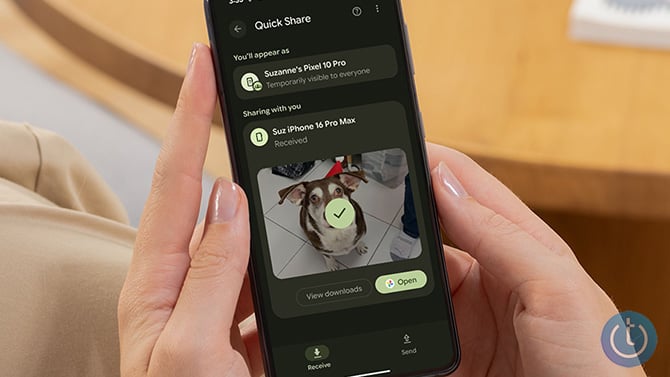
On your Pixel, you'll see the incoming file with “Accept” and “Decline” options. Tap “Accept.” The file downloads immediately, and you can tap “Open” to view it or tap “View downloads” to find it later.
Troubleshooting tips
If you don't see the other device showing up, there are a few things to check.
First, make sure your Pixel is up to date. Go to Settings > System > Software updates > Google Play system update, and install any available updates. You may need to restart your phone after updating.
You'll also need the Quick Share extension app. It should install automatically in the background, but you can check by going to Settings > Apps > See all apps, tapping the three-dot menu in the top-right corner, tapping “Show system,” and scrolling down to “Quick Share extension.” If it's not there, you can manually install it from the Play Store.
And on the iPhone side, double-check that AirDrop is set to “Everyone for 10 Minutes,” not just “Contacts Only.” Quick Share devices won't show up otherwise.
Once everything is updated and both devices are set to be visible, you should be good to go.
Read next: SwitchBot AI Art Frame Hands-on – No Cord, No Glow, Just Art
[Image credit: screenshots via Suzanne Kantra/Techlicious, phone mockup via Canva]