
If you’re still relying on just a password to protect your online accounts, you’re gambling.
Passwords get reused. They get leaked in data breaches. They get guessed. And once a criminal has your password, they can walk right into your email, bank account, or social media profile unless you’ve added another layer of protection.
That extra layer is two-factor authentication (2FA). It’s no longer optional. It’s the single most important security step most people still haven’t fully implemented.
Here’s what you need to know now.
What Two-Factor Authentication Actually Does
Two-factor authentication requires two different types of proof before you can log in:
- Something you know (your password)
- Something you have (your phone, an app, a hardware key)
- Or something you are (biometrics like Face ID or a fingerprint)
Even if someone steals your password, they can’t log in without that second factor. In the real world, this blocks the vast majority of account takeover attacks. It turns a simple password leak into a dead end.
But not all 2FA methods are created equal. Some are good. Some are better. And some are already on their way out.
SMS and Email Codes: Better Than Nothing, But Not By Much
The most common form of 2FA sends you a one-time code by text message or email. You enter the code after your password, and you’re in.
It’s convenient. It’s easy. And it’s widely supported. It’s also the weakest form of 2FA still in use.
Text-message codes are vulnerable to SIM-swapping attacks. That’s when a criminal convinces your mobile carrier to transfer your phone number to their device. Once they control your number, they receive your login codes. This isn’t theoretical. SIM swapping has been used to drain bank accounts, hijack crypto wallets, and lock people out of their own email.
Email-based codes aren’t much better. If your email account gets compromised first, attackers can use it to intercept codes for your other accounts.
Here’s the bottom line: SMS or email 2FA is far better than no 2FA at all. If that’s the only option an account offers, use it. But don’t stop there if stronger options are available.
Read more: How to Tell if Your Phone Has Been Cloned
Authenticator Apps: The Sweet Spot for Most People
Authenticator apps generate time-based, one-time codes directly on your device. No text message. No carrier involved. For most people, authenticator apps are the best balance of security and usability.
If you’re completely in the Apple world, verification codes are built directly into iOS and macOS, and they sync securely across devices via iCloud Keychain. Otherwise, I’d recommend using the authenticator built into your password manager. Both of our favorite password managers, 1Password and Dashlane, have built-in authenticators.
Authenticator apps use a standard called TOTP (Time-Based One-Time Password). The codes refresh every 30 seconds and are generated locally on your device. That makes them resistant to SIM-swapping attacks.
However, they aren’t phishing-proof. If you’re tricked into entering your password and your authenticator code on a fake website, attackers can capture both in real time and log in before the code expires.
That’s why security is moving beyond codes entirely.
Passkeys: The Beginning of the End for Passwords
Passkeys are the most important shift in account security in years. Instead of creating a password and then adding a second factor, passkeys replace passwords entirely. They use public-key cryptography and are tied to your device. When you log in, you authenticate with Face ID, Touch ID, Windows Hello, or your device PIN.
There’s no password to steal. No code to intercept. And critically, passkeys are phishing-resistant. They only work on the legitimate website they were created for. If you try to log in to a fake site, the passkey simply won’t activate.
Apple, Google, and Microsoft all support passkeys. They sync across devices through iCloud Keychain or your password manager (including our recommended 1Password and Dashlane). Major services like Amazon, PayPal, Google, Microsoft, and many banks now support them.
For most consumers, passkeys are the future. They’re easier to use than passwords and more secure than traditional 2FA codes.
The caveat: you need to make sure you have account recovery methods set up correctly in case you lose access to your primary device.
Hardware Security Keys: Maximum Protection
If you want the strongest widely available account protection today, use a hardware security key. These are small physical devices, USB and/or NFC, that you tap or plug in to verify your login.
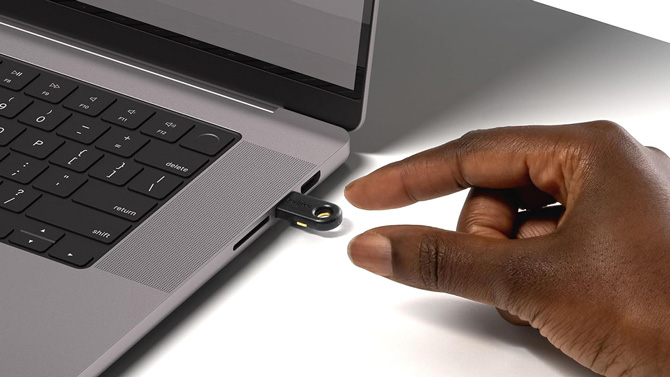
Unlike SMS codes or authenticator apps, hardware keys can’t be intercepted remotely. An attacker would need physical possession of your key.
They’re especially valuable for:
- Email accounts (your email is the skeleton key to everything else)
- Financial accounts
- Business users
- Journalists, activists, or anyone at higher risk of targeted attacks
Hardware keys can also store passkeys, acting as a portable, cross-platform login method.
The tradeoff is convenience. You need to carry the key. And you should always register at least two keys – one primary and one backup – so you don’t lock yourself out.
For most people, authenticator apps or passkeys are sufficient. But for high-value accounts, hardware keys are the gold standard.
Read more: How to Use a Hardware Security Key to Protect Your Accounts
What you should do right now
Here’s my advice:
- Turn on two-factor authentication for every account that offers it, especially email, financial, shopping, and social media accounts.
- If the account supports passkeys, use them. and if passkeys aren’t available, choose an authenticator app over SMS.
- Make sure you have a second way back into the account, even if it’s email or SMS.
- Test your main and secondary 2FA methods of accessing your account. If there are extra weaker 2FA methods, remove them from your account.
- Consider a hardware security key for your most important accounts.
And one more critical step: save your recovery codes. When you enable 2FA, most services provide backup codes you can use if you lose your device. Store them securely – ideally in a password manager.
[Image credit: Yubico]