

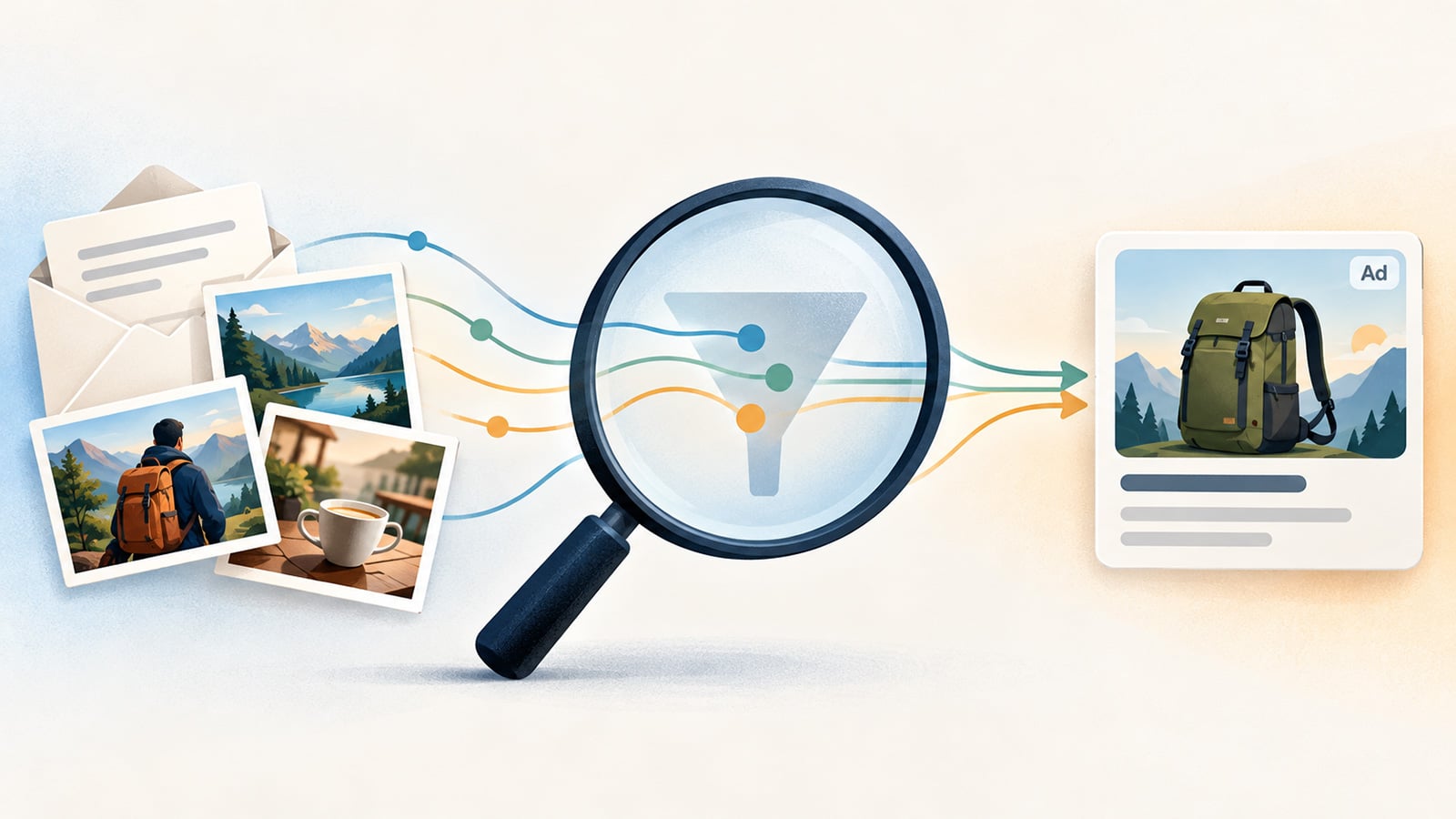
Image credit: Concept illustration by Suzanne Kantra/Techlicious generated via ChatGPT
Google has added an exception to its promise that your emails and photos won’t be used to personalize ads.
The latest privacy change impacts anyone who connects Gmail, Google Calendar or Google Photos to Google Search through a feature called Personal Intelligence. This feature lets AI Mode and other Search tools learn from your messages and pictures to tailor their answers.
The change comes via Google’s privacy policy, updated on October 16. It states that Search may process data you allow it to access “to personalize content, including ads.” The policy still says Google doesn’t show personalized ads based on your Drive, Gmail or Photos content, but it now specifically carves out people who choose to make that data available to other Google services that support personalized ads.
Google says ads won’t be based “directly” on your Gmail inbox or Google Photos library, but Search may still reference summaries, excerpts and inferences drawn from those sources. In Google’s own example, AI Mode scans your emails and photos for a hotel reservation, a flight itinerary and restaurants you visited on past trips, then summarizes them to recommend places near your hotel.
Those connections extend beyond AI Mode. Google says connecting content apps permits its Search services – including Search, Discover, Maps, Shopping, Flights, Hotels, Translate, and News – to access information from Gmail, Google Calendar, and Google Photos.
Advertisers can’t access your connected Gmail or Photos, and Google won't show personalized ads based on sensitive categories such as race, religion, sexual orientation or health.
Google says Search doesn’t train its generative AI models directly on your inbox or on the imagery and audio in your Photos library, but it does train on summaries, excerpts, generated media and inferences drawn from them. However, when an email or file is brief or especially relevant to your request, the summary may be the entire email or file.
A subset of the data processed through connected apps may also be reviewed by people working for Google, including outside service providers, to debug, secure, and improve its services. Google says reviewers generally don’t view the underlying photos or videos unless it is addressing abuse or harm or the user submits feedback. Before review, Google says it disconnects interactions from the user’s account and reduces the personal information they contain, except when addressing abuse or harm.
Users can separately turn off personalized advertising through My Ad Center. However, that does not necessarily prevent connected-app information from being processed for AI personalization and model improvement.
Disconnecting an app also doesn’t clear information Search has already collected. Data retained in Search Services History may remain after you disconnect a content app or delete the original email or photo. To remove it, you must separately delete the corresponding activity through Google My Activity.
How to change your Search personalization settings
To stop Search from using your Gmail, Calendar, or Photos content, open Search Services Personalization in your Google Account. Under Additional Personal Intelligence, select Connected Content Apps and disconnect Google Workspace or Google Photos.
You can also turn off Personalized Recommendations from the Search Services Personalization page.
For Gmail, Google lists Smart features in other Google products as another requirement for Gmail-based personalization. To review it, open Gmail and go to Settings > See all settings > General > Google Workspace smart features > Manage Workspace smart feature settings.
Finally, review your Search Services History and delete previously retained activity if you don’t want it to remain available for product improvement and AI training.

