

I panicked a few weeks ago. My free one-month trial of the Google One AI Pro subscription was running out, and the $19.99 monthly charges were about to kick in. But I could not find a way to downgrade to my previous $2.99-per-month, 200GB Standard plan, which provides more than enough storage for my Gmail, Docs, Sheets, and decades of photos.
Apparently, I was not the first person to get confused. There are several Reddit threads dating back two years, with people asking how to downgrade a Google One account – including its AI plans. A few people resorted to canceling their plan when they couldn't find a way to downgrade.
I did the same, which finally spurred Google to offer the downgrade option, in a bid to keep me in the fold. But there had to be a better way. So, I opened a new account and mapped out the process. It's easiest to do on the web, rather than in the mobile apps.
Google One's dogged upsell
Google's efforts to keep upselling progressed from reasonable to absurd. Starting from the 15GB of storage that comes free with every Google account, I then chose the "Recommended" basic plan of 100GB for $1.99 per month ($2.17 after tax in my region), with an introductory price of $0.49 for the first month. That was a reasonable upgrade.
Read more: How to Free up Space on Your iPhone and Android Phone
Immediately after, I was offered two Google AI upgrades, and I chose the cheaper Google AI Pro plan: $20/month, first month free. In addition to 2TB of storage, it provides an impressive bucket of features, including full access to better AI models and/or more credits for projects in the Gemini app; Veo video creation; the Notebook LM research tool, as well as Gemini assistance in utilizing Gmail, Docs, and other apps.
A couple of days later, I tried to downgrade to my $1.99/month plan and quickly got lost.
Clicking "Storage" in the left sidebar of my Google One home screen did not help. It simply recommended another upgrade: 5 TB for $24.99/mo, despite a display on that same page showing I was currently using "0.17 GB of 2 TB." Google did not offer downgrade options. Instead, several larger – much larger – options were listed below this one. We were entering absurd territory. Here's how I got out of it.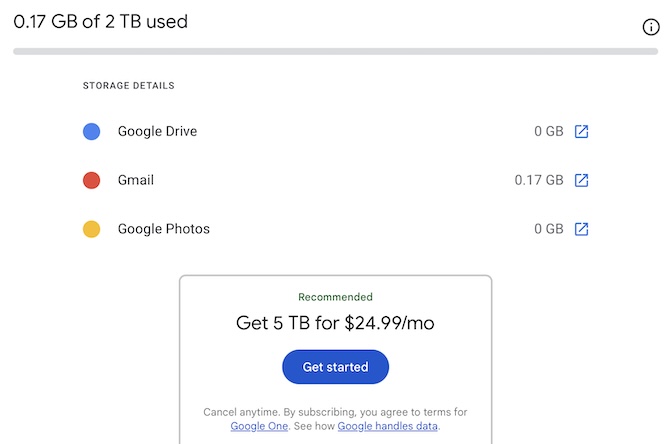
Downgrading your Google One account on the web
Follow these steps to downgrade:
1. Do not go to myaccount.google.com, which is where you would end up if you were logged into your Google account and clicked on your user icon.
2. Instead, visit one.google.com in any web browser.
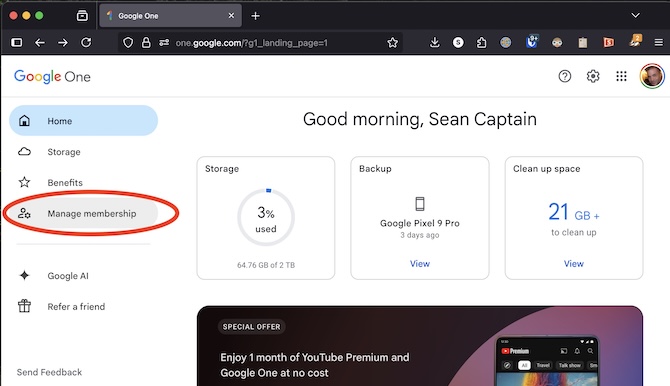
3. Click "Manage membership" in the left sidebar.
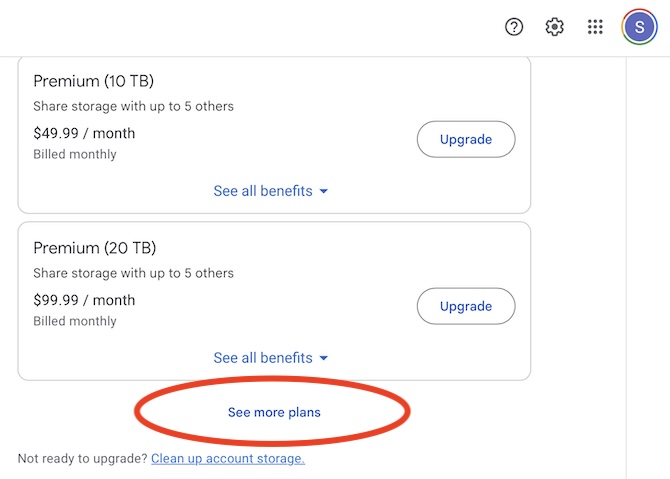
4. On the next page, scroll down past multiple upgrade options and click on the tiny text that says, "See more plans."
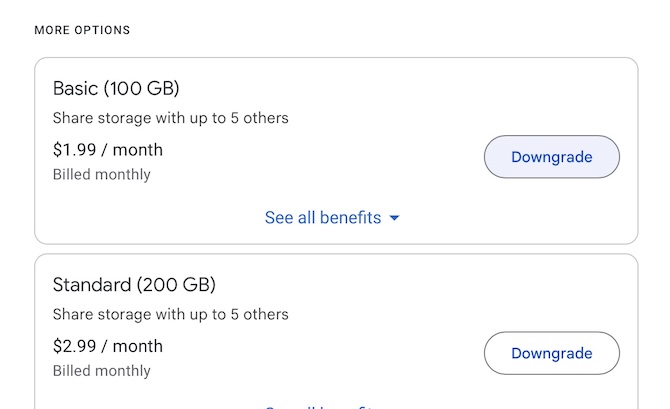
5. The list will expand to show even more-expensive upgrades, but keep scrolling until you get to the section called "DOWNGRADE OPTIONS" or "MORE OPTIONS" (I've seen both labels). Here you'll finally see the lower-tier plans, such as Standard (200 GB) and Basic (100 GB). Make your choice.
Read more: I Switched to YouTube Premium Lite and Saved $6 a Month
If you find yourself in absurd territory, this is the path back to reasonable. It's not a long journey, once you know where to go.
[Image credit: Screenshots by Sean Captain]


From Siegmund Goldschmidt on March 02, 2026 :: 9:41 am
Yeah, no…
This is not the case anymore, The “Manage membership” has dissapeared, effectively only leaving options to upgrade. I’ve going in circle for 40 minutes trying to fiure things out. Not even various Ai’s have a reasonable answer.
S. G.
Reply