

Image credit: Palash Volvoikar/Techlicious, composited with Canva
It's iOS 27 time, and if you have an iPhone 11 or anything newer, including the second-generation iPhone SE, the free update should already be waiting for you under Settings > General > Software Update. A lot of what's new in this version is the kind of thing you won't run into unless you go looking for it in Settings, since Apple tends to leave new options at their defaults rather than switching them on for everyone. I've been running the iOS 27 beta since the first developer build came out in June, and I always go through Settings after each one to see what's new. This time, Apple Intelligence was what I went looking for first.
Before you start, keep in mind that one of these, the Safari tab sorting, runs on Apple Intelligence, which means you need an iPhone 15 Pro or something newer for it to show up at all. The other three don't have that requirement and should be there on any iPhone that can take the update. Here's where to find each of them once you’re done installing the iOS 27 update.
Turn down (or up) the Liquid Glass transparency
If you found the see-through menus in iOS 26 hard to read, you weren't the only one, and Apple has been slowly walking Liquid Glass back ever since it launched. iOS 26.1 got a Clear or Tinted switch, iOS 26.2 added a slider just for the Lock Screen clock, and now with iOS 27 you'll finally get a proper slider that covers the whole system.
To adjust it, go to Settings > Appearance > Liquid Glass. If you drag the slider to the left the glass will get clearer, and if you drag it to the right it'll get more frosted, with the midpoint being what Apple ships as the default. There's a preview at the top of the screen that redraws as you move the slider around, so you don't have to keep backing out of Settings to check what you've done, which is a nice touch.
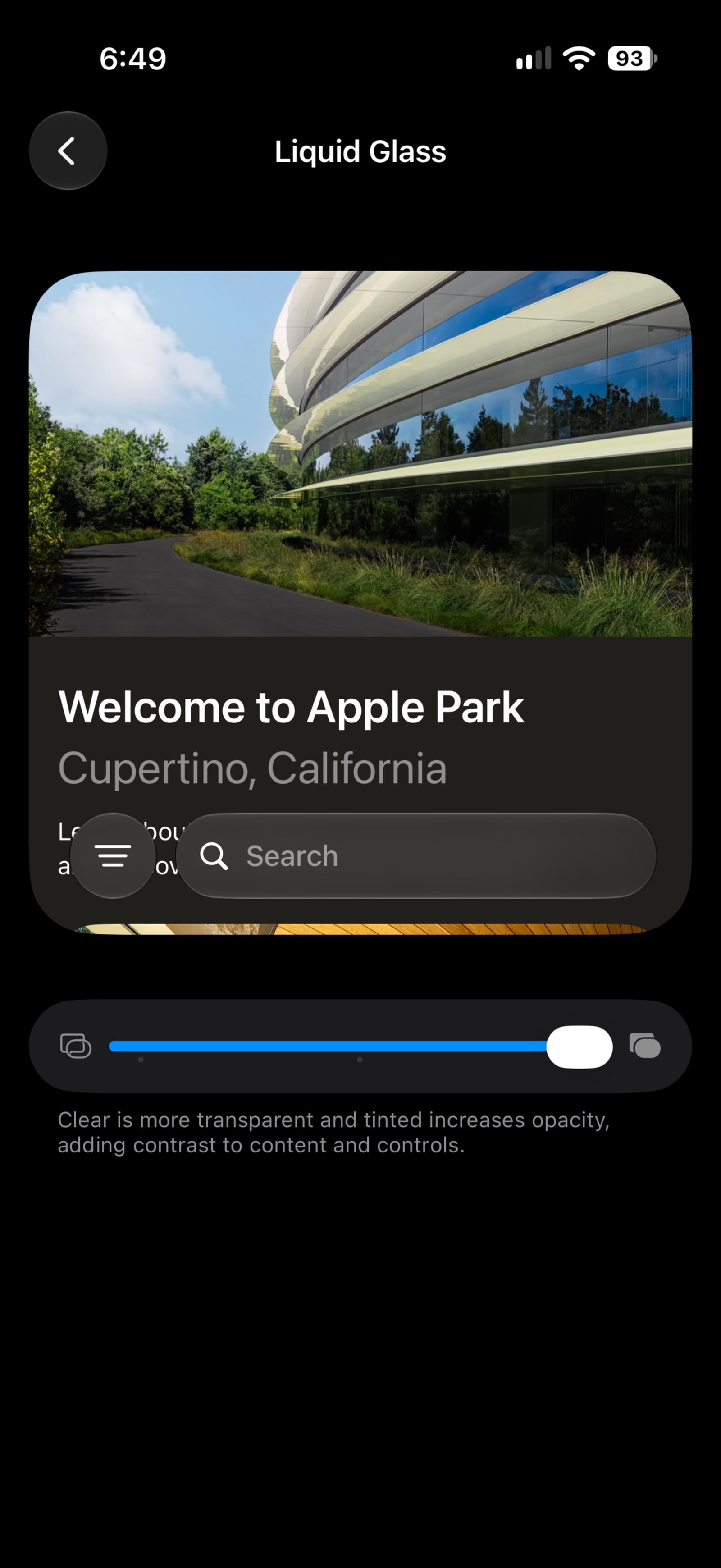
Image credit: Palash Volvoikar/Techlicious
You'll see the change everywhere at once, since Control Center, Home Screen folders, app toolbars, and the notifications on your Lock Screen all follow the one setting. I keep mine slightly past the midpoint, though the glass doesn't bother me all that much either way. I've also run it halfway between the lowest setting and the middle without noticing any issues. I do get why people have a problem with it, though, since it can affect readability.
Note: even with the slider all the way to the right, there's still going to be some glass left in the interface. If you'd rather have it gone completely, you can go to Settings > Accessibility > Display & Text Size and turn on Reduce Transparency, which will flatten pretty much everything down to solid backgrounds the way it has for years.
Read More: Apple keeps walking back Liquid Glass with iOS 26.2 Lock Screen fix
Give your alarm its own volume
For pretty much as long as the iPhone has existed, your alarm has played at whatever volume your ringer happened to be set to, which has never made a lot of sense. If you turned the ringer down for a meeting and forgot to turn it back up, there’s a good chance you slept through your alarm the next morning, or at least came close to it. With iOS 27, you can finally set the two separately.
To set it up, go to Settings > Sounds & Haptics. You'll now see three separate sections there instead of the one you're used to: Ringtone, Alarms and Timers, and Alerts and System Sounds. Under Alarms and Timers, turn off the Match Ringtone Volume toggle. A new slider should then appear right underneath it, playing the alarm sound as you drag it so you get a sense of what volume you're setting before you commit to it.
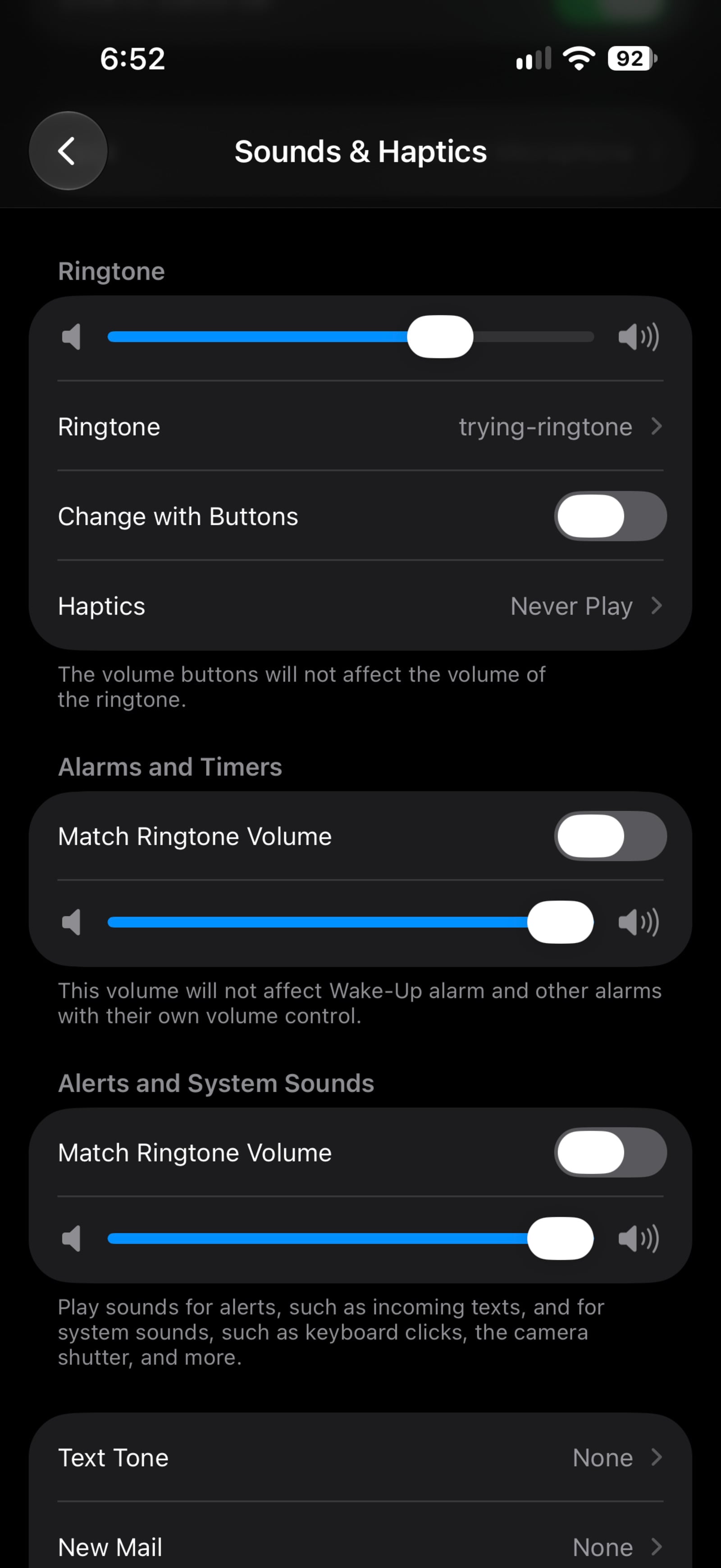
Image credit: Palash Volvoikar/Techlicious
You can do the same thing under Alerts and System Sounds if you want your notification pings to be quieter than your ringer, or louder, for that matter. I have all three of mine matched, since I keep everything at max volume anyway. For anyone who only wants the alarm blaring and everything else kept quiet, though, I think this is a much-needed change.
Note: this slider won't control the Wake Up alarm that's part of your Sleep schedule, as that one has had its own volume setting for a while now and will keep it. The side volume buttons also keep working the way they always have, which means they'll change the media or call volume depending on what you're doing and leave the alarm volume alone.
Let Safari sort your tabs into topics
Safari now has the ability to go through your open tabs and group them by what they're about, so the couch you've been shopping for and the weekend trip you've been planning end up in two separate piles rather than mixed in together. If you only want to see one of those piles at a time, the same menu will let you filter down to a single topic, and the groupings seem to update on their own as you keep browsing.
This one isn't in the Settings app. You'll need to open Safari for it, tap the tabs button in the bottom right corner to see all your open tabs, then tap the icon with the three horizontal lines in the top left corner. From the menu that comes up, turn on Automatically Create Topics.
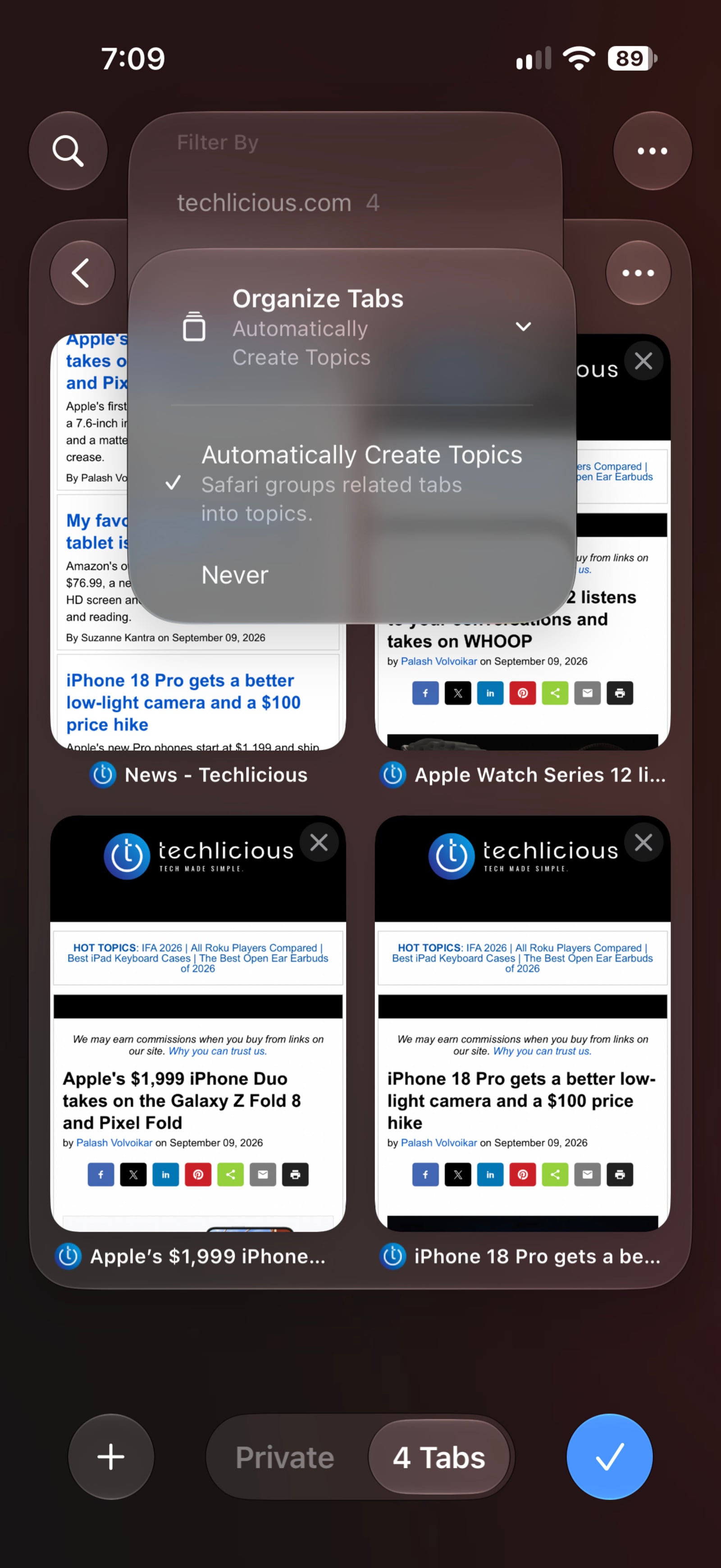
Image credit: Palash Volvoikar/Techlicious
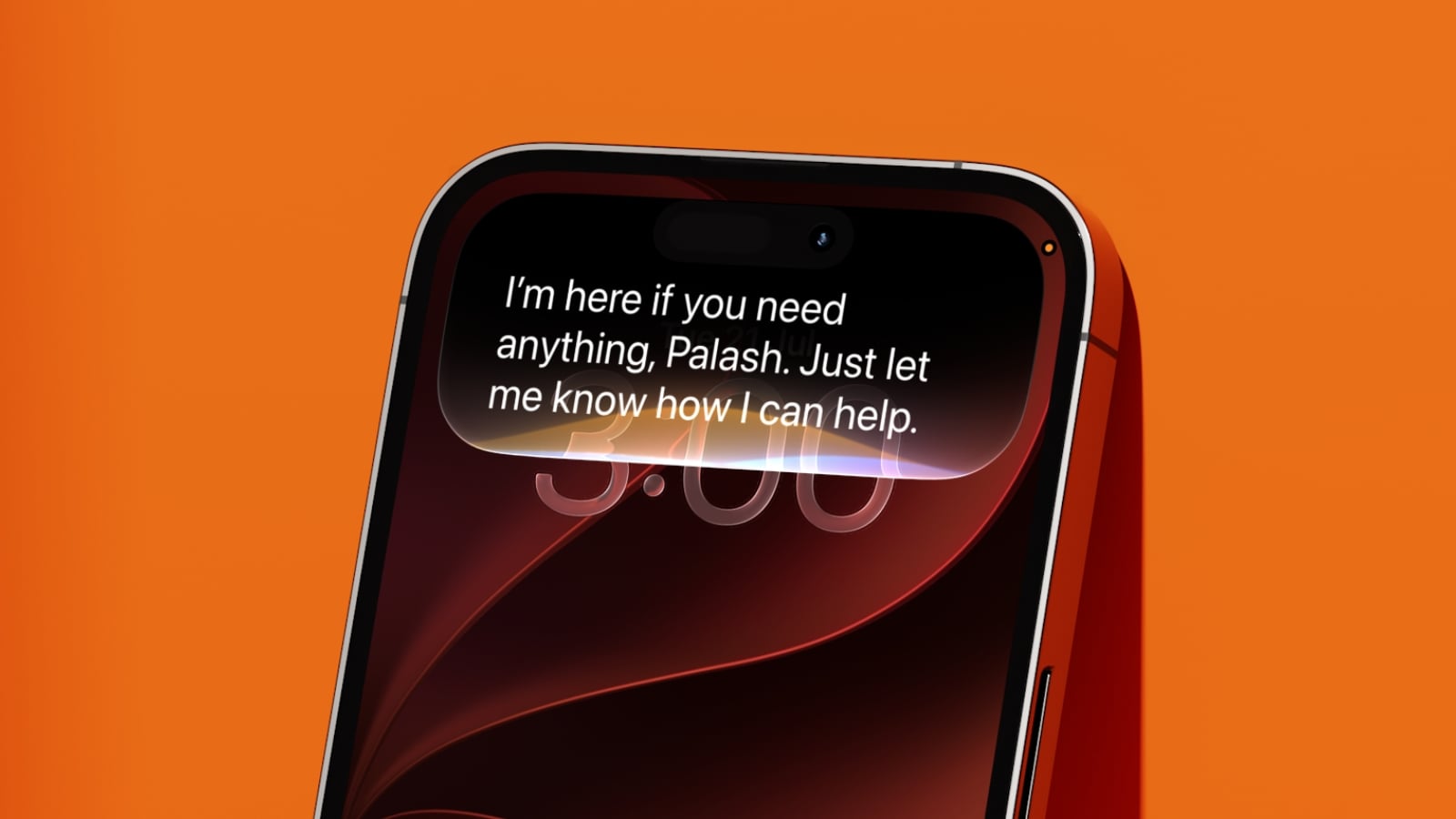
You need an iPhone 15 Pro or newer for this one, since the sorting relies on Apple Intelligence rather than on the phone's regular smarts. Grouping by topic is a nice touch, especially if you're the type to leave a few dozen tabs open for weeks and then forget what half of them were even for. I’ve tested this feature and it worked pretty well to group my tabs. Another side benefit of Apple Intelligence is that Siri can finally hold a real chatbot-style conversation – a major improvement over the existing ask-answer format.
Shrink the Lock Screen clock
If you'd rather see more of your wallpaper and want the clock to be smaller, iOS 27 has added a compact clock option. It's hidden in the Lock Screen editor instead of being in the Settings app. To get to it, touch and hold your Lock Screen, tap Customize, and then tap the clock itself to open the Font & Color panel. In the top right of that panel you'll see a new icon made up of two horizontal bars. You can tap that to switch the clock over to the compact layout, after which you can tap anywhere on the wallpaper to close the panel. Hit Done in the top right corner to save it.
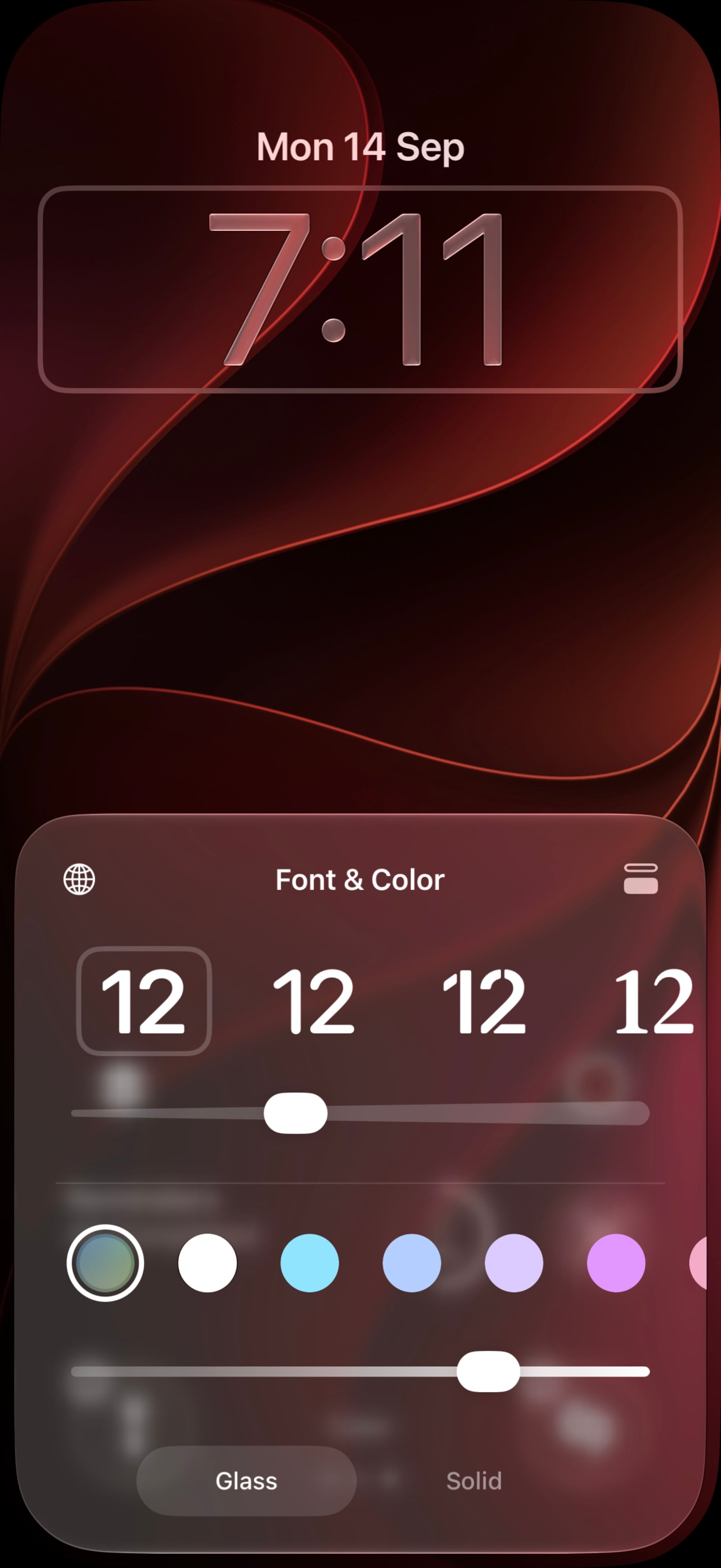
Image credit: Palash Volvoikar/Techlicious
You'll see the time shrink down to roughly the size of the date and move up into the top row next to it, and your font, weight, and color choices will carry over as they were, though you'll lose the clock's own Liquid Glass slider for as long as it's in compact mode. The change will only apply to the Lock Screen you're editing at the time, which means you can keep a full-size clock on one wallpaper and a compact one on another, and that comes in handy if you use different Lock Screens for different Focus modes (or just different moods or cases like I do). You can do this on any iPhone that runs iOS 27, as it doesn't need Apple Intelligence.
I keep a couple of my Lock Screens on the compact clock. I do like the big clock, but every so often I'll switch one to line up with the date just for a change. Having more customization choices in iOS is a great thing, and it’s particularly one of those things that makes me want to fully switch to Android less.
Where to look next
Those four should cover most of what you'll notice on day one, but Apple has moved a lot of small things around this year. You may want to spend a couple of minutes scrolling through the Settings app from top to bottom, since there are quite a few new options that weren't there in iOS 26.
I actually intended on adding a fifth item to this list. At WWDC, Apple showed off an option in the Passwords app that lets Apple Intelligence sign in to a site and change a weak or leaked password for you, without you having to do much beyond approving it. Apple has removed that feature from the last few betas, though, and its iOS 27 page now says it's coming in a future update, which will likely end up being 27.1. I think it'll be useful when it does arrive, but I wouldn't run it on anything sensitive if you’re overly cautious about your passwords.
In the meantime, these are alternative password managers we've tested and recommend. And regardless of where you're storing your passwords, turning on two-factor authentication is an absolute must-do for any accounts that allow it.

