

Desktop notifications are one of those things you don’t think about until they stop working. Then they suddenly matter a lot.
In my case, Google Calendar reminders suddenly stopped appearing on my Windows 11 PC. No pop-ups. No alerts. Nothing in the corner of the screen to warn me that a meeting was about to start. That meant I was often late for or, worse, missed important business calls.
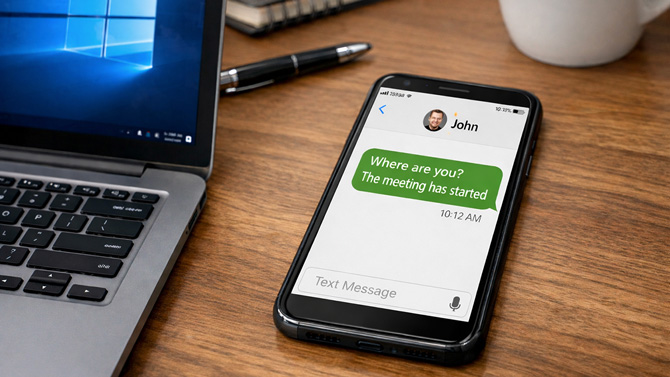
The strange part? Everything looked fine in Windows settings. I confirmed that Notifications were turned on in Settings under System > Notifications. I made sure Chrome was allowed to send notifications. Focus Assist wasn’t blocking anything. Google Calendar notifications were enabled.
On paper, everything was configured correctly. Yet notifications still weren’t appearing.
If you’re in this same boat, one commonly suggested fix in the Microsoft support forums is clearing Windows’ stored notification settings through the registry. First, make sure you're logged in as an administrator account. Then open Command Prompt as Administrator (type "cmd" in the Windows Search Box and select the option for "Run as administrator") and run the following command in the Command Prompt:
reg delete HKCUSoftwareMicrosoftWindowsCurrentVersionNotificationsSettings /va /f
That command deletes all saved notification settings for the current user account. And if a corrupt registry entry is causing your issue, that should resolve it. However, after running it and restarting, notifications still didn’t appear for me.
What ultimately solved the problem was another solution for re-registering Windows system apps using PowerShell. Windows notifications depend on properly registered system app packages and background services. If something becomes corrupted – which can happen after a Windows update or other system change – notifications can silently fail even though all your settings look correct. Re-registering the app packages forces Windows to rebuild those internal connections.
Here’s exactly what I did:
- Open the Windows Search box.
- Type Windows PowerShell.
- Select Run as administrator (you must be logged in with an administrator profile).
- Paste the following command and press Enter:
Get-AppxPackage | % { Add-AppxPackage -DisableDevelopmentMode -Register "$($_.InstallLocation)\AppxManifest.xml" -Verbose }
The command takes a few minutes to run, and you will see a bunch of text and code scroll across the screen while it’s working. That’s normal. It’s suggested to reboot after the process completes, but in my case, I didn’t need to. Google Calendar reminders started appearing again exactly where they should, in the bottom-right corner of the screen.
Before trying this fix, keep one thing in mind: the command does not delete personal files, but it may reset some app permissions or default behaviors – a small price to pay for getting things working again.
Read more Techlicious computer safety and support tips to protect your privacy and keep things running smoothly.
[Image credit: Suzanne Kantra/Techlicious via ChatGPT]

