

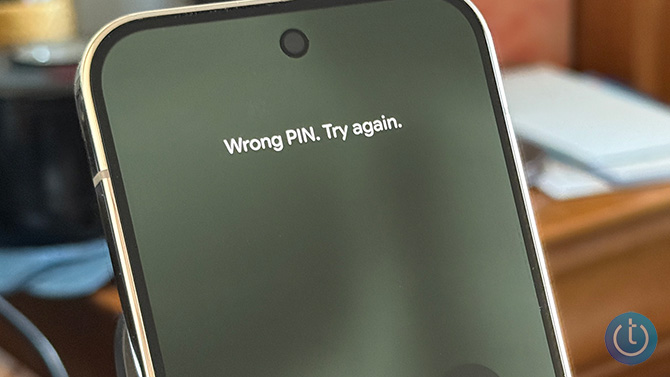
Forgot your Android phone password, PIN, or lock pattern and can’t get past the lock screen? On modern Android phones, there’s no way to unlock your phone without resetting it. To use it again, you must do a factory reset, then sign back in with the Google account originally used to set up the device.
Resetting your phone does not necessarily mean losing all your data. If you still know your Google account credentials and your photos, contacts, and other files were backed up to your Google account, you can restore most of your data after the reset. If they weren’t backed up, anything stored only on the phone will be gone for good.
If you can’t log in to the Google account originally used to set up the phone, you won’t be able to complete the setup process after the reset. This is called Factory Reset Protection (FRP), and it’s designed to prevent stolen phones from being reused. The good news for Samsung owners in this situation is that you can take your phone to an authorized Samsung service center, and they can flash it back to factory settings. You will need to prove that you are the original owner of the device with either a purchase receipt or an email purchase confirmation.
Below are the official ways to reset a locked Android phone and get back in.
How to reset a locked Android phone
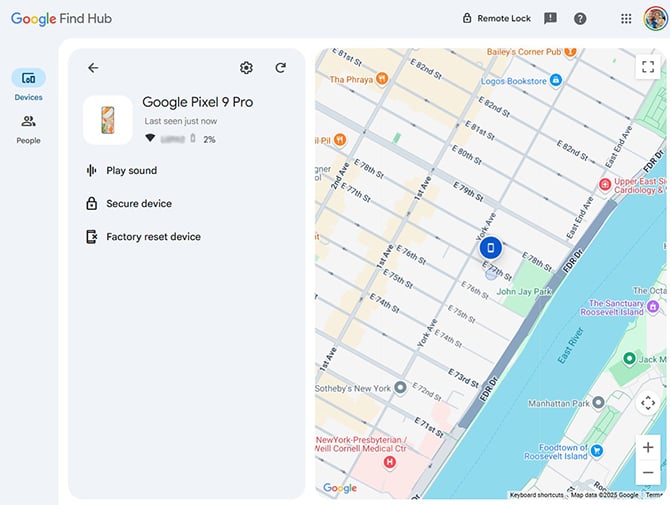
There are two methods to factory reset an Android phone if you’ve forgotten the password and can’t get past the lock screen. The first is to use Google’s Find Hub (formerly Find My Device), which allows you to erase your phone online remotely. If you don’t have Find Hub turned on (it should be on by default), you’ll have to use the second method below, Android’s “Recovery Mode.”
How to reset your Android phone through Find Hub
- Go to Google Find Hub. If you’re not already, sign in to the Google account that is the main profile on your device. If you have more than one device, select the phone you want to erase at the top-left of the screen.
- Select "Factory reset device."
- Click the "Next" button.
- Re-authenticate your Google account.
- Click on the "Reset" button.
- Follow the steps to set up your phone again – note that you will need to verify the Google account information you originally used to set up the phone in order to proceed with setting up the device.
Read more: How to Back up Everything on Your Android Phone
How to reset your Android phone through Recovery Mode
Basic steps for resetting your Android phone are to power it off, restart your phone in Recovery Mode, and use the Recovery Mode menu to perform a factory reset/data wipe.
Most manufacturers – including current Samsung models, Google Pixel, and other stock Android devices – use the same steps to enter Recovery Mode. However, there are slight variations with older Samsung phones and some other manufacturers. Follow the steps below based on your device.
How to reset most Android phones
Google advises you to charge your phone to at least 70% before attempting to reset your locked phone.
- Press the Power and Volume Up buttons to bring up the Power menu. Then select "Power off" to turn off your device.
- Press and hold the Power and Volume down buttons for 10 to 15 seconds.
- Use the Volume up and Volume down buttons to navigate through the menu options until you get to "Recovery Mode," then press the Power button to select it.
- You’ll see an Android robot with a red exclamation mark and the words "No command."
- Press and hold the Power button. While you hold the Power button, press the Volume up button. Then release both buttons quickly.
- A new menu will pop up. Use the Volume buttons to scroll to "Wipe data/factory reset" and use the Power button to select it.
- Use the volume buttons to scroll to "Factory data reset" and press the Power button to select it.
- When the reset is finished, you'll see "Data wipe complete." Using the volume buttons, scroll to and select "Reboot system now," and use the Power button to select it.
If your phone isn’t a Pixel and uses a customized version of Android, use the instructions below for your brand.
How to reset old Samsung phones (with a Home or Bixby button)
Samsung recommends plugging in your phone to power before going into recovery mode.
- Power down your phone by waiting for it to run out of battery. Then charge it to at least 25%. (For older versions of Android, you may not be able to power down your phone when it's locked without inputting your password.)
- For Samsung phones with a separate Power button (Galaxy S8, Galaxy S9, Galaxy S10), press and hold the Volume up button, Power button, and Bixby button until your phone vibrates and goes into Recovery mode. For Samsung phones with a physical Home button (including the Galaxy S6 and Galaxy S7), Press and hold the Volume up, Home, and Power buttons until your phone vibrates, and then release just the Power button.
- A screen with the recovery menu will appear. When you see this, release the remaining buttons.
- Use the Volume buttons to highlight "Wipe data/factory reset." Press the Power button/side key to select.
- Press the Power button/side key again to select "Yes," "Yes - delete all user data," or "Factory data reset."
How to reset Huawei phones
- Hold down the Power and Volume Up buttons and then select "Power off" to power off your device.
- Press and hold the Volume up and Power buttons until your phone goes into Recovery mode. (If your phone doesn't have physical volume buttons, press the Power button five times after the phone vibrates while powering on.)
- Use the Volume buttons to select "Recovery mode."
- Use the Volume buttons or touchscreen to select the option to clear data. If you're using the buttons, use the Power button to select it.
- Use the Volume buttons to select "restore your device to its factory settings" and use the Power button to select it.
- Once your phone is restored to factory settings, you'll see the Recovery screen. Select the option to restart your device.
How to reset Sony Xperia phones
- Hold down the Power button to power off your device.
- Press and hold the Volume down and Power buttons until the "Sony/Xperia" logo appears, then release the buttons.
- Use the Volume buttons to highlight and select "Wipe data/factory reset," and use the Power button to select it.
- Press the Power button/side key again to select "Yes," "Yes - delete all user data," or "Factory data reset."
- Your phone will reboot when it's done.
How to reset TCL phones
- Hold down the Power and Volume Up buttons and then select "Power off" to power off your device.
- Press and hold the Volume up and Power buttons until your phone goes into Recovery mode.
- Use the Volume buttons to highlight "Wipe data/factory reset" (or “Yes” for some phones). Press the Power button/side key to select.
- Press the Volume buttons to select “Factory data reset,” the Power button/side key again to confirm deleting all data.
- When the factory reset is complete, press the Volume buttons to select "reboot system now," then press the Power button to confirm.
How to reset Xiaomi phones
- Hold down the Power button to power off your device.
- Press and hold the Volume down and Power buttons until the "Mi" logo appears, then release only the Power button.
- Continue to hold Volume down until the "Android Recovery" screen appears.
- Use the Volume buttons to highlight and select "Wipe data/factory reset," and use the Power button to select it.
- Use the Volume buttons to highlight and select "Wipe data/factory reset" a second time, using the Power button to select it.
- Your phone will reboot when it's done.
FAQs
Can I unlock my Android phone without losing data?
In almost all cases, no. Modern Android devices encrypt data by default, which means there’s no supported way to unlock a locked device without resetting it first. Your only chance of recovering photos or other information is from a cloud backup after the reset.
What if I forgot both my phone PIN and my Google password?
You’ll need to recover your Google account before you can set the phone up again after a reset. Start the Google account recovery process from a familiar device and network to improve your chances of verification.
Samsung owners can take their phone to an authorized Samsung service center, where the device may be restored after they verify ownership.
Can a repair shop or my carrier unlock my phone?
Repair shops cannot unlock your Android phone without wiping the device. Similarly, you may see software online that claims it can bypass your lock screen to unlock your phone or recover the data. In all cases, if someone claims they can unlock a modern Android phone, that’s a red flag you're about to be scammed.
How many wrong PIN attempts before Android locks permanently?
Most Android phones will temporarily lock you out after multiple incorrect attempts. Lockout time increases with repeated failures. On newer devices, there is no permanent lockout – but you will eventually need to reset the phone if you can’t remember the correct PIN.
Keep your data safe before you need a reset
A few simple safeguards can keep you from losing access to your phone or your Google account – and from having to wipe a device. The most important safeguard is making sure your phone is backed up automatically.
- Turn on Google’s built-in cloud backup so photos, contacts, and settings are saved regularly.
- Make sure your Google account recovery email and phone number are current.
- Store your Google password in a password manager so you can access it from another device if needed. We recommend and use 1Password and Dashlane.
- Set up a Google trusted recovery contact to help regain access if all else fails.
If your phone is still unlocked but acting unstable – overheating or glitching – you may want to quickly copy important files before it locks you out. In that situation, a small USB-C flash drive can be useful for temporary transfers. I recommend the SanDisk Phone Drive for Android because it plugs directly into your phone's USB-C port and can copy selected folders without needing a computer. It’s available in 128GB, 256GB, and 512GB capacities, starting under $20. Just keep in mind that standard flash drives are not encrypted by default, so they should not be your primary long-term backup.
Read next: Back Up Your Phone in Minutes – Best USB-C Flash Drives & SSDs
Updated on 4/9/2026
[Image credit: Josh Kirschner/Techlicious, screenshot via Techlicious]


From Erik on May 24, 2021 :: 9:25 pm
I set up my Nexus 5x for my non-english speaking mother-in-law in her language, showed her how to use Google translate, and added the phone back to our Google Fi account while she was visiting in Jan of 2020. When she left I tossed it in my drawer and didn’t think about it; however, a month ago I pulled it out to set it up for my 6 year old to see if it can be used for games. I quickly realized I do not remember the pin, so I decide to hard reset the device and when it comes back up it wants….the pin due to this lovely feature I learned about called Factory Reset Protection. I attempted to log in with my Google account which failed, and through some communication hurdles I was able to get my mother-in-laws Google account info and tried logging in that way and it failed. Those were the only two accounts used on this phone. How do I get access to the device to reset it?
Reply
From Josh Kirschner on May 25, 2021 :: 4:12 pm
When you say logging in with your Google account is “failing”, do you mean you don’t remember your Google passwords or you enter them correctly but you are getting an error message of some sort?
Reply