
We may earn commissions when you buy from links on our site. Why you can trust us.

Tech Safety Tips If You’re Attending a Protest
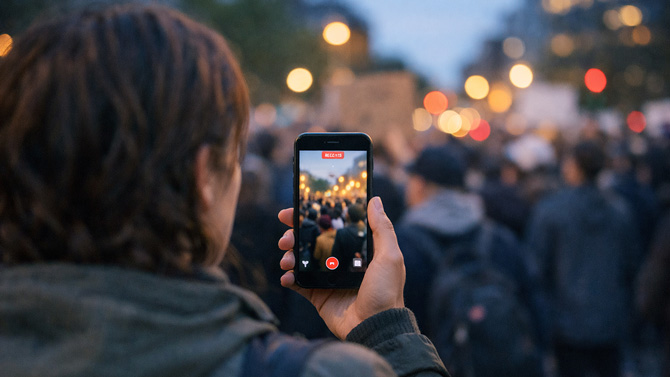
A growing number of our friends, family, and neighbors are taking to the streets to exercise their Constitutional rights to “peaceably to assemble, and to petition the Government for a redress of grievances.”
“Peaceably” is great advice from our forebears when assembling for any effort or cause. But given our 250-year history of protests and strikes gone wrong (sometimes horribly), it would have been nice if the First Amendment authors had also included “safely” if not “effectively.”
If you’re protesting for or against a meaningful social or political issue, preparation shouldn’t stop at signs and slogans. Your phone holds your photos, messages, contacts, and location history. Protecting that data – and your device – matters.
This guide is focused on digital and personal safety. It is not about tactics or escalation. The goal is to help you protect your data, your device, and your well-being while exercising your rights peacefully.
Get the Most from Your Video Recording
Everyone is now a journalist, able to video the first draft of history as it happens. With this added responsibility, be sure you capture events as accurately as possible, and that your potentially evidentiary footage is preserved for both immediate need and for posterity.
Set your smartphone to capture footage at the highest possible resolution – 4K, if your phone is able. Higher resolution footage preserves detail, and you’ll have a clearer view of any important detail you need to zoom in on later.
Preserve Your Video
You never know if you’ll retain possession of your phone during or after a protest. You may drop it, have it stolen, or even have it confiscated by authorities. To ensure your footage is preserved and can still be accessed even if you don’t have your phone, set your phone to auto-upload to the cloud.
On iPhone
If you haven’t already, set up your iCloud account online – go to iCloud.com, and fill in your Apple ID username and password. Then, on your iPhone, go to Settings. Tap your name at the top. Tap iCloud, which should be the top item in the second group of options. Under the “Saved to iCloud” array, tap Photos. Now tap the toggle to turn on Sync this iPhone.
Apple provides only 5 GB of free storage, which will fill up quickly if you record in 4K. Paid iCloud+ plans start at 50GB for $0.99 per month.
By default, uploads occur over Wi-Fi. To allow uploads over cellular, go to Settings > Cellular, then enable iCloud Drive and iCloud Backup so files can upload even when Wi-Fi isn’t available.
On Android
On Android, open Google Photos (note that depending on your version of Android, these steps may differ slightly). Tap your Profile Icon on the upper right of the screen. Tap Backup and turn it on. You can also choose storage quality – choose “Original Quality,” the highest possible resolution, for the reasons noted above.
Google provides 15GB of free storage across its services. If you shoot a lot of high-resolution video, consider a Google One plan, with storage options up to 30 TB.
To enable cellular uploads, go to Settings > System > Backup > Photos & videos > Mobile data usage and allow photo and video backup over cellular.
Finally, and perhaps most importantly, provide a trusted someone – a family member, a lawyer, etc. – a means to access your footage on video/image cloud storage, just in case you can’t. But don’t send your credentials over email, where they could sit exposed in your sent box and your recipient’s inbox for a future phishing hack. Instead, create a shared album for your protest vid backups that both of you can access, or use the Partner Sharing feature of Google Photos. Alternatively, many password managers, like 1Password, let you share your login with a recipient using a (relatively) secure link that can be set to expire within a short period or only be viewed once.
Guard Against Phone Loss or Damage
Any crowd of people creates jostling as well as opportunities for more nefarious types to ply their pickpocket trade.
To guard against either accidentally dropping your phone or having it lifted, I suggest two accessories: A drop-proof case and a lanyard or strap to keep your phone securely tethered to your body.
I like the MAGEASY 2-in-1 Phone Lanyard Crossbody & Wrist Strap and the Defender, Frē, Symmetry, and Sole series from OtterBox. Many offer military-grade drop protection and MagSafe charging compatibility in a range of styles and colors.
Guard Against Phone Surveillance
A tough phone case and a lanyard should protect your phone against physical mishaps. But you also want to guard against digital risks at these events, especially if you connect to public Wi-Fi or unfamiliar networks.
Your best guard against virtual pickpockets is a VPN (Virtual Private Network). A VPN essentially creates an encrypted tunnel between your device and the internet, preventing others on the same network from seeing or tampering with what you’re doing online.
A VPN is not an impenetrable force field. It does not prevent your carrier from knowing you’re connected, and it does not protect against device seizure or malware if you click a malicious link. But it does reduce the risk of hacking, especially if you’re using public Wi-Fi.
Personally, I use NordVPN, along with Surfshark and Proton VPN, each of which has been reviewed and recommended by Techlicious. Critically, all of them are independently audited to ensure they do not keep usage logs that can be used to track back to you. Choosing between them comes down to features, pricing, and device support.
Read more: The Best VPNs for Protecting Your Privacy
Secure Your Lock Screen Before You Go
Take a few minutes to tighten up your phone’s lock screen settings before heading out. This is one of the most important things you can do to protect the data on your device from being accessed or deleted.
Face ID, Touch ID, and fingerprint unlock are convenient, but biometrics can be used to unlock your phone against your will. While both iPhone and Android allow you to temporarily disable biometrics using button combinations, that may not be practical in the moment. Consider disabling biometric unlock entirely and requiring a passcode instead.
Make sure you’re using a strong passcode. A six-digit code is the minimum; an alphanumeric passcode is even better. Avoid obvious combinations like birthdays or repeating numbers.
You should also limit what’s visible from the lock screen.
On iPhone, go to Settings > Face ID & Passcode (or Touch ID & Passcode) and review what’s allowed when locked – such as message previews, reply with message, and wallet access.
On Android, go to Settings > Notifications > Lock screen and choose whether notifications show full content or just icons.
Apple also offers Lockdown Mode, designed for situations where someone may face an elevated risk of sophisticated surveillance. It restricts certain message attachments, web technologies, and incoming connection requests to prevent potential attacks. It’s not necessary for most users, but it’s available under Settings > Privacy & Security > Lockdown Mode if you want an additional layer of protection. The FBI recently reported in court filings that they were unable to access the phone of a Washington Post reporter, despite their advanced forensic capabilities, because it had been set to Lockdown Mode.
Take Extra Phone Batteries
You’re unlikely to find a plethora of AC outlets in the middle of a street or park. To guard against your phone running out of power, pack a portable battery. Or two. Or three – video recording can drain your phone’s battery faster than you think.
Fortunately, phone battery packs are relatively cheap. You can buy a decent, dependable extra battery with 5,000 (5K) milliamps (mAh) of power – enough juice to nearly refill your suddenly near-powerless phone – for less than $20, and some 10,000 (10K) mAh cells for less than $40. If you want additional features, like wireless Qi charging, expect to spend a bit more.
One of my favorites is the Mophie Slim Wireless line, which starts a $60 for a 5K model without a stand and goes up to $90 for a 10K model with a stand. Aside from speedy Qi2 recharging, these Mophies can charge up to 20 watts via a cable. Both the 5K versions fit quite comfortably in my pants pocket.
I’m also a fan of the Anker 5K Nano Power Bank ($55). This Qi2 cell measures just a silly third-of-an-inch thin, one of the thinnest 5K batteries I’ve run across. Despite its skinniness, the Nano only gets “skin-temperature” (104 degrees) warm and can deliver up to 20 watts via a USB-C cable.
Read more: Our Picks for the Best Portable Battery Chargers
Since the weather is still arctic-like in many parts of the country, know that all batteries lose power faster when they’re cold. If it’s chilly enough for gloves, stash your extra batteries in a wool sock or a spare glove to preserve their full power.
Make Sure Your People Can Find You
It’s easy to lose contact with companions in a large crowd or get separated by the authorities. Fortunately, both iPhone and Android phones include multiple “Find Me” options.
On iPhone
For iPhone, go to Settings, tap on your name, tap on Find My, turn on Find My iPhone, and Share My Location.
You can share your location directly from a contact card in the Contacts app, or from within Apple Maps. The person you share with can view your live location in Messages.
While you’re futzing around with iPhone settings, turn on Emergency SOS under Settings. I’d recommend the simpler Call with Hold and Release method, which allows you to trigger an SOS by simultaneously pressing the side and either volume button together, and enabling Call Quietly. Make sure you list an emergency contact.
On Android
Open Google Maps, tap your profile icon, choose Location sharing, and select who to share with and for how long – one hour, until the end of the day, or until you turn it off.
Record What’s Happening Around Your Car
If you’re driving to a protest, what happens around your vehicle matters too. A dash cam can automatically record incidents involving your car before, during, or after an event. According to an Autoinsurance.com survey conducted last summer, “four in 10 dash cam users have already captured at least one crash or traffic event on video, and half of those clips (from nearly one in five owners overall) have been used for insurance claims or other legal matters.”
Dash cams record continuously while your vehicle is running, saving footage in a loop to a microSD card. When the card fills up, older footage is overwritten – except when the camera detects an “event,” such as sudden braking or a collision. Those clips are automatically preserved.
But a dash cam is more than just sticking a camera on your dashboard or inside your windshield. To ensure the most effective and complete video capture, look for a model that records in 4K, performs well at night, and supports high-capacity, high-speed microSD cards. Slow cards can drop frames or corrupt files, especially at higher resolutions.
If you want broader coverage, consider multi-camera systems that capture front, rear, and interior views. Parking mode, GPS logging, and cloud backup are useful additional features.
The best features/performance/price combo I’ve identified is the Viofo A329-S 3C (3-channel) ($510). The A329-S is a three-camera bundle: a single-unit housing a 4K front external view lens that can clearly capture license plates even in the dark combined with a 2K, 210-degree wide-angle interior camera that covers all the windows, along with a separate 2K rear camera. It also features night vision, an ultra-low-power parking mode, support for up to a 4TB SSD, and global GPS support and recording. It’s not inexpensive, but it delivers comprehensive coverage.
Prepare for Chemical Irritants
Large public gatherings can become unpredictable. You never know when an event may get rowdy enough where bear spray, pepper balls, or spray, or tear gas are deployed – by friend or foe.
Fortunately, gas masks aren’t that expensive. I opted for the MIRA Safety CM-I01 Full-Face Industrial-Grade Gas Mask, which uses NATO standard MIRA filters (Maximum Integrated Respiratory Assistance), bought separately.
Bear in mind that full-face gas masks often can’t accommodate glasses – I had to shift to a small pair to squeeze my MIRA mask on. Plus, I’m not so sure my beard will provide a reliable, non-leak seal.
But thank goodness I haven’t had to use the MIRA mask yet to find out – and I hope I never have to.
Keep Your Hands Warm While Operating Your Phone
In some parts of the country, ice – the frozen water kind – is still covering roads and sidewalks because of stalled below freezing temps. Invest in a good pair of touchscreen-enabled gloves so you can avoid frostbite while operating your phone.
I opted for the unisex Rivmount Winter Waterproof Ski Snow Warm Gloves. Unlike most touchscreen gloves that offer touch capabilities for only your index finger and maybe your thumb, the soft and light Rivmounts include touchscreen capabilities on ALL 10 fingers. The slightly bulky Rivmount aren’t exactly precise, but that’s why God invented dictation mode for messaging.
The multi-layer insulated Rivmounts include a soft and fluffy fleece lining that keeps my tender (and increasingly arthritic) digits super toasty, are water and windproof, they cinch at the wrist to keep the wind out, come in multiple stylish color combos, and have kept my hands cozy after several hours in sub-freezing chill. The Rivmounts also run small – I normally wear a Large or Extra-Large glove, depending, but the XXL Rivmounts fit my hands – well, like a glove!
Bring Light to the Dark
Many protests and other public gatherings either last into or take place after dark. I heartily suggest bringing along a powerful LED flashlight, not only to bring light to whatever event you’re attending (your phone’s video light doesn’t illuminate much more than a couple of feet) but to safely navigate your way to your car or home as well.
Aside from a bright light, you also want a tough flashlight, an LED rechargeable model with multiple light modes, such as flashing and multiple zoom or beam brightness levels, and that comes with a lanyard. Try to find a model that’s weather- and drop-resistant and provides long battery life.
The problem with finding a solid option just by searching on Amazon is that many no-name flashlight manufacturers simply lie about their specs…as in huge, whopping lies.
We’ve done a lot of research on what’s out there and determined that the Nitecore EDC31 best ticks all these boxes. It’s fully USB-C rechargeable, with selectable wide and spotlight beams, including a 3,500 lumen (independently verified by 1Lumen.com) “LUMEN SHIELD” mode intended to disorient threats at night. The body is made of hard-anodized aluminum and has an IP68 waterproof rating and 2-meter impact resistance. And yeah, it’s got a clip and a lanyard.
Carrying a flashlight requires using one of your hands, which can get awkward if you’re also trying to use your phone and hold up a sign. To keep both my hands free, I bought myself the Aknear LED Rechargeable Headlamp, which provides 12 light modes, is IPX7 waterproof, has a claimed 95 hours of maximum runtime, and has a rear-mounted battery pack that can be used to recharge your phone. (Ignore their claimed lumen rating, which is marketing BS.)
Know Your Rights When Recording
In the United States, you generally have the right to photograph and record video in public spaces, including at protests, as long as you are not interfering with law enforcement or violating specific safety perimeters. Law enforcement typically cannot require you to delete photos or videos, and they generally need a warrant to search your phone. That said, laws can vary by state, and “wiretapping” or audio recording laws differ when it comes to recording private conversations. If you plan to document events, understand the basic rules in your state so you can assert your rights calmly and accurately if questioned.
[Image credits: Josh Kirschner/Techlicious via ChatGPT]

