

Ever think about deleting your Facebook account? Perhaps you don't want to worry about the various privacy threats. Or maybe you want to delete your account just to make more time for your offline life.
Whatever your reason for ditching Facebook, you should know that deleting your account is a relatively easy thing to do. There are two ways to quit – one that’s reversible in case you change your mind, and the other permanent, for those who are certain they want out.
Deleting your Facebook account is only an option for people who are absolutely sure they’re never coming back to Facebook and don’t mind the idea of starting from scratch in the event they do change their minds. If you're sure, read on.
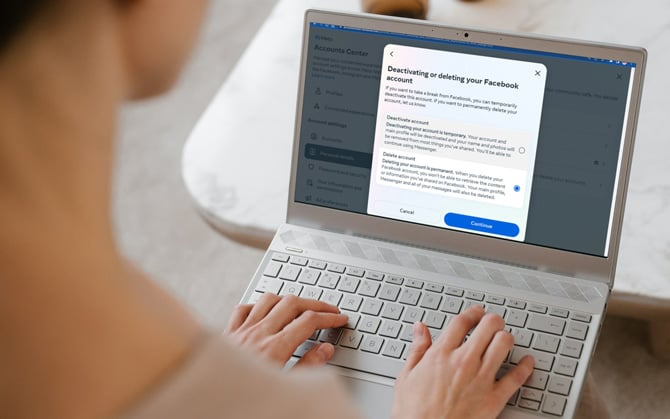
Steps for deleting your Facebook account
When you delete your account, Facebook permanently removes it. Facebook says the deletion process typically takes about one month although “some information may remain in backup copies and logs for up to 90 days.”
Deleting your account on your computer
- On Facebook.com, select your profile icon in the upper right corner.
- Select 'Settings & Privacy' and then 'Settings.'
- Click on the 'Meta Accounts Center' box.
- Select 'Manage accounts.'
- Select 'Manage' next to your Facebook account.
- Select 'Deactivation or deletion.'
- Select 'Delete your account' and select 'Continue.'
- You'll be asked to select the reason why you are deleting your account. Select an option and click on 'Continue.'
- Click on 'Continue' on the page where Facebook attempts to resolve your issues.
- Click on 'Continue' at the bottom of the 'Permanently delete account' window.
- Enter your Facebook password and the select 'Delete account.'
Deleting your account through the Facebook app
- Open the Facebook app.
- On the 'Home' page, select the triple bars next to the Facebook logo.
- Tap on the 'Meta Accounts Center' box.
- Tap on 'Manage accounts.'
- Tap on 'Manage' next to your Facebook account.
- Select 'Deactivation or deletion.'
- Select 'Delete your account' and select 'Continue.'
- You'll be asked to select the reason why you are deleting your account. Select an option and click on 'Continue.'
- Click on 'Continue' on the page where Facebook attempts to resolve your issues.
- Click on 'Continue' at the bottom of the 'Permanently delete account' window.
- Enter your Facebook password and the select 'Delete account.'
Deleting your account information only applies to content you've created for your own timeline. If you've sent messages to other people or posted in groups, they'll remain on Facebook after you've left.
How to download your Facebook data
Before permanently deleting your account, you may want to see all the information the Facebook has stored about you and your activities and receive a copy for use off Facebook. To check it out everything Facebook has collected, go to the Facebook Your information and permissions page.
[EDITOR'S NOTE: If you can no longer access your Facebook account because you don't remember the login, read our article on How to Delete an Old Facebook Account When You Can't Log In]
[Image credit: screenshots via Techlicious, laptop image via Smartmockups]









From Wapi on March 27, 2018 :: 10:28 am
Would be great to know how to remove all the remaining things tracking you after you leave. Would appreciate an article about that.
Reply
From Sierra Schmidt on April 21, 2022 :: 7:59 pm
I am in the same boat I have an account I no longer have access to because it was hacked and they will not delete that account I can’t Access it and I am restricted on my new account
Reply
From Megan Jennings on May 16, 2024 :: 11:22 pm
Same here I deleted it and haven’t used it since 2008 and I get a email saying someone hacked into my acct on a iPhone 11. You can’t call them, contact customer service nothing.
Reply