

Most people assume that turning on two-factor authentication is enough to protect their accounts. It’s a big improvement. But it’s not enough.
If someone can take control of your phone number, trick you into entering a code from an authenticator app, or reset your login using recovery options you forgot were there, they can still take over your email, cloud storage, social accounts, and even financial services.
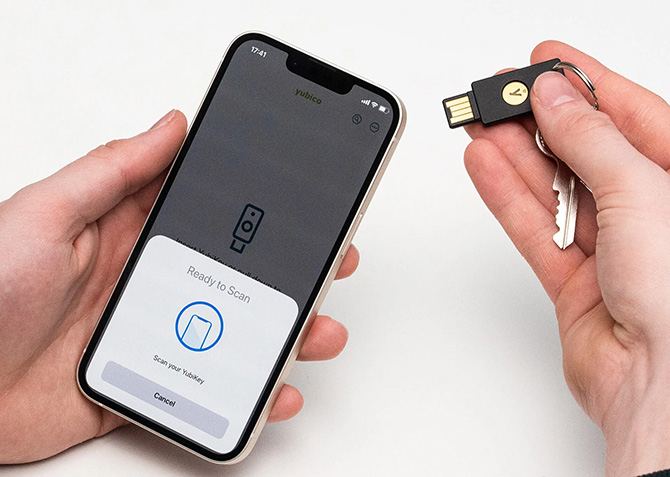
Security professionals deal with this differently. They use a small physical device called a hardware security key. To break into an account protected by one, a criminal would need to physically steal the key from you, along with a PIN to unlock it, and your site username and password. With a security key, remote attacks – the kind behind SIM swaps, phishing kits, and account-reset scams – simply stop working.
That’s why security keys are popular with journalists, executives, politicians, and anyone whose digital life would be a disaster to lose. They’re inexpensive, widely supported by Apple, Google, and Microsoft, and far more effective than the login protection methods most people rely on.
SIM-swap attacks are a good example of the kind of takeover a security key prevents. In a SIM swap, a crook convinces your carrier to move your phone number to their device. Suddenly, they receive the text messages used to log into your accounts. From 2022 to 2024, the FBI received more than 4,000 SIM-swap reports tied to over $147 million in losses.
Here’s the key point: a SIM swap doesn’t work at all if you use a hardware security key.
Setting one up takes a little effort and a little planning, but it’s the closest thing to account-takeover-proof protection you can get.
Who should (and shouldn’t) do this
A hardware security key is for people who would be seriously harmed if someone took over their primary accounts. As with encrypted messaging (such as Signal), this level of security is especially important for high-profile targets. But SIM swap and other fraud can affect anyone, and a security key is the best way to guard against them.
If losing access to your Apple, Google, and Microsoft accounts would be catastrophic, this is worth doing. However, security keys require more commitment. Setup for each site can take longer and require multiple tries to get right. You have to manage (and often carry) an extra device (albeit a tiny one). If you don’t keep much online, don’t store sensitive information, or know you’d find it annoying to manage a tiny USB device, authenticator apps and passkeys are probably enough.
Why security keys beat authenticator apps and passkeys
Authenticator apps are far better than SMS codes. Apps like the free Authy, Google Authenticator (Android and iOS), and Microsoft Authenticator generate 2FA codes on your phone, independent of your wireless provider or phone number. Codes are typically displayed and valid for 30 seconds. But crooks are adapting by using phishing sites that trick people into entering those codes and relay them to a hacking attempt instantly before they expire.
Passkeys stored in password managers are excellent. They use encryption and complex mathematical operations between your device and an app or website to confirm your identity – only when unlocked with a PIN code, face, or fingerprint scan. But password managers typically sync online to make passkeys available on multiple devices, like your phone and laptop, providing more places for you – or a crook – to access them.
A security key stores a passkey on a single device that doesn't sync online, can’t be phished, and requires physical possession to unlock. An attacker on the other side of the world simply can’t use it.
Read this before you buy a key
If you set up a security key and then remove your other login methods without a backup plan, you could permanently lock yourself out. For safety, it's best to have at least two hardware keys (which Apple requires). If you lose a key, you can log in with a backup, de-register the lost one, and set up a replacement. Your backup key should be kept in a secure location, either at a different location or in a fireproof safe.
If this makes you uneasy, choose an extra-secure recovery option as an additional backup for your major accounts. I recommend Apple's Recovery Contact and Google's Recovery Contacts tools. You register a trusted person with Apple or Google. They can't access your account, but through an exchange of random numbers between you two, the site can verify that you're in touch with the person approved to verify your identity.
Choosing the right key
Choosing a key is simpler than it looks. The most important thing is to select a security key certified by the FIDO Alliance that supports the FIDO 2 standard, the most widely used standard in the industry. You don’t need higher-end models that support multiple standards, like PIV (used by the U.S. government).
The second consideration is how you’ll connect the key to your devices. Most security keys plug into a USB-C or USB-A port, but some also support NFC, which lets you tap the key to your smartphone for authentication.
I like Yubico's YubiKey line, which is compatible with Android, iOS, Windows, and macOS and has an excellent reputation in the security world.
- If your laptop and phone use USB-C, get the YubiKey Security Key C NFC ($30).
- If your laptop has older USB-A ports, get the YubiKey Security Key NFC ($30).
- If you want fingerprint unlock (no NFC) and your laptop and phone use USB-C, get the YubiKey Bio for USB-C ($100).
- If you want a key that stays permanently in your laptop, get the nearly flush-mounted YubiKey 5 Nano for USB-C or USB-A ($100).
For safety, you should plan to buy and set up at least two security keys: one to use and one to store safely as a backup.
Setting up your accounts with a security key
Google, Apple, and Microsoft are probably the biggest repositories of our digital lives, including email, documents, photos, subscriptions, software licenses, and disk-encryption keys (macOS or Windows). They are a good place to start with security keys. Financial and social sites can follow.
The safe order to set things up:
- Buy two keys
- Set a PIN or fingerprint (and backup PIN) for the key using the device's app
- Set up Recovery Contacts for Apple and Google
- Add both keys to each account
- Log out and confirm you can log back in using the key
- Only then remove SMS, authenticator apps, and software passkeys.
Do not remove old methods until the keys work!
Once registered, you can use the same key to log into that service from any device without repeating the setup. It’s actually faster than typing in a one-time security code.
Apple
Setting up security keys requires an iPhone or iPad running iOS/iPadOS 16.3 or later, or a Mac running macOS Ventura 13.2 or later. Apple requires you to set up two security keys.
Go to Settings > your name > Sign-In & Security > Two-Factor Authentication > Security Keys > Add Security Key.
Once done, Apple will no longer accept SMS as a second factor for login.
Go to your Google Account (you have to use a web browser) > Security & sign-in > Passkeys and security keys > Create a passkey > Use another device > Use Security Key.
After confirming it works, remove your phone number from 2-Step Verification and disable other methods.
Microsoft
Go to account.microsoft.com/security > Manage how I sign in > Add another way to sign in to your account > Face, fingerprint, PIN, or security key. Click on “Change” next to “This will be saved on your Windows device.” Select “Security key.”
Microsoft requires you to keep at least one recovery method on the account. By default, that’s your phone number. After setting up your security key, remove your phone number and use an email address instead. That prevents a SIM swap from being used in Microsoft’s recovery process.
Financial and social sites
A small but growing number of financial services accept passkeys, which means they MAY also enable security keys. Try the setup process to see if it also offers security keys. If they don’t, use a passkey and disable SMS codes.
Is this worth the trouble?
Not using two-factor authentication at all is the biggest security hole. But using SMS for 2FA codes is still a significant security gap, putting yourself at risk for the devastating effects of SIM swapping.
At the very least, move away from SMS with a free authenticator app (such as those from Authy, Google, or Microsoft). Or set up a passkey, which is much more secure than a username and password. This should be enough for accounts that don't contain any personal or financial information.
Then, as an exercise, ask yourself if you would be devastated if someone got access to all your information from Apple, Google, or Microsoft. If so, spending as little as $60 (for two keys) and an hour of setup time is one of the best security investments you can make.
[Image credit: Yubikey]

