

 I used to reuse the same set of passwords for multiple sites and services online. I knew better, but it was impossible to keep track of the dozens that would be required if I had a different one for every site and service.
I had a system, with different levels of passwords for different types of sites. I never reused my bank password, I used highly secure passwords for sites with private data and I used lower-security passwords for general sites that don’t store private data. It wasn’t a bad system, but if one site was compromised and my ID and password were stolen, the hacker could gain access to other sites.
Now I use a password management program, which stores all of my passwords safely under one master password.
The key is to make sure you have a strong master password for your password management program to protect your list of passwords. You’ll want to create strong passwords for each site that you log into as well.
A strong password must have at least 8 characters (the longer the better), with a mixture of upper and lower-case letters, numbers and, if the site or service allows, special characters, such as “!,” “#” and “?.” It should be something you can remember easily. A long sentence works well when you take the first letter of each word and then substitute the vowels for numbers or symbols.
For example: The quick brown fox jumped inside the orange box and slept = Tqbfj1t0b&s
Once you’ve created your master password, you can set up your password manager. It stores your passwords and user names in an encrypted database, enabling you to quickly access them. Once you have your password manager running, it fills in your user ID and password for you.
The free Mozilla Firefox Web browser for PCs and Macs has a built-in password manager, but you need to make sure you create a master password to protect your list. Other browsers — Internet Explorer, Safari and Chrome — can remember passwords for you, but they do not have a manager or master password to protect your passwords, so it’s best to use a dedicated program.
Another great option is to use the password manager that comes with your Internet security software. Our top picks, Symantec’s Norton Internet Security 2012 ($33.28 for 3 PCs on Amazon.com) and Kaspersky Internet Security 2012 ($79.95 for 3 PCs on Amazon.com) both have password managers.
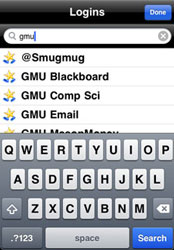 For stand-alone password managers, one of the best is RoboForm Everywhere ($9.95 per year at roboform.com), which works with Macs and PCs, as well as iPhones and Android phones. The program can auto-fill just about any online form, including email, name, phone number and credit card information.
I also like Kaspersky Password Manager ($24.95 at usa.kaspersky.com) for PCs. It saves passwords and personal data on your computer or to a USB key that you can then use securely on any computer. It also auto-fills forms and auto-generates strong passwords for you. It even provides an onscreen keyboard to foil keyloggers, for those times when you need to manually input sensitive information. Or try the free KeePass. It's not quite as slick, but it works.
And for Macs (and PCs), check out 1Password ($49.95 at agilewebsolutions.com). The software saves passwords, credit card numbers, account registration information, just about anything you can think of, and auto-fills it all across most browsers on a Mac, including Safari, Firefox and Camino. There's also an app for iPhone and iPad ($9.99 in iTunes) that will sync with your desktop and stop you from having to peck out your passwords on that tiny touchscreen keyboard.
Updated on 1/17/2012










From Robert on February 18, 2011 :: 5:15 pm
You should mention the free, open source, password manager, KeePass
Reply
From Bill on February 25, 2011 :: 10:50 am
I agree - KeePass is spectacular. Not only is it free, there are PC, Mac, and Android versions available so my password file can go with my on my phone or any of my computers.
Reply