

Additional reporting by Palash Volviokar
Hiding your Friends list on Facebook makes a lot of sense both to protect your privacy, as well as prevent account cloning. The privacy benefits are pretty self-explanatory – whether it's a nosy acquaintance or a controlling ex, who you are or are not friends with on Facebook is none of their business.
What many people may not realize is that by keeping your Friends list public, you're also putting your friends at risk for account cloning scams. The scam only works when the person behind it can contact your friends pretending to be you to request money or to send phishing messages, such as the classic "Is this you?" video scam. If your Friends list is private, the scam won't work.
There's also a newer wrinkle worth knowing about. Facebook now lets users create up to four additional profiles per account, a feature that launched in 2023. Cloners have started exploiting this by posing as your "professional" or "hobby" alt-profile, which gives a plausible reason for a duplicate friend request. Hiding your friends list is even more important now, though it won't completely prevent this particular tactic.
If you've ever seen a post from a Facebook friend saying, "Don't accept friend requests from me, I've been hacked!", the likelihood is that they have actually been cloned, not hacked, and it's because their Friends list was public. You don't want to be that person.
While hiding your friends on Facebook is easy to do (and I'll walk you through it below), it isn't completely foolproof. Others can still see "mutual friends" on your profile, though not the rest of your Friends list. And if your friend has a public Friends list, others will be able to see your connection to them in their list.
The first step to protect your privacy is selecting who can see your Friends list. My recommendation is to set it to "Friends only" or a custom list of your friends. For maximum privacy, set it to "Only me." The process is similar whether you're accessing Facebook on a web browser or using the app.
Configure your Facebook Friends list from your computer
To configure your Friends list from your computer browser, follow these steps:
- Go to the Facebook Settings page from your web browser.
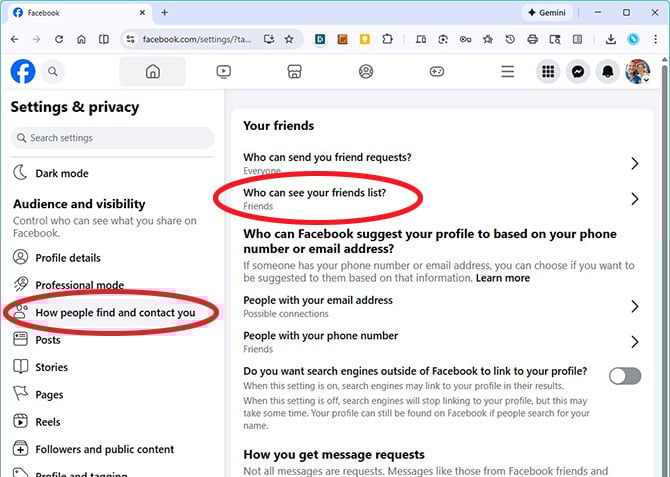
- Scroll down the left navigation to the Audience and visibility section and select How people find and contact you.
- In the main window, click on Who can see your friends list?
- In the pop-up menu, select who you would like to be able to see your Friends list. If you make a change, click on the Done button.
Configure your Facebook Friends list in the Facebook app on your phone or tablet
Setup on mobile is almost identical to the browser settings.
Here's how to change the visibility of your Friends list from the Facebook app on your phone or tablet:
- Open the Facebook app.
- Tap the menu icon (your profile picture with three horizontal lines).
- Tap Settings & privacy and then Settings.
- Under Audience and visibility, tap How people find and contact you.
- Tap Who can see your friends list? to view all the options.
- In the pop-up menu, select who you would like to be able to see your Friends list. If you make a change, tap Done.
Hide your Followers list too
While hiding your friends list will protect those you know, don't forget about your Followers. Account cloners can use your public followers as a secondary target list to find people connected to you, so it's worth locking this down too.
Here's how to check and restrict your follower visibility:
- Go to Settings & privacy > Settings.
- Under Audience and visibility, tap Followers and public content.
- Look for the Who can see your followers on your profile setting and change it to "Friends only" or "Only me."
Final steps to maximize your Facebook privacy
When you’re done adjusting your own settings, encourage your friends to adjust their privacy settings, too. Otherwise, you could still get sucked into a cloned account scam based on their Facebook profile.
It's also a smart idea to regularly review all of your Facebook privacy settings, as Facebook regularly tweaks the options, and you may find your privacy needs changing over time.
Editor's Note: Residents in India, Bangladesh, Egypt, Pakistan, and parts of the Middle East may have access to Profile Lock and Profile Picture Guard. Profile Lock hides your friends list and restricts photo access in one click. Profile Picture Guard prevents others from downloading or screenshotting your profile photo. Unfortunately, these handy features are not available in the U.S., U.K., Canada, and most of Europe.
Updated on 2/11/2026
[Image credit: Screenshots via Techlicious, Canva]









From Brenton on May 22, 2019 :: 4:50 am
Hi
Please assist, I would like to remove all my Facebook accounts in my name Brenton Allies, I can no longer access the accouts as I have forgotten the full details I used to logg in, please delete all.
Reply
From Shaista Jainarain on May 31, 2022 :: 12:14 am
Hi I hope you can assist me delete a fb account the person I was with died and I have no way of deleting it .
Reply
From Denmark enriquez sampaga on April 17, 2023 :: 6:19 am
Pleased please please delete my account someone pretending me he changed my profile pic he looks like hacker.. Seen Denmark enriquez sampaga
Reply
From Diane Brown and Diana madison on July 16, 2023 :: 6:47 pm
I need help because someone have take over my oldest and new I needed helping because I think someone is u is for getting money though money transfer I get the FBI in on is
Reply