

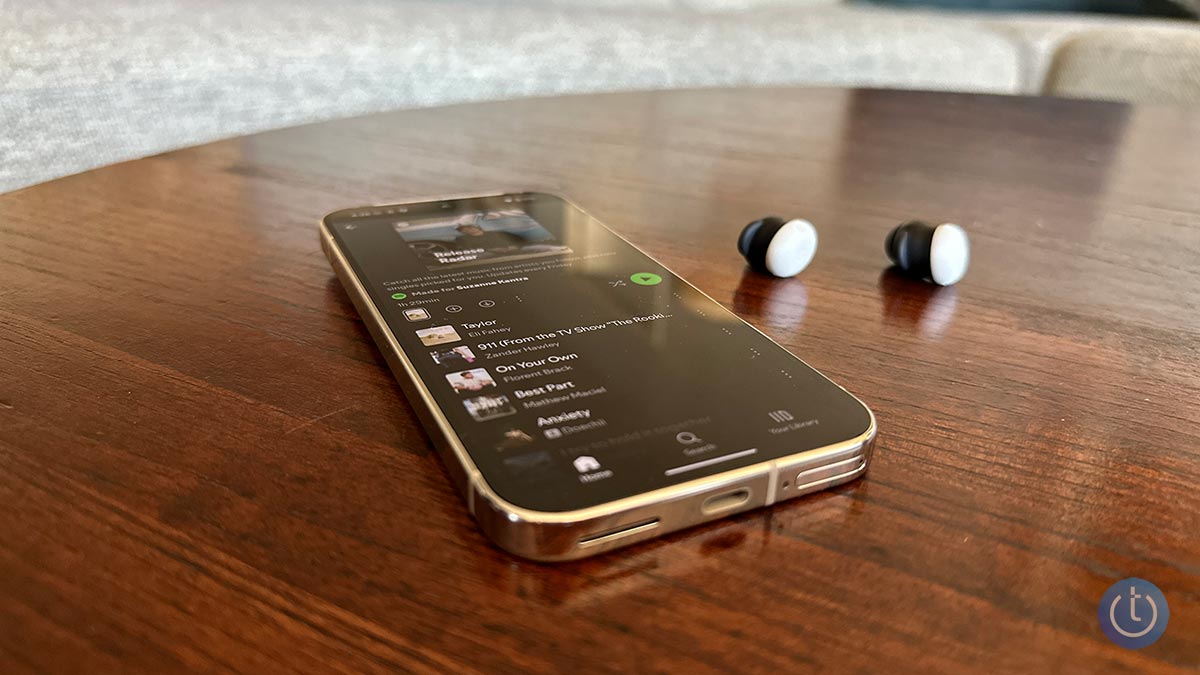
Bluetooth is baked into just about everything these days, from wireless earbuds and fitness trackers to laptops, cars, and smart home devices. In 2025 alone, there were an estimated 5.3 billion Bluetooth device shipments – about one for every adult on earth!
It's so common that most of us think of Bluetooth as a basic feature – it’s just supposed to work. So when it doesn’t, it’s incredibly frustrating. If you’ve ever wrestled with a pair of headphones that refuse to connect or a speaker that keeps dropping out, you’re not alone. And as someone who’s reviewed hundreds of Bluetooth gadgets over the years, believe me, I’ve felt your pain.
10 ways to fix Bluetooth pairing problems
If your Bluetooth device is not connecting, not showing up, or keeps reconnecting to the wrong gadget, work through these fixes in order. We've organized them according to the most likely causes of Bluetooth connection problems, as well as the ease of checking.
1. Make sure Bluetooth is turned on
If your Bluetooth isn't on for both devices, you won't be able to connect. So, this is always the first thing you should confirm.
To check on an Android device, swipe down to access the Quick Settings panel. If the Bluetooth tile is highlighted, it is on. For iOS and iPadOS, you'll need to go into the settings to enable and disable Bluetooth. Windows users will find Bluetooth in Settings > Devices > Bluetooth (or you may have a shortcut on your taskbar). Mac users will find a Bluetooth status icon on the menu bar.
If your Bluetooth won't turn on, you may simply have a system glitch. Try restarting your device to see if that fixes the issue. If not, you may need to do deeper troubleshooting into your Bluetooth drivers and hardware.
2. Turn on pairing mode
If you see an error like ‘pairing unsuccessful,’ ‘pairing rejected,’ or ‘pairing not accepted,’ the usual causes are that the accessory is not in pairing mode or already connected to another device.
Bluetooth devices typically fall into two main categories: accessories and main devices. Accessories include items like headphones and keyboards, while main devices encompass phones, cars, TVs, and computers.
Accessories usually start in pairing mode out of the box, indicated by a blinking light. Once initially paired, if you need to pair these accessories with another device, you'll have to activate pairing mode again. To do this, search for 'how to put [product name] into pairing mode.' (We have guides for Jabra, JBL, JLab Audio, Mpow, Onn, Skullcandy, and Sony.)
For main devices such as phones, computers, and cars, you must first ensure Bluetooth is activated. Then, put the device into pairing mode through its settings menu. Instructions for this can typically be found by searching 'put [product name] into pairing mode.'
When both devices are in pairing mode, they usually detect each other and connect. Sometimes, though, there is an extra security step, like typing in a code. Or, you may need to use the device’s app for setup. If you’re not sure how to pair your device, refer to its user guide; you can usually find one by searching online.
3. Power Bluetooth off and back on
A soft reset of Bluetooth can sometimes resolve an issue. With phones and computers, the simple way to do this is by toggling Bluetooth off and on in the settings. For other devices, such as keyboards and mice, toggle the power off and on.
4. Make sure you're connected to the correct device
Bluetooth accessories typically reconnect automatically to the most recently connected device. If you're experiencing issues with pairing, it might be due to the accessory being connected to the wrong device. For example, if your headphones are connected to your computer, they may not connect to your phone, as well. Check whether your headphones are connected to another device and, if so, disconnect them. Alternatively, you can put your headphones back into pairing mode and re-pair with your phone or other device.
Many modern speakers and headphones are capable of pairing to as many as three devices simultaneously, enabling you to connect to, say, both your phone and a couple of computers. So, they should switch back and forth automatically, prioritizing calls on your phone over music from your computer.
5. Forget the device and pair it again
If you're having trouble connecting, removing the saved pairing and starting over can resolve problems caused by outdated or corrupt connection data. You can do this by deleting or "forgetting" the problematic registered Bluetooth device(s) from your phone or computer Bluetooth settings and then re-pairing.
6. Make sure the two devices are in close enough proximity to one another
While you wouldn’t think someone might try to pair an iPad with a keyboard if the two weren’t sitting right next to each other, to be clear, you should make sure any devices you're trying to pair are within five feet of one another. Most Bluetooth connections will drop completely after about 30 feet, and even less if obstacles are in the way.
7. Charge up both devices you're trying to pair
Some devices have smart power management that may turn off Bluetooth if the battery level is too low. If your phone or tablet isn't pairing, make sure it and the device you're trying to pair with have enough juice.
8. Check for software and firmware updates
Most headphones, speakers, and other gadgets run on firmware that quietly controls how they connect and perform. Check the manufacturer's website or app to see if there is a firmware update available. These small patches can make a big difference when it comes to Bluetooth stability and compatibility.
Some older automotive audio systems won't pair with newer phones because their Bluetooth profiles aren't compatible with newer Bluetooth standards. Updating your vehicle's firmware may fix the issue. If you’re not sure how to get the latest firmware for your car, check with the manufacturer.
If your Bluetooth connection starts acting up after an OS update to your computer or phone, the update itself may be to blame. It’s not uncommon for new software to introduce compatibility issues. Check if there’s another update available – manufacturers often roll out follow-up fixes. You’ll usually find this under “Software Update” in your device’s settings.
If you’re having trouble pairing something with your computer, try updating the Bluetooth driver. Check the manufacturer's support page to see if an updated Bluetooth driver is available for your model.
9. Rule out wireless interference
Another potential obstacle to successful pairing is interference from devices that use the same 2.4GHz spectrum. That includes Wi-Fi routers, microwave ovens, baby monitors, and cordless phones.
Some smart home devices use a wireless technology called Zigbee. You find Zigbee in smart home hubs, including Amazon's Echo Show and Samsung's SmartThings Hub, as well as a wide range of smart door locks, light bulbs, in-wall switches, open/close sensors, plugs, and more. Like Wi-Fi, Zigbee devices use the same spectrum as Bluetooth devices and can interfere with pairing.
USB 3 and USB-C devices can also generate frequencies in the 2.4GHz range. Since this is a wired connection, the frequency leakage usually occurs at the ports, but poorly shielded cables can also be a problem. So, try moving Bluetooth devices away from your computer and if you are using a Bluetooth transmitter for a mouse or keyboard, try switching it to a different USB port.
10. Reset the Bluetooth settings on your phone
If you're still having ongoing Bluetooth issues and the steps above haven't resolved them, resetting your Bluetooth settings can help clear out glitches. This will remove all saved Bluetooth devices and Wi-Fi networks – so you’ll need to re-pair and re-enter passwords afterward.
On an iPhone, go to Settings > General > Transfer or Reset iPhone > Reset > Reset Network Settings.
On most Android phones, go to Settings > System > Reset options > Reset Wi-Fi, mobile & Bluetooth.
After the reset, your phone will revert to default network settings based on your carrier's SIM card. That's not an issue for most people. But if your carrier requires custom APN settings (common with MVNOs like Mint, Visible, Cricket, and Metro), you may need to re-enter them manually. Check with your carrier for these settings.
Solving problems with Bluetooth multipoint pairing
If you’re having issues with setting up multipoint pairing, double-check that your accessory supports multipoint by searching '[product name] multipoint Bluetooth' or consulting your product’s manual if you're not sure. Once you’ve confirmed that your accessory supports multipoint, make sure you're following the specific steps for your model.
While there is no standard way manufacturers handle multipoint connections, this is the typical way to pair multipoint Bluetooth headphones with both your computer and your phone.
- Pair the headphones with your phone the way you would with a normal single-point Bluetooth connection.
- Leave your phone connected, put your headphones into pairing mode, and then pair them with your laptop.
- Once you have successfully paired with your laptop, you should be simultaneously connected with both devices.
If your headphones aren't connecting to one of your paired devices, make sure you don't have them actively paired elsewhere. I've had situations where I can't get my headphones to connect to both my phone and computer, only to realize that they had already connected to my husband's phone, as well. Sony, Bose and other manufacturers let you see and manage multipoint connections in their apps.
Why Bluetooth pairing fails in the first place
Bluetooth depends on both hardware and software to work properly. From a hardware perspective, the devices need to support the same 2.4GHz frequencies. On the software side, they need to support the same Bluetooth profiles so they can decode instructions for specific functions. For example, you can't pair a mouse with your car because your car doesn’t support the Human Interface Device Profile.
In general, Bluetooth is backward compatible. Bluetooth devices supporting Bluetooth 5 or higher should still be able to pair with devices using, say, the ancient Bluetooth 2.1, launched back in 2007. However, keep in mind that significant differences in Bluetooth versions between devices can occasionally lead to unexpected pairing issues or unsupported functionality.
The good news is that unless there is a true hardware or software incompatibility, most Bluetooth pairing problems come down to a small set of issues: pairing mode, saved connections, interference, outdated software, or the accessory being connected elsewhere. Bluetooth can be annoying, but most of the time, the fix is simpler than it looks.
Updated on 4/10/2026 with new recommendations
[Image credit: Techlicious]


From kobs on April 30, 2018 :: 10:22 am
So what you’re saying is your earbuds work but after 5 mins. the left side goes off right? It might be your earbuds cause it seems that when they have time to “heat up” per se, one of them disconnect. If you can borrow someone else’s earbuds you would have your answer, i doubt that another pair would do the same thing but if it does you still have your answer, it’s your phone/device. When BT connects it’s connected or it’s not, it will not play from one side to the other it will just cut and come back if you’re too far from the source .
Good luck
Reply