6914<![CDATA[Chipolo CARD Spot Has Best-in-Class Wallet Tracking for iPhone Owners]]>chipolo-card-spot-wallet-tracker-review2022-08-25T20:12:32Z2022-10-07T16:12:33Zmisc/chipolo-card-spot-wallet-100px.jpgmisc/chipolo-card-spot-wallet-700px.jpgSuzanne Kantrasuzanne@techlicious.com1openThe Chipolo CARD Spot provides best-in-class tracking for your wallet, but it’s not as durable as we'd like, and the battery life is limited.
]]>Chipolo CARD Spot3.5I used to misplace things – a lot. So when Tile’s Bluetooth tracker launched in 2013, I became a huge fan. In the following years, I attached a regular Tile tracker to my keys, placed a Tile Slim in my wallet, and stuck a Tile Sticker on my son’s scooter. The Bluetooth tracking is great, but what makes Tile, and now Apple’s AirTag ($29), so powerful is that they make use of other tracker owners’ phones to locate lost items that aren’t in Bluetooth range.
Tile has its own proprietary network made up of people who have the Tile app installed on their phone and has sold more than 40 million devices. I live in New York City and the coverage is great here and other highly populated areas. However, every iPhone, iPad, and MacBook has Apple's own Find My tracking service installed (and most have it turned on), so the coverage for AirTag and other devices that use Apple's Find My network is much larger.
Apple doesn’t make a wallet-friendly tracker like the Tile Slim ($35), so you've been stuck with the compromise of either a chunky Apple device or the more limited Tile tracking network. But in June, Chipolo started shipping a slim tracker that’s compatible with Apple’s Find My network called CARD Spot ($35, check the price on Amazon). I purchased two CARD Spots in June and have been testing them in my and my son’s wallets since then. I found the Chipolo CARD Spot delivers one of the best wallet tracking experiences for iPhone owners. However, there are some durability and battery life issues to be aware of, which I'll get into below.
Chipolo CARD Spot Design
The CARD Spot is just 0.09-inches thick and about the size of a credit card (3.35 by 2.11 inches), making it easy to slip into a wallet.
The card is made of plastic and has an IPX5 rating, making it splashproof (the Tile Slim is more waterproof with a rating of IP67, though still shouldn't be submerged). The fully-encased lithium-ion battery lasts one to two years and can’t be replaced, though neither can the Tile Slim. The AirTag battery is replaceable. (There is a new rechargeable wallet tracker that uses the Apple Find My network called Pebblebee Card that I just purchased for testing). To compensate, Chipolo offers a 50% discount on replacement devices.
The CARD Spot is not rugged. It receives 3.6 stars on Amazon and most complaints cite durability as an issue, especially if you put your wallet in your back pocket and sit on it on a regular basis. (The Tile Slim gets 4.6 stars on Amazon and doesn't have durability raised as an issue.) Not surprisingly, my son's CARD Spot didn’t fare well when it went through the washer accidentally. It came out cracked and pinging randomly. The CARD Spot I use lives in a wallet that I carry in my purse, and it’s a perfect condition. I expect I won't have any durability issues based on my usage.
Setting up the Chipolo CARD Spot
Setting up the CARD Spot with Apple’s Find My app took about one minute. You open the app, tap the plus mark, and select “Add Other Item.” It took just a few seconds to find the CARD Spot. You can then name the device and select an emoji to represent your CARD Spot on the Find My app map. That’s it. For comparison, with Tile, you need to download the Tile app and set up an account for Tile’s trackers.
If you want to move your CARD Spot to different iPhone, you can press and hold the tracker's button (just a circular depression) to put it into pairing mode. I was easily able to transfer my CARD Spot to my son’s iPhone after he destroyed his in the wash.
Using the Chipolo CARD Spot
Since the CARD Spot uses Find My, it has most of the same features as Apple’s AirTag. You access everything by tapping the icon for your CARD Spot on the Items map in the Find My app.
Tapping the “Play Sound” button will cause your CARD Spot to make noise. If it’s in the same room, the ping sound is easy to hear from within several feet. However, if your wallet is buried in the sofa cushions or stuffed in a bag, you’ll need to be close to it to hear the ping.
You can also receive alerts when you’ve left behind your CARD Spot (and your wallet) and the CARD Spot is out of range of your iPhone. It often takes a few minutes for the notification to go through, but the CARD Spot never failed to alert me. You can also set up multiple exceptions for the notifications. For instance, I take my phone, but not my wallet, when I walk my dog. So, I have my home set up as an exception. For Tile trackers, this notification feature is only available through Tile’s paid subscription service, which costs $2.99 per month or $29.99 per year.
While the CARD Spot has about the same accuracy as an AirTag when relying on the Find My network, it doesn’t work as well when trying to find something in close range. The CARD Spot does not support Apple’s Precision Finding – the ability to view direction and distance information – because it doesn’t have an ultra-wideband radio like Apple’s AirTag. (The Tile Slim doesn't have ultra-wideband either.) Of course, your iPhone needs to support ultra-wideband as well, which you’ll find on iPhone 11 and newer models.
Battery life is estimated to be between one and two years (Tile Slim has an estimated battery life of up the three years). Like with any tracker, you should set your expectations based on how you’ll use your CARD Spot. If you are constantly pinging it or leaving it behind where it thinks it’s lost, you can expect the battery life to be short.
Privacy concerns about the CARD Spot
With any tracking device, there is always a question about how it could impact your privacy. The CARD Spot has the same anti-stalking feature as Apple’s AirTag. If someone places a CARD Spot in your bag and it travels with you over time, you’ll receive a notification, or the CARD Spot will ping as if you were using the “Play Sound” feature. Tile recently launched Scan and Secure, which lets you search for devices that may be tracking you. Unlike the Find My anti-stalking feature, which is constantly running in the background, Scan and Secure requires you to initiate scanning and walk, bike, or drive for 10 minutes to determine if any Tile devices are moving with you.
The bottom line
If you’re an iPhone owner that wants an easy way to ensure your wallet doesn’t go missing, the Chipolo CARD Spot provides best-in-class wallet tracking. While it doesn’t have Precision Tracking, like an AirTag, the slim card-like form factor is a tradeoff worth making. And, the CARD Spot has a bigger tracking network than Tile Slim and provides free left-behind notifications, which you’d otherwise pay for if you use the Tile Slim.
Price: $35.00
[Image credit: Suzanne Kantra/Techlicious]
For the past 20+ years, Techlicious founder Suzanne Kantra has been exploring and writing about the world’s most exciting and important science and technology issues. Prior to Techlicious, Suzanne was the Technology Editor for Martha Stewart Living Omnimedia and the Senior Technology Editor for Popular Science. Suzanne has been featured on CNN, CBS, and NBC.
]]>0tabletsphonestime-savers6905<![CDATA[Lenovo’s Attractive Chromebook Duet 3 2-in-1 Delivers Excellent Value]]>lenovo-ideadpad-chromebook-duet-3-review2022-08-02T20:38:03Z2022-08-02T18:02:05Zcomputers/lenovo-chromebook-duet-3-side-100px.jpgcomputers/lenovo-chromebook-duet-3-side-icon-700px.jpgSuzanne Kantrasuzanne@techlicious.com1openThe Duet 3 is a complete 2-in-1 package with a folio keyboard case in box and plenty of power for everyday tasks, but some corners were cut to save costs.
]]>Lenovo IdeaPad Chromebook Duet 34Two years ago, Lenovo introduced the 10.1-inch Chromebook IdeaPad Duet, a 2-in-1 Chromebook that received rave reviews for its versatility and low price of $279 (including the keyboard case). We picked it as one of the best affordable laptops and tablets for back-to-school in 2020. This year, Lenovo launched the next generation, the 10.9-inch Chromebook IdeaPad Duet 3 ($369.99 at Lenovo). It promises to provide an even better user experience than the first-generation Duet with a larger display, a second USB-C port, and a bump in processing power.
I received a unit to review from Lenovo and was eager to see if the Duet line could maintain its reputation as one of the best budget Chromebooks. After using the Lenovo Chromebook IdeaPad Duet 3 for several weeks, I found the almost one-inch larger display and second USB-C port made a significant difference in how I use the Duet 3. On the road, the extra screen real estate makes the Duet 3 feel like a more substantial laptop and, at home, I am now able to use one USB-C port to plug in a monitor to a much bigger display, while using the second to keep the Duet 3 charged. The Chromebook Duet 3 improves on the Duet the line as a highly versatile 2-in-1 laptop for everyday computing and makes it worthy of a Techlicious Editor's Choice award.
Look and feel
The folio case is one of the most striking things about the Duet 3. It looks like fabric, but it's made of plastic with a non-slip grip that feels good in your hands – similar to the original Duet. The outside of the case and the keyboard are water-resistant, making spills and sticky fingerprints easy to clean up.
The Duet 3 case is a two-piece design – a detachable keyboard and a back cover with a built-in kickstand. Most other 2-in-1 laptops have the kickstand built into the back of the tablet, which ensures stability when you use it. For the Duet, the kickstand is built into a back cover that attaches magnetically. Unfortunately, the cover slides off fairly easily during adjustment, but once the kickstand is in the correct position (which may take a little nudging), the cover stays firmly in place. I spent hours balancing the Duet 3 on my lap on the train and never had a moment of worry that the case would come off. It feels just as secure as my Microsoft Surface with the Type Cover, which I've used while traveling for a couple of years.
The keyboard is small (though larger than the original Duet), but for my small hands there is enough room that I don’t feel cramped when typing, and the 1.4mm key travel provides satisfying tactile feedback. The trackpad is plastic, so not as responsive as glass trackpads I've used on pricier Chromebooks, but it works smoothly. The Duet 3 is compatible with the new USI 2.0 pen standard, but a pen doesn’t come in the box and no pens have come to market, yet. And, unfortunately, the Duet is not compatible with existing USI 1.0 pens. Other Chromebooks, like the HP Chromebook x2 (on sale for $419.99 on HP with 8GB RAM, 128GB storage), come with a stylus, if that's important to you.
The Duet 3 weighs 2.09 pounds with the case (1.14 pounds without the case) and measures 10.16 by 6.48 by 0.63 inches (0.31 inches thick without the case). That's heavy for this category, about a half pound heavier than its main competition, the similarly priced and configured HP Chromebook x2 11-inch 2-in-1 laptop ($369.99 on Walmart, with 4GB RAM, 64GB storage, no pen). However, the Duet 3 is still light enough to not think twice before popping in your bag.
The Duet 3’s display is a 10.9-inch Full HD (2,000 by 1,200 pixels) IPS touchscreen – almost a full inch larger than the original Duet, and the extra 0.8 inch makes a noticeable difference in usability. At just about 11 inches, it feels like a real laptop when the keyboard folio is attached, with enough screen real estate to pull up two windows. Otherwise, the Duet displays are the same. Both are IPS displays with good off-axis viewing, and both are rated at 400 nits of brightness – much higher than you’d expect on a budget laptop or even a mainstream laptop, though the same as the HP Chromebook x2.
Audio
The IdeaPad Chromebook Duet 3 has two tiny one-watt speakers. The sound is tinny and hollow, not something I’d recommend for watching movies, but adequate for video chat and casual web browsing. Unfortunately, there’s no headphone jack, so you’ll want to pack a pair of Bluetooth or USB-C headphones for serious listening. I received no complaints when I tested the built-in mic for video chats.
Cameras
Lenovo has increased the resolution of the front fixed-focus camera from 2MP to 5MP, which makes it better for Zoom calls. And, the camera is able to compensate well for a range of lighting conditions. However, the image is washed out to the point where it looks like you're using a retro photo filter. Not ideal, but also not a deal killer. The rear 8MP camera is better, capable of capturing more realistic colors, but still lacks the vibrancy you’d get using a smartphone camera. In the cropped photos below, you can see the difference in color accuracy and quality.
Performance
Lenovo moved from a MediaTek Helio P60T chip to a Qualcomm Snapdragon 7c Gen 2 chip, a newer and slightly faster processor. You can expect to easily perform everyday tasks, like having multiple tabs open in Chrome while sitting on a Zoom call. However, don’t expect to engage in heavy multitasking. I found the Duet 3 would lock up if I tried to run more than a few processor-intensive tasks simultaneously. Not surprisingly, the CrXPRT 2 benchmark scored it on the lower end for Chromebooks – a 60 – but that's higher than the HP Chromebook x2, which rated a 51.
The Duet 3 doesn't support the latest WiFi standards – 6 or 6E. It has WiFi 5 802.11ac (2x2), which is fine for this Chromebook because it doesn't have a 4K display and you won't be streaming 4K video and the processor isn't capable of handling high frame rate, data-intensive streaming games.
Battery and charging
Lenovo claims up to 12 hours per charge for the Duet 3, which is average for a Chromebook. In my testing, the battery lasted all day with plenty to spare. The Duet 3 comes with a 30-watt charger in the box, but you can use a 45-watt charger for a shorter recharge – about three hours versus four hours for a full charge.
Ports
The Duet 3 has two USB-C 3.2 Gen 2 ports – the same as the HP Chromebook x2 and one more than the original Duet, which has a single USB-C 2 port. That additional USB-C port makes a huge difference in that you don’t have to choose between plugging into power and using an accessory, like an external monitor, USB-C headphones, or a mouse. And the bump from USB-C 2 to UBS-C 3.2 Gen 2 provides higher data rates and faster charging.
The bottom line
The Lenovo IdeaPad Chromebook Duet 3 provides excellent value for those looking for an attractive, capable 2-in-1 laptop. It’s not cut out for heavy computing or streaming, but it’s speedy enough to handle everyday tasks and small and light enough you won’t think twice about bringing it with you whenever you leave home.
Price: $379.00 on Best Buy with 4GB RAM, 128GB of storage.
[Image credit: Suzanne Kantra/Techlicious]
For the past 20+ years, Techlicious founder Suzanne Kantra has been exploring and writing about the world’s most exciting and important science and technology issues. Prior to Techlicious, Suzanne was the Technology Editor for Martha Stewart Living Omnimedia and the Senior Technology Editor for Popular Science. Suzanne has been featured on CNN, CBS, and NBC.
]]>0computerscomputerstop-picks6893<![CDATA[Review of Roborock’s Set-and-Forget S7 MaxV Ultra Robotic Floor Cleaner]]>roborock-s7-maxv-ultra-robotic-floor-cleaner-review2022-07-12T21:46:05Z2022-07-28T19:28:06Zhealth/roborock-s7-maxv-ultra-top-100px.jpghealth/roborock-s7-maxv-ultra-top-700px.jpgAndrea Smithabcandread@gmail.com1openOur testing found that it delivered excellent cleaning, intuitive operation and fully autonomous switching between mopping floors and vacuuming carpet.
]]>Roborock S7 MaxV Ultra Robotic Floor Cleaner4The promise of a robotic floor cleaner is that it will take care of the cleaning for you. Unfortunately, the reality has been far from it, especially for mopvacs, which wash and vacuum your floors. The problem was the mop head, which you had to manually clean between runs. This year, we're finally seeing fully-autonomous mopvacs, namely the Techlicious Top Picks CES 2022 winner Roborock S7 MaxV Ultra. This new mopvac empties and cleans itself and can run for up to two months without user intervention.
Roborock S7 MaxV Ultra docked in its base.
What makes this mopvac part of a new category of cleaners is the dock which, once you set it up, does all the hard work. It takes up more space than previous auto-empty docks, but it does a whole lot more. It has tanks for clean and dirty water, as well as one that can hold up to two months' worth of dirt and debris. The dock also washes the mop pad for you; think of it as a mini-car wash for your robot floor cleaner.
In the last six months, I've tested more than a dozen current generation robot vacs and mopvacs alongside the S7 MaxV Ultra. I found the S7 MaxV Ultra to be a top-tier cleaner with strong suction power for vacuuming and a mop that does not leave messy streaks.
The biggest pain points for the current generation of robot vacuums are an inability to properly map a home and poor object detection. This next generation robot fixes those issues with the latest in advanced AI object detection and laser mapping, enabling it to reach more areas with fewer instances of getting stuck or mistakenly going over a carpet.
No one really needs a more than $1,000 robot house cleaner, especially a first version of a next-gen product. However, the S7 MaxV Ultra ($1,399.99 on Roborock, check price on Amazon) is an excellent next-gen robot floor cleaner if you want a virtually hands-off experience and have the money to splurge.
Design of the Roborock S7 MaxV Ultra
The biggest downside of this autonomous mopvac robots is the size of the dock. It is massive. It takes up a lot of space at 16.5 inches tall and 19.4 inches wide, and the 16.6-inch depth means it sticks out pretty far in the room. For comparison, my self-emptying iRobot vacuum is 13 by 12 by 14. So, ensuring you have enough space for the base should factor into your decision making.
While the Roborock S7 MaxV Ultra is large, you can see its closest competitor, the Ecovacs Deebot X1 Omni ($1,549.00, on sale for $1,049 on Ecovacs) in the background is also huge at 16.9 by 17.6 by 22.7 inches.
The base is large because it houses the three removable containers needed to keep things clean. There's one for holding debris emptied from the vacuum, one for clean water to refill the robot's water tank, and one for the dirty water that comes from cleaning the mop pad. The dock comes with one 2.5-liter dust bag in the container and an extra one in the box. You can order more when needed from Roborock's website (three for $18.99).
The Ultra Empty Wash Fill Dock is also rather unattractive, like having a huge piece of black plastic on the floor. The top is open, so the three tanks are exposed rather than hidden away. (They're hidden away in the Deebot X1 Omni’s base as you can see above.) Yes, this makes it easier to access them, but I'd rather have to open a lid than look at them. In addition, the water tanks are not see-through either, so to check the water levels, you need to pull them out and open them up to see inside.
I had a difficult time with the power cord in the back, which is very thick and long, and there's not enough space behind the dock to coil it, so it couldn't push as far back to the wall as I would like.
Setting up the Roborock S7 MaxV Ultra
Setting it up is the same experience as any other robot cleaner, where you need to let the robot map your whole house. Having tested dozens of these, I was amazed at how little time (and frustration) it took to map my house, especially having recently tested 12 of the latest units to see how they compare. The S7 MaxV Ultra was one of the fastest and most precise mapping experiences I had.
While previous models took hours, sometimes days, and several passes throughout the house to complete the mapping run, the S7 MaxV Ultra completed the task in about 20 minutes. The combination of Lidar navigation and an onboard camera helped create a virtual map of my house, even labeling certain rooms as "bedroom" and "kitchen." Of course, you can relabel individual rooms and even add furniture in the app.
A precise map of your home is what enables the robot to be autonomous and precise when cleaning. Once you've created and labeled your rooms, you can set specific cleaning schedules for individual rooms. For instance, because the cat litter that gets stuck in my cat's paws always seems to accumulate on my floors, I set a schedule for it to automatically vacuum the guest bathroom (where the cat litter is) as well as the front entryway, and have it run each morning.
If you live in a multi-level home, you can save up to four maps, and the robot will recognize what floor it's on when you set it down and put it to work.
Using the Roborock S7 MaxV Ultra
Obstacle Avoidance
This next generation of robot floor cleaners is clearly superior to others I tested in its ability to avoid obstacles. The S7 MaxV Ultra uses Roborock's ReactiveAI 2.0 Obstacle Avoidance System in combination with an RGB camera and a light scanner (placed on the front of the robot) to identify and avoid a lot more objects than previous robot vacuums. It uses a new neural processor to recognize obstacles and know whether it should clean around them. In my testing, it went around furniture and avoided cat toys and power cords well. It tried to go up onto my bathroom scale and knocked into the cat food dishes a few times, so I easily created no-go zones in the app to make sure the robot avoided them in the future.
Roborock says the new technology enables the robot to detect and avoid dog poop, something just a few robotic vacs can do. I didn't try poop, but I did try shoes, cables, and other objects and was impressed with how much better the object detection was compared to the other robot floor cleaners I've tried. It was right up there with my previous favorite robot vac, the iRobot Roomba j7+ ($799.99, check price on Amazon).
Vacuuming Power
Roborock has upped the suction power in the S7 MaxV Ultra with 5100Pa of high-power suction, which puts it at the top of robovacs and is stronger than any other robot I tried. The Deebot X1 Omni has 5000Pa, and most other robot vacuums top out at about 4,000Pa.
All that suction power means it does quite well picking up cat hair and dust from carpeting and hardwood floors. In addition, it has enough power to easily transition from flooring to carpeting and get over door saddles, another pain point for lower-powered robots.
Mopping Effectiveness
The S7 MaxV Ultra's mopping capability is very good – better than existing robot mops – but not quite as good as the Deebot X1 Omni. The Deebot X1 Omni has dual spinning mop pads. The S7 MaxV Ultra uses sonic vibration technology (3,000 per minute per the specs) to scrub the floor instead of just wiping, and I found that it did make my hardwood floors shine. It mopped the whole width of the pad on each pass and didn't leave any streaks or lines on the floor, an issue I saw with other mopping robots. In testing other robot mops, I've found most to be as effective as dragging a wet Swiffer across the floor, which means it sometimes just slides the accumulated dirt along the floor as it goes and doesn't always yield the desired result.
Another great feature: unlike many other smart robots (including the Deebot X1 Omni) you don't need to swap out the dust bin for a water tank when you want to mop the floors. Instead, you simply attach a mopping bracket onto the bottom of the S7 MaxV Ultra, and it draws water from the internal tank. This setup allows it to mop and vacuum in one run – no manual intervention is needed for weeks at a time.
Most hybrid robots have a carpet sensor that helps them avoid carpeting when on a mopping run. Since the S7 MaxV Ultra can go from vacuuming mode to mopping mode during a single run, it can switch off the mopping when it senses carpet. Called VibraRise, the unique technology lifts the mopping plate about 5mm so it can vacuum your carpets without mopping them at the same time. In vacuum mode, the robot automatically increases its suction power. It lowers the mop pad and resumes mopping when it senses hard flooring. In theory, this is great, but there were instances when I found my carpeting to be slightly damp. It's only lifting about 5mm (difficult to detect with your eye), so if your carpeting is taller than 5mm, it's best to avoid mopping and vacuuming simultaneously.
Most robot mops recommend using only water for mopping, but the S7 MaxV Ultra can use Roborock's branded floor cleaner, which you can buy on Amazon for under $20. I tried it, and it was very effective in cleaning and didn't leave streaks on hardwood floors as some others did.
For comparison, the Deebot X1 Omni uses only plain water in the tank – no cleaning solution – and requires separate mopping and vacuuming runs of the house. That's because the Deebot X1 Omni avoids carpeting completely. Instead, it will get right to the edge, sense the carpet, and turn to try to go around it. If you're concerned about your carpets getting wet, you might prefer this trade-off for better peace of mind.
Security Camera
Since these new robots use cameras to help with mapping and obstacle detection, they can now do double duty as a security camera with two-way talk capability through the mobile app. I don't find this feature particularly useful (it's turned off by default). Still, if you don't have a standalone security camera and want to view your home while you're away or perhaps check on the cats, you'll see a pretty clear picture of the house.
If you're worried about privacy, it doesn't record, it's livestream only, and it loudly announces "remote viewing is enabled" when it's on, so there's no possibility of surreptitiously monitoring someone.
Using the Roborock app
A robot floor cleaner is only as good as its accompanying app allows it to be. I've seen great cleaners with confusing and limited apps, which is a deal breaker. None of the apps is perfect, but Roborock's is among the best in terms of ease of use and functionality.
The Roborock app (free for iOS and Android) is intuitive. Creating a map of my house was easy, and the app goes so far as to show the type of floor in each room so that I see a plank floor in my hallways and living room, carpeting in the bedrooms, and tile in the bathroom. It does this so that when I set a cleaning job, I can change the intensity of each action on a room-by-room basis. For example, I can ask it to vacuum in one room and mop in another, setting the cleaning mode in each. Creating no-go zones was simple, and I could add furniture in specific rooms to let the robot know what to avoid.
The app supports a variety of cleaning options that you can set in individual rooms, as opposed to having the whole cleaning run use that setting. For example, you can select mop scrub intensity (mild, moderate, or intense) in the kitchen and then choose a suction power (Quiet, Balanced, Turbo, or Max) for the living room carpeting.
When the S7 MaxV Ultra runs low on battery, it returns to the base to recharge and clean the mop pads if used. Like other robots, once charged up again, it continues where it left off. This works great, except when you've forgotten it was recharging, and it wakes you at 2 AM to continue the cleaning process. I loved the Do Not Disturb feature in the app, which tells the robot not to run during specific times you set.
The robot is controlled through the mobile app, a manual button, or using your voice with an Amazon Alexa or Google Assistant smart speaker. I paired mine with Alexa and was able to use basic voice commands to start cleaning or return to the dock. If you want to tell it to start cleaning a specific room, you can do that in the app.
Another useful feature is Pin and Go, which lets you choose a specific spot in the app, and the robot will head there for a spot clean.
Cleaning the Roborock S7 MaxV Ultra
Depending on your cleaning habits, once you've completed setup, you should get around two months of hands-free use before needing to refill the water supply or empty the bag in the dust bin. However, you might want to change out the dirty water more frequently. I did after a week, worried it might start smelling, though I didn't experience that. The bins are easy to access and clean in the sink and are labeled, so you know what goes where.
It's in the dock that the mopvac cleans itself. Each time the robot returns to the dock, it empties the robot's dust bin and washes the mop pads if it's been on a mopping run, extracting the dirty water into the proper container and refilling it with clean water.
Watching the full process was fascinating. Before it even left the dock, the robot washed the mop pad, filled the tank with water, and then announced it was ready to mop. It mopped the floor in an incredibly linear fashion and got stuck only once under my refrigerator and needed to be rescued.
When it was done, it returned to the self-emptying base and backed in so the mop pads could be washed. It was a cross between a gurgling sound and a coffee grinder sound, and then another gurgling sound, like water was being extracted. It went through a few periods of grind and gurgle and then announced that it would dock. The robot came out and away from the base, turned itself around, and then re-entered so that the charging sensors would line up. Once it was docked, it emptied the dustbin and started charging. The whole process took about three minutes.
When the robot is charging, the back end is lifted slightly so the mop pad can air dry between cleanings. That gave me the option of keeping the mop pad on rather than removing it after each run, which you need to do on previous models. In contrast, the Deebot X1 Omni dock uses an electric heating system to dry the mop pad.
After a few mopping runs, I washed the mop pad by hand in a sink, and there was very little dirt runoff. If you don't want to hand wash, you can also throw it in the washing machine. However, I wouldn't recommend putting the pads in the dryer.
The bottom line
If you're looking for the most autonomous cleaning robot, this next generation Roborock is the best I've tested. For those with pets and low pile carpeting who want a robot with a powerful vacuum that also mops really well, the Roborock S7 MaxV Ultra ($1,399.99) is expensive but worth it. It takes very little user intervention giving you the luxury of a "set it and forget it" robot.
If you're concerned about your carpets getting a little damp, I highly recommend looking at the Ecovacs Deebot X1 Omni ($1,549.00, on sale for $1,049.00). It has a more stylish design, takes up less space, and does an outstanding job avoiding carpeting altogether. However, you'll have to manually switch out the tanks and set your mopping and vacuuming runs separately, reducing the usefulness of the advanced features.
[Image credit: Andrea Smith/Techlicious]
Andrea Smith is an award-winning technology broadcast journalist, reporter, and producer. Andrea was the Technology Producer and an on-air Technology contributor at ABC News for over two decades before becoming the Lifestyle Channel Editor at Mashable, where she explored the ways in which real people, not just geeks, began using technology in their everyday lives.
]]>0homekitchen-householdsmart-hometop-picks6890<![CDATA[Review of Kohler’s Affordable & Stylish Puretide Bidet]]>kohler-puretide-bidet-review2022-06-30T16:56:41Z2022-06-30T13:04:42Zhealth/kohler-puretide-bidet-100px.jpghealth/kohler-puretide-bidet-700px.jpgJosh Kirschnerjoshkirschner@gmail.com1openIf you want to make the move to a bidet and have a limited budget, the Kohler Puretide should be on your shortlist for its performance and attractive design.
]]>Kohler Puretide Bidet4If you’ve had the opportunity to try a bidet at a friend’s house or while traveling overseas, you already know the significant cleaning benefits they offer over toilet paper. Yet, most Americans don’t own one, either because of the perceived cost, concerns about installation, or simply the hesitation to try something different on one of your most personal of parts.
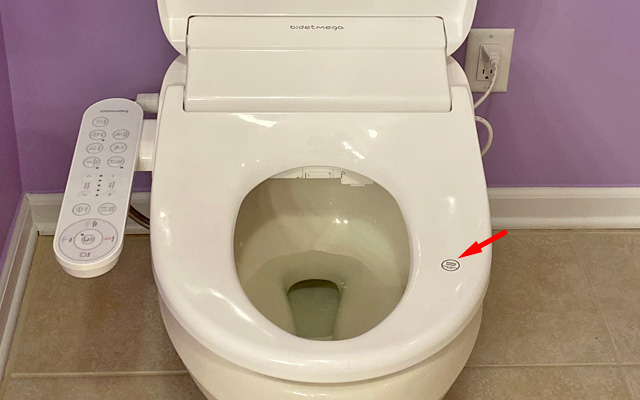
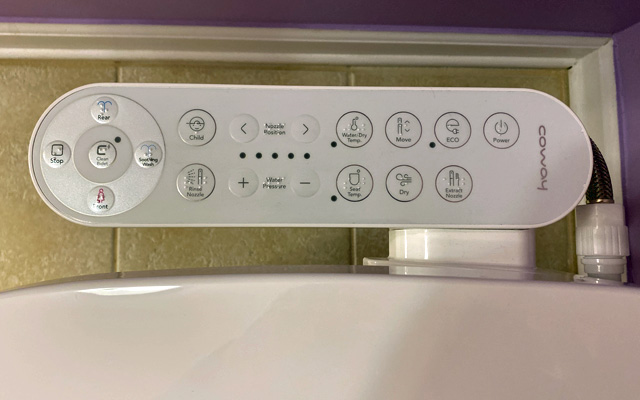
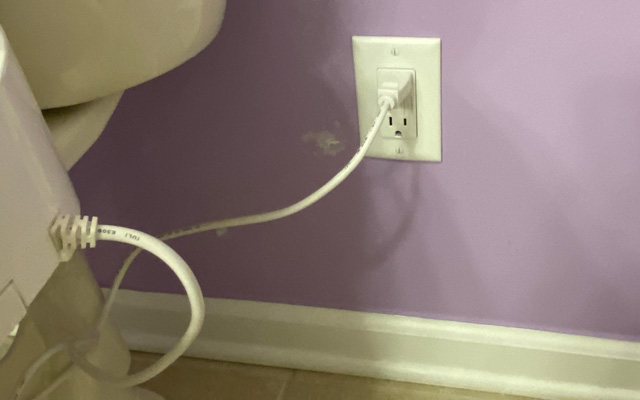
However, if cost or installation worries are holding you back, they shouldn’t be. There’s a category of bidets seat designed specifically for installation on your existing toilet with no plumber required. The add-on bidets come in a variety of styles and features. For example, models like our Editor’s Pick, the Coway Bidetmega 200, and Brondell Swash 1400 include heated water and seat, a night light, and a little drying fan for your fanny. Plus, you’ll need an electrical outlet to plug it into or pay for an electrician to install one.
The Coway retails for $400, but there are much simpler models that slide under your existing seat and offer little more than a spray that you can pick up on Amazon for as little as $30. While much better than having no bidet, these cheap models tend to look…well…cheap, and some have a disturbing tendency for catastrophic failures of the valve or hose that create major water floods, always timed for when the homeowner is on vacation or out of the house. I also had a minor leak issue with the Puretide, but it was handled well by Kohler – more on that further down.
The Kohler Puretide Bidet is seated firmly at the high end of the basic models. My family spent months testing the Kohler Puretide in our home, and that bathroom instantly became everyone’s favorite. It comes as an integrated unit, like the more expensive models, and looks much higher class than the slide-under cheap models. The control handle, too, is elegantly designed to fit in with home bathroom décor. And unlike other brands that only come in white, the Puretide also has a biscuit option to match a wider variety of fixtures; there are also rounded and elongated versions to match your toilet bowl shape.
Feature-wise, it offers the spray with a little bit of a tilt action to get the job done. And at $137 on Kohler (around $100 on various discount sites - check price on Amazon), it is a solid choice for those bidet buyers looking to keep costs down without sacrificing the look of their bathroom, and who want to stick with a well-known plumbing brand.
Installation
Installing the Kohler Puretide is simple. Anyone who feels remotely comfortable operating a wrench and screwdriver can handle the job. You’re simply going to remove your old seat, install the new mounting plate, slide your new seat on, then hook up your new seat to your toilet’s water supply using the included t-valve and hose. The whole process takes under 30 minutes. If your home comes with especially high or low water pressure, alternative nozzles are included that will adjust the spray intensity (most people should be fine with the standard one that comes pre-installed).
Toilet fit is an important consideration with the Kohler Puretide. Unlike cheaper bidets that fit under your existing seat, the Puretide is a complete seat replacement, so it must match your bowl shape. There are two models of the Puretide, round (K-76923) and elongated (K-5724), so you should make sure to pick the right one. In addition, while the Puretide fits most Kohler toilets, it doesn’t fit all Kohler toilets, so be sure to check Kohler’s toilet seat fit guide before you buy. The Puretide is not recommended for my discontinued Santa Rosa toilet, and the seat doesn’t sit perfectly in the mounting because of the curve in my toilet tank; it’s usable but not ideal as it does shift around.
If you’re unsure what model toilet you have, open up your tank, and there should be a label or code embedded in the porcelain with the model number. Mine is K3323 in the image below.
The Puretide should fit many non-Kohler toilets, as well. Though without a fit guide, you may not know if it will work until you try it.
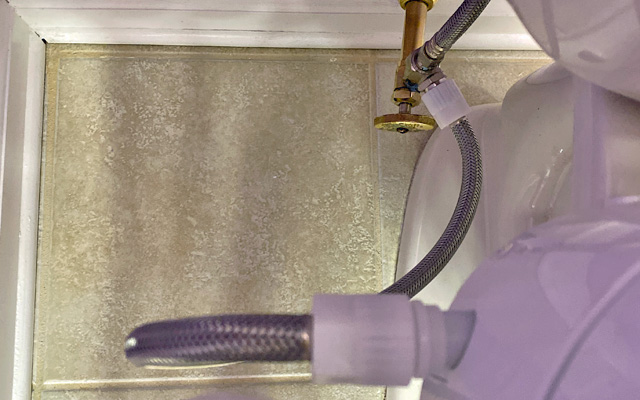
Another recommendation when installing the Puretide (or any bidet) is to swap out the included t-valve with a t-valve that offers a shut-off switch for the bidet. All the low to mid-range bidets I looked at have a history of leaks in the owner reviews, and the Puretide is no exception. A shut-off valve lets you turn off the water to the bidet in case of a leak without shutting off flow to your toilet tank (this is the one I purchased). And if you’re going to be out of the house for any length of time when a leak could create damage, it may be a good idea to shut off the bidet’s water proactively.
Customer support
In my research of bidet seats, I found that leaks – whether from the hoses or controls – were a frequent complaint. However, the Kohler Puretide appeared to have a lower ratio of complaints than other models, though there were issues with leaks from the handle.
Sure enough, the first unit I had developed a slow drip from the handle after a month of usage. So, I called Kohler customer service and got through quickly to a live person. The agent asked me about the issue and offered to send me a new one right away – I didn’t even need to verify my purchase information. The replacement arrived within a week, and I shipped the old one back in the same box with the included return shipping label. The new unit has been problem-free for the four months since.
That is customer service the way it should be.
Features & comfort
The Kohler Puretide provides a single spray wand with a tilting action to clean both your front and rear areas. The handle offers manual control to guide the tilting and adjust the water pressure. Pressure control is smooth and will easily go from a gentle trickle all the way up to “Yowzers!” The spray nozzle provides a wide enough stream for effective coverage while keeping things focused enough to avoid collateral damage. However, my female testers found the tilting mechanism less effective for hitting frontal areas – which required a little extra body shifting – than the double wand design of other bidets.
In short, the Puretide does what it’s supposed to and does it well.
Unlike more expensive bidets with electric water warmers, the Puretide will deliver water at whatever temperature is coming through your pipes. In practice, no one was bothered by the cold temps (even in winter); it turns out some parts of your body are not as sensitive to cold as you might think. If having that warm spray is critical, the Tushy Spa 3.0 is fitted with a second hose attachment for the hot water in your sink, and the water mix can be controlled using a knob. Though, depending on your bathroom setup, running that second hose may not be feasible, and if you need to run your faucets for a bit before hot water comes out, you may experience a similar issue with the Tushy bidet.
Everyone who used the seat in my family and guests found it to be comfortable (yes, they were questioned, too), even for extended sitting periods (hey, a man’s got to get his reading done somewhere). The plastic itself feels a little on the thin side, but it doesn’t affect the comfort. And the seat itself has a “quiet close” lid that prevents waking your household in the middle of the night. The entire seat can also be removed for cleaning by pressing a quick-release button on the side.
The “bottom” line
If you want to make the move to a bidet and have a limited budget, the Kohler Puretide should be on your shortlist. It doesn’t have any bells or whistles (nor does it require a power outlet – which you probably don’t have next to your toilet – to support those bells and whistles). However, it provides solid cleaning in an attractive package that looks far more refined than most other inexpensive bidets. And if you have an issue, Kohler’s customer service is very responsive.
[Image credit: Techlicious]
Josh Kirschner is the co-founder of Techlicious and has been covering consumer tech for more than a decade. Josh started his first company while still in college, a consumer electronics retailer focused on students. His writing has been featured in Today.com, NBC News and Time.
]]>0homehealth-fitnesstop-picks6875<![CDATA[Can Bite Away Stop Insect Bite Itch?]]>can-bite-away-stop-insect-bite-itch2022-05-10T21:19:37Z2022-05-10T17:33:38Zhealth/bite-away-arm-100px.jpghealth/bite-away-arm-700px.jpgJosh Kirschnerjoshkirschner@gmail.com1openWe tested Bite Away on a trip to the mosquito haven of the Maine coast and found it quickly and effectively reduced the itching from my family's bites.
]]>Bite Away4If there’s one thing everyone dreads about spring, it’s the arrival of hordes of mosquitos and the infuriating itching that comes from their bites. And no matter how much DEET or how many citronella candles we employ, some of those buggers always get through. Once bitten, the proteins in the mosquitos’ saliva trigger an immune response, causing the red, itchy bumps we all know so well.
The traditional treatments for mosquito and other bug bite itching have been calamine lotion and hydrocortisone creams, along with oral or topical antihistamines. But if you haven’t found these to work well for you, or you don’t want to apply chemicals or greasy lotions to your skin, there is another option – concentrated heat treatment. Research has shown that applying a targeted, short high-heat zap to the bite can reduce the swelling and itch of insect bites almost immediately.
While there are a number of consumer bug bite heat treatment products out there, the Bite Away device is specifically covered by existing clinical research (with the caveat that they were sponsors of the study linked above), and is both a CE-certified medical device and FDA-cleared for use in the US. Shaped like a large pen, with a small ceramic disk to apply heat to the bite and powered by two AA batteries. It’s available over-the-counter in-store, as well as on Amazon, for a retail price of $29.99. Pressing a button delivers either a 3 or 5 second burst of intense heat (around 125F) to remove the swelling and itch.
Does Bite Away work?
I tested Bite Away with my family during the summer months here in New York City and on our annual fall pilgrimage to the mosquito haven of coastal Maine, which gave us plenty of opportunity to use it on real bites. Overall, it was very effective at quickly reducing the itch from the numerous bites we fell victim to. And if the first zap didn’t do a good enough job, a second zap would do the trick – because Bite Away is drug/chemical-free, you can use it is often as needed.
The one downside to Bite Away is that the 3 or 5-second heat treatment is somewhat painful. It only hurts for the few seconds Bite Away is in contact with your skin, and the 125F heat isn’t hot enough to actually burn you, but you’ll feel it. In my opinion, a few seconds of mild burning to get rid of hours of annoying itching is well worth the tradeoff, and my tween/teen children had no issues tolerating the quick sting (though younger kids may require a little more convincing, at first).
In short, I would definitely recommend Bite Away as a treatment option for most people’s medicine cabinets or to pack for any trip where bug bites are a threat. It will certainly be returning to Maine with my family this fall.
[mage credit: Techlicious]
Josh Kirschner is the co-founder of Techlicious and has been covering consumer tech for more than a decade. Josh started his first company while still in college, a consumer electronics retailer focused on students. His writing has been featured in Today.com, NBC News and Time.
]]>0homehealth-fitnesstop-picks6855<![CDATA[The 1More ComfoBuds Mini Deliver Decent Sound in a Tiny Package]]>1more-comfobuds-mini-review2022-05-06T22:02:36Z2022-05-06T18:08:42Zphones/imore-comfobuds-mini-dime-100px.jpgphones/imore-comfobuds-mini-dime-700px.jpgSuzanne Kantrasuzanne@techlicious.com1openAfter two months of testing, I found that the ComfoBuds Mini were comfortable to wear and delivered decent sound, considering their very tiny size.
]]>1More ComfoBuds Mini3.5When the first true wireless earbuds with active noise-canceling (ANC) came to market in 2018, they were chunky and heavy, weighing over 7 ounces per bud. 1More manages to pack the same functionality into earbuds about half the size and weight of the first generation, with the ComfoBuds Mini ($99.99), making them the world's smallest ANC true wireless earbuds. At just 3.7-ounces per bud and measuring 0.67 × 0.59 × 0.12 inches, the ComfoBuds Mini virtually disappear when you place them in your ears, and they feel almost weightless compared to other earbuds.
Unfortunately, their small size impacts their ability to produce rich sound, and call quality is dismal. So, the ComfoBuds Mini don't unseat our top picks for the best under $100 true wireless earbuds, the JBL TUNE230NC and Soundcore Life P3. However, the ComfoBuds Mini are significantly smaller and the ANC works well. After two months of testing, I find myself grabbing the ComfoBuds Mini when I want discreet and comfortable true wireless noise-canceling earbuds for casual, on-the-go listening.
Pros
Cons
Very light
Very small
Comfortable
Good ANC
No multi-point pairing
Bass missing, unless using ANC
Limited sound profiles
Poor call quality
Unboxing the 1More ComfoBuds Mini
In keeping with the ComfoBuds Mini's small size, the case is on the small side at 2.22 × 1.97 × 0.96 inches, and its oval shape makes it easy to slip into a pocket. Like the Lenovo Smart Wireless Earbuds, the ComfoBuds Mini comes with a USB-C cable for charging and three additional ear tips, which is unusual at this price point.
When I first plucked the ComfoBuds Mini earbuds from their case, they felt so small I was afraid of dropping them. However, the driver enclosure is offset from the eartip and is easy to grip. The styling is elegantly minimalist.
The ComboBuds Mini are IPX5 rated, making them sweatproof and able to withstand splashing water, but they should not be submerged.
Setting up the 1More ComfoBuds Mini
When you open the case, the ComfoBuds Mini flash white, signifying they're in pairing mode. To pair with your device, open Bluetooth settings, and you should see the earbuds available for pairing. To pair to another device, you hold the button on the side of the case for three seconds, and the earbuds will re-enter pairing mode. Unfortunately, the ComfoBuds Mini do not support multi-point pairing.
After pairing the earbuds, you'll want to download the 1More Music app. In the app, you can customize the listening modes and earbud controls, and take a test to create a custom sound profile, called SoundID.
I wasn't impressed by SoundID. Yes, you can hear the difference when you toggle it on and off in the app, but in actual listening it was hard to tell it was on.
There are three listening modes: ANC, Transparent, and Off. For most headphones, you just get those three choices, but 1More goes beyond and, for the ANC mode, you can choose between Strong, Mild, and WNR (wind noise reduction). Strong provides the most ANC, Mild provides less noise canceling for somewhat quieter environments, and WNR focuses on reducing the frequencies due to wind noise (more on how well these modes work below). When selecting an ANC profile in the app, that selection will remain when you switch between modes with the on-earbud controls.
In the app, you can customize the on-earbud controls. You can assign double tap and triple tap to Play/Pause, Previous/Next Track, Volume up/down, or Voice Control. You can also designate what happens when you take the earbuds out of your ears and put them back in with Smart Playback. Your options are Auto-Pause Only, Auto-Pause & Play, or No Smart Playback.
You can use the earbuds together and either earbud individually.
Using the 1More ComfoBuds Mini
The ComfoBuds Mini case is easy to open, and the earbuds come out with little effort once you know the trick to extracting them. Since you can’t get a two-finger grip when the earbud is seated in the case, you have to start by using one finger to pull the top of the earbud toward you; then, you can easily puck it out of the case. Magnets inside the case guide the earbuds in place and ensure they are correctly seated for charging.
Getting the earbuds to fit correctly and achieve a good seal is easy, thanks to the included four eartips. The earbuds sit snuggly in your ear and feel secure when biking and walking. I experience minimal ear fatigue even after hours of listening.
The capacitive-touch on-earbud controls are very responsive without being overly sensitive – even when exercising. Out of the box, you can double tap to play/pause, triple tap for previous/next track, and press for 1.5 seconds to change listening modes.
Disappointingly, there is no multi-point pairing. However, multi-point is not an expected feature at this price point.
1More ComfoBuds Mini audio quality
The music I used for testing was downloaded to my iPhone 11 Pro in lossless CD quality and streamed through the Apple Music app. I compared the ComfoBuds Mini to our current sub-$100 picks, the JBL TUNE230NC ($99.95) and Soundcore Life P3 ($79.99), as well as more expensive models, including the Jabra Elite 85t ($229, on sale for $199) and SoundCore Liberty 3 Pro ($169, on sale for $129.99). I also tested call quality against these models from indoor locations and on busy New York City streets.
From the left, the 1More ComfoBuds Mini, Soundcore Life P3, and the JBL TUNE230NC
With ANC turned off, the ComfoBuds Mini have a pleasing sound with prominent mids and highs, but little bass and a small sound stage. However, when you turn on ANC, the bass appears with some richness and the sound stage becomes more extensive, but not enveloping. I like the more bass-forward Strong ANC profile. If you want just a minor bass enhancement, stick with the Mild profile. I found the WNR (wind noise reduction) profile bass to be boomy. Even with ANC turned on, the ComfoBuds Mini can't quite compete with the JBL TUNE230NC, which produces a fuller, more immersive sound that is balanced across frequencies. The Soundcore Life P3 earbuds also slightly outperform the ComfoBuds Mini with an overall more uniform and pleasing sound.
One major quibble with the ComfoBuds, the earbuds default to ANC off every time you take them out of the case. So if you're like me and prefer the richer, more immersive sound you can achieve with ANC, you'll be stuck turning ANC on every time.
The ANC does an admirable job of reducing environmental sound, whether it's fan noise, train noise, or the whoosh of air that’s audible through my open window on the 21st floor. The ANC Strong provides the best ANC and enhances the sound quality the most. The Mild is good for less noisy environments, but you don't get as much of a bass boost, which is a good reason to stick with Strong. Unfortunately, WNR (wind noise reduction) doesn't help with wind noise, and it doesn't enhance the audio as much as the Strong profile.
Call quality was good on my end, but people on the other side had a hard time hearing and understanding me; my voice sounded very muffled with and without ANC turned on.
1More ComfoBuds Mini battery life
The ComfoBuds Mini get a respectable maximum of five hours of play time with ANC turned on and up to six hours with ANC turned off, considering the tiny size of the earbuds. They also gain 1.5 hours of play time with just 10 minutes of charging. The case provides an extra three charges for 20 to 24 hours of listening. An LED on the outside of the case shows level of charge with a green, yellow, or red light, and will flash red if the case battery is too low to charge the earbuds. You can charge the case with any USB-C cable or pop it on a wireless Qi charger.
The bottom line
You'll be pulled in by the 1More ComfoBud Mini's elegant, barely-there design, and enjoy them for their comfortable, lightweight fit. They don't deliver the best sound – I still prefer the JBL TUNE230NC – but the music quality is good enough for casual listening and the noise-canceling works well, though call quality is a weak point. However, if size is a critical factor for you – and these really are very tiny and light – the ComfoBuds Mini are the best choice for ANC true wireless earbuds on a budget.
[Image credit: Techlicious]
For the past 20+ years, Techlicious founder Suzanne Kantra has been exploring and writing about the world’s most exciting and important science and technology issues. Prior to Techlicious, Suzanne was the Technology Editor for Martha Stewart Living Omnimedia and the Senior Technology Editor for Popular Science. Suzanne has been featured on CNN, CBS, and NBC.
]]>0tabletsheadphones6868<![CDATA[The New Samsung S800B Defines the Ultra-Slim Soundbar Category]]>samsung-s800b-ultra-slim-soundbar-review2022-04-20T06:38:13Z2024-03-20T21:03:14Zav/samsung-s800b-100px.jpgav/samsung-s800b-700px.jpgMark Henningermarkhenninger@gmail.com1openThe S800B is an innovative soundbar that defines the ultra-slim soundbar category, offering an aesthetic advantage and clear, balance sound.
]]>Samsung HW-S800B Ultra-Slim Soundbar4Soundbars are the go-to solution for easily adding better audio to a TV. The all-in-one design plus slender, low-profile form factor is easy on the eyes, easy to install, and compared to other surround-sound solutions, typically easy on the wallet.
Early soundbars were basic in function and capability. Today, you'll find models with highly sophisticated smart features and high-fidelity surround-sound capability, including 3D immersive sound like Dolby Atmos and DTS:X. The Samsung HW-S800B Ultra-Slim ($799) 3.1.2 Dolby Atmos soundbar and wireless subwoofer system is all of these things but packaged in an almost impossibly slender design.
When compared to the S800B, even the slimmest soundbars look chunky. This is particularly true for Dolby Atmos soundbars, which need to accommodate the physical width of the up-firing drivers. Consequently, Dolby Atmos soundbars are at least several inches deep and stick out more than the TV when wall mounted.
But the Samsung S800B is something different; it's radically shrunken in height and depth and a generous 45.6" wide, which makes it a great match for TVs 55" and up.
The S800B offers a dramatically lower profile than any soundbar I've seen or heard, much less reviewed. Despite its slenderized form, this Samsung incorporates Dolby Atmos with real up-firing drivers on the main soundbar, which are used for the Atmos height channels, instead of relying solely on height virtualization like many entry-level Atmos soundbars. It can also upmix non-Atmos content and uses the up-firing drivers for that.
Features and Specifications
The S800B is a 3.1.2 soundbar system consisting of the main soundbar and a compact wireless subwoofer. The dimensions of the soundbar speak for themselves: 45.6" wide, 1.5" high, and 1.57" deep. In addition, it is the first soundbar from Samsung that offers a wireless connection for Dolby Atmos, and it is compatible with 2022 Samsung TVs.
The form factor of the S800B is revolutionary. So is its wireless connectivity: Samsung touts it as the first-ever to offer a wireless connection for Dolby Atmos (when used with compatible 2022 Samsung TV, starting at the BU8000 and above).
Furthermore, the soundbar's Q Symphony feature works concurrently with the built-in speakers of Q Symphony-equipped Samsung TVs. Q Symphony is a function that combines the soundbar's speakers with the TV's built-in speakers, so they operate as one cohesive system. Q Symphony allows the combined TV and soundbar system to produce a more immersive and powerful listening experience than either can achieve on its own. Samsung has a full list of Q Symphony compatible TVs and an in-depth explanation of the features.
The S800B takes an ultra-minimalist approach when it comes to wired inputs. The single option is HDMI ARC, and there's no way to connect any other sources. However, this soundbar offers the option of wireless connection and streaming through both WiFi and Bluetooth. WiFi streaming uses Chromecast, Spotify Connect, or AirPlay.
With Bluetooth, you can connect various sources for direct playback—most likely a smartphone, but it'll also support dedicated players. Meanwhile, the WiFi option even supports Dolby Atmos, a capability that's a first for a wirelessly connected soundbar.
The reason you need a separate soundbar is that TVs have gotten ever thinner, and the front is now all screen. This leaves little or no room for built-in speakers. But with today's TVs, even a typical soundbar might be too tall to fit under the TV when on a stand, or it'll protrude excessively from the wall compared to a flush-mounted TV.
This soundbar is compatible with Samsung SWA-9500S/XY wireless rear surround speakers, allowing users to expand the surround sound and immersive audio capabilities from 3.1.2 to 5.1.4 channels. The surrounds are real 2.0.2 speakers with their own up-firing drivers, so you increase the height channel count to four when you add them. This configuration supports real Atmos as well as upmixed Atmos.
The SmartThings app for iOS and Android phones offers easy access to all the soundbar's functions and helps with setup, too.
Once connected to WiFi, the S800B offers Apple AirPlay and Chromecast built-in for easy audio streaming from mobile devices, in case you want to use it as a sound system. It also offers Tap and Play with compatible Samsung phones, letting you switch music playback seamlessly from the phone through earbuds to the soundbar using Bluetooth.
This soundbar offers multiple sound modes; for example, Game Mode Pro activates automatically when you start gaming and uses the up-firing speakers to create a maximally expansive surround-sound experience for gamers. I did not sense any latency, but I don't have a way to measure it.
There is an AVA (Active Voice Amplifier) function within each sound mode that offers enhanced audibility for dialog.
Pros
Cons
Incredibly slim
Low-profile bracketless wall mount
Compact subwoofer
3.1.2 channels with up-firing drivers
Wireless Dolby Atmos (with compatible TVs)
Samsung Q Symphony support (with compatible TVs)
Adaptive Sound calibration
ARC via micro-HDMI is the only wired input
Requires compatible Samsung TV for some features
Unpacking and Setup
I had no idea what to expect when I first unpacked the S800B. I'd seen it before but never heard it or physically handled one. Because the packaging is sized to accommodate the subwoofer, it looks like any other soundbar.
However, the moment I took the S800B out of the box, my first thought was, "hey. I can twirl this like a baton or swing it like a sword," and if I was a Tik Tok influencer, I suppose that's what my review would consist of. The fact you can twirl it with one hand should give you some idea of how long and slender this soundbar is!
I used this soundbar in conjunction with a Samsung 8K QN900A Neo QLED, a 2021 model which supports Q Symphony, a feature of the S800B that lets the soundbar use the up-firing speakers on the TV for enhanced sound. However, the 2022 Neo QLEDs will offer additional functionality not available on the model I used: Wireless Dolby Atmos and the use of all the TV's speakers when Q Symphony is engaged (as opposed to just the up-firing speakers, like on the TV I used).
While my focus is on using the S800B with a Samsung TV since that plays to its strengths, I also tried it with a projector. It's the only Dolby Atmos soundbar I have seen that works perfectly within the constraints imposed by an ultra-short-throw (UST) projector. It fits whether wall-mounted right under the screen—where a regular soundbar would block the light—or resting on a stand or credenza in front of the projector, which normally would require an extra-deep credenza.
While I could not use the wireless Dolby Atmos function offered with 2022 TVs and the S800B, I was able to send 5.1 surround sound from the 2021 QN900A to the soundbar via WiFi and had no issue with the connection or sync/delay.
I relied on a wired HDMI ARC connection for sound, using the supplied micro-HDMI to HDMI cable to connect to the TV for most of my listening. One important caveat is that the S800B connects via ARC, not eARC, so it will not work with lossless Dolby Atmos. However, there's no issue with streaming apps and OTA TV (broadcast/cable); it'll work seamlessly with those sources, and you don't have to do anything to work. The only thing missing is support for Atmos on Blu-ray.
If you want to get the most out of this soundbar, you need to use the Samsung SmartThings app, available for Android and iOS devices. You can adjust all the settings with just the remote; the soundbar uses voice prompts and small flashing LEDs to indicate status, but all the settings are easily visible and accessible with the app.
Regardless of what phone I used—I tried both a Galaxy S20 Ultra and an iPhone 13 Pro Max—the app recognized the soundbar right away. I only had to add it once, and it became part of my SmartThings device collection, making it accessible from any phone that has the app.
Audio performance
Sound reproduction is all about physics, and the smaller you make a transducer (the part of a speaker that creates the sound), the greater the limitations in terms of what it can do, especially when it comes to bass output. Of course, this begged the question of how well the S800B handles movie night volume levels and whether the compact wireless subwoofer integrates seamlessly.
Through careful tuning, Samsung has found a way to make this system sound rich, full-bodied, clear, and immersive—at least in what I expect to hear in a soundbar in its price range. It is a distinct improvement over built-in TV sound, I compared it to the QN900A's built-in sound, and there was no comparison whatsoever—the S800B sounds far better.
There is no free lunch when it comes to the physics of audio reproduction, so Samsung had to do something to make the small drivers of this soundbar deliver such an impressive performance. Some measurements with Room EQ Wizard revealed the possible solution: Take it easy in the lower midrange, including where the soundbar's bass output crosses over to the sub.
Before going further, a quick bit of audio physics: Sound is measured in dB (decibels), and an increase of 10 dB equals a doubling of perceived loudness. But, it takes ten times as much power to create 10 dB more sound! Every extra 3 dB requires double the power. And the lower the frequency, the more power it takes to achieve a certain output level. This is why a subwoofer does the heavy lifting for the deep bass in many soundbar systems, including this one, but it also lends a hand with some mid/bass output. The trick is ensuring the subwoofer and soundbar blend well so the sound is cohesive.
When measured, this soundbar system has a robust subwoofer—especially considering its size—that cleanly covers a range from roughly 35 Hz (-20 dB) up to 160 Hz. Thanks to room gain, you can hear and even feel output starting at 35 Hz, and it picks up strength beginning at 50 Hz. Bass response drops off to near silence by the time you get to 30 Hz, but the good thing is while the driver is still working, there is no distortion or port noise like I'm used to hearing from most soundbar subs playing below their range.
Running my REW sweeps, I gleaned that the S800B uses a crossover roughly centered around 120 Hz, typical for a soundbar wireless sub. Above 150 Hz, the system's output experiences a dip of around 6 dB, which I attribute to tuning intended to prevent overloading the system (6 dB less takes ¼ the power to reproduce).
It's not a "textbook" smooth response curve. Still, it's also not a huge compromise and technically is within the +/-3 dB response range cited by most speaker specifications, so nothing to get too excited about! The SpaceFit room correction feature reduces this effect to only a 4 dB dip in response, which might be a big deal for an audiophile evaluating multi-thousand-dollar speakers. Still, it is quite a trivial deviation for a lifestyle soundbar system.
The tuning of this soundbar passes muster and has good tonality, with just a bit of brightness to the treble, which is not at all fatiguing and comes across as extra detail. Besides, that can be easily dialed out with the treble control, if you wish.
The response curve of the S800B makes sense to anyone who obsesses over the physics of sound. In my opinion, the goal is to ensure the soundbar does not overwork its miniaturized transducers.
The sub may be small, but it benefits from DSP tuning that lets it leverage a passive radiator to create clean deep bass from a very compact enclosure. It is so small, it fits directly behind my TV on the TV stand, totally hidden and taking up no extra space in the room! It also works great right next to the stand. The subwoofer level adjustment on the remote gets a discrete switch, one of the best features of any soundbar; it lets you dial in as much or little bass as you want—or that neighbors will tolerate.
With this or any soundbar, I recommend placing the sub near the soundbar because otherwise, you may be able to tell where it is located. When the sub is near the soundbar, it blends seamlessly.
Samsung's SpaceFit Sound function promises to actively apply room correction using the built-in mic, with no setup needed; you just enable it. I ran frequency response sweeps with the function turned on and off, and from any seat in my living room, the SpaceFit-enabled response curve offered a measurable and audible improvement.
Audio quality
In the context of a soundbar system, I'm thoroughly impressed with the performance Samsung squeezed into the S800B. It is especially impressive with movies containing sophisticated Dolby Atmos mixes, well beyond my expectations. For example, Mad Max: Fury Road is a staple of countless Dolby Atmos demos I've attended. The S800B pulled off the essentials with ease to my jaded ears, from the bass rumble of engines and so many percussive blasts from explosions and crashes. The sub is quite surprisingly powerful and precise, and capable. It easily keeps up with the demands made by the soundbar.
The S800B offered more 3D envelopment—whether Dolby Atmos or upmixed surround-sound—than any compact standalone soundbar has a right to! It's not something I can quantify, and yes, Samsung's own full-size Atmos soundbars will offer higher performance. Still, it was obvious that this soundbar can generate a holographic sound field, one that benefits from its Atmos and upmixing abilities. My impression is it creates a sound field that's as broad and enveloping as what I get from a full-size surround sound system featuring real speakers.
As for the height channels, I would not say it's anything like an AVR-based Atmos system in terms of overhead effects. But, the soundbar can make the whole sound field appear elevated and with dialog that appears to come from the screen itself. It does this regardless of what display you use, and you don't need a Samsung TV to enjoy this benefit. Along with the elevation, you get a great sense of width. The system can convincingly create distinct, focused sound effects that appear to float in the air, far to the left or right of the screen if the mix calls for it, and not merely emanating from a slim soundbar located just under the screen.
I tried the different listening modes and found that I could leave Adaptive Sound enabled; I found no need to second-guess the soundbar. I can't imagine anyone would want to fiddle with different sound modes to figure out which one works best. If you are playing a movie, Adaptive sound is, to my ears, just like the Surround sound mode. But if another sound mode does something specific you like—whether it's the toned-down Standard mode or the extremely expansive DTS Virtual:X mode—then by all means, use it.
I had zero issues with dialog clarity, regardless of what I watched. But for anyone that's an issue, Samsung has a Voice Enhancement function and the Active Voice Amplifier, which uses the built-in mic to determine how much to enhance dialog clarity. It's a rather strong effect, not something I'd use unless there is a specific issue, but it will ensure that every word comes through loud and clear!
One thing I wish I could comment upon further is Q Symphony. A few weeks before starting this review, I heard the effect of pairing a Q Symphony equipped 2022 Samsung TV and soundbar, and the combined effect is superior to the TV or soundbar operating on their own. The S800B I reviewed has this capability, and I wish I could comment further on how the pairing sounds in this review, but the 2022 TVs are not yet available to review.
While this soundbar is aimed at TV owners, I appreciated how I could use it with a UST projector. I review USTs for Projector Central and can unequivocally state that none can offer anywhere near the audio performance of the S800B. But because of the design of UST projectors, they sit where you'd usually put a soundbar or a center channel. I queued up Gravity, which unfortunately is not yet out in UHD 4K but has a truly excellent Atmos soundtrack that makes full use of the 3D immersion from the first scene onward.
With the S800B, that immersion did not extend above and behind me as it would with an AVR and speaker-based system, but it created an impressive bubble of sound around the TV with considerable width, some height, and some depth. It did not extend behind me, but all Samsung promises is 3.1.2 unless you add the optional surrounds. The one constant is the clarity of the sound, and it constantly defies expectations with its clarity.
Music also sounds great through the S800B. At times, shockingly so. This is great news for living rooms where the TV and soundbar are the primary sound system for the home. It was not lost on me that the QN900A TV included Spotify in its initial setup, and you can definitely use a TV to run a variety of music streaming services.
At first, I was apprehensive about listening to music because in my head, even if it could handle movies and video games, somehow, music would reveal the S800B to be some sort of gimmick. It didn't happen. I almost feel silly heaping such praise on a soundbar. Still, it's fun to listen to. It has qualities I'd associate with a high-fidelity sound system, not a soundbar that's deliberately trying to be as low profile as possible. In addition to the soundbar playing surprisingly loud and clear, the subwoofer handled bass nicely, it's tight, with good tonality, and you can feel it. Overall, the stereo sound field is satisfyingly wide and deep and detailed.
My greatest apprehension with music and soundbars is sung vocals. With instrumental electronic music, you can adapt to inaccurate sound; there's no point of reference to say, "hey, this is wrong," but that's not the case with singing. So I figured we're good to go if this soundbar can handle Queen. So I queue up We Will Rock You, let 'er rip, and it was finally time for my jaw to drop.
It sure sounds like Freddie Mercury, but not only could I hear the lyrics, I could listen to all the little nuances as the track builds to the guitar solo, and then the guitar itself came through with a focus and precision that took me completely by surprise. There's no way you can look at the S800B, consider its sound, and not be impressed.
So I thought, OK, passed the Queen test, let's see what happens if I feed this soundbar "A Day In The Life" by The Beatles. Not only have I been listening to the track for practically my whole 50-year life, but I have also been to Abbey Road and heard that chord— the one with the long sustain played at the end of the track—on the actual piano, in the same studio and in the same spot as The Beatles, so I have the ultimate subjective point of reference. And what shocked me was that by the time the track reached its climactic conclusion, the S800B triggered goosebumps. I got goosebumps from a soundbar!
Overall, The Beatles sounded excellent through this slim Samsung, as did other artists like Public Enemy, Bassnectar, and my current go-to work-at-home soundtrack, Blockhead. Unlike soundbars that rely purely on virtual surround processing for Dolby Atmos, this Samsung creates a sense of immersion without altering the character of the sound. Music comes through clear and detailed, and natural.
Finally, there's gaming. There's nothing to complain about here; the S800B gave me great game sound that had the same qualities as movies, with a wide sound field, distinctly localizable individual sounds, and an enveloping ambiance. All of which combine to create a greater sense of realism, or at least of being in the game. Although there is a dedicated Game sound mode, I found no reason to stop using Adaptive Sound for games since it sounds essentially the same to my ears.
The bottom line
The $799 S800B is a genuinely innovative soundbar system that offers an aesthetic advantage and placement flexibility beyond that of other soundbars offering 3.1.2 Atmos with up-firing drivers. It is optimized for use with Samsung TVs that offer Q Symphony and WiFi connectivity, but it will work with just about any TV or projector with an HDMI ARC port and Bluetooth-equipped devices. Despite its minimalist design, it is quite flexible.
What matters most, to my ears, is that the size reduction achieved by the S800B does not come at the cost of fidelity. The main limitation imposed by physics is output, which is to say you can buy larger and more powerful Dolby Atmos soundbars that will play louder than the S800B. But even so, I found it gets plenty loud for my needs and maintains clarity and dynamics even with the volume turned up high.
When I first saw the S800B, I wondered if Samsung could shrink a soundbar to this extent and still offer a compelling listening experience. I'm surprised the engineers pulled it off. The S800B demonstrates a mastery of compact soundbar design that, at times, seemed like pure sorcery. On its own, without the extra features you get with select Samsung TVs, it creates clear, balanced, surprisingly immersive, eminently listenable sound.
[Image credit: Mark Henninger/Techlicious]
Mark Henninger is an AV enthusiast, equipment reviewer, photographer and videographer. He is a THX-trained video calibrator and has extensive experience working with consumer displays including TVS, projectors, monitors and smartphones. Mark started the editorial review program at AVS Forum, where he served as Senior Editor and then Editor.
]]>0home-entertainmenthome-audiohome-audiotop-picks6866<![CDATA[The Brondell Swash 1400 is a Luxury Bidet with One Big Flaw]]>brondell-swash-1400-bidet-seat-review2022-04-08T23:16:42Z2024-09-20T17:08:43Zhealth/brondell-swash-1400-side-100px.jpghealth/brondell-swash-1400-side-700px.jpgAndrea Smithabcandread@gmail.com1openThe Swash 1400 has an impressive array of features for the price. However, we can't recommend the seat because it delivers an initial cold-water spray.
]]>Brondell Swash 1400 Bidet Seat3Bidet seats have become increasingly more popular in the US, especially during the great "toilet paper shortage" of 2020. If you're not already familiar, a bidet seat is an alternative to a standalone bidet, which are commonplace in countries like Europe and Japan. It replaces your existing toilet seat and provides all the bottom-cleaning benefits of the bidet wash without installing a separate appliance.
Bidet seats range in price and functionality. You can get a basic style that simply sprays water for under $100 all the way up to ultra-luxury models costing more than $1,000 with features like a built-in music player, a touchpad remote control, and automatic opening and closing of the toilet lid.
But you don't need to spend over $1,000 to get many of the most enticing high-end features. Brondell's Swash 1400 Luxury Bidet ($649, check price on Amazon) has four water temperature settings, adjustable water pressure and stream, a heated seat, a remote with programmable settings, and a blue night light to guide you in middle-of-the-night visits.
If you've never sat on a heated bidet seat in the middle of the night in winter, you need to try it to discover how wonderful it can be. Take my word for it as someone who's tried many brands and types, including the Coway Bidetmega 200 that I reviewed ($449, on sale for $382) and countless bidets and bidet seats across Europe and Asia. Not only have I appreciated the heated seats, but also the variety of washing modes, lighting, and even music.
To test the Brondell Swash 1400, I've been using it for more than a month now and am enjoying many of the stepped-up luxury features like the built-in night light and the dual user-programmable remote. It has an impressive array of customizable features not always found in this mid-tier price point. However, the seat delivers a cold-water spray for a few seconds before the water comes up to temperature, which for me is a deal-breaker, especially at this price point.
Installing the Brondell Swash 1400
The Brondell Swash 1400 can be installed without needing a plumber if you know how to use an adjustable wrench and can turn off your water supply to the toilet. I'm proud to tell you, I installed mine myself in about 40 minutes, and it only took that long because I kept watching the installation video over and over to be sure I had it right before turning the water back on.
The Swash 1400 will also require an electrical outlet within three and a half feet of the toilet. If you don't already have one, that will be a job for an electrician. I went through this back in 2019 when I installed the Coway Bidetmega 200.
Before buying any bidet seat, you need to figure out if your toilet seat is round or elongated to ensure a proper fit. There are measurement guides on Brondell's website and the Swash 1400 comes in both sizes.
Design of the Brondell Swash 1400
I really like the fact that it comes in a biscuit color as opposed to just white, something not many other brands offer. The white Coway bidet seat in my otherwise beige bathroom always looked out of place. The Swash 1400 biscuit toilet seat looks like it belongs.
The Swash 1400's contoured design looks sleek and modern and has a hidden pocket that hides the power cord and the water connections. The water line isn't protruding over the left side of the seat as it did with the Coway Bidetmega 200 (see the large knob in the image above), and the power cord can be run behind the seat, so it's out of the way. It gives it a much cleaner look.
The Swash 1400 is a tankless bidet seat, so it doesn't store any water, giving it a much more streamlined profile than the ones with a mini water tank. Tankless seats have a ceramic instant heater that heats the water as it flows in and then sprays out through the nozzles. Heating the water on demand means having a limitless spray of warm water. Unlike less expensive tank models, which will run out of water in under a minute, the Swash cycle will run for two full minutes unless you press 'stop' first.
Setting up your Brondell Swash 1400
Customization of the wash cycle is very easy. Two stainless steel nozzles come out when you press either the front or rear button on the remote. You can adjust the nozzle to one of seven positions for what's best for you, more than the average five positions found on most bidet seats. However, I still found the front nozzle doesn't come far enough forward, and I wind up moving myself to adjust for it.
Once you've figured out what water temperature, stream, and position work for you, you can program it into a preset button. There are two user preset buttons so someone else can program the wash cycle to their preferences. And if you have a guest, there's an auto button that runs a complete cycle, taking the guesswork out of it.
You can set the bidet seat to enter eco mode after a few minutes of non-use to reduce the seat's temperature. There are three LED lights on the back of the toilet that show whether the seat is on or in eco mode. Red lights mean the power is on and the seat is heated; green means it's in eco mode and has adjusted to the lowest seat temperature, so you always sit on a warm seat. Once the seat senses your body, it comes out of eco mode and increases the heat.
Using the Brondell Swash 1400
Heated seat
One of my favorite features of bidet seats is the heated seat. There is nothing like sitting your cold tush on a warm toilet seat – talk about the lap of luxury! The Swash 1400 offers three temperature settings for the heated seat that you can set with the remote control. And when it's hotter out in the summer, you can turn off the heat.
Water spray
There's a button for spray width on the remote control, which lets you adjust the width of the spray from a narrow, concentrated spray to a wide, gentle spray. You can adjust this each time you use it or set it to your preference and save it in your user profile.
You can also use the Move button to oscillate the nozzles back and forth while cleaning or set it as a user preference in your profile.
While tankless models with instant water heaters are preferable and considered a luxury feature, there is a potential downside. With the Swash 1400, residual water sits in the line between the heater and the nozzle and isn't heated. So the first spray of water coming out of the nozzle is usually very cold. It only lasts for a second, and Brondell customer support tells me it will happen less in warmer months. However, I found it stressful to wait for that first blast of cold water, especially for the front wash.
I didn't have this issue on the Coway Bidetmega 200, also a tankless model, and it's possible their four-stage wash system, which starts with more of a gentle stream before the pressure increases, kept me from feeling the cold water; if there was any in the line.
It would make a huge difference if Brondell could figure out a way to expel the first drops of cold water from the nozzle before it hits the user's very sensitive areas. I may feel it less when the weather gets warmer, but it's a huge drawback for me now.
The bidet seat is activated when the sensor on the seat detects a person. The full spray cycle is two minutes, but it will automatically stop if you get up while the spray is running.
Air dryer
The Swash 1400 has a warm air-dry mode at the end of the cycle. This feature is usually found only in expensive models, and honestly, it's a feature I could live without. Think of it as a hand air dryer you would find in a public restroom; only you can adjust the temperature and strength. It takes forever to dry you off, and I find you never get fully dry. As my son said when he tried it, "It just kind of blows the stink all around." If you use the air dryer, I'd recommend flushing the toilet first.
Soft-close seat
Some more expensive models have seat lids that automatically raise and close. The Swash 1400 isn't automatic, but it does provide a function I find helpful – it doesn't let the lid slam down. Instead, when you push down on the lid, it lowers in slow motion, so you never hear it slam shut.
LED night light
I love the LED blue light, which acts as a night light. This feature is beneficial to people who don't want to turn on a light at night. It guides you right to the toilet.
I wish the seat had a light sensor so the LED light would automatically turn off during the day and turn on at night. I'd also like to be able to adjust the brightness of the LED light and a button on the remote to turn the light on and off. Without a dedicated button for the light on the remote, you have to go through a few extra steps to turn the light on and off. Even so, the light is a feature I'm glad to have.
Remote control
The Swash 1400's wireless remote control buttons are large and easy to read, and almost everything you need can be controlled using the remote. The remote docks magnetically into its holder, which you can mount on the wall or conveniently leave on a vanity or shelf.
The remote in the Coway model I previously tested was attached to the side of the seat, and I found it cumbersome to use and difficult to read, so this is a big step up.
Maintaining the Brondell Swash 1400
Bidet seats don't take much more cleaning effort than cleaning a regular toilet seat. When you clean your toilet bowl, use a damp cloth to wipe the seat and the remote.
Most bidet seats have a self-cleaning nozzle, which runs water over the nozzle before and after each wash. If you want to do a deeper clean, which I do every week or so, you can press the button on the side of the seat labeled "Nozzle Clean," and the front wash nozzle will extend. You can use a cloth or a toothbrush with a cleanser to gently clean the nozzle. Press the button again, and the front nozzle goes in and the rear nozzle comes out. Rinse and repeat. Press the button once more, and the rear nozzle will retract.
In addition, there are buttons on the remote to both sterilize and deodorize the toilet. The nozzles are treated with silver nanoparticles that help keep them free of bacteria, so they're sterilized each time they're washed. Manually sterilizing the nozzles should become a part of your standard toilet cleaning.
There are well-located seat release buttons on either side of the seat, making removing the seat for cleaning super easy.
The replaceable carbon deodorizer ($19.99 on the Brondell site) helps neutralize odors, and Brondell recommends replacing it every six months or so, depending on usage. Unfortunately, there is no filter change indicator for the deodorizer, so make sure to put a reminder on your calendar.
The bottom line
The Brondell Swash 1400 is a luxury bidet seat with high-end customizable features at a mid-tier price of $649. With two user-programmable settings and an auto mode for guests, it will work well for anyone in the family. Bonus points for the built-in night light that makes it easy to find in the dark. However, the initial cold-water spray is a deal-breaker for me.
For a mid-tier model, I'd recommend the Coway Bidetmega 400. At $599, it retails for $50 cheaper than the Swash 1400 (and is often significantly less on Amazon) and offers all of the same features, but without the initial cold-water spray. If you don't care about having a night light and wireless remote, I've been using the Coway Bidetmega 200 (which is otherwise identical to the 400) for a couple of years in my bathroom at home and love it, and at a retail price of only $449, you'd save even more.
[Image credit: Andrea Smith/Techlicious]
Andrea Smith is an award-winning technology broadcast journalist, reporter, and producer. Andrea was the Technology Producer and an on-air Technology contributor at ABC News for over two decades before becoming the Lifestyle Channel Editor at Mashable, where she explored the ways in which real people, not just geeks, began using technology in their everyday lives.
]]>0homehealth-fitness6863<![CDATA[Testing Shows the Panasonic Nanoe Dries Hair Fast & Reduces Frizz]]>panasonic-nanoe-eh-na67-w-review2022-03-25T23:53:02Z2022-03-26T20:51:03Zhealth/panasonic-nanoe-eh-na67-w-100px.jpghealth/panasonic-nanoe-eh-na67-w-700px.jpgSuzanne Kantrasuzanne@techlicious.com1openThe Panasonic Nanoe EH-NA67-W’s unique oscillating quick-dry nozzle and Nanoe hydrating technology pay off in quick, smooth blowouts.
]]>Panasonic Nanoe EH-NA67-W Hair DryerLast year, we gave Panasonic’s Nanoe EH-NA67-W hair dryer ($150) a Techlicious Top Picks of CES 2021 award for its innovative oscillating quick-dry nozzle and Nanoe technology, which creates ultrafine water particles to keep your hair hydrated. But how well does the technology work in real life? For the last four months, I’ve been testing the Panasonic Nanoe to find out.
Pros
Cons
Fast drying time
Frizz-reducing Nanoe hydrating technology
Lightweight
Long 8-foot cord
Expensive
Bulky design
Weird clacking noise with oscillating nozzle
Setting up the Panasonic Nanoe EH-NA67-W hair dryer
The Panasonic Nanoe checks all of the boxes when it comes to hair dryers.
The Nanoe is in the professional range of hair dryers with 1,875 watts of power.
Like many hair dryers, it has three heat settings (cool, warm, and hot), two speeds, and a “cool shot” button you can press for room temperature air to seal the hair cuticle at the end of styling.
It has a longer-than-average 8-foot cord, which is safer and more convenient (regular extension cords aren’t safe to use with hair dryers).
It comes with two standard attachments, a diffuser and a concentrator, as well as its unique oscillating nozzle.
It has a filter at the back that you can pop off for easy cleaning.
It weighs 1.28 pounds, which is lighter than other premium hair dryers like the Dyson Supersonic (1.5 pounds) and BaByliss Pro Nano (1.8 pounds).
The one area where the Nanoe doesn’t shine is in its design. It’s bigger than other hair dryers and has an odd ridge on the top to accommodate the Nanoe technology.
Using the Panasonic Nanoe EH-NA67-W hair dryer
I have fine hair that becomes unevenly wavy when left to dry naturally and frizzy when I blow-dry it. So a hair dryer that promises to dry my hair in minutes and get rid of the frizz has huge appeal.
The Nanoe looks big when you hold it, but it feels light. And, the extra bulk doesn’t get in the way of styling.
Using the oscillating nozzle, I consistently shave a couple of minutes off the 5-7 minute dry time I was getting with my usual 1875-watt hair dryer. In addition, I didn’t have to think about constantly repositioning the dryer to avoid hotspots, which I really like because I blow out my hair straight from the roots. However, it does take some getting used to letting the attachment do the work. Also, the attachment makes an odd clacking sound as it oscillates, which some may find off-putting. The diffuser and concentrator attachments have no unique design elements and work like others I’ve used.
The Nanoe technology is built into the dryer; it’s not something you need to activate. The dryer generates ultrafine water particles, which the company claims contain 1,000 times more moisture than regular negative ions, which ionic hair dryers produce to help create a shinier, smoother look. In my experience, my hair is less frizzy when I’m done drying it with the Nanoe than with ionic hair dryers. It’s not frizz-free, but the finished product is smoother.
The bottom line
The Panasonic Nanoe EH-NA67-W delivers a speedy dry with a smooth finish, and its unique oscillating nozzle makes drying hotspot free. Yes, it’s expensive at $150, but if you struggle with frizzy hair and heat sensitivity while styling, it's worth it.
[Image credit: Techlicious]
For the past 20+ years, Techlicious founder Suzanne Kantra has been exploring and writing about the world’s most exciting and important science and technology issues. Prior to Techlicious, Suzanne was the Technology Editor for Martha Stewart Living Omnimedia and the Senior Technology Editor for Popular Science. Suzanne has been featured on CNN, CBS, and NBC.
]]>0homehealth-fitnesstop-picks6857<![CDATA[Samsung QN90B 4K Neo-QLED TV Hands-On]]>samsung-qn90b-4k-neo-qled-tv-hands-on2022-03-16T19:23:28Z2022-03-16T15:23:29Zav/samsung-qn90b-lifestyle-100px.jpgav/samsung-qn90b-lifestyle-700px.jpgMark Henningermarkhenninger@gmail.com1openThe QN90B is a dead ringer for last year's excellent QN90A, but a new 14-bit processor delivers better picture quality compared to its predecessor.
]]>Samsung QN90B 4K Neo-QLED TVWhat happens if you take one of the best premium 4K TVs, the Samsung QN90A Neo QLED, and upgrade the video processing from 12 bits to 14 bits? You get the 2022 Samsung QN90B Neo QLED, a TV that is a dead ringer for its predecessor on the outside but offers noticeable improvements in picture processing that translate to visibly better picture quality. Taken together with all of its features and my experience testing TVs for the last nine years, I consider the QN90A the best all-round 4K TV on the market.
TV makers have long focused on performance improvements achieved through picture processing. Still, it's only in recent years that algorithms began to strongly compete with hardware advances in terms of impact on the final image. Today's premium LCD TVs have the brightness and color volume needed to make HDR pop, even in a bright room. To use a car analogy, the raw horsepower is there in the hardware, and the software is all about fine-tuning the handling.
When it comes to the wow factor, the QN90B's picture-quality magic is found in the Neo Quantum Processor 4K processor. Its big trick is the coordinated juggling of a wide array of computational tasks, performed with remarkable speed and executed with greater mathematical precision than before. It does this even with HD SDR (standard dynamic range) content, like broadcast, cable, satellite, and streaming services. But, there are visible benefits to 14-bit processing even with the best UHD 4K HDR (high dynamic range) content.
What's new for 2022
14-bit Processing may be new to Samsung's Neo-QLED TVs, but it is familiar to photo and video pros. It's the bit depth commonly used for RAW photo capture in professional DSLR and mirrorless cameras. The key advantage to 14-bit – versus the 12-bit processing and color that it supersedes – is the number of steps used to express gradations in color: There are four times as many per color, 16,384 vs. 4096.
It's important to note that standard HD video is only 8-bit, and HDR video is 10-bit, as is the panel used by the TV. Given these format and hardware limitations, you may wonder how 14-bit processing can make a difference. It's because when you process video, having the extra intermediate steps of 14-bit processing results in a cleaner and more precisely tuned final image.
The use of Mini LEDs, the "Neo" in Neo QLED, allows the FALD (full array local dimming) backlight to isolate areas of high brightness or deep darkness and represent them without distracting artifacts like halos or clouding. But to get the best picture, the panel and the backlight need to work in tandem. Long story short, the extra mathematical headroom of 14-bit processing helps the QN90B's advanced algorithms perform a more intensive optimization before putting a picture on the screen, with visibly better results.
Hands on with the QN90B
We can talk numbers all day long, but what does this all mean in practice? To find out, I recently spent a day getting hands-on time with a brand-new 2022 65QN90B. I auditioned demo material provided by Samsung and video from my source: An Xbox Series X. One of the first things I did was check the HDMI connection and the modes the Xbox Series X supports. I saw confirmation of 4K HDR, HFR (high frame rate), VRR (variable refresh rate), and ALLM (auto low latency mode). ALLM is especially handy; it puts the TV in Game mode when you play and takes the TV out of that mode when you are watching. This way, you can use Movie mode with cinematic content, even with the Xbox as a source, and not have to think about it.
Samsung showed me some ultra-high-quality 4K clips, with the TV set to its "Vivid" mode, which is the visual experience I'm used to seeing at CES in Las Vegas (but I did not attend this year). It shows what the TV can do if you engage all its processing full-blast and ask it for maximum light output on top of that. It's also akin to what you might see in a showroom, like Best Buy, and it looks surprisingly well balanced despite the pumped-up contrast and color.
Regardless of the picture mode, the upgraded processor results in an overall better picture when judged based on various picture quality parameters, like the smoothness of gradients in deep shadows as the image transitions to black, and even the overall amount of visual pop achieved by this FALD TV when playing HDR content.
For movies, I used Samsung's "Movie" picture mode. Meanwhile, I used the "Game" mode for video games, but with the color temperature switched to "Warm1" instead of the default "Standard," which to my eyes looks the most neutral.
For an immediate, visceral test of motion, detail, and color rendition, I used the Xbox to play Forza Horizon 5, one of the most spectacularly realistic-looking games out for next-generation consoles, and it did not disappoint. The 4K detail, the intensity of the colors, and the overall brightness and contrast – including deep yet detailed shadow regions – showed off the high degree of refinement Samsung has achieved by refining the already excellent 2021 QN90A (check out my review of the QN90A on AVS Forum). It makes the scenery look hyper-real and gives it a sense of depth that fools the eye into perceiving depth.
Testing HDR and brightness
I also checked out various torture-test HDR scenes from the Spears and Munsel UHD Benchmark Ultra HD Blu-ray using the Xbox One X. These scenes are available in 1000-nit, 4000-nit, and 10,000-nit HDR10. 10,000-nit mastering is as rare as unicorns, but more and more, you'll see 4000-nit content in addition to the common 1000-nit mastering. Anyhow, these are scenes that test various aspects of performance, like baby sheep hopping around in the snow, a fierce sunset, a closeup of honey dripping with a pitch-black background, and so on.
The 65QN90B takes the reproduction of these test scenes to a higher level than the QN90A by sorting out the details at the extreme ends of the spectrum – those brightest highlights and deepest shadows just on the verge of absolute black and white – and reproducing them with a smooth perfection that 12-bit processing cannot quite achieve. 1000-nit scenes are rendered perfectly which is a benefit of HDR TVs that can achieve greater than 1000-nit peak luminance, there's no need to tone map. The 4000-nit content also looks great, but I could spot some subtle highlight clipping in scenes with snow.
Neo-QLED is the most advanced LED-lit LCD screen Samsung offers, with around 3X more brightness than OLED. With full-screen white, an OLED might reach 200 or so nits (a measure of screen brightness), while the QN90B can sustain 600 nits. This brightness is needed to overcome the ambient light in a room.
Samsung's Neo-QLED design achieves levels of brightness OLED TVs can only dream about, not only peak brightness but also full screen. This results in excellent picture quality in bright environments, plus there's no risk of burn-in.
Testing dark levels
There's a scene in Harry Potter and the Deathly Hallows Part II where Voldemort and his army assemble on a hilltop and attack. It is a bit of a legendary scene among TV reviewers for its ability to trip up the FALD algorithm on TVs, as well as the HDR tone mapping of projectors. It is common to see it represented as dim, or dull, and too dark. Not so the QN90B. Its rendition of the UHD Blu-ray is stunningly detailed and punchy, while preserving the figuratively and literally dark look.
One thing TV makers have really struggled with since the plasma era is handling the very deepest shadows, showing the darkest shades without crushing them, or creating banding and other digital artifacts. The QN90A can't quite get these extremes perfect, but from what I saw with my own eyes, Samsung has fully resolved this issue with the QN90B.
Another impressive way the QN90B handled the Harry Potter scene is when fireballs are launched, a true test of HDR if there ever was one because you have hot white orbs traveling over a deep dark backdrop. Not only did it render the scene with true HDR zip and pop but it kept things well under control in terms of light leaking into the letterbox bars. This is a TV that is not only happy to shine bright as you watch sports in the daytime but also it offers a compelling home theater-quality viewing experience when the lights are out.
Advanced features of the QN90B
This TV has numerous advanced features, shared by other top-tier models like Samsung's 8K neo QLED offerings. In terms of connectivity and features, the QN90B is fundamentally the same as the QN90A, which makes it one of the best TVs for next-generation console gamers. Equipped with HDMI 2.1 and eARC (enhanced audio return channel), it supports 4K up to 120 Hz with VRR (variable refresh rate), for the smoothest next-generation console gameplay.
Another advantage of the 120 Hz panel, it properly plays 24p video, the Hollywood standard for almost a century. Your eyes are so used to 24p cadence any variation of timing comes across as unnatural. While not unique to this model, because 120 is evenly divisible by 24, the TV can reproduce the motion in movies without any judder. By comparison, 60 Hz panels can't show 24p with a natural cadence because 60 divided by 24 is 2.5. Moreover, this TV's quantum-dot color covers the DCI/P3 color spectrum with what Samsung calls 100% Color Volume. DCI/P3 color is used in UHD HDR mastering of most HDR, whether streamed or on disc. Covering this gamut means a vibrant yet accurate color that fully expresses what the director intended you to see.
The QN90B gets Samsung's latest Eco Remote, which is notable for being battery-free and self-charging using solar and RF harvesting. This sleek remote self-charges using the small bit of current that it can harness from radio signals like WiFi, which are now ubiquitous in most homes. So even in a dark room, the remote is likely slowly charging. And if RF plus visible light is not enough to keep the remote perpetually charged, a quick USB fill-up takes care of business. Samsung's goal is to eliminate the need for disposable batteries.
Samsung equips this TV with its latest and greatest smart platform based on its Tizen operating system. There is a wide variety of apps to choose from and you can perform voice searches with the remote to access content if you use the TV apps. For voice search, you can choose from the company's Bixby smart assistant, as well as the usual suspects: Alexa and Google Assistant. Alas, Siri is not invited to this party.
Format support is deep and accommodates streaming from just about any device in just about any format, from photos to 360 video to music to various types of 4K HDR: HDR10, HDR10+, and HLG. It'll even act as an IoT hub with SmartThings support. And when you add up all it can do, the QN90B is a rather smart TV, indeed.
The bottom line
The QN90B is an excellent choice for 4K gaming, video streaming, TV watching, Ultra-HD Blu-ray movie viewing, and even to employ as a giant PC monitor. With its numerous user-friendly features and better-than-ever picture quality, it is arguably the all-around best 4K TV on the market, superseding the QN90A.
The QN90B series has size ranging from 50" up to 85" at launch. You can buy the QN90B 50" for $1,599.99, the 55" for $1699.99, the 65" for $2,499.99, the 75" for $3,499.99, and the 85" for $4999.99.
[Image credit: Samsung, Mark Henninger/Techlicious]
Mark Henninger is an AV enthusiast, equipment reviewer, photographer and videographer. He is a THX-trained video calibrator and has extensive experience working with consumer displays including TVS, projectors, monitors and smartphones. Eight years ago, Mark started the editorial review program at AVS Forum, where he served as Senior Editor and then Editor.
]]>0home-entertainmenttvstop-picks6851<![CDATA[Review of the Anker Eufy HomeVac S11 Infinity Stick Vac]]>anker-eufy-homevac-s11-infinity-review2022-03-08T19:45:22Z2022-03-10T14:24:23Zhealth/anker-eufy-homevac-s11-infinity-100px.jpghealth/anker-eufy-homevac-s11-infinity-700px.jpgStewart Wolpinsw@stewartwolpin.com1openConsidering its short maximum run time and below-average suction power, the Eufy HomeVac S11 Infinity is at best considered an occasional use stick vac.
]]>Anker Eufy HomeVac S11 Infinity Stick Vac2.5When it comes to stick vacs, you get what you pay for. And for $199.99 on Amazon (on sale from $299.99), you get an entry-level stick vac in the Anker Eufy HomeVac S11 Infinity.
Inside the box of the Eufy HomeVac S11, you'll find a second battery, a floor brush, a 2-in-1 combination, a long crevice tool, a soft roller brush and a wall mount dock. The dock can hold three attachments once you manually add a pair of clip-on wings.
Using the Eufy HomeVac S11
The Eufy HomeVac S11 is among the lighter stick vacs I've used at about 5.5 pounds and it has a front LED that lights up the floor to illuminate what needs to be cleaned. However, you have to hold the S11's trigger for as long as you are vacuuming, which can be tiring for longer vacuuming sessions.
You get three cleaning modes: "max" (8 minutes of battery life), the default "mid" (25 minutes), and "low" (40 minutes). Given these relatively shorter-than-average battery times, you could spend the entire eight-minute "max" power life to effectively clean half a 20 x 12 carpeted room, which is why the second included battery is essential. Unfortunately, you can only charge the batteries one at a time; additional batteries are $79.99, and come with a separate chargers.
The Eufy lacks a status LCD display; when you cycle through the cleaning modes you have to listen for the sound change to know which mode you're in, and you'll have to count the number of consecutive blinking lights to discern remaining battery life or any vac hardware problems, such as over-heating or motor fault.
You'll need the max suction setting for most major vacuuming. While dust and hair were easily sucked up, the S11 had problem with larger particles. In its default "mid" suction mode, it took me multiple passes to suck up sand and paper shreds than other pricier vacs. The S11 simply spit many spilt Cheerios across the room instead picking them up.
Once vacuumed, larger particles often didn't get sucked up all the way into the S11's large 650 milliliter dust bin, so when I release its trigger, some particles trickled out back onto the floor. I had to remember to keep my finger on the trigger for a few seconds after completing my vacuuming to make sure everything is safely sucked up inside. I also was left with flotsam and jetsam that didn't get sucked inside on the top of the roller head that fell back onto my rug. If you aren't sure everything you vacuum made it up the tube and into its dustbin, you'll leave a trail of pieces behind you as you carry it to the trash can for emptying.
Once at trash can, I snapped off the roller head, and the rest of the paper exploded out of the open tube, ditto when I popped off the primary connecting tube. The roller was easily removed to cut off any hair with a pair of scissors.
The bottom line
Pros
Cons
Inexpensive
Lightweight
Second swappable battery included
Front LED light
Below average suction
No LCD status display
Below average vacuuming time
I wouldn't recommend the Eufy HomeVac S11 as your primary floor cleaning tool. Considering its short maximum run life and below-average suction power, the S11 is best considered as a second room stick vac, something to keep in a bedroom, home office, or kitchen, for instance, for simple, quick clean ups. I'd recommend spending a bit more and investing in a stick vac that can be used as a primary vacuum cleaner, like our top pick, the entry-level Miele Triflex HX1 (currently on sale on Amazon for $479.99).
[Image credit: Stewart Wolpin/Techlicious]
Stewart Wolpin has been writing about consumer electronics for more than 35 years, including news, reviews, analysis and history, and has attended and covered nearly 50 Consumer Electronic Shows and around a dozen IFA shows in Berlin. For the Consumer Technology Association (CTA), he is an elector for and writes the official biographies of the annual CTA Hall of Fame inductees and is the keeper of the industry’s official history.
]]>0homekitchen-household6850<![CDATA[Review of the Tineco Pure One S12 Stick Vac]]>tineco-pure-one-s12-review2022-03-02T21:31:51Z2022-03-02T15:31:52Zhealth/tineco-pure-one-s12-100px.jpghealth/tineco-pure-one-s12-700px.jpgStewart Wolpinsw@stewartwolpin.com1openTineco's Pure One S12 stick vac is loaded with features that make it a pleasure to use, but it's hard to recommend over our top pick for a few reasons.
]]>Tineco Pure One S12 Stick Vac3.5Tineco's Pure One S12 stick vac is loaded with features that make it a pleasure to use. When compared to the more than half a dozen stick vacs I've been using over the last year — Anker Eufy HomeVac S11 Infinity ($299), Dyson V15 Detect ($699), LG CordZero A9 Ultimate ($599), Miele TriFlex HX1 ($499), Proscenic P10 Pro ($199), Raycop Omni Air ($299), Roborock H7 ($499), Tineco Pure One S12 ($499) — it comes up just short of my top cordless stick vacuum pick, the entry-level Miele Triflex HX1. If you can find the Pure One S12 on sale for even $50 off ($50 less than the Trifelx HX1), though, it's a reasonable alternative.
Pros
Above average suction
Manually adjustable suction
Large color LED screen
Front LED light
Included second battery
Easy to clean
Cons
Needs to be wall mounted
Unexpected suction speed changes in Auto mode
Doesn't lay as flat for under upholstery cleaning as other models
Tineco'sPure One S12 ($499) is arguably the most fascinatingly featured stick vac I've run across – just listing the number of helpful bells & whistles can get dizzying:
Manually adjustable suction speed – just run your finger up and down the touch control to choose the precise amount of vacuum power desired
"iLoop Dust Sensor" – in Auto mode, the S12 can detect hard-to-see dust and automatically adjusts the S12's suction speed accordingly
Separate attachment to quickly clean filter; two filters included
Can be operated both intermittently by holding the trigger or continually via a "sustain" switch
3.5-inch round color LED screen that imparts more useful information than the display of any other stick vac
Two batteries included, both able to be simultaneously charged in the wall-mount dock
The S12 is also quieter than other stick vacs I've tested – at its noisiest it generates a relatively subdued 71db of suction sound. A front LED light on its primary multi-surface brush illuminates the dirt ahead of it. There's also an accompanying app, although I couldn't discover its real-world value.
My only hesitancies to recommending the Tineco Pure One S12 at its sometimes discounted $429.99 price over the entry-level $499 edition of the Miele Triflex HX1 is the latter's top-shelf suction and modular flexibility (you can move the motor so it can stand alone upright), and the former's need to be wall mounted to charge. But at the S12's regular $499 price, even with all its unique pluses, I consider the entry level Miele Triflex HX1 a slightly superior stick vac value.
Setting up the Tineco Pure One S12
Upon first setting up the S12 you are confronted with this stick vac's biggest problem: the wall mount. All other stick vacs I've encountered include a wall mounting option, but all also can be charged without screwing anything into your wall. But with the S12's design, you need the permanently attached wall mount to hang charge the S12, an unnecessary necessity.
Attachments that are included:
multi-surface brush
mini power brush
2-in-1 dusting brush
soft dusting brush
crevice tool
flexible long crevice tool
The wall mount does accommodate four of the included cleaning attachments as well as the combined wand brush/hair cutting tool. An included cloth bag holds the remaining attachments.
Also included is a slightly larger than average 20.3-ounce (600 milliliter) dustbin so you won't need to empty it as frequently as other vacs with smaller dustbins.
Using the Tineco Pure One S12
S12's suction ranks just slightly below the Miele Triflex HX1 and the Dyson V15 Detect. And like these two top models, what the S12 sucks up stays sucked up – there's no dirt leakage from the cleaning head or the wand when you switch off power or switch attachments. Its suction was so powerful that I had to push hard across high or even medium pile rugs, and the S12 sometimes skipped when I pushed it. But I generally encountered few problems sucking up any of the substances I tested it with, including pet hair.
The S12's most unique feature is its auto/manual speed settings. In auto mode, the suction speed audibly and visibly adjusts depending on the surface and the cleaning need as sensed by the S12. If you don't like the frequent auto adjustments, just run your finger up or down the vertical surface on the handle to manually adjust the suction speed as high or low as you want; a white bar LED on the LCD screen indicates the power level.
Encircling the LCD screen is a "dust monitoring loop" LED. As you start the LED circle is all blue. As you encounter more dust, sections of the "loop" turn red. As you clean an area the LED turns slowly back from red to blue, but I never seemed to get back to solid blue on any surface I vacuumed. The "loop" LED combined with the front light on the primary 9-inch-wide cleaning head that illuminates the area to be vacuumed are better at confirming that you haven't missed a spot than with any other stick vac I tested. (The entry-level Miele Triflex HX1 lacks this cleaning head light.)
You get 50 minutes of vacuuming time on a single battery in auto mode, so around 100 minutes with its two cells, which is about average. And at top suction speed on a single battery, you get a slightly above average 10.5 minutes of cleaning time.
Maintaining the Tineco Pure One S12
The Tineco S12 is the easiest to maintain stick vac I tested. It's easy-to-remove brush roller is quickly cleared of hair using the including hooked cutting tool. My only complaint is the roller's black color, which makes it hard to see any remaining dark-colored hair.
Removing and cleaning the S12's filters is even easier. A HEPA filter installed in the top of handle requires just a push of an inset release to pull out for easy rinsing. Even better is cleaning the pre-filter – which helps maintain top suction – easily twists out from inside the dustbin. The S12 comes with two pre-filters, one of which is inside the separate filter cleaning attachment. Just insert the dirty filter into the including cleaning attachment, connect the cleaning attachment to the vacuum, set the suction to its highest speed and, in five seconds or so, the filter is sucked clean – no running it under water and waiting 24 hours for it to dry. It's a uniquely clever and efficient solution.
The bottom line
If you can find the Tineco Pure One S12 discounted from its regular $499 price, you'll score a cheaper and reasonable alternative to our top stick vac pick, the Miele Triflex HX1. The S12's finely tuned auto and manual suction modes are unmatched, you get a better cleaning confirmation, and it's almost a pleasure to clean. But, at its regular $499 price and with its required wall mounting, the S12 falls short of matching the overall function and value of entry-level edition of the Miele Triflex HX1, but is preferable to the LG CordZero Ultimate ($599) and maybe even the most powerful stick vac, the Dyson V15 Detect ($699.99)
.
[Image credit: Stewart Wolpin/Techlicious]
Stewart Wolpin has been writing about consumer electronics for more than 35 years, including news, reviews, analysis and history, and has attended and covered nearly 50 Consumer Electronic Shows and around a dozen IFA shows in Berlin. For the Consumer Technology Association (CTA), he is an elector for and writes the official biographies of the annual CTA Hall of Fame inductees and is the keeper of the industry’s official history.
But at its regular price of $499, the choice between the Roborock H7 and the entry-level $499 Miele Triflex HX1 is an easy one, regardless of the H7's virtues – of which it offers plenty. The Roborock offers above-average suction, is far lighter than the Miele, and runs longer on a single charge. It is compatible with disposable dust bags, its magnetic mounting bracket makes it easy to store and swap attachments, and it can be equipped with an optional mop head. But the Miele simply supplies more suction. The H7 also lacks the Miele's modular flexibility, wider brush roller, swappable battery, independent standing capability, and easier maintenance.
Pros
Lightweight
Magnetic attachments
Cons
No swappable battery
Easily jams with larger particles
Difficult to clean roller and filter
No front LED light
The bottom line is that at $359 or even $399, the H7 is a great stick vac buy. Not at $499.99. Here's why.
Setting up the Roborock H7
The Roborock H7's most distinctive and helpful logistical feature is how it deals with its attachments – they're magnetic. Not only do they easily stick to the wall mount, but they can also be stuck onto any magnetic surface. So, if you need an attachment only for the kitchen, you can stick it to the refrigerator or, for an office, to a filing cabinet. Attachments stay where they're stuck, yet they're also easy to remove for use. Attachments that are included:
multi-surface brush
motorized mini brush
crevice tool
dusting brush
flex tube (to help access hard-to-reach areas with the crevice or dusting tools)
Otherwise, the H7 is rather average in its other logistical accouterments. However, at 3.2 pounds, it's less than half the operational weight of the Miele or Dyson, yet a smidge heavier than its predecessor, the Roborock H6. There's no battery charger – the AC cable simply jacks right into the top of the H7.
The H7's 16.9-ounce (0.5 liter) capacity dustbin is average for the stick vacs I tested. For those who don't like constantly cleaning, Roborock has included two disposable dust bags, and you can buy more (six dust bags for $18.89 on Amazon).
Using the Roborock H7
The H7 operates via a two-way trigger. It can run on sustained mode – you hold it to power it – or, if you tap the small thumb-accessible "sustain" button, the H7 runs without holding down the trigger. A small monochrome LCD displays its handy and unique child lock status, battery life percentage remaining, and three icons indicating the run mode. A physical "mode" button within thumb reach allows easy vacuuming speed mode shifts.
During testing, I evaluated the H7 for how well it handled a thick pile oriental rug with flour (as a stand-in for dust), sand, long and short human hair, pet hair (rabbit), shredded paper, and Cheerios – singularly and mixed together. As noted, the H7 provides above-average suction, but it sometimes pushed sand behind the brush head at the lower speeds, requiring an extra pass that the Miele or Dyson didn't, and shredded paper tended to jam it. But you are unusually warned in small print that "[f]lour, construction dust, and other fine particles should only be vacuumed in small amounts."
Like many stick vacs, it helps if you keep the H7 running for a few seconds after you've finished vacuuming an area to make sure everything gets sucked up through the wand and into its dustbin. When you release the H7's trigger immediately after cleaning, just-suctioned particles often tumble right back out onto the floor again or out of the wand when you swap cleaning attachments.
Maintaining the Roborock H7
The dustbin opens and empties with an easy lever push. And if you use the optional dust bag, you can just pull it out and discard.
But two issues make cleaning the H7 a bit annoying. First, to get at the front filter, you must remove the dustbin then manually unscrew its interior "multi cyclone" assembly, which will be filthy. Worse, for some reason, the H7 doesn't have a removable roller, which makes it maddeningly frustrating to remove long hair. Of course, if no one in your abode has long hair, you'll have few roller clearing worries. But we'd hope in an updated version that Roborock fixes this flaw.
Roborock H7 battery life
Thanks to its more powerful lithium polymer battery, rather than the lithium-ion cells found on other stick vacs, you get 90 minutes of vacuuming life on a single charge on "eco" mode, which you'll really only use on bare floors. Roborock didn't supply battery life in its default "high" mode but I found it to be around 45 minutes, still far longer than other stick vac cells, and 10 minutes in "max" mode, which is a smidge above average. The battery recharges in an above-average 2.5 hours.
But, unlike other current stick vacs, the lithium polymer power cell in the H7 isn't swappable or even removable, which eliminates its usage time advantage. It's dead easy to simply swap batteries on other vacs, and the Miele dual batteries provide a combined 120 minutes of cleaning time in its eco mode, around an hour at its default standard speed. Plus, Roborock says the H7's battery will fall to around 85% capacity after around 600 recharges, which means its single-charge usage time advantage will dissipate after around three years of use. You might have to toss the whole unit when the battery life becomes too short to be functional (although, in fairness, that make take five years or more).
The bottom line
As long as you can buy the Roborock H7 for $359 or even $399, I consider it a high-value stick vac with its above-average suction and run time, magnetic attachments, and disposable dust bags. But at its regular $499, I'd opt instead for the Miele Triflex HX1.
[Image credit: Roborock, Stewart Wolpin/Techlicious]
Stewart Wolpin has been writing about consumer electronics for more than 35 years, including news, reviews, analysis and history, and has attended and covered nearly 50 Consumer Electronic Shows and around a dozen IFA shows in Berlin. For the Consumer Technology Association (CTA), he is an elector for and writes the official biographies of the annual CTA Hall of Fame inductees and is the keeper of the industry’s official history.
]]>0homekitchen-household6845<![CDATA[Review of the Lenovo Smart Wireless Earbuds]]>lenovo-smart-wireless-earbuds-review2022-02-18T23:56:09Z2022-02-18T17:59:11Zphones/lenovo-smart-wireless-earbuds-black-out-of-case-100px.jpgphones/lenovo-smart-wireless-earbuds-black-out-of-case-700px.jpgSuzanne Kantrasuzanne@techlicious.com1openThe Lenovo earbuds deliver a host of convenience features you can’t find on most under $100 true wireless buds, but the audio lacks depth and crispness.
]]>Lenovo Smart Wireless Earbuds3.5It’s not hard to find a pair of true wireless earbuds under $100 these days. But there aren’t a lot of models like Lenovo’s Smart Wireless Earbuds ($99.99, currently on sale for $71.99) that come packed with high-end features, like noise-canceling, custom sound profiles, multi-point pairing, and wireless charging. Unfortunately, they don't measure up to the sound quality of our top picks for the best under $100 true wireless earbuds, the JBL TUNE230NC and Soundcore Life P3, but they are comfortable to wear for long listening sessions and deliver good enough sound for casual listening.
Unboxing the Lenovo Smart Wireless Earbuds
The Lenovo Smart Wireless Earbuds come with a 2 by 1.75 by 1-inch case, which is about the same size as an AirPods case. Lenovo ups the value over other sub $100 earbuds by including a USB-C cable for charging and three additional ear tips – most earbuds at this price point come with two extra sets of eartips.
The styling is similar to AirPods — a pipe style — but the Smart Wireless Earbuds have more angular lines, and the pipes are longer and thicker. As a result, the Lenovo earbuds are more noticeable when you wear them. However, they weigh the same as the AirPods Pro at 4.5 grams per bud. You can choose from black, which has a pearlescent graphite finish on the outside, and white, which has a matte silver finish on the outside.
The Smart Wireless Earbuds are IPX4 rated, making them sweatproof, but you wouldn’t want to drop them in the pool.
Setting up the Lenovo Smart Wireless Earbuds
If you have an Android phone, the Smart Wireless Earbuds will SmartPair through a popup window when you open the case. For Windows 10 and 11 devices, a pop up will appear when you choose to add a Bluetooth device. And for Apple devices, you need to press the function button on the case for three seconds, and the earbuds will become visible in Bluetooth settings for pairing.
Since the Smart Wireless Earbuds have Bluetooth 5.2 and support multi-point pairing, you can pair the earbuds to a second device by pressing and holding the function button for three seconds and pairing through the device’s Bluetooth settings. The whole process is simple.
Once you have your Smart Wireless Earbuds paired, you’ll want to download the Lenovo Smart Wearable app to access advanced features, including customized sound settings and earbud controls.
The app offers five equalizer modes in the app – Extra Bass, Natural, Vocal, Jazz, Treble – or create a custom listening mode. For the Custom mode, there is a 10-band equalizer that gives you plenty of flexibility to tweak the sound. The app also lets you turn on/off Active Noise Canceling (ANC) or set it to Ambient mode, which allows external noises that Lenovo's algorithms determine to be important – such as car horns or train announcements – to flow through.
The app is also the place where you can customize the on-earbud touch controls. Each bud can have four functions assigned to it – a single tap, double tap, triple tap, and a long press – to control playback, calls, and voice assistant. You can also turn on Auto Play Pause, which will start/stop audio when you insert or remove an earbud.
Finally, you can use the app to find your earbuds if you lose one or both when they are out of the case. It works by playing a loud dingy sound on the earbuds, so you’ll have to be close to the buds to hear it, there is no directional finder.
Using the Lenovo Smart Wireless Earbuds
A small indent below the top edge of the case makes opening very easy (you’d be surprised how hard some cases are to open). Similarly, extracting the buds is as simple as sliding the stems to the side, and they pop out. The magnets inside the case, which ensure the buds are seated properly for charging, have enough, but not too much force, to keep them in place.
With four eartip sizes to choose from, it’s easy to make the earbuds fit properly and get a tight seal. In addition, the buds are easy to insert and feel secure when they’re in place. Over long listening sessions, there is minimal ear fatigue.
The on-bud controls are capacitive touch and very sensitive. This is great if you’re sitting at your desk, but there’s a learning curve if you’re walking or working out. The trick for double and triple taps is to listen for the popping noise before initiating the next tap, but wait too long, and you’ve activated the single tap control. I never did quite master the technique while exercising.
I paired the Smart Wireless Earbuds with my Windows 11 laptop and my iPhone 11 Pro to test the multi-point pairing feature. The earbuds flawlessly and immediately switched to my phone whenever a call came in and back to my computer for music when the call ended.
Lenovo Smart Wireless Earbuds audio quality
To test the audio quality of the Lenovo Smart Wireless Earbuds, I listened to hours of music streamed from my iPhone 11 Pro in lossless CD quality through the Apple Music app, comparing them to our current sub-$100 picks, the JBL TUNE230NC ($99.95) and Soundcore Life P3 ($79.99), as well as more expensive models including the Jabra Elite 85t ($229, on sale for $149), LG Tone Free FP9 ($199, on sale for $139), and Anker SoundCore Liberty 3 Pro ($169). I also tested call quality against these models with my co-worker from indoor locations and on busy New York City streets.
From the top left clockwise: Soundcore Liberty 3 Pro, LG Tone Free FP9, Jabra Elite 85t, Soundpeats H1, JBL TUNE230NC, Lenovo Smart Wireless Earbuds, Soundcore Life P3.
The Smart Wireless Earbuds have a wide dynamic range with distinct bass, but the buds have a small sound stage, and the overall effect is flat. You can improve the sound out of the box by turning on the Vocals EQ or create a custom profile with the 10-band EQ. These modes widen the sound stage and make listening to music on regular-quality streaming services, like Spotify acceptable. The Extra Bass mode just makes the lows louder and muddy. In comparison, the JBL TUNE230NC earbuds have an immersive sound stage and rich, balanced sound across all frequencies. I would set the Soundcore Life P3 earbuds above the Lenovo earbuds as well, with their ability to deliver resonant bass, textured mids, and airy highs.
Unfortunately, turning on active noise canceling or ambient mode impacts the audio quality. Most noticeably, the sound stage shrinks, and the overall experience is even flatter. The modes are well worth it, though, if you’re traveling by train or walking busy city streets. Repetitive noises are noticeably reduced for more pleasant and less fatiguing listening. You’ll want to make sure you turn these modes off when you’re ready for quiet listening.
In general, call quality is acceptable and in line with the other noise-canceling true wireless earbuds that I tested head-to-head. With the Lenovo buds, the caller’s voice sounds slightly distorted, and your voice sounds a little muffled to your caller. The audio quality is best for the person on the other end when noise-canceling is turned off – even if you’re talking on a busy city street. However, noise-canceling makes a big difference on your end when in loud environments, almost as good as sitting in a quiet office. So you're going to have to pick whose call audio you want to prioritize when deciding whether to use the noise canceling feature.
Lenovo Smart Wireless Earbuds battery life
The Lenovo Smart Wireless Earbuds have average battery life, getting up to 7 hours per charge. If they’re running low, you can pop them in their battery case for 10 minutes to get an hour of playtime. The case holds enough capacity to charge the buds up to three times, for a total of 28 hours of playtime if you're starting with fully charged buds. You can charge the case with any USB-C cable or pop it on a wireless Qi charger.
The bottom line
There will be compromises when buying true wireless headphones for under $100, whether it’s in audio quality or features. For instance, the JBL TUNE230NC doesn't have wireless charging and the Sound Life P3 doesn't support multi-point pairing. What the Lenovo Smart Wireless Earbuds deliver is a wealth of convenience features not found on many sub-$100 true wireless buds, including our top picks, but the sound, while fine for casual listening, isn't as rich or immersive. So, if the features are what you value most, go ahead and grab a pair. But for audiophiles on a budget, they're hard to recommend over the similarly priced JBL TUNE230NC and Soundcore Life P3.
[Image credit: Techlicious]
For the past 20+ years, Techlicious founder Suzanne Kantra has been exploring and writing about the world’s most exciting and important science and technology issues. Prior to Techlicious, Suzanne was the Technology Editor for Martha Stewart Living Omnimedia and the Senior Technology Editor for Popular Science. Suzanne has been featured on CNN, CBS, and NBC.
]]>0tabletsheadphones6838<![CDATA[Review of the Miele Triflex HX1 Pro Stick Vac]]>review-miele-triflex-hx1-pro-stick-vac2022-01-25T23:57:48Z2022-03-24T19:44:49Zhealth/miele-triflex-hx1-sand-100px.jpghealth/miele-triflex-hx1-sand-700px.jpgStewart Wolpinsw@stewartwolpin.com1openI’m sold on the Triflex HX1 Pro's stand-up convenience, three-way modularity, powerful suction, and other unique attributes, but it is not perfect.
]]>Miele Triflex HX1 Pro Stick Vac4Vacuuming is a stop-and-go activity. You start, then you stop to pick up something off the floor. You need to move a chair. Someone calls. Your vacuuming is constantly being interrupted. But when you turn off its power to deal with the interruption, what do you do with a stick vac? For most stick vacs, you need to lean it against a wall or furniture. But Miele has completely redesigned its Triflex HX1 stick vac so it can stand up on its own in the middle of the floor.
You can assemble the aptly-named Triflex in three configurations, most uniquely with the motor placed at the bottom just above the cleaning head, more like a standard corded vac. It's in this motor-at-the-bottom configuration that the Triflex can stand independently.
The Triflex HX1 comes in three variants: Miele Triflex HX1 Pro ($799), the "Cat & Dog" ($699), or the plain Triflex HX1 ($499). The version I tested was the expensive Pro version ($799), which includes two batteries and a separate charging tray so you can simultaneously charge both batteries. The two lower-priced options include only a single battery: the Cat & Dog edition includes a special "electro compact handheld brush" for pet hair, or the plain Triflex HX1, which lacks a front light on the primary Electrobrush cleaning head and a HEPA filter, which filters out finer allergens. A second add-on or replacement battery, the HX LA, for one of these less expensive Triflex versions, costs $169, while a second HX LS chargerwill run you another $105. If you're a careful shopper, buying the $499 Triflex version plus the extra battery and charger costs around $150 less than the Pro edition, and you essentially only lose the front light and the HEPA filter.
Over the last year, I’ve been testing more than a dozen stick vacs.
I evaluated each one for how well it handled a thick pile oriental rug with flour (as a stand-in for dust), sand, long and short human hair, pet hair (rabbit), shredded paper, and Cheerios – singularly and mixed together.
The Miele Triflex HX1 Pro is my pick of the stick vac pack. I’m sold on its stand-up convenience, three-way modularity, powerful suction, and other unique attributes, but it’s not perfect.
Setting up the Miele Triflex HX1 Pro
The Triflex's three-way configuration options are not a gimmick. First, the motor can be clicked into place at the normal stick vac position atop the wand, right under the handle. In this position, you can attach a long wand to clean underneath furniture, reach up to vacuum ceilings, curtains, or any other hard-to-reach locations or you can simply click-on a short attachment directly to the motor to create a sort of an advanced (and slightly heavier) dust buster to more easily vacuum sofas, beds, or other off-floor surfaces, as you can with other stick vacs.
Or, you can shift the motor to the bottom just above the cleaning attachment with the wand above it. The resulting lower center of gravity makes the Triflex easier to push/pull across a floor than any other stick vac – more like a corded vac – and can then be clicked into an upright position to stand up on its own.
Included with all three versions are four cleaning head attachments:
the primary Multi Floor Electrobrush brush; the brush with the Pro and Cat & Dog versions are equipped with a front BrilliantLight to illuminate what you're vacuuming
upholstery nozzle
dusting brush with synthetic bristles
crevice nozzle
An Electro Compact hand-held brush can be bought separately.
Unlike other stick vacs that often can't accommodate storage for all their included accessories, an included accessories holder can be integrated atop the Triflex' charging dock and conveniently holds its three attachments with the fourth presumably attached the vac. And because the Triflex can stand on its own, you don't need to wall-mount the dock – you can just connect the AC adapter directly to the Triflex motor.
The Triflex' instruction manual is poorly illustrated. Other than a parts identification diagram near the front, the other usage and maintenance illustrations are inconveniently grouped unlabeled and uncaptioned in the rear cover triple foldout.
Using the Miele Triflex HX1
Beyond its three-way configuration options, Triflex Pro offers additional advantages:
an extra-wide 11-inch roller – most stick vac rollers average between 7 to 9 inches – which means fewer vacuuming back-and-forths over debris
a front LED spotlight on the main brush to illuminate the dirt ahead of you
a "backbar" that catches large particles that might otherwise be shot by the roller behind the vac, handy for things like spilled cereal, especially on bare floors
an easy-to-reach thumb slide on the handle that makes it easy to quickly switch speeds with one hand
an "Electrobrush" on the main brush head that automatically adjusts to an optimal height relative to the floor surface – you'll hear a slight change in the sound when the brush adjusts when you move from carpet to bare floor and vice versa
a HEPA filter that doesn't need washing – just brush it off around once a month
For pure suction, the Triflex' Vortex technology trails only the Dyson V15 Detect in overall effectiveness (Miele doesn't release air wattage power specs) – but not by much. The Triflex usually needs only a single back-and-forth pass to suck up most debris such as sand, shredded paper, pet and long hair, and large particles such as spilt cereal, and its extra-wide 11-inch roller means slightly fewer push-pulls across the floor. On bare floors you only need the low speed, and you need only the top speed for denser carpets or rugs.
The Triflex's lower center of gravity with the motor mounted at the bottom is important: at nearly 7.9 pounds, the Triflex is the heaviest stick vac I tested, more than a pound heavier than the hefty Dyson V15 Detect. This extra weight makes hand-held cleaning more difficult. And, at 80db when vacuuming a carpet, the Triflex is also among the noisiest of the stick vacs I tested. Wearing wireless head or earphones while vacuuming is recommended.
In addition to its weight, there's some other bad news. Long hair winds tightly around the Triflex's narrow roller. You'll need an X-acto-like blade or scissors to cut it all loose, even with the narrow trench in the roller to guide your slicing. If no one in your household has shoulder length or longer hair, you'll encounter no issues.
The Triflex also is equipped with a surprisingly stingy 16.91-ounce (.5 liter) capacity dustbin that requires more frequent emptying than other stick vacs. There's a "Max" line around halfway up on the dustbin. You shouldn't let debris rise too high above it, otherwise you'll face problems shaking all the debris loose.
Rather than a status display indicating precise remaining battery time or percentage, you get a disappointing and imprecise three LED array on the front of the motor assembly with a solid or flashing light in various combinations. You need the manual to figure out how much battery life remains or what error messages are being presented. For such a pricey vac, you'd think Miele would have included an actual screen that presented all this information in plain English (or any other appropriate language).
Triflex' swappable batteries are a third larger than the cells on other stick vacs but don’t supply extra runtime. Expect about an hour of vacuuming at the low speed and around half that at medium speed, which is about average, and doubled if you add a second charged battery. The batteries require four hours of charge time, also about average.
Maintaining the Miele Triflex HX1 Pro
Triflex's dustbin has an easy twist top that opens its trap door for emptying. Be careful not to let the debris fill higher than the Max line or you'll encounter some trouble shaking stubborn debris loose – not an uncommon occurrence among stick vacs. The dustbin cannister comes apart for cleaning, you just need to make sure the dustbin is completely dry before reattaching it and using it again.
Both the pre-filter and the fine particle filters simply twist to lift out for cleaning. You don't wash the Triflex' conical filters, just tap and brush them clean about every month or so. Miele claims its filters' three stages of filtration "ensure the exhaust air is actually cleaner than the ambient air in the room."
A catch release on the rear of the main Electrobrush brush head lets you easily remove its roller for washing and hair removal. You can turn on the vac on to suck cut hair into the dustbin or just pull the hair off the roller.
The bottom line
I consider Triflex' weight, smaller dustbin capacity, confusing LED array, and long hair issues as minor tradeoffs when you consider the flexibility of its motor placement and its ability to stand up by itself. Plus, its excellent suction, auto surface height adjustment, and easy maintenance makes the Miele Triflex the most practical and flexible stick vac I tested.
Yes, it is the priciest stick vac I tested, $100 more than the also expensive Dyson V15 Detect. But if you don't need the front light and can survive with a single battery, the $499 version of the Miele Triflex stands out as an outstanding stick vac bargain.
[Image credit: Miele, Stewart Wolpin/Techlicious]
Stewart Wolpin has been writing about consumer electronics for more than 35 years, including news, reviews, analysis and history, and has attended and covered nearly 50 Consumer Electronic Shows and around a dozen IFA shows in Berlin. For the Consumer Technology Association (CTA), he is an elector for and writes the official biographies of the annual CT Hall of Fame inductees, and is the keeper of the industry’s official history.
]]>0homekitchen-householdtop-picks6836<![CDATA[Review of the LG CordZero A9 Ultimate Stick Vac]]>review-lg-cordzero-a9-ultimate-stick-vac2022-01-20T00:40:50Z2022-01-21T13:46:51Zhealth/lg-cordzero-a9-100px.jpghealth/lg-cordzero-a9-controls-700px.jpgStewart Wolpinsw@stewartwolpin.com1openThe CordZero A9 Ultimate has above-average suction and a clever telescoping design. However, problems arising from its small dustbin make it hard to recommend.
]]>LG CordZero A9 Ultimate Stick Vac3The LG CordZero A9 Ultimate is one of more than half a dozen stick vacuum cleaners that I've been testing over the last year or so. Aside from suction power (all that I've tested have been good enough for everyday cleaning), it's the features, functions, and price that provide the greatest points of differentiation. For the CordZero A9, two main attributes set it apart from the competition – one pro and one con.
On the pro side, the CordZero A9's primary tube wand collapses from 27 to 18 inches. So when it's resting in its floor-standing charging dock, the CordZero A9 is only 35 inches tall, around a foot shorter than most stick vacs in their wall-mounted charging docks. With its short stature, the CordZero A9 can sit on the blind side of a credenza or cabinet, essentially unseen from most points in an otherwise well-appointed room, or even moved to a closet when company comes.
On the con side, the CordZero A9 has a smaller than average dustbin capacity. There is a red push-down latch, which LG calls the Kompressor, that compacts the debris, so you don't need to empty the dustbin that often. However, the smaller capacity resulted in clogs.
During my testing of the CordZero A9 Ultimate, I also tested:
Each model was evaluated on how well it handled a thick pile oriental rug with flour (as a stand-in for dust), sand, long and short human hair, pet hair (rabbit), shredded paper, and Cheerios – singularly and mixed together.
The CordZero A9 Ultimate has above-average suction and a clever telescoping design. However, its small dustbin and resulting clog propensity make this stick vac difficult to recommend over its premium competitors, including the Dyson V15 Detect.
Setting up the LG CordZero A9 Ultimate
The LG CordZero A9 Ultimate comes fully loaded, with a stand-up charging dock, two batteries, and a variety of attachments:
A Power Floor Nozzle, equipped with a 9-inch-wide roller, but no front light
a clever Power Punch Nozzle, equipped with a bumpy plastic plate that "punches" bed sheets, duvets, quilts, and upholstery to dislodge dirt for easy suction, while avoiding grabbing loose threads
a common 2-in-1 extending combination tool with a brush for dusting
the usual crevice tool, which you'll also need for extracting the main filter for cleaning.
LG sells around a half dozen other cleaning attachments to accessorize the CordZero further.
For storage, the LG CordZero A9 Ultimate uses a stand-up charging dock that the CordZero slides onto and also conveniently accommodates the included second bright yellow /orange rechargeable battery and two of the four cleaning attachments. The other attachments can be arranged atop the floor plate of the stand. The 9-inch-long cleaning brush tool, helpful to get at any stubborn debris in the dustbin, can nest inside one of the other attachments clicked into the charging dock – but don't, because you'll need to access the tool frequently for cleaning and clearing jams. The thin AC cable can be channeled down the rear of the stand and is easily unplugged, making it easy to hide the stand and vac in a closet temporarily or permanently if there's an AC outlet inside.
It takes a shorter-than-usual 3.5 hours to simultaneously charge the CordZero's batteries – one in the dock and one in the vac. And with two charged batteries to start your cleaning, you get 80 minutes of power when the CordZero is used in handheld mode, then 60, 18, and 12 minutes in Normal, Power, and Turbo power modes, respectively.
LG claims the CordZero delivers 140 watts of air suction power which, on the surface, does not compare favorably with the 230 air watts of suction claimed by Dyson for its V15 Detect. But LG says that Dyson measures its suction power by the nozzle closest to the dustbin while LG measures at the inlet closest to the floor. So the best test is in comparative usage.
Using the LG CordZero A9 Ultimate
The LG Cord Zero A9 Ultimate can be used single-handed. Instead of a trigger to keep depressed, on the top of the handle, within easy thumb reach, there are three buttons: one for power, one to increase power (the "+" button), and one to decrease power (the "-" button). Pressing and holding the "+" button puts the stick vac in turbo mode.
Annoyingly, there is no LED or LCD screen to tell you which mode you're in – you'll have to listen to the subtle sound changes as you toggle through the modes, then remember which mode you're in.
At 5.63 pounds without accessories, the CordZero is relatively light compared to the Miele Triflex and Dyson V15 Detect, making it easier to push and pull across thick carpets and keep elevated for handheld cleaning. Pushing becomes a challenge only in the infrequently used Turbo mode, in which the CordZero is also the loudest stick vac I tested, registering 84db. In the default Normal (low) or Power (medium) mode, the CordZero is no noisier than any other stick vac.
The CordZero's default mode is its lowest Normal setting, but its middle Power mode is the best combination of suction power and pushing ease. Even in Power mode, though, it might take an extra pass to suck up all debris compared to the leaders in my testing, the Miele Triflex and the powerful Dyson V15.
CordZero's above-average suction versus the broader group also assumes you're vacuuming normal dust and dirt in rugs and carpets. My tests with sand and hair, both human and rabbit, posed no undo problems. However, a few handfuls of shredded paper or Cheerios quickly filled the CordZero's small 0.4-liter dustbin and caused clogging – not only the bin but nearly the entire length of the connecting wand – and shutdowns.
Admittedly, it's unlikely you'll encounter a mass of shredded paper, Cheerios, or other larger particles that need to be vacuumed at one time. Keeping a close eye on the dustbin, liberal use of the Kompressor, and frequent dustbin emptying should forestall any clogs. But I encountered few similar large particle jamming issues with other stick vacs I tested across various price points. For instance, the $199 Proscenic P10 Pro, the least expensive of the stick vacs I tested but equipped with a .65 liter dustbin, managed to suction up nearly three handfuls of shredded paper before it ceased sucking (but still running). At the same time, the LG jammed and shut down after only about two handfuls. In many ways, LG's inclusion of the Kompressor and the cleaning brush tool almost makes me think the company expected more frequent jams.
Clearing clogs presents more challenges. Make sure you disassemble a clogged CordZero over a garbage can since debris that has been blocked drops out of the cleaning head, the wand, and the dustbin connecting tubes once detached. Shredded paper caused such heavy jams in the wand that it was difficult to clear out. The included cleaning brush tool isn't long enough, and tapping against a garbage can was barely sufficient. I found the quickest clearing method for a clogged wand was snaking a straightened wire hanger through it.
CordZero's Power Floor Nozzle isn't as effective on bare floors as either the Dyson V15's primary cleaning head or the V15's specialized bare floor Slim Fluffy head, especially on larger particles, which CordZero tends to push forward before sucking up on a pull pass. In my Cheerios test, the CordZero spit a few pieces across the kitchen.
Using the ThinQ app
The CordZero is the only stick vac I tested with an associated app, in this case, the LG ThinQ app.
Pairing the CordZero with your home WiFi can be a challenge. For one thing, the experience described in a YouTube instructional video, which shows pairing the CordZero directly to your home WiFi, didn't jibe with the app pairing experience I encountered, which entailed first pairing the CordZero via its own WiFi connection to your phone. In addition, the manual doesn't tell you the 8-digit password you'll need to pair the CordZero's WiFi to your phone – it's the last four alphanumeric digits of the CordZero's assigned WiFi name repeated. Then you pair the CordZero to your home WiFi, but only to a 2.4GHz network. I paired the CordZero to my tri-band Netgear Orbi mesh network, but not all mesh networks are as 2.4-5GHz band discerning.
Once the CordZero is connected, the app tells you how often and for how long you've used the CordZero. That's further broken down into what modes you've used over weeks, months, or the year. None of the information is essential. More useful is the app's Smart Diagnosis, which informs you of your CordZero's operational condition along with maintenance tips. The app also lets you know when charging is complete – I even got a "fully charged" update on my Apple Watch. The app conveniently includes the user guide and filter cleaning instructions.
Maintaining the LG CordZero A9 Ultimate
As noted, clearing jams can be a challenge. So can hair. CordZero's roller is black, making it hard to discern dark hair wound around it. Most stick vac rollers are more brightly hued to make hair of any color easy to see. While the CordZero's rollers brushes are raised, there are no grooves to slip a knife or scissors into to cut away tightly wound locks easily.
As with most stick vacs, the CordZero includes two filters. A cap on the top of the motor easily twists open to reveal the washable cloth pre-filter. Located inside the dustbin is the metallic tubular cyclonic mesh filter, which also can be washed, but you oddly need the crevice cleaning tool to twist and remove it; you can twist it back into place by hand, though. The included cleaning brush tool helps clear any stubborn debris in the cyclonic filter housing and dustbin, which CANNOT be washed under a faucet, as can the dustbins of other stick vacs. Instead, you are bizarrely instructed to wrap a wet paper towel around the cleaning brush tool to wash around the filter housing.
The bottom line
I loved almost everything about the LG CordZero ergonomics, and it provides above-average suction. And when limited to normal, everyday vacuuming (excluding large particle spills), the CordZero A9 provides a comfortable and efficient cleaning experience. However, the vac suffers from a small dustbin and lack of a display to let users know what power mode they're in, how much vacuuming time remains, and when the dustbin is at capacity and in danger of clogging. As a result, the CordZero A9 Ultimate is hard to recommend over other premium stick vacs.
[Image credit: Stewart Wolpin/Techlicious]
Stewart Wolpin has been writing about consumer electronics for more than 35 years, including news, reviews, analysis and history, and has attended and covered nearly 50 Consumer Electronic Shows and around a dozen IFA shows in Berlin. For the Consumer Technology Association (CTA), he is an elector for and writes the official biographies of the annual CT Hall of Fame inductees, and is the keeper of the industry’s official history.
]]>0homekitchen-householdtop-picks6825<![CDATA[Hands-on with the Samsung Freestyle Projector]]>hands-on-samsung-freestyle-projector2022-01-05T06:34:47Z2022-01-12T17:43:48Zav/smasung-the-freestyle-100px.jpgav/smasung-the-freestyle-logo-700px.jpgMark Henningermarkhenninger@gmail.com1openThis serious display device is so portable and simple to operate that everyone will find a use, including sharing photos, watching movies and working.
]]>Samsung Freestyle ProjectorNot ratedAt CES 2022, Samsung has unveiled The Freestyle, a lifestyle-friendly portable 1080p HDR-capable smart projector with an innovative form factor plus feature set. This exciting new display device is full of potential, offering quality, versatility, and refinement atypical for the portable projector category.
As a reviewer for Projector Central, I had an opportunity to put The Freestyle through its paces before its CES debut, under strict embargo, of course. The review wound up over 6,000 words long because there's so much packed into this coffee-can-sized device (it probably fits inside a coffee can). The gist of the hands-on experience is Samsung's newest projector lives up to the hype as a hyper-adaptable personal display. Play video games on the ceiling? Check. Use it as a portable PC monitor by projecting on a large piece of paper? Looks amazing! Home cinema? It produces an 80-inch picture that's appropriately bright for a dark room and a white wall.
The Freestyle may be powered by USB- C or one of two optional accessories: A rechargeable battery pack or a light socket for hanging the Freestyle so that it projects down on a tabletop, counter, or floor. This opens up a variety of novel uses, including artistic, culinary, and social activities. These accessories are attached directly to the "bottom" of the projector, where the speaker is located, in a modular fashion. The USB-C input is also compatible with portable power banks that can deliver 50 watts of power, and it'll run for a couple of hours off of a 20,000 mAh battery.
This smart projector also does a great job serving as a TV. It's about as bright as a real TV when projecting a 50-inch image, and it's sharp, with vivid color. It won't work in sunlight, but if you have a little bit of shade, you can get a good picture, and if you dim the lights, it looks fantastic because the colors are punchy and surprisingly accurate in the default picture modes.
Samsung included an Ambient Mode that you can trigger from the remote. Ambient mode content is located on the projector, so you do not need any connection to show it. You can upload your custom imagery to create a slide show. The projector has preset scenes, including projected words like "Happy Birthday" and video loops of a fireplace, simulated views out a window, and abstract kaleidoscopic patterns.
The flexibility afforded by its form factor is the most obvious physical feature: When mounted on its swivel stand—that lets you point it in just about any direction—it resembles either a smart speaker or a spotlight. The Freestyle has all-auto setup capability and will use lightning-fast LIDAR focusing (taking only a second or so) plus motion sensor-assisted automatic digital keystone and rotation. Together, these features adjust the image to look undistorted on the surface where you project.
The Freestyle comes with a Bluetooth remote that has voice search supporting Amazon Alexa and Samsung Bixby virtual assistants. But it also has a far-field microphone array that lets it respond to spoken commands from a distance and without the remote. For privacy, the far-field mics have a physical switch that shuts them off.
Inside, I found through testing that The Freestyle is a real-deal Samsung display, with the same color controls and menu system I am used to seeing in the company's TVs. It even can auto-calibrate using the Samsung SmartThings app, a 30-second procedure that helps improve color balance. You can also take calibration a lot further and achieve surprisingly high color accuracy using The Freestyle. If you are a tinkerer, this projector lets you tune the picture quality to your exact preference using 2-point, 10-point, and even 20-point grayscale calibration controls. And if you are not a tinkerer, the provided Standard, Game Mode, and Movie picture modes provide instant optimized performance.
This projector has the latest Samsung 2022 Smart TV home screen and apps, including free streaming, right away with no registration, via Samsung TV Access. It'll mirror your phone and even mirror live TV. Plus, it supports a wide variety of third-party streaming apps, including Netflix, a hard feature to find on most other projectors (which typically run some flavor of Android TV).
Samsung equipped The Freestyle with a micro-HDMI 1.4 port that can be used as an input to attach a videogame console. It can also send high-quality audio to a soundbar or an AV receiver via ARC. Another audio connectivity option is Bluetooth headphones or speakers with this projector.
Although it is primarily a projector, you could say that The Freestyle is also a smart speaker and a lamp. It comes with a diffuser lens, and you can use it as a color-changing, ambiance-creating light. And if all you want is music, The Freestyle offers tuneful, well-balanced sound at modest volume levels. The 5-watt speaker for built-in sound is noticeably more robust than you would typically find on a portable unit and has the clarity you might expect from a compact soundbar.
The Freestyle's innovation stems from the holistic combination of its physical design and its components' quality, including the robust build quality, the sharp lens, the fast focusing mechanism, and Samsung's slick, easy-to-use smart TV platform. The result is a projector that's pure fun without being a toy. It is a serious display device that is so portable and easy that anyone in the family can find a use, whether it's TV, movies, work, exercise, playing video games, showing off your Instagram pics to friends, or just Netflix and chill.
The Freestyle is a product that stands out for its advances in technology and potential to significantly improve our lives. It is one of 14 Techlicious 2022 CES Top Pick winners.
[image credit: Mark Henninger/Techlicious, Josh Kirschner/Techlicious]
Mark Henninger is an AV enthusiast, equipment reviewer, photographer and videographer. He is a THX-trained video calibrator and has extensive experience working with consumer displays including TVS, projectors, monitors and smartphones. Mark started the editorial review program at AVS Forum, where he served as Senior Editor and then Editor.
]]>0home-entertainmenttvs6819<![CDATA[Review of the Dyson V15 Detect Stick Vac]]>review-dyson-v15-detect2021-12-24T01:58:36Z2022-01-19T13:40:37Zhealth/dyson-v15-detect-100px.jpghealth/dyson-v15-detect-700px.jpgStewart Wolpinsw@stewartwolpin.com1openAfter testing the Dyson V15 Detect for several months, I found that Dyson still retains the title of stick vac to beat, with just a couple of caveats.
]]>Dyson V15 Detect Stick Vac4Over the last year or so, I've been testing more than a half dozen different stick vacuum cleaner models. Generally speaking, regardless of their varying price, ergonomics, or functional efficacy, most cordless stick vacs include several features and functions in common:
They are modular, with easily click-release motors, dustbins, wands, batteries, and swappable cleaning heads.
8- to 9-inch-wide rollers inside the main brush accessory removable for cleaning, especially to cut long hair off of.
A trigger you either keep pressed for as long as you need to vacuum, or an on/off switch.
A wall-mountable charger assembly that also holds varying accessory cleaning heads and nozzles.
Dustbins about the size and capacity of a large jar, usually removable, easily emptied at least once during and after each vacuuming session.
Two, often three-speed operation; the most powerful vacuum modes usually supply 10 minutes or less of cleaning time. Some premium models come with two batteries that can be swapped out and elongate vacuuming time.
An air filter, usually HEPA (high-efficiency particulate air), keeps particles such as pollen, pet dander, dust mites, and tobacco smoke from polluting your room air. These filters can be removed to be washed or, eventually, replaced.
A small display indicates speed mode, battery time remaining, or other status or condition information.
Most stick vacs also offer one or more unusual features or functions to differentiate them from competitors. For instance, some emphasize their ability to deal with specific types of dirt, such as pet hair. The Miele TriFlex HX1 is the only model we've run across that lets you move the motor/dust bin section from the top, where you'll find it on most other stick vacs, to a more center-of-gravity-friendly bottom of the wand. The dust bin on LG CordZero A9 has a button that you push down on to compress the sucked-up dirt to create more room that reduces the number times the bin needs to be emptied. The Raycop OmniAir proports to use UV light to kill viruses. However, most low-priced cordless stick vacuum models offer nothing distinguishable other than a low price.
All the stick vacs I tested provided a "good enough" amount of suction, especially when switched to the most powerful settings. After playing with seven different models, I found that function and feature sets – along with price, of course – provide a greater differentiator between models.
Over the last several months, I tested seven models of cordless stick vacuums:
I tested each model on a thick pile oriental rug with flour (as a stand in for dust), sand, long and short human hair, pet hair (rabbit), shredded paper, and Cheerios, each singularly and mixed together.
Generally speaking, we didn't find a model that fulfilled all our needs/wants – even our favorite models failed on some level.
Dyson justifiably carries the reputation as the cordless stick vacuum king-of-the-hill, the brand all other stick vac makers aim at. Dyson's latest are its V15 Detect ($699.99) and V15 Detect Plus ($749.99) models, which maintain Dyson's premier stick vac reputation.
The powerful and versatile V15 Detect includes a host of functional and logistical improvements primarily a replaceable battery and two unique brush attachments, over Dyson's previous and nearly identical V11 flagship. The V15 Detect+ adds a HEPA filter and a "low-reach" 90-degree bendable adaptor.
While the V15 really sucks (in a good way), it is bulkier and heavier than most of its competitors, especially the Miele Triflex HX1, particularly when used for handheld, non-floor cleaning.
Yes, you can find cheaper cordless stick vacuums. But with the V15 Detect, you certainly get what you pay for.
Setting up the Dyson V15 Detect
As are all stick vacs, the V15 Detect is modular with click-release motor/dustbin, wands, battery, and swappable cleaning attachments. The V15 does include more of these cleaning attachments than other stick vacs we tried, seven in all:
a "high torque" cleaner head, the V15's primary cleaning attachment, equipped with an 8.5-inch-wide roller (most stick vac rollers measure between 8-9 inches wide) with an anti-tangle comb
a low-profile Laser Slim Fluffy cleaner head, a bare floor brush that deploys a green laser that lets you see how much dirt there is to clean
a "stubborn dirt" brush with stiffer bristles, good for wall molding
a crevice tool, a common stick vac attachment for corners and, well, crevices
a hair screw tool, best for upholstery, beds, and pet areas
a mini soft dusting brush
a combination tool, a slightly extendable close-up attachment included with most stick vacs
And like all stick vacs, the V15 comes with a charging dock that is designed to be screwed to a wall. The V15 can be charged with or without the dock and, like most stick vacs, can simply be leaned against a wall.
Aside from one cleaning head already attached to the V15, two attachments can be clicked into a clip that snaps onto the V15's wand, and two attachments can be clicked into the charging dock. That leaves two attachments for you to store…somewhere, which means you'll need to figure out which attachments you'll use most frequently. Not accommodating all the included attachments is not unusual in the stick vac world.
The primary part of all stick vacs is the modular motor and dustbin assembly. V15's motor/dustbin assembly is aligned vertically and, at 15 inches, is the tallest assembly of any stick vac we tested.
Atop the motor/filter housing is a round 1-inch color status LCD. You tap or press-hold the button below the screen to toggle through its varying settings.
Dyson claims the V15's "hyperdymium" motor generates "the most powerful suction of any other cordless vacuum." While listing a lot of specs for its motor, the most familiar is the V15's 230 air watts (AW) rating – but beware comparative power or suction measurements. While the astm.org (American Society for Testing and Materials) stipulates stick vac testing procedures, stick vac makers tout two different power specs – air watts or suction power, which measures air flow, or just plain wattage, which is a measure of the motor power. These apples-and-oranges specifications provide no true comparative assistance. Even comparing air or suction watts doesn't help since the makers can measure at the nozzle end where the dirt is sucked up, or at the inlet spot nearest the dust bin.
Using the Dyson V15 Detect
You can toggle through three power/cleaning modes: a green low-power "Eco" mode, the default "Med"/auto mode, and a red "Boost" mode designed for short-term, tough-to-suck situations.
The 6.8-pound V15 is the second-heaviest stick vac we tested, 0.12 pounds heavier than the V11, and feels like it. It's got an easy-to-hold trigger, but there is no continuous use switch as found on some other vacs – you need to keep the trigger pulled throughout your cleaning. Because of its weight and girth, the V15 requires a strong arm and wrist to pull and especially push the high torque brush head across thick rugs or carpets (especially in its high-power Boost mode), and a strong elbow to keep it elevated for handheld cleaning. Lengthy vacuuming sessions can be rough on the top area at the base of your thumb, which gets pressed against the inside of the motor assembly while you're holding the trigger. A few minutes of usage left a red indent at the base of my thumb, so I started wearing a single cushioning leather glove on my V15 vacuuming hand for long usage sessions.
You won't get an alert when the dustbin is full. There is a "Max" line printed on the front of the clear bin a little less than halfway up but, as with most stick vacs, you should keep an eye on the bin – and empty it frequently – to avoid jams, clogs, and overheating.
All these annoyances are mitigated by the V15's excellent sucking power. The V15 sucks up dirt as effectively as the other top vac I've tested, the Miele TriFlex HX1. One back-and-forth double pass sucked up all the sand, shredded paper, hair and Cheerios I sprinkled across my test rug. And what the V15 sucks up stays sucked. No debris gets left behind once you release the trigger as often happens with some competitors, and I saw little unsucked debris remaining in the connecting wand. Nearly everything on the floor got sucked up and into the V15 dustbin.
Its powerful suction also makes V15 an effective – if, again, heavy – cleaning tool with any of attachments, especially the hair screw tool, which is one of the more effective sofa vacuuming attachments I used.
What came in really handy – and what I ended up using the most – is the bare floor Laser Slim Fluffy cleaning head. Most stick vacs claim their primary cleaning head is "all purpose" or "all surface." But, of course, a jack-of-all-trades is often a master of none. With its soft brush and bristles, the Slim Fluffy safely swept and vacuumed my hardwood floors more effectively than my usual broom, and its slim profile allowed it to get further under furniture. The bright green laser really illuminates your floor like a rock concert laser show, brightly exposing otherwise unseen dirt, especially in the dark. A switch on the roller housing lets you switch off the laser, I guess in case it scares the cat, or you don't want to see otherwise unseen dirt.
After a vac session, the LCD displays four mysterious measurements. Dyson explains what they are:
"An acoustic piezo sensor has been integrated into the vacuum. Carbon fiber filaments in the cleaner head pick up microscopic particles which are sized and counted up to 15,000 times a second. The dust enters the vacuum and hits the acoustic piezo sensor within the bin inlet with the tiny vibrations being converted to electrical signals. The dust size and quantity are shown on the in-built LCD screen, so the user can see how much dust the vacuum has removed, as well as the different sizes of particles and deliver scientific proof of a deep clean."
If you care, you can change how sensitive the particle count is. Anyway, below these essentially useless particle stats is the vacuum time remaining, which is what we really need to know.
Dyson V15 Detect battery
Most cordless stick vacs makers have solved their wares' most vexing cost issue: after a few years and hundreds of recharges, stick vac lithium batteries lose their power retention. If the tired battery is integrated into the vac's motor and supplies only a few minutes of cleaning, you must toss the whole unit and buy a new one, the major issue with some versions of the Dyson V11. To address this issue, most stick vacuum models now run on removeable/replaceable batteries, including the V15 and later V11 models.
Disappointingly, considering its price, the V15 comes with only one removable battery. Many stick vacs, regardless of price, include two batteries, effectively doubling their run times. If you want a second battery for your V15, it'll run you an additional $149.99. Even more unfortunate, you can't charge two V15 batteries simultaneously as you can with two-battery models from other vac vendors.
The V15 battery requires a longer-than-most 4.5 hours to totally recharge, but it will run up to an hour in the eco mode, all identical to the V11 battery specs. Of course, most times you'll use the middle "Med" or auto mode, which automatically adjusts suction power depending on the surface or usage and provides more than 30 minutes of run time. That doesn't sound like a lot, but the V15's half hour of single-charge vacuuming is actually generous compared to other stick vac models, some offering as little as 10 minutes of suction power, and likely way more than you'll need for most daily cleaning. The V15 will pulse three times when battery life is nearing its end.
Maintaining the Dyson V15 Detect
Both the V15 "high torque" and "hair screw" brush heads include "anti-tangle" characteristics. The high torque brush is equipped with combs inside the housing that forces hair, especially long hair and pet hair, to evenly wind around the brush that make the hair relatively easy to simply pull out, rather than having to cut it off the roller as you need to do with most other stick vacs. The "hair screw" roller is deeply grooved, making it equally easy to remove human or animal hair.
For some reason, each of the V15 brush cleaning attachments employ different roller release methods. For instance, you'll need a quarter or half dollar to unlock the roller from the high torque assembly, a rather shockingly low-tech method considering this is a Dyson. Far easier, a side lift-up latch releases the Fluffy brush roller for cleaning. There's a hooked red latch that releases the roller assembly on the hair screw tool.
As noted, the V15 includes "point and shoot" hygienic bin emptying. Unclip the wand, hold the bin over a trash can, then push down the red latch. In a single motion, the dustbin slides down, cleans what Dyson calls "the shroud," the bottom bin trap door drops open and most of the debris is ejected. Tapping the bin against the side of your trash can will dislodge stubborn particles, but you'll likely still need to reach inside the bin to get at stuck dirt and to pull hair off the filter/motor assembly exposed when the dustbin drops down. Unfortunately, the V15 doesn't come with a bin cleaning tool, a simple plastic hook, as other less expansive vacs do. Once emptied, just close the bottom trap door, and push the bin back up until it clicks into place.
When the bin is slid down, there's a small red latch on its underside that you push to dislodge the bin from the motor assembly for cleaning. Make sure you release the bin over a trash can or sink or you'll get residual dirt from the bin all over you. The bin is not dishwasher safe and should just be washed with water – no detergents.
Along with the bin, the V15's single filter is easily removed by twisting off the housing off the top of the motor to be cleaned. Like most stick vacs, you need to wait 24 hours for everything to dry before reassembly and its next use. The manual doesn't indicate how often you should clean the filter, though. General rule of thumb: clean it if its dirty.
The bottom line
With the V15, Dyson retains the title of stick vac to beat, with a couple of caveats.
Yes, the V15 sucked the best (in a good way), includes lots of unique attachments to attack specific cleaning tasks – including the Slim Fluffy that deploys laser light to see what you're cleaning on a bare floor, provides generous single-charge running time, and its parts are easy to disassemble to clean.
But the heavy V15 can be tough to handle for lengthy sessions, you only get a single rechargeable battery, no HEPA filter unless you step up to the V15+, and it's among the most expensive stick vacs available.
However, having used lower-priced models and experiencing the V15's premium performance, Dyson's V15's premium price of $699.99 can be justified.
[Image credit: Stewart Wolpin/Techlicious, Dyson]
Stewart Wolpin has been writing about consumer electronics for more than 35 years, including news, reviews, analysis and history, and has attended and covered nearly 50 Consumer Electronic Shows and around a dozen IFA shows in Berlin. For the Consumer Technology Association (CTA), he is an elector for and writes the official biographies of the annual CT Hall of Fame inductees, and is the keeper of the industry’s official history.
]]>0homekitchen-householdtop-picks6810<![CDATA[Review of the GoPro Hero10 Black - the Best GoPro Camera Yet]]>gopro-hero10-black2021-12-01T20:02:15Z2022-01-17T12:57:16Zcameras/gopro-hero10-black-100px.jpgcameras/gopro-hero10-black-selfie-stick-remote-700px.jpgMark Henningermarkhenninger@gmail.com1openThe Hero10 Black is a well-defined formula that has been tweaked for maximum performance and usability, making it undeniably the best GoPro camera yet.
]]>GoPro Hero10 Black4.5The GoPro Hero10 Black ($549) is the latest state-of-the-art action camera from the company that created the genre and continues to dominate it. The Hero10 Black is complementary to any other camera you might own, going places and doing things that smartphone cameras and full-size cameras are unable to. Conversely, the Hero10 lacks many features and capabilities found on other camera types.
Some aspects of the GoPro formula remain consistent from model to model, like the fixed-focus and fixed aperture lens. With the Hero10 Black, the physical camera is the same as the Hero9 Black: It's the upgraded processing that separates the new model from what came before.
GoPro Hero10 Black compared to Hero9 Black
Put a Hero10 Black ($549) and Hero9 Black ($449) side-by-side and the only obvious way to tell them apart is the color of the lettering spelling "GoPro." There is one other way to tell them apart: if you look at a reflection off the lens protector, the Hero10 Black clearly uses a better optical coating that cuts down the reflection/glare considerably. But that's not all, if you get the lens covers wet, you'll see that the Hero10 Black sports a hydrophobic coating, not a bad idea for a waterproof camera! Also, you can upgrade the lens cover of the Hero9 Black to the Hero10 Black cover for $20.
But aside from the lettering and lens cover, the Hero9 Black and Hero10 Black are doppelgangers. The defining design attributes that debuted with the Hero 9 Black and are carried over include: Dual screens, including a smaller color display on the front of the camera. Integrated mount, negating the need for a camera cage to mount the camera on a helmet, selfie stick, tripod, etc.
A primary difference between the two cameras is the more capable GP2 processor (vs the G1 in the Hero9 Black). It supports higher resolutions and frame rates, as well as faster photo processing and menu operations. The result is a camera that may look the same as its predecessor but is capable of producing video that looks a lot better.
The Hero10 Black also introduces new color modes. The Hero9 Black and previous GoPro cameras offered GoPro and Flat color. GoPro color has punchy contrast and vibrant color, at the cost of some highlight clipping and less flexibility to change the look when editing.
With the Hero10 Black, you get a choice between Vivid, Natural and Flat color profiles: Vivid is the same thing as GoPro color used to be, and Flat is also the same, and creates footage with maximum dynamic range and a visually flat look to it, which can appear dull if left untouched, but the idea is it's easy to color grade Flat profile when editing.
The new Natural color setting is a game-changer. It is for those times when you want your video to look natural and match footage from other cameras but not have to mess with color correction or grading. This profile preserves a greater dynamic range than GoPro color but applies a well-tuned contrast curve that results in a punchy image but is not exaggerated. When used in conjunction with the Medium sharpness setting, Natural creates ready-to-share video that lives up to its name.
Thanks to the GP2 processor, the Hero10 Black can apply in-camera HyperSmooth electronic image stabilization to video, regardless of which recording mode you use. The stabilization performance is similar to the Hero9 Black; it's just available in more video modes, including 4K/120 FPS and 5.3K/60 FPS (FPS= frames per second). But another difference pops up when using HyperSmooth and Horizon Leveling; the Hero10 Black can rotate a lot more while keeping the horizon line straight.
While the Hero10 Black is a step forward in its supported video resolutions and frame rates, it has dropped support for 1440/120 FPS 4:3 capture, which I found useful for capturing slow motion in the past. But the Hero10 Black does offer 2.7K/120 FPS 4:3 (Hero9 Black is limited to 60 FPS).
The Hero10 Black shoots 5.3K video versus 5K for the Hero9 Black. That translates to 5312 x 2988 pixels instead of 5120 x 2880, a marginal difference that's hard to see.
In addition to beating the Hero9 Black in video prowess, the Hero10 Black produces slightly larger JPEG photos (23 megapixels vs. 20). But that does not mean the Hero10 Black has a larger sensor! Suppose you take and process RAW files from both cameras. In that case, the pixel count is identical (23.3 megapixels) and images shot with the two cameras side-by-side show essentially identical levels of detail.
There was one highly notable difference between the two cameras when shooting either RAW or JPEG (and GoPro "SuperPhoto"). The Hero10 Black is much faster at processing each shot, to the point where it makes the Hero9 Black feel laborious to use in this manner. The resulting images are just about identical, even with the resolution difference. But the speed and ergonomics of shooting are superior with the new GoPro Hero10 Black.
Best uses for the GoPro Hero10 Black
Sports/Action
GoPro is the most famous brand in this category. If you want to film your skating or mountain biking or hiking or swimming or mountain climbing or skydiving or running a triathlon; whatever it is you do that's sports-oriented and active, GoPros are born to capture it.
Family/Friends
This may seem like a lot less obvious use, but GoPros are robust, capable cameras that anyone can use, even kids. The built-in HyperSmooth stabilization is so unbelievably effective; you can capture special moments like never before. In a pool. On a trampoline. Just give the GoPro to the kids and see what they do with it.
Helmet cam
This is an absolute classic application, relive the highlights of your rides. Stick a GoPro on a helmet and go out on a trail; the resulting footage looks like a floating camera. What better excuse to take a scenic excursion on your bike or motorcycle or electric skateboard or whatever it is you like to ride on for leisure than to go out and capture a beautiful day in 4K.
Vlogging
You can outfit the Hero10 Black with mod accessories that convert it into a vlogging powerhouse. This is primarily possible because of the front-facing screen, which the Hero10 Black carries over from the Hero9 Black. The Camera Media Mod ($79) is compatible with the Hero10 Black and Hero9 Black; it adds a front-facing directional microphone and dual cold shoe mounts for a light, external monitor, external mic, etc. It has a 3.5-millimeter microphone port and an HDMI output for monitoring and playback.
You can use the media mod concurrently with the Display Mod ($79) that offers a larger front-facing screen than what is built into the camera. When using the "display" mode, the front screen on the Hero10 may show data such as battery level, record mode, and time or pictures remaining.
GoPro also offers a Light Mod; it's a $49 super compact LED light. Fully equipped with these mods, the Hero10 Black transforms into a potent vlogging tool.
Architecture
This may seem counterintuitive, but the GoPro Hero10 is an excellent camera for shooting architecture, especially when there's good lighting or you have a spot to rest it. The trick is to use a low ISO so that the image is clean. And ideally, to shoot in RAW format and process the picture in a RAW converter (like Adobe Camera RAW). With the latter approach, you can get the maximum quality out of the camera, and I found that GoPro RAW has a surprising amount of recoverable highlight detail.
But you can also shoot architecture as a JPEG; be sure to use the Linear lens mode (with RAW, you apply the lens correction in post, with JPEG, you may also compose in Linear lens mode that eliminates barrel distortion). The point is that when you are shooting architecture, you want a wide lens with straight lines and infinite focus, all qualities that this GoPro possesses. And thanks to the 23-megapixel resolution, the images that come out are quite detailed and appear tack sharp as 8 x 10 prints and hold up even in poster sizes.
Time lapse
Regardless of the context, whether you are walking through a big city downtown, or a fantastic neighborhood, biking down a beach or hiking through a trail, or if you want to capture a sunset in time-lapse, GoPro makes it easy. There are dedicated settings that help you create Time Lapse as well as TimeWarp (i.e., motion lapse) video.
Slow motion
The flipside of Time Lapse is Slow Motion. And if you want to capture high-quality slow motion, the GoPro Hero10 is a perfect tool. It'll blow away the slow-motion that your cell phone captures, allowing for 240 FPS 2.7K and 120 FPS 4K, which translates to 8X and 4X slomo when converted to standard 30 FPS video, or 10X and 5X slow motion if turned into cinematic 24p.
What does this mean for the average person? If you want to capture friends or family bellyflopping in glorious slow motion, get a GoPro Hero10 Black.
Features and Specifications of the GoPro Hero10
Resolution
The GoPro Hero10 Black takes photos with a resolution of 23.3 megapixels and videos with a resolution of up to 5.3K
ISO Range
The IOS range is100 - 6400
Video Compression
H.264 (1080p, 2.7K/60p, 4K/30p) and H.265 (all supported resolutions). The H.265 bit rate is 60 Mb/s in the Standard setting and 100 Mb/s with bit rate set to High.
Video options
1080p (16:9) 24-240 FPS, 2.7K (16:9) 60-240 FPS (4:3) 60-120 PS, 4K (16:9) 24-120 FPS (4:3) and 4:3), 5.3K (16:9 and 4:3). All video modes now support Linear and Wide lens settings. 16:9 aspect modes also support SuperView (taking a 4:3 ratio video and stretching just the sides to produce a 16:9 video).
Photo options
JPEG, RAW, SuperPhoto. You can develop GoPro RAW files with Lightroom and Photoshop, including removing the fisheye effect. SuperPhoto is an automatic mode that chooses the processing type depending on the camera's senses, including HDR, tone mapping, multi-frame noise reduction, and no processing (same as JPEG).
GoPro allows for longer exposures with a dedicated Night Photo mode.
Time-lapse options
GoPros are an excellent tool for time-lapse photography. The Hero10 Black offers options for standard time-lapse, which is for daytime time-lapses with a stationary camera. It has a dedicated Night Lapse mode to take incredibly moody urban vignettes and the trademark trailing car headlights.
The most exciting time-lapse mode is TimeWarp, which applies robust stabilization and allows you to take moving time-lapse images. You can even shift into and out of real-time as you capture, making for exciting b-roll footage.
Water resistance
One of the great things about GoPro's Hero10 Black is that you can take it into the water. Even without a protective enclosure, it's able to handle up to 33ft of submersion. You can add to the Protective Housing and Waterproof Case by GoPro ($49.99) that extends the waterproof limit down to 196 feet, so you can take the camera with you if you are a diver. When not diving, the same case can also protect the camera lens from damaging debris or even save the whole camera from an impact.
Compatible accessories
Because the Hero10 Black is the same design as the Hero9 Black, it shares accessories and there are many to choose from right from its introduction. While GoPro sells many accessories that are compatible with all of its cameras, such as grips and mounts, what's specific to the Hero10 Black (and Hero9 Black) are the various mods mentioned earlier, extra batteries, and GoPro’s The Remote, a rugged smart remote that connects via WiFi to one or more GoPros concurrently and offers in-depth control of the camera settings.
Unboxing, Setup, and First Impressions
I purchased Hero10 Black for personal use directly from GoPro, so this is not a review sample. I found a hard case inside the box containing the camera, battery, quick release helmet mounting bracket, and USB cable. Charging the battery is just a matter of plugging the unit into a USB charger. I added a 256 GB Samsung Evo Select microSD card with a U3 rating that's both large and fast enough to handle the high bitrate 5K video.
Some quick background: I started buying GoPros with the Hero7 Black, which was the camera that came out along with the ill-fated Karma drone. I liked that model because GoPro made a compatible gimbal, the Karma Grip, which worked very well (and I still have it). Anyhow, since then, GoPro has chased electronic stabilization, and anyone who wants to use a gimbal needs to set up the camera on a third-party option—I used a Zhiyun Crane M2 ($179 on Amazon) for some of the content I created in the context of this review.
I already have the Hero9 Black, so making a direct comparison was as easy as mounting the two cameras side-by-side and connecting both of them to The Remote.
It didn't take long to realize that the Hero10 Black is the superior camera. This is a true testament to what a difference a processor can make. Take the exact same camera platform in terms of lens and sensor, add a processor with 2X the power, and suddenly you have a more capable camera. It takes more pictures faster, regardless of what mode it's in, and it’s able to handle more processing, higher frame rates, and higher resolutions.
The main tests of the Hero10 Black were related to press events that I also photographed with a professional mirrorless camera and my Samsung S21 Ultra smartphone.
One setting was a restaurant's grand opening that took place in the evening, and everything I shot video-wise was handheld. This is a torture test because the ambiance is relatively dark, and electronic image stabilization cannot fix the motion blur that occurs with slow shutter speeds. Electronic image stabilization works best with high frame rates and high shutter speeds. For all of the video, I used built-in stabilization and the Linear lens mode, the idea being to see if the GoPro could create a usable collection of b-roll.
This experiment produced mixed results. The video is good enough for sharing on Instagram, but I would not upload it as a 4K video on YouTube; the quality suffers too much from the darker setting. High ISO noise eats away at the overall resolution. But that's only when viewed as 4K on a large screen. You don't see the micro-jitter on the phone, and you do see a nice, sharp, stable image! There's a little bounce from the walking, but I was not trying to emulate a Steadicam operator. Color is excellent, so's the sound, no complaints here; be realistic about what the Hero10 Black can do in a darker setting, and you'll love it. In retrospect, I should have brought a gimbal with me.
The other setting was the opening of the new segment of trail along with Schuylkill River in Philadelphia. The mayor was there, so were a bunch of people and their dogs and their bikes. After doing the photography of the ribbon-cutting (using a Lumix G9), I took my Onewheel and rode up and down the trail with the GoPro mounted on the Crane M2, shooting video destined for ReelSteady Go processing. I know you're asking, "wait, ReelSteady? What?". Let me explain.
GoPro purchased a company and product called ReelSteady Go ($99). This software takes footage from the GoPro shot without internal processing and stabilizes it on your PC. How does it do this, and why would you do it? The stabilization quality, including being able to control how much is applied, and the gain in resolution plus a wider field of view, are all arguments for it. The video coming out of the Hero10 Black contains the gyroscope data from the camera, so even though it looks shaky before running it through ReelSteady, afterward, the stabilization achieved is unparalleled, in my view. So, suppose you want the very best result from your GoPro and are willing to have a post-processing workflow to accommodate. In that case, you can get genuinely cinematic smoothness, the likes of which I struggle to get from other camera systems, even when using a gimbal.
Of course, the Hero10 Black's built-in stabilization is also highly effective, especially when the subject is outdoor action. In many situations, it's all you need and makes for footage that's ready to share. Compared to even the best camera phones, at least in bright light, the GoPro Hero10 Black can use better stabilization to create higher quality video than I have yet to see come from any phone. But, notably, this advantage is exclusive to ultra-wide perspectives; if you want a more zoomed-in look to your video, then GoPro is not the way to go.
I took the Hero9 Black and Hero10 Black to one of the most impressive fountains in Philly, the Swann Memorial Fountain, where I put them side-by-side on a pole and took various photos and videos, covering many of the modes, to glean what the difference is in quality between the two. And it comes down to this: Up until and including 4K/30p video, the two cameras perform nearly identically. And photographically, the same, near-identical images. Sure, the JPEG from the Hero10 Black is a little larger, but it's a token difference.
But what the Hero10 Black can do is go beyond the Hero9 Black when it comes to ultra-high-definition video. The most significant advancement, in my view, is found in the various 4K modes, and in particular 4K/60p, which is a fantastic format for shooting action. The Hero9 Black crops into the image when shooting 4K/60 and the resulting image quality suffers compared to 4K/30p. But the Hero10 Black does not do this; it shoots 4K/60p with the same field of view and quality as 4K/30p. The resulting video looks a lot more detailed from the Hero10 Black. And if you need to push the camera to its limit, there's even the option to shoot 5.3K/60p 16:9 linear, which yields superb quality and allows you to crop to 4K for some flexibility in composition. The Hero9 Black is limited to 5K/30p.
Another trick up the Hero10's sleeve is 4K/120p, 4X slow motion (5X if you render to 24p). I find this is the best-yet slow-motion setting from a GoPro, mainly because it also incorporates image stabilization.
On my way home from the fountain, I tried out the TimeWarp feature, available in resolutions up to 4K 16:9 or 4K 4:3. It worked as expected and produced a video that I'd gladly upload without any further edit, buttery smooth. You can manually adjust the speed of the TimeWarp effect or allow the camera to do that for you.
I used the GoPro as a helmet cam on a different day as I rode my Ninebot Segway Max scooter. The camera can do an excellent job with stabilization, despite the somewhat rough ride of the scooter. While it's not quite as buttery and perfect as the footage from the OneWheel and gimbal, it's still very smooth, and nobody gives a second thought about helmet-mounted GoPros since many people wear them just for the sake of security (which is a valid application). But what's awesome is that the footage the video GoPro Hero10 Black captures is of such high quality that even video of riding around your neighborhood looks epic.
GoPro Hero10 Black Sample Still images
The four following photos show the difference between RAW capture and JPEG capture, as well as the difference between using ISO 100 and ISO 1600 sensitivity. Regardless of ISO, the first thing to note is the reduced field of view when shooting in-camera JPEG; the RAW conversion looks like a true wide-angle architectural photo, the JPEG is a bit too cropped. Another feature of the RAW versions is higher dynamic range, which you can see clearly by looking inside the stores near the bottom of the image. Note how the RAW version has a lot more detail in the shadows, and you can also spot a little bit more highlight detail in the skylight.
When comparing the ISO 100 images, JPEG versus RAW, you can see the RAW conversion has an edge-to-edge sharpness that's missing from the JEG. But, both images are largely free of excessive noise. When comparing the ISO 1600 versions, it is readily apparent that the in-camera JPEG suffers from a lot of noise, while the RAW conversion is nearly noise-free, thanks to the use of denoise in Adobe Camera RAW. When comparing ISO 100 and ISO 1600 RAW files, there's a clear loss of detail, but I'd argue that the ISO 1600 RAW looks almost as good as the ISO 100 JPEG.
Image taken by GoPro Hero10 with ISO 100 and saved in the camera as a JPEG file. Click on image to view the high-res.
Image taken by GoPro Hero10 with ISO 100 and saved in the camera as a RAW file. Click on image to view the high-res.
Image taken by GoPro Hero10 with ISO 1600 and saved in the camera as a JPEG file. Click on image to view the high-res.
Image taken by GoPro Hero10 with ISO 1600 and saved in the camera as a RAW file. Click on image to view the high-res.
There's one more image to compare to the others, an in-camera HDR JPEG. With this mode, you cannot select the ISO; the camera does it for you (EXIF data claims ISO 390). The HDR JPEG has the narrower field of view of the regular JPEG and is also somewhat noisy—noisier than either RAW conversion. But, it does offer an improved dynamic range that is roughly similar to what you get from RAW conversion.
Image taken by GoPro Hero10 with HDR turned on and saved in the camera as a JPEG file. Click on image to view the high-res.
The upshot? The GoPro Hero10 Black is an action camera, and JPEG shooting is not its strong point. That's what phones are for! But, if you shoot RAW, the Hero10 Black is capable of surprisingly great picture quality with a wide perspective that's suitable for architecture and landscapes, in a camera that's incredibly smaller than a mirrorless or DSLR equipped with a wide lens.
GoPro Hero10 Black versus the competition
The new DJI Action 2 ($519 on DJI and Amazon) is perhaps the most robust competition yet for GoPro. It offers a larger sensor and a radically small form factor, with similar support for video formats. It's also modular, much like the other main competitor for GoPro, the Insta360 One R. This product is new to the market. It is an intriguing design due to the magnetic attachments and the ultra-wide field of view of its lens (150 degrees, equivalent to a 12.7mm lens, which is quite impressive).
Insta360 One R ($549, on sale for $467 on Insta350 and Amazon) is a modular action camera system that can accommodate various lenses, from standard 4K action to 360 and including a module with a Leica-branded lens and 1" sensor. It's an ambitious system but hampered by the small size of the screen and clunky controls; though it scores points for versatility. The 1" sensor module does offer something the competitors do not.
Sony RX0 II ($699 on Sony and Amazon) is not marketed as an action camera but rather an ultra-tough production camera with a 1" sensor and a not-so-wide lens. But it is similar in size to the other action cameras, offers 4K/120p capture, and is, in fact, waterproof (33 feet), dustproof, shockproof (6.5 feet), and crushproof (440 lb). So yeah, it can take it like the others. The most significant difference in the field of view is that this camera has a tighter 24mm equivalent lens while the GoPro Hero10 Black's standard Linear photo mode offers a 19mm field of view and has some fisheye-effect 16mm equivalent FOV.
The bottom line
The Hero10 Black is undeniably the best GoPro camera yet. It takes a well-defined formula and tweaks it for maximum performance and usability. But there's no question that Insta360 and DJI are hot on their tail to grab a slice of the action camera market the GoPro dominated for so long.
The main thing about action cameras in 2021 is they take quite remarkable videos and even good photos. But aside from Sony's offering, they are distinctly wide-angle creatures. The Hero10 Black's standard Linear 19mm equivalent lens is very much a case of "not too wide, not too narrow," and I can tell you from experience, that's a prevalent focal length for architectural photography, but it also works for vlogging.
The critical thing is the Hero10 Black likely does many things you can't do with a traditional camera, and you might not want to do with your phone, like go swimming with it or hook it up to your helmet. But a GoPro does not need some crazy outdoor adventure to justify its existence.
You can slip a GoPro into a soft case and give it to kids to play with. If you leave horizon leveling turned on plus image stabilization, the result could be the sort of keepsake home video that you'd never be able to get any other way. Or, if on vacation, you can wear a GoPro around your neck on a lanyard and have it at the ready, instead of being the geeky tourist with the too big camera. Sure, you'll still use your phone too, but I guarantee that there are many travel and street photos and videos that look better shot with a GoPro Hero10 Black than any of the latest, high-end smartphone cameras.
Ultimately, GoPro manages to get one more round of utility out of its current design by putting the whole system into overdrive using a faster processor. But the competition is intense, so GoPro will have to keep innovating to keep its market-leading position. Nevertheless, the Hero10 Black pulls it off, and thanks to the depth and breadth of the GoPro ecosystem, it remains the best all-around action camera, at least for now.
Price: $549, currently on sale for $449
[Image credit: Mark Henninger/Techlicious]
Mark Henninger is an AV enthusiast, equipment reviewer, photographer and videographer. He is a THX-trained video calibrator and has extensive experience working with consumer displays including TVS, projectors, monitors and smartphones. Mark started the editorial review program at AVS Forum, where he served as Senior Editor and then Editor.
]]>0camerascamerastop-picks6794<![CDATA[Review of the Eargo 5]]>eargo-5-review2021-10-21T18:34:18Z2023-11-06T15:55:19Zhealth/eargo-5-in-ear-100px.jpghealth/eargo-5-in-ear-700px.jpgStewart Wolpinsw@stewartwolpin.com1openAfter testing the Eargo 5 for six weeks, we consider it to be the best over-the-counter hearing aid available without a prescription. Find out why.
]]>Eargo 54Over the years, I've tested a variety of over-the-counter hearing assistive devices, some actual FDA-approved hearing aids, others so-called personal sound amplification products (PSAP). Until recently, I believed the best relatively low-cost non-prescription over-the-counter hearing aid available was Eargo's Neo HiFi, which I reviewed 18 months ago. That is until I tested the Neo HiFi's replacement, the Eargo 5, the fifth-generation hearing aid from the company.
Eargo 5 ($2,950, check price on Amazon) has much in common with its Neo HiFi predecessor, primarily the buds being rechargeable, so there's no need to feed it expensive and bothersome hearing aid batteries. The Eargo 5 is enhanced by five major upgrades:
Instead of Neo's one-setting-fits-all preset aural tuning, Eargo 5 includes Sound Match, a custom hearing test that creates personalized tunings to fit your specific hearing loss situation, which results in just-right audio boosting performance.
The Eargo 5 case uses inductive charging rather than the Neo HiFi's contact charging, which means magnets now pull the buds into the precise charging position.
New petals ear tips in the Eargo 5 are designed for easier maintenance and replacement – they easily snap off and on with a click.
Eargo has eliminated the Neo HiFi's replaceable wax guards, which eases cleaning and reduces replacement frequency.
Eargo 5's are 1.5mm shorter than the Neo, and 0.85 grams lighter, making them even more undetectable and invisible than the Neo.
Since my review of the Eargo Neo HiFi, it and the Eargo 5 have been certified as an FDA Class II medical device, which indicates a higher level of functions and capabilities than Class I devices or PSAPs, which merely provide amplification.
After testing it for six weeks, I have a few quibbles with the Eargo 5, but nothing that would prevent me from recommending it. I consider the Eargo 5 to be the best over-the-counter hearing aid on the market. Here's why.
Setting up the Eargo 5
Inside the box, under the Eargo 5's round 2.93 diameter x 0.79-inch charging case, you'll find:
a quick user guide
a USB-A to USB-C charging cable and AC transformer
medium and large closed and open "petal" tips; the buds in the case are pre-fitted with an additional pair of medium closed petals, which will be fine for most folks
a cleaning tool to remove earwax off the petals, the mic caps, and the battery contacts
The Quick User guide is nice, but it's just an appetizer. The meal is when Eargo hooks you up with an actual audiologist, sessions that are included in the price of the hearing aids. Over a video meet or regular phone call, an audiologist will hand-hold you through the entire setup process – all you need do is make sure the buds are fully charged for four hours (and use the included cable and transformer).
This setup includes completing the Smart Match hearing test. Over the course of 10 minutes or so in a quiet room, you are stepped through a series of test tones in various frequencies and volumes for each ear to establish a custom hearing profile and personalized recommendations and settings. Lacking Sound Match, the Neo HiFi more-or-less supplies one-size-fits-all amplification.
Eargo also offers a dozen short video guides that I recommend you watch if you're considering an Eargo 5 purchase; the videos provide a comprehensive overview of what using and maintaining the Eargo 5 entails.
One of the setup decisions is which petals to use, both the size and either closed or open. According to my Eargo audiologist, Nashville, TN-based Dr. Michele Gotsis: "The open domes are best for most suffering from high-frequency hearing loss due to aging, a.k.a. presbycusis, and noise-induced hearing loss, a.k.a. noise exposure. Anyone with hearing loss in the low frequencies should use closed petals." Eargo's guidance notes that "closed petals maximize amplification across the sound range resulting in a bold, rich listening experience. Open petals provide a different acoustic effect and are for users who may be hearing their own voice too much after multiple days of trying Eargo or are hearing an echo that has not gone away. We encourage users to mix and match to find the right fit."
I tried both types and sizes and found the open petals yielded the most natural and aurally satisfying results for my age-related high-frequency hearing loss. Your mileage may differ.
Using the Eargo 5
Just like true wireless buds, you simply remove each Eargo bud from the case and slip it into your ear canal – like previous Eargos, the buds just lie in your ears. No pushing or twisting is necessary. A gentle female voice then lets you know what program mode each bud is in to let you know they're working, although you'll almost immediately hear the sound boost.
Eargo hasn't made its app much easier to use; thank goodness for Dr. Gotsis, who walked me through the numerous Eargo 5 app options and helped me understand which options I really needed to worry about long-term.
As with the Neo HiFi, you set up to four hearing "programs" such as TV, meeting, or restaurant, all based on your Sound Match results and Eargo's algorithms. Once Dr. Gotsis set up my Eargo 5 buds, she told "Normal covers most circumstances." If you feel compelled to change the program – and I didn't hear much difference between them, but lower hearing levels than mine may produce starker enhancements – you double-tap just in front of each ear to toggle through them or choose the program you want in the app, which worked fine. However, tapping on the program of your choice in the app worked only occasionally and only if you have the charging case with you.
The app's volume settings are unnecessarily confusing. You can change the bud volume in the app, but it only raises or lowers the volume by 2dB each way (for a total of 4dB, which I didn't find detectable). You can apply a noise filter, which kicks in when there's more than 75db-85db or more of annoying ambient sound. Eargo recommends changing some sound settings in your smartphone, which could impact how you adjust your phone's ringer and sound volume. But these settings changes also left me a bit confused about adjusting the Eargo 5 volume. Fortunately, you can forget all about them without any impact on your hearing or the product's functionality.
The sound quality of the Eargo 5
With Sound Match's personalized tuning and appropriate eartips, Eargo 5 amplifies without distortion, filling in your hearing loss potholes and other aural dead spots. At first, you might hear a lot more incidental noise than you're used to – floorboard creaking, faucets that sound like Niagara Falls, light switch switching that sound like gunshots. So Eargo gives you a 45-day trial period to not only make sure you're comfortable with the buds but to allow your brain to assimilate, to adjust to the newly amplified sounds you're now hearing as they fade into normality.
The Eargo 5 is a one-way hearing aid – no Bluetooth. So if you want to take hands-free phone calls or listen to music, you need to slip on a pair of over-the-ear cup-style headphones, which are perfectly comfortable with the Eargo 5 in your ears, and vastly improve your headphone listening. Or, you can remove the Eargo 5 buds and replace them with a pair of true wireless buds with a good hear-through mode when you're traveling. As a third option, there are open ear headphones that will give you the music while still allowing outside sounds in (the best choice for the safety-conscious).
There are over-the-counter two-way Bluetooth hearing aids. However, they are usually behind-ear-style – that tear-drop module that sits behind your ear with the earpiece hooking over your ear, making them far more visible. So, choosing between the nearly invisible one-way Eargo 5 or visible two-way Bluetooth hearing aids boils down to vanity vs. utility.
This one-way vs. two-way hearing aid choice could become moot if you can hold out until sometime next year. That's when the first Bluetooth Audio LE combination hearing aids/true wireless buds are likely to appear.
Considering the driver size requirements for both reproducing high fidelity audio for both music and conversation and the girth required to provide all-day battery life, the ergonomics of a Bluetooth LE Audio hearing aid will likely hue more toward that of a true wireless bud, hardly the invisibility factor the Eargo 5 is designed to deliver.
Charging and Maintenance of the Eargo 5
The Eargo 5 is rated for 16 hours of single-charge operation. In the six-plus weeks I've been wearing them, only twice did I get a "low battery" voice alert. As with the Neos, a half-hour of charging provides a couple of hours of extra listening juice, and a fully charged charging case can provide five complete recharges or five days of AC-free usage. A "Charger battery level" is indicated in the app, but it never displayed a power remaining percentage.
Oh, the USB jack on the bottom of the charging case also conveniently acts like a mini-flashlight, handy for plugging it in on a night table in the dark.
The app allows you to adjust the default reminders to clean your buds and change your petals and mic caps. And you'll want to change the default reminder schedule; those cleaning reminders pile up quickly.
Eargo charges $40 for a tray of three pairs of extra petals or mic caps. Eargo says that both petals and mic caps can get worn over time and recommends both "will need to be changed every two months or once you have noticed… changed or diminished sound quality and/or a less secure fit within the charger."
However, the Eargo 5 petals and mic caps are silicone and plastic, respectively, which makes me cynical about this need for such frequent replacement, which amounts to an additional $160 a year. Silicone, much less hard plastic, both seem to problematically survive for years in landfills and the oceans, so it's hard to believe that simply slipping these tiny buds in your ear once a day for a couple of months can cause enough deterioration to impact detectable performance. Not even my toothbrush wears down that quickly. And I'm not sure how I'd notice subtle sonic changes over eight weeks. Maybe, once you settle on your size and type of petal, order an extra set just in case. But, as long as you keep the petal and caps clean, you should be fine for a while. Unfortunately, as with the Neo HiFi, the Eargo 5 charging case doesn't accommodate the cleaning tool, which is annoying for travelers.
The bottom line
Even with these multiple hearing aid choices, the Eargo 5 hits a specific sweet spot for those suffering hearing loss at half or less the cost of prescription aids: they're nearly perfect for those who would rather not advertise their hearing loss. Once in your ears, the Eargo 5 becomes nearly invisible and, thanks to the Smart Match personalized tuning, restores your youthful hearing, which can be life-changing.
Price: $2,950, currently on sale for $2,550 on Amazon (as of 10/21/2021)
[Image credit: Stewart Wolpin/Techlicious]
Stewart Wolpin has been writing about consumer electronics for more than 35 years, including news, reviews, analysis and history, and has attended and covered nearly 50 Consumer Electronic Shows and around a dozen IFA shows in Berlin. For the Consumer Technology Association (CTA), he is an elector for and writes the official biographies of the annual CT Hall of Fame inductees, and is the keeper of the industry’s official history.
]]>0homehealth-fitnessotc-hearing-aidsfamily-and-parentingtech-for-seniorstop-picks6780<![CDATA[The Best Free YouTube Video Downloader Is Fast and Easy to Use]]>best-free-youtube-video-downloader2021-09-10T23:18:36Z2021-09-14T20:04:37Zcomputers/watching-youtube-laptop-100px.jpgcomputers/watching-youtube-laptop-700px.jpgSuzanne Kantrasuzanne@techlicious.com1openOur tests show which free YouTube downloader offers safe, high-speed downloads of up to 8K videos and the ability to easily download playlists and channels.
]]>WinX YouTube Downloader/MacX YouTube Downloader4You can find just about anything you'd want to watch on YouTube (and a lot you wouldn't). And while most YouTube watching is done online, there may be times you want to download a copy of the video for using in a presentation or watching when traveling without an internet connection. I researched the options to uncover the easiest and safest ways to do that on your phone or computer, ideally, for free.
There are a number of options when it comes to downloading YouTube videos. You can download videos with the YouTube app on your phone or tablet if you subscribe to YouTube Premium ($11.99 per month), and there are apps for your computer that let you download and save YouTube videos so you can watch them for free anywhere at any time. But you need to be careful when selecting a free YouTube downloader. Just like choosing a VPN, you should find out how the app makes money. Some "free" downloader apps may install malware or hard-to-remove adware – and that's a steep price to pay.
Sticking to an app on your computer from a reputable company is also a better choice than using one of the many websites that help you download YouTube videos. Like the rogue apps mentioned above, many of the downloader sites inundate you with ads (sometimes explicit) or try to trick you into downloading their proprietary software (which may contain adware or other malware, as well). These sites also go in and out of existence because of copyright complaints, so I would stay away.
The two downloaders that consistently rose to the top are 4K Video Downloader and WinX YouTube Downloader. In addition to a good reputation for security, 4K Video Downloader and WinX YouTube Downloader have the key features you'd want in a YouTube downloader – support for 4K video downloads (8K for WinX) and the ability to easily download playlists and channels, in addition to single videos. And each uses a freemium model, which encourages you to upgrade to the paid version of the software but gives you plenty of functionality for free.
After testing both of these options extensively, my pick for the best free YouTube Downloader is WinX YouTube Downloader/MacX YouTube Downloader for its consistently high download speeds and an interface that is intuitive for even novice users.
The best free YouTube downloader: WinX YouTube Downloader (MacX YouTube Downloader)
WinX YouTube Downloader (and its sister, MacX YouTube Downloader) takes all of the guesswork out of downloading YouTube videos. It's a simple three-step process to download a single video and if you want to download a playlist or channel, the software steps you through your options.
To download a video, you copy and paste the URL of the video into WinX, verify the video format to save to (mp4 or webm) and the resolution (WinX YouTube Downloader can handle up to 8K), and then click on the down arrow to start the download. It's that simple.
WinX YouTube Downloader also makes it easy to download just the videos you want from your favorite channels and playlists. When you paste in the URL for the playlist or channel, you're presented with a list of videos to download from which you can make your selection. With other downloaders, it's all or nothing when it comes to playlists and channels.
You can also subscribe to a playlist or channel with WinX YouTube Downloader, and the software will keep track of which videos you've already downloaded. When you check on your subscriptions, you'll see a "new" tag on any videos you haven't downloaded. Other YouTube downloaders don't let you subscribe to playlists and channels in the free version of the app.
Premium features like recording YouTube Live video, subtitles, and creating an audio mp3 file from videos are highlighted in WinX YouTube Downloader, but require upgrading to Digiarty's VideoProc for $37.95.
I used WinX YouTube Downloader to download various videos, playlists, and channels and found download times to be fast every time. For instance, it only took a few minutes for 1GB of data (a 5-minute, 4K video). Other YouTube downloaders restrict your download speed for their free versions, which I found could take up to 10 times as long.
Is downloading YouTube videos legal?
Generally speaking, most content on YouTube is protected by copyright (including the videos on our own Techlicious YouTube channel) and we should respect both creator copyrights and YouTube’s ability to monetize that content through ads on the site.
Some argue laws allow wiggle room with respect to downloading copyrighted content for personal use or under Fair Use – a situation even YouTube acknowledges. However, YouTube's terms of service expressly forbids any downloading. "You are not allowed to: access, reproduce, download, distribute, transmit, broadcast, display, sell, license, alter, modify or otherwise use any part of the Service or any Content except: (a) as expressly authorized by the Service; or (b) with prior written permission from YouTube and, if applicable, the respective rights holders." So, it’s possible that YouTube could suspend or terminate accounts using automated download tools for personal use, even when done legally, though I haven’t seen any evidence that they have done so.
]]>0computerscomputershome-entertainmentmusic-video-streaming-servicestop-picks6769<![CDATA[Ring Video Doorbell Pro 2 vs Pro - Is It Worth the Upgrade]]>ring-video-doorbell-pro-2-vs-pro-worth-the-upgrade2021-08-02T00:09:25Z2021-08-02T17:16:26Zhealth/ring-video-doorbell-pro-2-100px.jpghealth/video-video-doorbell-pro-2-700px.jpgAndrea Smithabcandread@gmail.com1openWith a wider field of view, enhanced night vision, and two new motion tracking technologies, the Ring Pro 2 is worth the upgrade over the Ring Pro.
]]>Ring Video Doorbell Pro 24Ring, the biggest name in video doorbells, recently released the Ring Video Doorbell Pro 2, an update to its flagship wired video doorbell, the Ring Video Pro, which launched in 2016. Ring's Video Doorbell Pro 2 looks like its predecessor but has new features like a larger head-to-toe field of view, 3D motion detection, and mapping of where people go when they come onto your property. In addition, it offers enhanced HD+ video and crisp, clear two-way audio. However, it also comes with a higher price tag of $249, compared to $169 for the Ring Video Doorbell Pro. Are the new video features worth the extra money?
I've been using the Video Doorbell Pro 2 for about a month, swapping it out to replace my original Video Doorbell Pro that I've had for years. The larger field of view lets me see packages on the ground that I couldn't see before, and I can hear responses from the two-way audio much clearly. More importantly, I can see where visitors to my property are coming from and which direction they go when they leave, thanks to the Bird's Eye aerial viewpoint. These features, plus better motion detection and fewer unwanted alerts, make the Ring Video Doorbell Pro 2 well worth the extra $80. If you're in the market for a new cam, it's definitely the model I would recommend. Even those who own the Ring Pro may want to consider springing for the upgrade.
Design
Not much has changed design-wise in the Ring Video Doorbell Pro 2. They are both wired doorbell cameras with a rectangular shape, which is helpful if you're mounting it on a narrow doorframe or area. The Pro 2 measures 4.4 by 1.9 by 0.8 inches (versus the Doorbell Pro's 4.5 by 1.85 by 0.8 inches). And like its predecessor, the Pro 2 has the camera on the top half and the doorbell button below, with an LED light that turns blue when it's rung. The unit is glossy black and ships with a Satin Nickel faceplate. Once installed and registered, you're eligible to order an extra, free faceplate from a variety of 16 colors to match your décor. The original Doorbell Pro shipped with four faceplate colors included.
Installation
If you're comfortable connecting wires, installation is straightforward for both the Pro 2 and Pro. Everything needed is included in the box; a screwdriver, mounting screws, an angled wedge adapter, and a Pro Power Kit, a small device that makes sure enough power is being sent to your Ring Video Doorbell to function.
Installing the Power Kit, which is installed in your home's existing indoor doorbell chime, was a bit confusing at first as I wasn't sure which wire went with which terminal on the transformer, but the documentation in the Ring app and the user guide were helpful. Once I connected the wires to the proper terminals and screwed them back down, it was onto the doorbell itself.
Installing the doorbell was as easy as disconnecting my existing doorbell, detaching the wires, and re-attaching the two existing wires to the new doorbell. Note that I previously had the same-size Ring Video Doorbell Pro installed, so no drilling was necessary. If you replace a standard hardwired doorbell, you'll need to drill holes in the stucco, brick, or concrete to mount the device.
Connectivity
The Pro 2 has a more advanced dual-band 802.11ac WiFi radio, versus 802.11n on the older Ring Pro. This made a big difference for my home's setup. With the Pro, I needed to use Ring's Chime extender accessory to reach my router – not so with the Pro 2. I also found that notifications are almost instantaneous now, whereas there was a slight lag before.
Video quality
There's only one difference between the Pro 2 and Pro when it comes to video quality. The Pro 2 has an enhanced video resolution of 1536 x 1536, a step up from the Full HD resolution (1080 X 1920) of the Pro, and a field of view of 150 degrees by 150 degrees (versus 160 degrees horizontal and 90 degrees vertical). The new square aspect ratio provides a head-to-toe view, which is a game changer. Now, when a delivery driver drops off a package, not only can I see their feet, but I can see the package on my doormat in front of my door, something that wasn't possible with the Pro version.
Screenshots of videos taken by the Pro on the left and the Pro 2 on the right that show the differences in field of view.
Like other Ring Video doorbells, the Pro 2 and Pro have color night vision. This isn't full-color night vision, it's colorized night vision that uses simulated color to fill in the video. The colors are not as vibrant as they are in the daytime, and it's sometimes difficult to make out the actual color of someone's clothing. But even at night, the picture was sharp enough to get a good look at the deer who's eating my flowers.
Without a subscription to Ring Protect ($3 per month/$30 per year for a single Ring device) you receive motion alerts and doorbell notifications, you can answer the doorbell when it rings, and you can check the Live View feed from the camera. The subscription enables a six-second pre-roll recording for motion alerts, saves your video history for up to 60 days, and lets you download and share your videos and images.
Motion detection and visitor tracking
For both the Pro 2 and Pro, you can create your perimeter, adjust motion settings, edit motion zones and set sensitivity levels. Motion zones are set by looking at what the camera sees and determining the area you want to be covered. Then, you can fine-tune the alerts you receive by using the motion-sensitivity slider. For instance, if you don't want to be alerted each time someone walks by with a dog, you can make it less sensitive. But, conversely, if you think you're missing events you want to see, you can make it more sensitive.
Beyond these similarities, the Pro 2 receives a big upgrade to motion detection with the addition of a radar sensor, which powers the new 3D Motion Detection feature. 3D Motion Detection measures the distance and the angle of approach of an object or person, more accurately determining when someone or something should trigger an alert. So you can set 3D Motion Detection for a perimeter of up to 30 feet, and you'll only receive motion alerts once a person passes the perimeter line. In my testing, I found that 3D Motion Detection eliminated the annoying spurious alerts for cars driving by or people walking in the distance that I used to get with my Pro.
An industry-first feature called Bird's Eye View lets you see where a person goes after they have crossed your Pro 2's motion-detection perimeter. You pinpoint your Pro 2's location for Ring on a satellite map of your home and, using the Pro 2's radar, the Bird's Eye View depicts the object or person's position as a series of yellow dots on the map. As the person moves, the older dots turn orange and more transparent and new yellow dots are created. For instance, I could see the path my UPS driver took as they walked to my front door, turned and went halfway back up my walkway, and then turned and walked across my driveway to go to my neighbor's house.
Without a subscription to Ring Protect, you can still access Bird's Eye View when you're looking at the Live View from your Ring's camera, but you won't have the recordings.
Alexa integration
Amazon owns Ring so, naturally, the Alexa integration works well, you will get the same features on the Pro and Pro 2. If you have an Amazon Echo Show or Echo Spot, you can set it up to show the live feed when someone rings the bell and control your video doorbell with your voice. You can also have Alexa answer the door for you after a set amount of time (0-20 seconds) when you don't answer the doorbell. Think of it like voicemail taking your calls.
There are two ways you can have Alexa answer the door, with Alexa Replies and with Alexa Greetings. With the Alexa Replies skill, Alexa will deliver a greeting and tell your visitor that they can leave a video message. Alexa Greetings, which requires a subscription, lets Alexa hold a conversation with visitors. Alexa will say "Hi, this is Alexa. May I know the purpose of your visit?” If the visitor is making a delivery, Alexa will tell them where to leave the package. Otherwise, Alexa will prompt the visitor leave a message.
Privacy concerns
Ring has come under fire for working with local police to provide video footage captured by Ring cameras, as well as reports of hackers accessing user's devices. Ring has patched the vulnerabilities to prevent hacking and added a Control Center dashboard to the mobile app so Ring owners can manage their privacy settings. To address concerns about police accessing video, Ring has a new setting that lets you determine whether local police can email you a request to access video from your Ring device.
Another potential privacy issue is Amazon's new Sidewalk feature, which automatically shares your WiFi home network with other Amazon device owners. The idea is that a small part of your internet bandwidth will be used to create a neighborhood network, along with other Amazon devices in your area. The benefit is that your Ring Video Doorbell can connect to WiFi through your neighbor's device if, for whatever reason, it can't connect through your own network. Sidewalk has multiple levels of security to insulate you from your neighbors. However, we have seen vulnerabilities in products and networks before and it's not unreasonable to think that Sidewalk would be an attractive target for hackers.
Amazon Sidewalk is turned on by default, and we recommend that unless you have a specific situation where you need Amazon Sidewalk to extend your WiFi network, you should opt out.
The bottom line
Ring's Video Doorbell Pro 2 is a big step up from the Pro. The reduction in false alerts, thanks to radar collecting more accurate motion information, and the ability to see a head-to-toe picture of visitors at the front door are game-changers. These upgrades, along with the map that shows where visitors go within your yard, make the Video Doorbell Pro 2 a better choice than the Pro and well worth the extra $80.
The Ring Video Doorbell Pro 2 is available for $249.99.
[Image credit: Techlicious]
Andrea Smith is an award-winning technology broadcast journalist, reporter, and producer. Andrea was the Technology Producer and an on-air Technology contributor at ABC News for over two decades before becoming the Lifestyle Channel Editor at Mashable, where she explored the ways in which real people, not just geeks, began using technology in their everyday lives.
]]>0homehome-securitytop-picks6752<![CDATA[Review of the Rad Power Bikes RadMission 1 E-bike]]>radmission-1-review2021-06-01T17:05:13Z2021-06-29T11:57:15Zhealth/radmission-1-river-100px.jpghealth/radmission-1-bike-river-700px.jpgJosh Kirschnerjoshkirschner@gmail.com1openThe RadMission 1 offers a winning combination of performance, features and comfort that will appeal to anyone looking for an affordable, reliable e-bike.
]]>Rad Power Bikes RadMission 1 E-bike4Whether due to changes from the pandemic, the desire to save costs on commuting or looking for more environmentally friendly means of travel, e-bikes are experiencing a boom in popularity. And while there is no shortage of e-bike models on the market, consumers are typically faced with the choice of paying thousands of dollars on models from the major bike manufacturers (as well as a number of heavily marketed e-bike start-ups) or buying a cheap model from a no-name brand, where manufacturing quality and warranty support are big unknowns.
Seattle-based Rad Power bikes – which lays claim to being North America’s largest e-bike brand – succeeds in filling this gap with its new RadMission 1. At $1,099, the well-rounded RadMission 1 is the perfect option for those who are looking to commute on a budget and for newcomers to e-bikes who want to take the plunge without emptying their bank accounts. The RadMission may not offer all the bells and whistles of the $2k+ models, but it covers the basics well. And, frankly, many owners may appreciate the simplicity of the RadMission over the more complex operation of the app-based controls from VanMoof and others.
Rad Power Bikes supplied me with the RadMission 1 to test out and I spent time touring around New York City’s streets and parks, as well as letting friends get some rides in for additional feedback. I ride regularly on these same routes with my non-electric Specialized Sirrus Pro hybrid and was able to get an excellent sense of how the RadMission performs in real-world scenarios.
Frame, tires and seat
Unlike many e-bikes that only offer one frame option and one color, the RadMission is available in both a mid-step model, which has a 28” stand-over height for riders between 5’2” and 6’2”, and a high-step model, with a 31” stand-over height for riders between 5’7” - 6’4”. With five colors to choose from (black, white, red, grey, blue), you won’t need to compromise on style, either.
The frame is aluminum, to keep the weight down, with a steel fork to reduce vibration and shocks. Weighing in at 48lbs, the RadMission isn’t going to be something you want to lug up and down stairs on a regular basis, but you could if you had to. And you aren’t going to find lighter options from major brands without spending significantly more money.
The frame includes heavy-duty mounting points for a front rack, so it won’t impact steering the way a fork-mounted rack will, as well as a rear rack, front and rear fenders (a necessary $59 option if you’re using this for commuting) and the optional kickstand ($15 and also recommended). Unfortunately, Rad Power did not include any water bottle mounting points, despite plenty of room on the top tube and on the seat tube for the high-step model, so I added a clip-on one I had sitting around for my rides. There are two bolts on the bottom of the frame, but a standard water bottle won’t fit with the fenders in place and would quickly become covered in road grime without the fenders.
Combined with the Kenda Kontact, 27.5 x 1.95" puncture-resistant tires, the overall ride was smooth and comfortable, taming even rough New York City streets. The seat, too, was a good match for the RadMission (at least as far as my rear-end was concerned); it offered firm padding and a moderate width that felt supportive, yet sporty.
Motor and controls
The RadMission is powered by a 500W rear hub motor putting out 50 Nm of torque that provides power assist up to 20Mph. The motor is connected via a chain, which requires a slight bit more maintenance over time (chains should be lubricated every month or so, depending on your riding conditions) than the belt drive on pricier models.
The controls are dead-simple: +/- buttons allow you to adjust the four levels of assist, you can turn on the front and rear mounted lights, and there’s a “walking assist” mode for those times when you want help pushing the bike. A basic battery meter shows how much charge you have left. The RadMission also has a twist throttle to give you a boost on starts or operate the bike completely pedal free, if desired.
The RadMission is a single-speed with a 50-16 gear ratio – there is no rear derailleur. On one hand, this offers less flexibility to control your pedaling pace and leaves you wishing for a higher gear at speeds over 25Mph, especially on downhills. On the other hand, not having multiple gears adds to the simplicity of the riding experience, and I found the gear choice Rad Power made to be well-suited to the sweet spot of speeds most people will likely be riding on the RadMission. No derailleur also means no adjustments to make as the cables stretch from use and one fewer thing to break or get stolen.
In my rides, I found that the 500W motor gave me plenty of torque for fast starts at lights and absolutely flattened the hills in Central Park. There is some delay in the assist that is to be expected from a rear hub motor design, but it was minimal. I used Strava to analyze my performance, and despite the extra 27+ pounds of weight on the RadMission, I was easily able to beat the normal ride times on my ultra-light hybrid using moderate assist. But this doesn’t mean you’re not getting a workout, if you want one. You can still push your hardest on the RadMission to get your heart rate up and/or reduce the assist level to match your desired intensity. The RadMission also becomes the great equalizer if you want to keep up with friends or family who are in better shape.
Battery
The RadMission uses a 48V, 10.5 Ah (504 Wh) battery which RadMission estimates provides 25-45 miles of range. There are several factors that impact that estimate – from the level of boost, hills, riding speed and even how much you weigh – so, as they say, “results may vary.” However, I was getting around 30 miles with a mix of boost levels, so those estimates are pretty realistic. The battery can be removed from the frame to charge it in your office if you need a little more range to cover your commute. A key lock prevents battery theft and powering on the bike.
Brakes
The RadMission uses Tektro Aries mechanical disc brakes (MD-M300) on the front and rear. They don’t offer much braking feedback to the levers but stop the RadMission quickly and safely.
Lights
A 200-lumen headlight and rear light are included. The rear light brightness increases when you activate either of the brake levers.
Price, delivery & assembly
The RadMission is $1,099 on radpowerbikes.com for both the mid-step and high-step models. Delivery is free in the Continental US (the RadMission cannot be shipped to Alaska or Hawaii). Your bike will arrive mostly assembled, though you will need to mount the handlebars, front light, pedals, and seat. If you’re familiar with bikes and have the proper tools, you should be able to tackle the job yourself. [Editor's note 6/1/21: We just learned that RadMission is offering a $100 off coupon for the month of June. Use Promo Code MISSION-100 at checkout.]
For most people, I recommend taking advantage of one of Rad Power Bike’s concierge assembly services. Depending on your location, those services are either provided by a Rad Power Bikes affiliated local bike shop ($199), at your location by a Rad Power Bikes “ambassador” ($199) or Velofix ($249). In New York City, Velofix provided my setup and their technician, Mark, took considerable time inspecting all components of the bike to ensure everything was in perfect working order. Of course, you can also have it shipped to your local bike shop to have them do the assembly for you.
Overall experience
I really enjoyed my time with the RadMission 1. The acceleration, assist and ride comfort performed above my expectations for an e-bike at this price level. I also appreciated that it gave me the controls to do what I needed to do, without any added complication. While there are better e-bike options out there for those looking for ultra-portable weight, higher pedal assist speeds, or extra-long range, the RadMission offers a winning combination of performance, features, comfort and weight that will appeal to anyone looking for an affordable, reliable e-bike for commuting, fitness or just running errands around town.
[Image credit: Techlicious]
Josh Kirschner is the co-founder of Techlicious and has been covering consumer tech for more than a decade. He started cycling more than three decades ago and rides regularly in NYC to keep the weight off from his passion for cooking and food.
]]>0homehealth-fitness6750<![CDATA[Review of the Lockly Vision Smart Lock]]>lockly-vision-smart-lock-review2021-05-31T17:45:53Z2021-05-31T13:45:54Zhealth/lockly-vision-exterior-100px.jpghealth/lockly-vision-exterior-interior-700px.jpgStewart Wolpinsw@stewartwolpin.com1openLockly is the first to combine two popular smart security devices, a doorbell camera and a smart lock, in one device – but the combo doesn't impress us.
]]>Lockly Vision Smart Lock3As its name suggests, the Lockly Vision Doorbell Camera Smart Lock ($399.99) combines two popular smart security devices in one: a doorbell camera and a smart lock. Instead of two separate devices, each with its own power and space needs, you have one attractive device.
As a smart lock, the Lockly Vision excels. Aside from the app and physical key unlocking, the Vision includes both fingerprint unlocking and the company's unique PIN Genie touchpad system, which prevents would-be thieves from knowing your PIN if they see you input it. Unfortunately, it is somewhat tricky to use, has a relatively short battery life, and takes poor quality images with the doorbell camera. However, it's your only option if you are looking for a combination smart lock and doorbell camera.
So does the PIN Genie and the Vision's other multiple unlocking options, plus the included video camera, make it worth its price premium over separate components?
Look of the Lockly Vision
Lockly manages to squeeze a doorbell camera into a smart lock that is similar in size to other smart locks on the market at 2.83 x 7.01 x 1.44 inches. In fact, the doorbell is so nondescript that you also receive two adhesive "Please Ring Doorbell on Door Lock" plaques, one with a left-pointing arrow and one with a right-pointing arrow, depending on which direction your door swings open.
The interior locking mechanism measures 3.14 x7.79 x 2 inches, which is not particularly large for a smart lock with a keypad. There is also a visible open/close sensor.
You can choose from a Satin Nickel or Matte Black finish.
Installing the Lockly Vision
Upon opening Lockly Vision's white and powder blue packaging, you are confronted with messages and QR codes found all over the inside flaps and inserts. The QR code on the left flap is the critical one, which leads you to a 3D animated step-by-step installation guide supplemented by text and an assuring feminine voice-over. Inside the box, you'll also find a quick-start guide and a more detailed installation guide, along with a user manual.
On the first screen of the video guide, you're told installation will take 30 minutes and entails 30 steps. Installation is actually 42 steps, and the 30 minutes is a minimum – installing the Lockly took me more than an hour because, like all smart locks, you want to be meticulous. If any of the four main lock pieces – the deadbolt, the front assembly, the rear plate, and the rear assembly – are even a little out of alignment, the deadbolt will stick or not operate, and you'll have to disassemble the Vision and start pretty much from scratch.
The separate Connect Hub, which enables remote WiFi operation and access to audio and video, requires a physical Ethernet connection to your home WiFi router. The Connect Hub includes a pre-installed 16GB microSD card (which Lockly refers to as a TF or TransFlash card) to store video from the doorbell cam.
An Activation Card includes a QR code that automates the Connect Hub home WiFi network pairing and product registration. It creates a Lockly entry in your smartphone contacts app that includes your Vision's serial number, activation code, and Lockly customer service contact info.
While the physical lock installation guides are top-notch, Lockly kind of leaves you hanging as to the high-tech setup and operation. For instance, there are no fingerprint setup instructions in the video guide, and the paper manual shows you only the correct way to lay your finger on the sensor but not how to start the fingerprint setup process (hint: you need to use the app). The manual refers to non-existent sections, which forced me to call customer service. Even then, the process is a bit confusing. I wasn't sure when the fingerprint was actually registered, although it did work fine once I thought I was done.
As with most app-operated gadgets, you're immediately alerted to update the Vision's firmware. The update took seven minutes to download, then nearly 40 minutes to install.
Using the smart lock features of the Lockly Vision
You get four methods to unlock the Vision: the physical keys (two are included), the Lockly app, the fingerprint reader on the right side of the lock, and the PIN Genie touchpad. Instead of the standard 3 x 4 numerical grid, the Lockly PIN Genie presents 12 randomized numbers (some are repeated), grouped with three numbers in four circles. You press the circle that contains each digit of your PIN code. Each time you press a circle, the numbers re-randomize. This way, no wear pattern appears on the touchpad that crooks can use to guess your PIN, and it's much harder to guess your pin based on your circle taps.
All of these features work perfectly as advertised, although finding the next number in the ever-changing circles can be a bit dizzying. The fingerprint function was much quicker and easier, assuming you've got your finger positioned correctly. But, the fingerprint reader is mounted on the right side of the Lockly. If you install the lock on a right-side opening door, you may have only a narrow space between the lock edge and your door jamb to squeeze your finger through.
You can set the Vision to auto-lock in increments between 5 seconds to five minutes. If you disable auto-lock, you can swipe right across the touchscreen, use the key or the app to lock the Vision from the outside.
As with all smart locks, you can assign guest codes. Lockly gives you a wide variety of "Ekey," or access code options, customizable for specific people, dates, times, or timeframes in the app. However, the process for generating guest codes is a bit confusing. You can create access codes for Trusted Users, Guests, or single-time access within the app. You can give someone an e-key for remote access, which requires the recipient to download the app. Or, you can generate a random Offline Access Code, which requires a Bluetooth connection to unlock the Vision. Regardless of the functionality, there don't seem to be many usage scenarios for an eBadge e-key or an Offline Access Code that the main e-key Access Code category doesn't cover.
The Vision gets shorter than average battery life – eight months or so, compared to the usual year-long life from a regular smart lock. Should the Vision batteries die, emergency power can be supplied by a 9-volt battery connected via terminals on the lock's bottom.
Using the Lockly doorbell camera
Feature-wise, the video is only triggered when someone rings the bell. There is no motion sensor to activate video recording as you'd get with a Ring or other dedicated doorbell cam.
When someone rings the doorbell, you get a pop-up "You've Got a Visitor" notification on your phone or smartwatch. If your phone is in your pocket, you'll get a single haptic vibration you might miss. Tap the pop-up on your smartphone to see a widescreen view of your visitor. And if you tap the center blue mic icon, you can initiate a two-way conversation. It sometimes took several precious seconds for the video connection to be established.
If your visitor is on the shorter side, say below 5'5", they'll need to be either right on top of the Vision or several feet back for you to get a full-face view. Once connected, the app automatically records your visitor for 30 seconds unless you end the video connection. You can set in the app to extend video recording up to 60 seconds. If you decide to unlock the door for your visitor, you can do so once the mic icon changes to a door icon, which produces an "unlock door?" confirmation pop-up that unlocks the Vision when tapped. When you end recording, you're switched to the app's home screen, where you can unlock the Vision. You also can tune into the Vision's video feed at any time, just like a regular home security camera.
The Lockly Vision has some safeguards built-in. It will start recording whenever the keyhole cover is opened or a key is used to unlock the door to guard against lock bumping. A recording will also be triggered by three consecutive wrong pin code attempts.
Video quality is disappointing. The Vision has an HD camera (not a full HD 1080p camera like Ring and other doorbell cameras) that produces grainy video with muted colors. You do get a wide, fish-eye view (Lockly wouldn't share the precise field-of-view spec). You can pinch-zoom on the video to get a closer look, but you have to keep your pinched fingers in place to hold the zoom, making it difficult to focus on one specific spot or capture a screenshot.
Audio quality is poor. You can barely hear anything that comes out of the Vision. The doorbell's chime is impossible to hear if you're farther than around five feet away, assuming no other ambient sound is present. (Lockly doesn't sell a separate, louder, battery-powered wireless chime, like Ring does.) During two-way communication, visitors reported muffled sounds – they could barely hear my voice or make out what I was saying. Volume and quality were equally low and garbled at my end.
Recorded encounters have lower quality than live video. While your visitor's end of the two-way conversation is recorded, yours is not, and voices aren't lip-synced. Plus, the app doesn't provide a way to download, save, or share the recordings.
Should you buy the Lockly Vision?
As a smart lock, the Lockly Vision Doorbell Camera Smart Lock excels, with a wide variety of secure, high-tech entry options, including a fingerprint reader and an innovative keypad. However, app operation was lackluster. The doorbell camera audio and video quality were sub-par for a doorbell cam, and with no motion sensor, Vision can't double as an outdoor security camera. I would only recommend the Lockly Vision for those that prefer the aesthetics of a smart lock and doorbell camera combo.
The Lockly Vision is available for $399.99 on Lockly and $399.00 on Home Depot.
[Image credit: Stewart Wolpin/Techlicious]
Stewart Wolpin has been writing about consumer electronics for more than 35 years, including news, reviews, analysis and history, and has attended and covered nearly 50 Consumer Electronic Shows and around a dozen IFA shows in Berlin. For the Consumer Technology Association (CTA), he is an elector for and writes the official biographies of the annual CT Hall of Fame inductees, and is the keeper of the industry’s official history.
]]>0homehome-securitytop-picks6730<![CDATA[Review of the Ring Video Doorbell 3 Plus]]>ring-video-doorbell-3-plus-review2021-04-06T19:05:46Z2021-04-21T20:52:47Zhealth/ring-video-doorbell-3-plus-100px.jpghealth/ring-video-doorbell-3-plus-700px.jpgStewart Wolpinsw@stewartwolpin.com1openThe non-wired Ring Video Doorbell 3 Plus delivers high-quality Full HD video and excellent security features. Here's why we're impressed.
]]>Ring Video Doorbell 3 Plus4There's a reason why Ring is the king of doorbell video cameras, other than the fact that the company essentially invented the category. From easy installation to high-end performance to best-in-class ecosystem accessories and services, Ring's products reek of experience, know-how, and the desire to meet customer needs. The flagship non-wired Ring Video Doorbell 3 Plus ($199.99, check price on Amazon) delivers high-quality Full HD video and excellent security features, and it has one big upgrade from its predecessor, the Video Doorbell 3 ($179.99, check price on Amazon). That upgrade is Pre-Roll, a four-second silent black-and-white video recorded before the motion alert activates the full-color video recording of the triggering event (e.g., someone approaching your door).
So how well does the Ring Video Doorbell 3 Plus perform? After using the product and the app for nearly a month, I found it provides a level of value, performance, and peace-of-mind that more than justifies its $200 price tag.
Look of the Ring Video Doorbell 3 Plus
The Ring Video Doorbell 3 Plus comes in the box with a plastic nickel silver faceplate/battery cover. Once you register your Ring, you'll get an email with a coupon to order a free additional faceplate (usually $14.99), available in more than a dozen different hues to match your home or door color. So it should be easy to find a look to match your home.
Measuring 5.1 x 2.4 x 1.1 inches, the Video Doorbell 3 Plus does stick out a bit more than a regular doorbell. It is especially noticeable if installed on a door rather than on the door jamb to replace your regular doorbell.
Installing the Ring Video Doorbell 3 Plus
Everything you need to install the Ring Video Doorbell 3 Plus is in the box. There's a mini-level you can insert temporarily into the 3 Plus to make sure it's installed in the right position, a drill bit, screws and anchors, and a small double-headed screwdriver.
If you're replacing your regular doorbell with the Ring Video Doorbell 3 Plus, you just attach two wires (if your wires aren't long enough, extension wires are included). If you don't have a wired doorbell, you'll need the optional No Drill Mount kit ($19.99), which uses either screws or double-sided adhesives, both included. The No Drill Mount kit makes the 3 Plus easily removable, plus you get extra adhesive strips for secondary placements in case you move.
Whether you install your Ring via doorbell power or wirelessly, you need the included rechargeable battery to operate the Ring. You just won't need to remove the battery to recharge it if you connect the Ring to your old doorbell's power wires. So, before you start your installation, charge the rechargeable battery, which alone could take an hour or so.
Once the battery is charged and installed in the Ring, download the Ring app to complete the registration and account set-up process – all of which is seamless and happens before you physically install the 3 Plus on your door or door jamb. You'll also be prompted to download and update the firmware, which can take more than a half-hour. The Ring has 802.11 a/b/g/n WiFi and works on either 2.4GHz or 5GHz bands, so connectivity should be a snap.
Ring recommends installing the 3 Plus four feet up from the ground, the normal height of a wired doorbell, which I found too low. Folks 6-feet or taller had the top of their heads lopped off if they stood too close. I found placing the 3 Plus around five feet up on my apartment door, right next to the peephole, was optimal.
According to Ring, placement "depends on a number of factors including the layout of your yard, the distance from the front door to the street, objects within the Ring Doorbell's field of view and height of the door. This recommended height allows the motion sensors to detect the person near the door and not the activities that happen far from the door." To help achieve a better view, you can use the Wedge Kit ($19.99, check price on Amazon) or a Corner Kit ($19.99, check price on Amazon).
Regardless of your chosen placement height, you won't be able to see packages left leaning against your door. For that, you'd need the wired-only Ring Video Doorbell Pro 2($249, check price on Amazon), to get "Head To Toe" video views.
Using the Ring Video Doorbell 3 Plus
The Ring app is where you access video streams, alerts, and other information. You can find all Ring camera streams on the Dashboard, the Ring app's default home screen. Above the video feeds is a row of access options: History (recorded events) and Neighbors (reports from Ring devices owned by people within a few miles of you) are the first and most important. After that, you'll see access to other products you may or may not own in the Ring ecosystem, including Alarm, Garage, Lights, Chime, Locks, and Water Valve. If you don't own any of these devices, tapping on them gives you information about them and a link to buy them on Amazon. You can delete these options from the Dashboard screen and add them back later if needed, or just ignore them.
When someone rings your Ring – and it does take a firm press to activate it – you'll get an alert on your smartphone and maybe your smartwatch (Ring does not officially support smartwatches), and your paired Alexa devices will erupt with your chosen chime sound. You can audio answer the Ring as you would a phone call via Alexa by saying, "Alexa, talk to the front door." Otherwise, you'll have to grab your phone, tap on the alert, and wait a few agonizing seconds for the app to connect to the doorbell before you can view your visitor and start a conversation. You'll be able to see them, but they won't be able to see you.
You can view activity and limited live Ring camera feeds from the Ring website, an Amazon Echo Show or Amazon Fire TV device, and certain 2018 and newer Samsung TVs via the SmartThings ecosystem. However, you can't answer the doorbell or conduct conversations via these devices. Also, the Ring Windows 10 and MacOS apps no longer get device or feature upgrades, just security and bug updates.
Ring Video Doorbell 3 Plus Video Quality
All of Ring's video doorbells record full HD 1080p; most doorbell cams record "HD" video, usually 720p, which means the video quality will be lower and details lost when you zoom in on details. The Ring Video Doorbell 3 Plus records with a fish-eyed 160-degree field of vision, has a 12-foot range for night vision, and supports full-duplex two-way audio for conversations.
The video captured by the 3 Plus is clean, clear, and colorful but will get a bit grainy once you zoom in. You can theoretically improve video quality by switching on HDR (high dynamic range), but I couldn't detect any image improvement. The company recommends HDR only if your Ring is located in a "well-lit" (i.e., sunlit) area. The two-way audio can be a bit in-and-out if both people are trying to talk simultaneously.
The 3 Plus automatically records 20 seconds of video of every motion sensor triggered event. You can shorten recordings to 15 seconds or lengthen them up to two minutes, but longer videos will shorten battery life. Whenever you check the Live View from the 3 Plus, audio and video are automatically recorded for up to 10 minutes, including any conversations you conduct. It does take time for the app to process your video recording, often longer than the event recorded.
In addition to video, you can set the Ring to capture snapshots at five-, 14-, or 60-minute intervals between motion events. These snapshots are then used to create a time-lapse record of activity that might occur outside the motion sensor range.
You get a wide range of customization options for video capture, notifications, and motion sensing. These options include the creation of up to three adjustable "motion zones" so that the motion sensor is only triggered when events happen within indicated areas, including the establishment of a "near" zone that detects motion only within 5-15 feet from your door. There's also a people-only mode to avoid Ring being activated by vehicles or animals. You can also turn off or pause motion sensing and alerts for specific motion zones or time periods.
The new Pre-Roll feature of Ring Video Doorbell 3 Plus was a bit of a disappointment. Unless you have a well-illuminated area, you won't be able to see much. The hallway outside my apartment door is what I'd consider to be "well-illuminated" (see photo) but apparently is not well-illuminated enough. The lighting in your apartment hallway or porch will determine whether you'll get the benefits of Pre-Roll.
In a wireless set-up, Ring says the battery will last six months. Battery life could be shorter depending on how you customize your 3 Plus. For instance, changing the motion-sensing range or length of recording per triggered event could impact battery life, as could frequently checking the Live View from the 3 Plus. If your 3 Plus will receive several hours of direct sunlight every day, you could install a Solar Charger ($49.99, check price on Amazon) to keep your 3 Plus charged. Or, you can purchase an additional Quick Release Battery Pack for $29.99 (check price on Amazon).
Subscription services for the Ring Video Doorbell 3 Plus
You can use the Ring Video Doorbell 3 Plus out of the box without a subscription to access the camera's Live View and receive notifications for events. However, you won't be able to access recorded videos without a Ring Protect subscription.
A Ring Protect Basic subscription ($3/month, $30/year) saves videos for up to 60 days and photos for up to a week for a single device. If you have a Ring Alarm security system (starting at $199.99, check price on Amazon), it may make sense to step up to Ring Protect Plus ($10/month, $100/year). For the extra $7, your Ring Alarm security system, which has a cellular battery backup, will be professionally monitored 24/7 by the Ring Monitoring Center for breaches. If your alarm goes off, you'll be called to see if you need assistance. All Ring Video Doorbells come with a free 30-day trial of Ring Protect Basic.
Added security comes with Ring's Neighbors by Ring, which lets you share and view safety and security alerts from your neighbors who also own a Ring. Some areas also receive public safety alerts from local officials.
The Ring Video Doorbell 3 Plus ecosystem
When you buy the Ring Video Doorbell 3 Plus, you're not just buying a video doorbell; you're buying into the Ring and Amazon Alexa ecosystem. For instance, you can link your 3 Plus with motion-activated Ring Smart Lights to make sure what the 3 Plus sees and records is bathed with light. Alexa smart speakers, such as the Echo and the Dot, can double as remote doorbell chimes once paired with Ring. Or, you can purchase a Ring wireless Chime Pro($49.99), which doubles as both a WiFi extender for your Ring Video Doorbell and a nightlight.
The 3 Plus is compatible with Z-Wave-equipped smart locks. So you can monitor lock activity and remotely lock/unlock the lock from within the Ring app once you've visually confirmed your visitor's identity (some models require you to own a Ring Alarm security system). You also can operate Chamberlain's Smart Garage Control from within the Ring app. So you can enable and monitor Amazon Key package deliveries as well as open and close your garage door.
The bottom line
If you're looking for a non-wired video doorbell, the Ring Video Doorbell 3 Plus delivers the best combination of video quality, ease of use, and ecosystem of products and services. However, if your porch or apartment hallway isn't brightly lit enough to activate Pre-Roll, you can save $20 and opt instead for the Ring Doorbell 3 ($179.99, check price on Amazon), which includes all features and benefits of the 3 Plus but without the Pre-Roll.
The Ring Video Doorbell 3 Plus is available for $199.99 on Ring and Amazon. And if you have an older Ring or any other "qualified" video home security device, you can trade it in on Amazon. You'll receive an Amazon Gift Card equal to the appraised value of your home security device plus a 20% promotional discount.
[Image credit: Stewart Wolpin/Techlicious]
]]>0homehome-securitytop-picks6727<![CDATA[Review of the Fossil Gen 5 LTE Smartwatch]]>fossil-gen-5-lte-review2021-03-20T00:41:43Z2021-03-19T21:11:44Zphones/fossil-watch-lte-100px.jpgphones/fossil-watch-lte-700px.jpgSuzanne Kantrasuzanne@techlicious.com1openThe Fossil Gen 5 LTE is an attractive, feature-rich Wear OS smartwatch. But poor call quality and Verizon-only service keep me from fully recommending it.
]]>Fossil Gen 5 LTE Smartwartch3If you’re an Android phone user looking for a smartwatch that can make calls and send messages without a smartphone connection, you have a new option, the Fossil Gen 5 LTE ($349 on Fossil and Verizon). The Gen 5 LTE has a crisp 1.28mm AMOLED display, attractive Fossil watch faces, excellent battery life, and tight integration with Google apps, thanks to it running on Wear OS. So, as a Wear OS smartwatch, it’s solid. But poor call quality and Verizon-only service keep me from fully recommending the Gen 5 LTE.
Setting up the Fossil Gen 5 LTE
The Fossil Gen 5 LTE only works with Android phones (at least for now), and since Android and Wear OS are both built around your Google account, setup is straightforward. Install the Wear OS app on your phone, turn on the watch, and then follow the simple pairing and setup instructions. The whole process took less than five minutes.
Look and feel of the Fossil Gen 5 LTE
The Fossil Gen 5 LTE feels and looks well made. It has a minimalist design and comes in black with a black silicone strap or a rose gold with a pink silicone strap. The minimalist design is a good thing since the 45mm watch face is quite large; I’m of average height and build for a woman, and the face covers my entire wrist. For such a big watch, though, the Gen 5 LTE is quite comfortable to wear all day. I’m used to wearing a 40mm Apple Watch 5, and the Gen 5 LTE didn’t feel much heavier or bulkier.
Fossil has a variety of attractive watch faces that you can customize with different patterns, colors, and complications (widgets that show weather, calendar, fitness, or other data). Some faces come preloaded on the watch and there are more available through the Wear OS app that you can download to the watch.
The AMOLED display is crisp and easy to read, and at 1.28 inches, it's comfortable to dial phone numbers and write text messages. With a large font option, reading on the watch is easier for those who normally need light reading glasses, but it wasn't enough for my husband who uses +1.75.
With 3 ATMs of water resistance, the Gen 5 LTE is only splashproof; you can do the dishes or exercise in the rain, but you can’t wear the watch while swimming.
Texting on the Fossil Gen 5 LTE
Texting on the Gen 5 LTE is easy. You have your choice of using a keyboard, voice recognition, or handwriting recognition, as well as a full range of emojis. Google also offers quick responses based on the content of the messages.
Text messages come through almost simultaneously on the Gen 5 LTE watch and your phone, so you can feel confident leaving your phone behind.
Making phone calls on the Fossil Gen 5 LTE
For now, you can only use the Fossil Gen 5 LTE on Verizon’s network — I'm not, so Fossil provided an LG Stylo 5 with Verizon service for testing.
I made phone calls on the Fossil Gen 5 LTE watch from various locations around New York City, and the call quality was consistently poor compared to call quality on an Apple Watch in the same locations. When speaking on the watch directly, the person I called reported a lot of background noise and that my voice sounded tinny. I also used Bluetooth headphones with the Gen 5 LTE, and while the background rustling sounds weren’t there, the voice quality was even worse.
If you want cellular service for quick check-ins and emergency calls, the Gen 5 LTE is adequate. However, I can’t recommend using the Gen 5 LTE for everyday calling.
Working out with the Fossil Gen 5 LTE
With its large 1.28-inch display, the Fossil Gen 5 LTE keeps important stats in your line of sight during workouts. GPS tracking was a little off, and sometimes the watch had trouble picking back up after losing signal, but I’ve found that to be the case with most wearables in New York City. In addition to Google Fit, you’ll find high-quality fitness apps that run on Wear OS, including Strava, Ride with GPS, and Nike Run Club, but it's not nearly the selection you would get through your Android phone, and far fewer than available for Apple Watch.
Fossil Gen 5 LTE battery life
The Fossil Gen 5 LTE easily lasted all day during testing. To test battery life, I used "Daily" mode to keep all functions on, including cellular, “Always-on screen” (so I could always see the time), and “Tilt to wake screen” (to quickly check the information that appeared on the watch face complications). I also worked out for 30 minutes with the watch actively tracking my progress. Every day the watch had battery life left when I went to bed.
If you need the battery to last longer, the Gen 5 LTE has three battery saving modes: Extended, Time Only, and Custom. Extended turns off your cellular service and the always-on display (you have to press the crown to see the display) but leaves on Bluetooth (during daytime hours only), NFC (for payments), step and heart rate tracking, and notifications. Time Only is self-explanatory. But, I’d recommend using Custom mode, which lets you play with all of the battery-saving settings to find the perfect balance for you.
Software & apps on the Fossil Gen 5 LTE
Many of the app basics are covered by Wear OS, including Google Pay, and you’ll find apps by the big players in fitness, wellness, music, and more.
However, you can’t download music or stream over your LTE cellular connection from any of the major music services, including Google’s own YouTube Music (there isn’t even a Wear OS app for YouTube Music). If you want streaming music on the go, you will have to bring your phone with you and then you can use the Gen 5 LTE to control playback. You can also store MP3 files on the watch for playback, but not downloaded Spotify songs, for example.
Overall, the app selection for Google’s Wear OS is lackluster when compared to Apple WatchOS and Samsung's Tizen platform.
Fossil Gen 5 LTE competition
When it comes to LTE smartwatches, there are only a handful to choose from in the U.S. — Apple Watch, Samsung Galaxy watches, Mobvoi’s TicWatch Pro 4G/LTE, and now Fossil’s Gen 5 LTE.
If you have an Android phone, it doesn’t make sense to buy an Apple Watch since a lot of the Apple Watch functionality is tied to iPhone apps and features.
Samsung is the biggest LTE smartwatch player for Android phone users. Samsung's latest Galaxy Watches offer oxygen-level, VO2-max, sleep, stress monitoring, and fall detection, which Fossil doesn't. The Galaxy Watches also have an IP68 rating, which means you can wear them while swimming, unlike the Gen 5 LTE. Most importantly for those not on Verizon, the Galaxy Smart Watches are available on all major U.S. carries. The latest model, the Samsung Galaxy Watch3 (from $449, on sale for $299, check price on Amazon) has blood pressure monitoring, 8GB of memory and a manually-rotating bezel to control the watch. There's also the Galaxy Watch Active2 (from $279, check price on Amazon), which has 4GB of memory and a touch bezel.
If you have a Samsung phone, it makes sense to buy a Galaxy Watch model because of the tight integration with Samsung’s apps. If you don't have a Samsung phone, it's not such a clear choice. The Galaxy Watches are more difficult to set up with non-Samsung phones (there are multiple apps and plug-ins to install), you get Samsung's sub-standard Bixby instead of Google Assistant, and people report issues with getting Samsung Pay to work properly (and Google Pay is not available).
Your only other Wear OS LTE choice is the 45mm Mobvoi TicWatch Pro 4G/LTE ($299, check price on Amazon), whose styling is decidedly heavier and more clunky.
Should you buy the Fossil Gen 5 LTE?
A few things limit the Fossil Gen 5 LTE. First and foremost, you can only buy it if you’re a Verizon customer and use an Android phone. And with poor call quality and the inability of Wear OS to stream music, you won’t be using the Gen 5 LTE away from your smartphone for everyday use. Finally, you can’t wear the watch when swimming.
However, if you don’t own a Samsung phone and you're a happy Verizon customer, the Fossil Gen 5 LTE could be the right LTE smartwatch choice. The Gen 5 LTE covers all of the smartwatch basics, has sleek styling, and integrates smoothly with all of your Google services.
The Fossil Gen 5 LTE is available on Fossil and Verizon for $349 and requires a $10 per month line fee on Verizon for cellular service.
[Image credit: Techlicious]
For the past 20+ years, Suzanne Kantra has been exploring and writing about the world’s most exciting and important science and technology issues. Ten years ago, she founded Techlicious, which serves the role of that tech-savvy friend you can count on to share tips and tricks to get the most out of technology; whether that’s saving time in our hectic schedules, discovering new ways to enjoy our personal interests, or keeping up with the latest technology trends and styles. Before that, Suzanne was the Technology Editor for Martha Stewart Living Omnimedia, where she hosted the radio show “Living with Technology." Previously, she served as Technology Editor for Popular Science Magazine. She has been featured on CNN, CBS, and NBC.
]]>0tabletsphoneshealth-fitness6706<![CDATA[Review of the Nuheara IQbuds2 Max]]>nuheara-iqbuds2-max-review2021-01-29T22:50:43Z2023-04-21T14:41:44Zphones/nuheara-iqbuds2-max-100px.jpgphones/nuheara-iqbuds2-max-case-700px.jpgStewart Wolpinsw@stewartwolpin.com1openNuheara's IQbuds2 Max true wireless buds with active noise cancellation are arguably the best-sounding true wireless buds for both music and conversation.
]]>Nuheara IQbuds2 Max4.5Nuheara's IQbuds2 Max true wireless buds with active noise cancellation are arguably the best-sounding true wireless buds for both music and conversation. Three related features set the IQbuds2 Max apart:
Ear ID, a listening test that molds the buds' sound output to match each user's individual hearing idiosyncrasies
IQbuds2 Max's wide variety of situational sound presets and customizations for ambient listening – being able to hear what's going on around you without removing the buds
Enhanced hearing – IQbuds2 actually boost the volume and clarity of voices to make conversation clearer with the buds still in your ears
Neither Ear ID nor its ambient listening modes are necessarily unique to the IQbuds2. But the IQbuds include arguably more customizable features than any other true wireless buds, their Ear ID and ambient listening functions are more extensive and expansive, and the ambient sound settings transform the IQbuds2 Max into a hearing assistive device.
But most of all, the iQbuds2 Max are among the best-sounding true wireless buds of any stripe. Only shorter-than-usual battery life and a high price tag of $399 (on Nuheara and Amazon) mar the IQbuds2 otherwise impressive features.
Setting up the Nuheara IQbuds2 Max
At the heart of the IQbuds2 aural abilities is Nuheara's Ear ID, which is actually the clinical NAL-NL2 test from the National Acoustic Laboratory (NAL) used by audiologists to tune hearing aids that make "speech intelligible and overall loudness comfortable." Practically, Ear ID finds out what you can hear, then molds the IQbuds2 Max sound output to help compensate for age-related high-frequency hearing loss, improving overall aural performance for both conversation and music.
As with past iterations, Nuheara's Ear ID test needs to be conducted in a dead-quiet room. Various tones at various frequencies and various volume levels are emitted for each ear; you indicate in the app when the tone becomes audible. The whole Ear ID process takes less than 10 minutes.
The IQbuds2 Max are not the only true wireless buds that include a hearing test; the Soundcore Liberty Air 2 ($99) buds, for instance, include a similar "Hear ID" test. The Air 2 buds lack the IQbuds2's expansive noise canceling and ambient sound capabilities, however, amongst other attributes. The forthcoming Olive Pro (April, pre-order $199, $299 regular price), which are both an FDA-registered hearing aid and true wireless buds, also will include a five-minute app-based hearing test.
Onboard controls and fit of the Nuheara IQbuds2 Max
To enhance the IQbuds2 Max's noise-canceling capabilities, Nuheara includes six sets of ear-sealing ear tips, three silicone, and three foam, in small, medium, and large sizes. Medium silicone tips are already attached.
The buds themselves slip easily into your ears but protrude a bit, which is not uncommon for true wireless buds. In this age of Covid mask wearing, however, you have to be careful when donning or removing a mask's ear straps so their elastic doesn't accidentally catch and snap the buds and send one or both flying. The ear tips are the IQbuds2 Max's lone means of support within your ears. These fit relatively firmly without feeling constrictive or uncomfortable during hours-long listening jags. However, with no other lobe support such as hooks or wings available on some other more sports-oriented buds, the IQbuds2's fit could become looser during a jolting, sweaty workout. Nuheara says the IQbuds2 are IP54 "sweat and rain resistant."
To toggle between listening modes and options, IQbuds2 provides a broader set of custom on-bud tap-touch controls than any other wireless buds. Within the app, you can specify what functions or controls operate on each bud via a single tap, a double tap, or long tap, including favorite ambient-sound environmental presets, track back or skip, volume up/down, or Siri. On the right bud, you can assign a single tap to toggle between ambient mode on/off or simultaneously pause the music and activate ambient mode. This is convenient for quickly switching between noise-canceled music listening and engaging in conversation or hearing a PA announcement.
Sound quality of the Nuheara IQbuds2 Max
The sound quality of the IQbuds2 Max, especially for music listening, is excellent. You get clean, full-bodied, bright, airy, and natural sound with a wide soundstage, with, thanks to the Ear ID, a full range of frequencies, as well as excellent balance between treble and bass.
But it's their situational ambient sound capabilities that make the IQbuds2 Max's worth their elevated sticker price. Three external microphones on each bud allow you to hear what's going on around you. All noise-canceling true wireless buds offer a similar configuration with varying effectiveness, but the IQbuds2 Max handle ambient sound better than anyone. For conversation, voices are emphasized, noticeably sharpened with enhanced volume both in live conversation and phone calls. Not only do the IQbuds2 Max enable you to conduct clear conversations without removing them, but the Nuheara IQbuds app offers more situational and volume level ambient sound customization than any other true wireless model. Only the Samsung Galaxy Buds Pro do a slightly better job at pure ambient sound amplification.
Within the Nuheara IQbuds app, you get seven ambient, what Nuheara calls World, environmental EQ presets – workout, street, home, office, restaurant, driving, and plane. You can pick up to four environmental favorites, which you can then toggle through onboard controls on the buds.
In addition, the Nuheara IQbuds app provides four ambient sound settings for all their environmental presets:
Volume: You can toggle between three volume modes: World On, the IQbuds2 Max ambient mode; World Off, all aural processing turned off and simply relying on the IQbuds2 Max's ear tips to seal your ear canal to block ambient noise; and ANC (active noise canceling), which dampens noise as effectively as any noise-canceling buds I've tested. With World On, you can adjust ambient sound volume levels.
SINC (Speech in Noise Control): Instead of amplifying every, often insignificant sound, SINC control allows the IQbuds2 Max to filter unnecessary ambient sound and focus on voices. With World On, this feature gives you sliding scale control over how much ambient sound or how much speech you hear. The difference between the two is stark. When set at the "speech" end of the SINC scale, ambient sound is dampened while voices are amplified, sharpened, and words are easier to discern, such as when you're conducting a personal conversation in a crowd (if that problem ever rises again), or when trying to watch to TV with a loud air conditioner humming in the room.
World EQ: With World On, you can highlight bass or treble tones on a sliding scale; filtering treble minimizes otherwise amplified incidental sounds such as keyboard key clacking, light switch clicks, water spritzing from faucets, door hinge creaks, zippers, keys jangles, floorboard creeks, et al.
Focus: Allows you to switch between hearing either only what is right in front of you or to hear everything going on all around you, although I could detect little difference between the two settings.
Charging case and battery life of the Nuheara IQbuds2 Max
IQbuds2 Max's one performance disappointment is battery life, especially considering IQbuds2 Max's eye-popping price. You get five hours of music listening with World off – no aural processing at all, 4.5 hours with either ambient sound "world on" activated or ANC on, all of which is well below average for noise-canceling true buds. There are a plethora of less expensive noise-canceling bud models that provide far longer noise-free listening battery life. The Sony WF-SP800N ($199), for instance, play for nine ANC-enabled hours. The Cleer Ally Plus ($149) let you groove ambient-sound-free for 7.5 hours. Even the $119 Edifier TWS NB supply five hours of ANC music enjoyment.
You do get 80 minutes of listening (with World modes off) after a 15-minute charge and 8.5 hours of battery life if you use the IQbud2 strictly for hearing assistance with World modes on – no music playing.
At 3 x 2.25 x 1 inches, the IQbuds2 Max's charging case, which provides three full recharges, is of average size, nearly twice the size of Apple's AirPods Pro case but smooth and rounded, so it's relatively flat and easy on the pockets. One major improvement Nuheara made in the IQbuds2 Max was building in magnets so the buds snap into place, which is how most other true wireless cases are designed. A now old-fashioned microUSB jack, rather than the new-fangled USB-C, is used for recharging the case.
Using the Nuheara IQbuds2 Max with the IQstream TV accessory
For private or enhanced TV listening, Nuheara sells the small IQstream TV ($99 on Nuheara and Amazon) Bluetooth attachment, which streams stereo TV sound to any pair of Nuheara IQbuds. Thanks to Ear ID tuning and the IQbuds2 Max's extensive aural settings, you'll get enhanced dialog volume and clarity.
Unlike Bluetooth headphones paired directly to a TV, you can listen through your IQbuds while the TV volume remains normal and adjustable for anyone else in the room. And with the IQbuds2 Max's ambient sound settings, you can still engage with other people in the room, or, by activating World Off noise canceling, listen without being disturbed by those around you.
IQstream TV runs on an AC connection or for eight hours on its rechargeable battery – even though the IQbuds2 only run for five hours ANC TV listening.
In addition, for some reason, the Bluetooth StreamTV disconnected from the iQbuds2of its own accord multiple times during a multi-hour listening session. This random disconnection occurred with two different test sets of IQbuds2 Maxes.
The bottom line
Yes, the Nuheara IQbuds2 Max are more expensive than any other noise-canceling true wireless bud available. But they also are arguably the best-sounding true wireless buds for both music and conversation. Thanks to their Ear ID tuning, the IQbuds2 Max include the best and most customizable listening of any true wireless buds. Their combined ear tip seal and noise-canceling rank among the best for stifling ambient noise. And, the IQbuds2 Max are unique among true wireless buds acting as a hearing assistive device.
I can't give the IQbuds2 Max a perfect score, however. Their fit doesn't really make them suitable for active workouts, I expected longer single-charge battery life, and did I mention they cost 400 freaking dollars? And, they may be usurped by the upcoming – and less expensive and FDA-registered – Olive Pro ($299), which we selected for our Techlicious Top Picks of CES 2021 Awards.
But if you can afford them, and if you've got aging ears, the IQbuds2 Max enhance nearly everything you want and need to hear.
You can purchase the IQbuds2 Max on Nuheara and Amazon for $399.
[Image credit: Stewart Wolpin/Techlicious, Nuheara]
Stewart Wolpin has been writing about consumer electronics for more than 35 years, including news, reviews, analysis and history, and has attended and covered nearly 50 Consumer Electronic Shows and around a dozen IFA shows in Berlin. For the Consumer Technology Association (CTA), he is an elector for and writes the official biographies of the annual CT Hall of Fame inductees, and is the keeper of the industry’s official history.
]]>0tabletsheadphoneshomehealth-fitnesstop-picks6704<![CDATA[The Best TV Under $1,000]]>review-of-the-tcl-6-series-65r6352021-01-20T22:58:20Z2021-08-04T18:52:21Zav/tcl-6-series-65r635-sw-100px.jpgav/tcl-6-series-65r635-lamps-700px.jpgStewart Wolpinsw@stewartwolpin.com1openThe TCL 6-Series 65-inch 4K TV offers the best combination of picture quality, price, features, and ease of use for under $1,000. Here's why.
]]>TCL 6-Series (model 65R635)4Regardless of your budget, your first consideration when buying a TV is image quality. But with so many high-quality sets to choose from, setup, operation, and ease-of-use should factor into your decision as well.
For setup, what kind of stand or wall-mounting will you need? Will a soundbar fit underneath? Where is the jack pack located on the TV in relation to your other devices, like your cable box or gaming console, and will your HDMI cables be long enough? How many ports – and type of ports – there are to connect your devices? Operationally, what streaming services does the set give you access to? How easy is it to find specific shows on these streaming services? How well does the TV integrate with smart home devices or be controlled by voice assistants such as Alexa and Google Assistant? What controls does the remote provide?
After spending hours watching a variety of content and consulting other professional reviewers and reviews, we found the TCL 6-Series 65-inch 4K TV (model number 65R635, $999.99 on TCL, check price on Amazon) offers the best combination of picture quality, price, placement options, and ease of use for under $1,000. Here's why.
TCL 6-Series Picture Quality
It's hard to describe the dense and rich texture of a 4K (aka UHD, ultra high definition) image with its tightly-packed 8 million pixels since it doesn't look like anything you've seen on TV before. All 4K HDR TVs look pretty great, and it's almost impossible to discern the subtle differences between competing models without an intense side-by-side comparison.
Two TCL technical aspects, however, help the TCL stand apart from its competitors.
First is what's called upscaling. The only 4K HDR content available comes from streaming services. However, all of the programming on standard cable TV and over-the-air are transmitted in high definition. This high-definition content must be upconverted to 4K to be displayed on a 4K set – each pixel of a high-definition image essentially is blown up to four pixels, which obviously presents a challenge, especially on a 65-inch screen or larger. When a lower resolution image is badly upconverted to 4K, it can look grainy and unwatchable.
I was pleasantly surprised at how well TCL upscaling performed; regular TV looked extraordinarily sharp and detailed. High-definition images were so crisp and colorful that I started to notice stark differences in performer makeup and the quality of the cameras used, especially for remote interviews from people's homes. I found myself almost constantly tinkering with the picture settings because a 65-inch TV will blow up otherwise unnoticeable picture vagaries between different channels, different shows, even different cameras on the same show.
The 6-Series display is backlit with thousands of mini-LEDs, allowing for 160 dimmable zones in the 65-inch model (what TCL calls Contrast Control Zones) that enable far more precise contrast and deeper black levels than other competing LCD sets. While not on OLED's level, TCLs contrasts and blacks are impressive.
Then there is the natural brightness of a 65-inch LCD TV – it's almost blindingly headache-inducing bright if you sit too close but easily pierces through the brightest-lit sunlit rooms.
The big differentiator between old HDTVs and 4K models is HDR (high dynamic range), technology that creates far wider contrast, color, and details in extremely dark and bright sections of a scene. HDR improvements are far more noticeable than resolution improvements when your streaming content is coded with one of the HDR formats that the TCL is compatible with, HDR10, Dolby Vision, and HLG.
In some cases, the TCL color is too good. Solid reds, oranges, and blues tend to jump out, and, in movies on film, solid off-white or light brown objects tend toward a pea-greenish tint.
Other professional reviewers were also impressed by the TCL 6-Series image quality. CNET says that "affordable pricing and a bright, punchy image make the 6-Series the TV to beat." TechRadar opines that the 6-Series set "truly is an exceptional value and one that we'd recommend to nearly everyone." And, Rtings found it to have "a very wide color gamut for HDR content, and it gets bright enough in HDR to make highlights really pop."
TCL 6-Series Smart TV and streaming capabilities
The TCL 6-Series delivers the best streaming experience, thanks to Roku being built-in.
Roku assembles nearly every streaming service extant – including HBO Max, Peacock, and Discovery+ – into one easy-to-navigate on-screen place. Having Roku built into the TV means you don't have to worry about what HDMI "input" your TV is set to when you want to switch from cable to streaming.
Even better is how you navigate Roku. First, you'll notice the tiny remote is a bare-bones affair – no keypad, so you'll still need your cable remote to change channels. But switching to Roku streaming is a dream. Just press the microphone button on the Roku remote. The TV sound mutes, and you simply say the name of the program you want to watch. It doesn't matter on which streaming service your desired content is located. Just say "Queen's Gambit" or "The Morning Show" or "Hamilton" or "Bridgerton," and the TCL will quickly switch to its Roku mode and present you with matching options. In most cases, what you're looking for will be the first choice, so you can simply click "ok" to access the service it's available on – free options first. Or, you can say an actor's or director's name, even a genre (i.e., "superhero movies" or "romantic comedy"), and Roku will present you a list of options.
On the Roku home screen, you can arrange your desired streaming services in whatever row/column sequence you'd like. If you just want to browse a specific streaming service, the remote includes direct access buttons for Netflix, Disney+, Hulu, or Sling if you've cut the cable cord. The remote also includes power on/off, the familiar on-screen navigation/"Ok" array, content transport controls, a "back" button to rewind 30 seconds, and an asterisk button to access the TCL's copious picture and sound settings. On the right perimeter of the remote are the TV's volume up/down and mute controls.
Done watching your streaming show? Just press the microphone button again and say "cable TV," and you'll be switched back to regular TV.
For Amazon Alexa or Google Assistant voice control, set up the TCL 6-Series set through their respective smartphone apps, searching for Roku devices. The 6-Series is also compatible with Apple's HomeKit smart home ecosystem (with control via Siri) and Apple AirPlay to stream content from your Apple devices.
Setting up your TCL 6-Series
A 65-inch TV is admittedly physically daunting. The TCL 6-Series display measures 56.9 x 32.9 x 2.8 inches when wall-mounted or 56.9 x 35.7 x 13.7 inches when sitting on its two screw-in stand feet, and weighs 65.7 pounds with the stand feet, 63.9 pounds without. We recommend two sets of arms when moving the set around. If you're not wall-mounting the set, you'll initially need a large flat semi-elevated surface to lay the TV down flat to screw in the stand feet. I used a couple of sofa cushions.
The 6-Series splayed stand feet are actually one of this TV's best features. First, you get multiple placement options for the stand feet. You can screw them into the bottom of the set so they're wide apart – around 5 inches from either end of the set with 46 inches between them, enough to tuck a soundbar between them and under the set. Or, you can screw the feet more toward the middle if you've got a cabinet or TV stand as narrow as 24 inches wide. Or, you can screw one stand foot at the end and the other toward the middle, which I had to do because of my unique AV cabinet placement and configuration. Regardless of the feet stand arrangement, the TV remains completely stable.
Second best, the rear part of the feet stands are hollow; you lift off the top, lay the power and HDMI or other cables inside, and then put the cap back on, which keeps your cabinet top uncluttered. These feet stand channels can accommodate two or three cables each, depending on each cable's girth.
Connecting your TCL 6-Series
Instead of a placement-neutral centered rear AC jack, the five-foot-long 6-Series ungrounded (two-pronged) power cable gets plugged into the left side of the set, which may present an issue depending on where your closest AC wall outlet is located.
TCL placed all its connecting jacks on the right side of the set, so make sure you have long enough HDMI cables to reach your cable box, Blu-ray player, video game console, or other set-top boxes.
You'll find the ports stacked vertically in a notch on the right side of the set behind the screen. There's an Ethernet jack, three standard HDMI jacks, one ARC-enabled HDMI jack (to connect a compatible soundbar, so you only need one remote for the TV and audio), a coaxial cable/antenna terminal, a USB port, a yellow 3.5mm A/V in jack for connecting an older analog video device, a 3.5mm headphone jack, and an optical audio output.
Sadly, the 6-Series set doesn't include Bluetooth for wireless listening, though there are plenty of plug-in Bluetooth options, and many soundbars include built-in Bluetooth, including from Roku.
The bottom line
Based on our experience, other reviews, and my conversations with other reviewers, the TCL 65-inch 6-Series (model number 65R635) has the best image quality for an LCD-based 4K TV under $1,000. And, with its flexible and clever design and easy-to-use Roku interface, we name it our top pick for the best TV under $1,000.
You can find the TCL 65-inch 6 Series for $999.99 on TCL (check price on Amazon).
[Image credit: Stewart Wolpin/Techlicious, TCL]
Stewart Wolpin has been writing about consumer electronics for more than 35 years, including news, reviews, analysis and history, and has attended and covered nearly 50 Consumer Electronic Shows and around a dozen IFA shows in Berlin. For the Consumer Technology Association (CTA), he is an elector for and writes the official biographies of the annual CT Hall of Fame inductees, and is the keeper of the industry’s official history.
]]>0home-entertainmenttvstop-picks6702<![CDATA[Review of the Samsung Galaxy Buds Pro]]>samsung-galaxy-buds-pro-review2021-01-19T06:48:03Z2021-01-20T12:21:04Zphones/samsung-galaxy-buds-pro-100px.jpgphones/samsung-galaxy-buds-pro-700px.jpgStewart Wolpinsw@stewartwolpin.com1openThe Samsung Galaxy Buds Pro are in the upper tier of great-sounding true-wireless buds with effective noise canceling and the best ambient sound mode we've heard.
]]>Samsung Galaxy Buds Pro4.5Samsung’s new second-generation Galaxy Buds, the Buds Pro ($199.99), takes a well-deserved place among the upper tier of great-sounding buds with effective noise canceling. But one feature separates the Samsung Galaxy Buds Pro from all other true-wireless buds: the best ambient sound mode we’ve encountered. Here’s what you can expect from the Samsung Galaxy Buds Pro.
Unboxing the Galaxy Buds Pro
When you open the Galaxy Buds Pro box, you’ll find the buds nestled in a 2” by 2” by 1” case, which is only a smidge larger than the varying AirPods cases and smaller than nearly all other true-wireless buds.
Also inside the packaging is a smaller package with a USB-C charging cable and small and large silicone ear tips, in case you want to swap out the medium-sized tips already attached to the buds. Under the box is a slim black package that is almost a false bottom that you have to dig out to get the Quick Start Guide.
The buds themselves are as stylish as a bud can be, not anywhere near as aesthetically obnoxious – or admittedly distinctive – as the Apple AirPods. Ergonomically, Buds Pros are smaller-than-thumb-sized, a bit slippery, and easy to drop. None of the available Buds Pro colors – Phantom Black, Phantom Silver, or Phantom Violet, which match the available Galaxy S21 phone hues – are particularly noteworthy since the buds themselves nearly disappear in your ear. Since the buds lay flush inside your lobes, a stray face mask strap won’t accidentally dislodge them.
The Buds Pro also are IPX7 rated, which make them pretty much waterproof.
Setting up the Galaxy Buds Pro
If you have a Samsung Galaxy device, Samsung says the Buds Pro will automatically pair simply by opening the charging case and tapping through a couple of pop-up screens on your Samsung Galaxy device. However, that only works if the Samsung Wearable app on your Galaxy device, your Android OS, and the Samsung One UI OS are fully updated to their latest version. Once all the software is up to date, make sure Bluetooth is turned on. NOW you can open the Buds Pro case. After around five seconds, a pop-up window prompts you to pair the buds, which all happens in seconds. Then, once paired, you then are asked to approve access to your contacts and phone functions, then you’ll likely have to update the Buds Pro software. NOW you’re good to go.
If you have another smartphone, you can pair the Buds Pro the way you’d pair any other set of true-wireless buds. Go into Bluetooth settings on your phone, open the case to put the Buds Pro in pairing mode, and select the Buds Pro from the list of new devices.
The Wearable app is where you can access and set up the Galaxy Buds Pro’s innovative features. You can customize the Buds Pro on-bud “touch-and-hold” controls – toggling between ANC and ambient mode is the default for each bud – or you can choose touch-and-hold to activate Samsung’s Bixby or Alexa voice assistant, volume up/down, or Spotify. Single- , double- and triple-taps on each bud are hard-wired for pause/play, next track/answer-end call, and previous track, respectively. Or you can turn off the tap controls all together.
You can only turn off the ANC/ambient mode – returning the Buds Pro to their natural state – in the Wearable app, which also includes power level data.
There is an iOS version of the Wearable app to use with previous Galaxy Buds models, but it does not support the Buds Pro. iPhone owners can only access the Buds Pro basic functions available via the tap-touch or tap-hold on-bud controls. Therefore, we don’t recommend the Buds Pro for iPhone users.
Using the Galaxy Buds Pro Noise-Canceling and Ambient Modes
Samsung claims its ANC reduces background noise by up to 99%. But firmly-fitting ear tips that create a tight seal really does most of the heavy noise stifling lifting, with the ANC slicing off remaining high-frequency leakage. Samsung has been a bit chintzy by including just three sets of ear tips to get the earbuds to fit properly. A plethora of similarly- or lower-priced buds include four or more sets of tips. To get a tight noise-isolating seal, Samsung says to insert the Buds Pro and twist it to fit.
I pitted the Buds Pro against loud talking-heads on cable news combined with 75db of YouTube Boeing 777-300 cabin sound. With loud tunes playing, the Buds Pro were able to dampen around half of the chatter but left a higher-than-expected level of background engine hum. I’d still tote the Bose 700, Sony WH-1000XM4, or similar over-ear noise-canceling cans for plane trips to isolate myself from the droning white noise. However, in more everyday use, the Buds Pro did an acceptable job of shutting out typical life cacophony. You can adjust the ANC level to High or Low in the Wearable app, although I couldn’t discern a difference between the two.
While the Buds Pro ANC is good, not great, their ambient mode, which is an ANC mode, is astounding. You can choose between four ambient mode settings: Low, Medium, High, and Extra High. Essentially, Medium is what you’d hear without the Buds Pro in your ears. Both High and Extra High significantly boost ambient sound, especially noise. If you suffer hearing issues, you’ll be tempted to wear the Buds Pro all the time (or at least as long as the battery lasts) for conversation or TV watching. How the Buds Pro compare to the new Olive Pro buds, which are actually an FDA class II medical device hearing aid, we’ll have to let you know.
Since the Buds Pro don’t protrude from your lobes as much as other buds, wind noise, the bane of noise-canceling buds, is minimized. Samsung has further reduced wind noise by equipping the Buds Pro with mesh-covered Windshield chambers, a boon for runners. During a stroll through 13MPH gusts, I heard some wind noise, but the gales weren’t amplified as they are through most other noise-canceling buds, even at the Buds Pro Extra High ambient noise level.
Features for Buds Pro owners of other Samsung devices
Other than their singular amplified ambient mode, Buds Pro’s other primary benefit is its tranche of Samsung-specific functions.
With Auto Switch, for instance, the Buds Pro Bluetooth connection can automatically be passed from one Samsung device to another, as long as said Samsung devices have Samsung’s One U 3.1 or higher installed and both devices are operating on the same Samsung account. If you’re watching a movie on a Galaxy tablet, for instance, and then receive a call on your Galaxy phone, Auto Switch will pause the tablet video and lets you answer your phone via the Buds Pro. Once the call is over, your earbuds instantly switch back to your video through the Buds Pro.
If you’ve paired the Buds Pro with a new Samsung Galaxy S21 phone, you can access surround 360 Audio with Dolby Head Tracking so you can “feel” which direction the sound is coming from. (Dolby Head Tracking is due to roll out through a firmware update to older Samsung phones; Samsung isn’t clear when this will happen, though.)
Also, when the Buds Pro are paired with a Galaxy phone, you can enable dual-mic video recording – the phone records audio it hears, while the Buds Pro captures your voice.
More generally, there’s a Gaming mode (curiously behind the “Labs” tab in the Wearable app) that lowers audio-video lag time, and the Buds Pro can be quickly paired to a compatible Windows 10 PC via Microsoft’s Swift Pair – just open up the Buds Pro charging case and wait for the pop-up pairing prompt on your PC screen. BUT – other than the Samsung Auto Switch handoff function, the Buds Pro can only be paired to one device at a time, so Swift Pair may – or may not – work if you’ve already paired your Buds Pro to a phone. The Buds Pro didn’t Swiftly pair with my Acer Swift 5.
Galaxy Buds Pro audio quality
We auditioned a variety of tracks in a variety of music genres to adjudicate the Buds Pro sonics. Overall, I’d rate Buds Pro’s aural capabilities near the top compared to other buds at its $200 price range. You get plenty of volume, a clean and wide soundstage, wide dynamic range, and well-defined but not dominant bass, which can be emphasized if desired via bass boost in the Wearable app EQ. But no one will mistake the Buds Pro’s bass for Beats’ pounding bottom.
If pure sound quality is your primary true-wireless bud qualification, the Buds Pro have competition. For instance, the 1More True Wireless ANC are easily the best sounding buds around, airier with better-defined separation than the Buds Pro, along with equally effective noise-canceling, a sounds-live ambient sound mode, and five ear tips, all for the same price as the Bud Pros.
Galaxy Buds Pro battery life
The Galaxy Buds Pro delivers eight hours of playback and 28 hours of total listening with the case charger. Turning on ANC (which includes the ambient mode) reduces battery life significantly, reducing playback to five hours and 18 hours of total time. You may decide that play longevity is more valuable than the slight ambient sound dampening improvement ANC provides. Five minutes of quick charging gains you an hour of playtime
The bottom line
Samsung’s Galaxy Buds Pro are the best true-wireless buds for Samsung Galaxy phone owners, offering top-notch sonics, best-in-class ambient sound mode, a barely-there ergonomic design, and a boatload of useful Samsung-specific features. The Buds Pro are also our top pick for Android phone owners looking for the best ambient sound mode.
[Image credit: Stewart Wolpin/Techlicious, Samsung]
Stewart Wolpin has been writing about consumer electronics for more than 35 years, including news, reviews, analysis and history, and has attended and covered nearly 50 Consumer Electronic Shows and around a dozen IFA shows in Berlin. For the Consumer Technology Association (CTA), he is an elector for and writes the official biographies of the annual CT Hall of Fame inductees, and is the keeper of the industry’s official history.
]]>0tabletsheadphonestop-picks6690<![CDATA[Review of the Xfinity Gen 2 xFi Pods]]>review-of-gen-2-xfinity-xfi-pods2020-12-17T19:31:58Z2020-12-18T16:57:59Zcomputers/xfi-pods-second-generation-table-100px.jpgcomputers/xfi-pods-second-generation-table-700px.jpgJonathan Takiffscribejt@aol.com1openThe Gen 2 xFi Pods, which measured five times faster than the originals in our tests, are the best WiFi extender for most Xfinity customers. Here's why.
]]>Xfinity Gen 2 xFi Pods4If you’re a Comcast Xfinity internet customer with poor WiFi in parts of your home, Comcast’s mesh WiFi xFi Pods, which are designed to work out the box with Xfinity routers, would seem to be the perfect solution. We were not impressed by the first-generation xFi Pods, which had poor throughput. The new-and-improved xFi Pods Gen 2, however, which measured five times faster than the originals in our tests, are a great option for most Xfinity customers.
What’s the difference between Gen 1 xFi Pods and Gen 2 xFi Pods?
The styling’s the same – still a six-sided puck that plugs into an AC outlet as unobtrusively as a night-light or air freshener. However, the Gen 2 xFi Pods are bigger than the first generation xFi Pods (Gen 2 on the left and Gen 1 on the right) and spot air vents on the sides and rear to dissipate heat.
Comcast has significantly upgraded the WiFi inside, more than doubling the throughput of the original Pods with an upgraded tri-band AC3000 radio. The maximum throughput is now 500 Mbps instead of 200 Mbps, and in addition to a 2.4Ghz band and 5Ghz band, there’s a third (5 GHz channel) radio devoted to back-channel communications and service optimization. The new Pods also pack a pair of ethernet ports (instead of just one) for two hard-wired devices, like streaming boxes and smart home bridges.
The cost has increased, with one Gen 2 Pod costing $119 and two bundled for $199 on Xfinity. Original Pods were priced at three for $119, six for $199!
Setting up Gen 2 xFi Pods
Exclusively designed for Xfinity internet and equipment customers, xFi Pods only work with an Xfinity Gateway serving as the main WiFi router. Like the first-generation Pods, the Gen 2 Pods are easy to install. Setup is performed with the same Xfinity xFi app you’d use on a smartphone or tablet to monitor and control other Gateway-connected devices (from computers to game systems to lights) and supervise elements in an Xfinity security system. Once plugged in, an xFi Pod is automatically recognized and then awakened by holding your smartphone six inches away.
Note that the Gateway must be in the (default) non-bridge mode.
Our Gen 2 xFi Pods speed tests
To put the Gen 2 Pods to the test, I returned to the scene of our earlier Techlicious Gen 1 xFi Pod test to witness an equipment upgrade. Namely, the 4,000 square foot suburban home base for my friends Meg and Gary Jones, their two young adult daughters, and Gary’s popular foodie website – The Reluctant Gourmet.
The Joneses have a centrally located XB6 Gateway stationed in their kitchen and Blast-grade service that puts out a peak WiFi signal in the same room at 357 Mbps. (The Speedtest by Ookla tracking was done on Gary’s iPhone 11 Pro Max and my new iPhone 12 Pro four days after these self-maximizing new devices had settled in and learned the territory.)
With a Gen 1 xFi Pod plugged into power 25 feet from the Gateway at the bottom of a staircase, the WiFi download speed clocked in Gary’s office (one flight and another 25 feet up) measured 57 Mbps. After subbing in a new Gen 2 xFi Pod, the office download speed leaped to 282 Mbps – literally five times faster!
Equally staggering before-and-afters were clocked with our second Gen 2 xFi Pod placement – a pretty straight 25-foot shot in the other direction from the Gateway to a location just outside Meg’s office. In our initial tests, Meg was getting 65 Mbps inside her office. But after installing the Gen 2 xFi Pod, Speedtest reported 350 Mbps in Meg’s office – virtually the same speed as directly from the Gateway.
Clearly, your results may differ. Xfinity still plants a warning in the product page FAQs that “Pods help extend the range of WiFi coverage in your home to hard-to-reach areas or areas with poor WiFi signals. They are not intended to provide the maximum speed of your Internet speed tier throughout the home.” Still, in our case study with Gen 2 xFi Pods deployed, the signal shrinkage was a mere 21 percent at worst. That’s better than anyone could have dared to ask for and is unlikely to be bettered by any other third-party mesh network gear.
xFi Gen 2 Pods aren’t the best WiFi extender for these Xfinity customers
There are a few cases when the Gen 2 xFi Pods aren’t the best option. First, if you are using your own router for Xfinity service and don’t want to pay the monthly fee for an Xfinity Gateway, you can’t use the Gen 2 xFi Pods.
When you install the Xfinity Gen 2 xFi Pods, one network is created with two bands, instead of two networks with separate network IDs (SSIDs) and passwords. The Xfinity Gateway and Pods automatically steer traffic to one of the two bands, 2.4Ghz or 5Ghz. So the second group that shouldn't use Gen 2 xFi Pods are those that have old WiFi devices that don’t support 5Ghz. Without manual control, you can’t tell your devices to use the same band and can can get into situations where devices can’t “see” each other because they are operating on different bands.
Third, some people will want to choose which devices use each band to allocate bandwidth. For instance, you might want a gaming system or your streaming services to be set up on one band to ensure maximum throughput while other devices use the other band.
The bottom line
If you want plug-and-play simplicity to extend the reach of your Xfinity WiFi service with maximum throughput, the new Gen 2 xFi Pods are the best choice for most people. Only those who don’t want to pay for an Xfinity Gateway or need to manually control which band their devices use should consider choosing another mesh WiFi system.
The Gen 2 xFi Pods are available for $119 for a one-pack and $199 for a two-pack on Xfinity. Note that currently Gen 2 xFi Pods are on backorder for a few weeks. So if you see xFi Pods on sale, make sure you're getting the Gen 2 Pods. The Gen 1 Pods are still available from retailers.
[Image credit: Comcast, Jonathan Takiff/Techlicious]
]]>0computersinternet-networkingtop-picks6675<![CDATA[Review of the SimpleSence WiFi Leak and Freeze Detector]]>simplesense-wifi-leak-freeze-detector2020-11-02T19:34:33Z2020-11-02T12:13:34Zhealth/simplesense-leak-detector-100px.jpghealth/simplesense-leak-detector-700px.jpgSuzanne Kantrasuzanne@techlicious.com1openThe SimpleSense WiFi Leak and Freeze Detector is the right choice for those that want a set-it-and-forget-it solution to leak and freeze detection.
]]>SimpleSence WiFi Leak and Freeze Detector3If your home is at risk for drips and leaks, it makes sense to protect it with a smart leak detector so you know as soon as trouble hits. The SimpleSence WiFi Leak and Freeze Detector ($49.95 on SimpleSense, check price on Amazon) delivers the basics of alerting you to leaks and doesn't require any extra equipment, including a WiFi hub.
To test the SimpleSence WiFi Leak and Freeze Detector, I set it up next to my notoriously leaky dishwasher. Over the few weeks before our machine got fixed, the detector provided timely alerts whenever there was a leak, making it easy to prevent water damage. I found the SimpleSence so "simple" to set up and use that even the tech-phobic should find it easy to operate.
Setting up the SimpleSense WiFi Leak and Freeze Detector
Setting up the SimpleSence takes about five minutes, including the time to download the app. Once you download the app, you touch the metal bars on the detector's side to wake it up to pair with your phone. Within seconds, the detector pairs. You can then assign the detector a location name and enter your WiFi network information.
Then you place the sensor where you expect the leak. The detector measures 4.75 x 2.75 x 0.75 inches with no accessories that allow you to reach into small spaces (e.g. under appliances). So, placement options are limited in comparison to other devices on the market. It's also not wall-mountable, so make sure you have space to fit it on horizontal surfaces in your leak locations.
The app shows the detector's WiFi signal strength to let you know if there is adequate WiFi coverage for the SimpleSense to be able to send you alerts.
Last, you enter your contact details so the SimpleSence can send you alerts.
Using the SimpleSense WiFi Leak and Freeze Detector
The SimpleSense worked every time my dishwasher started leaking, alerting me with its built-in siren, as well as with email and text messages. The siren is loud enough that I could hear it a couple of rooms away, but it wouldn't be loud enough if you were on another floor. The text messages, though, came through within 30 seconds. I also received alerts quickly when I stuck the SimpleSense in my freezer to test the low-temperature alert.
I did have trouble with false alarms for leaks when I first started using the SimpleSense. I was told that it was probably due to high humidity and that putting a paper towel over the sensor would clear up the problem. Unlike some other leak detectors, the SimpleSense does not monitor humidity. The paper towel worked for me, but you would quickly become annoyed if you didn't know this trick. Of course, this fix is not the most sightly either.
The SimpleSense app is very bare bones. You can see the status of each detector as well as when the last alert was sent. However, there is no history for leak or freeze alerts.
The SimpleSense uses two AAA batteries that should last up to two years, depending on alert frequency. The batteries come pre-loaded and are easily accessible with a screwdriver.
The bottom line
The SimpleSense WiFi Leak and Freeze Detector does a great job at its primary purpose, detecting and alerting you to leaks and freezing temperatures. It's missing smart home integration, humidity monitoring, and tracking freeze and leak alerts. Still, the simplicity of the SimpleSense WiFi Leak and Freeze Detector makes it the right choice for those that want a basic set-it-and-forget-it solution to leak and freeze detection. It's available for $49.95 on SimpleSense (check price on Amazon).
[Image credit: Techlicious]
]]>0homehome-security6671<![CDATA[Review of the DeLonghi Dinamica TrueBrew Over Ice Automatic Espresso Maker]]>delonghi-dinamica-review2020-10-22T16:52:12Z2020-10-29T22:05:13Zhealth/delonghi-dinamica-glasses-100px.jpghealth/delonghi-dinamica-coffee-700px.jpgJosh Kirschnerjoshkirschner@gmail.com1openEditor's Choice: The DeLonghi Dinamica is a solid automatic espresso machine with the added bonus of an iced coffee feature that works really well.
]]>DeLonghi Dinamica ECAM35020B4.5I am a major coffee drinker, who usually goes through at least 2-3 cappuccinos or espressos per day. But there are times when I’m really craving an iced coffee – whether it’s because the weather has turned warm, I’m trying to cool down after a long ride or I just feel like something different. So, I was excited to test out the new DeLonghi Dinamica TrueBrew Over Ice automatic espresso maker ECAM35020B ($899.95), which has a special mode DeLonghi claims makes a smoother, yet full-bodied iced coffee.
After nearly two months of regular use, what’s my takeaway? This thing works, and it works really well, both for brewing my normal hot espresso drinks and a better glass of iced coffee. In fact, I like the versatility and overall performance of the Dinamica TrueBrew Over Ice so much that it is my pick for the machine to get if you’re in the market for an automatic espresso maker, especially in the under $1,000 range.
Taste
As an automatic machine, the Dinamica allows you to use your own beans and grinds them fresh to order – so your options are endless. You also have the option of changing the fineness of the grind, and the bean strength (amount of beans used for the extraction) can be customized for each drink or as a permanent customization (which requires some fiddling with the buttons). The integrated bean grinder can be set to seven levels of fineness (you can also bypass the grinder and use pre-ground coffee, say if someone wants a cup of decaf). It’s not going to give you the micro controls over water temp and pressure that more advanced machines offer (though it does have four temperature level presets – low, medium, high, maximum), or even the preset customizations of the Delonghi Eletta we previously reviewed, but the Dinamica isn’t designed for barista challenges, it’s designed to make great coffee easy, and that it does.
The espresso that comes out of the spout is quite good, and certainly better than your local Starbucks. Yes, you can do better with a fully manual system if you have the time, skill and tattoos to make that happen – I don’t, and I found the Dinamica results more than satisfying. If you’re coming from a pod-based system, like Nespresso, you will be pleased with the upgrade in flavor.
Just to be clear, the Dinamica is an espresso machine, not a coffee machine. It can make hot coffee, but I find the flavor to be thin and bitter. I’ll stick with my French press for my coffee needs.
The real question, though, is how does it perform for iced coffee? The secret sauce behind the TrueBrew Over Ice feature is, according to DeLonghi, “a proprietary brewing method that combines a higher dose of coffee, a specific brewing pressure and lower temperature” to extract the full flavor of the beans, without the bitter components you get at higher temperatures. And it really does work. I compared multiple variations of espressos and coffees from the machine over ice with the coffee produced in the TrueBrew mode, and the TrueBrew process undoubtedly makes a smoother, full-flavored iced coffee. For regular drinkers of iced coffee, you’ll love this machine.
If you’re not into the iced coffee thing, you’re better off going with a model from DeLonghi’s Magnifica line. You’ll get basically the same features, minus the iced coffee, for $150 less.
Milk frothing
The DeLonghi Dinamica TrueBrew model I tested (ECAM35020B) uses a manual milk frothing wand. It was easy to use and effective, producing a dense tasty foam. Other models of Dinamica TrueBrew Over Ice include the ECAM35025SB ($999.95) with an adjustable milk frother for making hot milk, though I don’t think it’s worth the $100 premium, and the Dinamica with LatteCrema (ECAM35075SI), which uses an automated milk frother identical to the one in the DeLonghi Eletta we reviewed previously. At $1,199.95, the Dinamica with LatteCrema is only for those who really, really, don’t want to do their own frothing. But I find the manual frothing takes no more time than working with the automated container and delivers a denser, hotter foam. My advice is to save the $300 and stick with the manual.
The Dinamica does not have separate heaters for the espresso and milk, so there is a delay of about 20 seconds between making an espresso and the machine building back up enough pressure to froth milk.
Features & convenience
Set up of The DeLonghi Dinamica TrueBrew is straightforward. There’s an optional water filter (included) to install in the 1.8L tank, then you just fill with water, add your beans (max 300g) and you’re good to go. Once you turn it on, the Dinamica takes under a minute to heat up before it’s ready to serve your first drink.
The front panel is simple and easy to use. Convenient buttons on the front panel let you select your drink type – single or double shot espresso, lungo, coffee or iced coffee. Once your drink is poured, tap the frothing button for milk. You’ll get a beep when it’s ready to froth, then there’s a little toggle switch to start the steam.
There’s a drip tray below to catch water from an initial rinse the machine does when first turned on and a final rinse when turned off. The drip tray holds a fair amount of liquid, though I found it easier to just stick my milk frothing pitcher under to spout to catch the liquid to avoid cleaning the tray as often. Spent coffee grounds are dispensed into an internal container. The machine will flash a message when full (or 72 hours after your first drink) – then you can just pull it out an dump in the trash or compost.
The Dinamica also has a water hardness setting that controls how long the machine will run before you start getting descaling recommendations on the display. Like the Eletta we tested, the descaling warning starts happening pretty quickly (after about a month of use, in my case). You can get past the warning by pressing the steam button, but it is a little annoying until you reset it by going through the descaling process. The Dinamica includes a descaling kit in the box, but the process is time consuming so make sure you set your water hardness to the proper level for your actual conditions.
Also, as with the Eletta, the beans container doesn’t give you a warning when it is almost empty, so you can be in the middle of making an espresso only to find out you’re out of beans.
If countertop space in your kitchen is at a premium, the 9.45” (w) x 17.32” (d) x 14.17” (h) Dinamica takes up more space than my Nespresso Latissima and a lot less than the Delonghi Eletta.
After about 2 months of use, I started to experience an issue with leaking water from the steam spout, as though a gasket or seal was failing. As someone who tests countless products, I know that it’s possible for ANY given product to have problems, so what’s important is how a company deals with it should a problem occur. In the case of the Dinamica, it comes with a 2-year warranty (3-year warranty if registered). And should there be a problem with the machine, DeLonghi will send you out a box and prepaid shipping label to return the unit, with repairs typically completed within 24-48 hours of receipt at their facility, according to DeLonghi. When I talked to their customer service rep, she informed me that for units that fail within the first 30 days, they will just ship a new unit out. Overall, owner experiences have been very positive for the Dinamica, though some have expressed issues with the reliability and speed of that repair process.
Price
The DeLonghi Dinamica TrueBrew Over Ice automatic espresso maker ECAM35020B costs $899.95 on delonghi.com. It’s also available on Amazon, where reviewers give it a solid 4.3 out of 5 stars as of the time this article was written. Many of the low reviews are from folks who bought this for making coffee (not espresso) and aren’t satisfied with the results.
Final thoughts
The DeLonghi Dinamica is a solid automatic espresso machine with the added bonus of an iced coffee feature that works really well. If you drink a fair amount of iced coffee in your house, the Dinamica would be a great choice.
Buy the Eletta Automatic Espresso & Cappuccino Maker on DeLonghi and Amazon.
[Image credit: Techlicious]
Josh Kirschner is the co-founder of Techlicious and has been covering consumer tech for more than a decade. In addition to his love of tech, Josh is an avid foodie and home cook who has traveled the world and eaten just about everything. He was voted "Best Chef in the World" by his kids.
]]>0homekitchen-householdtop-picks6672<![CDATA[Review of the Kwikset Halo Smart Lock]]>kwikset-halo-smart-lock-review2020-10-19T19:58:46Z2020-10-22T11:11:47Zhealth/kwikset-halo-100px.jpghealth/kwikset-halo-700px.jpgStewart Wolpinsw@stewartwolpin.com1openHalo’s unique combination of app, keypad, and key lock/unlock options provides the operational flexibility that will appeal to all levels of tech users.
]]>Kwikset Halo Smart Lock4 For the tech-phobic, Kwikset’s Halo is the simplest yet most complete smart lock available. Halo can be opened/operated via a PIN code, an app, or a standard physical key, for those naturally wary of no-key smart locks. Plus, unlike most smart locks, the Halo also includes built-in WiFi – no separate hub or bridge necessary – so you can unlock/lock and monitor it remotely. This makes Halo the only smart lock with both a physical key lock and built-in WiFi. But Halo isn’t complete. It lacks two features that are essential for the tech-savvy: proximity Bluetooth unlocking and geofencing-based auto-locking and unlocking.
Look and Feel
Halo is available in two flavors: the Halo Touchscreen ($229, check price on Amazon), the model we tested, which has a more modern, rectangular design, and the Halo Keypad, equipped with a physical keypad ($199, check price on Amazon), which has a more traditional oval design. The Halo Touchscreen is available in four finishes – matte black, satin nickel, polished chrome, Venetian bronze – and the Halo Keypad is available in two finishes – satin nickel and Venetian bronze. The well-built, attractive locks both have large plates and big backs on the inside of the door due to the 4AA batteries and motorized lock hardware. And they are built to withstand the elements and intruders.
Halo can be operated as a normal dumb lock – the key will always work even if Halo’s batteries die. Halo’s physical lock is also endowed with “SmartKey Security, which protects against advanced break-in techniques and allows you to re-key your lock yourself in seconds.”
Locking and unlocking with the keypad and app
In addition to using a physical key, the Halo can be unlocked with the touchscreen keypad (or physical keypad) or the Kwikset app.
Using the touchscreen keypad to lock and unlock is fairly straightforward. You’ll be prompted to set up a PIN code during the app setup. The enter the PIN code, you need to wake up the screen first. The touchscreen does not continually display its keypad – all you see is a blank space. The screen has to be awoken via either a 2-second touch-hold by a finger or, more efficiently, simply covering the screen with your palm. Once the touchscreen keypad appears, a single tap on the lock icon on the bottom right corner of the keypad locks the door, and tapping your PIN code retracts the bolt.
For increased operational security, there are two settings to keep casual keypad pressers from gaining access. Secure Screen mode in the app’s Settings menu displays just two random numbers on the touchscreen at a time before you enter the full code to avoid leaving fingerprints on specific spots; Secure Mode disables the keypad entirely, on both the touchscreen and the physical keypad models, a handy and comforting option when you’re away from home for a while. You also get a complete time and date history of the lock’s usage. If an incorrect code is entered three consecutive times, a red “X” pattern on the touchpad flashes 15 times with 15 beeps and a loud piercing alarm sounds. After a noisy 60-second keypad lockout, you must re-enter the correct code.
You can set up to 250 custom user codes for visitors that can set for any time, codes that can be limited to specific dates and time frames. Thanks to the built-in WiFi, you can lock, unlock, create codes, and check lock usage history using the app from anywhere in the world.
Using the app to unlock or lock your door is not a smooth experience. The app is kind of hesitant, regardless of what you do in the app. Whether you’re locking, unlocking, getting to the settings, whatever – you get a spinning wheel for two-three seconds as the app responds and connects to the lock even when you’re in your house. So using the app to lock or unlock takes up to eight to 10 seconds before the action completes and is confirmed, and it takes twice to three times longer when you’re not home. We once waited more than 30 seconds for the lock to confirm that it had locked.
You can set Halo to send you notifications each time the lock is operated. You can also activate or mute lock sounds and turn on and off the LED operational light inside Halo (green for operational, red for battery replacement).
Within the app, you can set up “Auto Lock Delay,” which will automatically lock the door after 30 seconds, one, three, five, or 10 minutes after it is unlocked. These time delays are nice, but geofencing – having the lock activate once you leave a preset geographic vicinity – would be smarter. Simply locking on a time schedule means Halo will annoyingly lock behind you even if you just step outside to complete a quick chore.
Battery life
Kwikset says Halo’s four AA batteries should power the Halo for around six months of normal usage (figure around a dozen lock/unlock cycles per day), which is shorter life than you see with a lot of other smart locks. And because the Halo pings your WiFi network, combined with touchscreen operation, battery life could be even shorter. This battery life uncertainty makes the physical key option even more desirable.
Setting up the Kwikset Halo
As with most smart locks, everything you need to install Halo is in its box, including two physical keys for the lock and four AA batteries for the lock. All-in-all, installation of the Halo is similar to that of other smart replacement locks (as opposed to smart locks installed on top of existing locks) and shouldn’t take you more than 45 minutes. However, I do have three installation caveats.
1. It’s easy to mix up the parts during installation
In the midst of the installation of my review unit, the physical deadbolt stuck. Kwikset’s tech folks couldn’t solve the problem over the phone, so I disassembled the lock and sent it back. Once I received a new unit and the Kwikset lab folks had a chance to forensically examine my original unit, it was determined I had used the wrong screws somewhere along the line. I maintain that although the screw bags are labeled, too many of the screws looked similar, and the error I made could easily have been made by anyone. Large single-digit numbering each bag of screws that align with the installation step would probably be clearer than the random multi-digit screw ID number with which Kwikset labels the screw bags. So, when you install the Halo, be careful how you unpack and lay out the screws you’ll need, and double-check the ones you’ll be instructed to use at specific points during the installation.
2. You need a latch without a strike plate
The actual bolt assembly in the box comes with the strike plate attached, which is usual for smart locks. If you have a door without the slight indentation to accommodate the plate, however, your door won’t close correctly. You’ll need what’s called a “drive-in” latch that has no strike plate and keeps the bolt edge flush with the door edge. Make sure your door can accommodate the included strike-plate bolt, good advice for anyone buying any smart lock.
3. Physical lock and app setup are confusing
There is an unnecessary division between the physical lock installation and app and operation instructions. Inside the Halo box is a fold-out paper installation manual that looks daunting. You’ll also find an oddly silent 13-minute video installation guide (scroll down to the bottom of this linked page; it’s essentially a video version of the paper manual) and a step-by-step interactive installation guide on the Kwikset support pages, either of which may be the best choices. Unfortunately, the paper manual and the video guides end with the physical lock installation instructions.
More confusingly, the Quick Setup Guide card right inside the box instructs you to first download the app. But, the paper and video guides don’t advise you to download the app until AFTER the physical lock installation. The step-by-step guide doesn’t mention the app or WiFi setup at all. Once you download the app, you’re guided through the network pairing process, which is fraught with a series of back-and-forth security questions, PIN code choosing, and email confirmation steps.
During setup, you are offered an option to screw-secure the slide-up battery cover in case you have an inquisitive child or are an Airbnb host. This means that to swap out the four AA batteries, you’ll first have to remove the multiple screws.
The bottom line
Halo’s unique combination of app, keypad, and key lock/unlock options presents welcome operational flexibility that will appeal to both tech-savvy and tech-phobic users. And, the cheaper physical keypad version will appeal even more to those who just want the simplest smart lock.
The lack of Bluetooth and geofencing proximity lock/unlock options are minor quibbles. And while the installation wasn’t entirely smooth, post-installation, Halo’s WiFi, keypad, and physical key options, combined with the usual temporary entry code and monitoring options that all smart locks include, all operate as advertised. Halo’s style and simplicity make it a great choice for homes filled with folks with various levels of high-tech know-how.
The Halo Touchscreen is available for $229 on Kwikset (check price on Amazon), and the Halo Keypad, equipped with a physical keypad, is available for $199 on Kwikset (check price on Amazon).
[Image credit: Stewart Wolpin/Techlicious]
Stewart Wolpin has been reviewing and writing about consumer technology products for nearly four decades. He’s been reviewing smart locks for Techlicious since they first appeared in 2014.
]]>0homehome-securitysmart-hometop-picks6641<![CDATA[Review of the Zephyr Gaming Mouse]]>zephyr-gaming-mouse-review2020-08-08T21:19:19Z2020-08-08T17:56:20Zcomputers/zypher-gaming-mouse-100px.jpgcomputers/zypher-gaming-mouse-pink-700px.jpgSuzanne Kantrasuzanne@techlicious.com1openWe tested the Zephyr Gaming Mouse for 2 weeks to see how well it keeps your sweaty palms cool. We found it to be a solid gaming mouse, with areas that need minor improvements.
]]>Zephyr Gaming Mouse3.5Suffer from sweaty palms while gaming? Zephyr built a fan into its Zephyr Gaming Mouse to keep your palms cool. We've been testing a pre-production model of the mouse for the last two weeks to see how well it works as a gaming mouse and whether the fan makes a difference. Here’s what we found.
Sensitivity
The pre-production review sample of the Zephyr Gaming Mouse that we received offered five levels of sensitivity – 800, 1,600, 3,200, 6,400, and 16,000 DPI. Each DPI level is color-coded, so it’s easy to see what level you’re using. We were happy with 800 DPI, but it would have been nice to have the option of 400 DPI, and the company says that when the product ships, it will support 400 DPI.
Ergonomics
The Zephyr Gaming Mouse fits nicely in the palm of your hand, and the buttons are easily accessible. In addition to the left and right mouse buttons and scroll wheel, there are two programmable buttons and a dedicated DPI button. The buttons and scroll wheel are very responsive and provide a nice level of tactile feedback. We would have liked to have one additional programmable button. And, it would have been nice to have a textured finish on the sides for a firmer grip. For those with small hands, the mouse feels a little wide, as there is little contouring on the sides.
Even at 80 grams, the pre-production model that we received feels light and comfortable to use for long gaming sessions. At launch, the company expects the product to weigh a featherweight 68 grams.
Colors
We loved the design of the Zephyr Gaming Mouse, with its open cutout look and band of color surrounding the mouse buttons. The LEDs are bright and show rainbow hues among the preset patterns. You can switch between seven different modes, including “wave,” “breathing,” and “steady.” We’d like to see a dimming function and the ability to turn off the lights. Right now, the lights are quite bright when in a dimly-lit environment. We’d also like to have the option of selecting just one color – all of the current presets switch colors. (The fan noise in the video is the air conditioner, it's not from the mouse.)
Cooling
The key differentiator for the Zephyr Gaming Mouse is the built-in fan. Right now, you can choose off, low, and high. If you get sweaty palms while you’re playing, the gentle fan does provide some cooling. However, a stronger fan at the high setting would be better. If your palm isn’t moist, you can’t feel the fan action at all. Also, there is a slight but noticeable vibration from the fan, which may be due to the fact that it’s a pre-production model.
Final thoughts
The Zephyr Gaming Mouse is a responsive and attractive gaming mouse. We had a few minor issues, but those may be resolved before final production. Zephyr says it will be taking into account our feedback as well as input from other reviewers for the final model, when it ships this fall. For instance, they’ve already committed to adding 400 DPI sensitivity.
Pricing and availability
You can reserve your mouse in black, pink or white, starting at $79, through their Kickstarter campaign. As with all crowd-funding projects, there is a level of risk. You are backing a project, not outright buying a product.
[Image credit: Techlicious]
For the past 20+ years, Suzanne has been exploring and writing about the world’s most exciting and important science and technology issues. Ten years ago, she founded Techlicious, which serves the role of that tech-savvy friend you can count on to share tips and tricks to get the most out of technology; whether that’s saving time in our hectic schedules, discovering new ways to enjoy our personal interests, or keeping up with the latest technology trends and styles. Before that, Suzanne was the Technology Editor for Martha Stewart Living Omnimedia, where she hosted the radio show “Living with Technology." Previously, she served as Technology Editor for Popular Science Magazine. She has been featured on CNN, CBS, and NBC.
]]>0computerscomputers6638<![CDATA[Review of the DeLonghi Eletta Automatic Espresso/Cappuccino Maker]]>delonghi-eletta-review2020-08-03T14:34:25Z2022-09-28T19:42:26Zhealth/delonghi-eletta-100px.jpghealth/delonghi-eletta-making-espresso-700px.jpgJosh Kirschnerjoshkirschner@gmail.com1openI spent more than two months with the DeLonghi Eletta, creating hundreds of coffee drinks. Overall, it's a great machine, with a few minor quibbles.
]]>DeLonghi Eletta Automatic Espresso/Cappuccino Maker4.5If you’re spending more time at home, yet still craving the morning cappuccino or latte you used to pick up at your local Starbucks or hipster coffee spot, the DeLonghi Eletta is just what you’re looking for. As a true “super-automatic” cappuccino maker, the Eletta will do everything from grinding your beans to extracting the perfect espresso shot to dosing out the exact ratio of creamy foam – all with the simple push of a button. It’s like having your own personal barista at home, no tipping required.
I’ve spent two months with the DeLonghi Eletta in my home office, creating hundreds of drinks (432 according to the built-in drink counter), and have gotten a clear sense of where the Eletta excels, as well as some of the drawbacks. I also compared it head-to-head with a Techlicious long-time favorite, the pod-based Nespresso Lattissima Pro (also made by DeLonghi). Here’s what I think.
Taste
If you really love your coffee, nothing matters more than taste. That said, plenty of people are more than satisfied by their daily Starbucks latte, which many coffee snobs would thumb their noses at. So, it’s worth evaluating the taste of espressos and cappuccinos from the Eletta both for coffee purists and for the general masses who need their caffeine fix.
For the snobs among us, the Eletta will be a perfectly satisfactory option to heading out to your local shop or making drinks with a more time-consuming manual machine. In its standard settings, the Eletta produces a very good cup of espresso with a beautiful crema. Maybe not up to the best results an experienced person can coax from a manual machine, but certainly close enough, given the ease of use. And more than a match for your standard Starbucks pour.
Unlike the coffee choice limitations of Nespresso and other pod-based systems, you can use your favorite fair-trade beans from a trendy micro-roaster or just pick up a bag at the market – it’s up to you. And purists will appreciate that the flavors can be adjusted to your taste (and the nature of your beans) with several customization controls, which I will cover in the Customizing the Brewing of your Coffee section below.
Compared head-to-head with the Nespresso Lattissima, the Eletta is the winner. You have far more choice in beans, and the taste of truly fresh ground coffee. We still like the Nespresso, but it just isn’t a fair battle when it comes to espresso.
Milk frothing
The whole premise of a super-automatic espresso/cappuccino machine is to do as much of the work for you as possible, while still producing the best cup of coffee. Many super-automatics stop at the “espresso” part – they’ll grind the beans and dispense a cup of espresso, but the milk frothing is still up to you. The Eletta fixes that issue by providing a milk storage and frothing combo unit (holds a max of 600ml). Press the cappuccino or latte button and the Eletta dispenses the appropriate quantity of milk. Three settings on the frother let you select the quantity of foam and you can customize the quantity of milk, too, if desired. When done, you turn the knob for the Eletta to run a quick auto-rinse and you can pop the unit in the fridge to keep milk cold for next time.
The integrated milk dispenser produces respectable foam for cappuccinos, but it can’t quite equal the creamy microfoam experts get using a manual frother. Here, snobs will be somewhat disappointed, though they always have the option of using the manual frother included with the Eletta. Starbucks fans will be perfectly fine with the results, which are as good as any Grande Cappuccino I’ve had. The frother is basically identical to the milk dispensing system on the Nespresso Lattissima.
Customizing the brewing of your coffee
Running the Eletta with your own beans on the standard settings produces a pretty good cup of espresso or cappuccino that most people will be more than satisfied with. Though if your tastes differ, or you want to adjust the flavor for different roasts and types of beans, the Eletta offers a number of ways to customize the coffee flavor:
The integrated bean grinder can be set to seven levels of fineness (you can also bypass the grinder and use pre-ground coffee, say if someone wants a cup of decaf).
While you can’t control the extraction time or water temperature to the degree that a manual espresso maker would allow to precisely customize the flavor profile, the Eletta does have four temperature settings in the setup menu (which are represented by dots, rather than degrees).
You can set the strength of the espresso at one of five levels from the front panel, which controls the amount of grounds that get used for the extraction.
Adjust the amount of water used with one of four settings from the front panel – 40, 60, 90 or 120ml – or customize for anywhere from 20 to 180ml.
Features & convenience
Once you’ve gone through the initial set up for the machine, which takes about 15-20 minutes, including installing the filter in the water tank and going through some basic menu settings, the Eletta is quick and simple to use. Turn it on and the Eletta takes about a minute to warm up. Convenient buttons on the front panel let you select your drink type – single or double shot espresso, long coffee, cappuccino, caffe latte, latte macchiato or straight milk. And you can customize strength, volume and brewing, as I described above.
There’s a drip tray below to catch water from an initial rinse the machine does when first turned on and a final rinse when turned off. The drip tray holds a fair amount of liquid, though I found it easier to just stick a cup under to spout to catch the liquid to avoid cleaning the tray as often. Spent coffee grounds are dispensed into an internal container which can hold 14 drinks worth of grounds. The machine will flash a message when full (or 72 hours after your first drink) – then you can just pull it out and dump in the trash or compost.
The water tank slides out for easy filling and holds 2 liters (though it reads empty when there’s still an inch left, so around 1.8 liters is usable). An integrated water filter (included) can optionally be used to soften your water and will need to be changed every two months. The Eletta also has a water hardness setting in the menu that controls how long the machine will run before you start getting descaling recommendations on the display. The Eletta includes a water hardness test strip, which showed our water to be the highest level of hardness. That was somewhat odd, as New York City is known for having soft water, but I set the machine’s hardness to the high level, anyhow. At that setting, I started getting the descaling message after a little over a month of use – much sooner than I do with my Nespresso Lattissima. The Eletta includes a descaling kit in the box, but the process is time consuming so make sure you set your water hardness to the proper level for your actual conditions.
Other features include:
A sliding drink dispenser for multiple cup heights (maximum of 5.5 inches)
A 14.1 oz capacity beans container
A cup warmer on the top that gets seriously warm (that’s a good thing, and you can turn it off, if desired).
Cleaning the Eletta is straightforward. All of the milk dispenser parts are dishwasher safe and the container is easy to disassemble. You will want to rinse out the drip tray whenever you empty the grounds, otherwise the tray can develop a film.
During my 2+ months of use, I had zero problems with the Eletta. Everything worked exactly it should, with no water leakage from brewing, as I frequently get with my Lattissima, or misplaced grounds. One minor quibble I found during use - the beans container doesn’t give you a warning when it is almost empty, so you can be in the middle of making a cappuccino only to find out you’re out of beans.
Price
The Eletta model I tested, the ECAM45760B, costs $1,999.95 on DeLonghi. It’s also available on Amazon, where reviewers give it a very solid 4.5 out of 5 stars, as of the time this article was written.
Let’s be frank, two thousand bucks is a lot of money to spend on a cappuccino machine. However, when you work out the costs over time, the Eletta is cheaper than a daily Starbucks. Here’s the math. Each shot in the Eletta is about 8 grams of beans, so one pound of coffee with give you about 57 shots. If your beans are $12 per pound, that’s $.21 per shot. Therefore, two cappuccinos (about equal to a Starbucks Grande Cappuccino) will run around $.50, including the cost of the milk. With a typical Starbucks Grande Cappuccino running around $4 with tax, you’re saving $3.50 per drink. A little more math dividing the cost of the Eletta by the drink savings, and the machine pays for itself in about 570 drinks. So around a year and a half, if you’re a daily drinker, or less than a year if you and your spouse are both daily drinkers or have you have two drinks a day.
You can do similar math for the ownership cost benefits of the Eletta over a pod-based system, like the Nespresso Lattissima, which at $.70 and up per pod gets expensive quickly (though still offers a big savings over Starbucks).
For those willing to get more hands on with the espresso making process, a manual machine like the DeLonghi La Specialista Arte (read our review of the Arte) at $699.95 will give you just as good (perhaps even slightly better results) for a lot less money. The trade-off is you need to tamp the beans and froth the milk yourself.
Final thoughts
The DeLonghi Eletta is a fabulously convenient fully automatic espresso and cappuccino maker that delivers on taste. If you’re a coffee lover, like I am, you’ll appreciate the quality of the result over pod-based systems, like Nespresso (which are still pretty good), and your typical chain coffee bar. Yes, you can do better with a high-quality manual espresso machine, if you know what you’re doing and you’re willing to put in the effort. But for the rest of us who want a great espresso or cappuccino at home with just the push of a button, the DeLonghi Eletta is an excellent choice.
Buy the Eletta Automatic Espresso & Cappuccino Maker on DeLonghi and Amazon.
[Image credit: Techlicious]
Josh Kirschner is the co-founder of Techlicious and has been covering consumer tech for more than a decade. In addition to his love of tech, Josh is an avid foodie and home cook who has traveled the world and eaten just about everything. He was voted "Best Chef in the World" by his kids.
]]>0homekitchen-householdtop-picks6597<![CDATA[Review of ThirdLove Online Bra Shopping Experience]]>review-of-thirdlove2020-04-23T18:08:27Z2020-04-23T17:45:28Zmisc/bra-shopping-100px.jpgmisc/bra-shopping-700px.jpgAndrea Smithabcandread@gmail.com1openThirdLove offers a fit assessment test as well as free shipping and returns to ease your pain. But how good is the shopping experience? We shopped around to find out.
]]>Andrea Smith has been covering consumer technology for over 30 years, since before Amazon.com was founded. As Technology Producer at ABC News Radio, she was one of the first female journalists in the tech space and created and produced a daily tech broadcast designed to explain the rapidly changing world of technology to a mainstream audience. She became an on-air broadcast reporter at ABC News, appearing on ABC News Now and Good Morning America. She moved to Mashable to launch the Lifestyle Tech vertical, where she focused on the many ways technology became part of our everyday lives. She continues to write about consumer and lifestyle technology for a variety of outlets and has appeared on CNBC, NBC, Fox, and WABC-TV, among others.
]]>ThirdLove Online Bra Shopping Experience3Bra shopping can be a frustrating, time-consuming, and overwhelming experience as you search for the “right fit.” That’s why online sites, like ThirdLove, have become increasingly popular. ThirdLove offers a fit assessment test as well as free shipping and returns to ease your pain. But how good is the shopping experience?
Getting the right fit
Let’s start with why it’s so difficult to find the right size bra. First, not all breasts are created equal. Some women need more support than others, some need a little lift, and some need a little help creating contour. The key is to find the best one for your unique size and shape.
Most women, it turns out, are walking around wearing the wrong size bra. That’s because your bra size and shape change if you gain or lose weight or if you have nursed a baby. That perfect bra that you’ve loved for the last two years might be completely wrong for you now. That’s why you need to check your size each time you buy a new bra. And that’s why finding a store that provides the most precise fit is the most important piece of the puzzle.
When researching ThirdLove, I compared it to other online-only sites, Soma’s SomaInnofit bra, which uses sensors built into a bra to measure your size in order to suggest styles for you, and the gold standard of a professional in-store fitting (I did the research before the COVID-10 pandemic).
Two online sites that stood out for their fit quiz, selection, and return policy were Lively and True&Co. However, once I went through their whole questionnaire process, I was told that they don't make bras in my size or just a couple of styles, which was frustrating and disappointing. So, these sites were a bust, no pun intended.
I should note that while I’m not off the charts, I am a full-busted woman who needs more support than say, a size C cup. Women with average size breasts will have an easier time with online shopping because sites tend to have more styles and stock in those sizes. And before you say it’s just not for women with big boobs, it’s important to note that women on the smaller size reported the same issues with size and selection.
The ThirdLove Fit Experience
I really wanted to love ThirdLove, but our relationship wasn’t meant to be. Bra sellers that use an algorithm and your inputted data to determine the right fit are only as accurate as the information you provide. If you’re not wearing the right bra size to begin with, it’s a recipe for failure.
ThirdLove asks you to fill out their Fit Finder questionnaire online, with one of the questions being “what size is your best fitting bra?” But of course, that comfy, well-worn bra that you love and think fits great might not be the size you’re supposed to be wearing. Mine definitely wasn’t. It didn’t ask for any measurements, but it did focus on the shape of your breasts, which helps make better recommendations.
ThirdLove sent beautiful bras – all way too big in the band as well as the cup. I can’t really fault them because the recommendation was based on what I told them I was wearing. But still, it was a frustrating experience. My bras went back.
ThirdLove says it sometimes takes a few tries to get it right. A spokesperson told me the recommendations are based on the data I provided as well as machine learning from past users who answered their questions in the same way, and whether they kept or returned bras. Basically, it’s one big experiment until they get it right, but the crowdsourcing aspect helps them build their algorithm.
I should note that once I was properly fitted (you’ll read more about this below), I got another round of bras from ThirdLove in my “correct size” (each brand fits a little different, which can impact sizing). While they fit me much better than the first two tries, they weren’t perfect. I determined that I would probably need a 34F½ on ThirdLove. (They had up to C½ at the time in my band size. Currently they offer half cup sizes up to E½, but only for band sizes 30 and 32). Since my last order, ThirdLove has expanded their selection in my size, and there could be some styles that would fit in a 34F. I'll likely give it another try to see.
The SomaInnofit Fit Experience
The SomaInnofit bra looks like a cotton running bra that you put on over what you think is your best-fitting bra. There are sensors embedded inside the bra that scans four different points around your bust area. I also answered some questions about what brand I normally wear and in what size. The data is then sent via Bluetooth to the SomaInnofit app on your iOS or Android smartphone. You’re then taken to the Soma website to see bras in your size.
The recommendations returned a cup size that is much smaller than my regular size, and band sizes that were too big. While it showed me an assortment of bras in the recommended size, many of the suggestions were not right for me. I need an underwire and support, not a thin, cotton bra.
Soma sent me three bras to try on, and none of them fit. They were way too small in the cup. I sent them back and got new sizes to try, which also went back.
According to Soma, it’s all about the feedback. A company rep told me that “well over 80% of first measures are recommending accurate size,” but sometimes based on shape and body tissue as well as personal preference, it takes a few tries. “By giving feedback in the app, you can get to a more accurate measure.”
I found that entering feedback into the app was way too simplistic. It asked two questions:
Did the band fit? Did the cup size fit?
Options: too small, just right, too big
I really wanted to be able to explain why it didn’t fit; it gaped at the top, I fell out of the bottom, etc. I think this would have helped me get better recommendations for the next round.
Between trying on bras, entering feedback for their algorithm, and numerous trips to the post office for returns, I felt like this was too time-consuming and frustrating an option for me.
In-Person Fit Experience
Going to a lingerie shop is the very method I grew up hating and dreaded even more as an adult, but it turns out, this was the best option for me. I went to the Town Shop, an NYC lingerie shop that specializes in bra fittings. I met Tiffany, who asked me a few questions about what I was looking for and whipped out her trusty tape measure. I almost fell over when she told me I was wearing a bra two sizes too big for me.
She gathered 5 or 6 bras from different brands just to see how they fit. She had me in and out of bras I never would have tried on, showed me how to make adjustments both to the straps and my breast tissue, and before I knew it, she narrowed down which brands worked best for me and what size I needed in that brand. She’s the one who determined I’d been wearing a band size that was way too big for me, which is why I wasn’t getting enough support from my bras. After about 90 minutes, a little frustration, and a lot of laughs, not only was she able to find the right bras for me, but she also offered her opinion on which ones were more flattering on me. Her guidance was invaluable. I was hooked.
The bra selection
Hands down, scrolling through a website and choosing bras to try on is a much more appealing shopping experience than being handed bras by a store fitter.
Finding bras on ThirdLove
I give a lot of credit to ThirdLove for the way they present the bras and their selection, which includes Balconette, Minimizer, Racerback, and more styles. The fabrics and styles are beautiful; they just lack the size range for me. ThirdLove says their inventory is data-driven; they rely on the data from sales and returns to inform what styles and sizes to make.
When I clicked on a bra to see more information, under the picture was an option to see an image of a model with a larger bra size. This made it much easier to see whether a particular bra style was right for me. This was my favorite feature of ThirdLove.
The other thing they got right was suggesting that you select a backup size when ordering. You can add in a backup bra for no extra charge, which makes so much sense. This way, you have a few to try on at home, under the actual clothes you’ll be wearing, and there are fewer back and forth trips to the post office with returns.
Finding bras in the Soma app
I found the Soma app to be quite frustrating. I could only see a very brief description of each bra. I would have liked some information on whether it had an underwire, and whether there’s a seam in the bra. Clicking on the bra took me to the Soma website where I could read customer reviews but then I had to go back to the Soma app to see the next bra in my size. This could have been much more streamlined.
My biggest frustration: If I’m looking at 38DDD bras, I don’t want to see the bra on a 34C model. Show me how it’s going to look on me and whether it offers the support I’d need.
Finding bras in store
My in-person experience was far less dreadful than I imagined it would be. And while there were frustrating moments, in the end, I was entirely successful. Did I spend almost 90 minutes topless in a small dressing room pulling bras and shirts on and off? Yes, but the one-on-one service I got from someone familiar with all their different brands was worth every moment.
She knew all the stock (including Wacoal, Panache, Chantal, Natori, and many brands I had never heard of), which brands run large or small, and which styles were better for my particular size and shape. More importantly, she knew how the bra was supposed to fit. While I turned up my nose at a few she brought into the fitting room, once I had it on and she tightened the straps to where they needed to be (something I never got quite right on my own), I had to agree they were the perfect fit. While the online sites sent me 38DDD’s, I walked out of the Town Shop with four 34F bras that I love.
Pricing and quality of bras
ThirdLove bras are very thoughtfully made. There are no tags or labels to annoy or poke at you, and the style number and size are printed on the inside of the band. The bras come in a variety of soft materials and lace and are available in choices of color.
The average bra price ranges from $68 to $76, which is higher than average, but within the range of department stores and sites like Soma, and lower than specialty stores, like the Town Shop, where I wound up paying close to $100 for one of the bras, and the gym bra was about $75. It was more money than I’ve ever paid for a bra, but it was worth it to me because it fit so well.
Ease of bra returns and exchanges
Most bra shopping sites have pretty good return policies that give you ample time to try out a new bra. But ThirdLove’s return policy is much more lenient because it lets you send back a bra that has been worn. If you bought something you thought you loved, wore it, and decided it didn’t fit well, you can wash it and send it back for free within 60 days.
Shipping for purchases over $75 is free on Soma, and exchanges and returns are free. They provide a pre-paid shipping label for you to send back your merchandise.
True&Co and Lively also offer free shipping over $75 and free returns by mail. Soma offers free shipping over $100 and will exchange sizes for free. They give you 60 days to decide, and that’s been extended to 120 during the current health crisis. However, if you just want to return a bra for a refund, there is a $7 return fee if you pack it up and send it back by mail. When Soma stores open back up, you will be able to return bras for free to a Soma store near you.
The bottom line
Shopping online is your only option at the moment, so I would recommend giving ThirdLove a try, especially if you already know your correct bra size. Their size options and styles for each size have expanded, the site is easy to navigate, and your returns are free. Add to that the convenience of trying on bras in your own home, under the clothes you want to wear them with, and it’s pretty much a win-win. Their prices are reasonable for the high-quality bra you receive, and if you find a bra you love, I suggest you check back often or sign up for emails to be notified when your bra goes on sale.
[Image credit: Andrea Smith/Techlicious, Soma]
]]>0family-and-parentingshopping6589<![CDATA[Review of the Eargo Neo HiFi]]>review-of-eargo-neo-hifi2020-04-07T17:31:34Z2023-11-06T15:55:35Zhealth/eargo-neo-hifi-100px.jpghealth/eargo-neo-hifi-700px.jpgStewart Wolpinsw@stewartwolpin.com1openThe Eargo Neo HiFi over-the-counter (OTC) hearing aid is discreet, easy to use and wear, and the best sounding and highest-value OTC device available. Here's why.
]]>Stewart Wolpin has been writing about consumer electronics for more than 35 years, including news, reviews, analysis and history, and has attended and covered nearly 50 Consumer Electronic Shows and around a dozen IFA shows in Berlin. For more than a decade, he has been covering and testing hearing aid alternatives, including direct-to-consumer (DTC) and new over-the-counter (OTC) solutions.
]]>Eargo Neo HiFi4
Hearing loss is a slow process. But when you realize that you are turning on the closed captioning a bit more frequently so you can follow the dialog and struggling to hear conversation over the dinner table, it is time to consider getting a hearing aid, like the discreet barely-there Eargo Neo HiFi.
The Eargo Neo HiFi is a certified Class 1, FDA-regulated medical device intended for individuals with mild to severe high-frequency hearing loss (made legal in the Over the Counter Hearing Aid Act in August 2018). At just under $3,000, it sits in between prescription hearing aids, which are usually priced well north of $6,000, and most over-the-counter (OTC) hearing aids, which usually cost a few hundred dollars. Like with other OTC hearing aids, you do not need to work through an audiologist to buy the Neo HiFi via a prescription. But unlike other OTC devices, your purchase does include a virtual consultation with an audiologist to help you get set up and correctly using the Neo HiFi.
So how well does the Neo HiFi work? I’ve been covering and testing hearing aid alternatives, including the new over-the-counter (OTC) solutions, for more than a decade. In my testing, I found the Neo HiFi to be discreet and easy to wear, and to be the best sounding and highest-value over-the-counter hearing aid available.
Design and ergonomics of the Eargo Neo Hifi
Each black Neo HiFi bud is around three-quarters of an inch long, a smidge less than an eighth of an inch thick, and barely weighs anything worth mentioning. The buds are stored in a circular black charging case, three inches in diameter and 7/8 of an inch thin, so eminently pocketable. You charge the case and the buds via an included USB-C cable – no need to buy batteries! The buds will operate for around 16 hours, and the charging case stores a week's worth of power. Thirty minutes of quick charging provides a couple of hours of hearing boost.
Inside the box are some accessories. These include:
three pairs of additional "flexis" – flange skirts that determine how much external sound enters your ear
16 replaceable wax guard rings with a replacement tool
a brush to daily clean ear wax off the speaker grills, the flexis and the battery contacts
a USB charging cable and AC transformer
Setting up the Eargo Neo HiFi
When you buy the Eargo Neo HiFi, you receive a setup call – which can be a video call – with one of the company's nearly three-dozen staff hearing professionals, both audiologists and board-certified hearing instrument specialists. This welcome call is not an audio test or a hearing examination. Instead, you are guided through caring for the Neo HiFi, accessories use and replacement, and setting up the Neo HiFi so each bud suits your specific hearing issues via the app.
The app is complicated. When you're wearing your Neo HiFi buds, you can toggle through four different numbered programs – 1, 2, 3, 4. You can choose from six "soundscape" programs: restaurant, phone, crowd, TV, meeting, and theater, along with mute. There are also four, lettered preset modes – A, B, C, D. Each of these sound programs include sliding bass and treble controls that can be adjusted for both ears at the same time or each ear separately to compensate for those who hear differently in each ear. To toggle sequentially through each of the four programs when you're wearing the Neo HiFi buds, you double-tap each ear (each ear has to be double-tapped separately to change the preset).
If all this sounds confusing, it is. Even after the guided set-up with my assigned Eargo audiologist (Dr. Jennifer Neary of New Paltz, NY) and playing with the numbered and lettered settings, I still don’t understand the difference between the named soundscape programs and the four, lettered presets.
You can't adjust the soundscape program when the Neo HiFi buds are in your ears, only when the buds are in the charging case. That means you have to memorize your four program presets and their sequence – when you tap your ears twice, the voice prompt tells you the program preset number (i.e. "Program 3") rather than the soundscape name (i.e. "Restaurant").
Each of the included fringed flanges are slightly different and provide different aural experiences. Your Eargo audiologist will walk you through the hows and whys. You can then experiment with the different flanges based on your unique hearing characteristics, along with the app preset programs to get to your optimal flange and soundscape program configuration.
While the soundscape programs are confusing, they’re worth exploring. Some programs offer a wide soundstage to pick up more ambient noise (good for the theater and other crowded spaces), others offer a narrow soundstage for more intimate dialog-centric personal situations, such as dinnertime conversation and watching TV. For further fine-tuning, you can set bass and treble levels for either both ears or each ear individually. You just have to experiment, remembering you have to change the soundscape settings while the buds are still in the case, which makes for awkward and time-consuming preset comparisons. Dr. Neary told me the app could be set up remotely if necessary.
Eargo's Tarrytown, NY-based audiologist Dr. Jennifer Gilligan asserts that "the main goal of hearing aids is to make speech more clear," which is when Neo HiFis’ no-fuss default preset excels.
If you need additional assistance, Eargo offers free on-going help sessions via phone, text or web chat, that can be scheduled online.
Using the Eargo Neo HiFi
You don't insert as much as lay the Eargo Neo HiFi buds on the inside edge of your ear canal. A thin, tiny tail lays under/behind the notch tragus – that small fleshy tab that guards the front of your ear canal – that makes it easy to grab the bud to insert and remove it.
When you first insert the buds, they tickle a little, at first. But after around 10 minutes, you forget you're even wearing them. That is, except when eating. I found that the natural jaw movement while chewing causes the buds to tickle my inner ear a bit during meals.
Sounds are instantly amplified to nearly twice the volume you normally experience them. Suddenly you hear noises you forgot existed. You'll hear creaking floorboards as you walk. A flipped light switch sounds like a gunshot. Running water from a faucet sounds like the whoosh of a waterfall. All these noises suddenly sound alien. "Your brain hasn’t heard these sounds in so long, it has learned to ignore them," Dr. Neary explained. "Normal hearers hear their foot sounds, and northerners hear crackling leaves – these are sounds you didn’t know you were missing."
But Neo HiFi buds offer more than mere amplification. On its web site, Eargo claims that:
Life is better in surround sound. We fine-tuned Eargo Neo HiFi to deliver a listening experience that would please even the pickiest of audiophiles. Featuring our best noise reduction and feedback cancellation, plus more added stable gain, Eargo Neo HiFi lets you experience sound just as nature intended. Who are we kidding? It’s better than nature intended.
This is not entirely marketing hyperbole. It only takes a couple of minutes to get used to the feel of the Neos in your ear and the unaccustomed and slightly artificial-seeming sounds they produce. Within about 15-30 minutes, you're likely to completely forget you're wearing them. All of a sudden, you discover your environment just sounds – normal. Louder, clearer, but normal. You may get an urge to itch your ear at some point, only to be surprised that the Neo is in the way – that's how natural they feel.
For some, getting used to the Neos might take longer. "Things could sound tinny and your voice could sound robotic," Dr. Neary warns. "Give yourself some grace along the way. It may take a couple of weeks while your brain adapts."
Perhaps best of all, they don't squeal unless you or someone else covers or cups your ear.
Maintenance of the Neo HiFi
Eargo suggests you remove and clean the flexi flanges every six months; you can buy three more pairs for $25. Wax guards should be replaced when sound starts getting dull. Once you've used the included 16 – eight pair, you buy extra packs at $25 a pack. Eargo also recommends you get your ears cleaned every three-to-six months.
You will want to brush off ear wax, perhaps daily, especially from the speaker grill, the tiny rear microphones, and the battery contacts so the buds charge properly. Unfortunately, the charging case doesn't accommodate the brush; I wish a small bag or pouch were included so the brush could be carried along with the charging case, or perhaps even magnetized so it could stick to the case.
The bottom line
Eargo Neo HiFi opens up new personalized audio experiences for the hearing impaired for far less money than traditional prescription hearing aids. They're light, easy to wear, and provide a wide variety of auditory assistance for a wide variety of environments – and no one will know you're wearing them.
Simplifying the program/preset settings and enabling the voice prompt to tell you which program you're using after you've double-tapped your ears would increase the ease-of-use immensely, which is why I subtracted a star. However, these are mere quibbles for what I found to be the best sounding and highest-value over-the-counter hearing aid available.
Available for $2,650 or $123/month on Eargo, check price on Amazon.
[Image credit: Stewart Wolpin/Techlicious, Eargo]
]]>0tabletsheadphoneshomehealth-fitnessotc-hearing-aidstop-picks6528<![CDATA[Review of the Coway Bidetmega 200 Bidet Seat]]>review-of-coway-bidetmega-2002019-12-31T00:34:11Z2023-04-27T15:32:12Zhealth/coway-bidetmega-200-100px.jpghealth/coway-bidetmega-200-700px.jpgAndrea Smithabcandread@gmail.com1openAfter months of living with the Coway Bidetmega 200, I’m sold on the fresh feeling and convenience of the Coway Bidetmega smart bidet seat. It’s my affordable daily luxury.
]]>Coway Bidetmega 2004While adding a bidet in new construction is becoming more commonplace here in the U.S., an easier and less expensive way to get that freshly cleaned experience is with a bidet seat or washlet. Less expensive units (under $100) have a simple spray function for cleansing, while the high-end units (topping $1,000) offer options like night lights, built-in mp3 players, and auto-closing lids. The Coway Bidetmega 200 ($449.00, on sale on Amazon for $328.94 as of 4/27/2023) sits in between and hits the perfect balance between functionality and price.
Based on my experience, the Coway Bidetmega 200 has the features I want most: a heated seat, customizable water temperature and pressure, as well as a drying feature. I’ve used standalone bidets at hotels throughout Europe and found them refreshing, but pretty standard; mainly a classic porcelain basin next to the toilet that sprays clean water. You can straddle it facing front, if you want to access the water temperature controls, or facing backward for a full backside rinse.
I’ve also tried out bidet seats here in the U.S. and love the functionality they add to an existing toilet. The higher-end units I’ve used had built-in music and night lights in addition to the heated seats and customized controls, as well as auto-closing lids and deodorizers. The less expensive battery-operated seats got the job done with just a stream of water.
After months of living with the Coway Bidetmega 200, I’m sold on the fresh feeling and convenience of the Coway Bidetmega 200 smart bidet seat. It’s a luxury I enjoy every day.
Using the Coway Bidetmega 200
Since everybody is different, and that includes everybody’s bottom, I really appreciate the customization options available on the Bidetmega 200.
Hands down, my favorite feature is the heated seat, which can be set to 3 different temperatures. There’s a small sensor on the toilet seat so when your tush hits the seat, you get that warm feeling, kind of like driving with a seat heater in the car. If you don’t want that welcoming warmth, you can turn it off completely, something I did in the summertime.
The Coway Bidetmega 200 has stainless steel dual nozzles that provide adjustable water streams for both front and back washing options. Not all bidet seats have front and back functions, and I liked that these nozzles can be adjusted for your body shape and size.
The four-stage cleaning process starts with the push of a button on the remote. First, there’s a gentle stream of water which then increases in pressure for a pre-wash. Then comes the main wash, followed by a gentler rinse. This is all automated, while pressure in standalone bidets is controlled by the user during each wash. You’ll find on some less expensive bidet seats the water streams don’t go through a wash cycle, just different pressures of the stream.
Using the side control panel on the Bidetmega 200, you can customize the water temperature coming out of the nozzles, the water pressure, and the direction and flow of the water. The full cycle runs for about a minute, but you can hit the stop button anytime. It takes a little moving around to get properly positioned the first couple of times, but once you find the right fit, you’ll never want to use just toilet paper again.
When your wash cycle is done, you can turn on the dryer mode. But be warned; this can take some time. You can adjust the air temp and pressure, but you might find yourself sitting around longer than you anticipated. It’s kind of like trying to dry your hands under an air dryer in a public bathroom. It works but doesn’t get the job completely done. For that, there’s still toilet paper.
For me, I love using it after the gym for a quick refresh if I can’t jump in the shower immediately. I also found that it’s a much gentler way to clean if you have diarrhea from a stomach bug or hemorrhoids. No matter how soft the toilet paper is, it starts to feel like sandpaper.
This is also a great product for older people or people with mobility issues who have a hard time getting in and out of a shower. For them, taking a shower sometimes takes up all the energy they have. If they could get their bottom clean just by sitting on a toilet and getting a tush spa, they might not need to shower as often or have someone bathe them in bed.
For kids, there’s a child mode button that adjusts the position and water pressure for young children. And, there’s a female-specific cleaning mode (a front cleaning feature) that is a gift for women with their period. It’s less irritating to your skin and better for the environment than using feminine wipes. And pregnant women with decreased mobility will see the benefits as well.
Using the control panel for the Coway Bidetmega 200
My biggest complaint about the Bidetmega 200 is about the controls that are attached to the right side of the toilet seat. It’s difficult to read the controls when seated and could be a real issue for larger body types. There are a number of controls that you can preset, like water temp, water pressure and how hot you want the toilet seat, but the stop, start, front and rear, buttons are in a 4-button circle that makes no sense. The rear button is on the right, and the stop button is in the front. If I were navigating this using only my hand and my linear thinking, I’d like the front button to be in the front, rear in the rear, etc. The control panel is marked with Braille for the visually impaired and Coway includes a guide so you can locate the buttons by touch.
If the control panel sounds like a deal-breaker, Coway just launched the Bidetmega 400 ($599.00, a $150 premium, check price on Amazon), which has the same features of the Bidetmega 200 but comes with a wireless remote control and built-in night light.
Cleaning the Coway Bidetmega 200
The bidet is as easy to clean as your regular toilet; after all, it’s still your regular toilet bowl. The seat and the control panel can be wiped down, and you don’t have to spend much time cleaning the nozzles. I make use of the self-cleaning mode every day and deep clean the nozzles about once a week, the same as I clean my toilet.
The bidet has a two-stage self-cleansing process that keeps the stainless-steel nozzles and the water flow channel hygienic. When you start the cycle, the nozzle cleans itself even before coming out of the duct. Then, there’s a “Clean Bidet” self-clean button on the control panel that cleans the nozzles as well as the water path. I use this once or twice a day.
It takes just a few extra minutes for the deeper cleaning of the nozzles and ducts. The nozzles come out with a press of the “extract nozzle” button on the remote, and I use a toothbrush to rinse them off. You can also remove the ducts and rinse them in the sink with a cloth. I’ve found the self-cleaning mode works really well and is literally as easy as the press of a button.
Installing the Coway Bidetmega 200
Installation is relatively simple and a DIY’er can install it themselves in about 30 minutes. You’ll need an electrical outlet near your toilet which, depending on the size of your bathroom, could be an issue. The included power cord is 47.2 inches. In my bathroom, I needed to add an outlet, so I hired an electrician who charged about $100.
The bidet seat itself gets connected to the toilet’s water supply, so if you lack simple plumbing skills as I do, you’ll need to hire a plumber to install the seat and make the connection. That cost me about $125.
Costs to operate the Coway Bidetmega 200
I’m often away for much of the day and was worried about the energy consumption of the always-on bidet. Fortunately, there’s an eco-mode you can enable, so it only heats the seat and water when the toilet is in use. That way it’s not wasting energy keeping the water warm and the seat hot and it doesn’t take long at all for the water to heat up when it comes out of eco mode, which happens automatically when the sensor feels your bottom on the seat. With eco mode enabled, I didn’t see any noticeable difference in my monthly electric bill.
Speaking of eco-friendly, some manufacturers claim their bidet seats result in less toilet paper and water use. Coway claims 15 million trees per year would be saved if the U.S. switched to bidets. I’m definitely using less toilet paper and no wipes, but not sure I’m saving any forests.
The Bottom Line
The Bidetmega 200 provides all the features I want, with customizable settings so it can work well for anyone in the family, especially those with limited mobility. I feel cleaner when using it, not to mention saving my skin from irritating wipes and toilet paper that feels like cardboard when I’m sick. My guests who have tried it are always pleasantly surprised at how much they enjoy the feeling of freshness it provides. The Bidetmega 200 bidet will leave you sitting in the lap of luxury.
Price: $449.00 on Cowaymega, on sale on Amazon for $328.94 as of 4/27/2023
[Image credit Andrea Smith/Techlicious]
]]>0homehealth-fitnesstop-picks6501<![CDATA[Review of the Bose Frames]]>review-of-bose-frames2019-11-26T20:01:05Z2023-08-07T19:47:06Zmisc/bose-frames-jt-100px.jpgmisc/bose-frames-jt-700px.jpgJonathan Takiffscribejt@aol.com01691379965openCombining classic flat-black frame fashion sunglasses with discrete onboard speakers, the Bose Frames are my favorite new "headphones" of 2019.
]]>Bose Frames4Combining classic flat-black frame fashion sunglasses with discrete onboard speakers, the Bose Frames ($199.99, check price on Amazon) are my favorite audio wearable of 2019. Viewed head-on from the front, Bose Frames look, and function like conventional sunglasses. The giveaway is with the side view – of distinctive, wedge-shaped arms that hide an abundance of battery-powered audio circuitry for your personal listening pleasure that’s shockingly hi-fi in quality.
Sound quality
The Frames are ripe for all kinds of music, except maybe deep bass hip hop, heavy rock, and electronica. Thump, they don’t. With recessed micro-speakers firing down out of the bottom edge of the Frame arms, just above your ears, listeners are enveloped in a surprisingly lush cloud of stereophonic music that’s seemingly floating around your head. It’s artfully detailed - from tautly vibrating bass notes to shimmering cymbals and all stops between.
The best thing about Frames – from both a sociological and safety perspective – is that they don’t isolate and alienate the wearer from the outside world (nor physically fatigue) like ear canal-plugging buds and cans (over-the-ear headphones). And even if you run the Frames at a moderately loud level (the best they can do), the music won’t bother fellow travelers. Friends and strangers hovering just a few feet away from a Frames wearer/listener hear almost none of what you hear, even in an otherwise quiet environment. How? Bose has reverse engineered its trailblazing noise cancellation magic for this new toy. So, what happens in your personal space stays in that space.
The Frames are a first-rate sonic performer at home or in the office, quite good on the bus or train, or when walking down a quiet street. But be forewarned, the music fades to nearly nada in a heavy traffic roar.
Call quality
Bluetooth wireless-enabled, iOS, and Android-friendly, Frames are also miked and ready for hands-free phone calling and for Siri and Google Assistant operations. In a phone conversation, the party at the other end sounds really “up-close and personal” in my ears. And how did I sound to them? Slightly muffled but discernable, with hardly any ambient noise getting in the way. That’s all because the microphone sits on the inside of the sunglasses’ right arm.
Onboard controls
Near flawless operation of Bose Frames is achievable with a single, multi-function button, with voice commands, or with a connected app. The multi-function button is located on the right arm of the Frames and can be single, double, or triple tapped to turn on power, open the microphone for commands, pause/play music, and jump ahead or back a track. With practice, it’s also possible to initiate, answer and even juggle two phone calls with that same button. Shutting the Frames off is really easy – just flip the Frames upside down, as you’d likely do to rest them on a table.
Glasses performance
Bose Frames Alto (left) and Rondo (right)
The first-gen, squarish-shaped Bose Frames Alto shades (think Ray-Ban wannabees) were too big for my face, though so light – just 1.5 ounces – it’s easy to forget I’m wearing them. The round-lensed Bose Frames Rondo sunglasses are slightly smaller, a better personal fit, though I’m not crazy about the bookish, “Harry Potter” look they convey. The Rondo Frames are cuter on female wand-wielders. Ah, but now users also have a brand new, third option – a downsized “S/M” version of the Bose Frames Alto. These fit my narrower mug and “Austin Powers - Man of Mystery” persona just right.
Bose has also quickly answered the complaint of users who don’t like the standard-issue grey tint lenses in Frames. For $19.95, you can now buy your choice of swappable (pop out, pop in) Rose Gold, Blue Gradient, or Mirrored Silver lenses with UVA/UVB ray protection. And for $10 more, you can get polarized lenses.
Bose Frames with GlassesUSA.com lenses
But the really big news is the availability of prescription lenses with the recent opening of a Bose-lens department at GlassesUSA.com. Send the site your prescription and they’ll custom grind you lenses to pop into the Frames, starting as low as $49 (with coupon) for single vision clear lenses. Of course the add-ons can really raise the price – if you need bifocal or progressive lenses (a $169 uptick), protective coatings and a sunglass tint, or go all-in with photochromic lenses (a $59 upgrade) that are clear indoors then turn into grey-tinted sunglasses when you walk into bright light. One might make the argument that souped-up Frames could function as your one and only pair of glasses – with built-in stereo/communications system.
Cautionary note: As GlassesUSA.com is an independent supplier and not officially sanctioned by Bose, installing GlassesUSA lenses voids your original Frames warranty. I lowered my risk of accidental breakage by having a local optician swap out the lenses. It took a minute with no charge.
I do have a quibble about the triangle-shaped carry case. It feels bulky in my jacket pocket. Hopefully, they can slim it down for next time.
Augmented reality apps
In addition to speakers, the Frames pack an on-board gyroscope at the core of a 9-axis head tracking, direction sensing/steering circuit, and companion software. In tandem with your smartphone, all that tech measures not only your location but also where you are precisely looking to enable special augmented reality apps. Growing in number (with Bose funding), these unique audio excursions range from guided meditation to 360-degree sound field trippin’ to tours of town landmarks and golf courses. A merging of talents the developer calls audio augmented reality or Bose AR.
I took the apps out for a spin and really enjoyed the Bose Frames guided tour through New York’s Central Park, commencing at The Dakota apartments and “Strawberry Fields” John Lennon tribute territory and ending up across the park near the Metropolitan Museum of Art.
Battery life
When listening at a moderate level, I score four hours of play time per battery charge. In standby mode, ready to answer a call, the Frames stay awake for 12 hours. A battery fill-up, only manageable off your head with a special magnetically attached USB charge cable, then takes about 2.5 hours.
Hopefully, the Bose engineers can up the Frames’ run times in Gen II. Or at least add a fast charge function that might deliver an additional hour of play after, say, ten minutes of charging, a perk found in some wireless earbuds and headphones.
The competition
Several cheap ($69-$79) variations on the Bose Frames have recently emerged on Amazon from makers like Inventiv and Trendloader Sigma, likewise touting an “open ear audio design” for safe listening to music and hands-free calls. But user reviews say the audio quality falls short, and sound leaks out of these things like a sieve, disturbing the neighbors. Because these knockoffs lack Bose’s amazing noise cancellation skills.
Amazon will doubtless do better with its own branded Echo Frames, teased at a press preview in September. These are being designed to run Amazon Music with Alexa voice control when connected to an iPhone (something not supported by the Bose Frames). Echo Frames will weigh in at a mere 1.09 ounces and should start at $179.95, with prescription lens upgrades available prior to shipping.
The bottom line
The Bose Frames liberate a listener differently than conventional wireless earbuds or headphones – by keeping your music private while keeping you in the loop, eliminating the isolation that can get a distracted person into trouble. And bonus points – these audio sunglasses also eliminate eye strain – another cause of walk-around stress. While not as punchy and loud as tightly sealed earbuds or headphones, Frames certainly fill the role of headphones respectably, and put a secret smile on your face like nothing else in portable sound today. And now, with the third-party prescription lens option, everybody can get in on the fun.
For this holiday gifting season, the Bose Frames are the only first-class ticket to traveling incognito, with no squinting and a sweet song playing in your head.
[Image credits: Jonathan Takiff/Techlicious, Leah Roth/Techlicious]
]]>0tabletsheadphonestravel6480<![CDATA[Cruising with an OceanMedallion on the Caribbean Princess]]>oceanmedallion-on-carnival-princess-review2019-10-28T19:13:01Z2019-10-29T16:23:02Zmisc/carnival-princess-andrea-smith-100px.jpgmisc/carnival-princess-andrea-smith-700px.jpgAndrea Smithabcandread@gmail.com1openCaribbean Princess MedallionClass vacations go high tech with a wearable device and thousands of sensors and scanners. Does all this tech make your cruise better?
]]>Caribbean Princess MedallionClass Vacation3.5Can you use technology to make your vacation more enjoyable? Princess Cruises is banking on it with its new MedallionClass vacations to help personalize guest experiences based on their individual choices and preferences.
The ships make use of thousands of on-board high-tech sensors and scanners and a wearable device called the OceanMedallion, provided for free to each guest. In addition, there’s blazing fast Wi-Fi for those who want to stay connected.
A friend and I traveled aboard the Caribbean Princess recently, as a guest of the cruise line, to find out whether the onboard technology could deliver a better experience. My friend is an avid cruiser but falls into the mainstream tech user category. For me, it was my first experience on a cruise ship, but I have an above average understanding of tech. I also spoke with many of the guests onboard to guage their experience with the technology.
Overall, I found that the technology delivered a more personalized and enhanced experience, but some guests expressed concern about privacy and others had issues figuring out how to use the technology. Here’s what you can expect on a MedallionClass vacation.
The OceanMedallion is your key to everything
The OceanMedallion is a wearable disc about the size and shape of a quarter. It comes on a lanyard, but you can purchase accessories like a sports band, a bracelet, or a clip to personalize it. Since it’s waterproof, I used a wrist-worn sports band so that I could wear it on and off the ship without worry while kayaking and swimming.
The disc has none of your personal data; it’s merely an identifier, like a license plate, that interacts with the network of sensors and readers all around the ship. It packs a lot of tech into the tiny disc; it knows your location, and there’s a Near Field Communication (NFC) antenna as well as a Bluetooth Low Energy (BLE) antenna.
This lets guests use the OceanMedallion for just about everything they do onboard—check in, open their cabin door, order drinks and pay for items at the shop. If you lose it, which surprisingly doesn’t happen often, they just disable it and issue you a new one.
Using your OceanMedallion for validating your identity
One of the things we noticed right away was how easily and quickly the crew was able to move hundreds of people at a time. That’s because much of the check-in paperwork is done ahead of time. At home, using the OceanReady feature in the MedallionClass app (a 320MB download), you upload your photo for identification purposes, fill out your travel info, and upload a picture of your passport. Since all the paperwork was done in advance, when we arrived at the ship, I was asked to tap my OceanMedallion onto a tablet at security and up popped my picture. Since the necessary travel documents were already in place, I was able to board the ship. My companion said it was the fastest embarkation process she had seen. “In my previous cruises, I had to stop at a desk, sign multiple pieces of paper, have my photo taken, get issued a card, and then was able to board.”
For the rest of the cruise, each time all 3,000 other passengers got on and off the ship, we tapped the OceanMedallion onto the tablet, smiled at the crew member, and moved along. This drastically sped up the process and made leaving for shore excursions a far less stressful experience.
Some passengers told me they were concerned about scanning their passport and personal info, but a Princess spokesperson told me OceanReady uses the same passport scanning technology that airlines use, and all the information is tokenized, abstracted, and encrypted.
For guests who prefer paper, on site there are traditional check-in queues at security so they can provide all their details when they arrive at the port, and are given their OceanMedallions once checked in.
The OceanMedallion also serves as your stateroom key. As you walk up to your room, the sensors recognize you and the screen outside your door shows a message that your stateroom is unlocked.
Using your OceanMedallion for personalizing your service
Ordering food and then moving your lounge chair to a more shady location definitely falls into the category of ‘first world problems’ but you can rest assured that if you switch locations anywhere on the ship, the crew member delivering your food or beverage order can find you. Using the OceanNow feature in the MedallionClass app on your phone (or OceanNow service on your stateroom TV), you can order drinks or merchandise and the order is sent to the closest bar or store location. Bartenders and servers in that area get your drink and, with a picture of you on their device along with your location, set out to deliver it. We tried this high-tech hide-and-seek several times on board and the crew member was able to locate us each time.
One bartender told me this makes things easier and faster for him, except he does run into the occasional snafu when he’s looking for a bald guy in a suit, based on the picture uploaded, and then the passenger has a baseball cap and sunglasses on. It doesn’t happen very often, but when it does, much like the way ride-sharing services Uber and Lyft work, guests can activate a sensor in their mobile app that lights up their phone with a certain color, which is then shared with the server delivering the order so they’re easier to locate.
Guests also use their OceanMedallion to pay for things onboard the ship so they don’t have to carry a wallet or a purse with them. In the boutique one evening, an older woman trying on clothes fretted to the sales associate that she hadn’t brought her wallet with her to dinner. She was delighted to hear she could just tap her OceanMedallion on the screen and charge her items to her room account. I asked her what she thought of the mobile payment technology and she thought it was brilliant, convenient and worried she might shop too much since no money was changing hands.
Using your OceanMedallion for location services
Since the OceanMedallion is a location-based tracker, it knows where you are as you move around the ship. This means you receive directions through the OceanCompass feature of the MedallionClass app to different venues on the ship; to the spa for a massage or to the wine bar for a quiet before-dinner drink.
But by far the most helpful use of the tracking technology in OceanCompass is in a feature called Shipmates, which locates your friends and family anywhere on the ship, and vice versa. This seemed a little creepy at first until I learned you are only Shipmates by default with the people you are traveling with; you need to send an invite to be ShipMates with anyone else in your group or other guests you meet on board. Just like Facebook, requests can be accepted or denied; your choice. You can also send in-app text messages though getting notified of these was a little wonky and they sometimes got missed.
That’s why, if you’re traveling with a direction-challenged friend, as I was, instead of walking from restaurant to restaurant or pool to pool to find each other, my friend was able to tap my picture, either on her phone or one of the huge touchscreen portals by the elevators, and find my location. She then got step-by-step directions, complete with a green-dotted line, leading right to me.
Since this is such a timesaving use of the technology, I was disappointed to learn not everyone knew that it existed. One afternoon I saw some women talking and looking anxious and learned they couldn’t locate their elderly father anywhere. This is a huge floating city and it’s easy to get lost, which means you can easily spend precious vacation hours searching every inch of the boat for someone.
I explained they could use the Shipmates feature to find their dad, but they had no idea what I was talking about. They hadn’t downloaded any of the apps, thinking they didn’t need them. I lead them to the interactive portal where the mom tapped her Medallion to the screen and was able to see the location of her husband. He was sitting in a spot 5 decks below they had looked in three times previously, and just didn’t see him. They cheered with joy that they were able to locate him, and I could sense a bit of relief in their voices.
This feature is also incredibly helpful for anxious parents who want to let their teens roam the boat without following them around like a helicopter parent. One mom I spoke with told me just being able to see where her son is on the ship, even if it’s late at night, gave her tremendous peace of mind. Plus, knowing if she needed to get him, she wouldn’t have to search the whole ship to find him, made her feel more comfortable letting him hang out with friends.
Other MedallionClass app features
The MedallionClass app serves as the hub for all of the tech-related onboard experiences. [Note: On my cruise, there were six apps I needed to download and use. Princess has now combined all six into one MedallionClass app, which should make it a lot easier for people to navigate. I wish the single app had been available when I was cruising because I found it confusing trying to remember which app had the specific feature I needed at the time.]
In addition to the OceanReady and OceanNow services, you’ll find that OceanView turns your phone into a TV remote so you can watch the Ocean Originals series on the TV in your stateroom and the OceanCasino feature is self-explanatory. I’m not much of a TV watcher or a gambler so I didn’t sample these much, but you can log in and play slots, poker and bingo among other games.
JourneyView in the MedallionClass app became my Google Calendar for the week. This wasn’t available to see until we boarded the ship but once on, I was able to see everything available on the cruise, from on-board activities like martini-making class and 70’s music trivia to what time we dock and what time we leave port later in the day. This is displayed on those huge interactive portals as a timeline of the day so when I found something that looked fun, I could tap for a brief description and even tap again to get directions to where the event was taking place. JourneyView also lets you bookmark activities and create your own personal itinerary for each day, as well as see some of the offerings before you get onboard the ship which is super helpful for planners like me.
Onboard Wi-Fi rivals internet service at home
Those, like me, who like to stay connected while on a ship, even if it is a vacation, will be blown away by the Wi-Fi on board. The ship’s internal MedallionNet network rivaled land-based high speed access. Not only did I find uploading photos and videos to Facebook and Instagram almost instantaneous, but I was also able to make video calls on my phone from my stateroom and poolside from the deck. Just like at home, you can download or stream movies and TV shows and enjoy them anywhere on the ship. I’m told Princess Cruises has Wi-Fi access points in every stateroom, and they employ two different types of satellites (MEO and GEO for the geeky ones) to ensure a reliable signal regardless of whether the ship is in port or out to sea. I was even able to stream a Netflix show onto my device with no buffering.
Wi-Fi on a ship used to be tediously slow and very expensive. MedallionNet is super-fast and quite reasonable, starting at $9.99 per day for one device, with discounts available for multiple devices.
For those who prefer a tech-free vacation, there are interactive portals all around the ship that offer most of the same functionality as the mobile apps. You can use the portal to find a shipmate, get directions to the restaurant, or play a quick game while waiting for the elevator. Kids, in particular, loved the portals and played with their personalized interactive avatars, called Tagalongs, long after the elevator came and went.
In addition, there are touchscreen displays on each floor, letting you see the ship in great detail. As you get off the elevator or come down the stairs, the display shows the floor you’re on and what’s on each floor in addition to staterooms, like laundry or the kids club. If you’re looking for a location, like the wine bar, you can tap on each floor to see what’s there or search for a specific location.
The Bottom Line
The OceanMedallion will change the way you experience cruising; it enables a personalized and more efficient vacation experience. For the techy crowd, it made things quick and convenient. I was able to order food, find my way, check my excursions schedule, all the way I’m used to doing at home.
For the less techy, ‘brilliant’ and ‘annoying’ were two words I heard a lot to describe the experience. Annoying, because some people had a hard time understanding how to use the apps and Princess could have done a better job of educating guests. Brilliant because of how easy it was to get on and off the ship and the promise that it offered. In fact, a few people compared it to Disney’s Magic Bands which is spot on because John Padgett, the man who created the OceanMedallion experience for Princess, is the same man who created the Disney Magic Bands.
Some guests raved about the super-fast Wi-Fi and being able to make video calls home, while others really liked the fact that crew members seemed to always know their name when they ordered on-demand services.
However, many guests were under the incorrect assumption that you have to pay for daily Wi-Fi in order to access and use the MedallionClass app experiences. Some said they hadn’t purchased Wi-Fi on the ship because they didn’t want to be “too connected” while on vacation while others didn’t see a need for it. It was frustrating that they didn’t know they could access the on-board features of the apps without buying Wi-Fi for their device.
With better education and the new all-in-oneapp this will be a magical experience for many. While I’m the kind of person who enjoys using technology, my less tech savvy companion said she thought the tech enhanced the vacation and allowed for more personalized recommendations based on our past preferences. Everyone thought the biggest draw of the wearable device was eliminating the long lines at check-in and port stops.
MedallionClass Vacations will be activated on five Princess ships by the end of 2019 and other cruise lines, like Royal Caribbean and MSC Cruises, are also using some form of wearable or smart technology to help personalize the guest experience.
Now if only we could eliminate those lines at the airport too.
[Image credit: Andrea Smith/Techlicious]
]]>0travel6460<![CDATA[Review of the Panasonic High Speed Toaster Oven]]>review-panasonic-high-speed-toaster-oven2019-09-26T19:24:32Z2019-12-11T17:40:33Zhealth/panasonic-high-speed-toaster-oven-100px.jpghealth/panasonic-high-speed-toaster-oven-700px.jpgJosh Kirschnerjoshkirschner@gmail.com1openThe Panasonic High Speed Toaster Oven is a heck of a bargain at $80 and is my recommendation for anyone who wants a more-than-solid toaster oven at a very reasonable price.
]]>Panasonic High Speed Toaster Oven NB-W2503.5Panasonic has finally come to market with a larger version of its highly regarded FlashXpress toaster oven. The Panasonic NB-W250 High Speed Toaster Oven offers the same instant-on infrared heating elements of the FlashXpress, which greatly reduce preheating and cooking times, in a full-size .9 cubic foot package. In short, there’s a lot to like in this new package, especially its $79.99 retail price. But it also faces stiff, if considerably more expensive, competition from the Breville Smart Oven Plus ($299.99) and our top pick, the Cuisinart Chef’s Convection Toaster Oven ($279.99). And when compared to these higher-end models, the Panasonic falls short on features and cooking ability. But if your toaster oven budget is keeping you below $100, the Panasonic NB-W250 is a great choice.
Cooking capacity & counter space
The Panasonic High Speed Toaster Oven fits squarely in the full-size toaster oven category, capable of toasting six slices of bread, roasting a 3-lb. chicken or cooking a 12-inch pizza. With a .9 cubic foot interior, it is marginally smaller than the Cuisinart Chef’s Convection Toaster Oven’s .95 cubic feet, and slightly larger than the Breville Smart Oven’s .8 cubic feet. In practice, this won’t make much difference when cooking, since all can handle the same number of toast slices and pizza sizes. However, the Cuisinart’s extra capacity allows for two interior racks, a nice bonus.
The Panasonic does have the advantage, though, when it comes to external dimensions. It’s only 18 inches wide, a half inch narrower than the Breville and a full two inches narrower than the Cuisinart, making it the least demanding of your precious countertop space. Maybe not a big deal for those in large suburban homes, but it’s the only full-size toaster oven I’ve tested that fits on the counter in my New York City apartment kitchen.
Cooking performance
Toasting performance
One of the big advantages of the Panasonic High Speed is it provides…well…speedy heating from its infrared heating elements, toasting up to six slices of bread, bagels and English muffins quickly and relatively evenly – certainly on par with the Cuisinart and Breville, perhaps a little better – at least on top. The bottoms were considerably lighter, so you will need to flip if you want it equally done on both sides. [Note: In our Best Toaster Oven review from 2016, I found that the moisture of the bread has considerable impact on toasting evenness and speed, making apples-to-apples comparisons across models difficult]. The Panasonic has settings for number of slices and level of darkness, as well as a “bagel mode” for browning just the tops bagels and English muffins.
Cooking frozen pizza
For our pizza test, I picked up a 12-inch DiGiorno frozen pizza and used the Panasonic’s “pizza mode” (adjustable by pizza size: 6, 9 or 12 inches) to see how it came out. With no preheating necessary, I just popped it in and let ‘er rip. Because the DiGiorno is on the thick side, it wasn’t quite to our liking when the standard pizza mode time was up, so I ended up adding a few more minutes (easy to do). The result was the most evenly cooked pizza we’ve made in our testing, with a crisp bottom crust and nicely browned cheese across the top. As a New Yorker, it’s certainly not going to replace my local pizza joints, but it was pretty darn good.
Roasting chicken, meats & vegetables
One of the benefits of a toaster “oven” is that it can serve as a second oven for cooking multiple dishes during dinner parties, or even serve as your main oven when you don’t feel like cranking up your larger range. And in our tests with the Cuisinart and Breville toaster ovens using their convection feature they actually produced BETTER results roasting chicken than our non-convection full-size kitchen range.
Sadly, this was not the case with the Panasonic. Chickens and other roast meats or vegetables take some time to cook – maybe 20-25 minutes for roast vegetables and 45-60 minutes for a roast chicken, depending on size. Yet, about 20 minutes into our cooking test using a 3.5-pound bird at 400F, I noticed the skin was not browning as expected because convection mode wasn’t running. Assuming I must have made a mistake, I turned it on and let it go. Fifteen minutes later, I noticed convection was off again. Ultimately, I got the bird cooked, but it required constant resetting of the convection feature, and the skin was not evenly browned because of the shut-offs.
Trying to figure out what was going on, I turned to the user manual (crazy, right?). There, buried in the notes, I learned that convection will automatically turn off after 10 minutes whenever the temperature is set over 350F. Worse, I also learned that when then temperature is set above 390F in ANY mode, the oven will automatically lower the temperature to 380F after 14 minutes. The manual than unhelpfully suggests “In case of an insufficient baking, perform additional baking if necessary.”
Panasonic engineers’ decision to knee-cap the oven’s use as a second oven is unfortunate, as this made an excellent product, much less so. A Panasonic spokesperson was unable to provide any clarity on why this design choice was made.
[Editor's Note 12/11/19: After more time using the oven, we've found issues with the Panasonic's baking feature. Unevenness in heat distribution (too much on the bottom, not enough on the top) consistently caused burned bottoms on our cookies. You can compensate for this by using the Roast setting instead of Bake to deliver more heat to the top, but an oven shouldn't require this level of trial and error. We're deducting a half-star from our rating as a result.]
Controls & Display
The Panasonic controls look suspiciously Breville-like, which isn’t a bad thing. Hit the Power button, select the cooking mode (Toast, Bagel, Pizza, Roast, Bake, Broil and Keep Warm), make any adjustments to the preset temperature and time, if desired, and hit the Start button. It’s all pretty straightforward. Unfortunately, if you do customize the settings, they are lost each time the oven is turned off. So, if you like your toast dark, you’ll need to change it back to dark every morning.
The display is bright and viewable from all angles. There is no clock on the display, as on the Breville, so you’ll have to rely on the clock on your microwave, stove, smartphone and wrist to know what time it is.
The one major downside to the controls is the hidden temperature changes and convection shut-offs I described in the roasting section above. While the convection mode indicator at least turns off on the display when convection shuts down, the temperature changes aren’t, leaving you to wonder why things aren’t cooking the way you expected them to.
Safety
With their small door openings, searing heating elements and hot metal surfaces, both inside and out, I consider toaster oven safety be an important consideration. This is especially true for families, where children use the toaster oven frequently to make toast and reheat pizza.
More expensive ovens like the Breville and Cuisinart have catches on the doors (magnetic for the Breville and a hook for the Cuisinart) to automatically pull out the cooking rack so you don’t need to reach inside the oven to grab your hot trays. Each also has a safety catch on the main rack level to prevent the rack from sliding out all the way. The Panasonic does not. It comes with a wiry hook thing that you’re supposed to use to pull out the tray. Realistically, though, having another doodad sitting on your countertop is not very practical, leaving most people (like me) to reach in with a towel or oven mitt, which can then get burned on the infrared heaters. The product managers should have sent this idea back to the engineers for a do-over.
The Panasonic doesn’t have an interior light, though I don’t see this as an important consideration.
User reviews
The Panasonic NB-W250 is sold exclusively through Walmart. Overall, reviews are strong with an average rating of 4.1 out of 5 stars across 89 reviews (at the time of this writing). Most complaints deal with bottom toasting effectiveness (see above), with a few complaints about temperature inaccuracy (NOTE: toaster ovens, like most ovens, maintain your set temperature through a cycle of overheating, letting the temperature cool below your set temp, then overheating again. So, depending when you take your temperature measurements, you may find it higher or lower than what you expect).
Overall recommendation for the Panasonic High Speed Toaster Oven
The Panasonic High Speed Toaster Oven is a very good oven, with some notable flaws. It has a sleek stainless design, lots of interior capacity, yet takes up less counterspace than its high-end competitors. Its cooking performance was very good and, at only $80 on Walmart, this would be right up there with the far more expensive Cuisinart Chef’s Convection Toaster Oven as our Top Pick, if only Panasonic had gotten the convection piece right…
That said, the Panasonic High Speed is still a heck of a bargain at $80 and is my recommendation for anyone who wants a more-than-solid full-sized toaster oven at a very reasonable price.
Panasonic High Speed Toaster Oven
[Image Credits: Panasonic, Techlicious]
]]>0homekitchen-householdtop-picks6437<![CDATA[Long-term Review of the Motorola Moto Z4]]>long-term-review-motorola-moto-z42019-08-03T17:28:55Z2019-08-03T13:28:56Zphones/moto-z4-100px.jpgphones/moto-z4-700px.jpgJosh Kirschnerjoshkirschner@gmail.com1openI’ve had two months of hands-on time with the Moto Z4 and I’m not a fan. There are just too many compromises to justify it’s purchase for most people.
]]>Motorola Moto Z43Motorola released their Moto Z4 at the end of May and I’ve had two months of hands-on time to get a complete feel for the device. I’m not a fan. There are just too many compromises with its performance, camera and features (notably the nearly useless fingerprint reader) to justify it’s purchase for most people. The exception will be those who really desire one or more of the Moto Mods. But if you’re not in that group, there are better choices out there, such as the Google Pixel 3a.
What I liked
+ Bright display with very good contrast and accurate camera
+ Excellent battery life
+ Variety of Mods add utility (for a select few)
What I didn’t like
- Camera slow to capture shots and lacked detail
- Very frustrating fingerprint reader
- Poor design fit with existing Mods and shells
- 360-degree camera Mod package adds cost and won’t benefit most users
Display
The 6.4-inch 2340 x 1080 pixel OLED display (up from 6.0 inches in the Z3) on the Moto Z4 is one of its strong points. Made with shatter-resistant Gorilla Glass 3, the display offers natural colors, with very good brightness and contrast. It can be a little hard to see in bright sunlight, but this was a minor issue.
Camera
Sporting a new 48MP Quad Pixel sensor with optical image stabilization and Night Vision mode, the Moto Z4 gave me high hopes for great image quality. Unfortunately, these hopes didn’t pan out. I found it difficult to get good shots in anything but the best conditions. Shutter reaction time was slow, images lacked detail and the Night Vision mode, which would have been amazing 18 months ago, now is a distant second to Google’s Night Sight mode on the Pixel line for both color accuracy and sharpness. Video on the Moto Z4 was similar – acceptable, but lacking sharp detail.
Fingerprint reader
After initial positive experiences, the fingerprint reader embedded behind the display on the Z4 became my biggest letdown. While I love the placement over the side-mounted or rear-mounted readers on most phones, the Z4's reader was so finicky about recognizing my prints that I eventually gave up on it entirely. And my experiences were not unique; numerous other reviewers found the same thing. In a note, Motorola said that the Z4 has “a machine learning algorithm that over time will improve the speed of unlocking, and reduce the amount of ‘falsing’ or failed unlocks by up to half.” Yet, in two months of testing, it appears the algorithm in my review unit failed to learn anything.
Processor and performance
As you would expect in a mid-range phone, the Moto Z4 is using a mid-range processor – the Qualcomm Snapdragon 675. Most users will likely be satisfied with its performance, but I experienced significant lagging in certain processor-intensive games. So, if you fall into the gamer crowd, this isn’t the phone for you. The flip side is longer battery life, which everyone will benefit from (see below).
Battery
The non-removable 3600mAh Li-ion battery in the Moto Z4 paired with that Snapdragon 675 processor offers excellent battery life. This was probably my favorite feature of the Z4. Under normal usage, which often included an hour of gaming (sometimes more), the battery easily lasted all day. The Z4's 15W TurboPower charging replenished that battery quickly once I did wear it down.
Sound & calling
The Moto Z4 only has a single external speaker, and it’s positioned so that it’s easy to cover with your hand while holding the device horizontally for games or movies.
I found sound on voice calls to be on the quiet side, such that I was constantly trying to turn the volume up, only to find it was already maxed out.
5G & Moto Mods
The primary selling point for the Moto Z4 is its ability to use the family of Motorola Moto Mods, from a large speaker to Verizon 5G to a 360-degree camera and more. And if one of these Mods calls to out to you that’s great. However, none of the Mods call out to me. And there are tradeoffs for having this capability. The biggest is that the curved side design of the new Z4 doesn’t fit perfectly with the existing Mods, causing the edges of the Mod to protrude. It’s almost as if someone at Motorola didn’t measure correctly when spec’ing out the device. And you get a reminder of the ill-fit every time you pick up your phone.
If you aren’t using a Mod, you’ll need either a shell for the back or a case (neither included), because without one you’re left with exposed Mod attachments, a protruding camera and a slippery device.
Headphone jack
Recognizing that many people hated the removal of the headphone jack in the Z3, Motorola has brought the headphone jack back with the Z4.
Is it worth it?
It’s hard to justify the Motorola Z4 for anyone unless you really need/want one of the Moto Mods. It’s not a terrible phone, and I’ve used it daily for two months without pulling my hair out (thankfully, as I don’t have a lot left). But there are just too many compromises, and not enough benefits over other devices in the market in the same price range, such as the Google Pixel 3a or 3aXL.
The unlocked Moto Z4 is available at Best Buy, B&H Photo and on Amazon bundled with the 360 camera Moto Mod for $499.99. It would have been great if Motorola offered a cheaper option without the 360 Mod, since that seems like a pretty niche item, but that’s your only choice.
Key Specs
Operating system: Android 9 Pie Processor: Qualcomm Snapdragon 675 octa-core processor (up to 2.0 GHz); Adreno 608 GPU Memory (RAM): 4 GB Internal storage: 128 GB, expandable up to 512GB microSD Battery: Non-removable Li-ion 3600mAh, 15W TurboPower charger included, wireless charging available with Moto Mod Display: 6.39" OLED Full HD+ (2340 x 1080p) Dimensions: 75 x 158 x 7.35mm Weight: 165g Body: 2.5D Gorilla Glass 3, 6000 series polished aluminum frame Water Protection: P2i splash-proof nano-coating Rear camera: 48MP sensor with 12MP output using Quad Pixel technology, f/1.7 aperture, 1.6um pixel size, OIS Front camera: 25MP, f/2.0 aperture, 0.9um pixel size. Low light mode using Quad Pixel technology for 6.25MP, 1.8um pixel size output
]]>0tabletsphones6368<![CDATA[Review of the Polar OH1 Heart Rate Monitor]]>polar-oh1-review2019-07-25T21:02:11Z2019-07-26T01:35:12Zhealth/polar-oh1-100px.jpghealth/polar-oh1-monitor-700px.jpgSuzanne Kantrasuzanne@techlicious.com1openThe Polar OH1's small size, comfort, ease of use, and standalone workout tracking will make it the best armband optical heart rate monitor for most people.
]]>Polar OH1 Heart Rate Monitor4Polar's OH1 is a tiny optical armband heart rate monitor that delivers reliable heart rate tracking and the option of recording workouts without the use of a phone. While the OH1 doesn't have all of the bell and whistles of today's high-end chest-strap heart rate monitors, the OH1's convenience and comfort will make it the right choice for most users. Here's how the OH1 stacks up against the leading armband monitors, the Wahoo Tickr Fit and Scosche Rhythm 24.
From the left: The Polar OH1, Scosche Rhythm 24 and the Wahoo Tickr Fit
Look and feel
From the left: the Wahoo Tickr Fit, Scosche Rhythm 24 and Polar OH1
The Polar OH1 is an optical heart rate monitor, meant to be worn on your lower or upper arm. The Rhythm 24 can also be worn on your upper and lower arm, but the Tickr Fit is only recommended for use on your lower arm. The OH1 the smallest of the armband monitors and so light, you'll barely notice you're wearing it. The OH1 has about the same thickness as the other armband monitors, but not the width. The other monitors have a larger flat surface, so they hug your arm better than the OH1. While I never experienced the OH1 flipping over during a workout, other users have found that it can while you’re engaged in crossfit or weight training.
The OH1 has a single LED that shows you that it's powered on. Double tapping the power button turns on recording a workout without your phone, and when recording commences, the LED will double blink throughout your training session. The Tickr Fit has a much more basic setup, with an LED on the front that blinks for about 30 seconds after your press and hold to turn it on to let you know that it's on. The Tickr Fit doesn't track workouts without a phone. The Scosche Rhythm 24 has the most sophisticated visual display. Not only do the LEDs tell you that it's on and recording, but it will also indicate when it's acquired your heart rate and show you how much battery life you have left. The Rhythm 24 has two buttons: one button turns the device on and off, the other button starts your workout and lets you switch between tracking for running, biking, and swimming. The LEDs change color as you switch between sports. However, you have to set up your tracking preference – running, biking, swimming, triathalon, duathalon -- in the app before you head out.
Tracking technology
Optical sensor for the Polar OH1 (left), Scosche Rhythm24 (middle) and the Wahoo Tickr Fit (right)
Optical sensor for the Polar OH1 (left), Scosche Rhythm 24 (middle) and the Wahoo Tickr Fit (right)
The Polar OH1 uses six green-light sensors to pick up your heart rate versus three green light sensors for the Tickr Fit and two green plus one yellow sensor for the Rhythm 24 (the yellow light is supposed to be more accurate for darker skin tones).
The OH1 was quick to pick up my heart rate and performed as well as the Polar H10, consider the gold standard for chest-strap monitors. Like all optical sensors, it can lose the ability to sense your heart rate if it slips. The band that holds the OH1 was secure, and I didn't experience any drops during the months that I tested it. The Tickr Fit and Rhythm 24 worked equally well.
The OH1 can store up to 200 hours of training data and the Rhythm 24 stores up to 13 hours of training data so that you can leave your smartphone behind. You can sync with your phone by opening the app when you come back. The Rhythm 24 requires the extra steps of downloading your workout from the monitor and sharing it with whatever app you’re using to view the data.
Regarding data: When recording without a phone, the OH1 stores full heart rate data, shown in a chart, including max and average heart rates, workout time, calories burned and fat burn percent of calories. In addition to this data, the Rhythm 24 also captures cadence data for running and biking and provides your split times and pace analysis, if the app you’re using supports that data.
The OH1 and Rhythm 24 are water resistant to 30 meters and can be used to track and store swimming workouts. The Wahoo Tickr Fit is not designed for swimming.
Connectivity and reliability
The Polar OH1 uses Bluetooth to connect to your smartphone. It also uses ANT+, a wireless technology that allows monitoring devices, smartphones, gym equipment, sports watches, and other devices to speak to one another. (Here’s a directory of products using ANT+ technology.)
All monitors paired easily with both iPhones and Android phones. If I moved out of range of a phone during a workout, they would automatically re-pair when I was in range.
The apps
The Polar Beat app (free for iOS and Android) provides free tracking and in-workout training. Select from more than 100 types of exercises, including running, biking, kitesurfing, and judo (though oddly no elliptical). Once you’ve selected your sport, choose a target such as time, distance, duration, or a benefit target. The six targets include recovery workouts, tempo training, and maximum performance.
When you select a target, you receive voice guidance to help you stay within the correct heart rate zones throughout your workout. After you work out, you’ll get a full report with a heart rate chart, time spent in heart rate zones, a map of your workout (if you run/cycle outside) and an evaluation of how your workout affected your fitness level. You can also see in real time whether you’re burning fat or improving your fitness. You can also take a Fitness Test, which tests your fitness levels while you’re lying down, and use the Running Index to find out how efficient a runner you are.
The Wahoo Fitness app delivers the same data with a different layout.
There is no app for viewing your Rhythm 24 data. The app made by Scosche only lets you select your training mode and set up syncing with another fitness app, like Strava, Edmondo, and RunKeeper.
You can see your data in Polar Flow, a web service and app (for iOS and Android devices) that lets you more easily track your workout history and set up a fitness program. Polar Flow is really designed to work with Polar’s heart rate monitor watches, which measure steps, sleep, and more, but it’s still useful for OH1 owners.
All trackers connect with Apple Health; the OH1 also connects with Google Fit. All heart rate monitors work with a variety of third-party apps that support heart rate monitors, including Runtastic, Edmondo, and Strava. If you’re not crazy about the Polar app, you can always use a third-party app.
Battery life
The Polar OH1 gets up to 12 hours of run time between charges. You can easily plug the OH1 into any USB charger for a topoff between uses. The Scosche Rhythm 24 gets up to 24 hours, and the Tickr Fit up to 30 hours. All have rechargeable batteries and use proprietary connectors to charge.
The bottom line
The Polar OH1 is a very good heart rate monitor that is comfortable to wear, easy to use, and has compelling apps that provide guidance while working out. It's missing an accelerometer for tracking cadence and an on-device battery life indicator, which are features of the Rhythm 24, and it can flip over during more vigorous weight training and crossfit classes. But the Rhythm 24 is more difficult to use and lacks a workout app from the manufacturer. And, the Tickr Fit doesn't track and store workouts without a phone.
In the end, the Polar OH1 provides the best out of box experience, is the easiest to use and comes with the best app experience, making it the best armband optical heart rate monitor for most people.
Polar OH1 Heart Rate Monitor
[Image credit: Suzanne Kantra/Techlicious, Polar]
]]>0homehealth-fitnesshealth-fitnesstop-picks6418<![CDATA[Call Control App for Android Prevents Robocalls from Going to Voicemail]]>call-control-app-android-prevents-calls-going-to-voicemail2019-07-12T19:46:04Z2019-07-12T15:53:05Zphones/call-control-home-100px.jpgphones/call-control-home-700px.jpgJosh Kirschnerjoshkirschner@gmail.com1openThe Call Control app for Android is the first I’ve tested that silently blocks spam calls/robocalls and prevents them from going into your voicemail.
]]>Call Control - SMS/Call Blocker App for Android4.5Everyone hates robocalls and spam calls with a passion. And while there are numerous ways to block spam callers, most of them simply send the caller to your voicemail, meaning you now have to manually delete the annoying messages from your mailbox. The Call Control - SMS/Call Blocker app for Android is the first one I’ve tested that successfully solves this problem; spam callers are both silently blocked and prevented from leaving voicemail, leaving you at peace.
That voicemail skirting feature, combined with Call Control’s extensive wildcard blocking capabilities, makes it the best call blocking app I’ve tested. You don’t get those features for free – an annual subscription is $29.99 – but if you are fed up with spam calls going to your mailbox or looking to block all calls spoofing your area code and local exchange, you should give Call Control a shot.
Spam call blocking features
Call Control offers the most options for spam call identification and blocking of any of the apps I’ve tested. Like market leaders Hiya and Truecaller, Call Control has a community-based spam identification system that uses feedback from its users to identify the latest numbers being used by telemarketers and robocalls. However, because Call Control’s installed base is smaller – 5 million-plus Android installs, versus 10 million-plus for Hiya and 100 million-plus for Truecaller – it’s probable that the community reporting will be slightly weaker. Community-based call blocking also requires a subscription ($9.99 per quarter or $29.99 per year), something Truecaller (but not Hiya) offers as part of its free package.
However, if your experience is similar to mine, you’ve found that a large percentage of robocalls are coming through spoofed numbers made to resemble your own area code and exchange. Call Control allows you to use wildcards to block any area code or area code plus exchange (e.g., 1-212-555-*). And, unlike Hiya, if you’re getting spam calls spoofing numbers from outside the US, Call Control also lets you block international country codes. In addition, Call Control allows automatic blocking of private callers, unknown callers and toll-free callers. All of these options are included in the Free subscription version of the app.
But where Call Control is the absolute winner is its ability to immediately disconnect blocked calls, rather than ring once and send to voicemail, as Hiya and Truecaller do. After all, it doesn’t do much good to block a call if it still rings and then you have to go to your voicemail to manually delete it later. If you want blocked calls to go to voicemail, that is an option if you’re concerned about false positives, but I never had one in my time with Call Control, and you can upload your contact list to ensure that neighbors in your contacts who may share your exchange don’t get blocked.
The block and disconnect capability has been a game changer for me, as the numerous spoofed calls I receive to my cell number and my home landline number (which is forwarded to my cell) are quickly dropped, with no more annoying voicemails about free trips, credit card balance reduction offers or scams in Mandarin targeting Chinese immigrants.
Unfortunately for iPhone owners, because of operating system limitations the iOS version of the app can’t stop calls from going to your voice mailbox. However, spam calls are put in a “blocked messages” folder to make managing them easier. Apple users are also limited to only blocking one spoofed number using the area code and exchange of their iOS device.
Call Control allows filtering of spam SMS messages, too. Though I was unable to test its overall effectiveness as I never receive spam texts.
Caller ID features
Like other spam blocking apps, Call Control has enhanced Caller ID options, though you have to pay extra for it. Otherwise, caller ID is simply limited to what is in your address book. The Call Control subscription plans include Caller ID for businesses and similar numbers. For other numbers, Premium lookup credits are sold on an individual basis of 5, 15, and 30 lookups for $2.99, $4.99, and $7.99, respectively.
Comparatively, both Hiya and Truecaller offers enhanced Caller ID for business listings as part of their free offerings, though other lookups are also extra.
Call Control privacy protection
In order to provide basic caller ID for your contacts and for whitelisting, Call Control will need access to your address book. This can be a big privacy concern if you don’t know what is being done with that information. I reached out to Call Control and spoke with the CEO, John Adler, about how this information is handled. According to Adler, “We do not upload your contacts as a fundamental principle of privacy…We use contacts on the phone when we make call handling decisions which are local to the device, but we do not upload, or store them anywhere else.”
Call Control was founded and is headquartered in the Seattle area, so there is an added level of comfort that you are not dealing with an overseas organization.
Summary of Call Control – should you buy it?
For the full suite of blocking capabilities, a subscription to Call Control - SMS/Call Blocker will run you $9.99 per quarter or $29.99 per year. Not cheap, but in-line with the other premium call blocking apps. And Call Control is the only one that will disconnect spam calls without ringing and block calls from going to voicemail – a huge upside. The free version still offers the ability to block spoofed calls pretending to be neighbors, which, in my case, is the majority of spam/robocalls I receive. The downside is the very limited caller ID and rather annoying ads peppering the app (though, in practice, you don’t spend much time in the app, so not a big deal).
So, if you’re like me and getting constant robocalls from spoofed local numbers, Call Control is a no-brainer – get it and send those calls to oblivion. If your spam and robocalls come from other numbers, it is still worth giving the paid version of Call Control a try first – because if the community blocking works for your circumstances, you’ll love those calls not going to voicemail.
After our review was written, we discovered our partners at StackCommerce are offering a big discount on Call Control for $19.99 (33% off) on a one-year subscription through Techlicious Deals (Techlicious may receive an affiliate commission for purchases made through links on our site.)
PROS
Only spam call blocking app I’ve tested that stops calls from going to voicemail
Robust wildcard blocking for both US and international numbers
Relatively large installed base for community spam reporting
US-based company that does not upload contacts to their servers
Rated 4.4 out of 5 Stars on Google Play, with over 99k reviews.
CONS
Install base is smaller than competitors, so community blocking may not be as strong
No Caller ID included in Free plan
Annoying ads in Free version
]]>0tabletsmobile-appsmobile-appsprivacy6388<![CDATA[Review of the Quell 2.0 Wearable Pain Relief Device]]>quell-2.0-review2019-04-29T18:00:07Z2019-05-09T16:36:08Zhealth/quell-2.0-100px_.jpghealth/quell-2.0-700px_.jpgTed Kritsonisted@byteddyk.com1openThe next-gen NeuroMetrix Quell 2.0 wearable is a smarter, more integrated device to help relieve chronic pain using the body’s natural opioid painkillers.
]]>Quell 2.0 Wearable Pain Relief Device4When NeuroMetrix first unveiled the Quell a few years ago, its promise was a drug-free alternative using the body’s own mechanisms to combat chronic pain. Version 2.0 carries on with the same goal; only now it does it with improved usability and performance in mind.
The underlying technology of Quell hasn't changed with Quell 2.0. Like its predecessor, the Quell 2.0 has been approved by the Food and Drug Administration (FDA) through the 510(k) process as a Class II Medical Device for chronic pain relief. It’s essentially a Transcutaneous Electrical Nerve Stimulation (TENS) unit that sends pulses traveling up the spinal cord to induce the brain to release endorphins, which kills pain.
How to wear it hasn’t changed, either. You wear the Quell 2.0 on either calf, with electrode gel strips attached to the main unit, encased in a cloth strap, pushing electric pulses through to activate throughout the body. You can wear it all day, including during sleep, and with the proper gels in place, during physical activity, too.
New design and features of Quell 2.0
NeuroMetrix focused largely on two things to differentiate version 2.0: make the device smaller, and more functional with the mobile app for iOS and Android. The size difference from the previous model is obvious for anyone who used it. It’s 50% smaller and considerably lighter — and if you’re not careful, easier to misplace when out of its holster.
Quell 2.0 on the left, original Quell on the right. Note how much more space the original Quell takes up on my leg.
The strap is also slightly different, particularly with the holster for the device itself. The smaller form factor is noticeably thinner and slimmer, putting less stress on the holster, and reducing any bulging that might interfere with clothing on top of it. Also, by eliminating the battery level lights and button, the holster encases the device completely, save for slits to reveal an LED at the top and the electrode clips in the back.
Previously, the Quell app served a more ancillary role in that it had some settings, but little in the way of control. That’s changed with 2.0, where setup and maintenance lean heavily on the information you glean from it. For example, the app is required to calibrate the device in the first place, letting you set the intensity there, rather than pressing a button as the previous Quell unit required. A helpful video walks you through the steps.
The app is important for other reasons, too. The Dashboard not only shows an active therapy session, it also shows battery life and number of sessions for that day. As before, electrodes generally last for two weeks, and setting the replacement date in the app means it will tell you when it’s time for a new electrode strip.
The Tracking section shows average therapy sessions, sleep time (assuming you wore it while sleeping) active steps and gait, and pain level. It shows these figures over a day, a week, a month and over three months. The Quell 2.0 can’t assess or measure pain, so it needs you to do it, selecting from 0-10 the level of pain you felt generally, when active, while sleeping and how it affected your mood.
Using those metrics, the device can alter the intensity over the 60-minute therapy session to try to deliver more relief. You can rate your pain level at any time in the app, even if you already did it after waking up, for instance.
Quell 2.0 versus Quell
As I noted in my review of the previous model, I’m an ideal candidate to test this out. Sports injuries led to tendinitis in both knees and a torn labrum in my right hip. Aches and pains come and go in other areas as well.
Some Quell users complained about the first version’s strap not being ideal for smaller calves or eventually slipping off after repeated use. Personally I never encountered those issues with the previous model, and certainly didn’t with version 2.0.
However, this strap did feel slightly thicker, with better Velcro traction. NeuroMetrix says it’s not good to wear it too tight, as that could affect proper blood circulation or cause skin irritation, but to be fair, you probably won’t need to. The Velcro stuck properly and consistently, at least for me.
By default, stimulation is set to Standard, though you could go up to Intense if you want stronger performance. If both of those are too uncomfortable, Sensitive is the lowest setting. Dosage also defaults to Regular, which sets therapy at 60-minute sessions, restarting again every 60 minutes. High Dose maintains therapy sessions at 60 minutes, yet restarts them again every 30 minutes. Low Dose reverses those numbers — 30-minute sessions, restarting again every 60 minutes. The Manual option let’s you choose when to start therapy every time without a scheduled restart. If at any time, you need a refresher, walkthrough videos are available in the settings on the app.
While the app is the primary input method, the device itself isn’t totally passive. Double-tapping the center stops therapy immediately. Double-tap again and it restarts.
It is surprising that an Apple Watch app isn’t available yet. There is no smartwatch app for the Quell, as of this review. Hopefully, NeuroMetrix developers get on that sooner than later.
When the previous Quell first launched, you couldn’t always wear it during activity. NeuroMetrix eventually addressed that with “Sport” electrode strips. These are easier to distinguish from the regular ones because the gel is clear, not blue. The gels are also stickier, withstanding higher levels of sweat and humidity. After trying them before myself, I can confirm they do work.
It’s actually those electrodes that arguably benefit even more from the Quell 2.0’s smaller frame. The lighter feel makes it easier to move around, and the strap does a better job staying in place. There’s room for improvement, mind you, but it’s a solid step in the right direction. If you’re concerned with the regular ones falling off too easily, give the Sport ones a try.
The wild card is how much your skin will react to wearing the device. Will the gels irritate your skin? Will the strap eventually do the same? Can you do a certain job while wearing these, or if you have a specific medical condition?
I’m not qualified to answer those questions, but I can say that it’s important to not wear the Quell for a full 24-hour day. The unit pulsates for one minute after a few sessions when it feels you need to let your skin breathe. One way to offset that, if you need to wear it more, is to switch calves.
How well the Quell 2.0 works
Unlike the previous model, where it was all new to me, the Quell 2.0 was a continuation. The basis of how it works is essentially the same, except the supporting pieces of the whole experience are far more convenient.
I felt relief in much the same way I had before. Despite my longer-term experience with the prior product, I was initially hesitant to raise the intensity during sessions on the 2.0, but I eventually grew more comfortable doing it. NeuroMetrix says this version is 20% more powerful, though I’m not sure how anyone could quantify such an exact number. The higher stimulation setting may be the extra bit that’s been added on here. That was the only time I felt like this model was stronger than its predecessor.
I’ve always liked wearing it during sleep, too. It lowers the intensity so as not to jolt you awake, but it’s a feature aimed at those who have trouble sleeping from chronic pain. Thankfully, my situation isn’t that dire, as I sleep soundly without the Quell.
If you’re new to Quell and what it’s designed to do, you should know that it may not be well-suited to dealing with debilitating issues of varying severity, like broken ribs, torn tendons, migraine headaches or cancer treatment, among others. Cardiac pacemakers, implanted defibrillators or other implanted metallic or electronic devices may be an issue. Only a doctor would be able to counsel on whether or not there would be a problem using the Quell.
NeuroMetrix has been consistent in suggesting its device is more aptly suited for dealing with sciatica, fibromyalgia, diabetic neuropathy and osteoarthritis. Athletes looking for a TENS unit that can traverse the body the way Quell does may like it. It just doesn’t do the acute treatment a TENS unit with specifically-placed electrodes might do.
Battery life of the Quell 2.0
Trimming all that fat to halve the unit’s size also reduced the battery life when compared to the previous model. NeuroMetrix doesn’t rate it or provide an official estimate as it did with the first Quell, which was rated at 30-40 hours. The Quell 2.0 won’t hit those numbers. It might reach 30, but when I continually used it over a 24-hour day, including sleep, I had to recharge it.
Speaking of which, it would’ve been better if the company used USB-C instead of the older micro-USB for charging. Smartphones, laptops and smaller gadgets are increasingly using the newer standard plug and port. Had the Quell 2.0 also used it, it would’ve negated having to pack in another cable.
Also, the app sends a variety of reminders and notifications, yet strangely, none include low battery warnings. On one occasion, I put the device on before heading out for a night, only to find out in the car that the device was dead. Since the device itself has no battery indicator, I had to open the app to find out.
Paying for Quell 2.0
The Quell 2.0 is $300 (check price on Amazon) and comes with two regular electrode strips in the box. For $350 (check price on Amazon), you get two Sport strips instead, along with a travel case for the unit, strap, and strips. If the upfront cost is too much, you can choose a payment plan over three, six or 12 months, with a 10% APR kicking in at 12 months. These plans are administered by Affirm, a lender requiring you prequalify for approval.
The FDA cleared NeuroMetrix to sell the first unit without a prescription, and that also applies to version 2.0. As an over-the-counter device, the company says insurance companies, including Medicare and Medicaid, won’t cover the cost. Still, it’s never a bad idea to call your insurer to gauge your options. Those enrolled in the Flexible Spending Account (FSA) or Health Savings Account (HSA) programs can get reimbursed. On top of all that, NeuroMetrix has a 60-day money back guarantee if you’re not satisfied with the product.
The company charges $30 for two electrode strips (check price on Amazon), which is good for one month. Or you can pay $85 (check price on Amazon) for a three-month supply, which is six electrode strips total. NeuroMetrix also sells a four-month supply for $100. There is no difference in price between regular and Sport electrodes.
Any way you slice it, using the Quell 2.0 consistently incurs a residual monthly cost, not unlike a regular prescription. The primary difference is that this is drug-free, and may save money, depending on how much pills cost, over the course of a year.
The bottom line
For NeuroMetrix, Quell 2.0 was a chance to iterate and improve, and it mostly succeeded in doing so. But for something this subjective, it’s hard to say whether it’s going to affect every wearer positively. Every person’s body is different, as is the pain associated with an ailment or injury.
Either way, it’s not a miracle cure. It won’t solve a chronic problem, only provide relief from it. I’ve always used it in tandem with physiotherapy and exercise to get the most out of it, and it’s been a great combination. Use it with that in mind, and you may also find it an impactful part of your daily routine.
Quell 2.0 Wearable Pain Relief Device
[Image credit: Ted Kritsonis/Techlicious]
]]>0homehealth-fitnesstop-picks6370<![CDATA[Hands-on with the Panasonic Lumix S1 and S1R]]>panasonic-lumix-s1-s1r2019-03-22T22:55:26Z2019-03-25T18:51:27Zcameras/panasonic-lumix-s1-100px.jpgcameras/panasonic-lumix-s1-700px.jpgElizabeth Harperharpere@gmail.com1openWhile the Lumix S1 and S1R offer photo quality that is hard to beat, budget-minded photographers will have to think hard on whether they're worth the premium price.
]]>Panasonic Lumix S1R4.5The Lumix S1 and S1R are Panasonic’s latest digital cameras, and they’re a bit of a departure from the cameras the company has made in the past. These new Lumix models are Panasonic’s first full-frame mirrorless cameras — meaning, in layman’s terms, that the cameras have larger image sensors capable of capturing higher quality images, particularly in low light.
Sometimes the first generation of a new product can feel a little unpolished, but we recently had some hands-on time with the Lumix S1R and were pleasantly surprised to find that’s not the case with the Lumix S series. The camera is comfortable to hold — even though it’s bulky at 2.25 pounds, it fits neatly in your hand, with buttons easily in reach. The camera’s options are simple to set up — they have to be, because a high-end camera like this gives photographers a lot of control — with an easy-to-navigate touchscreen interface, as well as buttons for common settings. And lenses, which can sometimes be hard to find for a brand new camera, aren’t a problem, because the S series is compatible with any of Leica’s L-Mount lenses.
The Lumix S line may be new, but it doesn’t feel new — instead, Panasonic has taken the best of its previous generation of cameras and added to them. Whether you’re a photography professional or a hobbyist, these cameras have everything you need to capture stunning photos.
But the proof is in the photos themselves. While both Lumix S models are capable of snapping great pictures, the S1 is on the lower end, capturing photos at 24.2MP — average for cameras in its class. But the high-end S1R captures images at a massive 47.3MP — besting similar cameras like the 45.7MP Nikon Z7. And if that isn't enough megapixels, both cameras up the quality with a high resolution mode, which quickly snaps eight images and combines them into a single, giant photo. For the S1, that results in a 96MP image while the S1R generates a 187MP image. This mode isn't for every image: the camera needs to be on a tripod to keep it still and because it's capturing multiple photos it's a bad choice for action shots. But if you're trying to capture a landscape or still life, high resolution mode produces pictures with tremendous clarity — even in extremely low light, as in the image above.
If you do need to take action shots, the S1 and S1R don’t disappoint. A 5-axis stabilization system makes most hand jitters invisible, whether you’re taking still photos or video. To keep your subject in focus, the Lumix S series uses the DFD autofocusing system found on older Lumix models, but adds AI recognize moving targets. Panasonic claims it’s the fastest focusing in the industry, and from our hands-on time we can confirm that it’s very speedy. We caught several photos of acrobatics that looked like our subjects were simply hovering in mid-air, completely still. The Lumix S1R didn't seem to have trouble tracking subjects no matter how fast they were moving, and got crisp shots even when our subjects were cartwheeling directly towards us. Also handy for action photos is continuous shooting mode: the S series can do continuous shooting with autofocus at 6fps, so instead of trying to click at just the right moment, you can turn on continuous shooting mode to grab a burst of action, with every shot in sharp focus.
Though these two cameras are geared a bit more towards photographers than videographers, both can capture 4K video at 60fps, or HD in up to 180fps slow motion. Combined with the image stabilization and autofocus the S series offers, and you can catch some great video.
The new Lumix S models are fantastic cameras, but they’re very much geared towards serious enthusiasts and professionals. The size and bulk of these cameras — just over two pounds before you add a lens — means you probably wouldn’t carry them around for everyday snapshots. These cameras are also priced for professionals, with the Lumix S1 starting at $2,500 and the Lumix S1R starting at $3,700 without lenses. That’s pricier than similar cameras, like the Sony A7 III (around $2,000) or Nikon Z7 (around $3,000). While the Lumix S1 and S1R offer photo quality that’s hard to beat, budget-minded photographers will have to think hard on whether they’re worth the premium price.
You can buy the Lumix S1 and Lumix S1R right now, starting at $2,499.99.
Image credit: Panasonic, Elizabeth Harper/Techlicious
]]>0camerascameras6328<![CDATA[Review of the Epson FastFoto FF-680W]]>epson-fastfoto-ff-680w-review2019-02-08T22:55:52Z2019-02-11T15:34:53Zcameras/epson-fastfoto-scanner-100px.jpgcameras/epson-fastfoto-scanner-700px.jpgStewart Wolpinsw@stewartwolpin.com1openThe Epson FastFoto FF-680W makes the process of scanning old photos so quick and easy, you'll finally get your digital archiving done.
]]>Epson FastFoto FF-680W4.5Let's face it. The process of digitizing photos is mind-numbingly slow: the laying of each photo on the scanner and waiting the agonizing minutes for each to be scanned, then saving each photo. And many of these photos are likely faded or discolored so you'll want to do at least some minimal enhancements. Facing this tiresome time-consuming task keeps those old photos stuck in their drawers and shoeboxes. But not anymore.
Epson's new (and aptly-named) FastFoto FF-680W ($599.99 on Epson, check price on Amazon) is so fast and easy, it makes digitizing photos fun. You simply place up to three dozen 3.5x5, 4x6 or 5x7 prints into the top of the scanner and, literally a minute later, all are fed-through, scanned, enhanced, file-named and safely stored in a file folder of your choosing on your computer's hard drive, or even upload to your Dropbox or Google Drive account.
I am not exaggerating about the entire three-dozen photo scanning process taking only a minute. Check out the video below, which depicts the scanning, saving, enhancing and storing of three dozen 5x7 photos in less than a minute.
Bottom line: the Epson FastFoto FF-680W is so fast and easy to use, you'll actually enjoy scanning all your old photos to share with family and friends and store safely so that disaster, natural or otherwise, can't permanently destroy the memories they hold.
Ergonomics and set-up
Out-of-the-box, the Epson FastFoto FF-680W is a compact rectangular box, measuring a mere 11.8 x 8.7 x 8.1 inches and weighing just 8.8 pounds. It's designed so you can easily tote it to where your photos are instead of schlepping your photos to it, further encouraging you to use it. Once positioned where you want it, the FastFoto unfolds like a flower, its automatic document feeder top folding up, and its retrieval tray pulling out below.
The FastFoto FF-680W is a substantial upgrade of the previous FF-640W. On the hardware side, the 680W adds Wi-Fi connectivity, the ability to scan more photos in one load, scanning of a wider variety of photos such as Polaroids and panoramic and scans at higher resolution and in TIFF format. The 680W also now auto orients photos and has OCR capabilities for scanning documents for use in word processing programs.
You connect FastFoto to your laptop or PC via an included USB cable or via Wi-Fi. I did have some trouble getting the FastFoto to pair with a dual-band mesh Wi-Fi system, so I connected via my cable modem router's 2.4GHz Wi-Fi network instead.
While I managed to find and download the FastFoto PC software and pair my laptop to the scanner via Wi-Fi, the process was not nearly as simple or clear as it ought to be. The software isn't on the web page indicated in the included (and confusingly multi-language) one-sheet start guide, and it turns out there are two are separate pieces of software, Epson FastFoto and Epson ScanSmart. FastFoto is used for scanning photos and ScanSmart is used for scanning documents. I only discovered there was a separate downloaded version of ScanSmart when I couldn't find any document scanning settings in the FastFoto software.
During setup, you'll have to update the scanner's firmware and software, restart your computer and figure out which button is the "Start" button, which is not clearly labeled (it’s the angled "E"-like key toward the bottom). The whole process seemed just a bit convoluted, but I got through it.
I suggest accessing and reviewing the online FastFoto manual before getting started. This is advice I wish Epson would have offered since the manual provides a plethora of useful information and guidance on FastFoto's myriad set-up, capability and maintenance options.
Using the FastFoto FF-680W
FastFoto's Wi-Fi is one of the major upgrades over the previous FF-640W scanner. A Wi-Fi connection means the FastFoto need not be adjacent to your PC, further increasing the flexibility of your scanning location.
But, I found FastFoto's Wi-Fi connection to be a bit finicky and scanning slowed considerably. Those 36 photos took six-and-a-half minutes just to scan (before processing) via Wi-Fi versus just under a minute. When I reported this issue to Epson, the company asked if I had "many other devices sharing the same Wi-Fi network or running through a hotspot instead of a router." Yes and no. My apartment is flooded with Wi-Fi from a variety of mesh network routers and smart home devices, so my poor Wi-Fi experience is likely not typical. My advice: try the Wi-Fi connection first with a half dozen photos. If the FastFoto doesn't scan as fast (or nearly as fast) as in the video, you can just plug in the USB cable, which auto-disables the Wi-Fi link. Either way, though, is faster than one-by-one scanning on a flatbed scanner.
Once you figure all this out, scanning is an absolute breeze. You load your photos in the automatic document feeder – and you can mix standard sized photos together. Hit the "Settings" button in the upper right-hand corner of the screen to tell the scanner the following:
Where to store your photos ("Organization"),
Whether you want to enhance your photos and how ("Enhancements")
Whether you want to keep both the original and the enhanced version.
If you want your photos uploaded to Google Drive or Dropbox ("Upload")
What size photos you're scanning
The resolution – 300 dots per inch (dpi) for fastest scanning, 600dpi for archival and 1200dpi in case you plan on making billboards or need to crop a tiny portion of the photo
If you want the rear of the photo scanned as well ("Scanner Settings")
Choose between saving the photo as a JPEG or TIFF
Set the sensitivity for detecting any notes or printing on the back of the photo so the scanner won't scan blank behinds
Once you have checked your settings, press the scan button (either on the FastFoto scanner or in the software). You then get a screen with a field for the year in which the photos to be scanned were taken, a pulldown menu indicating which season or month, and a blank field to fill in a label for the group of photos such as "Vacation" or "Wedding." Each photo file name will bear this label; the software automatically assigns and adds file numbers to this label.
Then hit "Scan," sit back and enjoy the action. As noted, scanning, enhancing, processing and storing 36 photos takes just around a minute. Forgive me, but I'm still stunned by this speed, and I'm usually a cynical cuss when it comes to tech. Scanning the same 36 pics at 600dpi takes three times longer – three minutes and change – while a 1200dpi scan takes nearly 10 minutes. All of these results are faster than scanning each one-by-one on a flatbed scanner. Once the batch is done, you can either load in another 36 while maintaining the same settings and storage folder, or end the scanning and start the processing.
As far as resolution is concerned, a 5 x 7 photo scanned at 300dpi creates a 2053 x 1180 pixel file, while at 600dpi you get a 4124 x 2360 image, and a 1200dpi scan results in an 8276 x 4710-pixel result. By comparison, an iPhone X creates a 4032 × 3024 image, so 600dpi is probably the best all-around option.
Each scanned photo loads into the FastFoto software window. Epson's enhancement function visibly brightens, color corrects and adds contrast to each photo, which you can see in the original/enhanced comparison samples, which saves a ton of photo enhancement work and time later.
The software adds the letter "a" to the file name of the enhanced scan, and a "b" for a scan of the rear of a photo, so you know which file is which. Within the FastFoto software window, you also can correct individual photo orientation – the software usually detects the difference between a landscape (wide) and portrait (tall) and orients each appropriately. But the software occasionally misses a few (and sometimes you load a photo upside down), but you can rotate wrongly oriented photos left or right, as well as correct for red-eye.
All-in-all, FastFoto performs everything quickly and proficiently to digitize your stash of aging snapshots. Organizing your physical photos before you scan will undoubtedly take longer than the actual scanning process. But even with this pre-scan sorting, you'd likely be able to scan your entire photo collection, hundreds of photos, in an hour or two. Once you scan your photos, you can fold up and store the scanner safely away, or lend it to family or friends.
FastFoto scans more than just photos, it can also scan documents and optical character read (OCR) them if you want to edit them with Microsoft Word or another word processor. To test the feature, I scanned a copy of the Gettysburg Address that I created using a variety of fonts. FastFoto transformed the scan into a Microsoft Word document, even attempting to duplicate the varying typefaces I used. It had trouble only reading Lincoln's name in the fancy Apple Chancery font. So if you regularly need printed matter turned into editable text, the FastFoto performs admirably.
The bottom line
Yes, FastFoto is pricey, especially considering you likely won't need it much after you've scanned all your old photos. But the time you'll save scanning your photos individually on a flatbed scanner and the satisfaction you'll get once you've safely scanned, enhanced and stored all your old photos, can hardly be valued. I wish the set-up was smoother and the separate software situation was made clearer, but these are minor quibbles. Considering how long I've yearned to add all my pre-2000 print photos to my digital photo collection and dreaded doing so on a flatbed scanner, it's hard to describe just how grateful I am to Epson for the FastFoto FF-680W ($599.99 on Epson, check price on Amazon).
[Image credit: Stewart Wolpin/Techlicious, Epson]
]]>0camerasphoto-video-sharingcomputerscomputerscomputers6098<![CDATA[Review of the Apple HomePod]]>review-of-apple-homepod2018-02-19T21:47:32Z2018-02-20T19:41:33Zav/apple-homepod-shelf-100px.jpgav/apple-homepod-shelf-700px.jpgStewart Wolpinsw@stewartwolpin.com1openIt's difficult to recommend HomePod to anyone except Apple adherents. I simply cannot comprehend what needs HomePod fills or what value it presents.
]]>Apple HomePod1.5Is it the best-sounding and most beautiful smart speaker extant with a lot of potential or an overpriced smart speaker with limited functionality? The ‘net has been bubbling over with one or the other of these wildly divergent assessments of Apple's new Siri- and HomeKit-compatible HomePod speaker. In our review, we definitely lean towards the latter.
In many ways, these subjective views miss the point. Considering the widespread blind faith in and appeal of Apple's products, the question is: Who ought to consider buying HomePod and who ought to avoid it?
To help answer this question, we auditioned the HomePod along with some other smart speakers, in particular, what we consider the best-sounding and most flexible Amazon Alexa speaker available thus far, the Sonos One ($199 on Amazon).
Overall, both divergent points of view about the HomePod are true. It lives up to its aesthetic and sonic hype – it's built like an haute couture tank and, with some caveats, produces impressive, room-filling audio. But HomePod is also expensive, and neither Siri nor Apple's smart home platform HomeKit is as smart or functional as Amazon Alexa — as either an information source, a personal assistant or a voice-command controller of connected HomeKit-compatible smart home gadgets.
Here are the important factors to consider as you make your HomePod buying decision.
Who should buy a HomePod
1. Dedicated Apple customers
Maybe "should buy" is the wrong sentiment here – only dedicated Apple customers CAN buy the HomePod since it's an Apple ecosystem exclusive. It requires an iOS device running the current operating system (at least 11.2.5), which means only iPhones 5S and newer (no iPhone 5 or older) or iPad Air and newer (see a complete list of iOS 11-compatible and non-compatible Apple devices here). Android owners cannot and, therefore, need not apply.
2. The technically challenged
Adding an Amazon or Google Assistant smart speaker isn't necessarily complicated. But both ecosystems require you to first download their Alexa or Google Home apps, enter your Amazon or Google account info, wait for the app to "discover" your speaker, then walk through screens identifying Wi-Fi networks and inserting your network password and other system information. Because Apple "knows" all, this process is super-simplified with HomePod. Just turn on Bluetooth on your iPhone, plug HomePod into AC, wait about five seconds for the "ready" beep, bring your iPhone within an inch of it, and watch the setup screens immediately pop up. There are just five perfunctory screens – room location, access permission, Terms and Conditions, and Apple account and settings/app access permission – and some Siri test phrases just to make sure it's working, and you're done.
The setup sequence even correctly pictures which color HomePod you bought (white or space gray) and identifies you by name at the end. You can adjust what few settings there are through Apple's HomeKit app, which is preinstalled on your iPhone. One drawback: At this writing, Apple hasn't yet added HomePod as a category on its support website; on the off-chance that you run into setup or usage trouble and need to call, you'll have to pick an Apple product you own and then wait to be transferred.
3. Smart home neophytes
True, there are far fewer HomeKit-compatible smart home products than there are for Alexa or Google Assistant. But there are enough smart gadgets in the major products categories – lights, locks, thermostats, security cameras, etc. – to get you started (peruse a list of HomeKit-compatible smart home products here), even if some top products, such as the Ring doorbell cam, are missing. Also, adding these third-party products to HomeKit is less complicated than the corresponding process is with Alexa or Google; on the HomeKit app splash screen, just hit the "+" sign in the upper right-hand corner and scan the HomeKit-specific barcode on the compatible product when prompted, and the device is discovered and added. Alexa and Google require you to search a list first to find your third-party smart device.
4. Modern music lovers
Much has been made of HomePod's outstanding aural attributes – and they are impressive; even through its one speaker, your room is drenched with a consistently broad spectrum of sound regardless of where you’re positioned. But after listening to a wide swath of music — including Taylor Swift, Pink Floyd, Kendrick Lamar, The Beatles, Prince, Frank Sinatra, David Bowie, Dave Brubeck, Beyoncé, the "Alexander Hamilton" soundtrack, James Taylor, Katy Perry, Miles Davis, Bruno Mars and Beethoven – it's apparent that HomePod's sonic tendencies lean toward the bottom end, which makes it much more conducive to listening to hip-hop, rap, electronic dance, house and other modern musical genres that are heavy on bass and beat. By comparison, the Sonos One sounds brighter and clearer across the frequency spectrum, but especially the midrange, so is superior for pop music, jazz, classical and vocals. On a functional note, Siri never failed to hear me call — which can be an issue with some less-endowed smart speakers (occasionally with the Sonos One; more often with the JBL Link 20 Google Assistant speaker) — regardless of how loud the music was blaring (although your nearby Watch or iPhone may also respond). In my usage, though, even when my iPhone or Watch responded, HomePod carried out my spoken command.
Unlike with Amazon's Echo, you can't directly stream music from your phone to HomePod via Bluetooth – HomePod's Bluetooth is for setup only. In other words, unlike the Echo, HomePod is NOT a Bluetooth speaker and can't be used as one. By comparison, both Echo and Sonos One can, as can the Google Assistant-enable JBL Link ($400 on Amazon). Instead of Bluetooth, you use Apple's AirPlay to play locally-stored music or music streaming services from your iOS device on your HomePod. Just choose the HomePod in the audio source list on the song screen in the Music or other streaming service app. While AirPlay may actually seem easier than Bluetooth, this misses the point because…
2. Spotify and Pandora subscribers
HomePod can directly voice-access only a limited number of music sources – just Apple's, including Apple Music ($9.95/month) — not even including your own music stored on your iPhone unless it was purchased through iTunes or stored in an Apple iTunes Match account. Of course, both Amazon and Google also require subscriptions (limited free or complete paid) to their respective music services, but you can ask both Alexa and Google Assistant to access Spotify and a variety of other streaming services directly (and you can even select one as your default service), rather than requiring your smartphone, as HomePod does. (See how to link third-party music streaming services for Alexa here, and for Google Assistant here.)
3. Those who want multiroom capability
At some point you'll be able to pair two HomePods to create a stereo pair. But, unlike Alexa-enabled speakers and a growing number of Google Assistant smart speakers, multiple HomePods can't be linked to create a multiroom system – at least not at the moment. Apple has promised multiroom support; it just hasn't said when.
4. People who want a "smart” smart assistant
Since HomePod is a Siri-compatible product, you can also create Notes, Reminders, Messages and Alarms, as well as messages via some third-party messaging and organizational apps such as WeChat and Evernote, by voice. For some bizarre reason, though, HomePod doesn't connect to Apple's own Calendar app. When you ask HomePod what's on your Calendar schedule, it tells you it can't get that information, even though asking Siri through your phone will list your upcoming appointments. Even Amazon's Alexa connects to your Apple Calendar as well as Google, Microsoft Outlook and Office 365 calendars (Google can only access Google calendars). HomePod suffers from several other lapses. Unlike Alexa and Google Assistant speakers, for instance, HomePod can't initiate a phone call. And when you ask Alexa or Google Assistant to set a reminder for a particular day, you'll get a follow-up "What time?" response. Siri, however, simply defaults to 9am on the specified day. A recent report from Loop Ventures found that HomePod was the stupidest smart speaker platform – Google Assistant (the smartest), Alexa and even Microsoft's Cortana were able to answer more queries correctly than Siri and HomePod (Samsung's Bixby wasn't included).
5. Bargain hunters
HomePod costs $349, and is probably worth every penny, considering its solid build quality and impressive sonic skills. But for the same price, you can buy TWO equally impressive Sonos One Alexa speakers (which will soon be compatible with Google Assistant as well). Two Sonos Ones can easily be paired together wirelessly to create a stereo couple that sound fuller than a single HomePod.
Summary
It's difficult to recommend the HomePod to anyone except Apple adherents, especially since you have to own an iOS device to operate it. You can perform the same HomeKit and personal assistant smart home control functions from an iPhone or Watch, or you can buy an Amazon Dot ($39.99 on Amazon) and pair it to any equivalent or superior-sounding and less-pricey Bluetooth speaker such as the Riva Turbo X ($179), which many (including this writer) consider the best-sounding Bluetooth speaker available. I simply cannot comprehend what needs Apple's HomePod fills or what value it presents.
[Image credit: Apple, Stewart Wolpin/Techlicious]
]]>0home-entertainmenthome-audiohome-audiomusic-video-streaming-services6056<![CDATA[Review of the Eero Gen 2 Router]]>eero-gen-2-review2017-12-27T17:55:22Z2017-12-25T10:37:23Zcomputers/Eero-2-main-unit-100px.jpgcomputers/eero-2-in-box-700px.jpgTed Kritsonisted@byteddyk.com1openEero’s second-generation mesh Wi-Fi router system improves overall performance and comes with new tiny access points that make placement easy.
]]>Eero Gen 2 Router3.5Getting good Wi-Fi has always been a pain point, especially for those with larger homes or multiple floors. So, when Eero brought its first whole-home Wi-Fi system to market in 2016, it was a big hit. In fact, its initial mesh Wi-Fi system helped create a new sub-category of Wi-Fi routers, Wi-Fi mesh routers. And now, its newest version aims to catapult it to the top of the category again.
To regain its position as the market leader required plugging some holes the previous model had revealed, namely in range and throughput. Eero also opted to veer in a slightly different direction with its hardware. Rather than use identical nodes, the main router comes with two unique satellites called Beacons. These plug directly into wall outlets for a wire-free setup designed to be less obtrusive and simple to install.
It’s an admirable move, considering simplicity is a hallmark of Eero’s mesh network. From setup to maintenance, the process is supposed to be so easy your parents could do it. Download the app, follow the steps to plug everything in, and your new Wi-Fi mesh network should be up and running in minutes.
Once the bandwidth flows, is this next-gen Eero good enough to stand out as a leader? We spent weeks testing to find out.
Configurations
The Eero comes in three different packages. The one reviewed here is the $349 three-pack that includes the main unit and two Beacons. The $249 Eero Home comes with the main unit and one Beacon. The $466 Eero Pro has three main units for larger homes that really need to spread out the mesh.
Setting up the Eero Gen 2
Little has changed in the operational premise from the previous Eero to this one. The iOS and Android app is the effective instruction manual, offering step-by-step instructions to first plug things in correctly. It then goes to work automatically recognizing the primary router and initiate the process for walking through the home network’s configuration.
The basics are essentially the same too. The primary router, which looks like the previous Eero, connects to the modem (from your Internet Service Provider), while the two satellites, or Beacons, are placed strategically in the home to cast a wider mesh.
Eero does at least tolerate less stringent compliance with deployment. For example, the previous model strongly suggested placing the three units within line of sight of each other to strengthen the connection. This is wholly unrealistic in many homes, what with walls, stairs and other obstructions cutting off any clear line.
In this case, I set it up the same way I would set up any other mesh network, which is to separate the units by floor. If the modem and main unit are in the basement, then one satellite would go a floor above, with the other a floor above that. If I were in a larger space on one floor, then I would pick the two furthest points from the main unit and put the satellites halfway toward each of them.
I should note, however, that the app does look for optimized locations, so if I had gone too far, it would tell me to move the Beacon and not progress further until I did.
Eero uses one SSID, or network name and password, but it is still a dual-band router. It broadcasts both the 2.4GHz and 5GHz bands and allocates connected devices to the band it thinks needs the most bandwidth or throughput. All of it happens in the background, requiring no intervention from you as the network admin.
By adding a third band, the units communicate together on a dedicated signal that functions independently of the others.
Advanced setup
Some might prefer the simplicity the Eero provides, but I suspect more demanding users will frown on the lack of customization. There is no way to use separate SSIDs, in case you want to manually choose which devices stick on each band. With only one Ethernet LAN port — and none of the Beacons themselves — you need an Ethernet port switch, like those made by Linksys and TP-Link, to add wired components.
That matters if you use smart home products that need to connect to a central hub, like Philips Hue, Wink or Samsung SmartThings. It also applies if you use a network attached storage (NAS) drive to back up files or as a media server. Like other mesh Wi-Fi systems, Eero didn’t add a USB port to make that networkable for an external hard drive.
You can set up a guest network for visitors to use, but have limited control over what devices have access and when on your own network. For example, there is no Quality of Service (QoS) functionality to help prioritize Internet traffic for demanding apps or devices (like online gaming, 4K streaming). You can do port forwarding, DHCP and UPnP, but the advanced features are quite thin for something at this price point.
Performance
With the system laid out throughout the house, I tested for performance and throughput at various locations in and around the home. Since the system uses its own band steering to allocate devices to either band, I had no manual control over connecting devices to specific bands, as I have previously done with dual-band routers.
In any case, this newer system does support MU-MIMO (multi-user, multi-input, multi-output), which allows it to communicate with supported devices to funnel bandwidth over simultaneously, rather than in a queue. The queue has long been the way routers work to distribute the Internet connection, and though it may be imperceptible to most, eliminating that does help speed up throughput.
Not everything supports that feature yet, so my testing for it was somewhat limited. Still, throughput showed an overall improvement compared to the previous Eero.
Data transfer speeds were solid at closer range. In the same room as the main unit, I hit 450Mbps, which was closer to what the original managed. The Beacons were considerably better, routinely hitting 170-180Mbps speeds in closer proximity — more than double what the previous Eero’s satellites did for me.
Moreover, at 40 feet away, the Beacons only lost 40-50Mbps in speed, still besting the previous version. In other words, it was easy to stream in HD or 4K or play games online throughout a home of more than 2,000 sq. ft. At no point did I find the signal to degrade to a buffering mess. Even outside on the balcony or backyard, connectivity was steady and consistent, if a little faded the greater the distance.
Despite the improvement, the new Eero won’t lay any claims to being the fastest. The Linksys Velop and Netgear Orbi beat it at every distance. The Velop also offers more features to customize performance and prioritize devices or applications. The Orbi also offers more, though its parental controls could be less convoluted.
Compared to others, however, it is a mixed result. It does better than the TP-Link Deco M5 and Asus Lyra at closer proximity, but not necessarily further away. It was more robust and consistent than the Google Wifi, which offers barebones features to boot. I never really encountered any drops or buffering issues with the Eero, and this is with at least a dozen devices connected at once.
Except I wished there was more I could do with it. Manual band steering is something I like to have because I can keep low-latency devices and faraway devices on the 2.4GHz band and delegate the bandwidth-thirsty devices to the 5GHz band. Ethernet ports on the Beacons would’ve been great too, if only for the potential of keeping one right by a home theater. I could connect a switch there and have all those components plugged in.
Parental Controls
You can choose from two tiers of parental controls. The free one allows you to create profiles for family members to then pause access to their devices or schedule when they would be offline. One limitation I noticed was that a device could only be added to one profile at a time. If there were a shared computer or tablet, for instance, it would have to be paused for everyone, not just the offending party.
The second tier is called Eero Plus, and it’s a subscription-based service that takes security further. To block access to certain sites and filter out inappropriate content, you would have to pay $9.99 per month or $99 per year for the service.
Eero tries to sweeten the pot by adding malware, phishing and anti-virus protection for the home network into the service. Plus, it includes priority tech support with limited or no waiting time. That’s in contrast to competitors, like TP-Link’s Deco M5 and Asus’ Lyra that offer network security features free out of the box. If you’re on the fence, Eero offers a 30-day free trial to test all of it out before committing to anything.
Alexa integration
Like the original Eero, the next-gen Eero Wi-Fi mesh system also works with Amazon’s Alexa voice assistant. Alexa isn’t built-in, but it is a pretty seamless integration, making it possible to link your account and create a "Skill" set. From there, you can control access to certain devices or family profiles through voice command. For example, if I said, ‘Alexa, tell Eero it’s time for homework,’ or ‘Alexa, tell Eero it’s dinnertime,’ it would know what to cut off based on the scheduled parameters I had set.
To date, Google Home doesn’t support Eero and Apple’s support through HomeKit is indirect. I wasn’t able to get Siri to control the mesh in any way, but I could control HomeKit-compatible products, like Philips Hue, for instance, which was using the Eero for Wi-Fi access.
The bottom line
Eero’s Gen 2 Wi-Fi mesh system provides an elegant setup with consistent performance that requires little upkeep. Eero isn’t alone in offering that, but it is one of the most aesthetically attractive of the mesh systems out there. Others offer better performance with the same or more range, like a two-pack of the Linksys Velop or Netgear Orbi, but the Eero is easier to use.
The Eero also comes with some compromises, mostly in features that less demanding users won’t care about – to a point. The company is asking for a subscription to deeper parental controls and network security when other competitors don’t ask for a penny.
This is a system that starts at $249 for a two-pack, going all the way up to $466 for the three-pack of main units. There is a lot of convenience and simplicity that comes with those price tags, and that’s the value proposition – an attractive Wi-Fi whole home network that works with little technical know-how.
[Image credit: Ted Kritsonis/Techlicious]
]]>0computersinternet-networkinghttps://www.techlicious.com/json/reviews/1506054<![CDATA[Review of the Ubiquiti AmpliFi Teleport Router]]>ubiquiti-amplifi-teleport-review2017-12-26T14:54:59Z2017-12-25T10:03:00Zcomputers/amplifi-hd-profile-100px.jpgcomputers/amplifi-hd-profile-box-700px.jpgTed Kritsonisted@byteddyk.com1openUbiquiti adds the Teleport to its AmpliFi mesh Wi-Fi router to allow you to access your connected devices and services back home from anywhere.
]]>Ubiquiti AmpliFi Teleport Router4Ubiquiti quietly entered the whole home mesh Wi-Fi category last year with its AmpliFi lineup of routers. As a relative unknown, the company took an approach that differed from established competitors, particularly when it came to presentation and network flexibility. Now, it's continuing on that path to make the home network usable across borders.
The AmpliFi Teleport is essentially a combination of the existing main router with a small extender. Previous AmpliFi systems came bundled with mesh points — antennas attached to a magnetic base that plugged directly into a wall outlet. Though it plugs into the wall, the Teleport is not a standard mesh point, which is where things diverge for the system we tested.
The Teleport enables access to the home network and all the devices connected to it, even though you'd be connected to a different network while away from home. An additional benefit of such a unique setup is that you can access geo-restricted content when visiting another country. It sounds complicated but is actually quite simple.
Ubiquiti got crowdfunding for the Teleport to bring it into production, and now that the assembly lines are operating, the system is available. Existing AmpliFi owners won't be left out of the loop since the Teleport unit itself is backward-compatible with earlier routers.
Configurations
Ubiquity is now taking pre-orders on its own website and will begin shipping in January. Retail availability will likely follow thereafter. The $229.99 AmpliFi Teleport package includes the AmpliFi HD router and one Teleport unit. The Teleport sells for $99.99 as a standalone that can work with existing AmpliFi HD routers. The AmpliFi HD is available for $129.99 on Amazon. It's not compatible with third-party routers, like Ubiquiti's mesh points can be. Mesh points are available for $108.99 apiece.
Setting up the AmpliFi HD
I already had an AmpliFi HD router with two mesh points, but I set this up in a separate location and took one of the mesh points to gauge performance.
Setting up the AmpliFi HD first was easy, and step-by-step instructions are covered in the free app for iOS or Android. From plugging everything in to making the necessary connections, the app and instructions are totally straightforward. Most of the legwork is done automatically. You can smooth the transition by using the same SSID and password as you did with your previous router — this way, you won't need to log into any of the connected devices in your home again.
The AmpliFi HD itself is a cube-shaped device with a circular LCD touchscreen in front. The lower rim is lined with an LED ring that stays lit throughout the day. By default, it (and the screen) turn off from 10 p.m. until 8 a.m. to conserve energy, but you can always change that in the app.
There is a WAN port (in blue) that connects directly to the modem, plus four Ethernet LAN ports for wired connections to hubs, servers or other devices. Power is drawn through the USB-C port with the other end plugging into a power outlet. There is a USB port, except it's inactive. Ubiquiti has said it has plans for it, yet hasn't yet specified what those entail.
Either way, the router was up and running in less than 15 minutes. I downloaded and installed the latest firmware to ensure the device was running on the latest release.
Adding mesh points is easy — just plug them into a wall outlet. Once the blue LEDs are lit, I went through the app to link it to the router, which it did itself. I could then assign a name or location (bedroom, living room, etc.) to the point, and that was it. Other than maybe pointing a mesh point toward the router to strengthen the connection between them, they need little upkeep beyond firmware updates.
I could see signal strength both through the blue LEDs and by tapping the mesh point in the app. There's a progress bar to indicate connectivity efficacy. If you're in the "great" level or better, then all should be well.
Ubiquiti uses one SSID, by default, to group together both the 2.4GHz and 5GHz bands, but it runs them concurrently. There was a way to separate them by tapping the router image in the app and then going to Wireless > Separate WiFi SSID, except there was no way to manually rename either network. Ubiquiti says a fix for that is coming. In the meantime, I set up a guest network under the 2.4GHz band so certain devices could connect.
Setting up the Teleport
The Teleport requires a very different setup, and it might feel a little confusing at first. The AmpliFi HD will know the Teleport is plugged into a power outlet and recognize it, but the remote access features will need to be configured.
First, tapping the Teleport from the main menu on the app will show that it's offline. Although it's identified by the AmpliFi HD, it uses its own SSID to connect to devices because its primary purpose is usage away from home.
The menu at the top left brings up a side menu for remote access, but there's a catch. Enabling the feature requires signing into either your Facebook or Google account. There is no social media integration here, so why bring either of those platforms in?
Ubiquiti claims it's more convenient to expedite authentication. In lieu of a tedious process of registration, password setup, email verification and login, this simplifies things considerably. Plus, it's cheaper for Ubiquiti to piggyback off these two platforms than to deploy its own system.
On the technical side, it can confirm that the person has authenticated using a known identifier. It's certainly not bulletproof, but it streamlines things. The company says it doesn't collect any information from those accounts, nor does it share anything about usage with either Facebook or Google.
The easiest way to set this up, at least for me, was to create a Wi-Fi hotspot using my smartphone and have the Teleport log on to that. From there, I could create an SSID matching the one I use at home. I did it this way so my devices would automatically log on to my home network whenever I was using the Teleport away from home.
For example, if I plugged the Teleport into a wall outlet in a hotel room and logged it onto the hotel's Wi-Fi, it would configure the connection so that I was effectively accessing my home network. It amounts to a tunnel that connects, say, my laptop, smartphone, tablet, etc., to my home network.
There are several benefits to this setup. If I have a home server with lots of files, movies, music and photos, I can access them as smoothly when I'm away from home as if I were sitting right next to the server. And if I'm traveling abroad, I can also access services I subscribe to as if I were still connected locally. That means Netflix, HBO Go, Hulu and many more would still work, and in the case of Netflix, the available library would be my U.S. one, not whatever is offered to locals in the country I'm visiting.
Since Netflix and other providers cracked down on virtual private networks (VPN) to circumvent geo-restrictions, this type of networking trickery is an effective alternative.
Except, the whole venture depends on how good the connection is on either end — upload speed from home, and download speed at the remote location. Hotels often throttle the free Wi-Fi they offer, unless you pay for faster speed. That may be necessary to gain better performance.
Capabilities and performance
This setup allows both novice and experienced network administrators to feel empowered. The system uses band steering by default to determine which band devices should connect to. As I noted earlier, you could separate the bands to create distinct SSIDs, but you can't rename them.
The router lets you adjust various settings: You can manually change the channel for either band to reduce interference, as well as manage port forwarding, DHCP server setup and more. You can even set it up in Bridge mode to connect two routers. It's not quite as deep as the most technical routers, but there's plenty to work with.
Parental controls let you pause the internet on all devices, or on a specific one, at any time. Set up a profile for each family member and add their devices, so that access can also be restricted for a particular user without affecting the others. You can also block off specific times and/or days to cut off access.
The AmpliFi HD router doesn't support MU-MIMO (multi-user, multi-input, multi-output), a protocol that funnels bandwidth to compatible devices simultaneously, rather than in a queue. While many devices still don't support it, its omission is disappointing.
The router was already a stellar performer with its mesh points, so I wasn't surprised that it held up really well. Data transfer speeds were excellent, especially in closer quarters, routinely hitting above 140Mbps of my 150Mbps connection from my internet provider — within 30 feet of the router or a mesh point. It dissipated the further away I got, but never to a point where I felt the connection was in trouble. The app and touchscreen both indicate transfer speeds at any given time.
Still, the Linksys Velop and Netgear Orbi can do the same with fewer resources. A two-pack Orbi I tested matched what an AmpliFi HD with two mesh points could do. Plus, the extra Orbi unit had the advantage of four LAN ports, whereas the mesh points have none.
The AmpliFi HD holds up well against other competitors, like the Eero 2, TP-Link Deco M5 and Google Wifi, and I find its app is better than all of those, at this point. I would caution, however, that larger homes will probably need a third mesh point to space out the coverage, especially if you have multiple floors or a really wide space on one level.
Which brings us to the Teleport. What it does, the other mesh routers can't do. I went to a friend's home and plugged it in to test its remote features, and was pleasantly surprised at how seamless it all felt. I was logging onto my home server and accessing media files like I was lounging in my living room. It was almost surreal. I didn't need to configure remote access for each connected device. It just worked.
The Teleport's Ethernet port was also put to good use, letting me connect it to directly to a Roku Ultra. From there, I accessed the DS Video app and played a movie in HD I had stored on a Synology network attached storage (NAS) drive.
I didn't travel abroad during testing, so can't confirm how the Teleport will work in maintaining a local connection to subscription services, but I don't see how it wouldn't work. Since the devices I'm using to connect to my home network kept IP addresses local to my home without a VPN spoofing the location, streaming services should work without a hitch. At least for now. Who knows if the services will look for ways to shut this door, too, in the future?
The bottom line
The AmpliFi HD ($129.99 standalone router, $249.99 router with two Mesh Points on Amazon) was already an interesting mesh Wi-Fi system, but it was competing in an increasingly crowded arena. More expensive, big-name brands like Linksys and Netgear could deliver faster speed and throughput. Ubiquiti's aesthetic is nice, but looking good isn't enough on its own. As effective as the router is, it needed another hook.
The Teleport's a good one. It's a unique form of networking that should have wider appeal because it breaks down annoying walls. The problem is that routers and networking, in general, are often misunderstood by nontechnical people, so the impact will initially be felt mostly by those in the know.
The cost of entry isn't low: You're looking at over $400 for the router, Teleport and two mesh points (on Amplifi.com) or $350, if you buy the system on Amazon and add the Teleporter. Ultimately, its value will depend on the price you put on the remote access features it enables. For existing AmpliFi HD owners, this is a no-brainer with plenty of potential.
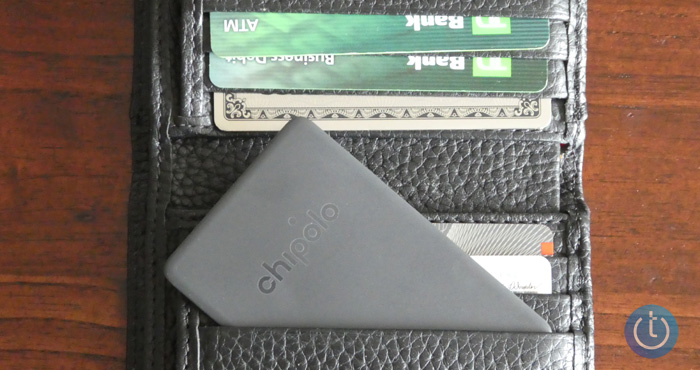
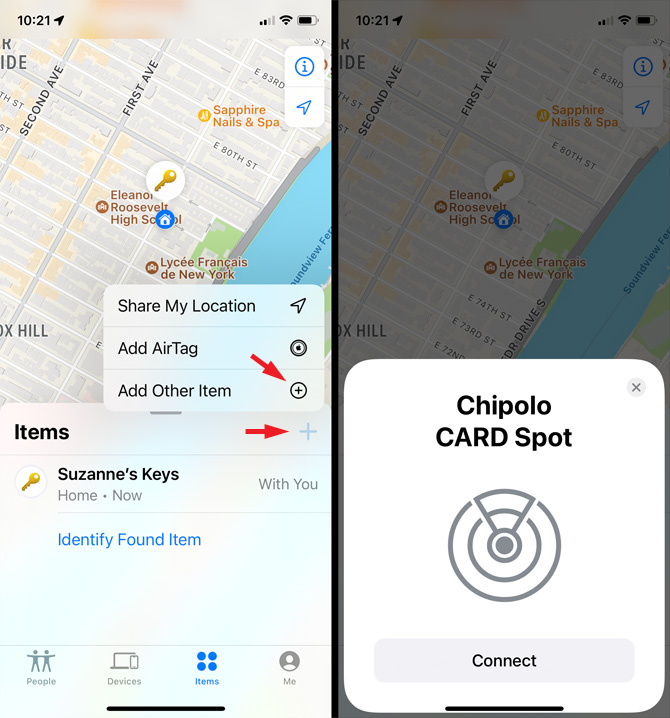
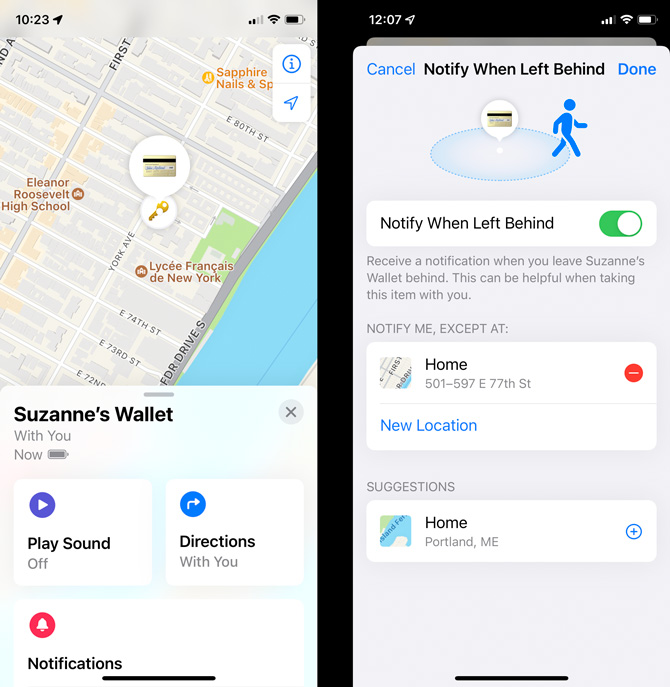
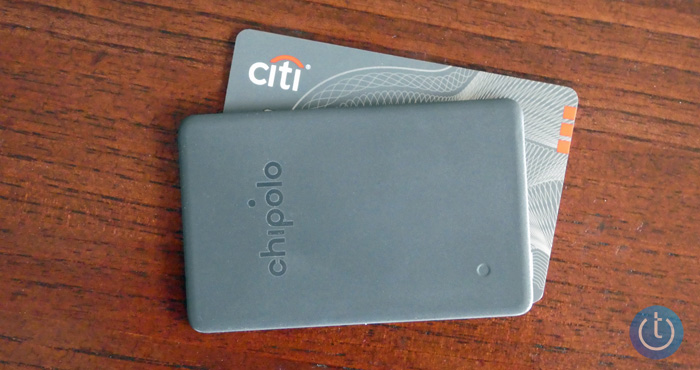


 Two years ago, Lenovo introduced the 10.1-inch Chromebook IdeaPad Duet, a 2-in-1 Chromebook that received rave reviews for its versatility and low price of $279 (including the keyboard case). We picked it as one of the best affordable laptops and tablets for back-to-school in 2020. This year, Lenovo launched the next generation, the 10.9-inch Chromebook IdeaPad Duet 3 ($369.99 at Lenovo). It promises to provide an even better user experience than the first-generation Duet with a larger display, a second USB-C port, and a bump in processing power.
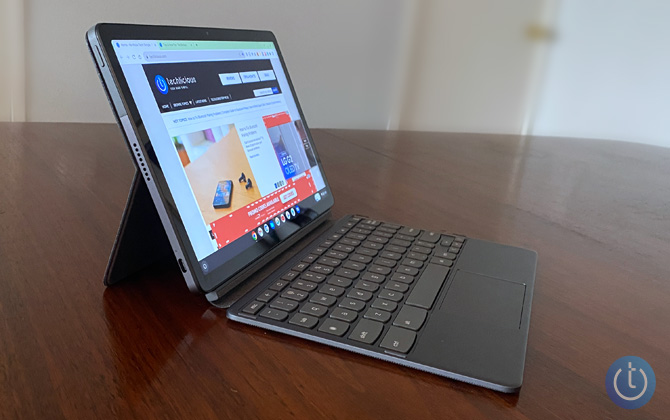
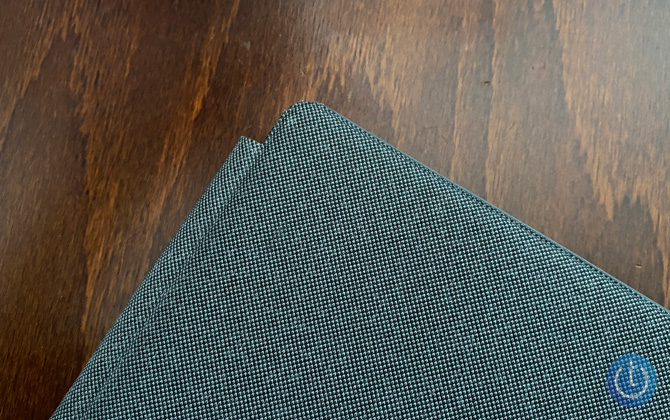
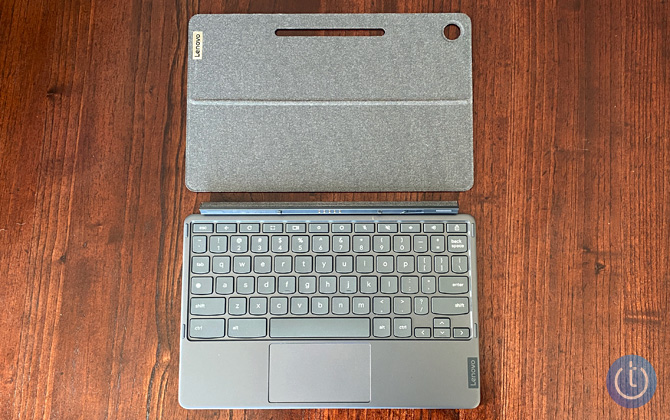

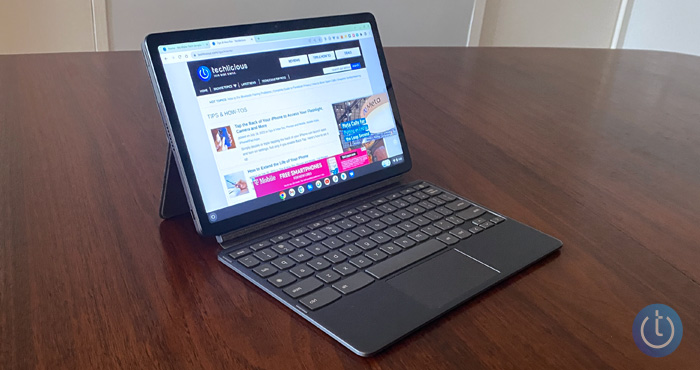


 The promise of a robotic floor cleaner is that it will take care of the cleaning for you. Unfortunately, the reality has been far from it, especially for mopvacs, which wash and vacuum your floors. The problem was the mop head, which you had to manually clean between runs. This year, we're finally seeing fully-autonomous mopvacs, namely the Techlicious Top Picks CES 2022 winner Roborock S7 MaxV Ultra. This new mopvac empties and cleans itself and can run for up to two months without user intervention.
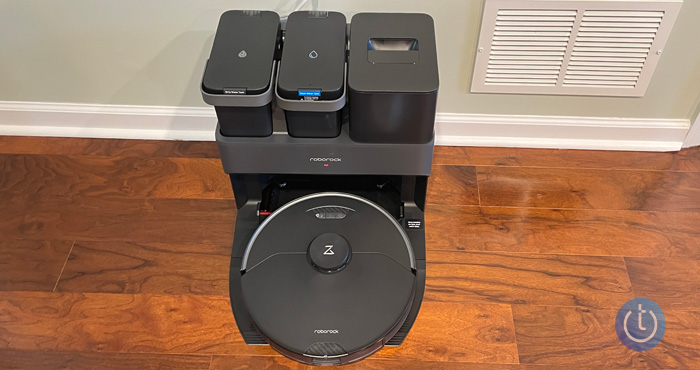
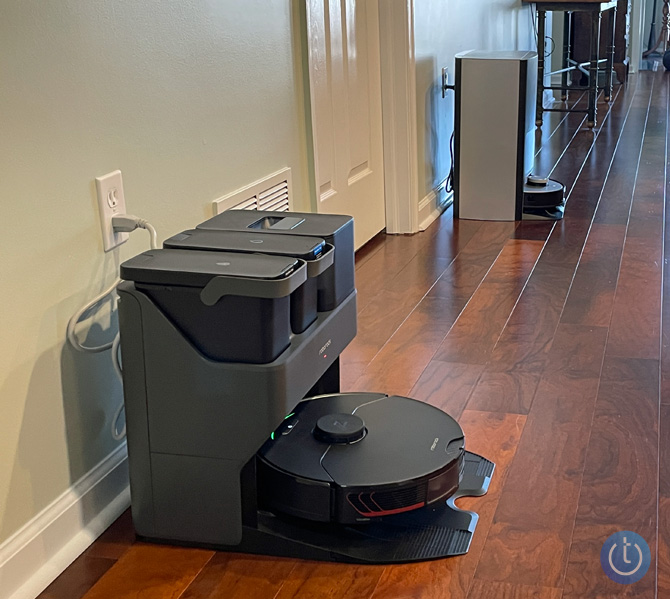
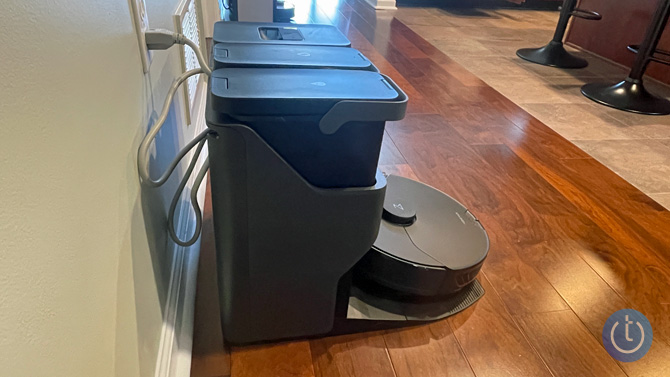
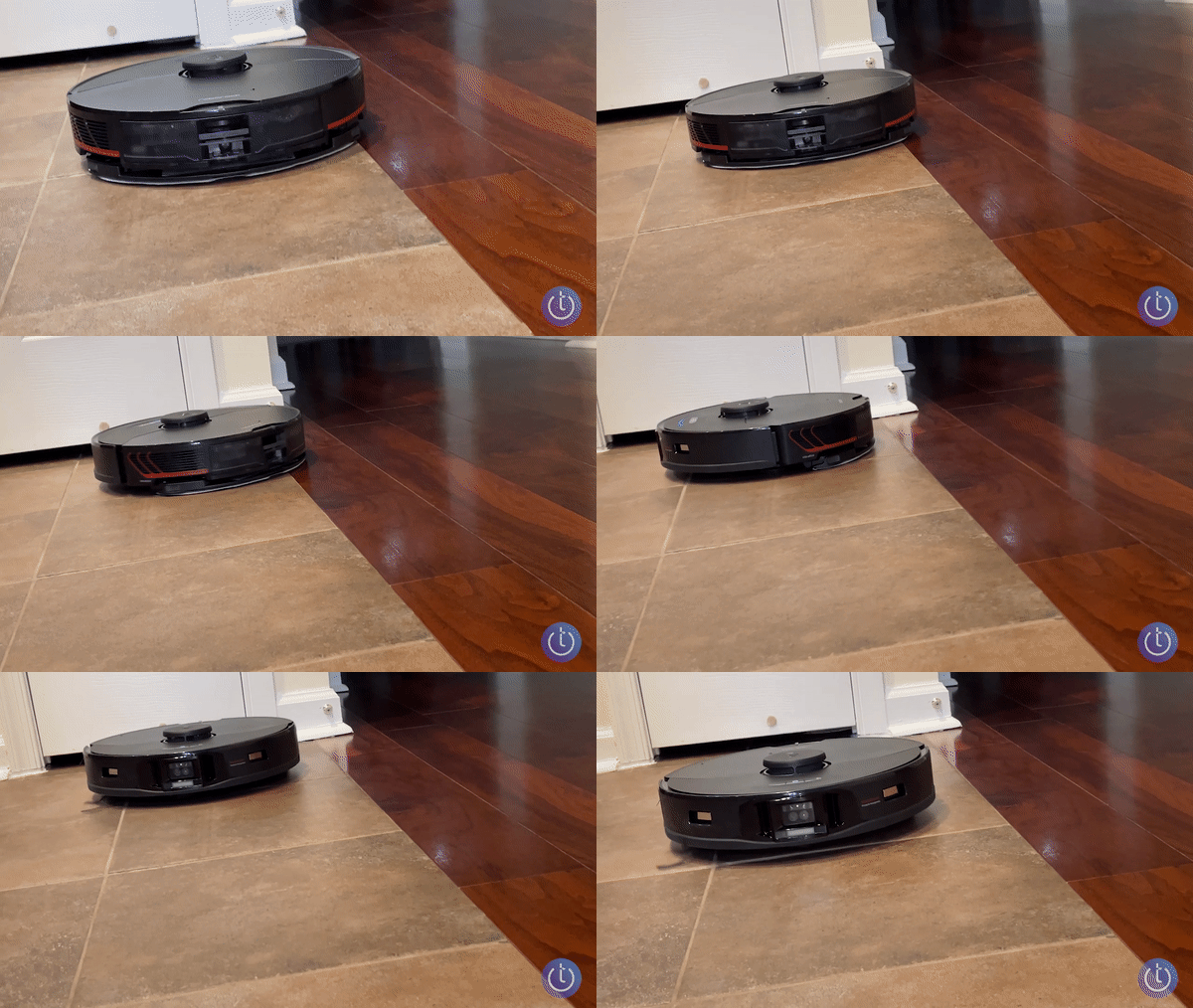
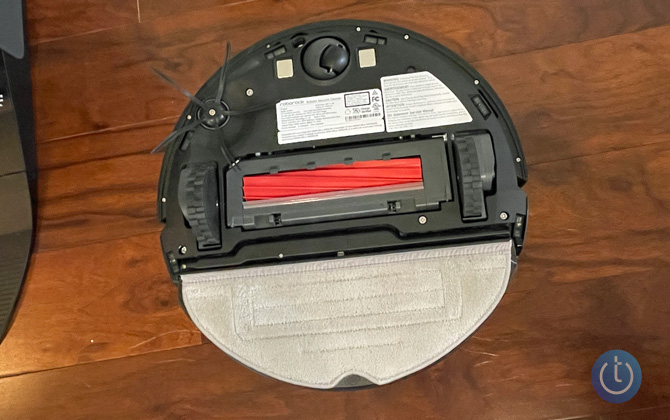
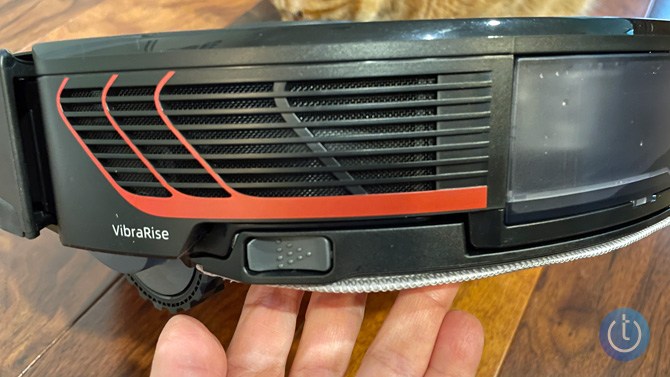

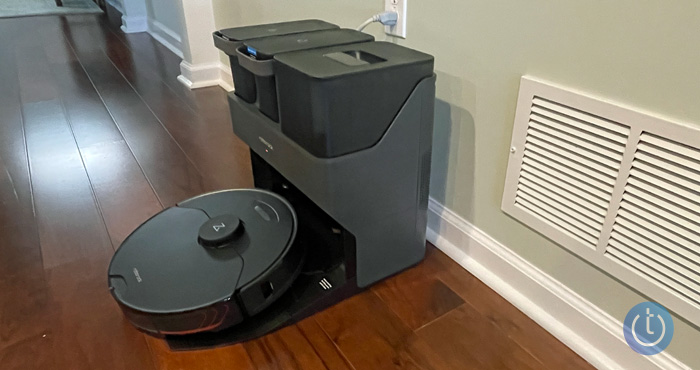

 If you’ve had the opportunity to try a bidet at a friend’s house or while traveling overseas, you already know the significant cleaning benefits they offer over toilet paper. Yet, most Americans don’t own one, either because of the perceived cost, concerns about installation, or simply the hesitation to try something different on one of your most personal of parts.
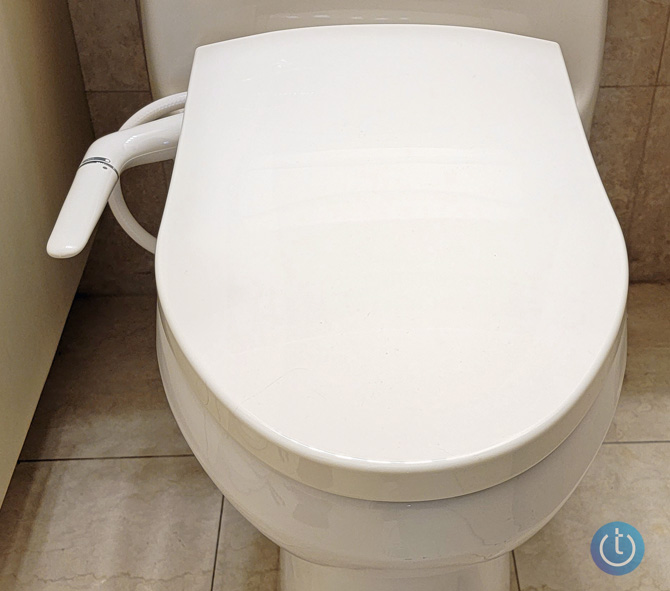
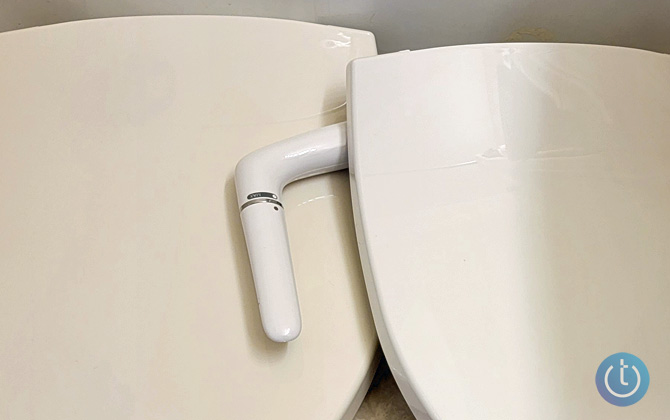
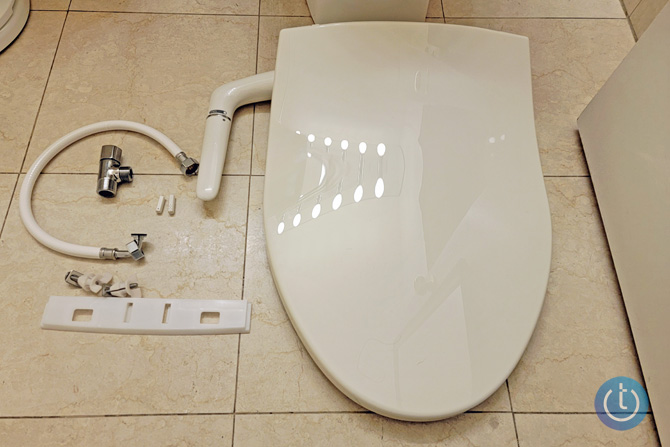
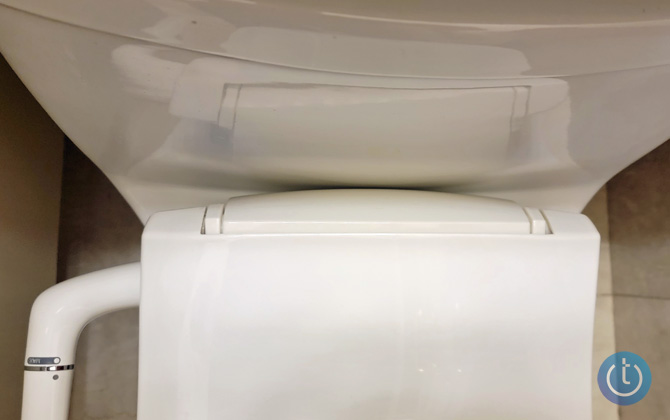
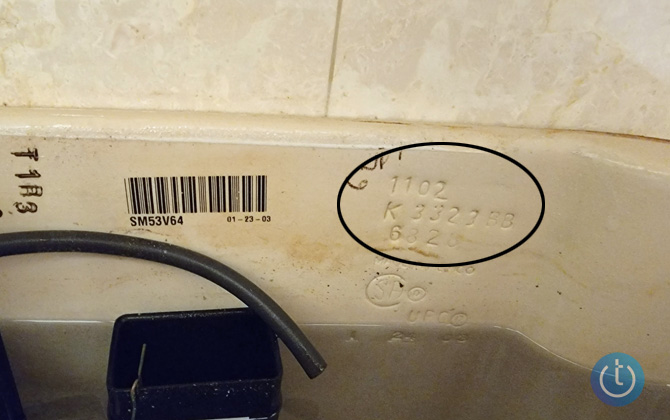
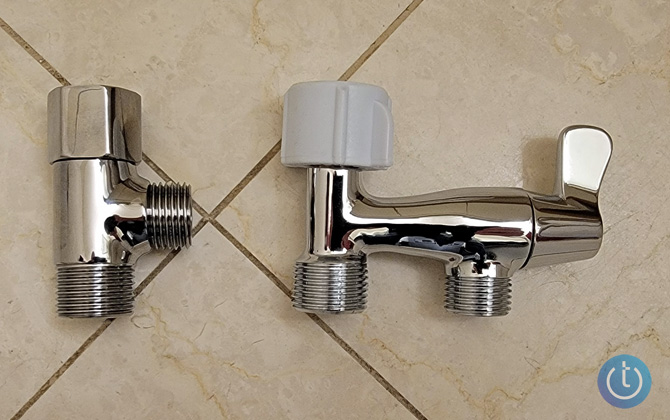
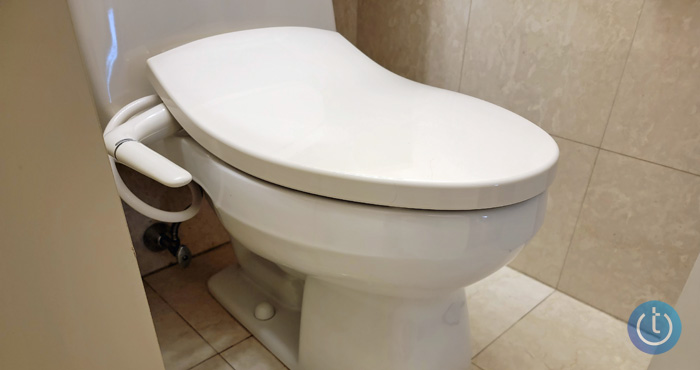

 If there’s one thing everyone dreads about spring, it’s the arrival of hordes of mosquitos and the infuriating itching that comes from their bites. And no matter how much DEET or how many citronella candles we employ, some of those buggers always get through. Once bitten, the proteins in the mosquitos’ saliva trigger an immune response, causing the red, itchy bumps we all know so well.
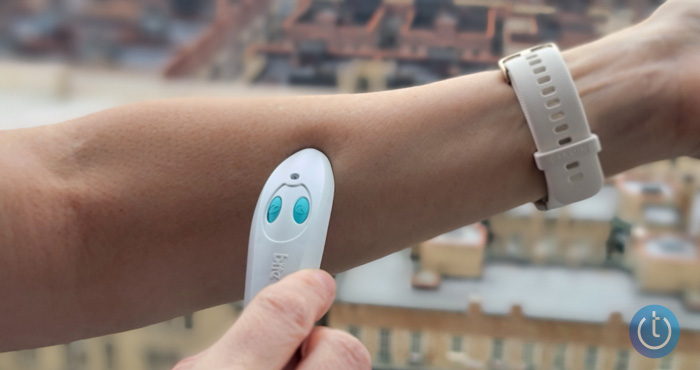
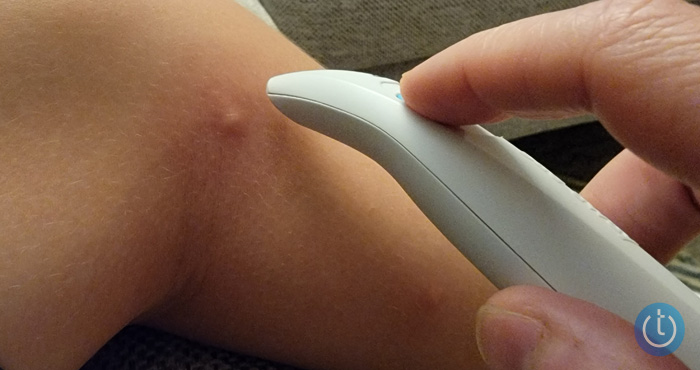


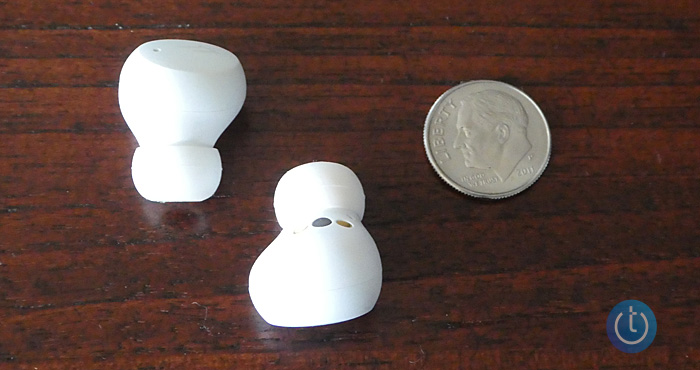
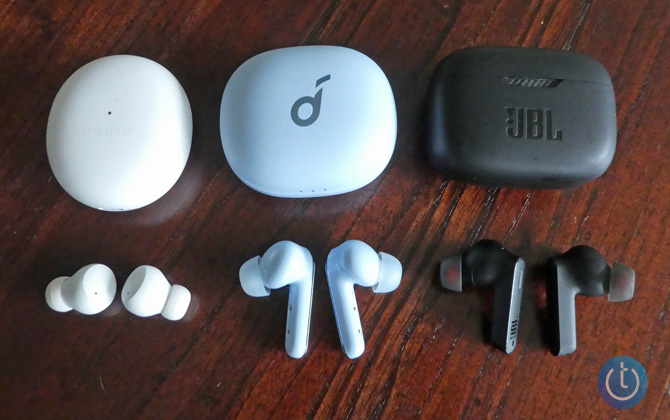
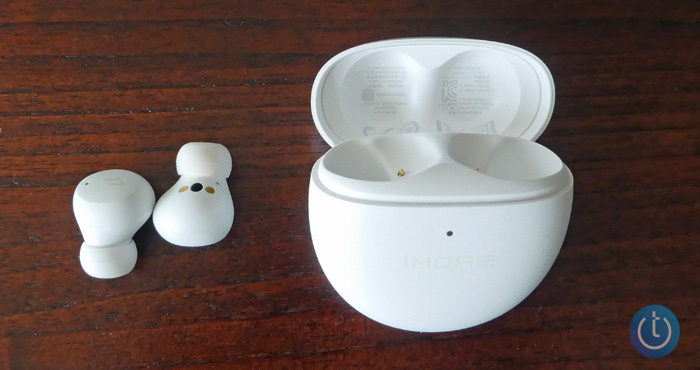

 Soundbars are the go-to solution for easily adding better audio to a TV. The all-in-one design plus slender, low-profile form factor is easy on the eyes, easy to install, and compared to other surround-sound solutions, typically easy on the wallet.
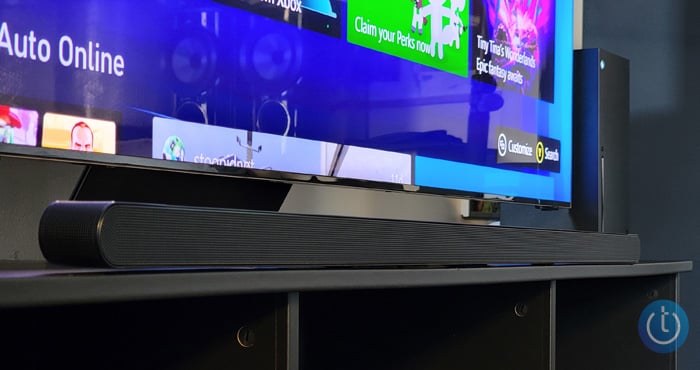
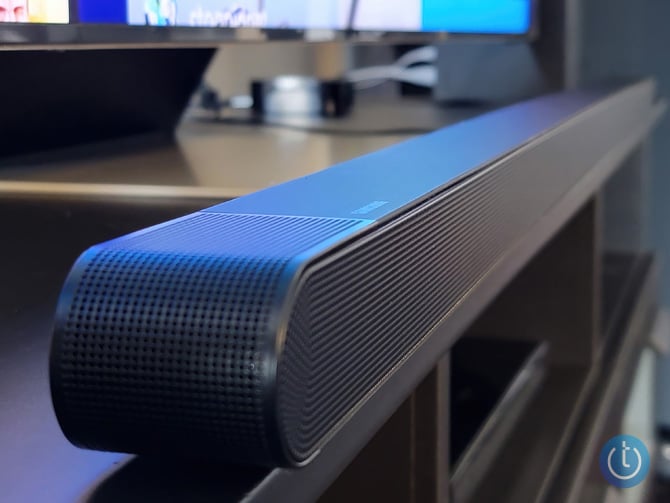
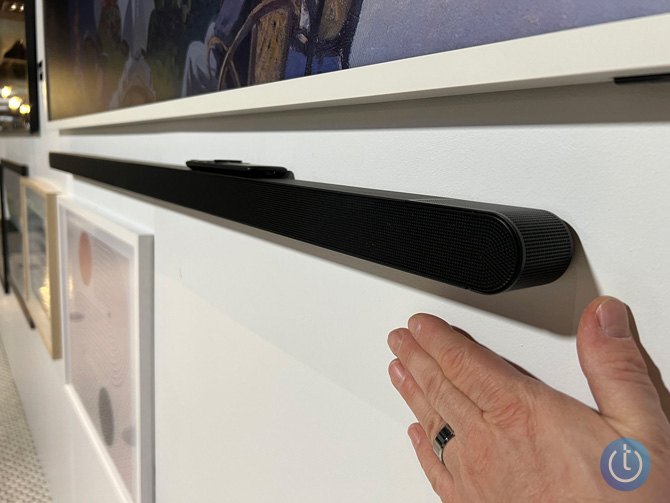
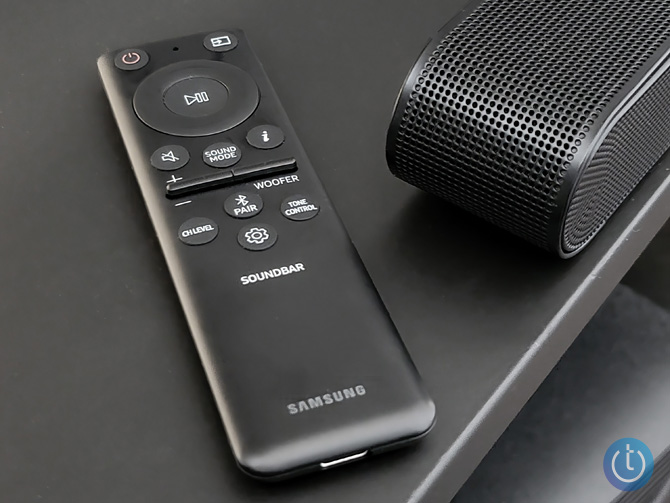
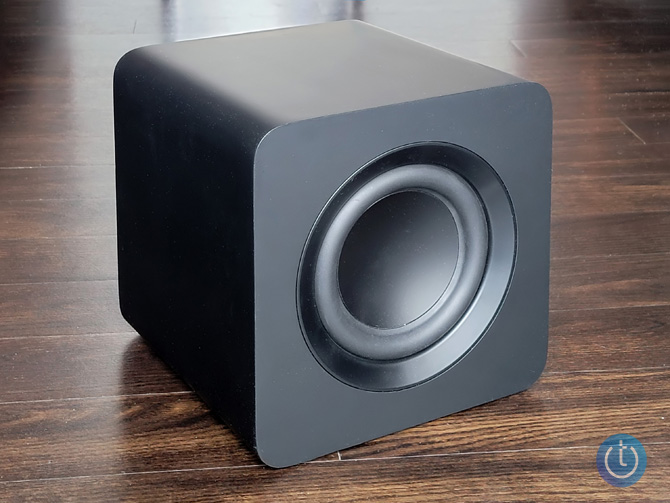
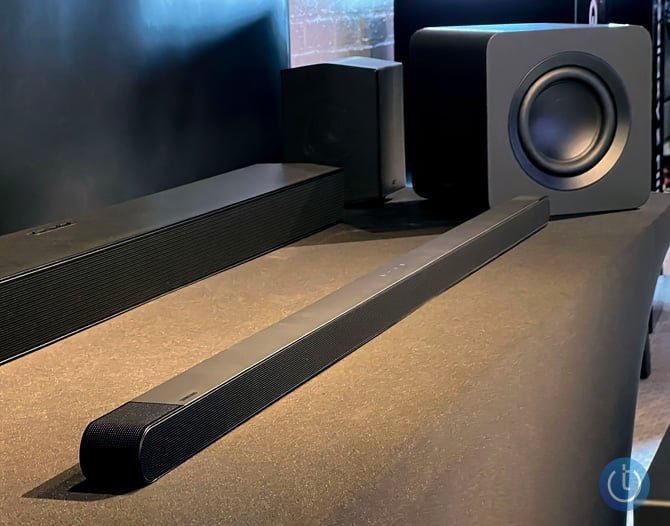

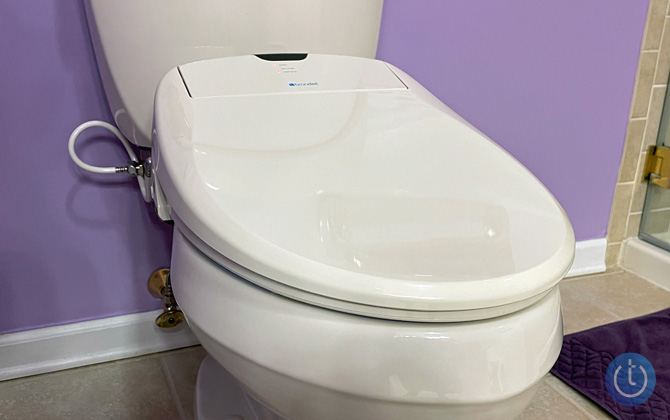
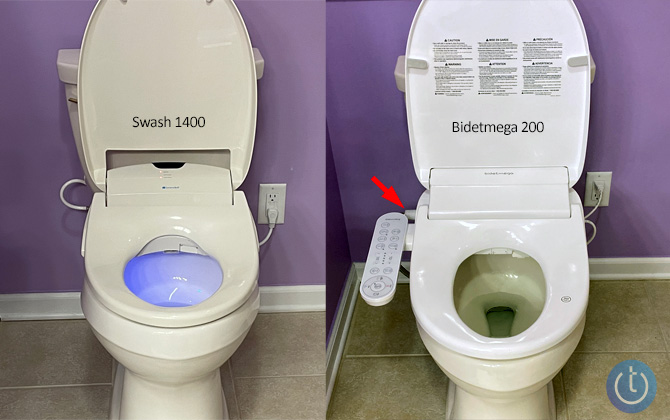
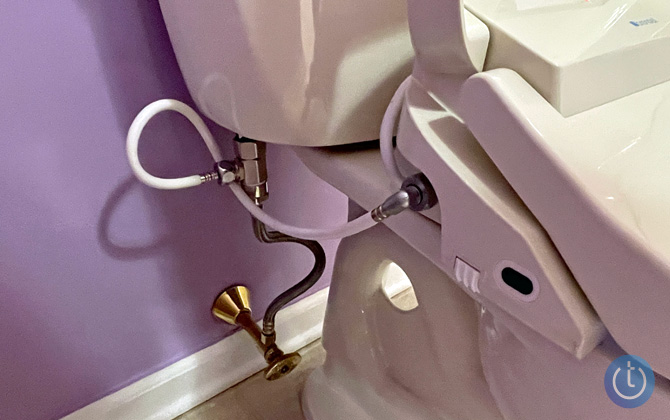
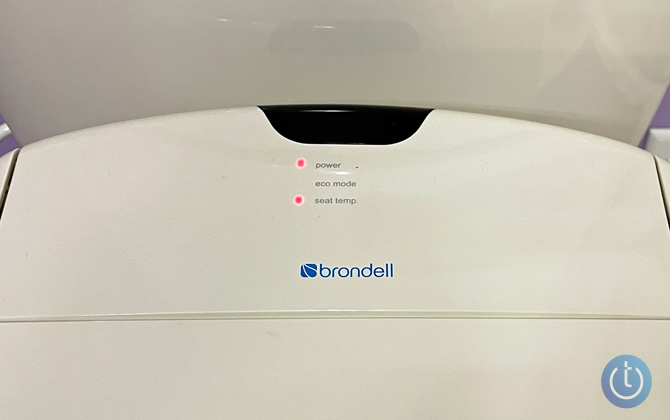
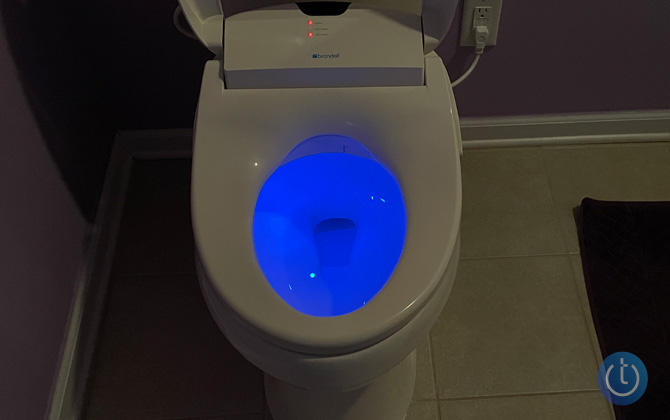
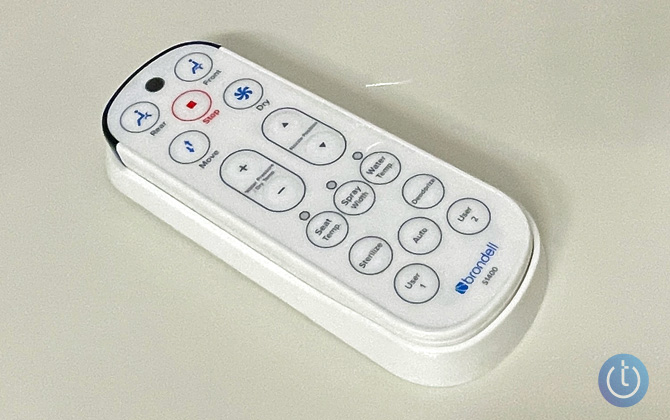
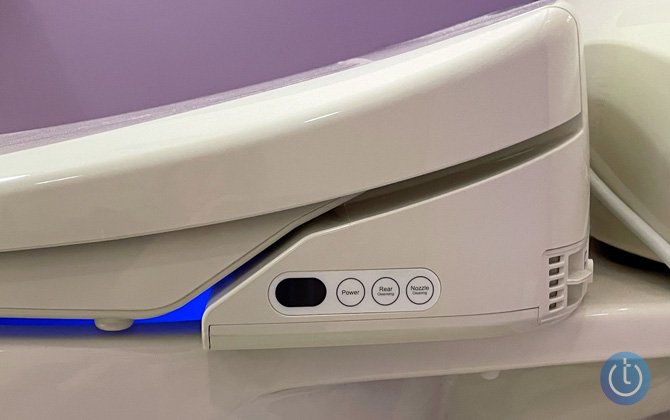
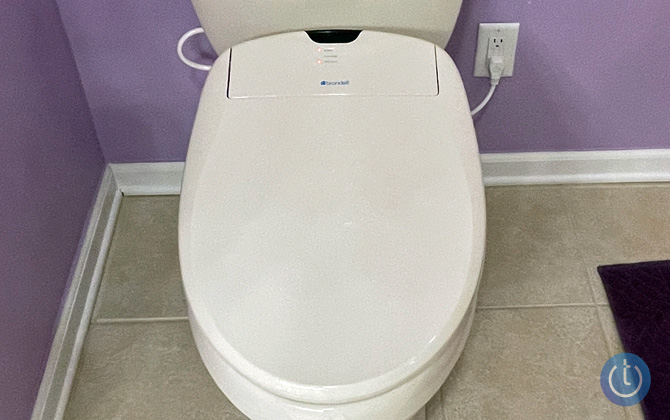

 Last year, we gave Panasonic’s Nanoe EH-NA67-W hair dryer ($150) a Techlicious Top Picks of CES 2021 award for its innovative oscillating quick-dry nozzle and Nanoe technology, which creates ultrafine water particles to keep your hair hydrated. But how well does the technology work in real life? For the last four months, I’ve been testing the Panasonic Nanoe to find out.

 What happens if you take one of the best premium 4K TVs, the Samsung QN90A Neo QLED, and upgrade the video processing from 12 bits to 14 bits? You get the 2022 Samsung QN90B Neo QLED, a TV that is a dead ringer for its predecessor on the outside but offers noticeable improvements in picture processing that translate to visibly better picture quality. Taken together with all of its features and my experience testing TVs for the last nine years, I consider the QN90A the best all-round 4K TV on the market.


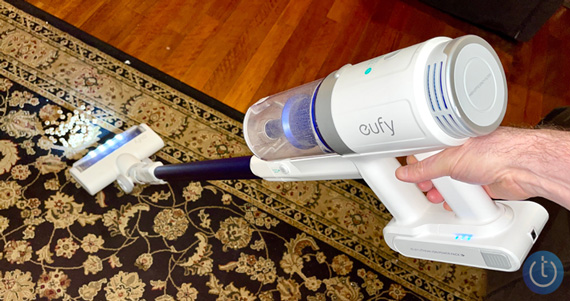

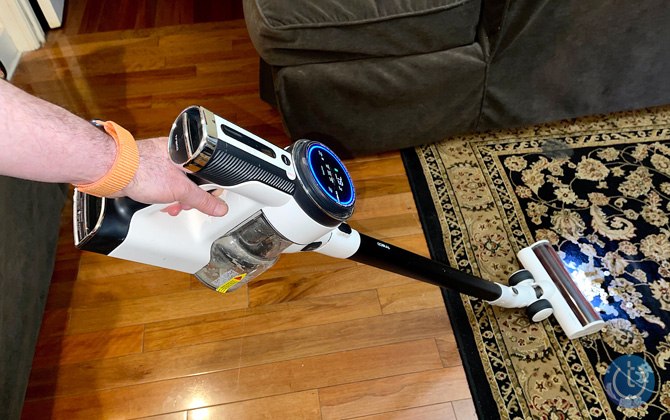


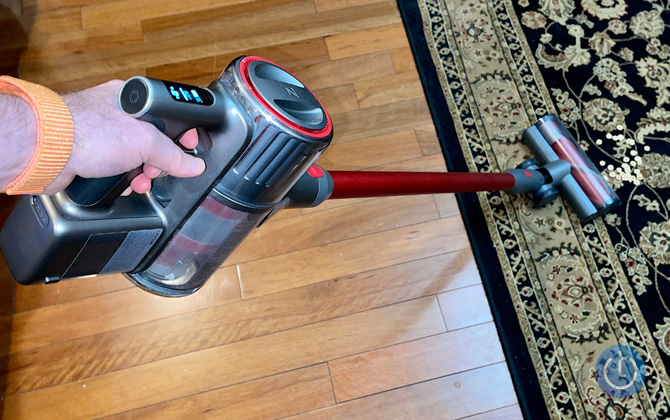
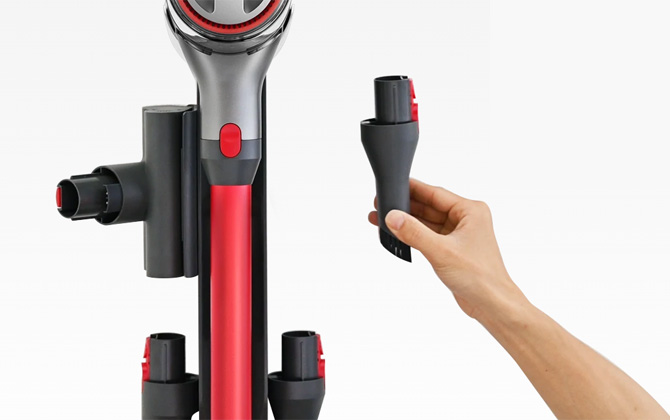
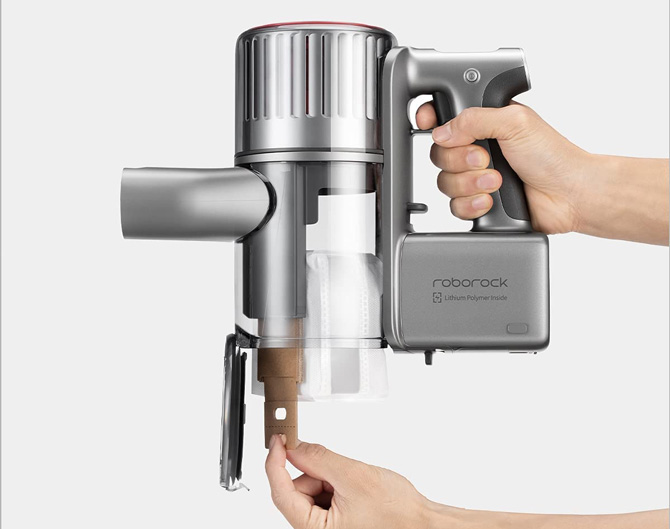


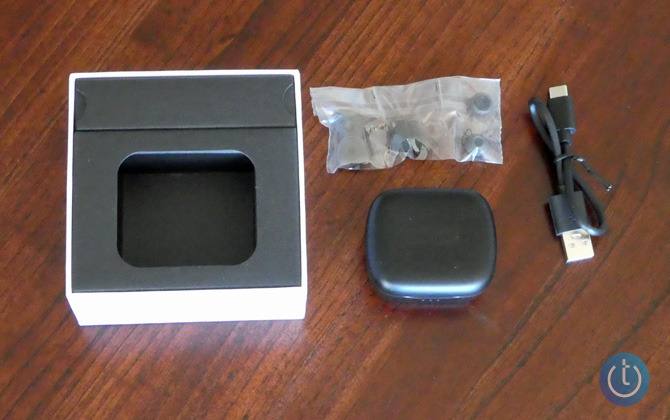
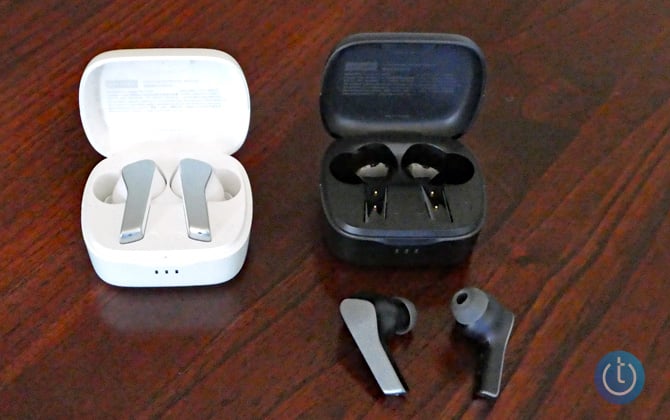
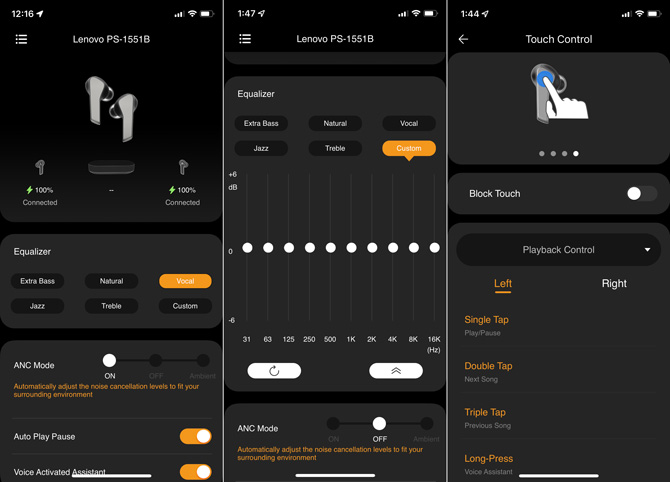
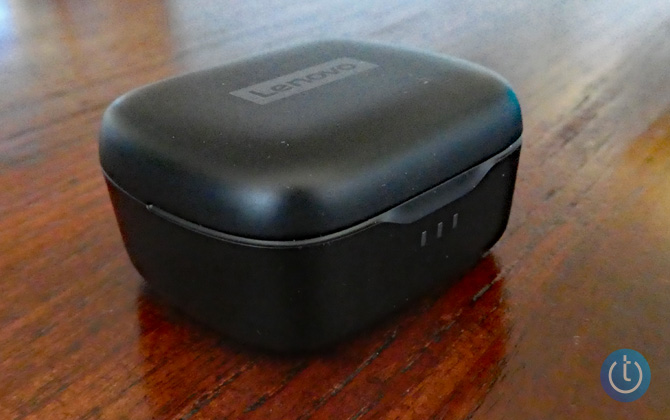
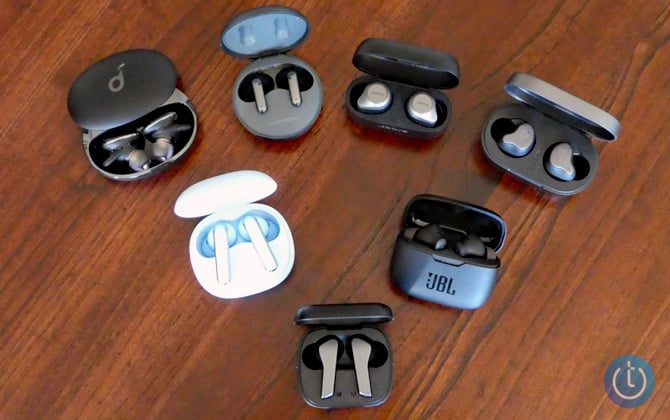
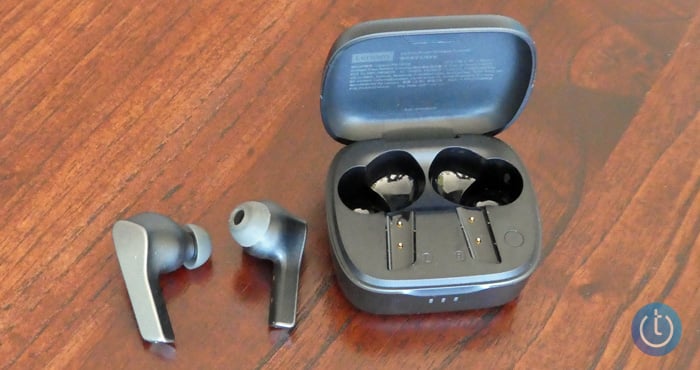
 Vacuuming is a stop-and-go activity. You start, then you stop to pick up something off the floor. You need to move a chair. Someone calls. Your vacuuming is constantly being interrupted. But when you turn off its power to deal with the interruption, what do you do with a stick vac? For most stick vacs, you need to lean it against a wall or furniture. But Miele has completely redesigned its Triflex HX1 stick vac so it can stand up on its own in the middle of the floor.
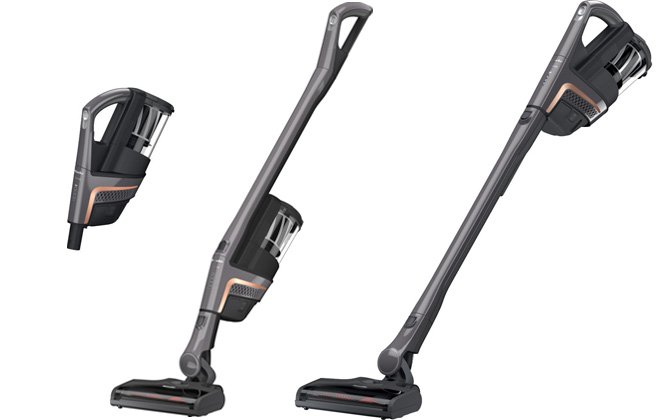


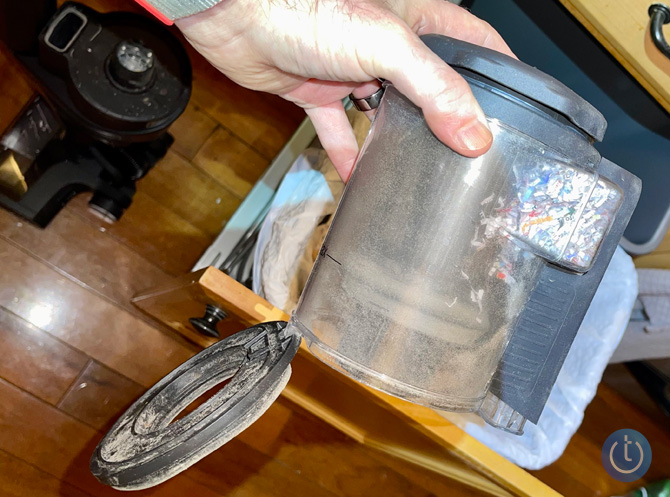

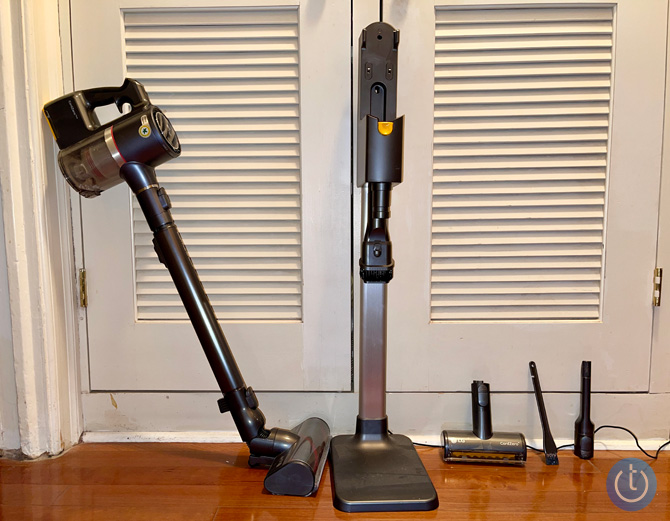

 At CES 2022, Samsung has unveiled The Freestyle, a lifestyle-friendly portable 1080p HDR-capable smart projector with an innovative form factor plus feature set. This exciting new display device is full of potential, offering quality, versatility, and refinement atypical for the portable projector category.
 The powerful and versatile V15 Detect includes a host of functional and logistical improvements primarily a replaceable battery and two unique brush attachments, over Dyson's previous and nearly identical V11 flagship. The V15 Detect+ adds a HEPA filter and a "low-reach" 90-degree bendable adaptor.
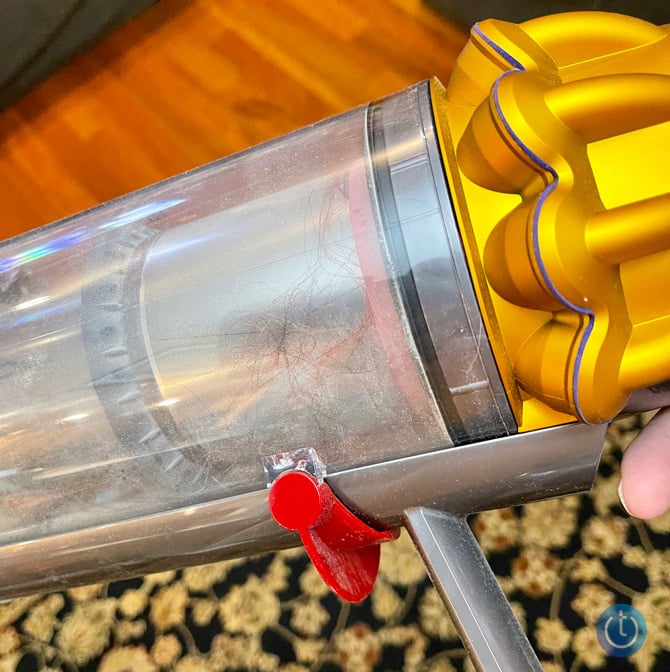


 The GoPro Hero10 Black ($549) is the latest state-of-the-art action camera from the company that created the genre and continues to dominate it. The Hero10 Black is complementary to any other camera you might own, going places and doing things that smartphone cameras and full-size cameras are unable to. Conversely, the Hero10 lacks many features and capabilities found on other camera types.
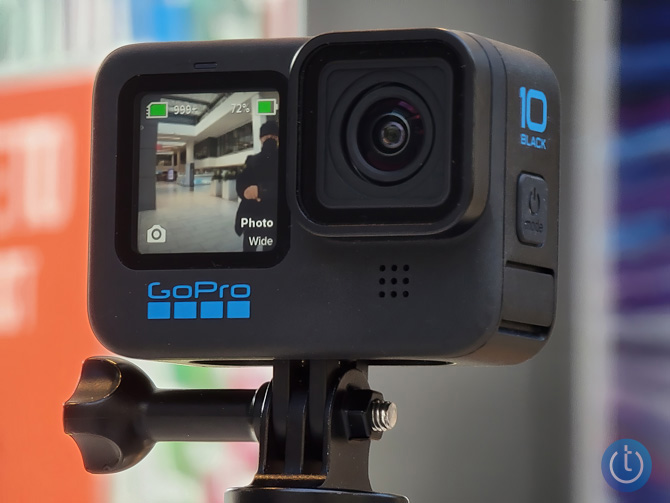
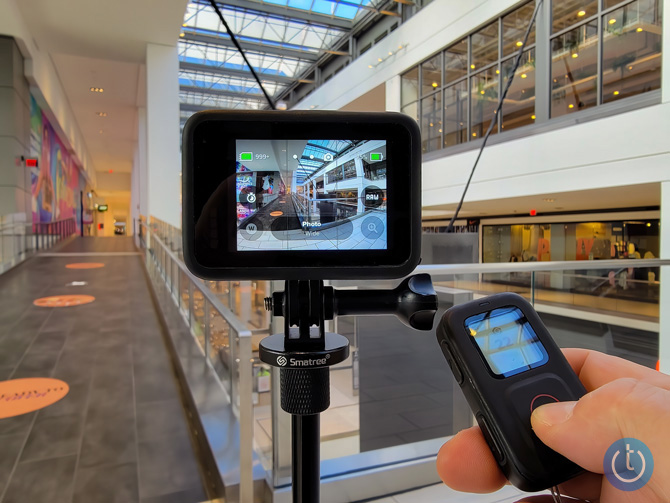






 Over the years, I've tested a variety of over-the-counter hearing assistive devices, some actual FDA-approved hearing aids, others so-called personal sound amplification products (PSAP). Until recently, I believed the best relatively low-cost non-prescription over-the-counter hearing aid available was Eargo's Neo HiFi, which I reviewed 18 months ago. That is until I tested the Neo HiFi's replacement, the Eargo 5, the fifth-generation hearing aid from the company.
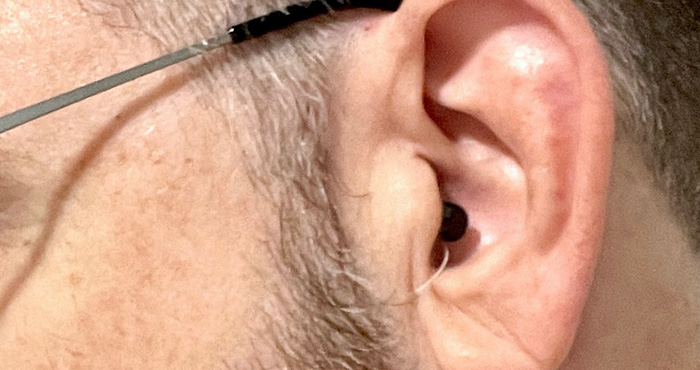
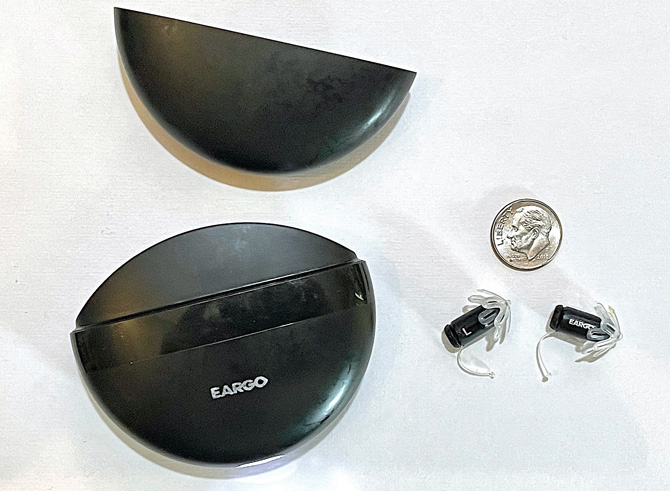
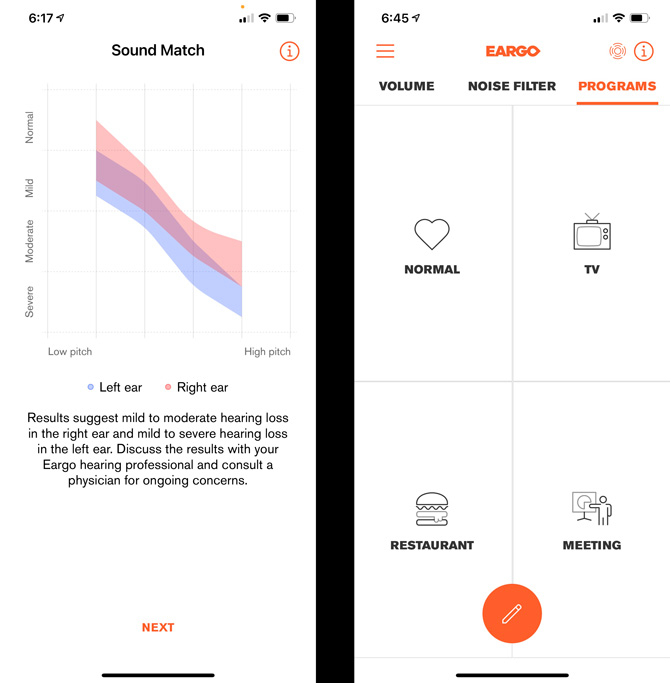
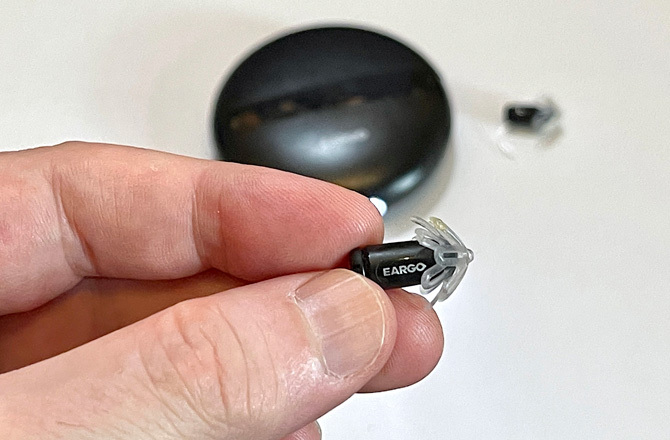
 WinX YouTube Downloader
 I've been using the Video Doorbell Pro 2 for about a month, swapping it out to replace my original Video Doorbell Pro that I've had for years. The larger field of view lets me see packages on the ground that I couldn't see before, and I can hear responses from the two-way audio much clearly. More importantly, I can see where visitors to my property are coming from and which direction they go when they leave, thanks to the Bird's Eye aerial viewpoint. These features, plus better motion detection and fewer unwanted alerts, make the Ring Video Doorbell Pro 2 well worth the extra $80. If you're in the market for a new cam, it's definitely the model I would recommend. Even those who own the Ring Pro may want to consider springing for the upgrade.




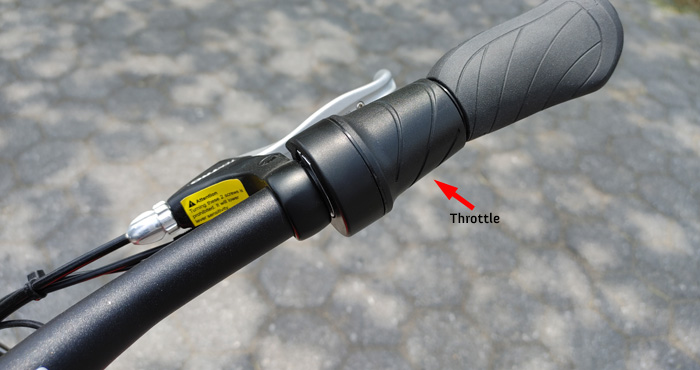
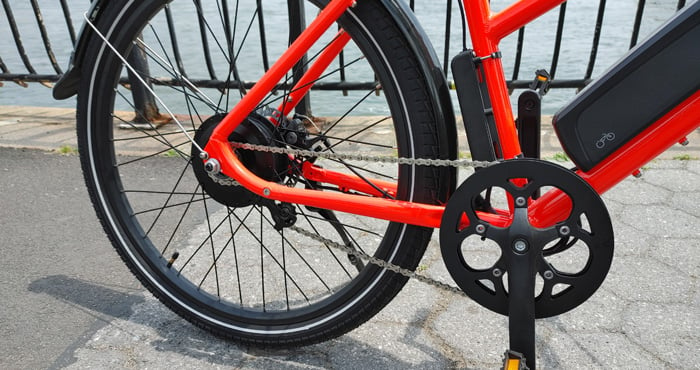
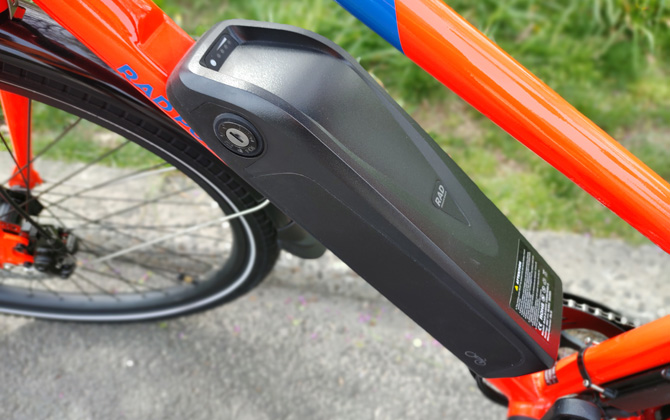
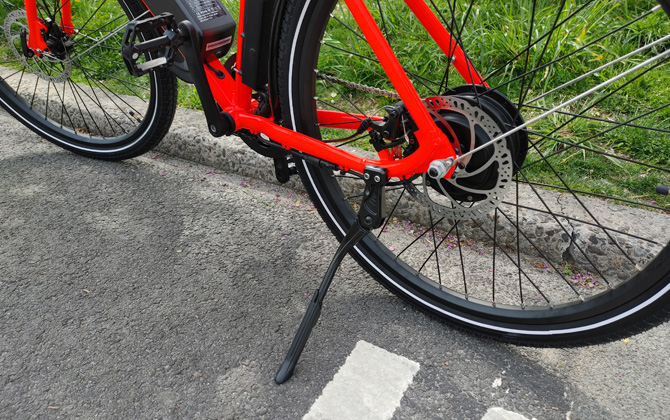



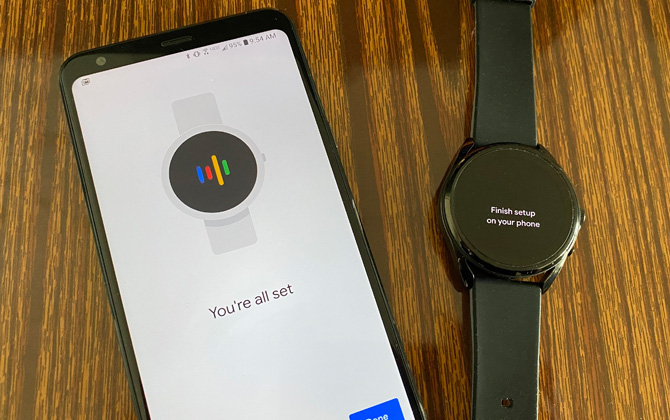
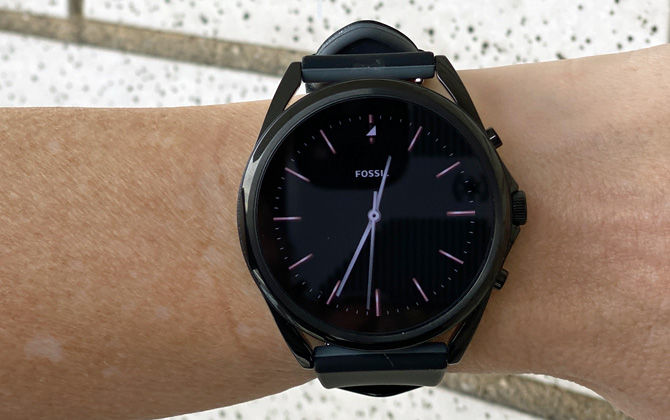
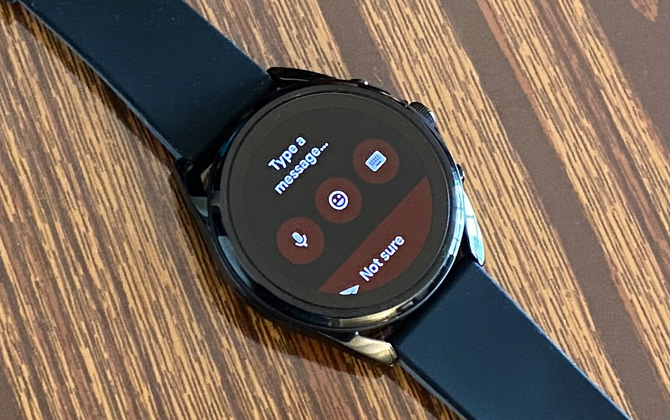
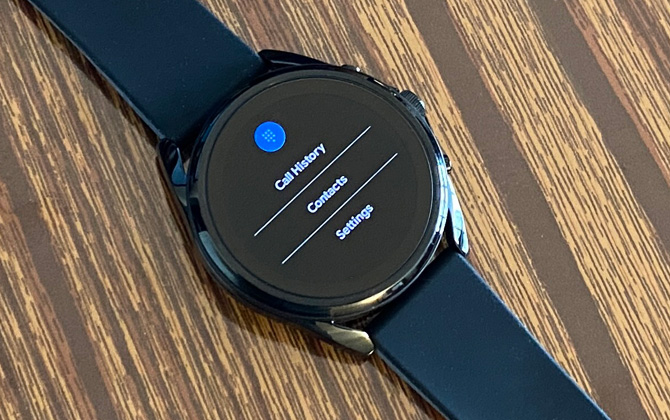
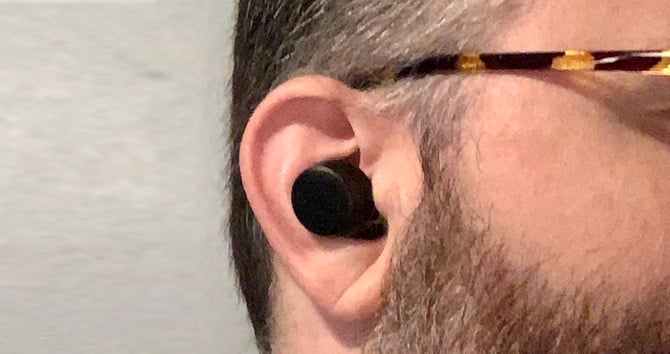
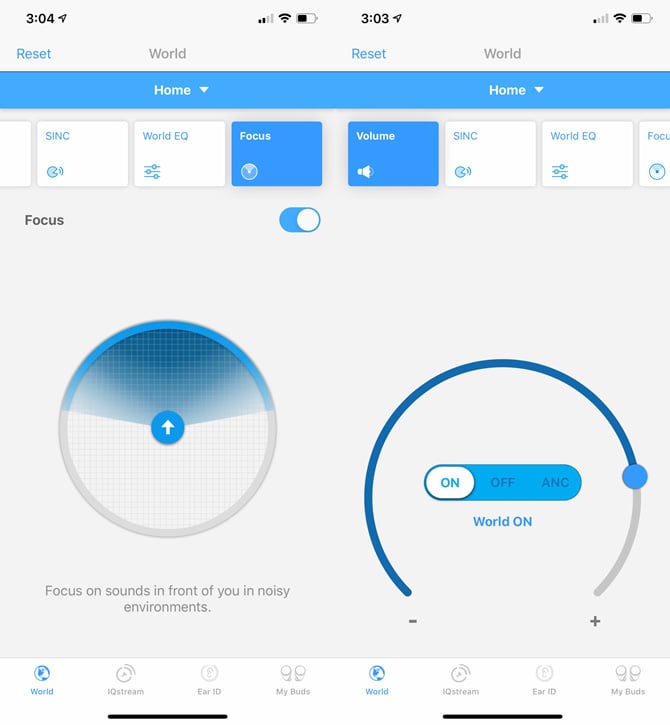
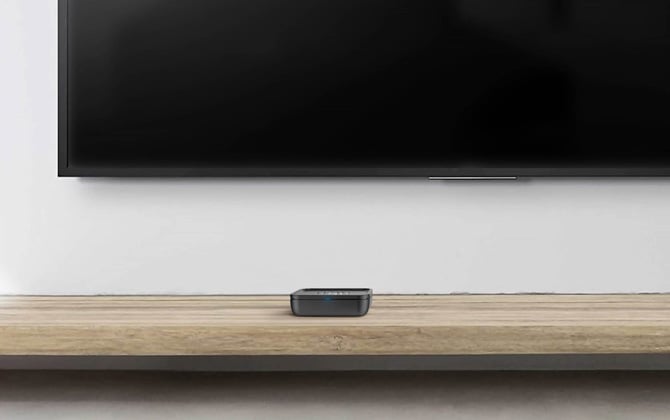
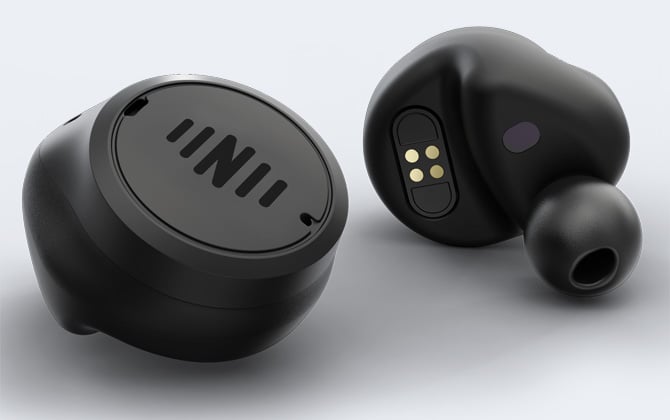
 Regardless of your budget, your first consideration when buying a TV is image quality. But with so many high-quality sets to choose from, setup, operation, and ease-of-use should factor into your decision as well.
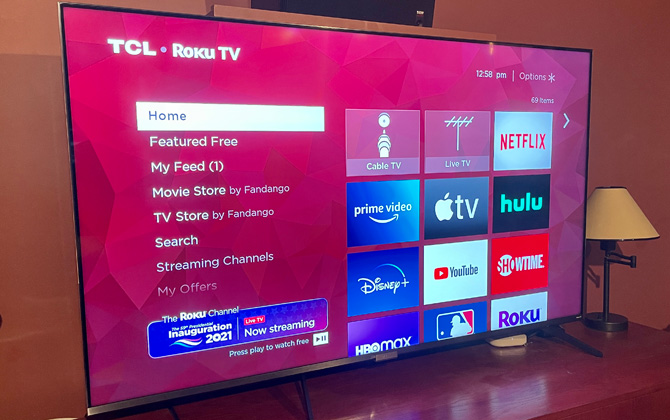
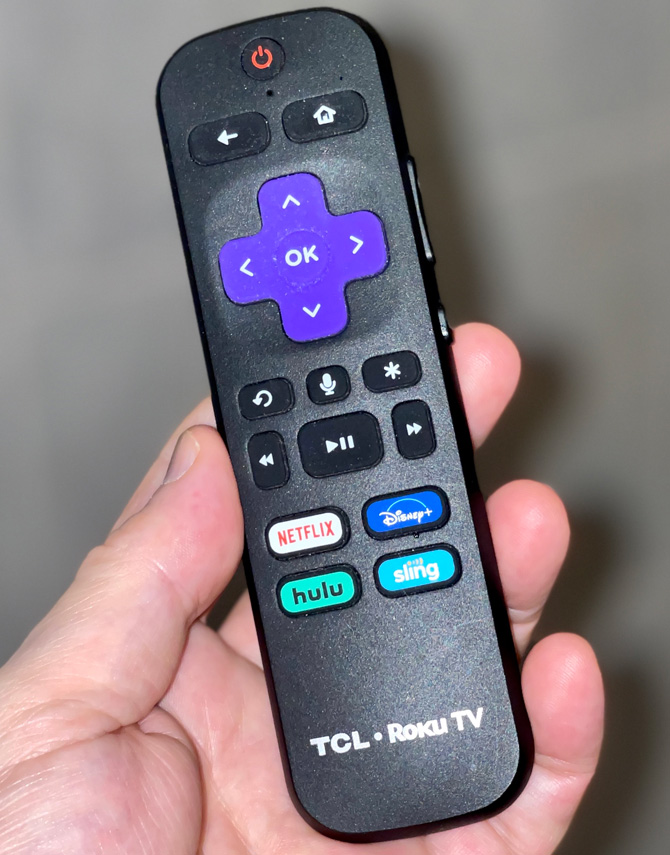
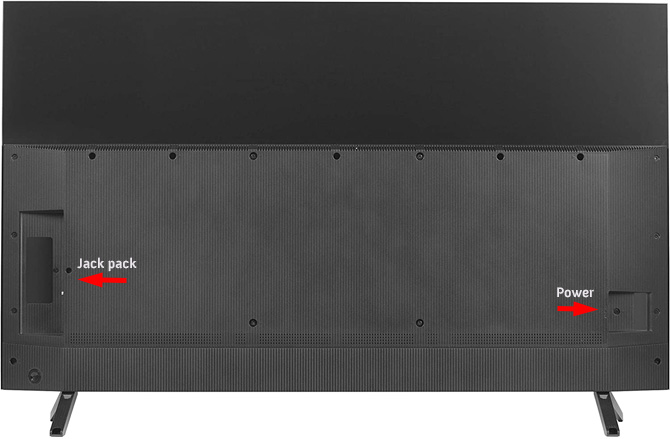

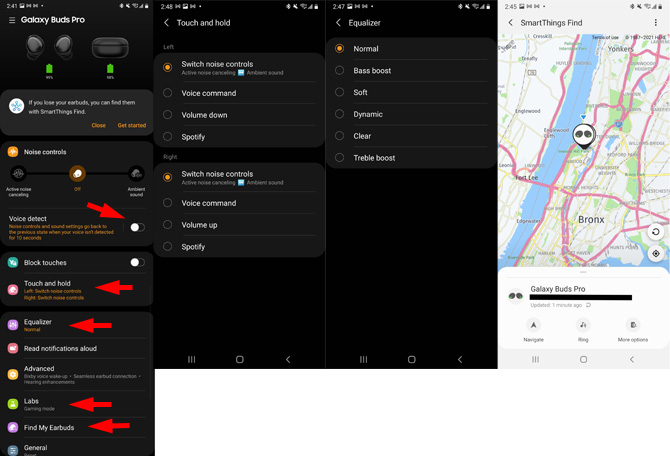
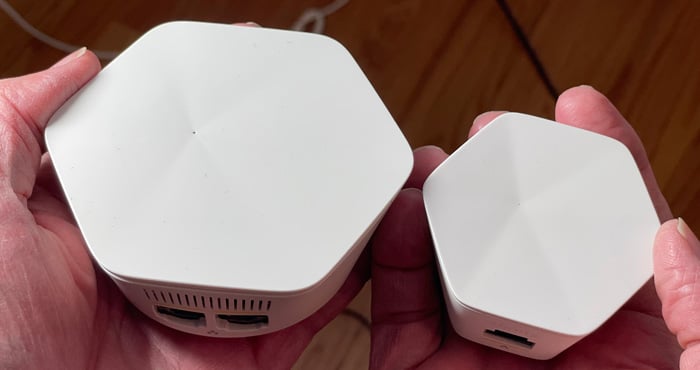




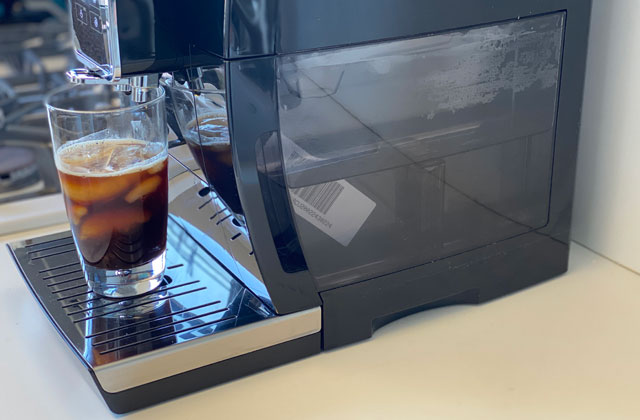
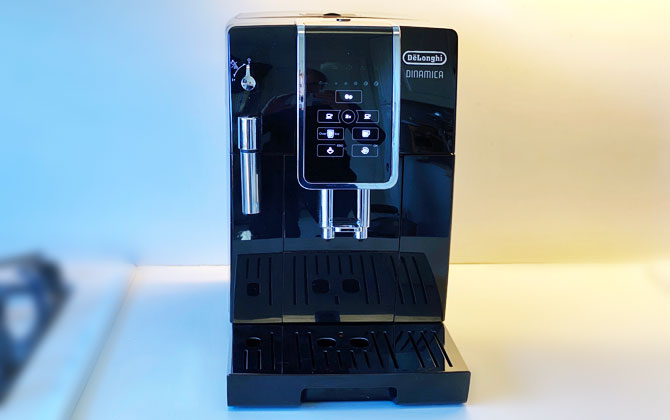








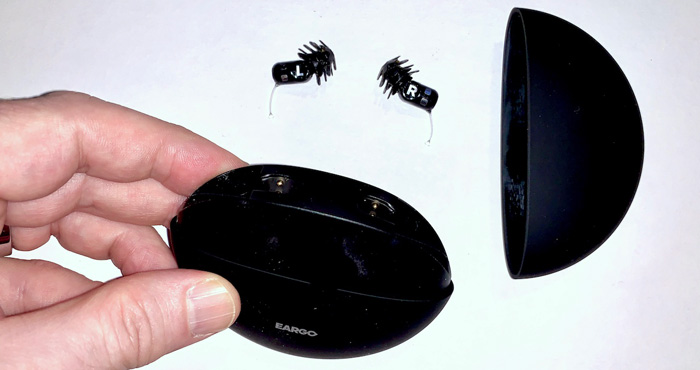
 While adding a bidet in new construction is becoming more commonplace here in the U.S., an easier and less expensive way to get that freshly cleaned experience is with a bidet seat or washlet. Less expensive units (under $100) have a simple spray function for cleansing, while the high-end units (topping $1,000) offer options like night lights, built-in mp3 players, and auto-closing lids. The Coway Bidetmega 200 ($449.00, on sale on Amazon for $328.94 as of 4/27/2023) sits in between and hits the perfect balance between functionality and price.