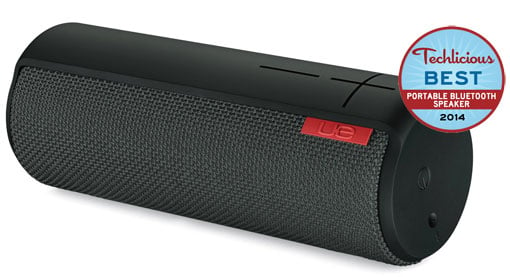
Logitech Ultimate Ears BOOM Wireless Bluetooth Speaker |
![]() |
![]() |
A portable Bluetooth speaker lets you party anywhere — but being portable means it has to do a great job reproducing high-quality tunes while remaining small and light enough for easy toting. It needs to be easy to pair with your music device. It should be able to withstand incidental bumps and jostling, and it would be great if it were impervious to the elements and other aquatic encounters.
A portable Bluetooth speaker should let you carry on hands-free phone conversations. It should be easily charged and supply enough juice to provide a steady soundtrack for even the lengthiest bacchanalia. And it needs to put out plenty of sound; it needs to be loud.
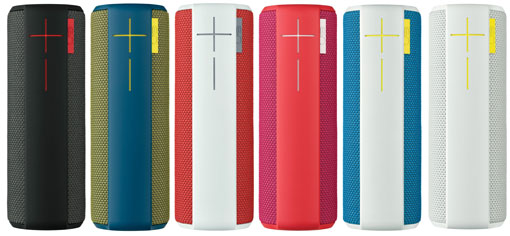
We considered the range of Bluetooth speaker uses and a need for superior sound indoors and out, and a clear winner emerged as the ultimate high-end ($200+) choice: Logitech's Ultimate Ears BOOM Wireless Bluetooth Speaker.
We awarded the Boom our top finish after running other highly-rated premium Bluetooth contenders through their paces. We tried out the highly regarded, book-sized Bose Soundlink III ($300), the distinctive yet bulky Polk Camden Square ($300), the vaguely wedge-shaped Klipsch GiG ($200), the psychedelic but tragically underpowered JBL Pulse ($200), the adorably tiny and appropriately-named Beats Pill 2.0 ($200), the oddly rhomboidal Bayan Soundbook X3 ($300), the fun yet even more underpowered Fugoo Style ($200), the colorful and bass-laden Jawbone Jambox ($300) and the water- and shock-resistant Braven BRV-X ($200).
Each Bluetooth device features something worth recommending it, either aurally or ergonomically, and sometimes both. Sound quality, of course, must remain our primary interest.
To test these speakers, I used an HTC One M8 to listen to both bass-laden and fragile tracks including "I Gotta Feeling" by the Black Eyed Peas, the uncensored version of Pink's "Less Than Perfect," "Tubthumping" by Chumbawamba, "Money" by Pink Floyd, "Here Comes The Sun" by the Beatles, "Rolling in the Deep" by Adele, "Life During Wartime" and "I Zimbra" by the Talking Heads, "Woke Up This Morning" by the Alabama Three and "In Your Eyes" by Peter Gabriel.
Overall, the Bose and Polk Camden Square stood out, producing the most natural and even tones across all frequency ranges. The Klipsch GiG and JBL Pulse produced the crispest, most full-range tonality among the more compact units.
But the Boom wasn't far behind these audiophile favorites, with differences perceptible only through critical side-by-side listening. The Boom boasts distinct, smooth and natural mono sound indoors and out and at all volume levels, with solid, unobtrusive bass.
Thanks to its 360-degree speaker design, the Boom provides a surprisingly wide soundstage that isn't as location-specific as flatter speakers with sound stages and even volumes dependent upon their placement. No matter where you put the Boom in a room or in what position — optimally standing upright or horizontally — it sounds the same.
Outdoors, the Boom, Bose and Bayan put out the most volume at the longest distances, but the Boom has the greatest space-filling potential.
Then there's the disappointing case of the JBL Pulse cylinder, perhaps the sweetest-sounding speaker with the best-defined bass of all the compact units. Unfortunately, the Pulse not only lacks its own built-in volume controls, it produces only enough volume for an intimate gathering. Its sound (as well as the Fugoo's) would be completely drowned out in any well-populated party situation, although the crowd might be mildly entertained by its gimmicky, pulsating LED light show. However, a Pulse with a slightly more powerful amplifier might come closer to perfect than any other speaker we tested.
All Bluetooth speakers except the Beats Pill maintained solid Bluetooth connections out to about 80 to 100 line-of-sight feet — in most cases far beyond their effective aural range. The Beats' connection, however, started to garble at around 70 feet.
AptX is a new compression scheme designed to smooth out the rougher tonal edges of Bluetooth connections, which really aren't designed for music. Geoff Morrison at CNET provides a great primer on aptX. Because the technology is not supported by Apple, we used an aptX-equipped HTC One Android phone for our tests.
The Boom lacks aptX compatibility — but the Boom sounded superior to most of the aptX-equipped speakers we tested.
Despite no aptX compatibility, the Boom offers every other attribute on our portable Bluetooth speaker checklist:
Each of the Bluetooth speakers I tested offered some combination of these features and capabilities, but no other portable Bluetooth speaker brought together the Boom's combination of high sound quality and bass indoors and out with volume level, water resistance, battery life and size and placement versatility.
We are not alone in giving high marks to the Boom. CNET's reviewer was impressed by how loud it played and how long its battery lasted. "I still wished it cost a little less," wrote the CNET reviewers, "but in taking it for a weekend spin outside the office, I found myself becoming attached to it — enough to think I wouldn't regret paying $200 for it."
Over at PC Magazine, Will Greenwald said the Boom gives "solid, room-filling imaging regardless of its placement or your listening position," noting that he had yet to find a speaker the Boom's size that put out as much sound.
Matthew Miller at ZDNet compared it to the Beats Pill, Jawbone Jambox, and Braven 650 and called the Boom best of all.
And Pete Pachal at Mashable advised readers to forget Jambox: "It's officially been replaced, at least to my ears, by the Ultimate Ears Boom: a portable wireless speaker that sounds almost as good as a much larger home system."
Amazon customer Cjfilm spoke for many when reporting he'd returned his Jambox in favor of a Boom after noticing its rich, deep sound. "I compared it to the big Jambox and UE Boom still sounded louder and better overall — even better than the JBL and Bose speakers."
At only 2.6 inches in diameter, the Booms fits anywhere a water bottle can fit, making it incredibly convenient to tote. Only the Beats Pill is more convenient to carry. And, the UE Boom comes in a variety of colors to match your decor.
The Boom can even be hung like a lantern via the D-ring on its bottom. Dangled from the ceiling above a party crowd, the Boom becomes even boomier than a speaker placed waist-high on a tabletop.
If you want stereo sound, you can link two Booms together wirelessly via the UE Boom app (free at iTunes and Google Play), then place the wide enough apart to provide soundstage and separation. Only the Beats Pill also offers this two-speaker stereo option. Alternatively, two Booms can be wirelessly linked to double up dual mono sound, an option no other speaker offers. Twin Booms at opposite sides of a party space ensures every corner is filled with song.
If you're somehow dissatisfied with the Boom's bass — and these small speakers aren't exactly subwoofers, after all — the Boom app provides four EQ settings: a default Out Loud, Vocals for dialog-centric sounds, Intimate for close quarters and, most importantly, Bass Boost.
The UE Boom app also includes an alarm feature that produces louder wake-to-music sound than your smartphone alone, another feature none of the other Bluetooth speakers tested here include.
You might be able to find Bluetooth speakers with a slightly better sound, boomier bass, more weather resistance and longer-lasting power, but in our opinion, none are more versatile and more successfully combine all the critical Bluetooth speaker criteria into one compact package than the UE Boom.
Klipsch GiG |
![]() |
![]() |
If sound quality is your top criteria in a compact portable speaker, our recommendation is the Klipsch GiG.
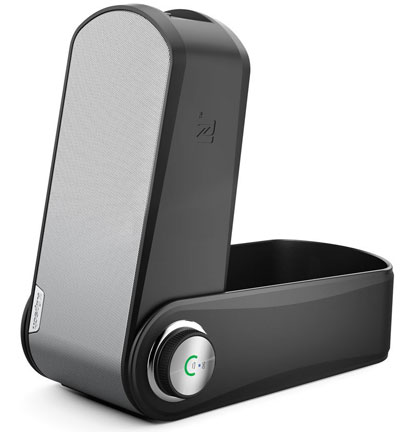
The GiG boasts the best sound-to-size ratio, with a robust and wide soundstage despite its diminutive dimensions. Its odd wedge shape makes placement almost as insignificant an issue as the Boom's 360-degree design. The GiG is among the loudest speakers we tested, pumping out the best-defined bass with no clipping or distortion at top volume.
Ergonomically, the GiG is the only premium Bluetooth speaker with a volume knob rather than up/down buttons, intuitively and conveniently placed right on top of the unit. Its power toggle, micro-USB port and 3.5mm auxiliary jack are hidden behind a swiveled frame that doubles as a stabilizing stand.
The GiG's odd, Flatiron Building shape and weird swivel frame keep the GiG from being as conveniently portable as the Boom. It's not water-resistant, so it can't go as many places as the Boom. Oddly, I had a devil of time turning it off, a strange problem I also encountered with the Beats Pill.
All in all, the GiG delivers the highest quality sound, loudest volume and most defined bass in the smallest package, limited only by its bizarre shape and the conditions and environments you can use it in.
]]>
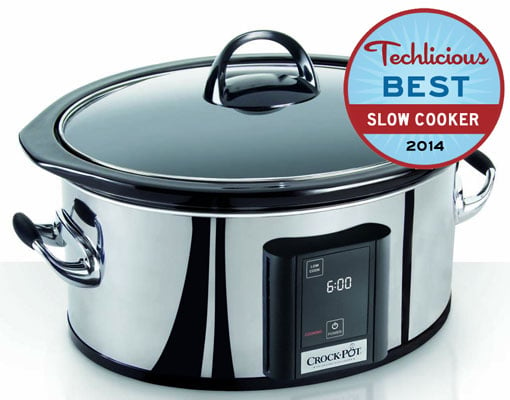

Crock-Pot 6.5 Quart Countdown Programmable Touchscreen Slow Cooker ($79) |
![]() |
![]() |
Slow cookers, also known as Crock-Pots (actually a trademark for slow cookers made by the Jarden corporation), are one of the most convenient kitchen appliances. You don't need to touch them while they cook; just add the recipe ingredients, turn on the slow cooker and continue your day while your dish cooks. Slow cookers are equally useful cooking family meals while everyone is at work and school as they are making a delicious beef bourguignon for your party guests.
Unlike most other kitchen appliances, a slow cooker takes on the entire task of cooking while you're away from the kitchen, leaving little opportunity to adjust when things aren't going right. With that in mind, it's imperative to select a slow cooker you can trust to nail the basics.
We spent hours and hours testing five top-rated models to find out which is worthy of becoming your go-to appliance for creating delicious stews and perfectly braised meats. In the running were the Calphalon 7-Quart Digital Slow Cooker ($146 on Amazon), the Crock-Pot 6.5-Quart Countdown Programmable Touchscreen Slow Cooker ($79 on Amazon), the Cuisinart 6-Quart 3-in-1 Cook Central Multi-Cooker ($159 on Amazon), the Hamilton Beach Set ‘n Forget 6-Quart Oval Programmable Slow Cooker ($50 on Amazon), and the KitchenAid 6-Quart Slow Cooker with Standard Lid ($100 on Amazon).
The winner: the Crock-Pot Countdown Touchscreen Digital Slow Cooker (SCVT650-PS). In our testing (and for other reviewers), the Crock-Pot consistently delivered the best slow cooking results. But it was a close call — and the Crock-Pot, like all the models we tested, certainly has its flaws.
There are two features we believe are must-haves in a slow cooker. First, the slow cooker must be large enough to prepare a meal for up to eight hungry people (ideally, with leftovers to spare), so we only looked at 6- to 7-quart models. Second, a slow cooker should have a programmable timer that can be set to cook until your recipe is done, then automatically shift to warming mode.
The Crock-Pot Countdown Touchscreen Digital Slow Cooker meets both these criteria with a 6.5-quart stoneware bowl and a timer that lets you program up to 20 hours of cooking time. Like the other models we tested, the Crock-Pot automatically switches to warm mode once cooking is complete.
Beyond those two top features, look for other features you may find useful, depending on your culinary needs.
Hamilton Beach Set ‘n Forget
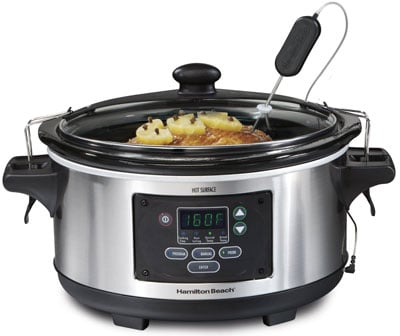
The Hamilton Beach Set ‘n Forget has a lid that locks during transport, useful if you would like to take your slow cooker to a party. It also has a temperature probe when you want to cook a larger cut of meat to a final, specific temperature; however, since slow cooking is usually about bringing meat up to temperature and then cooking for long periods of time to render the fat and collagen, we consider the probe nice but not central to how most people use their slow cookers. In fact, we found almost no slow cooker recipes (including on Hamilton Beach's site) based on internal food temperature.
Cuisinart Cook Central Multi-Cooker
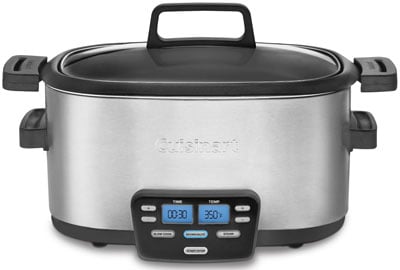
The Cuisinart Cook Central Multi-Cooker stands apart for its ability to sauté and brown ingredients. However, a big part of the appeal of slow cooking is the minimal prep work; slow cooker fans aren't usually eager for recipes that requiring you to brown ingredients. We don't consider a browning feature to be a significant advantage. And we also question the long-term reliability of the Cuisinart's nonstick coating (see below), so you might prefer to do this type of prep work in a pan on the stovetop.
By far the most important consideration for any slow cooker is how well it cooks—and there's some disagreement among reviewers whether any one model of slow cooker cooks better than another.
Consumer Reports has stopped rating slow cookers, finding that “Even small differences were overshadowed by what and how much was being cooked. What made one slow cooker better, or more convenient, than another was the features. Since we found little difference in overall cooking performance we no longer provide slow cooker ratings.”
However, the most common complaint among slow cooker owners is that their cookers cook at either too high or too low a temperature or that the temperature didn't rise quickly enough. Cook's Illustrated found significant differences among the slow cooker models in its testing: “Nine hours later, we variously uncovered dry, tough meat; meat that disintegrated; and juicy meat in rich, beefy sauce.” The reason for the differences, according to Cook's Illustrated, were variances in temperature—both the maximum temperature reached at each setting and how long it took the slow cooker to reach that temperature.
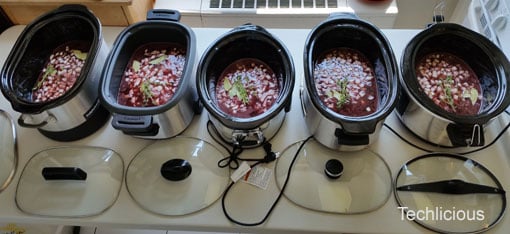
We undertook our own testing to find out which camp we fell into, combining a gigantic batch of ingredients for beef stew (the prototypical slow-cooker dish) and dividing it equally among our five test cookers. We set each on low and let them cook undisturbed for eight hours (as you might do when you head off to work in the morning, and around the average time of the slow cooker beef stew recipes we reviewed).
From left: Calphalon, Cuisinart, Crock-Pot, KitchenAid and Hamilton Beach
After eight hours, we tasted each of the stews, focusing on the flavor and texture of the meat. The results were telling: The Crock-Pot was the clear winner, producing the kind of moist, tender meat that slow cooking is all about. Cook's Illustrated arrived at the same result during its own testing, naming the Crock-Pot its top pick.
The Cuisinart was a step behind the Crock-Pot, producing beef chunks that were slightly dry but still pretty good. The Calphalon brought up third place with more dryness. The Hamilton Beach's beef chunks were dry and tough in comparison to the others, which may be due to the Hamilton Beach having the highest final cooking temperature of our test units at 209 degrees Fahrenheit.
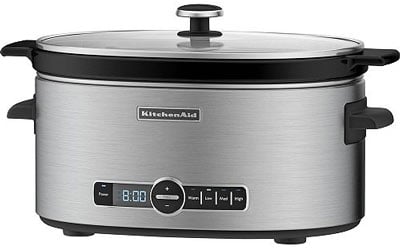
KitchenAid 6-Quart Slow Cooker with Standard Lid
Perhaps the biggest surprise was the KitchenAid, which hadn't managed to cook its meat anywhere close to done after eight hours. A temperature check showed it to be only 170 degrees Fahrenheit, well below the other cookers, which ranged from 195F to 209F. We upped the setting to medium for another two hours, but the temperature only rose to 174 degrees. We finally set it to high for two more hours, then left it in warm mode until the next morning. Only at that point did we finally achieve the luscious stew we were looking for.
A call to KitchenAid support informed us that the low setting should have cooked at between 194 degrees and 203 degrees Fahrenheit (90 to 95 degrees Centigrade). So we're not sure if we received a defective heating unit or the ill-fitting lid allowed too much heat to escape (the 1/4 inch gaps between the lid and ceramic bowl were significantly larger than the others cookers).
In fairness to KitchenAid, the other models we tested had all received consumer complaints about temperatures being too low, though we didn't find that in our testing. Though it's impossible for us to verify these individual cases, it appears that quality control may not be what it once was in the slow cooker industry.
For kicks, we also tested the probe feature of the Hamilton Beach in a whole-chicken cook-off against the Crock-Pot. We set the Hamilton Beach to stop cooking when the chicken reached 165 degrees Fahrenheit and set the Crock-Pot to cook for seven hours on low (based on multiple slow cooker chicken recipes we found). The Hamilton Beach brought the chicken to temperature in about three and half hours, much faster than expected, so we kept it on warm mode until the Crock-Pot finished. Surprisingly, the temperature of the Hamilton Beach chicken continued to rise significantly. After three hours on warm mode, the internal temperature of the chicken had reached 188 degrees Fahrenheit. So if you're using the probe, you'll also want to be around when your meat finishes cooking—this is NOT a set-and-forget cooking method.
Final results of the chicken cook-off were mixed. Most people preferred the breast meat from the slightly less-cooked Hamilton Beach bird, but the group was split on the dark meat.
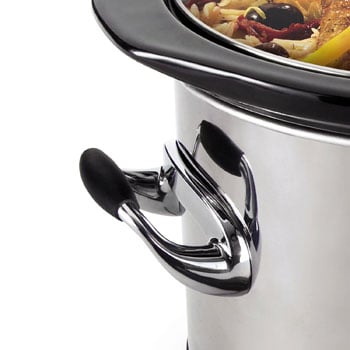
Crock-Pot handle's tiny silicone coverings
do little to protect your hands.
For a product that's been around since the 1970s, you would think slow cooker manufacturers would have design and ergonomics nailed down by now. They're not. While the unit was cooking, the handles and outside of the Crock-Pot became burning hot, the tiny silicone coverings doing little to protect your hands. The Calphalon suffered the same handle flaw, although not to the same degree. The other units all got quite hot on the outside, with only the Cuisinart staying cool during cooking, although the Hamilton Beach's plastic handles stayed cool even when the rest of its outside was sizzling.
Controls on all five slow cookers were easy to set. Each cooker offers high and low settings and automatically goes into warm mode once cooking is done. The KitchenAid is the only model with a medium setting, but we don't see any added benefit. The Cuisinart also lets you set a temperature up to 400 degrees Fahrenheit for browning or sautéing.
The displays on all the models were easy to read with the exception of the Hamilton Beach, which was extremely dim and difficult to read in normal kitchen lighting.
The Crock-Pot Countdown Slow Cooker uses a removable ceramic cooking bowl that is easy to clean and dishwasher safe, as do the Calphalon, Hamilton Beach and KitchenAid models. Based on user reports for all brands of cracking bowls, we would recommend avoiding the risk of putting cooking bowls in the dishwasher.
The Cuisinart stands out as the only model with a nonstick aluminum (rather than ceramic) cooking pot. We were impressed by how easy the pot was to clean but question how well the nonstick coating will hold up over time. In our experience, all nonstick coatings eventually fail, and reviews on Amazon for the Cuisinart indicate this is an issue for some consumers.
For the most part, owners have been happy with each of the slow cookers in our test. Cuisinart leads the pack, garnering 4.5 out of 5 stars among Amazon reviewers. Hamilton Beach and Calphalon come in with similar results, 4.4 out of 5 stars, and the Crock-Pot and KitchenAid finish slightly behind with 4.1 out of 5 stars. The primary complaints for all models include cracked ceramic inserts (or a damaged nonstick surface for the Cuisinart) and the occasional unit found dead on arrival or dead after a few uses.
Unfortunately, the Crock-Pot is the only model we tested that doesn't offer a replacement insert or lid; they've been "out of stock" for months. If you break a lid or insert, you'll need to buy an entirely new Crock-Pot. Given the Crock-Pot's relatively low $79 price, that's not the end of the world, but it doesn't give us a warm and fuzzy feeling for Crock-Pot's customer service. Other manufacturers offer insert replacements from about $25 to $45.
At the end of the day, we wanted a slow cooker that first and foremost could reliably slow cook. In our tests, the Crock-Pot 6.5 Quart Countdown Programmable Touchscreen Slow Cooker met that challenge (as it did for Cook's Illustrated's tests, as well). The Crock-Pot also is the second cheapest slow cooker in our test at $79, making it a pretty good deal, too.
There are things we're not crazy about with the Crock-Pot, such as its hot handles and lack of replacement parts, but external heating was a flaw among most of the slow cookers, and the Crock-Pot's low price somewhat counterbalances its disposable nature if you break the insert.
While it's not a perfect product, if you're in the market for a slow cooker, the Crock-Pot 6.5 Quart Countdown Programmable Touchscreen Slow Cooker is a solid choice.
The Calphalon 7-Quart Digital Slow Cooker finished in the middle of the pack in our slow cooker test, without any unique features that might justify its $150 price.
The Cuisinart 6-Quart 3-in-1 Cook Central Multi-Cooker cooked almost as well as the Crock-Pot. It allows you to saute or brown right in the slow cooker—a useful feature but one that could be easily reproduced on the stovetop without risking damage to its nonstick coating. At $159, we just don't think the feature is worth the premium.
The Hamilton Beach Set ‘n Forget 6-Quart Oval Programmable Slow Cooker didn't do well in our slow cooking test, but it does offer extra features such as a temperature probe and locking lid that some buyers may find useful. Its dim display was a real pain to read, however, bothering us every time we used it. At $49, this slow cooker runs $30 less than the Crock-Pot—nice for those on a tight budget.
The KitchenAid 6-Quart Slow Cooker failed to perform properly in our slow cooking test. It's possible we received a bad unit, but unfortunately we did not have time to get a new unit and set up a complete retest. And it's $20 more than the Crock-Pot, without any additional features to offer.
We also considered the All-Clad Polished Stainless Steel 6.5-Quart Slow Cooker (model 99009), which came in second place in Cook's Illustrated's testing. Terrible reliability reviews from owners (only 2.8 out of 5 stars on Amazon) and a high price ($151) excluded this one from the running.
]]>

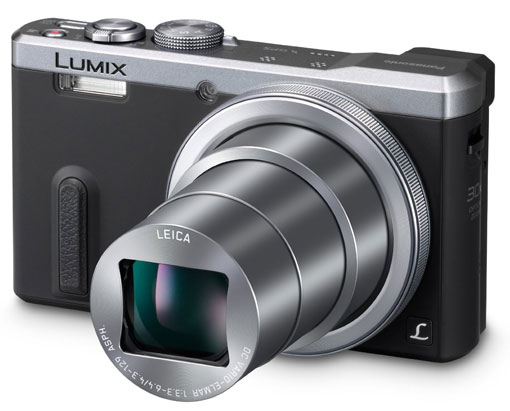
You don't need a big camera in order to take crisp, detailed and balanced pictures. Premium compact cameras aim to be the best of both worlds: small like a point-and-shoot; powerful and programmable like a DSLR. That's the space the Panasonic Lumix DMC-ZS40 fits in.
At $449 retail, the ZS40 is expensive for a compact camera. Its price though, can be justified by its impressive set of features—a 30x zoom, 24-720mm f/3.3-6.4 lens, 18MP sensor, electronic viewfinder, optical image stabilization, WiFi, GPS, RAW capture, and a host of manual controls—great image quality and easy pocketability. The ZS40 is only 4.4 x 2.5 x 1.3 inches and weighs just 8.5 ounces.
Picking up the camera, I was immediately struck by how easy it is to hold securely, thanks to the small handgrip on the front and rubber thumb rest on the back. My fingers settled into a comfortable hold with my index on the shutter without effort. And even when I extended my arm to get shots from difficult angles, I didn't feel in danger of dropping the camera. This is necessary for anything other than straight on shots, since the 3-inch LCD on back is fixed and does not flip up or out. Other than that disappointment, the 920K dot screen is wonderful for framing shots indoors and out.
The rear screen isn't your only option. There's also an integrated electronic viewfinder (EVF) that's not quite half an inch wide (so smaller and not as comfortable as those on DSLRs). Since it's electronic you'll see much of the same information displayed as you do on the LCD. While a nice addition, I only used the EVF in specific circumstances, such as in really bright sunlight or when I wanted some extra help keeping the camera steady when zoomed out or while taking macro shots. Otherwise the LCD was much easier on my eyes.
The interface on the LCD provides a lot of detailed information--sometimes too much. The visual design feels cluttered and technical, which is not necessary in Auto mode. At least you can dismiss all or some of this data and just shoot, if you want.
The shooting mode dial on top includes plenty of options for basic and advanced photographers. The Intelligent Auto was excellent at detecting which mode I needed and adapted to changes in lighting and the situation quickly. Or, if you know for sure what you need, you can switch to a specific Scene Mode. There are 18 to choose from ranging from the typical (sports, portrait, night) to a few very specialized ones (high sensitivity, through glass, starry sky). There's even one for taking 3D pictures and a high speed movie mode.
In addition, the ZS40 includes a Creative Control mode with filters and effects that make it easy to add artistic or dramatic flair. Panorama Shot gets it's own place on the dial. The rest is for more advanced modes: Program, Aperture Priority, Shutter Priority, Manual and two clicks for custom settings.
Switching between scene modes and creative filters is a little involved, taking more than just a turn of the dial since there are so many modes to choose from. However, I usually stuck with Auto and most of the time the pictures came out the way I wanted.
I did my initial testing using Auto and Scene modes to see how well the ZS40 would work for people with basic photography skills.
The pictures I took outdoors were well-exposed, sharp and color-correct. However, even in the best lighting conditions, I sometimes had trouble getting the ZS40 to focus exactly where I wanted. The autofocus is fast in general, but when taking pictures of faraway or very close up objects, the camera didn't always pinpoint the right area at first. This was most apparent in close-up shots, even when Auto recognized that I needed macro mode. It's possible to set the autofocus area manually (I assigned this function to one of the buttons on the back of the camera). This solution isn't as good as tap to focus on a touchscreen, which the ZS40 doesn't have and is found on other high-end point and shoots.
The 30x zoom lens on the ZS40 is impressive, not least because it doesn't add much bulk to the camera. When zoomed out all the way, Panasonic's optical image stabilization was a huge help and made it possible to shoot sharper pictures than I can normally get while holding the camera in my hands. Pulling the ZS40 close and using the viewfinder also helped stabilize shots. Of course, nothing is as good as using a tripod.
Indoor shots took more effort. Though the ZS40 has a fast shutter, the shutter speed didn't always keep up with the lighting conditions in the Auto modes. In medium and mixed light, people needed to stay perfectly still in order to not end up blurred in the picture, and during a party no one wants to stand still. Even with relatively stable subjects, the pictures weren't as sharp as those I took outside. The flash proved to be not too harsh on skin tones and I got some crisp shots with it on occasion. It's just obvious which pictures were taken with the flash.
In low light the camera adjusted to a higher ISO automatically in Auto mode, and with that came more noise and less crispness. Low-light images taken with Night and similar modes did turn out well. It just took several tries to get the exposure I wanted. This is easier in advanced setting modes (P/A/S/M) because the ring around the lens can be programmed to adjust exposure. The ring doesn't work the way in Auto.
All of the issues I encountered shooting in Auto went away once I switched to Program or another advanced mode. This is true of any good camera--Intelligent Auto is a basic tool, even when it's as advanced as Panasonic's. More powerful mirrorless ILCs and DSLRs often do better on Auto, which is why people gravitate toward them even when they only need to use a camera every once in a while.
The Lumix ZS40 is capable of taking sharp, low noise images in any lighting condition, provided you step outside of the Auto comfort zone and learn to adjust certain settings yourself.
The Lumix ZS40 includes both WiFi for uploading images and GPS for geotagging them. The GPS took about two minutes to nail down my location before I downloaded the available assist data (which can be done directly to the device via WiFi). After downloading it, the camera found GPS satellites a little faster. Geotagging is useful if you're in unfamiliar territory and want to map your adventures later on. Just be aware that if you upload pictures publicly, the location might end up being public, too.
Uploading images directly to social networks and cloud storage is possible, but the setup is so tedious and complex that it's far better to do this through the Android or iOS app. Connecting with the app is simple--particularly on Android--and only takes a few minutes to set up the first time.
The Panasonic Image App isn't the slickest-looking app and it's not always completely intuitive. The basic functions are never more than two taps away, at least. And it doesn't take long to get the hang of it.
Picking images to transfer from the camera to your phone or tablet is easy and straightforward. The transfer itself doesn't take long, though I wish you could pick more images at a time. The remote viewfinder function is one of the best I've ever used. You can control zoom, access a few advanced settings, tap to focus, and snap a picture or start recording video (something most apps can't do).
The camera can record 720p and 1080p video in AVCHD or MP4 format, plus high speed video at 720p or 480p in MP4. Videos come out sharp with smooth movement and no stutter. You can use the full zoom range when recording, just know that you can hear the lens moving if you change the zoom while recording. Autofocus is fast, but continuous autofocus can take a while to find the central subject, especially when the subject is a person moving around quickly at a distance.
The built-in stereo mic is all you have for audio--no external mic input. It's good enough for recording voices indoors and cuts down on wind noise when recording outside. The audio quality is average, so it's not the best for recitals and concerts.
The pictures the Panasonic Lumix DMC-ZS40 takes are by far better than the average point-and-shoot or smartphone, even when in Auto mode. However, at this price, you want to get the best pictures possible. If you're not comfortable working in one of the advanced modes and you want to take pictures both indoors and out, the ZS40 isn't the camera for you. If you're willing to learn, the ZS40 is worth it. With just a few adjustments you can capture beautiful pictures in any situation.
]]>
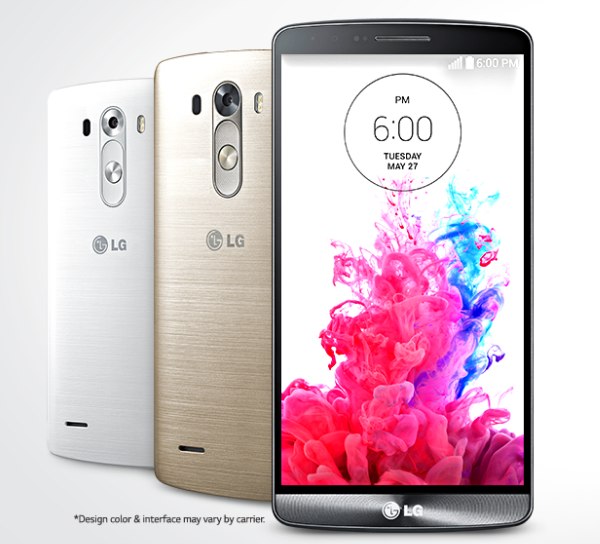
It wasn't that long ago that LG's Android phones were considered to be less than desirable devices. But in the past few years the company has improved its image by releasing one great phone after another, each one building on the lessons learned from the last.
What did LG learn from last year's G2 model that informed the creation of the new G3? The biggest one: Simplicity. LG took a long, hard look at the user interface, or skin, they designed for Android and overhauled the look and the functionality. And on the outside, it's even slimmer and more comfortable to hold. Plus, the LG G3 is just downright good-looking.
There are a few missteps, though, such as LG's insistence on putting the power and volume buttons on the back of the device. This choice, while innovative, doesn't always work out. At least LG is going for something unique.
Overall, the LG G3 is an attractive phone that performs well, takes good pictures, feels good in the hand, and is easy to use, even if you're new to Android. It's definitely competition for the Samsung Galaxy S5 and the HTC One M8.
Note: our review unit was the Korean version of the LG G3, which differs slightly from the US models. When the American versions are available for testing we'll update this review.
How it feels in the handThe LG G3's 5.5 inch display is larger than other smartphones in its class: the Samsung Galaxy S5's is 5.1, the HTC One M8's is 5.0. In overall size the G3 isn't too much larger than either of those phones thanks to a very thin bezel on the left and right sides. It's even a few millimeters smaller than the Galaxy Note 2, which has the same size display.
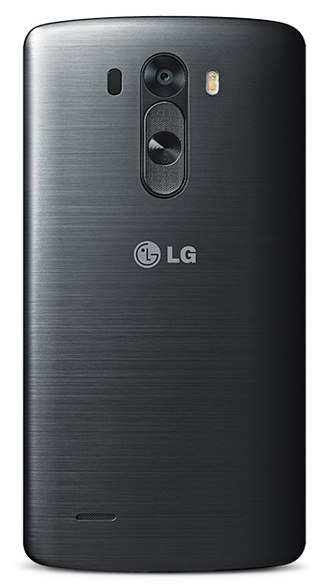
It's still a phone not easily used one-handed, especially if your hands are small. The faux metal back, while attractive, is slippery and doesn't inspire confidence that the phone won't slip away while trying to hold and use it with the same hand.
The back curves just enough to make the G3 comfortable to hold; the edges don't bite into the palm. This phone is as nice to hold as it is to look at.
It's biggest drawback is that the power and volume buttons are on the back. This has become LG's signature design, but it doesn't work on all phones. Holding it is awkward with the index finger resting on the power button. It's not as natural or even as comfortable as on the larger LG G Flex.
What's more impressive than LG fitting a 5.5-inch screen into a phone that feels relatively slim? The number of pixels packed in the display. You might not really need a 2560 x 1440 resolution (538 ppi) on a smartphone, but we admit the effect is quite striking. Everything is crisp and colors are beautiful--they pop without looking over saturated or false. Viewing angles aren't as wide as we'd like; you'll notice a little color distortion when playing tilting games like Temple Run 2 or when the phone is sitting on a desk a few inches away.
The high pixel density makes HD content look really good. There just isn't much content out there made for this resolution on this size screen. The high resolution means a few apps in the Google Play store aren't compatible with the phone right now. This may get resolved soon given that other phone makers are bound to follow suit and add QHD displays to their flagship devices.
The tiny speaker slit on the back pumps more volume than we expected given the size. It doesn't come close to the quality of the HTC One M8, of course. Even with headphones in the audio quality is lackluster. Call quality and speakerphone on the G3 are good despite this.
Even with such a high resolution display, the quad-core processor inside kept things smooth and fast during our testing. Whether playing graphics-intense games or swiping between screens or loading websites, the G3 never stuttered.
Unfortunately the screen does take a bit of a toll in one area: battery life. However, that doesn't mean you'll be left hanging. You'll easily be able to get a full day of use. The G3 barely lasted a whole day with heavy usage and only made it 12 hours with conservative use. The Korean model is not tweaked to work specifically with an American carrier's network. We've found with other overseas phones that battery life improved once we tested the models sold by US carriers.
The G3's 13MP camera boasts laser-assisted autofocus and a simple, yet powerful app. Autofocus is pretty fast as long as the subject is fairly close. And the shutter is speedy, too. In a reversal on previous LG camera apps, the G3's is pretty barebones. There are now only four modes including Auto and no way for serious shutterbugs to dig deep into manual settings. That's fine since most people aren't trying to take professional level photographs with a smartphone.
The picture quality is pretty good, about on par with the Galaxy S5. Most of the images lack deep contrast and in less than ideal lighting I had trouble getting a crisp picture out of the G3, even with the magic focus option turned on. But out in sunlight even faraway details are discernible.
The rear camera is capable of recording 4K video, which will please those with 4K TVs to watch it on. This is more of a future-proofing feature, though. Most will be fine sticking with the 1080p and 720p options.
The front-facing camera, simply called Selfie, is a 2.1MP affair with larger megapixels meant to take in more light. The result is that selfie pics lack definition and can look as if someone applied an artistic Photoshop filter. Though the lens is fairly wide-angle, don't count on getting a crisp shot of things far away in the background.
LG's UI skin over Android 4.4 Kit Kat now has a simple, flat style and doesn't aggressively change Android's feel or functionality. The result is a very clean looking UI that still has some useful elements that stock Android lacks (toggles for wireless radios in the Notification shade, for instance) and a distinctly LG personality.
LG has simplified or eliminated many of the features and apps found on previous phones, such as the G2, to good effect. Among the welcome additions are Smart Tips--novice friendly explanations of key features--and Smart Notice--predictive recommendations and reminders based on how you use your phone. We also like the new LG Health. Like Samsung's S Health, it tracks activity and exercise and provides an overview by day, week, or month. With this, you don't need an extra fitness tracking device to count steps.
We usually replace whatever keyboard is pre-loaded on Android phones with Swiftkey or another favorite app, but the G3's keyboard is actually worth using. The predictive text is on point and quickly learns your common words and phrases. There are a ton of options in the settings for personalizing the keyboard, including changing the size and adding a number row to take advantage of the extra screen space a 5.5-inch display offers. You can also customize the arrangement of the bottom row of keys. This is one of the best pre-loaded keyboards we've seen on any Android phone.
The back of the LG G3 comes off so you can get at the battery, SIM, and microSD card slots. In Korea the base G3 has 16GB of internal storage and 2GB of RAM. However, the base US version has 32GB of internal storage and 2GB of RAM (on T-Mobile). The SD slot takes cards up to 128GB.
AT&T customers can buy the G3 for $199.99 with a new 2-year contract or for $579.99. Sprint customers can get the G3 for $0 down and $25 per month for 2 years or $99.99 with a new 2-year contract. T-Mobile customers can buy it at the full, non-subsidized price of $598.80 or for $0 down and $24.95 per month for 24 months. And Verizon customers can get the G3 for $199.99 with a new 2-year contract, pay $29.99 per month for 20 months or pay $599.99.
Fans of big screen phones should be all over the LG G3. LG managed to fit a large, high-res display in a compact and comfortable body. If you're a two-handed smartphone user, the size shouldn't be a problem for you. Those who need something that works well in one hand should skip this one.
The G3 makes a good phone for first-time Android owners since the user interface is geared toward simplicity and guidance. Speedy performance, decent cameras, and a killer display are all big points in this phone's favor.
The battery life is a little shorter compared to other phones, but not other phones of this size. and we don't know if the US models will have this problem or not. If we find that the American model lasts longer on a charge then that removes one of the phone's biggest flaws.
As to the awkward placement of the power and volume buttons on the back there are a few things that mitigate that. Such as the ability to turn the phone on and off by knocking on the screen. Still, it will take getting used to and time for your hand to adjust. If the LG G3's other pros are important to you, then this con is a minor one.
Verdict: Recommended
Updated with battery life information based on U.S. handset.
]]>
Razors featuring blade cartridges that pivot up and down on a vertical axis have been standard fare since Gillette invented the category in 1977 with the launch of its Atra men’s razor. Now, many, many brands — including Gillette and Schick — offer a wide variety of razors with pivoting cartridges, for both men and women, and the competition among razor blades has moved on to new features, including the number of blades in those cartridges and esoteric elements, such as the formulation of moisturizing strips built into the cartridges.
But razors have never matched the range of motion of high–end electric shavers from brands such as Braun and Panasonic, which have long offered heads (fitted with blades beneath outer foils) that move in all directions: up and down vertically, up and down horizontally, and side–to–side.
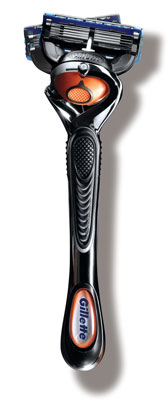
This important difference between razors and shavers has become much less distinct this month, however, with the launch of two new razors from Gillette that offer nearly the full range of articulation of a high–end shaver: updated versions of the company’s current high–end models, the Fusion ProGlide and AAA–battery–powered Fusion ProGlide Power.
Outfitted with new “FlexBall Technology,” the razors feature a movable ball in the handle that lets the vertically pivoting razor blade cartridge also rotate up left or right on an arc.
Gillette says the greater range of motion puts the blades in constant contact with the skin, resulting in a closer shave than was possible with prior–generation Fusion ProGlide razors. And to test the assertion, I recently requested and received samples of both the old and new models — power and manual, with and without FlexBall Technology — then pitted each against its counterpart to tackle a two–days stubble accumulation.
My conclusion: The new FlexBall Technology makes shaving safer as well as easier and more comfortable. Although it won't necessarily result in a closer shave, it’s an upgrade well worth the low cost of admission, and I strongly recommend these new razors to any man who hasn't made the move from a razor to a shaver.
Shaving through the transition from my lower face to below my jawbone and chin, and onto my neck, was where the FlexBall Technology benefited me most, eliminating the pulling and tugging I felt with the current generation Fusion ProGlide razors, and vastly reducing the risk of cutting my skin along the way.
The ProGlide Power with FlexBall Technology performed best. Its battery–powered handle vibrates the blade cartridge, which helps to stand up the whiskers and prepare them for cutting. In addition, the blade designed for the Power model includes an additional “comb” at the leading edge, which lifts and arranges the whiskers before the blades slice through them.
Feeling my face after each shave, it seemed to me that both Power models shaved closer than their non–power counterparts, and the razors with FlexBall Technology shaved nominally closer than those without.
Most significant, I found that the ProGlide Power with FlexBall Technology was also much more comfortable to hold than the prior–generation ProGlide Power. The FlexBall design separates the cartridge from the handle, so vibrations are only minimally transmitted from the cartridge to the handle. By contrast, there’s no such separation with the older model, which vibrated much more intensely in my hand.
Any razor is only as good as the blades that go on it, of course, and here Gillette has not made any changes. The new Fusion ProGlide with FlexBall Technology razors utilize the same Fusion ProGlide cartridges that Gillette has already been selling for use with the prior–generation models. (It’s worth noting that the cartridges are interchangeable; the better, comb–equipped, ProGlide Power cartridges can be fitted to the non–power handle.)
To be sure, there’s no difference between a razor with or without FlexBall Technology if you’re only shaving in a straight line. The benefits of the innovation emerge when you shave in a curve — which may require changing your own shaving style.
An unusual video by Gillette (see below) shows how it’s possible to use the FlexBall Technology all over the face and neck in a single stroke that maximizes curves.
Prices for the Fusion ProGlide Power with FlexBall Technology is $10.99 on Amazon for a razor with one included blade cartridge and an included AAA battery.
Prices for the non–power Fusion ProGlide with FlexBall Technology start at $11.49 on Amazon for a razor with two included cartridges.
]]>
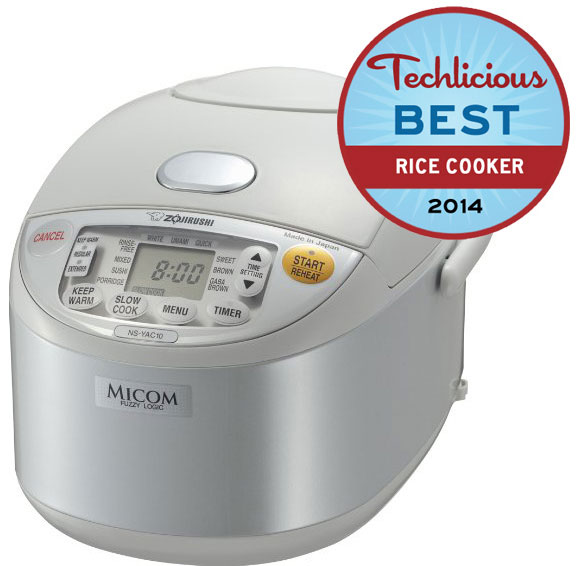
Zojirushi Umami Micom
|
![]() |
![]() |
Like the search for the world's best cheesecake or the hunt for the ultimate egg cream, the quest for the perfect bowl of rice can take a lifetime—unless you have the world's best electric rice cooker. It's true that one can ably produce an acceptable few cups of rice on a stove top. But only with an electric cooker controlled by microprocessors and software designed to gauge heat and humidity can one consistently produce rice with the level of taste and consistency approaching the ideal.
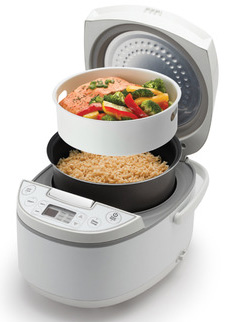
In our testing, the Zojirushi Umami Micom Rice Cooker & Warmer NS-YAC10 proved to be the best at cooking delicious rice, cup after cup, from plain white grains to brown rice.
Speed is not a reason to purchase a rice cooker. One can make rice faster in a pot than any of the machines we tested—even when they are set to "quick" mode. An hour or more cooking time is not unusual, with brown rice taking even longer (the Zojirushi even has a special cooking option that takes about 3½ hours).
The point of a rice cooker is consistently making better tasting, fluffy rice that you would be proud to serve your most important guests. There's also the convenience factor: once you've set the machine, you can go about chopping, cleaning and cooking the rest of the meal. There's no need to worry that it's going to boil over or burn or even go cold. All the models we tested have automatic "keep warm" functions that kick in after the cooking is done and will last for several hours.
The final reason to use an electric rice cooker boils down to two words: brown rice. No matter how adept you are (or think you are) at making white rice on the stove top, brown rice is a different matter. It usually ends up under or overcooked in a pot. Fuzzy logic cookers, whose microprocessors really come into their own with difficult brown rice, get it right every time. No crunchy kernels or mushy brown clumps.
Most models work on the same basic principle. A non-stick pot inside holds the rice and water, sitting on a hot plate that boils the water. Temperature and humidity sensors deliver information to the built-in microprocessor so that the machine knows when the rice is done. All the owner has to do is make the correct selection for the type of rice.
We only looked at models that use microprocessors and fuzzy logic software. The latter feature means that the machine can adjust cooking time and temperature depending on, say, the relative humidity or speed with which the rice is cooking (if it is heating up too quickly, it will slow it down automatically). It also enables the machines to handle a wide variety of rices and keep cooked rice warm without drying out the grains or burning the pot.
Fuzzy logic cookers may offer simple functions, such as cooking white or brown rice and keeping warm after cooking. More advanced models have the smarts to handle a wider array of rices, as well as settings for porridge and sushi rice.
The newest rice cookers use induction cooking. The induction element in the cooker generates an electromagnetic field that draws electrons when a magnetic element (in this case, a pan) comes into contact with it. Heat is generated by the resulting electron movement in the pan. The advantage of induction cookers is that the temperature can be almost instantly adjusted. It is also a more efficient method of cooking compared to traditional electric or gas elements, which waste a lot of heat that escapes around the pot..
Unfortunately, induction models still command a price premium. Most models cost 50 percent more than standard electric cookers and the taste advantage is minimal. Consequently, we only considered standard electric models in our survey.
Using a rice cooker requires an extra step some Western cooks may not be familiar with: rinsing the rice before cooking. Rinsing removes any starchy build up on the outside of the grains and any foreign matter. You simply put the measured rice into a bowl and fill it halfway with clean water. Sluice or "fold" the rice gently by hand and the water will become cloudy. Drain off the water and repeat the process until the water is clear. Three or four rinses usually is sufficient.
If you skip this step, you'll regret it. The rice cooker will turn into a rabid dog and begin frothing at the top as the excess starch boils over. It's a mess you don't want to have to clean up.
The other note about rice cookers is that they use a special supplied "cup" which is actually about 3/4 the size of an American measured cup. The unusual size is said to be derived from a traditional Japanese tool for measuring rice called the masu. So don't throw out the plastic "cup" that comes with your rice cooker.
The final important note for rice cooker novitiates is that the non-stick bowls can require extra care. Zojirushi, for example, makes a point of instructing owners to rinse the rice in a separate bowl to avoid scratching the cooker's non-stick pot. On the other hand, Aroma instructs owners to do the opposite and rinse the rice in the cooking bowl.
To determine the top three models for our tests, we surveyed the market for machines that had enough capacity to serve an average family of five, which meant cookers that could produce up to 10 cups of cooked rice. We further limited the range of cookers by selecting only fuzzy logic models that could handle different types of rice without requiring special attention. Finally, we surveyed top cooking sites for recommended models, as well as consumer reviews at sites including Amazon. The final three candidates were the Zojirushi Umami Micom Rice Cooker & Warmer NS-YAC10 (consistently well reviewed), Panasonic SR-DF101 Electronic Rice Cooker (cited for its reliability), and Aroma Rice Cooker, Food Steamer and Slow Cooker ARC-526 (a new, inexpensive model from a best-selling brand).
We tested the models side by side over the course of several weeks using a variety of rices. We used premium Nishiki white and brown rice. We also tried generic supermarket rice in both varieties. Jasmine rice was also taste tested, although we focused on unadulterated white and brown grains to assess the tenderness, moisture, and taste of the rice itself.
Five different taste testers, with palates ranging in age from 11 to 82, participated over the course of the review. All taste tests were "blind" so that reviewers were not told which cooker was used. The rice was tested on its own and as a component of larger meals to judge how it worked with a variety of dishes.
We also considered how clear and precise the cookers' manuals and controls were and how difficult or easy it was to clean them after use.
The Zojirushi was the most expensive model we tested, but it also produced the tastiest rice—in a variety of flavors and settings. It excelled in several areas, with multiple features to satisfy gourmets and gourmands alike.
Zojirushi offers by far the most features for cooking rice in nearly every imaginable form. The 5.5 cup (dry) capacity cooker has a digital display to help you shuttle between its settings. There are two "keep warm" settings (regular and extended) and menu selections for standard, white, brown, quick, and sushi rice settings, as well as sweet, Umami, and GABA Brown settings and one for mixed rice (with vegetables or other ingredients on top).
In taste tests it narrowly bested the Panasonic in yielding fluffy white rice. Where it showed its real prowess was in how it handled keeping rice warm and in cooking brown rice. Even after 3 hours in the keep warm mode, rice emerged soft, fluffy and moist. In the other models, rice left for that long suffered by drying out slightly. And in brown rice taste tests, the Zojirushi produced the best textured soft and fluffy brown rice.
If you want to push your culinary skills, the Zojirushi also gives you room to grow that other models do not provide. Its GABA setting for brown rice is intended to slowly cook the rice by "activating" it at a temperature of 104 degrees for 2 hours before cooking. It's supposed to increase the amount of an amino acid—gamma aminobutryic acid or GABA—released in the brown rice, producing a softer grain. However, it entails a total cooking time of roughly 3 and a half hours. So is it worth the wait?
We found that for rice connoisseurs the GABA setting worked wonders. It brings out the nutty flavor of brown rice without turning it into mush. It produced perfectly cooked individual grains that were firm, but not crunchy. Even our youngest reviewer noticed the difference.
More controversial is the hallmark of this cooker, Zojirushi's Umami setting. Intended for white rice, the name is often translated as "yummy." It refers to the theory that there are not just four basic tastes—sweet, sour, salt, and bitter—but also a fifth, umami. It is best described as the satisfying rich flavor that comes from tomatoes, cheese and some cooked meats. It's also present in Japanese dishes using a kelp stock called kombu. Umami is detected when an amino acid, L-glutamate, excites receptors on the tongue. It's controversial because some researchers still deny the presence of this fifth taste.
We tried the umami setting on conventional long grain white rice. We enjoyed the flavor, but several taste testers found the rice just slightly drier than that cooked under the conventional white rice setting. However, we also observed that people ate more of the umami rice than they did of the standard white rice. You can draw your own conclusions.
For all its flexibility and potential complexity, the Zojirushi can be simply set to cook white rice without fussing. It also provides some helpful reassurance, such as playing "Twinkle, Twinkle Little Star" to let you know rice cooking has began, and then playing "Amaryllis" when it switches into warming mode. (Don't worry, you can turn off this feature.)
The Zojirushi received numerous reviews and write-ups on Amazon, garnering a very strong 4.6 out of 5 stars. Most owners praise the model we determined best here for the GABA and Umami features. Those who primarily cook brown rice were also the most happy with the Zojirushi model. A few customers complained that the non-stick surface of the Zojirushi pot began to flake after a couple of years of use. Zojirushi's own manual asks cooks to take extra care washing and using the pot; recall the warning not to rinse rice in the cooking pot.
The Zojirushi machine proved easy to clean with a detachable lid and solidly built parts. It has one of the most detailed owner's manuals we've ever seen, with precise instructions such as "wash by stirring the rice by hand 30 times." (We didn't bother to count.) On the other hand, the instructions address nearly every question one might pose.
Panasonic SR-DF101
|
![]() |
![]() |
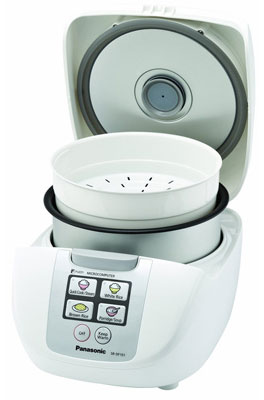
The SR-DR101 is a very straightforward model—so it won't intimidate novices—and was second only to the Zojirushi in terms of the quality of rice and taste.
The microprocessor controlled fuzzy logic cooker has a 5 cup capacity (dry). There's just four buttons on the front panel for quick cook/steam, white rice, brown rice, and porridge/soup. A plastic steam basket is included for making vegetables or fish while cooking rice. There's also a keep warm button should you want to extend the warming period.
Taste tests with several varieties of white rice proved to be a challenge for some reviewers. The amount of moisture and flavor in the white rice it produced was extremely close to that produced by the Zojirushi, although the Panasonic cooker's rice was not quite as fluffy.
Brown rice tests separated the rice from the chaff. Tasters were happy enough with the Panasonic results but found its brown rice was not quite as moist or as flavorful as that produced by the Zojirushi. On the other hand, one reviewer found Panasonic's chewier brown rice had a more interesting, nuttier flavor.
Customers who purchased the Panasonic model like its simplicity. A few also noted that when making rice they also use the steamer on frozen vegetables (although it doesn't have much capacity). The main criticisms by owners referred to the moisture build up near the steam vent and the fact that extended warming times tended to dry out the rice.
The Panasonic SR-DR101 does not have a digital display or a built-in timer for setting up the rice before you leave for work. When it came to cleaning, the steam vent on the Panasonic was a little more awkward than that of the Zojirushi or Aroma models. Instead of popping out from the top, the steam vent snaps into place under the lid, making it feel a little more fragile under heavy use. The cooker also does not have a handle or side-mounted rice paddle holder, unlike the other two. But those looking for a reliable, no-fuss rice cooker aren't likely to miss these two minor accouterments, especially considering this excellent cooker is nearly $150 less than the Zojirushi.
Aroma Rice Cooker, Food Steamer & Slow Cooker ARC-526 |
![]() |
![]() |
Better known for its massive, 20-cup basic electric rice cookers, Aroma bills itself as the "#1 Rice Cooker Brand" and is a perennial bestseller on Amazon. Certainly, at just $50 the Aroma ARC-526's price is right.
The ARC-526 is a fuzzy logic model that can cook up to 12 cups of rice. Its main controls include buttons for keeping warm, setting a delay timer, steaming, and slow cooking. You select what kind of rice you want to cook from a menu: white rice, brown rice, quick rice, or sushi rice. There's also an STS (saute then simmer) setting and a cake baking setting. The latter two are not likely to make cooks switch from the standard stove and oven methods, but they're useful if you don't have an oven.
Like the Panasonic model, the Aroma includes a plastic steam basket. Steaming in either machine takes practice, since you have to put ingredients in mid rice cooking cycle. Get it wrong and your veggies will be too crispy—or limp.
Although the Aroma did not win any of the rice taste tests, it did very well. White rice was never over or underdone; but it also never really impressed the judges. Brown rice fared less well, with some testers finding the rice slightly under cooked and yet not as flavorful as that produced by the other two cookers.
The Aroma model is very easy to use. Its instructions are simple yet extremely clear. It even makes it plain that rice should be measured dry and then emptied and rinsed in the cooking bowl, something that's not obvious to beginners. Aroma's quick start guide will get you making rice in minutes.
The Aroma model we tested is new to the market so customer reviews for it were not yet available.
Once you've owned a rice cooker, it's almost impossible to go without one again. The quality of the rice will make you appreciate this staple anew. If you typically overcook, burn or otherwise struggle with cooking rice, all three models here will be a welcome relief. The Panasonic SR-DF101 offers the best blend of performance and price. Though if you cook rice regularly and are looking to expand your gastronomic horizons, nothing beats the Zojirushi Umami NS-YAC10 for the ultimate in rice flavor and texture.
]]>Dimensions: 9.25" H x 11.38" W x .04" D
Weight: 7 ounces
Reception Range: 40 miles
Included accessories: 12-foot coaxial cable, velcro adhesive dots
TV Signal Amplifier: No

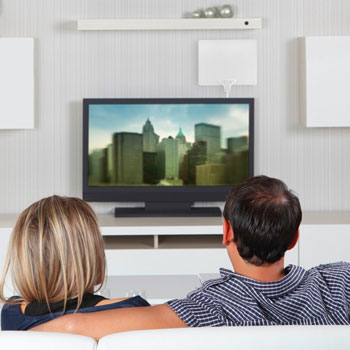
When you want to cut the costly cable company cord, your first consideration should be how to get all of your network favorites over-the-air. And for that, you'll need an HDTV antenna. Except choosing one that will work best for your setup isn't easy.
Local geography, terrain—both natural and man-made—broadcaster antenna location and even your feng shui room arrangement affect how well any particular HDTV antenna will operate. This means there is no universal "best" indoor HDTV antenna. An expensive, amplified model may perform no better than a plain old set of rabbit ears—and it may actually perform worse.
"In our tests, performance varied wildly—so much so that we couldn't really rank [tested antennas] in order of performance, as a model that did well for one tester couldn't pick up any TV signals for another," admitted our friend Jim Willcox at Consumer Reports.
"TV antennas are notoriously hard to recommend," agreed Tim Moynihan at The Wire Cutter. "When you throw in the unpredictable performance variations between locations, it's nearly impossible to come up with a 'one size fits all' pick."
"One problem with finding the right TV antenna is separating marketing spin from actual results," reports Consumer Search, "and that's complicated by the fact that an antenna that works great for one person because of their locale could be a miserable failure for someone living even a short distance away."
In my case, when I tested the Mohu Leaf, I could receive no channels in my living room. In my home office, however, I could receive 21 stations by placing the Leaf as high as possible above my TV using the included coaxial cable; I could only receive 18 stations when I strung a longer coaxial cable so I could place the Leaf on a west-facing window. At the end of the day, prepare for trial and error. You may have to experiment with placing the antenna in varying locations around your abode.
So rather than rely heavily on our own testing, as we do for most of the gear we review, we weighted actual consumer reviews far heavier when it came to HDTV antennas. We figured nothing would do a better job at testing the countless scenarios you may find yourself in than the tens of thousands of individual owners,
In order to come up with our recommendations, we poured the contenders through five filters:
Four models that fit all or most of these criteria kept cropping up: the Mohu Leaf, the Terk HDTVa, the Winegard FlatWave and the RCA ANT 1650. Based on our criteria, the Mohu Leaf ($39.99) came out as our top choice.
Mohu Leaf
Terk HDTVa
RCA ANT 1650
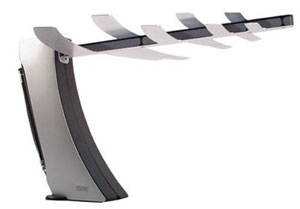
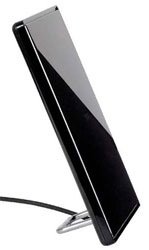
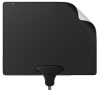
The Leaf and the slightly larger Winegard FlatWave stand out for their attractive and unique design. Most indoor HDTV antennas are ugly, pointy things like the Terk HDTVa or flat, black pieces of hard plastic like the RCA ANT 1650. The Leaf and the FlatWave are as thin, light and flexible as the cardboard that new shirts come wrapped around. They're white on one side and black on the other, so they can be painted to match any décor. And they're light enough that they can be tacked to a wall or attached by adhesive Velcro pads (included).
With the Leaf and FlatWave being virtual doppelgangers, the Leaf edges out the FlatWave based on its smaller size—12.5” x 11.5” versus 13” x 12”—and a much deeper pool of positive reviews.
While the Mohu has piled up the most reviews and most impressive user reviews on Amazon (4-star average from over 6,600 reviews), what's more interesting is the number of consumers who've reportedly switched from a competitor to a Leaf—far more than vice versa.
Reviewer R.S. stated "[t]he Mohu has done a better job picking up UHF digital television than other antennas I have tried, including the Terk Indoor Amplified High-Definition Antenna and the RadioShack Amplified HDTV Antenna."
"I had the Terk HDTVa Indoor Amplified High-Definition Antenna for Off-Air HDTV Reception prior to this," reports Illz Zats from the antenna reception hell that is New York City. "Boy was I stunned when the Leaf right out of the box picked up 27 channels."
"The Mohu leaf is the best interior digital TV antenna on the market today," agrees self-described gadget guy B. Jennings. "I used a powered RCA antenna before buying the Leaf. I could pull in 16 channels. I put the [L]eaf in the same spot and picked up 20."
Professional reviewers in their in-home testing were also impressed.
"Wait, how can a cheap-looking, paper-thin piece of plastic do a better job pulling down TV signals than powered rabbit ears?" rhetorically muses Rich Broida at CNET. "No idea, but it does. … But, holy crap, the Leaf works like magic. My TV picked up every local station and tuned them in at nearly full signal strength. Your mileage may vary, of course, but I'm absolutely astonished by how well this thing works."
Mike Flacy at Digital Trends makes varying recommendations based on specific conditions and circumstances but notes that "the sheer amount of programming picked up by the multi-directional Mohu Leaf is really astounding for the slim design. While you do have to spend 15 to 20 minutes finding the ideal placement on the wall to pick up the maximum amount of high definition programming, the end result is fantastic for the $40 price tag."
In his technically exhaustive comparative antenna study, HDTV expert Pete Putman declares "Among the basic flat antennas, I still prefer the Leaf—it's smaller and more esthetically pleasing…and it's been a reliable performer everywhere I travel."
No one HDTV antenna is perfect for everyone due to geographic considerations. That said, the Mohu Leaf has gotten thousands of great reviews from consumers and reviewers across the country, not only for its reception, but also for its sleek design, making it our pick for the best indoor HDTV antenna.


Talk and Standby Time: Up to 20 hours talk time
OS: Android 4.4 Kitkat with HTC Sense 6
Weight: 160g
Dimensions: 146.36 x 70.6 x 9.35 mm
Battery: 2600 mAh
Display: 5 inch, Full HD (1920 x 1080)
Video: 1080p
Camera: HTC 4MP UltraPixel camera, f/2.0, 28mm wide angle lens, HDR, HDR video, secondary rear camera acts as depth sensor, autofocus, LED flash, dual shot recording (photo and video), HDR, image stabilization, touch focus, face and smile detection
Front-facing Camera: 5 megapixel
Mobile hotspot: Yes
Processor: Qualcomm Snapdragon 801, quad-core CPUs
Memory: 2GB RAM, 16GB/32GB onboard storage
Sensors: Accelerometer, proximity, ambient light, gyro, barometer
Connectivity: NFC, Bluetooth 4.0 with aptX, WiFi a/b/g/n/ac (2.4 and 5GHz)
Network:
2G/2.5G - GSM/GPRS/EDGE:
850/900/1800/1900 MHz
3G - WCDMA:
EMEA: 850/900/1900/2100 MHz with HSPA+ up to 42 Mbps
Asia: 850/900/1900/2100 MHz with HSPA+ up to 42 Mbps
AT&T: 850/1900/2100 MHz with HSPA+ up to 21 Mbps
Sprint: 850/1900/2100 MHz with HSPA up to 14.4 Mbps
Verizon: 850/900/1900/2100 MHz with HSPA+ up to 14.4 Mbps
TMUS: 850/AWS/1900/2100 MHz with HSPA+ up to 42 Mbps
CDMA:
Sprint: 800/1900
Verizon: 800/1900
4G - LTE:
EMEA: 800/900/1800/2600 MHz
Asia: 700/900/1800/2100/2600 MHz
AT&T: 700/850/AWS/1800/1900/2600 MHz
Sprint: FDD 800/1900 MHz , TDD 2600 MHz
Verizon: 700/AWS/1800/2600 MHz
TMUS: 700/AWS MHz
HTC has a long history of crafting excellent smartphones. The company marries well-designed hardware with software that makes Android much friendlier to use.
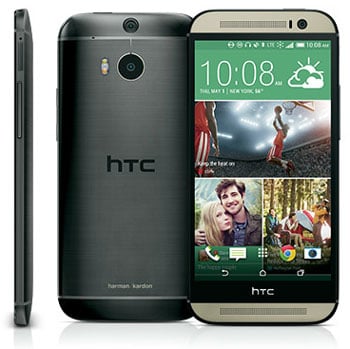
With the release of the HTC One last year, we saw an almost Apple-esque focus on beauty and design emerge. The 2013 One (now dubbed the One M7) is a gorgeous phone with a design deserving of the praise heaped upon it. However, the One M7's design was at fault for the One's drawbacks: no user-replaceable battery, no SD card slot and edges that bite into the hand.
These complaints are no longer an issue in the new HTC One M8. The next-generation One retains the best of last year's features, including great front-facing speakers and booming sound, while adding a microSD card slot and softening the design.
The new One M8 is so much improved that it's a real contender for today's best Android smartphone, even up against its toughest competition, the Samsung Galaxy S5.
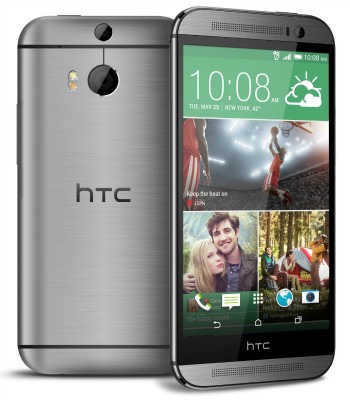
The HTC One M8's aluminum body has a coating that feels more comfortable to hold than the M7, while retaining the premium aesthetic of brushed metal. The curved back fits in your palm just right for larger hands (a little wide for the average woman's hand), and the edges are rounded in such a way that the laser-cut detail on the front no longer digs into your flesh.
The screen is now 5.0 inches (full HD resolution), just 0.1 inches smaller than the Samsung Galaxy S5. The 5.8" x 2.8" x 0.37" One M8 is a little longer (taller) than its Samsung competitor due to the speakers on the front. Despite that, the M8 isn't too large for one-handed use, at least in my larger hand, and balances so well I never felt in danger of dropping it.
HTC has made the power button less awkward to reach this time, though the power button isn't the only way to turn the One M8 on. You can double-tap the center of the screen (just like the LG G Flex) or gesture swipe from the edges to launch the last app, BlinkFeed or go directly to the home screen.
With the One M8, HTC has finally dropped physical buttons. Home, Back and Recent Apps are now icons on the screen, in keeping with Android's intended design. Users (like me) who prefer those buttons to be offscreen so they don't take up pixels or get in the way will find fewer and fewer phones with physical buttons. Even Samsung is starting to drop support for them.
The HTC One M8 Harmon Kardon Edition
The 5-inch Gorilla Glass 3 display is as good as you can ask for in a smartphone: full HD resolution, high-pixel density, wide viewing angles and rich, crisp colors on a display that's visible in sunlight. It's great for reading e-books or websites, browsing through pictures and watching video.
You'll do a lot of that thanks to the front-facing speakers. Just like last year's model, they pump out better sound than almost every other smartphone. With improved BoomSound quality, the audio is louder and rounder than the M7. For sharing video in semi-noisy environments, talking via speakerphone or using the phone as a clock radio, they're just right.
HTC upped the power on the headphone jack to better support premium headphones for improved audio quality — good news for those of you who invested in $200+ earbuds or over-ears. And for true audiophiles, HTC has a special HTC One Harman Kardon edition, which has technology to create a sense of depth and recreate missing notes in compressed sound. The Harman Kardon edition also comes with high-quality earphones.
Call quality on Verizon's network was very good. The people I spoke with reported that my voice sounded clear, without much or any background noise. Sound from the earpiece came through clearly as well and improved further with a headset.
On its own, the One M8 is a tiny media powerhouse. When you're ready to kick back at home to watch TV or play music, this phone need not leave your hands.
I mean that literally. Thanks to the IR sensor embedded in the top, you can use the M8 as a remote control. The HTC TV program guide ensures you'll keep it close by making it easy to interact with fellow fans on social networks right from the app. It automatically populates a tab with official show Twitter accounts and the show hashtag, and you don't even have to leave the app to add your own posts.
If you use your smartphone as a media hub, the HTC Connect feature makes it very easy via DLNA or Bluetooth to stream audio to your speakers and A/V receivers and video or photos to TVs. One swipe shows you all the available devices ready to connect, and one tap starts the process, even for devices that weren't previously paired.
On Verizon Wireless's 4G LTE network, I saw high speeds and experienced no lag when loading web pages, social networks and HD video. All HTC One M8 models are 4G LTE-ready, so you should experience the same whether you buy the AT&T, T-Mobile or Sprint versions (assuming that network is available).
The quad-core, 2.3GHz Qualcomm Snapdragon 801 processor is more than powerful enough to handle everything from intense games to image editing with nested data. This CPU is very efficient; it won't be a huge drain on the battery.
When HTC introduced the concept of UltraPixels last year, the claim was that getting better camera shots doesn't require more pixels, just bigger ones. Results were mixed. Pictures from the M7 are far better than other 4MP phone cameras but not nearly as good as pictures taken on the Samsung Galaxy S4 or the iPhone 5S.
The One M8 still has only 4 UltraPixels, but that doesn't mean it's not a better camera. Image quality is much improved in this version, possibly because of the dual cameras on the back. Two cameras allow the phone to gather more depth data about the objects in frame. Without any editing, the pictures I took with the M8 are better than all the photos I took with last year's M7. Indoors in challenging light, low light and even in the dark, I could take shots that are clear and crisp enough to share either on the screen or via social media.
Unlike pictures from the iPhone 5S and the Galaxy S4, pictures from the One M8 aren't good enough for printing. Pixilation is evident in most shots — while UltraPixels take in a lot of light, there are still only four of them.
The dual cameras make possible fun editing features such as a tool that changes the look of the background and a way to shift the focal point to anywhere in the image and add a bokeh effect. These are more a novelty than of practical use and don't add much to the camera experience.
Zoe camera mode is more useful due to its flexibility. Depending on how long you press the shutter, you can take one shot, a group of burst shots or video. Zoe also drives the One M8's gallery and slideshow feature that auto-generates a video of your photos and videos and then sets it to music with just a few taps — perfect for family vacations or special occasions. Here's an example:
I wish HTC had focused on more easy modes for people who don't know how to fiddle with manual controls. It's good that these are available, and adjustments can be saved as presets. That doesn't make up for the lack of HDR. Image stabilization is minimal; the speedy shutter makes this less of a problem when snapping still photos.
Sadly, my video footage came out shakier than I'd like. One bright spot: the microphones are excellent, so audio is well-balanced even when recording loud situations. Here is a quick video I shot that shows off both video and audio quality:
The HTC One M8 ships with Android 4.4 KitKat and the HTC Sense 6 user interface. Sense provides attractive design and makes the Android OS a little less frustrating to use. The difference between Sense and stock Android is most evident with BlinkFeed, which pulls together news, status updates from social networks, calendar appointments and more in an attractive layout. You can set this as your default home screen, although I still find that its narrow data source choices make BlinkFeed less useful than Flipboard or My Magazine on Samsung Galaxy devices.
One other feature worth noting is a new Kids Mode that locks children into a safe area where they can play games and use only apps of your choosing.
HTC's default keyboard offers word prediction and word trace (similar to Swype) and is serviceable enough. I still prefer SwiftKey, since the prediction engine is better and you have more control over the size of keys to suit your typing style.
The HTC One M8 comes with a standard 32GB of storage on board. Now that there are more restrictions on the apps you can move to the SD card and have little control over where some data is stored, it's important to get a good amount of internal storage. If you use a lot of apps or play many games, your storage can fill up quickly if it's too small.
An external microSD card slot helps, since you can store media on an SD card and reserve space on the device for apps. The M8 can accept SD cards up to 128GB.
The HTC One M8 easily lasted all day and well into the evening with heavy usage on LTE. That fits HTC's claim that the M8 has 40 percent longer life than the M7. This may also mean that even when the battery degrades into shorter and shorter battery life (as all of them do), you might be able to get 10 to 12 hours out of it with battery-saving measures.
The One M8 is supposed to have two battery saving modes, but neither is currently available on the Verizon model (for unknown reasons). Power Saver, which should be accessible on the T-Mobile, Sprint and AT&T models, cuts back on power hogs like the display, data connection and CPU usage to extend battery life.
Extreme power saving mode is not yet available on U.S. models but will be with a future software update. It lives up to the "extreme" in the title by only allowing "essential" apps to run, including the phone, texts, HTC's email app and the calendar and calculator. Everything else is inaccessible. With this feature turned on, you can wring out several more hours of use even when the battery is as low as 5 percent.
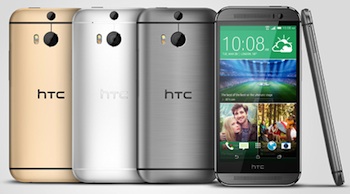
Pricing and availabilityThe HTC One M8 is available on all four major U.S. carriers as well as major retailers such as Best Buy. The big box store will be the exclusive seller of the Amber Gold color. All other stores and carriers will offer either Gunmetal Gray or Glacial Silver.
The One M8 costs $199 on a two-year contract at AT&T, Sprint, and Verizon. Expect to pay around $700 on Amazon if you want to buy it unlocked at full retail price. Or, you can pay $199.99 with a new contract for on AT&T or $149.99 on Amazon. On Sprint, you'll pay $99 with a new contract on Sprint and $149.99 on Amazon. Sprint's Harman Kardon edition is $199.99 with a new contract on Amazon or $229.99 on Sprint. You'll pay $99 on Verizon or Amazon with a new contract. And, on AT&T you'll pay $199.99 and on Amazon you'll pay $149.99 with a new contract. T-Mobile will offer the One M8 for $0 down and $26.50 per month for 24 months. On AT&T Next, you'll pay $24 to $32 per month depending on the payment plan, $27.09 per month on Sprint's Easy Pay or $24.99 per month on Verizon Edge.
If you want a top-of-the-line Android smartphone, the HTC One M8 hits all the right notes. The design is as comfortable and durable as it is good-looking. The display is gorgeous, and the speakers are even better than the last generation's. While not the best in class, the camera is good enough for the way most people use phone cameras.
Newcomers to Android will appreciate the easy navigation and pre-loaded apps. There's no bloatware (as long as you don't count what the carriers load).
The One M8's sealed-in battery is still a significant drawback for people who like to keep their phones longer than a year. If you're the type to trade up as soon as you can or as soon as a newer, better generation is available, it won't be a problem. You'll get impressive longevity while the battery remains in good condition.
Overall, the HTC One M8 is a big improvement over last year's HTC One — and that was a very impressive smartphone. The Samsung Galaxy S5 has some real competition.
Verdict: Highly recommended
]]>
Kevo installed on my front door.
How many times have you fumbled for the keys while holding a bag of groceries in your arms? Wouldn't be great if your home could recognize you as someone authorized to enter and unlock the door? That's the promise of the Kwikset Kevo powered by UniKey, a keyless deadbolt lock that operates via the latest and smartest Bluetooth LE (low energy technology).
The Kevo pairs with your smartphone, or the included Bluetooth keyfob, and recognizes you when you come within range. So you don't unlock the door unintentionally, you need to touch the lock to unlock it. Or, you can use a key, just like any other lock.
You also can email Kevo keys via the Kevo app to other users, such as children, spouses or house guests, and retrieve them when they are done. And, you see when each key was used or set up an alert for a key, so you know your child has arrived home from school.
Despite its touchy operation, Kevo otherwise looks, installs and acts like any other boring interior deadbolt lock.
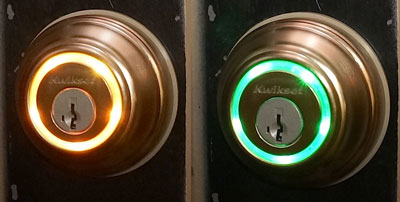
Don't be daunted by the three dozen or so parts in the box. Even if you've never installed a bolt lock, disassembling your current deadbolt, along with the instructions, will reveal how easily the Kevo is installed. The removal of your old internal deadlock and replacement with the Kevo should take no more than 15-20 minutes.
Kevo operates on four AA batteries, which last for around a year. After you assiduously adhere to the three-step battery installation process, you have to calibrate the lock to your smartphone and then the fob, an annoyingly repetitious process that can take almost as long as the physical installation.
You do not have to have your smartphone or fob out to touch open your Kevo, nor does the Kevo app have to be booted – just as long as your smartphone or fob is on your person, in a pocket or bag. Someone standing within a few feet of you also can touch-to-open your Kevo – but not someone inside your house.
Once you touch your Kevo, blue LEDs circle around the lock face. When your smartphone or fob is recognized, the blue light ceases and you'll hear a whirring sound as the deadbolt moves. The circular Kevo LEDs then light green when unbolted, orange when locked.
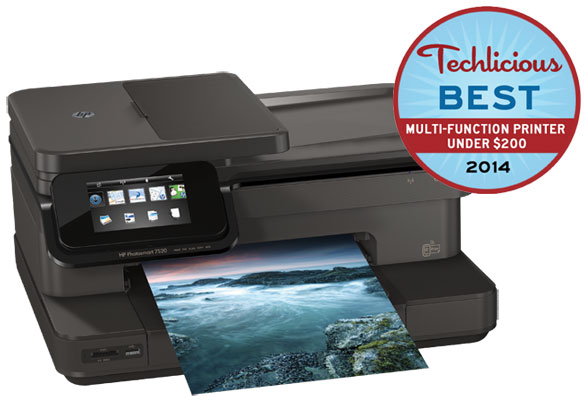
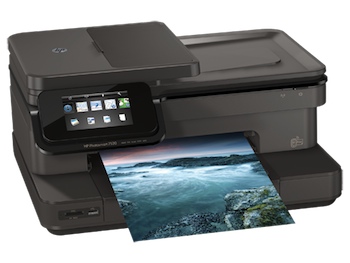
Kevo doesn't work 100 percent of the time – unscientifically I'd guesstimate it operates as planned around 95 percent.
But even if you have to tap a second time, the 3-5 second touch-to-open wait time is still faster – and cooler – than locating your keys, identifying your specific front door key, opening the door, and returning your keys to their storage place.
The Kwikset Kevo powered by UniKey is available for $219.00 on Amazon, additional fobs cost $24.99 on Amazon.
]]>Dimensions: 21.7 x 19.7 x 8.7 inches
Weight: 22.4 pounds
Speed: Up to 14 ppm black, Up to 10 ppm color
Standard Connectivity: 1 USB 2.0, 1 WiFi 802.11b/g/n
Scan Resolution: Up to 2400 dpi (Enhanced); Scan Type: Flatbed, ADF
Other Features: Wireless; Duplex printing; Memory card slot; HP ePrint; Web connect; 4.33" (10.9 cm) touchscreen CGD

A multifunction printer (MFP) or "all-in-one printer" is one of the cornerstones of a home office. These workhorses do everything – from printing documents and photos, to copying, scanning and even faxing (yes, some people still fax).
When searching for the best MFP, my pick had to do all those basic functions well. But there were other important criteria to add to the list. The best MFP had to support wireless printing from my mobile devices, have a relatively small footprint, an Auto Document Feeder and support duplex printing. And, the printer had to have strong reviews by both pro reviewers and the consumers who’ve purchased them.
And it had to do all that at an affordable price. I settled on a $200 limit as the amount most people would be willing to pay for a home office MFP.
Those criteria narrowed out the list to four contenders: the HP Photosmart 7520 ($149.00 on Amazon), the Epson Expression XP-810 ($149.99 on Amazon), Canon PIXMA MX922 ($99.99 on Amazon) and Brother MFC-J870DW ($130.59 on Amazon).
After setting up and testing all four models, I chose the HP Photosmart 7520 as the best multifunction printer under $200. It has excellent print quality for documents and photos, above average scanning and copying speeds and is very easy to use.
Let me say right up front that all of these printers took way too long to set up. They all needed software and/or drivers to be loaded onto my computer via an included CD or downloaded from the company website. Some of them make you switch back and forth between reading messages on the printer and your computer screen during setup. The Brother took well over an hour to complete setup. Epson’s CD load time was shorter, but setup was wonky; I had to re-enter my info several times before it completed the process. I tested these printers using a laptop running Windows 8.
HP did a great job walking me through set up, beginning with installing the ink cartridges. Not only are they color coded, each has a shape on the label that matches a shape on a slot inside the machine to show which one goes where. If you need more help, there’s a short animated tutorial on the touchscreen of the front of the printer that guides you through.
Setting up the wireless connection was not always easy and some printers were more difficult than others. The Epson CD stopped short of setting up the WiFi so I had to use the controls on the printer’s screen, which took a few tries as it was looking for a USB, not wireless, connection. The Canon made me type in my network password on the tiny touchscreen keyboard – twice. Overall, my experience setting up WiFi on the HP 7520 was the easiest and least complicated and it connected to my home Wi-Fi right away.
While we’re talking about Wi-Fi, I should point out; if you’re looking for a wireless printer to use with an iPad or Apple product, any one of these will work just fine. Each time I connected a printer to my home network and then opened up my iPad, the printer appeared. AirPrint worked every time.
If you are using an Android device, setup is far more complicated. It requires connecting the printer to Google Cloud print as well as downloading the individual printer app. But it’s not just a matter of two steps instead of one; the whole connection process is more difficult, with the HP 7520 again being the easiest of the bunch.
These printers, with the exception of the Brother which uses a 4-cartridge ink system, use a 5-color ink system with four colors (Black, Cyan, Magenta, Yellow) and a high-capacity black for printing text. This way you only need to change the ink cartridge that needs replacing and, for the most part, inserting the ink was not terribly difficult.
Ease of useThe paper trays on the HP 7520 were the most user-friendly and the only one I didn’t feel like I was going to break a nail trying to open. In fact I was able to just slide paper into the 8x10 path, rather than having to pull a tray all the way out. It holds 125 sheets of paper, slightly more than the 100 sheets of the Epson XP-810 and Brother MFC-J870DW.
The Canon MX922 gets high marks for its 250-sheet capability, so you don’t have to reload as often, but when you do, opening the tray was difficult and often made me feel I was going to break it pulling it out. All of these have a secondary paper tray for holding 20 sheets of 4x6 sheets photo paper.
If you print very large documents for work, printing in reverse order is a must-have. All these printers let me reverse the order of a document, but the HP 7520 and the Canon let me change that to a default setting rather than selecting it each time I printed.
HP places the SD card slot as well as the USB port right up front on the printer, something I appreciated so I didn’t have to turn it around or fumble blindly to access those ports as I did with other printers.
And, to make remote printing easy from any device anywhere, the HP Photosmart 7520 features ePrint technology which assigns the printer an email address that you can personalize. This means you can send print jobs from any connected device, as long the printer is turned on. So, for example, if my sister wanted to share a document with me, she could email it right to my printer. I can also send something to the printer from an out-of-town business trip. No worries about spam, you control who can email your printer.
If you’re looking to print your own photos at home, a multifunction printer is a huge convenience. In less than two minutes, all of the printers will print a borderless 4x6 photo from your computer, mobile device or external device, like a USB drive or SD card. In terms of quality, the Canon printed the blackest blacks and brightest colors with full saturation. The HP and Epson, though, had very good print quality. The only outlier was the Brother. I had some issues with the Brother’s photos; they were not as vibrant and some printed with streaks across the prints.
Where the HP shines is its ability to recognize when I’m printing a photo and then automatically pull from the correct tray. With the other printers I had to tell them what I was printing (photo or document) and, in some cases, I had to physically slide a lever to switch trays.
Speed varied on these printers and I was quite pleased with the output of the HP 7520. I was able to print 10 single-sided pages of text in 0:58. The Epson took 1:03, Brother 1:23 and the Canon clocked in at 1:44. Not a huge difference but when you copy and print a lot of documents for work, speed matters.
Text quality on the HP was crisp and dark, even when I used smaller fonts. I was able to print graphs in bright, accurate colors and an 8x10 print of a color photo on plain paper was a close enough representation without getting blurry. Though document print quality was pretty equal across all models.
Faxing, scanning & copyingIf you tend to do a lot of document scanning, like I do, you’ll appreciate having a printer with an automatic document feeder (ADF). All models operated in pretty much the same way. They can hold around 20 – 35 sheets of paper and have a duplex scanning mode.
On all these printers, I was able to scan a document to my PC and save it to a file or send it directly to an email as an attachment. However, the process was the easiest with the HP. It let me initiate a scan directly from the printer and choose where I wanted to send it right from the touchscreen. The Canon made me initialize the scanning software on my PC and initiate the scan that way, as did the Epson since it had lost the wireless connection.
For one test, I made a copy of a color flier with both images and text. The Canon and the HP printed superb reproductions with marginally perceptible loss in color. The text was near perfect, though the HP was a darker black which made it slightly easier to read.
Each of these printers comes with a built-in fax capable of delivering both black and white and color copies. The speed varies just a bit; about 3-6 seconds per page, but unless you receive a lot of faxes, this isn’t likely to make a huge difference in choice. Memory also varies; the Epson can store 180 pages in memory while the Canon holds 250 pages. The clear winner in this category is the user because whichever you use, I’ve found built-in faxes to be a whole lot easier to use than the eFax services I’ve tried on older models.
I set out to find a printer with a small footprint and in the end, that wasn’t the one that won me over. If you’re looking for the smallest, most compact printer for a home office, the Epson is the clear winner. Epson’s footprint is small and compact and doesn’t take up much desk space. The adjustable touchscreen folds in to present a flat front.
On the other end of the spectrum, the Canon seemed like a small spaceship sitting on my desk. It was tall and wide and when the output tray popped open, it extended another 5-6 inches into the room. Brother’s footprint was wide, but still relatively low.
The HP 7520, though not the largest of the bunch, is almost as tall as the Canon but it appears smaller because it’s not a solid design; there are some open spaces and the large touch screen on the front tilts to accommodate any viewing angle. While the ADF on top adds extra height to the unit, it wasn’t enough to knock this out of first place for me.
The HP Photosmart 7520 gets high marks from other professional reviewers as well:
Consumer Reports (subscription required) rated all four of the models I reviewed and the HP Photosmart 7520 came out on top by a fair margin.
“Color photos…are top tier for an inkjet MFP, which makes them better than what you'll get from most drugstore prints. The printer even did a reasonably good job with black and white photos on my tests, which is what inkjet printers most often have problems with,” states PC Mag.
CNET finds, “the Photosmart 7520...doesn't sacrifice quality for speed. It produced crisp, dark black text even at smaller fonts, where I would dare to compare its line work to that of a laser printer.”
PC World notes that “the 4.33-inch LCD control panel that makes this machine marvelously easy to use.”
Overall, the HP 7520 received a solid 3.6 out of 5 stars on Amazon. The other contenders came out slightly higher at 3.8 stars for the Epson XP-810, 3.9 stars for the Canon MX922 and 4.1 stars for the Brother MFC-J870DW.
From a product reliability and setup standpoint, consumers were complimentary of the HP 7520, though there were complaints about ink costs. And this is understandable. Printer manufacturers are able to sell us the printers so cheaply because we are then forced to buy very expensive replacement ink, and that’s a strategy all the manufacturers employ.
However, according to a study by Consumer Reports, the HP, Epson and Canon printers use a higher quantity of ink for “maintenance tasks” (e.g., cleaning print heads) than Brother. So you may find your cartridges running out faster than you expect based on how much you’re printing.
Does this make the HP more expensive to operate than the Brother? Not necessarily. Because when you consider the cost to print a 4x6 photo (a very common printing task), the HP is slightly cheaper, while b&w text documents are slightly more. So where you net out depends heavily on how often you print and the breakdown between photos and text documents.
All of the printers I tested were reliable printers that will do a solid job at copying, faxing, scanning and printing photos. Some performed certain tasks slightly faster or better than the others. But in the end, the HP Photosmart 7520 was superior in most of the qualities I was looking for, making it the best multifunction printer under $200.


With our lives being so connected these days, most of us spend more time using our web browser than any other computer program. A great browser makes for the best Internet experience, so choosing the right one is a necessity. And right now both PC and Mac owners have a lot of choices. There are the default browsers, Safari and Internet Explorer, plus dozens of others that work on both platforms. What makes any of them better than the others?
The best browsers are simple to use, speedy, hog as few computer resources as possible and keep you safe from malware and third-party tracking. On top of that, browsers should offer a wealth of customization options, tight integration with sites and services you use often, robust tab and window management, and syncing across computers and mobile devices.
There are five browsers that have most or all of these qualities: Google Chrome, Mozilla Firefox, Internet Explorer, Safari, and Opera. Of these, Chrome and Firefox offer the best experiences across the board and have the advantage of being available for all major operating systems and many mobile devices. After using both browsers extensively for over six months, I found Firefox to be the superior browser. Read on to find out why.
If you're familiar with Firefox from years past, you might balk at my recommendation at first. Firefox was once a top browser alternative but lost a lot of popularity and users to Chrome because it grew too slow while hogging a ton of memory. It took a while, but Mozilla's developers finally turned this problem around. It's secure, fast, easy to use and customizable, uses few computer resources and makes switching between computers and mobile devices easy.

Firefox has the most robust and useful library of add-ons for its browser, making it the most customizable and useful browser. It has all of the most popular extensions and plugins—ad blockers, adjuncts to popular services like Evernote and Pocket, social network integration, etc.—plus some very useful add-ons that are only available for Firefox. For instance the Heartbleed checker for Firefox, Heartbleed-Ext, adds a red warning at the top of vulnerable sites.
Plus, all of the add-ons you find in the official Mozilla repository (found under Firefox >> Add-ons) are checked for compatibility and malware, unlike Google Chrome's extension library. Add-ons won't add new or malicious functionality behind your back the way some Chrome Extensions have been accused of. By default, add-ons update automatically as the browser checks for new versions and security patches, but you can disable that so you can approve all updates.
To create a Tab Group, you use the Tab Group short cut--"Ctrl + Shift + E"
for PCs and "Command + Shift + E" for Macs. Then drag the tab you want
to use to create a group out of the main Group Your Tabs box to create a
new group.
If you like to keep multiple sites open in multiple windows or tabs, Firefox's built-in tools for managing them are the best. The Tab Groups feature makes keeping tabs organized much easier and clears away the clutter that comes with having dozens of tabs open in one window. You can group tabs any way you like and even name the groups so you remember which websites you have stored inside. Switching between groups is as easy as switching between windows, but everything stays under one icon. In Firefox you can also "pin" a tab (right click on a tab pin it), which moves it to the left of other tabs and keeps it in place permanently, even after you restart. This is useful for websites I keep open and check often, such as Gmail and Facebook, because I can always find them and see notifications.
Besides keeping your plug-ins updated, there are other ways Firefox keeps you secure. The browser is automatically updated to ensure you have the freshest protection while surfing. If you come across a malware-infected site or a fake site designed for phishing, the browser will warn you before loading. This list of bad sites is kept up to date as new fakes and infections pop up.
Mozilla improved on Firefox's private browsing experience. Now it works similarly to Chrome--private windows open alongside normal ones, so you don't have to close down what you're doing to go incognito. However, you can't open multiple sessions in private windows as you can with Internet Explorer. If you're signed into one Yahoo Mail account in private, you can't sign into a second account in another private window.
The ability to sync browser data is increasingly important for people who spend their day switching between devices, be they mobile phones, tablets, or computers. It's nice to be able to reopen tabs from your computer on your phone, especially if the tab has needed information. I also appreciate having all my bookmarks, passwords, and add-ons on both my work and home computer. Firefox, Chrome, Internet Explorer and Safari all have some syncing capability, though the first two have the best and most comprehensive implementation.
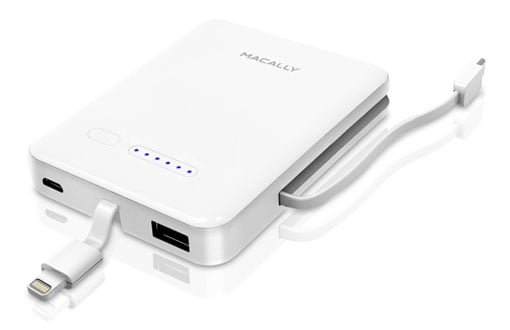
Setting up Chrome's sync is easier and faster than Firefox because all you have to do is sign in to your Google account and you're done. Firefox has a code verification system that requires using an existing synced device to authorize another, which is a minor pain.
Syncing works on Android smartphones and tablets, too, since both Chrome and Firefox have mobile versions on that platform. However, there's no Firefox for iOS. Chrome is available for iPhone and iPad, though Safari is naturally more integrated with those devices and you can't change the default browser to Chrome in iOS.
Firefox is now back to being the best browser choice, thanks to recent updates and added features. It's secure, streamlined, customizable and makes switching between computers and mobile devices easy.
[woman in kitchen via Shutterstock]
]]>Dimensions: 3.75" x 3" x 0.75"
Weight: 3.24 oz.
Capacity: 3000 mAh
Output: 2.5 amps
Cables: Built-in Lightning and micro-USB


Considering how reliant we are on our smartphones and how short-lived their batteries are, no smartphone owner should leave home or office without some form of backup battery. In my previous testing, I found that the myCharge Hub 9000 was the best portable battery charger available. But at a price around $100, that may be too much to spend for many people. And it's not exactly super-slim.
Fortunately, you can buy a smaller, less expensive emergency power solution that will fit more comfortably in your purse or pocket and still give you a decent amount of backup power.
I researched the options and narrowed down the selections to a small group that I personally tested to find out which one is the best portable battery charger for under $50. Key criteria were 1) small size, 2) built-in microUSB and Lighting cables, 3) high power (at least 2500 mAh) and 4) costs under $50. I also included the myCharge Hub 3000 (the lower-powered version of my previous pick) in the mix, even though it was slightly over $50, to see how it fared.
Limiting the choices to those with built-in cables took many contenders out of the running, but I strongly believe it should be a critical decision factor. If you have to schlep charging cables for all your power-draining devices, it sort of obviates the whole owning-a-tiny-charger thing. And a cable is just one more thing to forget when you're rushing out the door to a meeting.
My final testing group included the Macally MBP30L ($69.99, or $38.99 on Amazon), the myCharge Hub 3000 ($69.99, or $63.75 on Amazon), the Skiva Powervault Lightning A2600 ($59.99, or $28.99 on Amazon) and the Digital Treasures ChargeIt! Universal Power Bank ($49.95, or $29.99 on Amazon).
In the end, I found the best portable battery charger is the Macally MBP30L. Read on to learn why.
Small but powerful chargingThe Macally MBP30L fulfills the criteria on my small battery charger wish list. It includes a built-in Lightning cable (which extends only about an inch) and a built-in microUSB cable (which extends about 4 inches), as well as a USB jack so you can connect a proprietary cable or a second device. The only thing I wish it had are built-in AC prongs for recharging (as on the far more expensive, MyCharge Hub 9000). Rather, the MBP30L recharges via a microUSB input jack.
Inside, the MBP30L provides 3000 mAh of power, enough to charge a dead iPhone about one and a half times. And while it won’t fully charge a tablet, the MBP30L has a 2.5-amp output that's sufficient for charging tablets, something rarely found in a charger this size. The MBP30L also has a convenient six-segment LED that shows remaining charging capacity.
While not the smallest of its ilk, the MBP30L measures a flat 3.75" x 3" x 0.75", about the size of a wide deck of playing cards. At just 3.24 ounces, it’s lighter than most of its smaller competitors.
By comparison, the slightly heavier (3.7 ounces) but one-third smaller (2" x 0.9" x 3.7"), 3000-mAh myCharge Hub 3000 also includes a longer Lightning and a microUSB cable, but costs nearly twice as much. The myCharge Hub3000 also lacks a multi-segment LED indicator.
At 3.5" x 0.5" x 0.5", the Skiva is an oversized lipstick-shaped charger; at one end is a 1-inch microUSB cable. At its other end is a cap that cleverly contains a Lightning cable and full-sized, covered USB jack for recharging its internal battery. Along one side is a four-meter LED power level indicator.
While the Skiva is small, it's slightly heavier (5 ounces) than the larger Macally. It also suffers two other potential drawbacks: the Lightning cable embedded in the cap will only fit phones without a case and, with only 2600 mAh of juice, it only filled a dead iPhone to 94 percent.
The ChargeIt gives you 600 more mAh (3600 mAh total) than the Macally, enough juice to charge an iPhone twice. Essentially the size of an inch-thick business card (3.6" x 2.4" x 1.1"), the oval ChargeIt feels like a half-used bar of soap in your hand. The ChargeIt also has a built-in 30-pin Apple connector in case you're toting a power-hungry iPhone 3G, 3GS, 4 or 4S.
However, the ChargeIt is a very slow charger. Just to get an iPhone from completely dead to 4 percent—the point at which the phone's display will light—took 40 minutes. A full iPhone 5 recharge required four-plus hours, twice as long as the other chargers I tested, including the Macally.
In the end, the Macally MBP30L offers the best combination of portability, power, connectivity and price, making it the best portable battery charger under $50. It's the one I'd recommend carrying for everyday use.


]]>


On a typical midday afternoon, I sat on the blustery and cacophonous corner of West 34th Street and Eighth Avenue in midtown Manhattan to torture test the five top-performing in-ear Bluetooth headsets. These included the Bose Series 2, the Jabra Motion, the Jawbone Era, the Motorola Sliver II and the Plantronics Voyager Legend.
After multiple noisy and windy conversations on each at 34th and Eighth, a clear winner emerged: the Plantronics Voyager Legend. And it wasn't close.
Plantronics' Legend offered the most natural voice reproduction at both ends of the conversation and provided the most effective noise canceling for muting both nearby conversations and wind noise.
Even though the Legend is not the most compact of the five top Bluetooth headsets we tested — it's actually the second most ponderous, after the Jabra Motion — its more generous physicality also made it one of most securely fitting and easiest to control, and it provided the second best battery performance.
Finally, not only is the Plantronics the best of the Bluetooth bunch, it's also $30 less expensive than its nearest competitor.
We're not alone in our aural, ergonomic and economic assessment of the Legend. In his "excellent" review at at CNET, Bruce Bennett notes the Legend's aural circuitry provided "excellent call quality whether I was chatting from bustling New York streets, within crowded restaurants, or inside my raucous CNET offices. People on the other end couldn't tell I was chatting from a mobile connection either." Bennett concluded that the Legend's "superb call audio quality and comfortable fit make it an excellent buy."
While Jamie Lendino at PC Magazine disagreed with our wind-reducing conclusions (he choose Jawbone's Era as the best wind-resister), he also noted the Legend "sounds excellent and is comfortable to wear" and is "one of the best on the market today."
P.K. Costa at the San Francisco Examiner extolled the Legend "whether you're a traveler, telecommuter, soccer mom, journalist, world-renowned chef or top dog of your own whatever — this hands-free device is worth its salt — and will become legendary."
In our own view, though, it's all about the sound.
Before we get to the Legend's aural qualities, let me clarify that none of these single-ear headsets is the best Bluetooth conversation solution. If you want to use Bluetooth to conduct your conversations and you want to be sure you can hear clearly with plenty of volume and be heard clearly with plenty of volume, your best choice is the LG Tone+ HBS730 stereo earphones, which we have previously extolled.
But it's easy to understand how folks who simply want to chat wouldn't want to wear LG's comparatively ergonomically-challenged necklace.
So how does the Legend measure up to its single-ear ilk? In our own cityscape and other everyday testing with a smartphone as well as a Panasonic Bluetooth-enabled landline phone during home office conversations and interviews, voices sounded smoother and more natural at both ends of the conversation with the Legend. It suffered little of the digital noise (subtle artifacts that make a voice sound tinny, artificial and digitized) evident on the other Bluetooth headsets reviewed here, especially the cheaper models.
Unlike PC Magazine's Lendino, we found the Legend didn't reduce but eliminated low-level wind. None of the units, however, could cut through heavy gusts.
Our second-place choice for sound quality was the Jabra Motion. But the amplification that improves the Jabra's sound also boosted the volume of conversations and other background noise within three feet.
The Legend may be larger than most of the other Bluetooth headsets in this roundup, but its girth is all in the service of enhanced functionality. Rather than simply slipping into the ear as the Bose and Motorola headsets do, the Legend's rear module must be guided over and behind your ear. Even though the Legend's rear module pretty much disappears from view as you're facing people, the three-inch-long boom mic cuts unattractively across your check. While having the mic closer to your mouth than its competitors contributes to its sound quality, you'll look a little geeky.
The Legend's added weight doesn't detract. The Legend weighs 18 grams, nearly twice as much as the Jawbone's 10.2 grams (the lightest of our test group) but not much heavier than the Jabra's 17.5 grams, the Motorola's 14 grams or the Bose's 12 grams. Even though it's heavier, the Legend never felt heavy, even after a few hours of wear.
Once donned, the Legend's behind-the-ear design provides the surest fit of any headset we've played with, both in this shoot-out as well as other reviews. Its weight gave me the confidence that the Legend would stay put regardless of how violently I shook my head.
The Legend's relative larger presence also makes it easier to control. Other headset makers are forced to confusingly condense controls on their compact devices, making volume and switchhook switches difficult to find by feel and therefore to operate.
Instead of flat volume toggles, the Legend's miniature up-and-down joystick on the top rear of the ear module is simple to locate and manipulate. The switchhook key (what you tap to initiate, answer and end calls) is located conveniently on top of the boom swivel. There's also a separate, easy-to-locate mute key, not available on most other headsets, located on the rear of the boom. This mute key also pauses streaming audio playback.
As with all Bluetooth headsets, the Legend is easy to adjust for either left or right ear use.
The Legend, along with the Jabra Motion and the Jawbone Era, adds some nice functionality boosts. First among these is a motion sensor – these headsets know when they're picked up and placed on your ear, automatically switching on. I found that Legend and Era both reacted more consistently than the ungainly Jabra, which I could never get to fit snugly or comfortably.
If your Bluetooth chatting needs are more home office-centric and require multiple simultaneous connections, the Legend and the Jabra Motion also come in UC (Unified Communication) versions. Both include a separate USB dongle that allows direct, dual headset use while connected to a PC as well as a smartphone.
The Legend logs the second-longest overall battery life of the five headsets we played with — 7 hours of talk time and 11 days of standby, versus 4.5 hours of talk and 4.2 days of standby for the Bose, 5 hours of talk and 12 days of standby for the Motorola, 5.5 hours and 10 days of standby for the Jawbone, and 7 hours of talk and 15 days of standby for the larger Jabra.
But the Legend lacks a standard micro-USB charging jack. Instead, the Legend comes with a special magnetic USB charging attachment. For travel, this means you have to remember to pack the special Plantronics cable along with the standard micro-USB cable for your smartphone, tablet or other gadgets.
For $6.95 (on plantronics.com), you can buy a second charging cable to keep in your travel kit, giving you one less item to pack.
With the charging cable problem resolved, the Plantronics Voyager Legend leads the single-ear Bluetooth class.


At a recent press briefing, a fellow reporter asked if anyone had an Apple Lightning cable so he could recharge his iPhone. Unbelievably, in a room full of tech geeks, no one had one except me — and yes, I happily loaned him what he needed. Even better, it was built into the myCharge Hub 9000, a 9,000-milliamp portable battery pack that in my estimation is the best portable battery pack on the market.
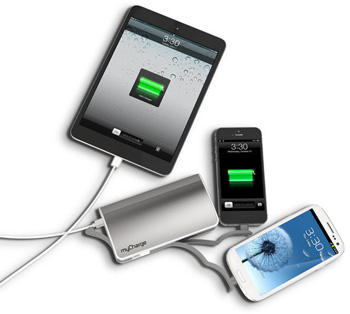
How do you pick the best battery pack when there are literally hundreds of portable battery packs to choose from? To narrow down the choices, I applied specific criteria to help determine the best all-around portable charger. A charger shouldn’t require any extra cables to charge either your devices or itself. It should be able to charge more than one device simultaneously, including tablets, and hold enough power to fully charge at least two devices.
There are only three devices that meet these criteria, and two of them come from myCharge (at 9000mAh and 6000mAh capacities). The other is the 6000mAh New Trent ChargePak NT600C.
The Hub 9000 includes built-in Lightning and micro-USB jacks along with a standard USB jack in case your device requires a proprietary charging jack (say, a 30-pin Apple charger for older iPhones and iPads). The New Trent ChargePack NT600C has only a micro-USB connection, making it less versatile.

How do you recharge the Hub? Most other portable battery packs recharge via a built-in micro-USB jack that has to be plugged into an adapter and then into an AC outlet, like you do with a smartphone. That means carrying not only the battery pack and device charging cables but also a separate cable in order to ensure you can rejuice your emergency juice pack on the go. The Hub, however, includes a built-in, flip-down two-prong AC jack. You can recharge Hub's battery nearly anywhere — no extra cable necessary — although it takes five hours to achieve a full refill.
All the built-in connectors fit neatly into compartments or niches in the Hub's sides, each protected by a rubber cover, creating an emergency power solution that's smooth to use and easy to chuck into your bag.
At 10.6 ounces (about twice the weight of an average smartphone) and 5.2" x 3" x 1.3", the myCharge Hub 9000 is only a bit bulkier than portable chargers of a similar capacity that include no cables. When you factor in no extra cables, the Hub 9000 is a winner.
When compared to the lower capacity myCharge Hub 6000, you save only 1.3 ounces and a fraction of an inch all around versus the 9000. So an extra $10 for a whole phone’s worth of extra charge using the 9000 mAh version is worth it.
How much juice does the Hub 9000 provide? The iPhone 5S is reported to require 1,570 mAh for a full charge, meaning the Hub 9000 can supply nearly six recharges. Any of the newest phablets, such as the curved LG Flex, are powered by 3,000-plus mAh batteries; the iPad Mini includes a 4,490mAh cell, the iPad Air an 8,820 mAh battery and the previous iPad a hefty 11,560mAh battery. You can do the recharge math.
The Hub 9000's integrated Lightning and micro-USB jacks supply enough amperage (1 amp) to charge a smartphone or small tablet such as the iPad Mini. If you need to charge a full-sized tablet that requires twice the amperage, you'll need to plug in a separate USB cable.
The Hub 9000 is not only convenient but fast. It can recharge a completely dead iPhone 5S in less than two hours, although the phone itself won't give any indication that it is charging until it reaches about 4 percent of battery life.
How does this charge time compare to other portable chargers? Portable charger makers don't list charge times, since different mobile devices charge at different speeds depending on their battery capacity and charging technologies, and we didn't test each of the hundred other portable chargers. But by way of some comparison, an iPhone plugged into AC power takes the same two hours as with the Hub to completely charge from dead. Obviously, a device with a larger battery takes a bit longer to regenerate.
The Hub 9000 can recharge multiple devices simultaneously, even if the arrangement of its built-in cables can result in a pretzel-like configuration. Hey, if the cables were too long and flexible, you'd end up with the same spaghetti cable mess you'd have had if you'd bought a non-Hub battery pack.
Charging two smartphones simultaneous with the Hub slows the charging process only imperceptibly. Adding a third device via the USB jack (like that's gonna happen a lot) more noticeably slows the flow. If a multiple charging situation arises, you may be better off limiting yourself to two devices at a time.
Whatever minor inconveniences the jack amperage, cable flexibility or simultaneous charging present, these are mere quibbles when measured against the Hub's all-encompassing emergency charging convenience.
I'm not alone in my appreciation of the myCharge's capabilities.
Nick Guy at iLounge agrees that the Hub is "one of the most well-designed and useful external battery packs we've seen in quite a while," while Sarah Van Boerum at Tech Bargains "loved being able to charge up to three devices at one time without having to worry about cable tangle or having to tow the right cables along. Each port is also labeled so you know which device goes where without having to open up each one. … Unlike many portable battery makers, the folks at myCharge just seem to build nicer and sturdier battery packs."
Kien Tran at Geek Beat TV found that "the MyCharge was a device I used constantly. Being able to just plug it into the wall without the need to bring additional USB wall chargers or cables is immensely useful." Jason Cipriani at TechDad Review agrees: "What makes the Hub one of my favorite products by myCharge is the built-in wall prongs to directly plug the unit in and charge it without cables."
Owner revviews have also been strong. The myCharge garners a 4.2 out of 5 star rating on Amazon.
While any portable charger should provide basic charging needs, the myCharge 9000 with its fully-integrated charging and super-high charging capacity is my pick for the best one on the market. It's the one I carry and the one I recommend you do, too.


]]>
Finally, a critical missing link in the paperless billing chain has been filled. FileThis is a new Web-based service that that automatically downloads your e-statements into your PC or cloud storage.

FileThis covers the gamut of household paper filing — bank statements, phone bills, tax documents, mortgage statements, credit card statements, insurance policies and benefits, online shopping accounts, utilities and so on.
Security is a legitimate major concern on such aggregating sites, for fear that one password could give a thief access to the family jewels. So let’s address that up front.
Do you have to give the site your passwords to access bank accounts and more? Yes. How secure can that be? It is essentially as secure as online banking, using the same methods.
FileThis encrypts your login information the moment you enter it. Once you're on its servers, everything is encrypted to the highest standard so no one can decode your content, even if hackers were to somehow break in. The few employees who manage the encryption process undergo the same rigorous security measures used in banks, including background checks.
And finally, even if someone accessed your FileThis password, it could not be used to make changes to your accounts, because FileThis only does one thing: retrieve statements. Your individual account passwords are never visible, not even to you. The system has been built from the ground up to be secure and safe.
FileThis is based on a user fee revenue model (free basic service with fee-based advanced services). Income comes from customers, not from partners or advertisers. This means there are no hidden loyalties.
Our world is gradually shifting from paper to paperless systems. During the transition, consumers must grapple with both types of media for tasks such as preparing taxes and maintaining records. Many institutions charge a fee for paper statements or don’t offer paper at all.
Digital records can equally be a hassle because of the manual process necessary to download all e-statements into your digital file cabinet. PayPal, for instance, keeps only three months’ worth; fall behind at your own risk. FileThis comes to the rescue by automating the whole process, running in the background to collect e-statements while still giving you complete content ownership and control of where they get filed.

First, link your various accounts. It takes just a moment to find your institutions on the supported list and enter login credentials for each. Then choose where you want the documents stored.
The rest is automatic. FileThis automatically fetches all the stored statements at the institutions — up to three years’ worth if available — and saves them in PDF format (a boon, if you’ve been lax at downloading and filing or if you've wrangled PDFing HTML statements).
Next, FileThis analyzes each document to automatically give it a descriptive file name, tag it with the correct date, index key words and categorize it for easy searching (for example, “tax documents” instead of “bank statements”). All of this occurs in the background.
Finally, documents are moved to the destination you’ve chosen in automatically created sub-folders. According to the company, most consumers choose one of the supported cloud services, such as Dropbox, Evernote or Google Drive, although some users chose their local PC drive. FileThis also offers its own proprietary cloud with additional robust features like advanced filing and keyword search.
What’s the hitch?FileThis carries a few limitations. The list of covered institutions is finite. FileThis has to write code to connect to each institution, and though it plans to continue adding new ones, those with the largest demand take precedence.
So while you’ll find major institutions like Chase, Comcast, Verizon and Amazon all covered, FileThis lacks regional institutions like health insurers or local utilities. As a work-around, the site offers document upload and invites users to suggest other institutions to support. The list of supported institutions is expected to triple from 330 to 1,000 by 2015.
Another limitation: The service is available only in the United States.
And, finally, it's not easy to direct documents to more than one location — for example, both your local PC and a cloud service. FileThis is designed to be used with one or the other. Lastly, while some leading cloud services are supported, many are not yet.
The free version of FileThis allows connections with up to six institutions, with $20 per year for 12 connections or $50 per year for 30 connections.
If you're using the proprietary FileThis cloud storage, your storage space increases from 500MB to 10GB.
Of course, there are no space limitations if you're downloading to your PC or your own cloud service.
Other products perform some of the same functions. Manilla, built for online bill payments, offers more breadth in some ways, such as email syncing that automatically pulls in emailed statements. But it connects with institutions at a different level, often grabbing only the information it needs for bill payments rather all the e-statement documents needed for filing and tax documents, and Manilla does not go back so far to pull history. Another example is Doxo, similar to Manilla.
Services like these are evolving rapidly, as they pioneer new ways to organize digital household information.
What currently sets FileThis apart
I have to admit, FileThis is one of the more exciting new products for taking financial records to the digital realm. That paper tiger no longer seems quite so scary.
]]>

UPDATE 11/01/22: There's is an updated model of the Arc5 (ES-LV67-K) now available on Amazon for $178. It has the same shaving technology as our recommended Arc5, with some minor updates to the design and battery display, and it comes in at a much lower price.
Today, my shaver of choice is Braun's top-of-the-line Series 7 model 790cc–4, which I started using after its debut in 2010. The Series 7 also ranks at the top of Consumer Reports' shaver test. And to-date, Braun still has not announced any intention to replace it with a new top model.
Nevertheless, I wanted to know: What is the best men's electric shaver now, at any price? Is there a newer shaver from any brand that's better than the Braun Series 7? To find the answer, I searched the Web for reviews of an assortment of shavers from various brands, compared technical specifications and prices, then tested out the top contender head-to-head against my beloved Series 7.
I discovered the Series 7 has been equaled in user reviews online, by the Panasonic Arc5 model ES-LV61-A—an electric shaver with five blades, two more than the Series 7.
To see if I would agree, I contacted Panasonic to request a review unit. I learned that there is an even newer Arc5 model that is just debuting in stores— the ES-LV65-S—that shares all the best features of the LV61, plus adds a new "stubble sensor" that automatically detects your beard's density and adjusts the shaver's motor speed to optimize cutting ability.
With review unit in hand, I went about testing the ES-LV65-S against my tried-and-true Series 7. While it was a close call, the Panasonic ES-LV65-S gets my pick for the best electric men's shaver based on its superior shaving results, even if it comes at a stiffer price.
The Panasonic Arc5 ES-LV65 carries a stunningly high $499.99 manufacturer’s suggested retail price (MSRP), which is nearly double the $269.99 MSRP of the Braun 790cc. But the price of the ES-LV65 is quickly dropping, currently available for $399.99 on Panasonic.com. And, helping to justify that staggering price differential, a comparison of both models’ technical specifications does give the edge to the Panasonic shaver:
An on-paper comparison is one thing, an on-face comparison quite another.
Indeed, like a facial vacuum cleaner, the Arc5’s five-bladed shaving head erased my beard stubble quickly and efficiently, sometimes needing only one stroke to clear an area of my face, even with two-days of growth. And, overall, it completed the shaving task in as few or fewer strokes than my Series 7. But as with other Panasonic shavers, I found that the Arc5’s extremely large shaving head made it awkward to use, especially around the edges of my sideburns.
Aesthetics are always a matter of personal opinion, of course, but I also thought the Arc5’s shaving head was disproportionately oversized and visually weird atop the shaver’s slim body. The Braun Series 7 design is proportional and stylish and more appealing to me.
There is no denying the popular consensus around the ES-LV65’s predecessor, Panasonic’s Arc5 model ES-LV61-A.
Amazon ranks products according to their share of positive user reviews, updating the rankings daily. And as I'm writing this article, in the category of “mens foil shavers” the Arc5 is up near the top, ranked in fourth place behind two other Panasonic shavers and the Series 7—having only recently dropped below the Series 7 in rank.
In a lengthy review comparing the Arc5 LV61 to both a Braun Series 7 shaver and another Panasonic shaver—the four–blade ES-LA63—Amazon user Dean! wrote in October 2011, “The shave on the 5-blade LV61 is as close as any blade razor without drawing blood! I did the chin stubble test and with this LV61 you absolutely cannot feel any stubble...I get close shaves that last beyond 5pm...and my skin always feels smooth.” This was comparable to the four–blade LA63 shave quality, he said, adding that both of those machines shaved closer than the Braun. But Dean! observed that the LV61 is better built than the LA63, which “feels cheaper in quality from grip to aesthetics.” He noted that the LV61 also feels lighter and better balanced in the hand than the LA63, which he called "top–heavy.”
Likewise, Amazon user William F. Liberatore wrote in September 2011, “I still don’t think that the Panasonic is as close as a good blade shave, but it is close enough that you’d be hard pressed to tell the difference.” He added, “It charges very quickly and seems to run a fairly long time on a charge. I’ve used it 3 mornings now and still showing 100%.”
I like that my Braun 790cc came with an accessory machine that uses an alcohol–based cleaning and lubricating solution in “Clean & Renew” cartridges (sold separately) to refresh the shaver after each use. In packs of four at Amazon.com, those cartridges cost about $5 each. Shaving every other day, I normally consume one cartridge per month (12 per year).
Many people would consider using such a cleaning system for a shaver that can be rinsed off in the sink to be silly. It adds to the cost of the shaver, creates monthly cleaning cartridge expenses and takes up more space on your vanity. And for those people, the fact that the Panasonic LV65 is sold without the cleaning machine option could be a benefit. But if you really want it, the ES-LV95-S comes with one for an extra $100.
If you're looking for the best shaver on the market, go for the new Panasonic Arc5 ES-LV65-S. It takes the winning technology of its predecessor and steps it up a notch. If you don't want to plunk down the admittedly pricey $399, the Braun Series 7 model 790cc and Panasonic ES-LV61-A are fine runner-ups that will save you $100-$200. And if you're really on a budget, check out our pick for the Best Shaver Under $100.


UPDATE 11/01/22: There's is an updated model of the Arc5 (ES-LV67-K) now available on Amazon for $178. It has the same shaving technology as the prior Arc5, with some minor updates to the design and battery display.
All of the above shavers fall into the “foil” category. That means their blades sit beneath a curved metal cover with a pattern of holes to capture hairs for cutting (the foil). The other major shaver category is “rotary,” dominated by Philips Norelco models. Rotary shavers have blades that sit beneath round hole–covered heads that spin to capture and cut hairs. Bestratedelectricshavers.com offers an excellent exploration of the differences between foil and rotary shavers.
I also researched the best rotary shaver available today, and easily concluded it’s the Philips Norelco SensoTouch 3D, which features three shaving heads fixed in three independent sections, each able to move in three dimensions — pivoting around, tilting inward and flexing outward — to shave closer on face and neck curves. And each of the three heads also incorporates three different schemes for capturing hair to be cut: channels to catch longer hairs, slots to catch normal length hairs, and holes to catch short stubble.
A few SensoTouch 3D models are available, but the top–rated of all is the 1280X, which is the top–rated rotary shaver at Amazon.com, (where it sells for $312.95, discounted from an MSRP of $349.99). It also is the top–ranked of all electric shavers in ShaverGuide.com’s Top 10 list, and it garnered a “top rated” listing and accompanying stellar review at Bestratedelectricshavers.com.
However, the 1280X is one of those shavers that includes a cleaning machine. For those who prefer to buy just the shaver, the technically identical SensoTouch 3D 1290X (MSRP and Amazon.com price of $249.99) excludes the cleaning machine and offers a significant discount.
I tested a review unit of the 1290X with three–day stubble and found it quickly eradicated most of the whiskers on my face and neck. I was unable to accurately shave around the edges of my sideburn with the rotary heads, however, when following the recommended procedure with rotary shavers of using circular sweeping motions. I substituted the shaver’s horizontal long–hair trimmer as a solution, but it did not perform the task anywhere near as well as a foil shaver does.
The motor in the 1290X also seemed to me less powerful than that in either the Panasonic Arc5 or the Braun Series 7. None of this was a surprise to me; I have found in past trials that the best foil shavers provide me a closer shave than the best rotary shavers.
But here, of course, is the overarching caveat: Your preference may vary.
If the store’s return policy allows it, sample each of these for two to three weeks — the time it usually takes for skin to adjust to an electric shaver when switching from a manual razor — keep what you like and return the others.
(Panasonic, Braun and Philips Norelco offer their own money–back satisfaction guarantees independent of retailers — valid for 30 days, 60 days and 45 days from date of purchase, respectively.)
]]>
The majority of the people I see carrying DSLRs or other interchangeable lens cameras (ILCs) aren't professional or even aspiring photographers. Most are people who take pictures casually while on vacation or at special occasions with the purpose of sharing with friends and family. They still want those pictures to be really good--better than what you can get with a smartphone or a cheap point and shoot--so they buy a more serious-looking camera.
The choices in this realm are vast, and even when you limit your budget to under $800 there are a wide array of cameras with good reviews to choose from. However, until you have the time to read the manual or take that beginner class you've been meaning to since forever, you want a camera that gives you the most versatility and functionality without needing to know ISO from aperture. For that, my pick is the Nikon D5200.
The D5200 isn't the lightest or most compact, and at just under $800 with the kit lens (on Amazon before discount), it's not the least expensive, either. The camera makes up for that by balancing ease of use and plenty of pre-sets with the power and functionality more advanced photographers crave. Plus, the D5200 is compatible with up to 79 different lenses (and counting), so it can grow along with your skill.
Over the past month I've tested several cameras for ease of use in Auto mode. All of the models I shot with are capable enough to work in a variety of shooting conditions--low light, no light, fast movement, tight spaces, indoor, outdoor, etc.--though usually only if I delved into the advanced settings and functionality. Once I started testing the Nikon D5200 the options opened up.
For example, I went on a night sail around the southern tip of New York City on a sailboat built in the 1800s. Even in somewhat calm water the boat bounced around enough that getting a good shot of the Statue of Liberty or the beautifully-lit skyline was almost impossible with Night mode active. We bobbed around too much. I switched to an Effect on the D5200 called Night Vision that bumps the ISO up very high while keeping the shutter speedy. The pictures are black and white and sometimes a bit noisy. Still, they're good, usable shots that didn't require any special knowledge on my part to take.
The D5200 includes a slew of settings, scenes, and effects like this that are easy to find, switch to, and understand. Yes, you'll have to click the control wheel away from Auto to get to them. But once you get to Scene, Portrait, Landscape, Child, Sports, Macro, or Effect a short and simple explanation of each appears on the LCD. Notable options: Candlelight, Autumn Colors, Food, Sunset, Silhouette, and Selective Color. In short, there are few situations that you won't be able to find a pre-set for on this camera.
The multitude of automatic settings isn't the only reason I liked the Nikon D5200 more than all the other great cameras I tested. I also prefer the way it feels in the hand. With the kit lens attached the camera is noticeably heavier than the Canon Rebel SL1, just not so much that it's a pain to carry around. The grip on the front is deeper and much more comfortable than the SL1.
The 3-inch LCD on the back is not touch-enabled, but I forgive that because it does swivel out, meaning you can frame pictures from almost any angle and you can see the screen while standing in front of the camera. I'm also glad that you can swivel the display around so it faces inward, turning it off during those times when you just want to deal with the viewfinder.
Since this is a true DSLR the viewfinder is optical. There are some display elements visible here, such as an auto-focus indicator, though not as many as you get with an electronic viewfinder. Using the optical viewfinder saves battery and makes taking pictures much faster. Overall, the D5200 is a speedy system and autofocus is snappy. Switching to Live View on the LCD slows things down enough to be annoying, which is typical for DSLRs in this price range.
Finally, there's the 24.1 megapixel sensor, the heart of what makes for a great picture. With it, the D5200 is able to produce great quality images full of detail and color accuracy. Sensors like this are the reason why people step up to DSLRs and the D5200's definitely delivers.
The Nikon D5200 is at the top of many reviewer's lists for cameras in this price range, mostly due to the image quality. CNet found that the camera "reproduces colors with solid accuracy, and the default color settings don't push contrast or saturation overmuch." The Phoblographer also praised the "overall excellent image quality" and noted the "good high ISO results." DPReview's detailed analysis concluded that the "noise performance... is the best that we've seen from a DSLR at this price point. Noise reduction is very effective... Image quality is certainly one of the D5200's greatest strengths."
Performance-wise, reviewers praised the speed and accuracy of the camera's focusing. The Phoblographer called the focusing system "extremely advanced" and Photography Blog said that the Face-priority Auto Focus "had no problem finding and keeping track of human faces." CNet noted "excellent continuous-shooting performance for its class" and DPReview finds the D5200 very suitable for "casual action shots like recreational sports." DPReview also noted that when taking pictures in varied and challenging lighting, the auto white balance "does a fine job of rendering accurate colors in all but the more extreme lighting conditions."
The D5200 also shoots video at 1080p and most reviewers agree with PCMag's assessment that the footage "looks excellent, with accurate colors and smooth motion." Video requires using Live View, which makes focusing slower. In PCMag's testing the camera "refocuses quite quickly during recording."
I didn't have as easy a time with video recording as most reviewers, though my test involved close up/macro shots and extreme bright and dark lighting. For situations like this, you're better off with a camcorder, anyway. But with balanced lighting and with subjects that aren't close enough to require refocusing, this camera does well enough.
Live View, which uses the LCD display in back to frame shots (instead of the viewfinder), may seem a more natural way to use the camera if you're coming from shooting with a smartphone or point and shoot. However, autofocus speed--thus overall picture-taking speed--is slower.
For all the great effects and scene modes it has, the D5200 lacks a few extras that smartphone owners are used to, such as panorama mode and easy-access HDR. HDR is available, it's just too buried in menus to be really useful. CNet found this "annoying" and didn't think the resulting pictures worth the effort.
PCMag specifically noted the lack of built-in Wi-Fi and GPS. Though these features are standard on many compact cameras, they're not common on DSLRs in this price range. You can get connectivity and geo-tagging via add-ons, but they're expensive.

The Rebel SL1 is a close runner up to the Nikon D5200 due to the compact, lightweight body, image quality, and speedy autofocus in Live View. That last feature makes it better for video, so if that's just as important to you as images, the SL1 is worth considering over Nikon's offering.
The size and weight are also major considerations if you want to carry it around in an already heavy bag. However, the grip isn't as comfortable, particularly if you have long fingers, and there aren't as many useful and wide-ranging pre-sets. This is mitigated somewhat by the touchscreen LCD which makes getting into menus a lot easier.


There has never been any question that TiVo is a superior DVR to the one your cable company provides. The question has always been about the economics of renting versus buying a set-top cable box. Now, TiVo has upped the value quotient with its new three-model Roamio line.
The basic Roamio ($149.99 on Amazon, $199.99 on tivo.com) can record four shows at once — most cable DVRs allow only two simultaneous recordings — and its hard drive can hold up to 75 hours (500GB) of HD recordings. The Roamio Plus ($395.90 on Amazon, $399.99 on tivo.com), which hits the sweet spot of the line, can record six shows simultaneously and holds 150 hours (1TB) of HD programming. The Roamio Pro ($569.53 on Amazon, $599.99 on tivo.com) also records six shows at the same time but stores 450 hours (3TB) of HD.
Instead of buying and installing a pricy Roamio for each room, simply add a small TiVo Mini ($86 on Amazon, $99.99 on tivo.com), which lets you access your Roamio via Wi-Fi. via your home's Internet service by plugging into an Ethernet or coax jack (Ethernet over coax).
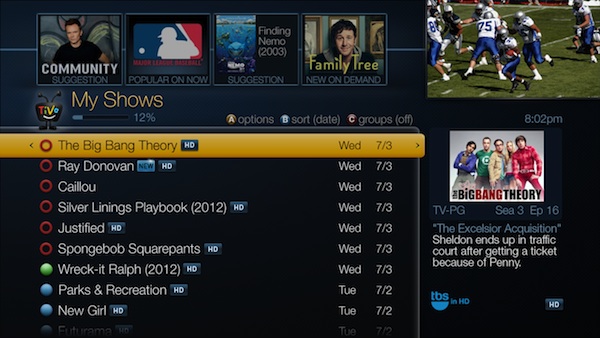
With Roamio, you get built-in access to Netflix, Hulu Plus, Amazon Instant Video and YouTube. On the Pro and Plus models, you'll also be able to watch both live TV and recorded programs via Wi-Fi on an iPhone or iPad when you're not home. (What you can watch with Roamio's out-of-home streaming service depends on your cable provider. With Time Warner, my local cable monopoly, I'm restricted largely to streaming programs on broadcast channels.)
Roamio's upgraded interface provides a far more expansive electronic program guide (EPG). You can see a lot more of what what's on at a particular time, stretching two weeks out instead of one. You also can scan two weeks of programming on a single channel with just a few clicks.

Since Roamio has built-in Wi-Fi, program searches not only show a program or movie's availability on TV but on other Internet-based content services as well.
I far prefer TiVo to my cable service, although I wish the TiVo remote let me also turn my A/V system on and off and had back-lighting for use in the dark.
Renting a cable DVR is a simple choice. Your cable supplier supplies a DVR box, for which you pay a monthly rental fee. If they improve the DVR box, you swap out the old one for the new one. If your DVR cable box malfunctions, they bring you a new one.
With TiVo, you must purchase the Roamio. If a new model comes out, you have to buy it. If your TiVo malfunctions, you have to buy a new one. And you still have a monthly service fee — $14.99 per month for the Roamio and $5.99 per month for the TiVo Mini. (There's also a lifetime membership: $499 for the Roamio and $149 for the TiVo Mini.)
But Roamio Plus and Pro essentially combine three pieces of gear — a DVR, a media streamer and an out-of-home streamer — at one price. Is that price the right value for you? You'll have to do some fancy math to compare TiVo to what your cable box costs, and then factor in the intangible but worthy TiVo benefits.
For the ultimate TV/DVR enjoyment, in my opinion, the TiVo system is well worth buying into.
]]>
Large Android tablets aren't enjoying as much attention or popularity as their 7- to 8-inch cousins right now. When most people think tablet, they think portable — and smaller tablets are easier to tote around due to their size and weight and because they're more maneuverable and easily fit into pockets and tiny bags.
Larger 9- to 10-inch tablets tend to stay at home, where their portability is still appreciated, just for different reasons. You can sit with these tablets in front of the TV, take them with you into the bedroom at night, and set them up in the kitchen. You can use them to watch streaming video, update social networks while you watch your big TV, listen to music, wake up in the morning, play games, surf the web and look up recipes.
Bigger Android tablets come with another bonus: They're great for productivity — better in many ways than the iPad. With Android, you have access to the file system just like on a computer, and you can transfer any type of file to the tablet from your PC, USB key or SD card (with the right dongle). Android's multitasking is more robust than the iPad's, and some manufacturers make that even better with pop-up apps or split screens.
The best Android tablets I've tested and reviewed address all of these needs with speedy performance, high-resolution displays, easy connectivity to accessories and other devices, well-curated apps, useful tweaks to the base operating system and a design that looks and feels good, with a dash of sturdiness as well. Very few of the dozens of Android tablets I've seen this year meet the majority of this criteria.
The large Android tablet that meets or exceeds all my requirements is the Sony Xperia Tablet Z.
Weighing a hair over a pound and measuring less than 0.3 inches thick, the Xperia Tablet Z is one of the lightest and thinnest 10.1-inch tablets around. If you're the type who wants a portable large screen tablet, this tablet is for you.
The design itself seems minimal but includes touches important for a tablet this size. The edges are just tapered enough for a comfortable hold, and the matte, soft-touch back feels good under your fingers while making the tablet easier to grip. The not-too-wide bezels around the display give you a place to rest your thumbs that won't activate the touchscreen.
Each of the ports that line the tablet's edges has a rubber cover — and this is the key to the Xperia Tablet Z's standout feature: It's waterproof. With all ports properly covered, you can drop the Z in a bathtub, use it out in the rain, or wash it off in the kitchen sink without worrying about damaging it. It's not usable underwater, but that's not the point. Sony wants you to be able to use the tablet in the kitchen without worrying about getting splashes of pasta sauce or goop on the display.
Kids love tablets, but they don't always love washing their hands before they start tapping and swiping. With the Z, you can rinse it all away.
The Xperia Tablet Z's display is full HD (1920 x 1080 pixels) and beautiful. It's a good screen for watching video, though that isn't the real reason to care about the high definition. Fonts stay crisp even at smaller sizes, which benefits reading and web surfing. And the Z makes a stunning photo frame when you're not using it as a tablet.
The tablet's insides are just as important as its outside. Sony paired a quad-core chip with 2GB of RAM, so the Xperia Tablet Z is not only fast but can handle running several apps at once. That becomes important when you start to use Sony's Mini Apps, which are apps that float on top of others to allow you to do more computer-like multitasking. Mini Apps range from simple apps like calculators on up to a mini browser.
Mini Apps aren't a feature you'll find on every other Android tablet. Though the Xperia Tablet Z runs Android 4.2 (Jelly Bean), extras like the Mini Apps are specific to Sony. Sony doesn't mess with how Android looks and acts on a basic level the way Samsung does, so the interface will look familiar to people who've seen and played around with Nexus devices.
Quad-core performance is key to the tablet's entertainment fun and productivity. The processor and graphics card make videos run smoothly, allowing high frame rates for gaming.
The Xperia Tablet Z is capable of multiple connections to other multimedia devices. DLNA technology allows owners to fling video from the tablet to a larger screen, for instance. And the NFC chip inside is designed to make pairing with Sony TVs, Bluetooth speakers, and other devices easy — just tap and you're connected. An IR blaster inside works with almost any TV, cable or set top box or media center device, so you can use the Z as the ultimate universal remote.
The Xperia Tablet Z's battery will last a day or two, depending on how heavily you use it, before needing to charge. If you're planning to take your tablet on a trip, you can watch video or play games for about eight to 10 hours before it conks out; there's a setting that will stretch the battery if you really need it.
The biggest drawback to the Xperia Tablet Z isn't even Sony's fault: lack of good tablet apps. The tablet can run almost any Android app; there just aren't many made to take advantage of a large screen. You end up with apps that stretch out instead of using the space natively.
Still, this isn't as huge a deal as some reviewers make it out to be. And Google is pushing developers to updates apps to alleviate this problem.
The Z's charging connector requires very precise seating. Bumping the tablet might cause it to stop charging, and this issue makes the tablet almost impossible to use while connected to power unless you invest in a cradle.
A few reviewers have mentioned weak Wi-Fi signals, despite a dual-band a/b/g/n card inside. I didn't experience this while testing my review model, so it may be a problem that only affects some units.
Issues with the Sony Xperia Tablet Z are relatively minor, so it's not a surprise that reviewers rate the Z as one of the best Android tablets available.
The thin and light design impressed Engadget's Mat Smith, even though he assumed the corners and thin profile would "prove uncomfortable." Instead, "the lightness actually ensures that it's perfectly comfortable to hold in both landscape and portrait." David Pierce of The Verge said that "more than any tablet I've ever used, holding the Tablet Z feels like you're just holding a screen."
I have to agree with Alex Dobie's assessment that the place where the glass over the display meets the chassis is a "magnet for dust and lint" due to the "millimeter gap between the screen outer edge of the chassis." In his Android Central review, he did note that the outer exoskeleton is supposed to absorb the impact from minor tumbles.
Even though the Tablet Z doesn't have as high a resolution display as the Nexus 10, it still got high marks from Eugene Kim at PCMag. "The display ... features inky blacks that give AMOLED panels a run for their money, without the blue tint to whites." CNet's Eric Franklin found that "images are richer and faces in movies look more lifelike than on the Nexus 10, despite its screen's higher pixel count." Pixel count isn't the only measure of display quality, as Sony proves.
I noted smooth performance during my testing, as did most reviewers. Laptop's Mike Prospero was "able to move easily through battles and blast baddies with no dropped frames or freeze-ups." "From rapidly switching between multiple running apps to playing graphically intensive games like Real Racing 3, the Tablet Z handled everything we threw at it easily," says CNet.
There are mixed feelings about the 8-megapixel camera on the rear. CNet says that the Xperia "fails to produce nice-looking shots in low light," despite promises from Sony. I found this to be true in my tests as well; the camera doesn't have a wide dynamic range, struggling in both bright sunlight and dim indoor spaces. Even in balanced lighting, AC's Dobie observed that "there's a lot of noise reduction being done to shots before they're saved, meaning there’s not much fine detail to be had."
The front-facing camera is high enough quality for video chats and "produced better images than the main rear-facing cameras on other tablets did," according to Laptop.
Most reviews peg the $500 MSRP as being high for an Android tablet, especially one with 16GB of internal storage. I disagree. While $500 is a hefty price, it's not out of line with what the Xperia Tablet Z offers in performance, design, build and features. The 16GB Wi-Fi iPad Air is the same price and can't boast a microSD card slot for expansion, NFC, easy compatibility with TVs and other media devices (without the purchase of extra equipment) or this level of multitasking. Sony justifies the price with features and hardware that deliver.


The newest contender for best Android tablet is the Samsung Galaxy Note 10.1, 2014 edition. This is the second generation of the large-screen Galaxy Note, and it has many of the same virtues as the Xperia Tablet Z.

The new Note is light and slim with a comfortable, holdable design. It has a beautiful high-resolution display (higher than the Tablet Z's) plus tweaks to make Android more useful. It adds even more useful multitasking and high-end stylus input.
The new Galaxy Note costs only $50 more than the Xperia.
What stops the Galaxy Note from being my top pick is overall performance. There's a quad-core processor inside and even more RAM, yet the Note stutters or is sluggish often enough to be noticeable and frustrating. This same issue cropped up on the first generation tablet, too, but eventually went away after software updates from Samsung. Updates have come through since launch, and performance is better and will hopefully keep improving.
If the software and performance issues get worked out, the only major advantage the Note will have over the Tablet Z is the stylus input. This feature is a big deal for the people who use and love it. If you don't see much use for a pen on your tablet, then there's no compelling reason to choose this tablet over the Tablet Z. But if you love the pen, the Note 10.1 is definitely worth considering.


The new Kindle Fire is a good choice for kids and tweens thanks to the FreeTime app, which gives parents control over when and how their children use the tablet. Speedy performance and a beautiful screen make it a great media and gaming tablet, something else young people will like. And parents who aren't quite as tech-savvy will appreciate the Mayday feature that gives one-tap access to help from a live person over video chat.

However, the Fire HDX is not my pick as a good all-around tablet, since the tablet is locked to Amazon's ecosystem. You can't get apps from the Google Play store, limiting you to Amazon's far less-populated app store. The same goes for e-books and digital video content. However, if most of your media comes from Amazon anyway, then the Fire HDX is a great way to consume and buy it.


Soundbars are the easiest way to get better sound from your TV. Most of them are comprised of a single, slim speaker that sits under the TV and a wireless subwoofer you can put wherever you have room for it. Simple enough? There’s even more good news: Most soundbars cost less than $300.

While you can get a great soundbar for under $300, you only get so much sound system for that price. What if you want something a little better —and you’re willing to pay for it? Thanks to a new generation of soundbars built to higher standards, well-heeled soundbar buyers now have more options. These new soundbars cost anywhere from $300 up to about $750, and most offer features you can’t find in under-$300 soundbars.
But do high-end soundbars really sound better than the inexpensive ones? I tested just shy of 50 soundbars and solicited opinions from and researched reviews by other audio experts. While a few of these higher-end soundbars offer appealing combinations of features and performance, my pick is the JBL Cinema SB400 at $549.
Right away, you'll notice that the 2.5-inch Cinema SB400 is slimmer than most of its competitors. But it’s no lightweight. Even in my large, 350-square-foot living room, the SB400 has plenty of power to play action movies at loud volume without sounding strained or distorted, as many less expensive soundbars do. Voices sound much clearer than they do from most soundbars I’ve heard, and the SB400’s Harman Display Surround Technology produces a big, enveloping surround sound effect without ever sounding gimmicky or unnatural.
But the most notable selling point of the SB400 is its included subwoofer. It has an 8-inch woofer cone, as compared to the 6.5-inch cone of most soundbar subwoofers, and a 200-watt amp that delivers double the power of a typical soundbar sub. In my tests, it delivered an average of 5.4 more decibels of bass power than the next best competitor.
What does that mean to you? A more realistic, captivating sound that’s closer to the effect of a full home theater. The SB400 even has enough power to shake your chair a little. (Don’t worry, you can always turn the subwoofer down if the neighbors complain.)
The SB400 also adds an HDMI input, something found on few (if any) inexpensive soundbars. The HDMI input lets you connect the SB400 to your TV with a single inexpensive HDMI cable. If you use the HDMI connection, the SB400 works more or less like part of the TV. The TV’s remote will control the volume and mute on the soundbar, and it will all work automatically with no programming required. If your TV has Audio Return Channel (ARC) — and most TVs made in the last few years do — the sound from your TV and all the devices connected to it will be automatically routed into the soundbar.
What if you have a 10-year-old TV without HDMI? No problem. The SB400 can “learn” the commands from your TV remote. That’s important, because the SB400’s little credit-card-sized remote is one of the unit’s only downsides.
As with most new soundbars, the SB400 incorporates Bluetooth wireless technology so you can stream music, Internet radio, Pandora and so on from your smartphone, tablet or laptop computer.
The sound of the SB400 isn’t perfect, but no soundbar is. I thought it sounded just a tad too trebly.
Fellow audio writers Geoff Morrison and Lauren Dragan, who recently helped me out with a soundbar shootout for Sound & Vision magazine, agreed that the SB400 sounded great, if just a little too bright in the treble.
There’s probably no other soundbar that’s been so enthusiastically reviewed. British mag What Hi-Fi? gave it 5 out of 5 stars. In the 24 user reviews posted to date on retail site Crutchfield.com, the SB400 averages 5 out of 5 stars. Among Amazon.com’s 21 user reviews, it averages 4.5 out of 5 stars. Men’s Journal called it “a solid choice in a sub-$600 system.”
It’s hard to think of a feature I’d want to add to the SB400. Some soundbars offer multiple HDMI inputs instead of the SB400’s single HDMI input, which might come in handy if you want to plug all your sources (video game system, cable box, Blu-ray player, etc.) into the soundbar, then run a single HDMI to the TV. Personally, I prefer to connect everything to the TV, then run a single HDMI to the soundbar.
Also, if for some reason you insist on using the soundbar’s remote to control the soundbar, you’ll likely hate (and possibly lose) the little credit-card-sized one JBL supplies.
[EDITOR"S NOTE 6/29/15: The price of the JBL SB400 has come down to $499 on Amazon.]


Scoring a good laptop for $500 or less used to mean waiting for Black Friday or buying a netbook or other low-powered machine that chokes when asked to go beyond basic tasks. Now there are a number of decent laptops available at this low price.

But when I reviewed laptops for the Best Under $500, I wanted something more than decent. I wanted speedy performance, an operating system without unnecessary restrictions, a quality display, decent battery life and a chassis that isn't too heavy or chunky relative to the size.
Among the most impressive budget laptops available right now, the Dell Inspiron 17 fits those criteria best. Available in multiple configurations, the $448 (at the time of this writing) model with Intel’s third generation Core i3 processor provides that balance of power and price.
With sub-$500 laptops, the most important aspects to focus on are hardware quality and performance, since this is where you should compromise least.
Like almost all notebooks in this price range, the Inspiron 17 has a plastic chassis, not a metal one. This isn't the most premium material, of course, but the Inspiron doesn't feel cheap or poorly made. And for a budget laptop with a large 17.3-inch display, it’s surprisingly sleek at 1.17 inches thick and relatively light at 5.8 pounds. Most desktop replacements weigh at least 6 pounds, usually closer to 7. If you want a big screen plus a thin and light design, you’ll have to seek out much more expensive notebooks.
The Inspiron 17's size has another benefit: plenty of full-size ports and an integrated optical drive.
Dell often delivers comfortable keyboards with springy keys and plenty of space between them; the Inspiron 17 is no exception. Due to the size, you'll get a full number pad on the right. The touchpad is spacious and responsive, so pulling off multitouch and Windows 8 gestures doesn't require effort; important on a laptop without a touchscreen, since it makes navigating Windows 8 easier.
Though it does not come with touch capabilities, the 17.3-inch display is still impressive. The 1600 x 900 pixel resolution is high for a budget system; most only offer 1366 x 768, while on a more expensive machine I’d expect full HD 1080p at this size. The pixel density is just enough for fonts to stay crisp and to take good advantage of the screen real estate.
Touchscreens aren’t unheard of in the sub-$500 market, but they tend to be smaller due to the expense. If touch is a necessity, check out the alternative below.
The Inspiron’s performance prowess depends on which model you choose. There are multiple configurations of the Dell Inspiron 17 available, but only one that I recommend for the budget-minded.
That configuration is the $448 model with an i3 processor, 6GB of RAM, Intel HD graphics and a 750GB hard drive. With these internals, the Inspiron 17 is powerful enough to handle dozens of browser tabs, HD video, large spreadsheets and documents, multitasking, games played on lower intensity settings and even light video editing.
The energy-efficient processor and user-replaceable, six-cell battery combine to offer around four to five hours of battery life. That’s not stunning, but it's quite good for a desktop replacement.
An even less expensive $399 configuration is available with an Intel Pentium processor, a chip found inside many budget laptops lately. I don't recommend this for several reasons: It’s much slower, comes with a smaller battery and has less powerful graphics. You'll get much better value if you spend $100 more.
Other reviewers rate the Inspiron 17 highly, too, with both Laptop Magazine and PCMag giving it four out of five stars.
Sherri L. Smith of Laptop Magazine says the Inspiron delivers "solid everyday performance" and can easily "juggle mainstream tasks with ease, such as social networking and light productivity tasks." Laptop also likes the overall aesthetics, saying the Inspiron "doesn't look cheap."
PCMag's Joel Santo Domingo praised the diamond-cut texture on the lid, since it "makes the system easy to grip when you're toting it around the house." Of the keyboard, PCMag notes that the "non-backlit, chiclet-style keys are comfortable to use and feel better than the sometimes spongy ones on other budget systems."
Both agreed with me about the responsive touchpad, a key feature in any laptop.


The Inspiron 17 is a larger laptop, which not everyone wants, even if it is light for the size. If that's a deal-breaker, Dell offers a good alternative in the Inspiron 15.
Here you'll find many of the same features that make the Inspiron 17 great, such as an attractive and not too heavy design (5 pounds), comfortable keyboard, and powerful configuration options that aren't too expensive.
There’s even a touchscreen config available for $479.99 on Amazon, though you only get 4GB of RAM and a 500GB hard drive. That may be an acceptable trade-off for people who want a laptop they can carry around more easily.
]]>
The Kindle Paperwhite eReader from Amazon tops today's eBook readers with the best features with the best pricing. For all those positives, it may not take top spot by as wide a margin as some reviewers opine. We compared today's top gray-screened tablets that use metallic "ink" (E Ink) under their 6-inch screens to form letters and images.

The Paperwhite, the Kobo Aura and Aura HD, and the last-generation Nook from the struggling Barnes & Noble (which is reportedly due for an update for the holiday season) employ front lighting, the high-tech equivalent of shining a light on the screen. This front light makes the screen glow nearly as brightly as a tablet's LCD but with none of the eyestrain, creating much deeper contrast that renders text easier to read. All these eReaders also offer Wi-Fi to connect to their manufacturers' companion online eBook stores.
What's so great about the new Amazon Kindle Paperwhite, compared to the Aura or the Nook?
Thanks to a processor that's 25 percent more powerful than the last-gen Paperwhite, the new Paperwhite turns pages and navigates through menus and searches noticeably faster than either Aura or the Nook. You'll find little of the lag usually experienced with other eReaders.

The Paperwhite's touch sensitivity is more responsive. You rarely have to touch anything twice, things you touch react more quickly, and you can scroll up and down through tables of contents and other menus. (On other eReaders, you can only swipe screens and pages right or left.) By contrast, the new Kobo Aura in way too touch-sensitive; pages often turn simply when you pick it up.
Even though both the Paperwhite and the Aura offer 212 pixel-per-inch resolution, 16 levels of gray and nearly identical resolution (Paperwhite: 1024 x 768 pixels, Aura: 1014 x 758 pixels), text and images are darker and sharper on the Paperwhite.
The Paperwhite's higher contrast comes courtesy of a new E Ink screen technology called Carta, which also accounts for Paperwhite's smoother page turns compared to the Aura, which uses the older Pearl E Ink technology.
On the Paperwhite, you can easily flip back and forth between sections, such as a map at the front of the book and the point at which you're reading in the text.
All eReaders offer an integrated dictionary. On the Paperwhite, you can look up phrases and proper names in addition to individual words. You also get access to Wikipedia (assuming you're reading in a Wi-Fi zone) and, in newer books, you get Kindle X-Ray, which provides expanded word, name or phrase information along with other in-book locations associated with the term, person or character you're curious about. To build your vocabulary, you can also access a list of words you've looked up.
The new Paperwhite retains the previous version's soft-coated enclosure, which makes it easier to grab and grip without it slipping while one-handed reading.
The Paperwhite's advantages are extended by Amazon's network of features and services. For instance, when you order a book on Amazon's web site, you can have it beamed directly to your Kindle.
The Amazon Kindle store offers not only books but magazines and newspapers, both which are lacking in Kobo's bookstore.
And later this month, Amazon will launch Kindle MatchBook — if you've bought a new physical book from Amazon, you'll be able to buy the Kindle version for $2.99 or less.
In short, Kindle offers more reading and support pluses than any other eReader.
Every reviewer I've run across has proclaimed Amazon's new Kindle Paperwhite as today's best eReader. "It's the best ebook reader on the market," says Jamie Lendino of PC Magazine.
"[B]etween the Kindle's great UI, Amazon's impossible-to-beat content selection and the price difference … the new Paperwhite is already an extremely well-rounded choice," says Brian Heater at Engadget.
The headline on Lance Ulanoff's review at Mashable screams "Amazon Paperwhite Is the Best Digital Reading Experience Money Can Buy." Ulanoff notes the new Paperwhite is "now virtually unmatched in performance and usability."
"The Paperwhite's slight shortcomings are mere quibbles on what's still the best overall e-ink eReader currently available," notes my buddy David Carnoy at CNET.
"Amazon won the ebook reader war.…There isn't even viable competition at this point," lauds David Pierce at The Verge.
Best of all, the Paperwhite is the cheapest of the front-lit eReader bunch.
You can buy the Paperwhite with "special offers" — ads to you and me, or unobtrusive notices on the sleep splash screen — for $119 or sans ads for $139. Kobo's Aura is $150, and the beautiful, high-resolution 6.8-inch Aura HD is a whopping $170, more expensive than a growing number of more functional 7-inch tablets.
The current Nook Simple Touch GlowLight is discounted to $79 from $99, which is a great deal. But again, this Nook is last year's technology, and Barnes & Noble's future is cloudy.
Amazon doesn't simply hold a price advantage on hardware — it also has lower eBook prices. For instance, all the fiction and nonfiction nominees for this year's National Book Awards were all equal to or less expensive on Amazon than the prices on Nook, Kobo or even Apple iBooks, which doesn't have a web-based store (bizarrely, you can only buy iBooks through the iBooks iOS app).
Considering its reading and support advantages and the pricier alternatives, Amazon's Kindle Paperwhite eReader is the best and best value of the eBook bunch.


Kobo's new Aura may actually be a better choice for many folks, primarily because of its size and reading options.


Aura is three-quarters of an inch shorter than the Paperwhite, allowing it to be more unobtrusively carried in outerwear pockets and fit better into small purses. At 6.1 ounces, the Aura is also slightly lighter than the 7.3-ounce Paperwhite. Combined with its smaller size, that makes it easier to hold more comfortably in one hand for longer periods.
The front light on the Aura is slightly brighter and whiter than the Paperwhite's, improving text-to-screen contrast and overall readability.
Aura also offers more font customization than Kindle. For instance, you can choose from a dozen text fonts on the Aura, compared to just seven on the Paperwhite. The Aura also lets you adjust font weight, font size, line spacing, margins and sharpness on sliding scales to create precise reading comfort, in contrast to the more limited fixed settings of the Paperwhite. You can also choose from one of three page-turn touch zone patterns on the Aura to accommodate left-handed and one-handed reading; Amazon pretty much assumes you're right-handed.
It's also available with a lovely pink back.
If the Aura were more competitively priced, a choice between the Aura and the Kindle Paperwhite would be much tougher.


EDITOR'S NOTE 7/25/14: We plan to update this story soon after reviewing the newest models. In the meantime, see our notes below for exceptional deals on the Samsung PN51F4500 and other Vizio options to consider.

While it’s incredible how inexpensive a TV can be these days, the pickings at $500 or less get pretty slim. Sure, there’s plenty of product at that price, but none that gets glowing reviews. Picture quality tends to be compromised, and the feature sets are usually Spartan.
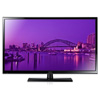

After a lot of digging, we finally found a couple of TVs that are safe to recommend. One is a relatively large, 51-inch model with excellent picture quality. The other is a 42-inch model that includes Internet connectivity and smart TV features, both rarities in this price class.
The best $500 TV? The Samsung PN51F4500, a 51-inch plasma TV that just barely limbos under our $500 bar by selling on Amazon for $497.
There are two solid reasons to choose this TV: It’s 51 inches, and it’s a plasma TV.
The PN51F4500 is 10 to 12 inches larger than most of the LCD TVs in this price range. With a 42-inch set at a normal viewing distance of 10 feet or so, you feel like you’re watching TV. With a 51-inch set at the same distance, the picture is more enveloping and more theatrical — not theatrical, just closer to theatrical. Base your Super Bowl party around the PN51F4500 and you’ll have enough picture to entertain a half-dozen people, easy.
Experts agree that plasma TVs deliver a substantially better picture than all but the very best LCD TVs. You notice the difference immediately in the dark parts of the picture, where most plasmas deliver deeper, darker, more realistic blacks and dark grays than most LCD sets can. Plasma TVs also typically offer a wider viewing angle and don’t suffer from the motion lag that can cause distracting blur when you’re watching sports.
At the time of this writing, the PN51F4500 had earned a 4.4-star rating from Amazon.com users. The only professional reviewer who has evaluated it is Geoff Morrison, who wrote about it for CNET and The Wirecutter. His conclusion? “If you’re looking for the ‘best bang for the buck,’ this is unquestionably it.”
When CNET’s Ty Pendlebury reviewed the PN51F4500’s very similar predecessor, the PN51E450, he noted, “Samsung's E450 performs like a TV hundreds of dollars more expensive. The Samsung had the deepest black of all the plasma TVs at its price, and shadow detail was very good as well.”
The great-looking 51-inch picture is pretty much the only feature you get with the PN51F4500.
The PN51F4500 is about as bare bones as TV sets get. It has only two HDMI inputs, which isn't enough for many people. Imagine you have a cable box and a Blu-ray player — where do you connect your game console?
This TV also lacks Internet connectivity and smart TV features. Yes, you can add those functions from a Blu-ray player, a video game console or outboard boxes such as the Roku LT. But that may mean another box you have to hook up and another $50 you have to spend, and it definitely means another remote to deal with.


EDITOR'S NOTE 7/25/14: The price on Amazon has changed since this review was written. Best Buy now has the PN514500 on sale $379.99. That's a fantastic price for this much TV.
Most people focus on price and picture quality when choosing a TV. But the new generation of Internet-connected smart TVs has some viewers looking beyond the pretty picture. The E420i-AO LCD TV’s Vizio Internet Apps access numerous Internet streaming services including Netflix, Amazon Instant Video, Hulu Plus, Vudu, YouTube and Pandora. Wi-Fi is built in, so as long as you have a Wi-Fi network and broadband Internet, you can stream Internet video with no extra hookup required.
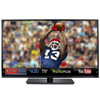
Even though the E420i-AO’s local dimming enhances contrast by reducing the brightness of the LED screen backlight in dark parts of the picture, the picture quality has earned just middling reviews. Digital Trends commented that “the image never looked as vivid with dimming engaged” but concluded, “The E420i-A0’s solid picture quality, usable on-board audio and impressive smart TV interface make it a product we’d be happy to have at the center of our home theater.”
CNET lodged the same complaint but summed up its review on a positive note: “… the E0i series is able to generally outperform other LCD TVs in its class — and quite a few more expensive models.”
For a smart TV, though, the Vizio E420i-AO is the way to go.
EDITOR'S NOTE: 7/25/14: The new E400i-B2 is an updated model with a slightly smaller 40-inch screen and a much lower $398 price on Amazon.


]]>

Even though it took Apple three years to release a mini version of its popular iPad, tablet buyers have gravitated to small tablets from the beginning. Tablets with 7- or 8-inch screens are easier to hold in one hand and to hold for long periods of time. They're easier to pull out and use in crowded situations and more maneuverable for small hands.
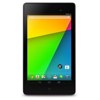
Another bonus: Smaller tablets tend to be less expensive.
Don't mistake low price for limited functionality. The Nook tablets and Kindle Fires may have started the low-price tablet trend, but these days some of the most powerful tablets available are the smallest. And they don't skimp on the features you want: cameras, Bluetooth, GPS, and high-definition displays.
In the past few months, I've tested and reviewed several 7- and 8-inch tablets, many of which are good picks. However, the best of them comes right from the source of Android itself. The second-generation Google Nexus 7 ($229) is the best small-screen tablet on the market.
With small tablets, design and weight are two of the most important factors. The Nexus 7 is thinner, lighter and more solidly built than its first generation version (released in 2012). It isn't too wide to wrap your hand around and won't weigh your arm down during hours of reading. The Nexus 7 is good looking without being flashy, drawing all attention to the display on the front.
The next important element: the screen. You want a display that's bright with rich, true-to-nature colors and crispness. That last feature often depends on display resolution and pixel density, and the Nexus 7 has that covered big-time. This is the only 7-inch tablet with a full HD 1920 x 1200 screen. This translates into a high 323ppi pixel density, keeping graphics sharp and fonts crisp even when they're small. You don't need this high a resolution to have a good viewing experience. However, this isn't one of those features that just looks good on paper. It makes a real difference when using the tablet.
Final crucial feature: speedy performance. Tablets are no good when they lag and take forever to open apps and load web pages. The Nexus 7's powerful hardware can handle complex apps, multitasking and high-performance games without choking. Even simple things like navigating the operating system or flipping through pictures are impressive on the Nexus. If you like playing graphics-heavy games, you won't have to worry about stuttering or unresponsiveness. When watching HD video, you won't see dropped frames.
Tablets should also offer enough power to get you through the day with on-and-off use and manage at least a cross-country flight while watching video or playing games. The Nexus 7 fits that bill. It doesn't have the longest battery life in this class, but it will make it through the day with medium to heavy use.
The Nexus 7 was the first device to run Google's latest version of Android, Jelly Bean 4.3. Like other Nexus devices, this tablet will get upgrades to new Android versions sooner than most others. Getting new features and functionality first might not be your top priority, but it will keep your Nexus 7 current and usable for longer. Android 4.3 is a smooth and user-friendly operating system, moreso than some past versions. It's the only version to include Restricted Profiles, a feature that makes it possible to set some limits on a profile — for instance, restrictions on apps.
Aside from the must-haves, the Nexus 7 includes several other important features. The wireless radio is dual band (2.4GHz and 5GHz) to take advantage of speedier connections where available. Models with baked-in LTE connectivity are also available. Bluetooth 4.0 LE allows for connections to low-power accessories like heart rate monitors and smartwatches without draining much power. NFC is a nice addition, especially now that many accessories use it to make pairing easier. The Nexus 7 can charge wirelessly. And this generation has a camera on the front and back.
This model of Nexus 7 addresses several issues found in the last one, but not all. The biggest letdown is that there is still no microSD slot for expanding the internal storage. For this reason, many reviewers suggest getting the 32GB version for $270. Google intends Nexus owners to rely on the cloud, and that's not always possible or desirable.
Another design issue is that the thin bezels on the long sides of the Nexus don't offer much room for resting your thumbs in portrait mode. Some reviewers found this to be a bigger problem than others.
It would be nice if the rear camera (new to this model) was better. It has some uses, and the pictures it producers aren't completely terrible. It just seems odd to add a camera at this low level of quality. Price isn't the whole issue — after all, the Memo Pad HD 7's camera is better.
Reviews for the Nexus 7 almost uniformly praise the screen. "This is one of the best displays available on a tablet today," says Android Central. Engadget points out that the screen is a "much better canvas for playing games or watching movies" than the original, thanks to "more natural colors."
The Nexus 7's overall design scored well with most reviewers. SlashGear feels that while the Nexus 7 is "not quite as premium in the hand as Apple’s iPad mini ... neither is it embarrassingly behind." Android Central is more positive, saying that the "overall improvement in materials and craftsmanship ... is immediately apparent when you pick it up for the first time," praising the Nexus 7 for the "premium vibe" it gives off.
The one design flaw reviews consistently called out is the Nexus 7's lack of a microSD card slot.
Reviews are mixed on the rear camera. LaptopMag found the outdoor shots "generally very good," but Engadget says that the camera "couldn't reconcile shadows and highlights at the same time" in both indoor and outdoor testing. Android Central says the same: "Even in great light, the Nexus 7 struggles to properly meter and adjust for points of very high or low lighting."
However, tablet cameras are rarely very good and shouldn't be your first choice for snapping pictures or capturing video anyway. PCMag put the Nexus 7's camera in perspective, saying it "will do just fine for augmented-reality apps, bar code scanners, language translators and all the things you really should be using a tablet camera for."
Reviewers were happy to see the introduction of Restricted Profiles, especially for families sharing a tablet. However, LaptopMag pointed out that while it's "a good step toward enabling parental controls ... [FreeTime on] the Kindle Fire HD is better."
Each outlet put the Nexus 7 to different tests, and the overall result is the same. The tablet is "quick, smooth and responsive," says Android Central. Engadget and LaptopMag both specifically praised the graphics, the former saying "ASUS has definitely taken the graphics up a notch" and the later noting the "greater detail and effects within games."
The Nexus 7 stands at the top of the heap, but other small tablets that offer one or two things Google's tablet doesn't are also worthy of consideration.
From the same manufacturer as the Nexus 7 comes the very inexpensive ASUS Memo Pad HD 7 ($149). That low price plus solid performance and great display make it the best choice for the budget conscious, but not the best choice overall.
A 7-inch size used to be the default for small tablets. These days, 8 inches is more in style, and not just because of the iPad Mini. The Samsung Galaxy Tab 3 8.0 shows how that extra inch can make a big difference. You get more screen real estate for reading magazines, web pages, emails and so on, without adding too much bulk. The Galaxy Tab 3 is still narrow enough to wrap a hand around, very thin and still quite light. However, you will pay a premium for the extra space; this tablet costs $300.
Samsung makes one other 8-inch tablet, the Galaxy Note 8.0. This tablet also has a premium price ($360) but justifies it with functionality few other tablets have. The Note comes with an active digitizer pen, perfect for taking notes, drawing and other pen-specific activities. I recommend it most often for students, since using the tablet pen offers an experience similar to using a normal pen on paper while adding the convenience of digital note-taking such as search, tagging and handwriting recognition.
Though the Galaxy Note 8.0 is quite a bit more expensive than the Nexus 7, it's worth it if the pen technology is the main draw.
The new Kindle Fire HDX is the same price as the Nexus 7, with a display that matches or exceeds it in quality (depending on which reviewer you ask). It has the same high resolution, which is useful for the same purpose — crisp fonts for reading and a great video watching experience.
However, the Kindle Fire HDX's main drawback is the same as previous versions of the Fire: It doesn't have access to all the Android apps in the Google Play store, only those available from the more limited Amazon's app store. Plus, the user interface isn't as customizable as other Android tablets. Because Amazon's parental controls are far more comprehensive than what you get on the Nexus out of the box, I would recommend the Fire HDX over the Nexus 7 if you intend to give the tablet to a child.
The Nexus 7 is available in three configurations:
I suggest buying one of the 32GB versions. With no microSD card slot, you'll need the extra space for music, videos, and pictures.


The ASUS Memo Pad HD 7 is just $150, and that's its major selling point. I wouldn't recommend it simply on the price — after all, many poor quality tablets cost about this much or a little more. What's special about the Memo Pad is that it's so good for so little money. ASUS manufactured the new and original Nexus 7s, so it's no surprise that the Memo Pad looks almost exactly like the first-gen Nexus and has the same great display.
You won't get unadulterated Android here; ASUS put a user interface skin on top that adds some useful functionality. This tablet's performance is a bit better than the first Nexus, and it has a microSD card slot to expand storage. The rear camera is more impressive than the current Nexus 7's and does a better job shooting video.
Overall, the Nexus 7 is a better tablet. But if your budget is very tight, the Memo Pad HD 7 is the best tablet you can buy in this price range.


LG has been making Android phones as long as most of the other big players, yet only recently has the company introduced one that didn't elicit more than a "meh" from reviewers and consumers alike. After dozens of underwhelming LG smartphones, the Optimus G is a refreshing surprise.
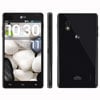

This phone might not wow you with looks, but it will impress with speed, performance, a beautiful, quality display, and a good user experience. Released last year, the Optimus G is now available for free on Sprint with a two-year contract. I had no trouble recommending it at the full price back in January — and for nothing down, it's a great deal.
A blocky, angular design makes the Optimus G look less holdable than it actually is. The edges have a comfortable, rounded curve to them, so the phone doesn't feel like a slab in your hand. It helps that LG minimized the bezel around the 4.7-inch screen so the phone doesn't come off like a phablet. Overall, the device is light and comfortable to hold.
The display's 1280 x 768 resolution means text is crisp even when fonts are small, and HD videos look great. It's bright with wide viewing angles, so you'll get the same experience no matter how you hold the phone.
The 13-megapixel camera takes good outdoor shots but struggles indoors and in low or mixed light. The camera app contains a wealth of settings and functions to help make pictures even better, especially if you know what you're doing.
The Optimus G is filled with tweaks to the stock apps that come with all Android phones. Like Samsung and HTC, LG created a skin/user interface that sits on top of Android 4.1 Jelly Bean and adds extra features. LG's skin is a little overloaded, as if the company went with a kitchen sink approach to features. Some of the additions make Android easier to use, while others just get in the way.
Though this is a year-old phone, the Optimus G's performance remains good enough to carry most users through a two-year contract. A quad-core processor and 2GB of RAM run the show. That means the phone is more than fast enough to handle basic Android apps and makes a good platform for high-end games. You'll have plenty of room for them with 32GB of internal storage.
The Optimus G is 4G LTE-capable. Sprint's LTE coverage isn't as widespread as the other major nationwide carriers. If you don't live in an LTE area, the phone falls back on 3G. Other wireless connections: b/g/n Wi-Fi, Bluetooth 4.0, GPS, NFC and mobile hotspot capabilities. The battery can last all day with medium to heavy usage without any power-saving tweaks.
The Optimus G garnered a ton of praise when it first launched. PCMag's Alex Colon called it a "beautiful, powerful phone" with a great display that makes it "a good device for media playback." He dinged the phone for some overheating issues and lack of a microSD slot.
Myriam Joire of Engadget didn't dig the aesthetics, but did say that the Optimus G's build quality is "superb — it's like holding on to a solid block of technology." CNet noted that the Optimus G is "pleasant-looking and functional" but won't be caught "pushing boundaries, defining your personality, or wowing you with standout machining."
Joire also loved the "top-notch" display, calling it "bright and crisp, with deep blacks and rich colors." "This beautiful screen did not disappoint," noted CNet, "giving bright and crisp edges and vivid, appealing color."
Looks aside, "under the hood is where the Optimus G really shines," Joire says. "[It's] a performance beast."
Overall opinions are mixed on the user interface. CNet felt that LG did a good job injecting functionality "without imposing too much of its own personality," but "it's not as sleek and elegant as Google's vision of the OS." Engadget says the UI is "intuitive, customizable and offers a full range of settings."
The Optimus G's 13-megapixel camera is better overall than the 8-megapixel camera on the AT&T version of the phone. Both Engadget and CNet agree that low-light performance is "generally excellent."
User reviews for the Optimus G on GDGT.com are very high, with most owners citing the display and performance as highs and the camera and battery life so-so.
At $50 or less, the Optimus G's biggest competitor for your affection is another year-old phone: the one-cent Samsung Galaxy S III. This phone's 4.8-inch display is beautiful, and the size offers a nice balance between a big screen and one-hand usability. The dual-core performance is speedy enough for most non-game apps, but it's just not as powerful or future-proof as the Optimus G.
Samsung's additions to Android's features make the operating system easier to use and feel more well thought-out than LG's. Its 8-megapixel camera isn't quite as good as the Optimus G's camera. A small but important advantage on the S III's side: This is such a popular phone that you won't have trouble finding accessories and cases for it.
If you're shopping for an inexpensive phone for a tween or teen, consider the $100 on contract Kyocera Torque. While not as inexpensive as the Optimus G, it's a good choice for young ones who aren't always careful with electronic devices. Parents can avoid the pain and tears of cracked screens or waterlogged ports with this rugged phone, which can withstand impact, water submersion and dust like a pro. In fact, Kyocera brags that the Torque is tough enough for outdoor adventurers, too. It doesn't have the fanciest display, nor is it super fast. It does offer great call quality and battery life.
I was a fan of the LG Optimus G when it cost $200 on contract. Now that it's free, it's a much better deal. The performance is good enough that it will still run power-hungry apps well two years down the line. That's why it's my pick for best budget Android phone for Sprint.


Flagship Android phones like the Galaxy S4 and the Moto X get most of the attention from consumers and reviewers like myself, but high-end smartphones aren't the only worthy models in existence. Shoppers on a budget don't have to settle for a low-value, cheaply made phone.
Of the hundreds of smartphones I've reviewed, very few that come in at $50 or less have impressed me. The Pantech Discover is one that did. Available on AT&T, this phone has all of the qualities you should look for even when shopping for a more expensive smartphone: large, bright display, speedy performance, long battery life and great audio. That's why it's my pick for best budget Android phone for AT&T.
The Discover's long list of good qualities starts with its overall design. The back's contours look as great as they feel. Between the curves and the texture, the Discover sits comfortably in your palm without slipping.
The speakers are immediately noticeable and represent the best part of the Discover's design. Not only do they they look cool, but they actually sound good. Audio quality on small devices is never the best, but aside from the HTC One, the Discover produces some of the best sound I've heard on a smartphone. The speaker placement means sound won't get muffled if you place the phone on a table or your leg while taking speakerphone calls or listening to music.
The Discover's 4.8-inch display is bright with popping colors and decent viewing angles. The 1280 x 720 resolution means that text is crisp even at small sizes and you can use this phone to watch HD content. Though the display is on the bigger side, the phone itself doesn't feel overly large or awkward.
The hardware driving the Discover meets specs similar to last year's phones, just a bit more powerful. The dual-core processor and 1GB of RAM are fast enough for almost any app in the Google Play store with the exception of high-end games. With 16GB of internal storage plus a slot for a microSD card, there is plenty of room for apps plus media.
The Discover is LTE-capable and falls back on HSPA+ 4G when not in LTE range. Also on board: a/b/g/n Wi-Fi, Bluetooth 4.0, NFC, GPS and mobile hotspot capabilities. You won't have to worry about battery life, as this phone will last up to 15 hours — longer with power-saving tweaks.
More megapixels don't always mean a better camera. The 12.6 megapixels on the Discover may seem impressive when compared to the Samsung Galaxy S III's 8 megapixels, but the picture quality is actually about the same. Images are good enough for sharing online, though not crisp enough for printing.
The biggest drawback to the Discover is that it runs Android 4.1 Jelly Bean, which is now two versions behind the current release. Even if it doesn't get any further updates, you still get a full feature set. Pantech added a skin/user interface over Android that makes the phone easier to use if you're unfamiliar with Android or aren't very tech-savvy.
Despite the Discover's being the kind of budget phone they try to steer consumers away from, many reviewers quite like this phone. Alex Colon of PCMag had praise for the design, saying "You'd never guess this is an inexpensive phone by looking at it." He concluded by saying the Discover is "truly comparable with much more expensive smartphones."
Engadget's Brad Molen agrees that the phone is very comfortable and likes that it "bucks the trend of the stereotypical slab, making it a visually arresting device to behold." He reports that while the Discover's display isn't as bright as the display on the One X, it bests the Galaxy S III. "We also like the decent viewing angles and natural-looking colors," he adds. Most reviews note that the rear camera isn't the best; Molen points out that the feature is "the weakest link in every Pantech phone we've ever reviewed."
While Android Central's Andrew Martonik isn't a fan of the display, he does say that the raw hardware quality "beats your average mid-range phone, and even blows the Galaxy S3 out of the water ... You're getting a good bang for your buck." Jessica Dolcourt at CNet agrees: "If you're looking at high value for a good deal, you'd be silly to pass up the Discover.
There aren't many Android phones available on AT&T for $50 or less on contract. The top contender is the LG Optimus G, now at $50 as well. This phone doesn't wow with looks, instead impressing with speed, performance, a beautiful, high-quality display and a good user experience. The 4.7-inch screen isn't so big it makes the phone feel like a tablet, and overall the device is light and comfortable to hold.
You'll get good pictures from the Optimus G's 8-megapixel camera and the robust app that goes with it. Put that together with long battery life and you have an impressive phone for not much money.
The reason the Optimus G isn't my top choice is that it's an older model. This is last year's phone, whereas the Discover takes advantage of the lower cost of recent hardware.
The HTC One VX is also attractive, running just $1 with contract. It's beautifully made with a bright display that's a bit smaller (4.5 inches) for those who prefer a smaller phone. And it boasts long battery life. Unfortunately, the battery is sealed in, so you can't change it yourself, and phone batteries often stop being able to hold as much of a charge over time. The HTC One VX's overall performance isn't as speedy or robust as the Discover's.
The Pantech Discover doesn't feel, look, or act like a budget phone, even though it only costs $50 on contract with AT&T. In fact, its great speakers and audio quality put it ahead of several more expensive phones in the multimedia department. If you're looking for a budget Android phone through AT&T, this is the best choice.


We've now reached a point of technological advancement that a well-made and powerful phone from last year is plenty good enough for today. This is especially true if you're looking to save some money on the purchase.
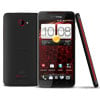

The Droid DNA from HTC is available now for only $50 on contract at Verizon Wireless. This was one of the first phones to prove that a big, 5-inch display didn't have to mean a big, unmanageable phone. Like the Galaxy S4 that came later, the Droid DNA kept things slim and compact around a large screen. Plus, HTC's baby delivered speedy performance and an excellent camera experience.
With a price drop from $200 to $50, the DNA is the best budget Android phone on Verizon Wireless.
The DNA's durable metal body has curved edges and a grippy, rubberized polycarbonate plastic back that makes it comfortable to hold and hard to drop. Despite the 5-inch display, the phone doesn't feel too big in the hand. One-handed operation will be difficult for people with small hands.
Still, that screen is gorgeous: full 1080p HD resolution, 440ppi pixel density, rich colors and wide viewing angles. It's worth the bit of extra bulk on the phone.
Overall, the DNA is light for its size. More than most phone makers, HTC pays close attention to audio quality. With Beats Audio on board, you'll get really great sound quality through headphones and better-than-average quality from the speaker in back.
Under the hood, the Droid DNA runs on a quad-core processor and 2GB of RAM, meaning you'll experience smooth and speedy performance, and the phone will have no trouble multitasking. The 16GB of internal storage is enough for most apps, but unfortunately that's all you get for photos, music and videos as well. There's no microSD card slot.
The DNA runs on Verizon's speedy 4G LTE network and falls back to 3G when out of range — not likely for most people, since this is the most widespread of all the U.S. LTE networks. Other wireless radios: a/b/g/n dual-band Wi-Fi, Bluetooth 4.0, GPS, NFC and mobile hotspot capabilities. You'll be able to make it through a full day on the battery if you use the DNA's power-saving tweaks or hook up to Wi-Fi when possible.
Another area where HTC usually delivers a stellar experience is its cameras, and the Droid DNA is no exception. The 8-megapixel camera on the back captures colorful outdoor images and does really well indoors and in mixed or low light. It's helped by the great camera app that includes lots of helpful settings and tweaks to help you take better photos. The 2.1-megapixel front-facing camera also deserves some attention, thanks to the wide-angle lens. It can capture more people in the shot or more of the background, giving more context to your selfies.
HTC includes their skin/user interface over Android 4.1. It's one of the most extensive skins next to Samsung's TouchWiz and is far better looking than the competition's. The extra features and enhancements make Android easier to use and customize.
Todd Haselton of TechnoBuffalo confessed himself "head over heels" for the Droid DNA. The beautiful 1080p display is "stellar; text is noticeably much crisper ... really bright and easy to read under direct sunlight ... You can see the screen from nearly every angle with ease."
Engadget had similar praise, saying that images "appear to just float above the screen. The font rendering is crisper than anything we've ever seen, and 1080p movies look simply stunning." Five inches may be a big device for some, but Engadget's Brad Molen found the phone "much easier to use for one-handed tasks without needing special keyboards or dialpads." "Despite its supersized proportions, we could still use the device comfortably with one hand," LaptopMag concurred.
Reviewers couldn't get enough of the DNA's overall look and holdability. "Everything about the phone — straight down to the Ferrari-inspired edges — screams luxury and ensures a comfortable experience," says Engadget.
The quad-core processor coupled with Android 4.1 Jelly Bean made for "buttery smooth performance," according to TechnoBuffalo, which also praised the "amazing Google Now support" and voice control capabilities.
The rear camera, good though not always great, is capable of producing "overall good quality shots" with "natural colors," says Engadget. All reviewers agree that the wide-angle front camera makes a big difference in video chats.
The Galaxy S III is a bit smaller than the DNA, and the size offers a nice balance between a big screen and one-hand usability. The 4.8-inch display is beautiful, and the dual-core performance is speedy enough for most non-game apps.
The S III isn't as powerful or future-proof as the DNA. Samsung's additions to Android's features make the operating system easier to use and are far more extensive than HTC's, but that doesn't appeal to everyone. The 8-megapixel camera isn't as good as the Droid's.
A small but important advantage on the S III's side: It's such a popular phone you won't have trouble finding accessories and cases for it.
Big phones are great but aren't for everyone. If you want a smaller screen, you'll appreciate the trend toward "mini" versions of popular smartphones that sell at a lower price. Unfortunately, these minis are usually less powerful as well. Even so, the 99-cent-on-contract Droid Razr M still holds up well a year later. With this, you get a clean, unaltered version of Android, a few great preloaded apps (SmartActions being a favorite), a bright 4.3-inch display, industrial chic design and pretty good performance.
The Razr M's camera could be better, and its 8GB of internal storage is pretty paltry. This phone is good for customers who don't do much in the way of gaming or multimedia. For a well-rounded phone on all fronts, you want the DNA.
HTC went big with the Droid DNA and it really pays off: a beautiful display, comfortable design, speedy performance, great audio and an awesome camera. We recommended this phone back when it was full price on Verizon Wireless. Now that it's significantly less, there's no hesitation. If you want the best at this price, the HTC Droid DNA is it.


Sometimes last year's phone is still a good choice even with newer models tempting you from the shelves. We've now reached a point of technological advancement that a well-made and powerful year-old phone is plenty good enough for today. This is especially true if you're looking to buy a phone on a budget, since once the next generation of a phone appears, the old version goes on sale.
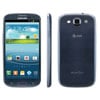

Now that the Galaxy S4 is out, you can find the Galaxy S III at every carrier for a nice discount. I've extensively tested all four major carrier versions and would recommend any of them, but T-Mobile's deal is one of the best: $20 down and $18 per month for two years. For that low up-front cost, you get a device with a great screen, slick design and tons of features. It's the best budget smartphone available on T-Mobile.
The design wrapped around the Galaxy S III's 4.8-inch display offers a nice balance between a big screen and one-handed usability. The curved edges make it comfortable to hold, as does its light weight. The display boasts a 1280 x 720 resolution, rich colors, terrific contrast and wide viewing angles. Small text is crisp, and no matter how you hold it, you'll get a good viewing experience.
I'm not as down on plastic phones as some other reviewers. I appreciate the benefits plastic brings, such as a removable back for accessing (and changing) the battery and microSD card. This is important if the battery starts to lose longevity. Still worried about the fragility of plastic? Since the this was such a popular phone, you won't have trouble finding cases and other accessories.
Under the hood, a dual-core processor and 2GB of RAM make for speedy performance and smooth multitasking. This combo is good enough for the majority of non-game Android apps. High-end games may get to be too much for this phone over time; right now, there are very few apps that it won't run well. T-Mobile only offers the 16GB version of the phone. The microSD card slot accepts up to 64GB, so there's plenty of room for music, photos, and other media.
The S III is 4G LTE-ready and falls back on HSPA+ (faster than 3G) when not in range of LTE. Other wireless connections: a/b/g/n Wi-Fi (Wi-Fi Calling is available, too), Bluetooth 4.0, GPS, NFC, and mobile hotspot capabilities. Even on LTE, the Galaxy S III gets great battery life that lasts all day, even if the day is long.
The S III's 8-megapixel camera is decent, especially for a phone at this price. While not as good as the iPhone 5's, you can coax good pictures out of the phone thanks to the robust camera app. There are a ton of Samsung-only features here and more sharing options than you likely need. The images and video from the S III are good enough for sharing online and on the screen.
The S III currently runs Android 4.1 Jelly Bean with Samsung's extensive skin/user interface (TouchWiz) on top. At its best, TouchWiz makes Android a bit easier to use, especially for newcomers and less tech-savvy owners. Some of the features go a little far, but most are easily ignored if you don't want to use them.
The Galaxy S III proved very popular with customers and with reviewers. Many agreed that Samsung did a good job of keeping the overall size small even with a big display. "I have small hands and I feel comfortable using a phone of this size," says GigaOM's Kevin C. Tofel. Mark Spoonauer of LaptopMag agreed, saying the phone is "comfortable to use despite the huge screen." GigaOM likes having the hardware buttons on the bottom because it "makes the interface easier to use: Buttons are easy to hit and I find typing on the software keyboard a better experience too."
On the construction and build, Casey Johnston of ArsTechnica dismissed reviewers who say the S III feels cheap: "... aside from the thin snap-on-snap-off back cover, it feels solid, sleek, and light for its size, compared to the denser iPhone."
The large number of features daunted many reviewers. In the end, many agreed with LaptopMag that "most of Samsung's additions are welcome, though you'll have to dig to activate or tweak [them]." The huge number of sharing features got a positive nod from GigaOM and ArsTechnica, and Spoonauer gave the thumbs up to the gesture-based controls and overall usability: "[T]his Android device impresses because of its slim design, good battery life, and fast 4G speeds but especially because of its intelligence."
Galaxy S III owners on GDGT.com are generally happy with their purchase. They cite the display, design and media support among the best things about the phone.
The Google Nexus 4 is also only $20 down on T-Mobile. People who like Android without any extra apps or skins or other things cluttering up a "pure" experience will appreciate the Nexus, designed by LG. The Nexus also gets Android updates much faster than the Galaxy series.
The Nexus has a vivid, bright screen, fast performance, a good camera that can take 360-degree panoramic photos and long battery life. It isn't as holdable as the Galaxy S III, and since the battery is sealed in, you won't be able to replace it yourself. There's no microSD card slot, either, and the Nexus is not LTE-capable. If you live in a city without LTE, this won't make a difference, but T-Mobile's LTE network is growing fast, and you don't want to be left behind.
Everything that made the Galaxy S III a popular phone last year makes it a great entry-level phone this year. The comfortable design, great display, decent camera and speedy performance will hold up another two years, at least. And for $20 down, there aren't many other Android phones on T-Mobile that even come close to its value.


If you are the owner of an iPhone 4 or 4S or a disgruntled Android user or one of those holding on to their old flip phones, then it's easy to proclaim the Apple iPhone 5S to be the best and safest smartphone for you. The iPhone 5S has the best camera of any smartphone (save those with a real lens such as the Samsung Galaxy S4 Zoom or Nokia 2010), it has one of the fastest processors of any smartphone, (with the exception of the HTC One, Samsung GS4 and the latest Snapdragon 800 phones coming to market, such as the LG G2), and it's the first smartphone to identify you via fingerprint, rather than having you tap in a clunky passcode for extra security.

However, the iPhone 5S is one of Apple's smaller updates to its flagship smartphone line. If you can wait, the really big updates – larger screen, for instance – will likely come a year from now with the iPhone 6.
If you are interested in upgrading now, check out the the iPhone 5S pros and cons below to decide if this is the right smartphone for you.
The 5S is physically identical to the previous iPhone, the 5, with three differences: the new color options, the fingerprint-reading Home key and the extra rear LED flash.
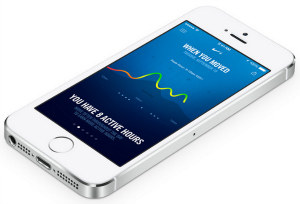
Of the three new physical features, it's the Home key change that is the most profound. As you've no doubt heard, the iPhone 5S Home button doubles as a fingerprint reader. Instead of the previous concave shape, the button is now flat and ringed by a stainless steel gasket that's part of the print detection process.
If you're paranoid, you can skip the fingerprint set up. If you're game, the process takes only a couple of minutes and is self-explanatory. You can even add additional fingers (like your opposite thumb or your spouse's print).
Once memorized, you wake up your phone by simply laying your finger on the Home key to unlock it. It's much faster than tapping in a four-digit code, even if the reader fails to read your print, which was almost never during my hands-on time with the new device. You can also use your print to confirm your identity for iTunes purchases instead of constantly inputting your Apple ID password.
Assuming hacks remain as Rube Goldberg-ish as this one, I suspect other smartphone vendors will adopt their own cool and simple fingerprint scanner.
iPhone 5S' biggest tech headline is Apple's new A7 chip, the first-ever 64-bit processor, paired with Apple's M7 motion coprocessor.
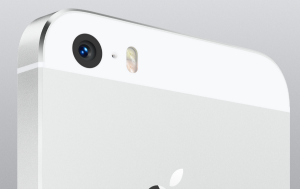
There is some controversy surrounding the necessity of a 64-bit processor without a memory upgrade to support it, and there are few consumer apps that have been updated to exploit this extra brain power.
But the M7 motion co-processor is another story. By taking on most of the motion detection heavy lifting from the main A7 processor there is less battery drain.
As with 64-bit compatibility, there are only a handful of apps upgraded to take advantage of the M7. It will likely be exercise apps such as the Argus fitness tracking app and motion-centric games that will be updated to provide greater motion sensitivity while burning less battery life.
But the processor and co-processor still provide an overall benefit to the phone. The 5S provides substantially better battery life – around 15 percent by my own unscientific calculations – than the 5. This battery life gap will likely widen as more apps take advantage of M7's specialized motion processing.
Apple has kept the 5's 4-inch screen, which apparently is big enough for most folks, but I don't think the 5S display is from the same supplier. When compared side-by-side with the iPhone 5, the 5S screen seems to have a nearly imperceptive greenish tint. You likely won't notice it.
But compared to other 5-inch super phones, the 5S' 4-inch display seems small, especially for the price. Both top Android phones, the Samsung Galaxy S4 and the HTC One, now come in "mini" varieties with 4-inch screens, both priced half that of the iPhone 5S.
The 5S sounds exactly like the 5. For phone calls that's good, but the bottom-mounted mono speaker is still beneath Apple's standards. One can only hope Apple adds some level of stereo audio on the iPhone 6.
While the 64-bit A7/M7 combo is a fascinating technical upgrade and the fingerprint reader a headline grabber, the real 5S upgrade star is its camera. Unequivocally, iPhone 5S has the best camera of any smartphone that doesn't have a specialty lens – and even compared to those I'm not too sure.
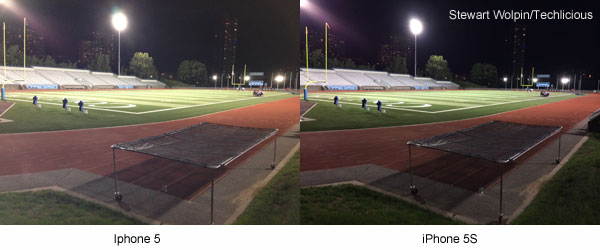
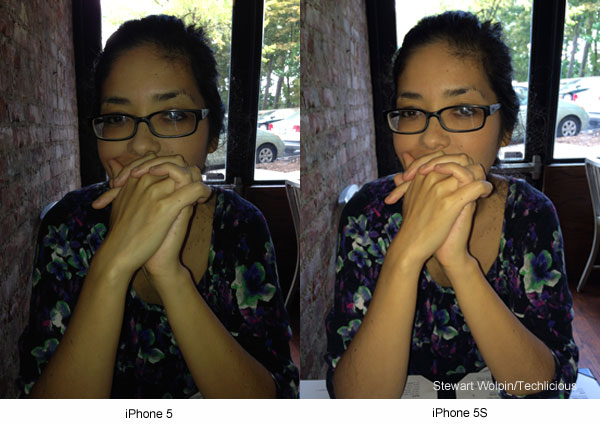
Any smartphone camera's downfall is low light situations. Apple has rejiggered the iPhone 5S in two significant ways. The sensor can detect more light by its 15% larger sensor and also due to the increase of the aperture to f2.2 (the camera equivalent of widening a hole to let more light through). By allowing more light in, darker scenes are not only better and more evenly lit, but there is less dreaded graininess.

Apple also has created what it calls a True Tone flash for its iSight camera. It's equipped with two LEDs, one standard and one amber, to better render skin tones.

Finally, Apple has added image stabilization, which means the 5S will compensate for a shaky hand and keep images and video crisp, especially when shooting in low light situations.
Combined, the results are extraordinary. You'll find you won't need a flash in situations where you thought you'd need one, and when you use a flash, flesh tones are more natural and the image is more evenly lit instead of being bleached in the middle and dark around the edges.
Even though the camera on both the 5 and 5S are 8 MP, the file size for images taken with the 5S are around 30 percent larger than those snapped by the 5.
Like all previous iPhones, the 5S comes in three memory configurations: 16GB ($199), 32GB ($299) and 64GB ($399).
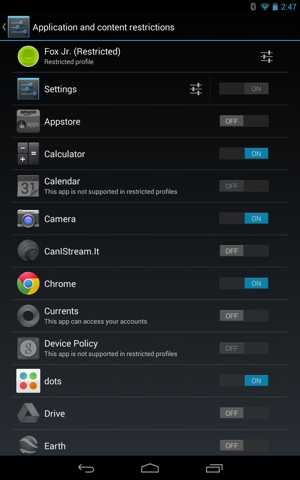
Unlike all previous iPhones, the 5S comes in three color combos, white with a gold back, white with a silver back, and black with a grey back (what Apple calls "space grey"). The first was sold out almost immediately, the second pretty quickly, and then all 5Ss sold out until next month.
Considering how much larger photos snapped by the 5S are, how much space 1080p video takes up and other memory considerations such as still photo, music and movie storage, you'll need more storage than you'd think. This expanding storage need exposes one of iPhones most enduring problems – lack of a memory card slot for expanding the onboard memory.
As a result, I'd opt for the 64 GB version. In fact, I'm disappointed Apple didn't create a 128 GB version.
Since the early adopters have snapped up the entire initial inventory, you don't need to make a decision quite yet.
If you don't have an iPhone 5 or another 4G LTE-capable smartphone, getting a faster data connection ought to be your prime reason for getting either the 5S or the less expensive non-fingerprint-reading 5C.
But while iPhone 5S is the best-equipped iPhone ever, it is missing many attributes found in bleeding-edge Android and Windows Phone phones, such as NFC, which enables easy pairing of Bluetooth devices and mobile wallet functions, as well as faster "gigabit" 802.11ac Wi-Fi.
If you have a 5, or have no desire for 4G LTE connectivity, simply upgrading to iOS 7 will bring a multitude of new features (such as a more responsive Siri). An iPhone 5 upgraded to iOS 7 could tide you over until Apple's next full-scale iPhone upgrade with possibly a larger screen, NFC, AC Wi-Fi and other advanced features and functions a year from now.
If you're on the fence, and if the 5S camera improvements and fingerprint reader aren't enough to convince you, you may be more of a candidate for Apple's cheaper 5C.
Rating: Highly recommended for all but current iPhone 5 owners.
]]>
Android 4.3 as it appears on a Nexus 7 tablet.
I’ve always been an Apple fanatic. I have owned iPhones exclusively for the last 5 years and never once considered switching to Android. I even own an iPad. After all, my iOS experience has been great – why switch to an unknown?
Well, a month or so ago I took Google’s Android-powered Nexus 7 tablet ($229 on Amazon) for a test drive. I expected to dislike the operating system, or at least come away with proof that iOS is definitively better. But after just a month of using Android part-time, I fell in love with the Nexus 7 and the OS behind it. Here’s why.
One of my perpetual frustrations with my iPhone and iPad has been the fixed, unchanging weather app icon. Why do I have to enter a separate app to get information that could easily fit in the screen space taken up by the app’s icon? It’s never made sense to me and it never will.
With Android, you can have a real-time weather widget right on your home screen in any number of sizes. That way, when my Nexus 7 tells me that it’s 73 degrees and sunny, I know the forecast is for real. And that’s only the beginning – widgets are available that allow you to control Spotify, flip through Google Now cards, check the latest sports scores and more.
I had my first Android experience playing around with my mother’s Droid. I didn’t much care for it. The default experience simply wasn’t as intuitive as it was on my iPhone. It seemed like there was learning required, and Android’s wealth of menus and options seemed daunting to learn. And beyond that, it looked ugly.
It turns out I was absolutely wrong. I love the design of my Nexus 7’s Android 4.3. It’s totally customizable, though it works great even if you don’t alter a single default setting. It looks great too – just take a look at that screenshot. There's no reason why you can't set up your Android device up exactly like an iOS one, if that's what you'd prefer.
Android 4.3 offers app-by-app parental controls.
When I got my first iPhone 5 years ago, the Google Play store didn’t even exist. Apple got a head start in the app game, building an early lead in available titles and downloads that Google couldn’t seem to catch up to. Or, at least, Google couldn’t catch up … until now.
Google Play now houses more apps than Apple’s App Store. And according to Forbes, Google leads Apple on total downloads as well. Sure, there are some iPhone applications that Google doesn’t have access to (yet), but the days when major apps like Instagram and Vine were only on iOS are long gone.
Android 4.3 offers more ways to manage kids’ tablet usage than ever before. You can create different user profiles and approve each individual app that others will have access to. It’s easy to set up – just tap the Users option located in the Settings menu.
I use Google services a lot, both on and off my smartphone. It’s my search provider of choice. Google Maps is my default mapping application. I have a Gmail account. And now that I’ve been playing around with a Nexus 7, I’ve gotten roped in to loving the predictive Google Now as well.
In my experience, Google products work and they work well. Android simply does a better job integrating them into the core experience. Take that, Apple Maps.
See the little house icon at the bottom of the Android screenshots I posted above? That’s the Nexus 7’s home button. It’s virtual. On my iPhone, the home button is a physical thing I have to mechanically depress. It’s a movable part that tends to break, a problem I've experienced personally. With my Nexus 7, that's not a worry.
7. Competing App StoresThere’s only one place to get apps for my iPhone, and that’s at the Apple App Store. It’s a strictly controlled experience, for better or for worse. There’s a much lower risk of dealing with malware through Apple, but there’s no competition, no other alternative. Apple has a monopoly.
With Android, I have my choice of stores. I can use Google Play. Or, if I want to comparison shop, I can use Amazon’s App Store or Facebook’s App Center instead. More competition means better deals, and I do love a good deal.
After 5 years of iPhone ownership, the gestures I use to control the device are deeply ingrained. The swipes, the pinches, the long taps – it’s all second nature and not something I wanted to relearn.
Thankfully, Android and iOS share most common gestures and commands. Sure, you’ll need to look up an action every now and then – it took me a while to figure out screenshots – but for the most part, you already know how to use an Android phone, even if you’ve never used one before.
Not sold on the iOS 7 operating system? If you’ve been thinking about making the switch to Android, there’s been no better time to do it. Take a look at Techlicious’s favorite Android smartphone and make the decision for yourself!
]]>Here are three options to getting your online product on the same day you order it and how they compare when I tested buying a Blu-ray player.
Available in Baltimore, Boston, Chicago, Indianapolis, Las Vegas, New York City (and parts of New Jersey), Philadelphia, Phoenix, the San Bernardino area, Seattle and Washington, D.C., Amazon Local Express Delivery is the option with the widest coverage area. If you don’t put in your order before a certain time (check for your city's cut off), all bets are off. Delivery is $8.99 per shipment plus 99 cents per item, although if you have an Amazon Prime membership, it drops to $3.99.
![]()
It’s worth noting that not all products for sale on Amazon can be delivered on the same day you order them. I had success with a variety of tech items as well as a book, but the mouse and laptop I tried to order could not be delivered on the same day with this service. An Amazon rep informed me by email that there are millions of items eligible for Local Express Delivery in each city it’s available, but those items can change depending on the stock within Amazon fulfillment centers.
While eBay Now serves fewer cities than Amazon, it’s a more flexible option. It's also dead simple to use. First, there aren’t any restrictive ordering deadlines; in my test, I had until 8:30 p.m. to place an order and still receive it on the same day. The service allows you to pay with PayPal, even providing a spot to add a tip for the valet who shops for you. (For more on that, check out this fascinating FastCompany story, which is a day-in-the-life telling of what these guys go through to bring customers the things they need to have right now — everything from condoms to biking shorts to air conditioners.)
![]()
The eBay Now service is available in San Jose, California, San Francisco and the SF Peninsula, as well as the New York City boroughs of Queens, Manhattan and Brooklyn. The service requires a minimum order of $25.
Of the three websites, I found Walmart’s to be the most difficult to work with. For example, Walmart To Go would not accept my post office box as a valid billing address, even though it’s the one associated with my debit card. The service also offers the most limited selection. And while I originally set out to compare the delivery of a 55-inch TV, the largest one available through Walmart To Go when I tested it using a Minneapolis address was 32 inches.
I spoke with a Walmart spokesperson about the issue, and he was surprised to hear about my experience because Walmart uses its stores as fulfillment centers — meaning whatever is available in the particular physical store delivering to a person should also be available through Walmart To Go. It’s a mystery; anyone who’s ever been to a Walmart store knows they sell big TVs.

Other details: You need to choose a four-hour window when you’d like your item(s) delivered, and tipping is not allowed. Walmart To Go is available in Northern Virginia, Philadelphia, Minneapolis and Denver; a courier service outside of Walmart actually makes the delivery. Walmart To Go also is available in San Jose, Calif., and San Francisco, where customers can also buy groceries that are delivered by Walmart To Go trucks. In those areas, the same-day delivery charge is $3 to $10, depending on how tight a delivery window you choose. There’s a $45 minimum purchase.
| Amazon Local Express Delivery |
eBay Now | Walmart To Go | |
| Delivery Window | Any time between order and 8PM |
About an hour | 4 hours |
| Order Deadline | 7AM - 12PM depending on city |
9PM M-S, 6PM Sundays |
12PM |
| Minimum Purchase | $5 | $25 | $45 |
| Cost | $8.99 per shipment plus $0.99 per item, or $3.99 per item for Amazon Prime customers |
$5 | $3-$10 |
What is going to to give you the best deal relies heavily on where you are and what's in stock. It pays to check out all three services.
However, same-day delivery for online orders is a service niche to watch. Google's version is next on the horizon, as the company pilots a same-day delivery service bringing people in the San Francisco Bay area products from local merchants. And more competition means better service from all the players in the field.
]]> 
Today’s inch-thick TVs simply have no room for engineers to put in good speakers. If you want good sound when you’re watching TV, you’ve got to add an external audio system.
Fortunately, there’s an easy fix: the soundbar. A soundbar is a long, slim speaker with amplifiers and surround-sound processing built in, usually accompanied by a wireless subwoofer to pump up the bass. Place a soundbar above, below or in front of your TV, and the subwoofer wherever you can fit it, then plug in a cable or two, and you get a nearly instant sonic upgrade.
Most soundbars cost less than $300, but it’s hard to find stores that demo them. So how do you know which one’s the best?
We’ve got that figured out for you. I’ve personally tested 48 soundbars at last count, including several of the very latest models, and researched reviews of the best sub-$300 soundbars from other audio experts,
My pick? The Vizio S4221w-C4 coming in at $249.
At a time when other companies are slimming their soundbars down to less than 2 inches thick, Vizio’s S4221w-C4 looks pretty porky at 3¼ inches. The no-frills styling looks like it was done by and for engineers. But what’s special about this soundbar is the sound.
I’ve been listening to the S4221w-C4 in my home for the last week and have been blown away by the sound quality it delivers for $249. Dialogue in movies and TV shows sounds extremely clear and natural. Even without the SRS TruSurround surround-sound mode activated, it was as if there were surround speakers on the sides of my room. The subwoofer delivered surprisingly powerful and punchy bass, a very different and far superior experience than I’ve had with the boomy-sounding subwoofers included with most soundbars. The overall experience was very much like have a full surround-sound system – and that’s even before I made any adjustments to it.
I thought it sounded nice with music, too: Loud enough for parties, yet refined enough even for more delicate genres like folk and classical.
While there were no professional reviews of the brand-spanking-new S4221w-C4 posted at the time of this writing, I was able to find a few consumer reviews on BestBuy.com, where user ForestHills wrote: “This soundbar is perfect. It sounds great and I can hear it all throughout the house. It gets loud! … I mostly bought this for my music, but it sounds great with our LG TV, too. I am very pleased to have spent my money on this product.”
CNET hasn’t reviewed the S4221w-C4, but liked the S4251w-B4, its more sophisticated brother. However, the S4251w-B4 requires you to set up two extra surround-sound speakers. That’ll give you better sound, but it makes the setup more complicated.
With a few exceptions, it’s hard to knock the S4221w-C4 on features. It has Bluetooth wireless, so you can stream sound from your smartphone, tablet or computer. The sleek remote has a built-in alphanumeric display, so it’s much easier to make adjustments than it is with soundbars that have only blinking lights to tell you what’s going on.
The S4221w-C4 can also accept the volume up, volume down, and mute commands from your TV remote, so the soundbar will work almost like it’s part of your TV. You’ll still have to remember to turn the soundbar on and off, though.
What does the S4221w-C4 lack? Mainly, an HDMI connection. HDMI is the standard connector for TVs, cable and satellite boxes, most videogame consoles, Internet streaming boxes and Blu-ray players. Instead, the S4221w-C4 uses an optical (Toslink or Coaxial) or analog (RCA or stereo mini jack) audio connector. In many cases, the HDMI connection will make the TV and soundbar work completely in sync, using just the TV’s remote for control. However, unless the soundbar has multiple HDMI inputs (the ones in this price range generally don’t) HDMI doesn’t offer such a big advantage.
The S4221w-C4 is also tall enough to block a TV’s infrared sensor if the soundbar is placed in front of the TV and the TV’s infrared sensor is mounted low (many are). The infrared light signals from the remote control may be blocked, possibly requiring you to hold the remote way up high to get it to work.


Although I prefer the sound (and the simpler remote control) of the Vizio S4221w-C4, the Sony HT-CT260 also sounds very good, just not quite as robust and powerful. CNET loved the HT-CT260’s combination of sound quality and features, and PCMag.com gave it an Editor’s Choice award.
What’s the HT-CT260 got that the Vizio doesn’t? The new CT-260H version adds an HDMI input. CNET didn’t review the “H” version and I haven’t heard it, but Sony says that beyond the added HDMI input, it’s the same product.
The HT-CT260 (both the regular and “H” versions) also has an infrared repeater in back. The advantage of this feature is that it assures the soundbar won’t block operation of your TV’s infrared remote control, as can be the case with the S4221w-C4. The HT-CT260 picks up these signals from your TV remote and sends them out again through a flasher on the back of the soundbar.
Whether you prefer the Vizio S4221w-C4’s simpler look or the Sony HT-CT260H’s flashy hexagonal design is, of course, something you’ll have to decide for yourself.


Driving over the posted speed limit can result in a pricey speeding ticket, a mark on your driver's license and an associated insurance premium increase. So a radar/laser detector that warns you of police presence early can be a wise investment — as long as the price of the radar/laser detector doesn't greatly exceed the financial consequences of the ticket.

Radar/laser detector prices range from below $100 to more than $1,000, with the sweet spot for some of the best in the $400-$600 price range. That's probably much more than the average driver would be willing to spend, however, and with this in mind I went searching for the best radar/laser detector priced under $200.
After wading through reviews by both consumer users and professional critics, and checking prices online, my choice was clear: the Whistler CR85.
Read on to learn why.
Although the manufacturer's suggested retail price for the newly launched CR85, set by Whistler Group, Inc., is $229.95, I found it discounted to only $144.00 at Amazon.com — easily meeting my price requirement.
Low price doesn't signal a lowly feature set, however. In fact, I was impressed by all that this relatively inexpensive radar/laser detector offers. Besides the requisite ability to detect X band, K band, SuperWideBand Ka radar and laser systems (including the instant–on variety) wielded by police, the CR85's features include:
• A Traffic Flow Signal Rejection mode that reduces false alerts caused by radar used for roadway traffic flow sensors.
• Two radar filters (one for X and K Band, and one for Ka Band), plus three settings per filter to reduce false alerts.
• A Ka band radar identifier that shows when signals were detected within the most common Ka frequencies used by police (33.8, 34.0, 34.3, 34.7, and 35.0).
• A laser identifier that helps filter out the LIDAR-based adaptive cruise control and lane departure safety systems found in some new vehicles.
• Three city/highway modes and a "quiet mode" that silences audio alerts, which can include voice alerts.
• Real Voice Alerts verbal announcements of the detected radar band.
• Alert Priority, which visually indicates the most important detected radar or laser signal, when more than one is detected.
• A vehicle battery saver function that sets the CR85's automatic shutdown feature.
• A Stay Alert function that helps keep the driver's attention by periodically challenging him to press a button within three to five seconds before sounding an alarm at full volume and displaying a visual alert.
I also was pleased to see that the CR85 has a high–resolution blue OLED (organic light–emitting diode) display that is easy to read at a glance in both daylight and at night. The display shows symbols of alerts detected, modes and signal strength.
The matte black case also minimizes annoying windshield reflections.
All those fancy features don’t mean anything if the radar detector doesn’t perform. With many inexpensive models, this is a real concern.
However, the CR85 is essentially identical to its predecessor, the Whistler Pro-78SE, and its sister model, the XTR-690SE, both of which have received excellent reviews from professional radar testers. And the CR85 adds coverage for new types of laser guns that these earlier models don’t detect.
Laserveil.com found the Pro-78SE to perform as well as even the high-end Bel STi Driver on the dreaded Ka band, describing its reception to Ka radar as “nothing short of remarkable” and ranking Whistler as “the provider of the greatest values in radar detector ownership.”
RadarDetector.org said of the XTR-690SE that it is an “outstanding unit with good range and sensitivity.”
And at RadarTest.com, the Whistler Pro-78SE showed excellent performance, roughly on par with the $179.95 Bel Pro 100 in detection tests.
The competing Bel Pro 100 would have been a strong contender for me, but for two issues. First, with a retail price of $179.95 and few discounts to be found, it costs about $35 more than the Whistler CR85. Second and more important, it received a very poor review on RadarDetector.org, which called the Bel Pro 100 a “severe disappointment in every way”, both for failing to detect real radar and for excessive false alarms.
Reviews for Cobra models fell slightly behind the Whistler, especially in crucial Ka band detection.
Though it is a new model, I read multiple positive user reviews of the CR85 from actual owners on various radar forums and shopping sites. These included a comprehensive four–paragraph–long review posted on Amazon by user Dasan, who compared the CR85 in action side–by–side with a new Whistler Pro–78SE that he purchased in early July — with their settings matched.
"The difference between the 2 was so great that my wife told me to pull the trigger on another CR85 for myself which should be here tomorrow lol,” Dasan wrote.
He particularly praised the CR85’s ability to detect police laser, known as LIDAR, and said owning the CR85 dissuaded him from wanting to buy a laser jammer.


In the under $300 price category, my selection for best radar detector would be Whistler’s CR90 model, which is just coming to market. Its MSRP is $279.95, but I found it at Amazon.com for under $200 from a variety of sources.

The CR90 has all the same features of the CR85, plus GPS functionality, which alerts for red light camera and speed traps using its internal (and upgradable) database. And unlike GPS features from Bel and Escort, there is no subscription fee to use the Whistler service.
Veil Guy wrote of the CR90 in July, “Whistler's engineering has continued dazzling me with more improved offerings, year after year, of value-priced over-achievers….Unlike Escort and Beltronics, the Whistler comes preloaded with the GPS and doesn't require an annual renewal fee to stay current. This makes these new radar detectors from Whistler even greater compelling values.”
If the added GPS features are important to you, then the CR90 may be a good choice over the CR85 (and a bargain compared to comparable models from Bel and Escort). Otherwise, save the money and go with the CR85.


If you want absolute top performance and don't mind paying a couple hundred more dolalrs, check out our recommendation for the Overall Best Radar Detector.
]]>
It's not unusual for speed limits on highways, parkways and freeways to be set much lower than the safest high speed their design allows — affording states the opportunity to raise a lot of money through speeding tickets. So, highway police patrol units armed with radar and laser speed detectors lie in wait, ready to ambush fast–traveling scofflaws at a moment's notice.

But it’s not just scofflaw’s that can be snared. Even law-abiding drivers can be misidentified as speeders by poorly trained officers and misuse of radar equipment.
So a radar/laser detector can be your best friend, giving you advance warning of an active police presence, time enough to make sure you’re driving a legal speed and the chance to avoid getting a ticket.
I did a deep dive of the radar/laser detectors on the market in a quest to find the best, and settled on two before choosing one: the Valentine One (V1) from Valentine Research, Inc.. Here's why.
The most appealing aspect of the Valentine One is the way it presents warnings: with four large arrows that show the direction where the detected radar/laser is located (ahead, behind, or to the left or right side), a numerical LED display of the number of detected radar signals or laser light beams, five LED lights to depict the signal or beam strength, and more LED lights to identify whether the warning pertains to a laser or whichever of the three common police radar types (Ka, K and X bands). In addition, the V1 uses different alert sounds to distinguish among laser and the various radar bands.
Only radar or laser ahead or behind can be used to determine a vehicle's speed, so signals or beams emanating from the sides is likely a false alarm from a burglar alarm, or automatic door opener sensor. Automatic door sensors operate in both X and K bands, as do some traffic sensors used by municipal governments. Ka band radar signals are most likely to be coming from a police officer.
Putting all the clues together in my mind, it would be possible for me to quickly deduce the severity and veracity of the V1's warning and to decide whether or not to slow down.
In addition, the V1's owner's manual is an exemplar of clarity. Besides instruction on the device's features, it offers real–world warning scenarios and advice on how to react to them. It also explains how traffic radars and lasers work, and how police use their various radar and laser systems.
The V1's also has top-notch technical specifications. It has two antennas that scan 360–degrees around the user's vehicle, its case is die–cast magnesium instead of plastic to shield against electrical interference from other devices, and it offers protection against all types of traffic radars and lasers used worldwide. Those include photo radar systems, POP or short–burst radar systems, and types of radar not used in the U.S., such as Ku band radar and K and Ka bandwidths used in Europe for photo radar.
With consumer electronics, we've all become accustomed to having to upgrade to a newer model while the current one is still perfectly serviceable. Buy a new smartphone at any time, and inevitably a newer one with better tech specs will be introduced soon after. Radar detectors evolve, too, as traffic radar and laser system makers change their technologies.
Yet Valentine Research promises that all V1 models are future–proof. "I don't believe in planned obsolescence," wrote Michael Valentine, president of Valentine Research, in the owner's manual. "Whenever we make a performance breakthrough, we offer it to past customers as an upgrade. Even the first V1 can be updated to today's protection."
Meanwhile, Valentine offers the free Threat Picture app (for iOS and Android), which works with a Bluetooth–enabled accessory named V1connection or V1connection LE ($49) that attaches to the V1 detector. The app shows the same alert information seen on the detector's display plus additional information, such as the actual frequency of the radar signals that were detected and whether or not they fell within the specific frequency ranges used by police radars. In addition, the app can be used to adjust the V1's settings. But all of these app functions are superfluous for the average user.
Many strongly positive user reviews of the V1 also persuaded me to favor it over other brands, as did the professional critics' reviews I found. Although one negative criticism kept popping up — that the V1 seems to be very sensitive and produces too many alerts — it was not one I considered overly concerning. In addition, reviews of other radar detectors frequently used the V1 as the benchmark against which to compare them, signifying the V1's status as the category leader, even if it is not the technology leader in all aspects. The battle between the iPhone and Android smartphones comes to mind. Some Android smartphones are better than the iPhone when technical specifications are the point of comparison, but the iPhone still is the smartphone other manufacturers strive to beat, and is also the smartphone I'd prefer to own.
It's worth noting that I relied mostly on user reviews of radar/laser detectors because I found few reviews by professional critics whom I considered reliable and actual users provide a wider range of “real-world” experiences.
"I have had a [Escort] Passport 8500 for 2 or 3 years of driving from Virginia to Georgia," wrote consumer reviewer Banks on Amazon.com in May. It had been "the best detector I had ever owned," Banks wrote, "beating out a Cobra." After purchasing the V1 and testing it against the 8500, Banks concluded, "The Valentine 1 was much more sensitive working at farther distances and the first time I had a rear alarm and it was police catching up to me I was amazed. The only thing that could beat out the arrows would be a well functioning GPS."
Consumer reviewer Bradley S. Wesner wrote on Amazon.com in May, "The bottom line on this is that it is the best on the market. Valentine points out where the enemy is, and you decide what to do. Sure, there are a few false alarms when you are in town, but who cares? The bottom line is that I do most of my fast traveling on the open road. If you do to [sic], this thing is for you."
And consumer reviewer JimBo wrote on Amazon.com in May, "I purchased my V1 in 1998 and have had it upgraded three times since then. The first upgrade gave me a brand new unit with the smaller footprint that is still the same. I can't say enough about how my V1 has performed over the years. I only use it for highway driving, and it has never let me down as I've never gotten a speeding ticket when I have it on. Invariably, it always warns me of when and where the radar is. I especially like that I know what direction it's coming from, including multiple warnings at once and which direction the more serious one is coming from. I can tell by it's [sic] behavior if the police are driving ahead of me or coming up behind me and when they are getting closer to me (or me to them). It exceeds all my expectations and will continue to be the RD of choice for me for a long time."
Similarly, consumer reviewer wolfpackcity on eBay wrote in January, "Hands down the best radar detector money can buy. It may not have all of the bells and whistles like the [Escort] Passport 9500ix does, but the one advantage it has over any other are the directional arrows which tell you where the threat is, how many there are, whether you are approaching it or have already passed it, and EVEN if it is coming up BEHIND you. It has already saved me four times in just one day and I am very satisfied."
Consumer reviewer sultandodge wrote on eBay last December, "Ive [sic] owned this radar since 2004 and have not got a ticket since. Ive [sic] owned and tested a lot of radars Cobra,Radio Shack, Beltronic, K40 and Escort radars and this is by far the best and most reliable."
And consumer reviewer sizelov wrote on eBay last November, "Hands down the best radar detector I have ever owned or used. I have run side by side with other top brands, and would say this is equal, but where this detector differentiates itself is with the bogey counter and directional indicators. Many times I have found myself with a strong signal, that you wouldn't know one is behind you and one in front. It is easier to spot the radar, when you can focus on the direction of the source."
An Edmunds.com review of the Escort Passport 9500ix radar/laser detector in February 2010 generally favors the 9500ix but notes, "The only major weakness we found with the Escort Passport 9500ix pertains to its directional information, or lack thereof. If you've owned a radar detector like the Valentine One for any length of time, you get used to knowing not just when your speed is being tracked but where the source of said tracking originates. The 9500ix offers no such information. Are you approaching the radar/laser gun? Are you past it already? There's no way to tell with this detector."
A RadarTest.com comparison of the Escort RedLine radar/laser detector versus the V1 generally favors the RedLine (which they sell on the site). But RadarTest.com finally concludes, "it remains up to individual preferences to decide which radar detector gets the nod. The Valentine One is a classic design that still delivers outstanding performance against most types of radar. The Escort RedLine is a fresh, state-of-the-art radar detector whose high performance and unique features give the serious road warrior a demonstrable edge in combating police radar. And it likely doesn't hurt that the Escort RedLine has the longest range of any radar detector we've tested in the past 20 years."
To be sure, there are features or capabilities the V1 doesn't offer, or offers only with optional accessories. And those may be offered by competing detectors, perhaps as a standard feature.
But I can't imagine regretting not having these capabilities included.
For example, unlike some competing detectors, the V1 does not have a built–in GPS function, which those other detectors use to locate and alert to the presence of known speed traps and enforcement cameras and to keep track of areas that triggered false alarms. But it's a simple fix to download and use the free Trapster app (for iOS, Android, Blackberry, Windows Phone 7 and other smartphones), which offers this same capability and is kept constantly up–to–date by its 19 million users.
Also, the competitive brands Escort and Beltronics — both made by parent company Escort, Inc. — offer a smartphone app named Escort Live Radar (for iOS and Android) that works with some of their detectors. The app works with an optional Bluetooth–enabled power cord for compatible detectors, called the SmartCord Live ($99.95), and it issues alerts when other users on the road ahead have gotten warnings from their linked Escort or Beltronics radar/laser detectors. And it shows local speed limits and provides over–speed–limit alerts. But those features are available only with a premium subscription, which costs $4.99 per month or $49.99 per year. A free stand–alone version of the Escort Live Radar app (not tied to the SmartCord Live and the detector) merely mimics Trapster.


Michael Valentine, who is an electronics engineer, was the co-inventor of the original Escort radar detector in the mid–1970s and former president of the company that made it, Cincinnati Microwave, Inc. He subsequently left that company to form Valentine Research and develop the V1. However, Escort flourished and today is one of the largest makers of radar/laser detectors and related products.

Escort's newest radar/laser detector, the Passport Max, was my runner–up choice.
The Escort Max should match or exceed the performance of any other detector made by Escort. An Autoweek.com review of the Passport Max in June was positive. The Passport Max also works with Escort Live Radar and feeds its user data network (also named Escort Live), but I don't consider Escort Live Radar and the Escort Live network to be crucial.
Furthermore, at $549.95, the price of Passport Max is significantly higher than that of the Valentine One. Unless you simple must have the Escort Live network, it’s just not worth the extra dough.
If you’re looking for a highly-performing radar detector but have a lower budget, check out our recommendation for the Best Radar Detector Under $200.
]]>
We all know reading to our kids is important – early readers enjoy better test scores in school and are less likely to experience poverty as adults. But, as much as we’d like to sit down and read with our families on a daily basis, sometimes it just isn’t possible.
Sparkup, the self-described magical book reader, aims to solve this problem by reading to your kids for you using your own voice. The device works using camera-sensing technology – essentially, it scans each page and lets you record a brief sound file to be associated with it. The next time your child opens to that page, Sparkup will recognize it and replay the sound file you recorded.
But does it actually work as advertised? And is the $59 Sparkup worth your hard-earned money? I tested out a review version of the device to find out.
The Sparkup box comes with only a few items: The Sparkup itself, a USB cable, a sample book and an instruction booklet. It comes preloaded with 3 AA batteries, which is a bit of a disappointment when most technology is now rechargeable. According to the included booklet, you’ll only get about 30 hours of playback out of the batteries. And when they run out, you’ll need to grab a Phillips-head screwdriver to replace them.
Sparkup stores saved images of each page to its internal memory, which you can access by connecting the device to your computer using the included USB cable. Sadly, the manufacturer decided to give the device just 256MB of memory. That limits the number of books Sparkup can learn to 50, with room for 4 hours of audio. Of course, you can save files to your computer and download new ones onto the Sparkup at will, but the process is a bit tedious.
When I used the Sparkup to record my own children’s book (OK, technically I used an old issue of Teen Vogue from 2009 that I found in the recycling bin), the process was smooth and intuitive. I simply attached the Sparkup to the rear cover, pressed and held the record key, and started talking after the tone. The process didn’t take much longer than reading the book aloud without a device attached. I simply had to press the center button after reading each page to hear (and confirm) what I just recorded. Of course, you probably won’t record an issue of Teen Vogue, but the point here is that Sparkup can work with just about any picture book you already own.
Playback of books works terrific when there’s ample light. If you skip a page, Sparkup catches the fact and skips a page too. When things were dimmer – as they often are during a bedtime reading session – the Sparkup occasionally struggles to identify pages. You also need to keep tiny hands away from the page while the camera gets its look. These technical challenges are minor, but a child who doesn’t understands the fine points of tech troubleshooting may become frustrated.
The Sparkup has a lot of potential as an entertainment device, but the most exciting aspect of the toy is how it assists in learning. With the aid of your recorded voice, your younger son or daughter can pick up a book and follow along any time they wish, boosting their reading skills along the way. Kids can even record their own voice as they read the books, adding in fun sound effects and voices.
Since the Sparkup works with any book that the camera can recognize as unique, kids can also use the device as a creativity tool to narrate stories they write and illustrate themselves. Just hand your child a notebook or even a blank hardcover book (sold at art stores) to fill with pictures and words. Or, use a service like Blurb to print your child's book professionally. Sparkup can then bring that book to life – with a little tech help from mom and dad, of course. It’s a really fun way to encourage imagination in a high-tech way that kids will love.
Personally, I had a lot of fun playing with the Sparkup Magical Book Reader. Sure, it has its flaws, but the child-friendly device really is worth more than the sum of its parts. Whether story time is a big event in your household, or just something you wish was a big event, Sparkup is a great educational tech toy that’s worth checking out.
The Sparkup Magical Book Reader is available for purchase at sparkupreader.com for $59.99. Printed book sets with professional recordings are also available at prices ranging from $9.99 to $19.96.
]]>
There are plenty of ways to get streaming video to your TV—apps for your TV, apps for your Blu-ray player, apps for your gaming console, apps for your smartphone and set-top boxes from Roku and Apple. So when Google announced its $35 video streaming product, Chromecast, I was a little skeptical about whether it could compete with the wide range of existing devices—even at such a low price. I gave it an in-depth review it to find out.
Chromecast is a stick that plugs into your TV’s HDMI port and uses your home’s WiFi network to stream video from the Internet. The controller is your laptop computer, Android device or iOS device. Each of the supported streaming services (e.g., Netflix) has a button to send the stream to Chromecast—just press the Chromecast button and it starts playing on your TV.
For a device that at its core is about simplicity, Chromecast had to be simple to set up and it was. I plugged the Chromecast into the HDMI port, plugged it into an electrical outlet (you can also plug it into a powered USB port if your TV has one) and turned on the TV. I have a newer model TV, so the Chromecast was able to automatically change my TV to the correct input. Otherwise you'd have to do this manually.
Next you need to connect the Chromecast to your home network by browsing to google.com/chromecast/setup on your Mac or PC.
My MacBook Air didn’t have Chrome loaded, so it prompted me to install it and then install the Chromecast plugin. Once both were loaded, I could see my Chromecast and it displayed an authorization code in the browser. On the TV, I could see the same authorization code. Once you confirm the codes match, your Chromecast is ready to go.
There is no dedicated app to control Chromecast, just a button within the app of the service you want to watch on your TV. Right now Chromecast works directly with Netflix, YouTube and Google Play; other services are in the works. Plus, you can load up any video streaming service or photo sharing service through your Chrome browser for big screen viewing.
When you want to watch video on your TV, you start playing it on your mobile device or computer and then hit the Chromecast button. The video will stop playing on your mobile device or computer and start playing on your TV. You still control playback, fast forward, pause etc. from your device.
On my recent-model Sony HX850 TV, pressing Chromecast would turn on the TV if it was off and automatically change to the correct input. For an older set, I had to power the TV on and change the input manually. Even then, the process took a lot less time than booting up my game console or Blu-ray player and wading through menus. The only thing that compared to Chromecast in terms of speed and ease of use was pressing the dedicated Netflix button on my TV's remote.
Once video is playing, you can use your device for other activities or browse for your next video. WIth the YouTube app, you can also add videos to a play list.
If you start playing a video and need to leave the house while someone is still watching, you can transfer control of the Chromecast to another device on your home network. In fact, it’s not really transferring—any device on your network running the app can take control at any time.
Pre-order for $35 on Google Play and Amazon.
At $35, Chromecast is a bargain for anyone looking to add streaming to a TV with an HDMI port and who doesn't want an extra box sitting next to the TV. The HDMI-stick design means no box to add clutter and the simple interface can't be beat for supported apps. It's a great solution for those looking to watch Netflix and YouTube and rent movies.
If you have a TV without an HDMI port, or want to get a broader selection of services than it currently available, consider the Chromecast's closest competitor, the Roku LT ($49.99 on roku.com, $40 on Amazon). The 4" x 4" box provides access to hundreds of streaming services and a remote control, in addition to an app you can use to control the device. The Roku LT also has both HDMI and composite out for older TVs.
]]>For my study, I chose to define spyware as apps which capture significant information about an individual that could be used for tracking, monitoring and…well…spying. All of the apps I tested could be remotely controlled by a third party and deliver purloined content to them via a web interface, email or text message.
Just to be clear, these surveillance apps go far beyond basic location trackers or “find my phone” services. While features varied, all the apps I tested performed highly intrusive monitoring, including recording of calls, remote camera image capture, downloading of SMS messages, downloading of photos and videos, downloading of contacts, remote microphone activation, and recording and tracking of websites visited. With the exception of email access, which I wasn’t able to get working with the Nexus 4 I used for testing (though it may work on other devices), a potential spy could monitor every means of personal communication on your device, track your exact location at any time and even listen to your offline conversations. (See Android Spyware Apps: How Dangerous Are They? for additional details on monitoring capabilities)
That is some very, very scary stuff.
Spyware apps, not surprisingly, also do an excellent job at hiding themselves. Most showed no icon on the list of phone apps. The only way to find them was to look in the list of running apps within the Android settings menu. Even there, the apps often attempted to disguise themselves with names that sounded like system processes (e.g., Android Manager, SIM Toolkit, Android Framework) or security services (LookOutSecure).
Some security vendors I spoke with objected to the inclusion of apps such as MobiUcare (available in Google Play) in the test group on the grounds they are intended for the legitimate purpose of finding a lost or stolen phone. And they're right – MobiUcare could be used for legitimate purposes. However, its ability to track location, remotely record audio and take photos without the user being aware, and hide the app icon from the app drawer also make it a candidate for malicious spying.
It is important to note that all of the spyware I tested required someone to have physical access to your phone to install it. While this may make spyware seem to be less of a threat than malware that comes in the form of bad apps you download from an app market, it also reflects the deeply personal nature of the invasion, as someone close to you must be the perpetrator.
Since there is no comprehensive database of spyware apps (in fact, there’s not even agreement among the security vendors how to define “spyware”), I decided to use a “real-case scenario” approach to identify the apps for my testing. I took the perspective of a would-be spy and searched for apps using Google search, stories about spyware that had appeared in various media publications and searching the Google Play market. Using this approach quickly turned up a core group of apps for testing.
I supplemented my list with a sample of additional spyware apps identified by Sophos and Lookout. Since including these apps potentially biases the results in favor of those vendors, I indicate in the detailed results where a tested app was identified by the company.
In all, I tested nine apps that met my criteria for potential spyware: Kidlogger, Mobilespy, Mobistealth, MobiUcare Phone Locator, PDA Spy, Phone Control, SMS Tracker, Spytic, and Theftspy.
For testing on Android, I used a stock Google Nexus 4 running Android 4.2.2. I changed the security settings to allow installation of apps from unknown sources, but did not root the phone.
Each piece of tested malware was loaded onto the phone and then run against each of the anti-malware solutions. When the anti-malware app gave me a choice, I always ran a “full” scan and checked boxes to scan for Potentially Unwanted Apps (PUAs). I scored the scan as a success if the anti-malware flagged the spyware as malware, PUA or similar designation. Since many of the detected spyware apps were classified as “PUA”, offering users the option to ignore PUA apps seems highly unwise. It would be far better to identify the apps and give users the option to “ignore” them individually.
I also note in the testing when the anti-malware app allows you to “ignore” identified risks and how those ignored apps are displayed in future scans. When it comes to spyware, the ability to ignore risks creates a huge potential hole for spies to hide their activities. If you have existing security software on your phone, the spy could ignore any warning during the spyware install process, effectively hiding the risk from future scans and giving you a false sense of security. One program I tested, AVG Antivirus Security gave no indication a risk had been ignored and no obvious way to see or reset the ignore list. Other apps, such as Sophos, TrustGo and Webroot, bury the ignored risks in separate menus that average users could easily miss. Of those programs that allow ignoring risks, only Lookout handled the process properly, clearly showing in the scan results both found risks and ignored risks.
I used the free version of the anti-malware apps for the testing unless the paid version offered additional protection features. Though each of the apps offers a wide variety of features, the scope of the testing was purely to focus on the spyware detection capabilities.
]]>And spyware is not as rare as you may think. According to mobile security company Lookout, .24% of Android phones they scanned in the U.S. had surveillance-ware installed intended to target a specific individual. Sophos reports a similar .2% infection rate from spyware. If those numbers hold true for Android users in general, that would mean tens of thousands could be infected.
I set out to test the leading Android anti-malware vendors to see how they fared at protecting us against the threat of spyware. Spyware apps I used for this test go far beyond basic location trackers or “find my phone” services. While features varied, all the apps I tested performed a combination of highly intrusive monitoring techniques, including recording of calls, remote camera image capture, downloading of SMS messages, downloading of photos and videos, downloading of contacts, remote microphone activation, and recording and tracking of websites visited. You can find out more about how I define spyware, how I picked the spyware apps and how I tested in the FAQ below.

The results, generally speaking, were dismal. Of twelve products I tested, none was able to detect more than two-thirds of the samples. Many missed half or more of the spyware apps. And, surprisingly, the potential spyware apps least likely to be detected were those widely available in Google Play.
And this isn’t just an Android issue. I was able to easily install spyware on an iPhone 3GS, with essentially the same functions as on an Android phone. The only difference between the iOS process and that of Android was that I was required to jailbreak the iPhone (modifying the operating system to get past the built-in security controls) first. Nonetheless, the full process took less than an hour.
I was unable to test anti-malware for iOS devices because there isn't any; Apple’s restrictions on what apps sold within iTunes can do prevents effective anti-malware products. However, the iOS app from Lookout did warn that the iPhone was jailbroken—a pretty clear indicator something may be up with your phone.
BlackBerries using operating systems older than BB10 are susceptible to the same spying risks. I successfully ran Mobistealth on a BlackBerry Torch and the (very) limited security choices available in BlackBerry World—NQ Mobile and McAfee—were unable to detect it.
Read my recommendations below for advice on how to protect yourself.
Across the board, overall performance was far lower than I expected. The best anti-malware applications in our testing (Avast Mobile Security, Norton Mobile Security, Trend Micro Mobile Security, and TrustGo Security) only picked up six of our nine samples, a 66% detection rate. In any other malware detection testing, this would be considered dismal. The worst (ESET Mobile Security and NQ Mobile) only caught three of the nine, a 33% detection rate. Kaspersky Mobile Security, McAfee Antivirus & Security, and Sophos Security fell in the middle of the pack.
[UPDATE 9/24/15: TrustGo Security appears to no longer be in business. While the app is still available in Google Play, you should not download it as neither the app nor malware definitions are being kept up to date.]
While it’s difficult to make statistical conclusions for how these programs would fair against a larger sample of spyware apps, the fact is the spyware apps tested should have been easy hits for the security companies. Each has been around for quite some time (years in many cases), and has either been reported in the media or is easily available via a Google Search. Plus, each app tested was already flagged by at least one security vendor as malware. And, counter-intuitively, the spyware apps that were most likely to be missed were those that are either currently available in Google Play or were in the past.
So why the poor showing? I spoke to representatives from half of the anti-malware companies included in the test and there seems to be a fundamental disconnect between how they identify which apps categories to focus on and where the real risks lie for U.S. smartphone owners.
First, there seems to a strong bias by security vendors (especially those based outside the U.S.) towards focusing on apps that are available through foreign app markets, where many of the newest malware risks originate. The problem is that most U.S. smartphone owners are unlikely to download an app from a Russian or Chinese app store, so covering these apps does little to protect us. And since spyware programs are usually downloaded directly from individual vendors, not through an app store, these products are missed entirely by many security vendors.
Second, security companies are not capturing as many spyware risks as they should because of their philosophy of classifying this type of software as “Potentially Unwanted Apps” (PUA). Since, the argument goes, PUAs require someone to manually install it and agree to the terms, and since PUAs could have (legally) valid uses, such as parental tracking, employee monitoring (with, presumably, informed consent) or tracking down a phone thief, these apps are not included in the threat databases, regardless of how dangerous they could be in the wrong hands. The presumption of valid use is a major pitfall to proper detection of threats. And more than one security company told me they also had liability concerns about identifying PUAs as “malware”—instead waiting for Google or another security company to take the first step in classifying the app before they did so as well.
A more robust approach for security companies would be to identify PUAs during scans as potential malware so users can make their own determination about whether the app is wanted or not.
I spoke to many of the security vendors after the testing about the results for their product. Reactions were mixed. Most I spoke with showed a desire to develop a more robust methodology. Others, clung to the notion that potentially legitimate apps should not generate warnings—hopefully, shedding some sunlight on this topic will cause them to reconsider their position.
Many of the anti-malware programs performed well in overall anti-malware testing from anti-malware testing lab AV-TEST, yet did poorly in my spyware-specific tests. How did these programs get such high detection rates when they seemed to be largely ignoring the spyware threat?
The reason became obvious when I looked more deeply into the methodology. AV-TEST, one of the most well-known testers of anti-malware solutions, only tests Android security programs with “malicious apps discovered in the last 4 weeks.” The spyware apps I tested have been available for months or years.
I reached out to AV-TEST to get the rationale behind the methodology.
According to Maik Morgenstern, Chief Technology Officer of AV-TEST, “Android malware is very short-lived. If malware makes it for example into the Google Play Store it will usually be removed after a few days. Also if an anti-virus vendor detects a certain malware sample, it is usually shared with other vendors so that in a few days most users are protected from this malware sample...So testing [old malware] would give a false impression of the real protection level, where protecting against relatively new samples counts."
Obviously, this did not match what we saw with our spyware testing, so I asked him how AV-TEST handles spyware, specifically.
“PUA/PUP/Adware/Spyware whatever you call it, is another story. Some vendors decided to not detect those as they are not necessarily a threat...The question is where do these apps cross the line? And this is very difficult to say. Therefore we are testing against PUA/PUP in our tests but don't publish the results until a consensus has been reached in the industry. Else we would hurt certain vendors that deliberately decided to not detect those apps for good reasons.”
In short, the industry is broken when it comes to spyware. Because security vendors can’t agree to classify spyware as malware, testing organizations ignore it in their evaluations. The result – protection rankings that don't reflect the true risks faced by U.S. mobile phone users. It’s time for the industry to take a stand and agree that apps that can be used to intrude your privacy should be identified in malware testing, even if they may have legitimate uses, as well.
To keep your phone from being compromised, always use a strong password on your lock screen (one that a potential spy close to you wouldn't guess). It’s also helpful to check to see if you have USB Debugging Mode turned on in Android (it’s off by default), which would allow someone to bypass the lock screen to install apps. If it’s on, that’s a bad sign, and you should turn it back off or do a factory reset of your device.
Given the poor showing from all of the anti-malware vendors, Android owners concerned about spyware on their phones should use a combination of security apps to scan. I would recommend Webroot SecureAnywhere, which did a better job than most at finding spyware apps from Google Play (though it did a poor job elsewhere), plus either Avast! Mobile Security, Norton Mobile Security or TrustGo Security. For the purposes of spyware detection, paid apps showed no benefit over free apps (and, in general, actually performed worse).
While there is no way for iPhone owners to directly scan for spyware, installing spyware on an iPhone requires the phone to be jailbroken. So a security app like Lookout Security that warns if your iPhone is jailbroken will do the trick. A jailbroken iPhone can be fixed by upgrading to the latest iOS release.
[UPDATE 12/16/14: since this article was written, certain holes were identified in iOS that exploit the iPhone's connection to trusted networks and devices to allow someone with access to the network or device to download significant amounts of personal data. Jailbreaking the iPhone was not required. Fortunately, those holes have been patched in iOS 8. For more information, see: http://www.zdziarski.com/blog/?p=3820]
BlackBerry owners are mostly out of luck. Your best bet if you suspect you are being spied on is to do a factory reset of your phone.
I didn't test Windows Phone because of the very low ownership rate and, fortunately for Windows 7 & Windows 8 phone owners, difficulty finding spyware apps to test. Similar to BlackBerry, if you strongly suspect your Windows phone may have been compromised, a factory reset will likely resolve the issue.
The following nine applications that have the potential to be used as spyware were tested. The chart lists the commercial name, the app name that will appear in the running apps list and whether or not the app is available through Google Play (or, to the best of my knowledge, was formerly available).
| Commercial name | Application name | Google Play? |
|---|---|---|
| Kidlogger | Kidlogger | No |
| Mobile Spy | SIM Toolkit | No |
| Mobistealth | Lookout Secur | No |
| MobiUcare | MobiUcare | Yes |
| PDA Spy | Zend Setup, Invisible | Formerly |
| Phone Control | Android Manager | Formerly |
| SMS Tracker | SMS Tracker | Yes |
| Spytic | com.android, preference.help | No |
| Theftspy | Android Framework | Formerly |
Avast! Mobile Security
Hit rate: 6 of 9
Allows ignore: No
Spyware detected: Kidlogger, Mobile Spy, Mobistealth, PDA Spy, Phone Control, Spytic
Spyware missed: MobiUcare, SMS Tracker, Theftspy
AVG Antivirus Security
Hit rate: 5 of 9
Allows ignore: Yes, with no “unignore”
Spyware detected: Kidlogger, Mobistealth, PDA Spy, Phone Control, Spytic
Spyware missed: Mobile Spy, MobiUcare, SMS Tracker, Theftspy
Bitdefender Mobile Security
Hit rate: 4 of 9
Allows ignore: No
Spyware detected: Kidlogger, Mobistealth, PDA Spy, Spytic
Spyware missed: Mobile Spy, MobiUcare, Phone Control, SMS Tracker, Theftspy
Eset Mobile Security
Hit rate: 3 of 9
Allows ignore: No
Spyware detected: Kidlogger, PDA Spy, Spytic
Spyware missed: Mobile Spy, Mobistealth, MobiUcare, Phone Control, SMS Tracker, Theftspy
Kaspersky Mobile Security
Hit rate: 4 of 9
Allows ignore: No
Spyware detected: Kidlogger, PDA Spy, Spytic, Theftspy
Spyware missed: Mobile Spy, Mobistealth, MobiUcare, Phone Control, SMS Tracker
Lookout Security & Antivirus
Hit rate: 6 of 9*
Allows ignore: Yes, but shows message and user can see ignored app list
Spyware detected: Kidlogger, Mobile Spy*, Mobistealth , PDA Spy, Phone Control, Spytic
Spyware missed: MobiUcare, SMS Tracker, Theftspy
Special notes: Mobile Spy was missed in our first round of testing, but picked up in our second round. This was after I had discussed initial results with Lookout and mentioned Mobile Spy as one of the tested apps (we only discussed three of the nine), so it’s possible Lookout added the protection as a result of our conversation.
McAfee Antivirus & Security
Hit rate: 4 of 9
Allows ignore: No
Spyware detected: Kidlogger, PDA Spy, Phone Control, Spytic
Spyware missed: Mobile Spy, Mobistealth, MobiUcare, SMS Tracker, Theftspy
Norton Mobile Security
Hit rate: 6 of 9*
Allows ignore: No
Spyware detected: Kidlogger, Mobile Spy, Mobistealth*, PDA Spy, Phone Control, Spytic
Spyware missed: MobiUcare, SMS Tracker, Theftspy
Special notes: I discussed this story with Norton prior to commencing and mentioned Mobistealth as one of the apps to be tested.
NQ Mobile
Hit rate: 3 of 9
Allows ignore: No
Spyware detected: Kidlogger, Mobistealth , SMS Tracker
Spyware missed: Mobile Spy, MobiUcare, PDA Spy, Phone Control, Spytic, Theftspy
Sophos Security
Hit rate: 5 of 9*
Allows ignore: Yes.
No indication apps have been ignored. Ignore reset buried in separate menu.
Spyware detected: Kidlogger*, PDA Spy*, Phone Control, Spytic, Theftspy*
Spyware missed: Mobile Spy*, Mobistealth, MobiUcare, SMS Tracker
Special notes: Sophos provided a list of spyware apps (but not the underlying apk) to help us identify apps for this story (indicated with *). One they provided, Mobile Spy, was actually not picked up by their scan. This may be due to two spyware apps sharing a similar name or Sophos detecting an earlier version.
Trend Micro Mobile Security
Hit rate: 6 of 9
Allows ignore: No
Spyware detected: Kidlogger, Mobistealth, PDA Spy, Phone Control, Spytic, Theftspy
Spyware missed: Mobile Spy, MobiUcare, SMS Tracker
TrustGo Security (9/24/15: No longer operating - do not download)
Hit rate: 6 of 9
Allows ignore: Yes. Ignored apps buried in separate menu
Spyware detected: Kidlogger, Mobile Spy, Mobistealth, PDA Spy, Phone Control, Spytic
Spyware missed: MobiUcare, SMS Tracker, Theftspy
Webroot SecureAnywhere
Hit rate: 5 of 9
Allows ignore: Yes. Ignored apps buried in separate menu
Spyware detected: Kidlogger, Mobistealth, MobiUcare, SMS Tracker, PDA Spy
Spyware missed: Mobile Spy, Phone Control, Spytic, Theftspy
But the comments kept coming in from women (yes, women seem to be the primary victims) whose lives are being turned upside down by a controlling spouse, boyfriend or ex who seems to know their every move.
So we started to take a deeper look at the issue and what we found is very disturbing. Spyware programs are very real, easily available and far more intrusive than we expected would be possible.
Worse, spyware threats are also highly pervasive—according to security company Lookout, .24% of Android phones they scanned in the U.S. had surveillance-ware installed intended to target a specific individual. Sophos reports a similar .2% infection rate from spyware. If those numbers hold true for Android users in general, that would mean tens of thousands are infected by spyware. And this isn't just an Android issue, iOS and BlackBerry devices can be easily infected as well. Yet, mobile security vendors are currently doing a poor job at spyware detection.
I tested three of the most common spyware apps—Mobile Spy, Mobile Stealth & Phone Control—in detail to find if each could do everything it claimed. The results were eye-opening. While features varies somewhat between the three, each could easily be installed on my Nexus 4 running Android 4.2 and capture significant amounts of highly personal information; including allowing a spy to remotely track your location, monitor your text messages, listen to your calls, see every photo and video you shoot, turn on your phone's microphone to monitor its surroundings and take pictures with your phone's camera.

Meanwhile, the app remains hidden in the background, given you no warning that something may be amiss.
At $100 per year (or $50 for three months), Mobile Spy isn't cheap, but it provides a robust set of monitoring capabilities and allows the snooper to access the details through a simple-to-use web interface. For an extra $50 a year, Mobile Spy adds the ability to remotely record the audio using the phone's microphone and capture pictures with the phone's camera.
Mobile Spy also works with iOS (requires jailbreaking), BlackBerry (v7 and below) and Symbian, and multiple devices can be monitored from the same web interface. Once installed, the app remains hidden from the user, only appearing as "SIM Toolkit" in the list of running apps within Android Settings.
Mobistealth is very similar to Mobile Spy, but offers one important feature—the ability to record live phone conversations. While almost certainly illegal in many jurisdictions without both parties' consent, recording call audio provides a much more complete profile on the person you are monitoring. You pay for this added functionality, though. A one year subscription to Mobistealth is $199.
Mobistealth also works with iOS (requires jailbreaking), BlackBerry (v7 and below) and Symbian, and multiple devices can be monitored from the same web interface. Once installed, Mobistealth remains hidden from the user, showing "Lookout Secure" in the running app list.
If you're looking for an app that provides a robust set of features at a bargain basement price (one-time fee of 1.99 Euros), Phone Control is a great choice. Formerly available through Google Play (before getting kicked off), Phone Control gives you all the tools you need to monitor your target, including recording of live calls. What you don't get is the slick web interface—tracking data is delivered to you via email—and some features that require manual initiation.
Not having a web interface makes managing the device more difficult, but offers a potential privacy advantage. With the other spyware apps, your target's content is sent and stored on the company's servers where, potentially, others could access it. With Phone Control, information is sent from the phone using an email address you set up on the device, so the data is never transmitted to a third-party (other than your email host).
Installation is a more involved process than with the other apps, requiring downloading and installing two apps, one which the developer will send you after you pay through Paypal. We've also been notified by the developer that he will no longer be supporting the app, so it's not clear how much longer it will be available.
Phone control is only available for Android. Once installed, Phone Control remains hidden from the user, showing "Android Manager" in the running apps.
| Features (Android) | Mobile Spy | Mobistealth | Phone Control |
|---|---|---|---|
| Record surroundings | |||
| Record audio | ✔ | ✔ | ✔ |
| Capture photo | ✔ | ✔ | ✘ |
| Text message monitoring | ✔ | ✔ | ✔ |
| Call tracking | |||
| List call details | ✔ | ✔ | ✔ |
| Record phone calls | ✘ | ✔ | ✔ |
| Track web history | ✔ | ✔ | Manual |
| View photos & videos | ✔ | ✔ | ✔ |
| GPS tracking | |||
| On-demand | ✔ | ✔ | ✔ |
| Historical | ✔ | ✔ | ✔ |
| Monitor phone contacts | ✔ | ✔ | Manual |
| Monitor calendar | ✔ | ✔ | Manual |
| Hide on install | ✔ | ✔ | ✔ |
| Web interface | ✔ | ✔ | ✘ |
| Supported OS | Android, iOS, BB | Android, iOS, BB | Android |
]]>
Your TV looks its best when you’re watching high-quality video. But sometimes you don’t have control over the quality of your source. Maybe you’re watching a YouTube video or a movie streamed over the Internet—when the quality of your video source goes down, even the best TVs can look bad.
You’re not totally at the mercy of your video source, though. TV manufacturers have come up with ways to enhance even low-quality, standard-definition fare. TVs today have image processors that analyze each frame of video and make tweaks to make it look better, whether it’s streamed Internet video or standard definition DVDs.
How much of a difference does this image processing make? I've been testing Sony’s X-Reality PRO Picture Engine on the Sony KDL-HX850 LED TV to find out. For testing, I put the HX850 into a demo mode that lets you view video in a split screen mode with the picture effect active on one side and inactive on the other side. I also tested the picture settings outside of demo mode.
The X-Reality PRO Picture Engine aims to compensate for three types of image issues—1) noise around the edges of objects and text, 2) jagged edges on the outlines of objects and 3) noise in low-light images and continuous blocks of color. Each frame of video is analyzed for the outline of objects in the picture, the texture of those objects, plus contrast and color.
The most noticeable difference using X-Reality PRO picture engine was in the appearance of noise around the edges of objects, logos and text. While there was some added blurring, it was much better than the more apparent dots and mottling that was visible with X-Reality's Dot Noise Reduction and Reality Creation settings turned off. Turing up Reality Creation to reduce noise further added too much blurring, so I'd keep it at its default auto or medium level.
Flipping the Motionflow setting on and off made a negligible difference to jagginess; I was hoping for more pronounced line and edge smoothing.
When the Smooth Gradation setting was turned up high enough to smooth out the color in large color blocks, I found the image to be too blurred. I recommend leaving that feature turned off or on low.
So is it worth paying more for a TV that has image smoothing and other picture enhancement technologies like Sony’s X-Reality PRO Picture Engine? Yes, but don't expect miracles. That standard definition YouTube video won’t ever pass for anything close to HD, but it will become more watchable on the big screen.
]]>
Ever wondered what you would look like with bangs? How about that subtle purple eyeshadow or that alluring red lipstick you've always wanted to try but haven't had the chance–or the guts–to do so?
That's where a beauty app can help. Starting with a picture without makeup (hair pulled back is best), you can use an app to apply everything from foundation and concealer to lipstick and gloss to eye shadows and eyeliner. And while an app can't quite replicate going to your favorite beauty counter, you can get a good idea of how different products will look—before you go out and spend your hard earned cash in the makeup aisle.
My favorite app is Virtual Makeover by ModiFace (free on iTunes and Google Play Store). I found it to be the easiest to use, it had accurate makeup placement and a good selection of products.
So what makes Virtual Makeover by ModiFace stand out? First, it lets you choose a photo you've already taken, not just one you take with the app. This can be a big time saver if you already have a good make-up free photo of yourself.
Once you have a good photo, you'll need to create a map that tells the app where your eyebrows, eyes and lips are. A good app, like Virtual Makeover, makes it easy to pull the map into place. And, Virtual Makeover will accommodate photos with your lips open or closed, some apps don't. You can even adjust the map as you go. So if you notice that your lipstick or eyeliner looks a little off, you can make adjustments on the fly. Once you've make all of your little adjustments, you can save your photo as a model so they're saved for next time.

The color palette is also key to a good makeup app. With Virtual Makeover, the colors you're trying on are tied to real products. Unfortunately, the free version of Virtual Makeover has a limited selection, but you can unlock the full selection for $2.99 as an in app purchase. I highly recommend it. Other apps have this feature as well, but Virtual Makeover pulls from a wide selection of brands and not just from one store.
The app saves a list of makeup products you use for your look, so you can purchase them later. Only the current makeover is stored with product names–one major drawback of an otherwise very good app.
Virtual Makeover does a great job with makeup, but if you're looking to try on new hair styles, you'll want to switch over to Taaz Hair Try On ( $2.99 at iTunes). This hair-specific app has the best selection of styles plus the ability to tweak each style so it fits your head properly, something most apps don't allow.
The styles are all based on celebrity looks, including styles worn by Adele, Angelina Jolie and Anne Hathaway, to name a few "A" names. You can sort by celebrity, hair length, bangs, waves and curls, updos and face shapes. There are 65 to choose from.
Once you have a style you like, you can view it in 25 different shades. There are the usual blondes, reds and browns, but also blues, greens, orange, purple and pink. And, you can save all of your favorite looks into a gallery for you to browse through later.
And if you want some help applying those new looks, take a look at the latest in beauty tech products.
]]>First, because it’s so radically different from previous versions of Windows, some users think the learning curve involved in figuring out how to use it is too steep. Personally, I disagree with this notion. When I bought my Lenovo Ideapad 13 a few months ago (a superb machine if you’re looking for a touchscreen Ultrabook), someone in Best Buy’s Geek Squad spent 20 minutes showing me around the OS and I was well on my way to capably using Windows 8.
Second, a lot of people have a huge issue with the fact that Microsoft did away with the Start button—you know, the little icon on the bottom left of your screen in older versions of the OS that when clicked on lists apps you frequently use and gives you quick access to things like recent items, Control Panel and the ability to power down or put your PC to sleep.
Since then, rumors have been floating around that Microsoft will add the Start button back into the next major update to the OS, Windows 8.1, expected to be released by the end of the year for consumers, although developers will get their hands on it at the end of June.
If you’re someone who recently migrated to a new PC and misses the Start button, there are ways to get it back. Some developers have created apps that try to resurrect it, such as Start8 and Pokki Start Menu. I’m using one called Start Menu Reviver, created by Reviversoft, a company that develops products to help you repair, optimize and maintain your computer. It’s different because lets you customize an area you can fill up with tiles of the Desktop and Modern apps you use most, as well the usual start button options, including Settings, Network, Search, Run, and the ability to power down your computer.
In this way it’s helpful, like the old Start button, but it’s even better because it’s touch-friendly and it makes use of the Modern style interface, which features tiles. While I like Windows 8 and appreciate the aesthetic of tiles, it can seem like you have to do too much clicking or tapping to flip back and forth between the Desktop, where you might be using apps such as Evernote and Skype, and the tile-based Modern Start screen, where you can access things like SkyDrive and the Windows Store. Start Menu Reviver does a good job of meshing the Modern interface with the more familiar Desktop.
That said, it’s important to note that people who spend enough time figuring out how to use Windows 8 properly won’t need an app like Start Menu Reviver. The Windows 8 Charms Bar gives you access to things like Settings (which includes Control Panel and power options) or Search, which you can use to find any app on your machine. You can also easily switch from the tile-based Modern Start screen to the Desktop by hitting the Windows key on your keyboard. And you can already pin any Desktop app to the taskbar that hangs out at the bottom of the Desktop screen by right clicking on it on the Modern Start screen; by doing so you can keep apps like Word, Evernote or the Snipping Tool always at the ready if you’re working on the Desktop.
But for folks who primarily work on the Desktop—people like me who like to have Chrome or Firefox open alongside Word or Excel—Start Menu Reviver is an interesting alternative that gives you quick access to lots of functions that are already included in Windows 8, but found in different locations.
It’s a free app worth trying out if the missing Start button bugs you, but Windows 8 pros and anyone familiar with the plethora of keyboard shortcuts that make using Windows 8 easy will likely feel it doesn’t add anything Microsoft’s latest OS doesn’t already offer.
And now Hotmail.com has officially ceased operations. The site now redirects to fellow Microsoft email site Outlook.com. All Hotmail emails and contacts still exist; they’ve just been transferred to a different place. A much more powerful, user-friendly place, or so the TV commercials for Outlook claim.
You’ve probably seen those commercials, right? The ones set to the Mackelmore and Ryan song where busy people take an inbox full of unread messages and, with the press of just one or two buttons, achieve the magical goal of “inbox zero.” It all looks great on the television screen, but is the new Outlook really that terrific?
In short: Not quite. But Outlook does offer huge advantages over the old Hotmail. It even does a couple of things better than Gmail. Let’s take a look.
The new Outlook design is great – far superior to the outdated feel of Hotmail. The screen isn’t cluttered with nonsense. It’s simple, clean, and easy to use, not unlike Gmail.
At the left hand of the screen, you’ll notice your Folders and Quick Views. Folders work much the same way they do on Gmail. Quick Views automatically classifies your emails in categories based on their contents, such as Documents, Photos, and Shipping Updates. It’s a good way to provide quick access to the important stuff you anxiously check your email for.
At the top of the screen is a blue menu bar. That’s where all the good stuff happens, so to speak. When you click an email, that’s where the familiar Reply, Delete, and Move to commands appear.
You’ll find your contacts (called People) hiding under the Outlook logo in the top left-hand corner of the screen, along with links to some of Microsoft’s other properties. Outlook allows you to add people to your contacts pulled from Facebook, Twitter, LinkedIn, and other social networking sites.
Sweeping is one of the most talked about features of Outlook.com – you’ve probably even seen it featured in one of Microsoft’s TV commercials. It’s a simple and useful tool that allows you to set up rules for the automatic deletion or filing of emails. You’ll find the Sweep feature in the top blue menu bar on the Outlook page once you’ve clicked or opened an individual email.
Unsubscribe is probably one of my favorite Sweep options. Clicking it not only deletes the email in question, but also sends a request to the company that messaged you, automatically asking it to remove you from its mailing list. If the sender refuses the request, Outlook will automatically put all their emails into the Junk folder. Given how notoriously unreliable unsubscribing from email lists used to be, this Outlook option is a godsend.
Just as powerful is the Schedule Cleanup option. It allows you to tell Outlook when you want emails from a certain sender deleted or moved. You can choose to keep only the last email from a sender, or choose to keep mail for ten days after it was sent.
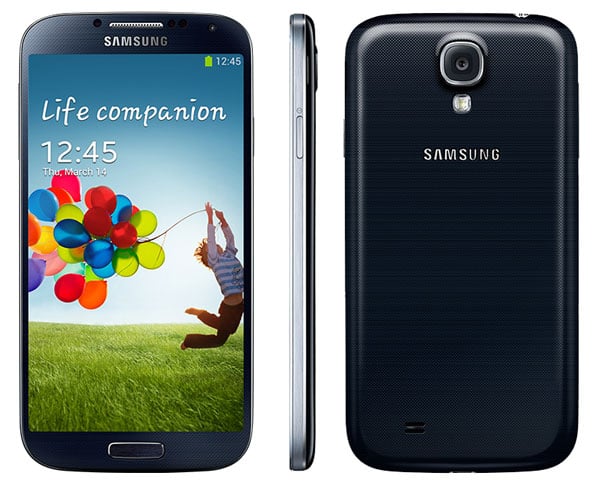
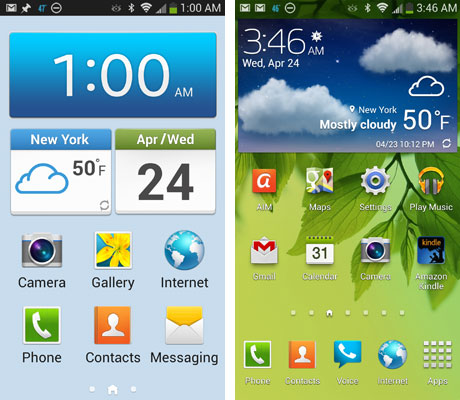
When I scheduled cleanup for my Groupon emails, I was offered the ability to also delete all emails of a similar type, such as those from Barnes & Noble. Doing so quickly cut my inbox down from an unmanageable 25,100 unread emails to a slightly less unmanageable 20,800 unread emails. That was the quick hit – getting rid of the next 1,000 emails took an unfortunate amount of tedious clicking and calling out senders individually.
I really like the new Outlook. It’s far better than Hotmail, and one could argue that it’s as good or better than Gmail.
But at the end of the day, Outlook is just an email provider. There are plenty of useful tools, but if you’re hoping for a magic bullet, you’ll be sorely disappointed. Keeping things organized still requires a lot of work, but Outlook at least makes that work easier.
]]>Talk and Standby Time: Up to 15 hours talk time
Band/Modes: 1900/2100 MHz with HSDPA up to 14.4 Mbps, LTE 1900 MHz (for Sprint)
OS: Android 4.2 Jellybean
Weight: 4.59 oz
Dimensions: 5.38 x 2.75 x 0.31 ininches
Battery: 2600 mAh
Display: 5 inch, Full HD (1920 x 1080) Super AMOLED, 441 PPI
Video: 1080p
Camera: 13MP, autofocus, LED flash, dual shot recording (photo and video), HDR, image stabilization, touch focus, face and smile detection
Front-facing Camera: 2 megapixel
Mobile hotspot: Yes
Processor: quad-core Qualcomm S4 Pro
Memory: 2GB RAM, 16GB onboard storage
Sensors: Accelerometer, gyro, compass, barometer, temperature, humidity, IR gesture
Samsung has turned out another impressive flagship phone this year, the Galaxy S 4. In my review, I found there's no single defining feature that makes this smartphone rise to the top, but rather its unique combination of hardware, software and user interface upgrades.
On the hardware side, there's a gorgeous 5-inch display that has an incredibly small bezel, making it look big but feel no bigger than the 4.8-inch Samsung Galaxy S III. The Galaxy S 4 camera gets a bump in megapixels from 8MP to 13MP for even bigger enlargements and more versatility with cropping, while retaining image quality. And there are new sensors on board, including a barometer, humidity sensor and temperature sensor.
Software is where the Galaxy S 4 really shines. There are a slew of new and very useful camera modes, including a best shot mode for group shots (my favorite), eraser mode for removing people who walk into the frame and a time-lapse shot mode, which compiles key frames into one image. Plus, there's a health and fitness tracking app and a universal remote control, among others. For first-time smartphone users, there's an "Easy Mode" with a pared-down interface and for more advanced users there are gesture controls and eye tracking.
In all, the Galaxy S 4 sets a high bar, but it doesn't dominate the Android smartphone landscape. It has strong competition from the new HTC One, with its great camera and beautiful styling.

When I heard that the Samsung Galaxy S 4 was going to have a 5-inch display, my first thought was that the phone would be way too big for me. It's not. With its ultra-thin bezel, the S 4 measures 2.75 inches wide, or 0.03 inches narrower than the Samsung Galaxy S III, which has a 4.8-inch display. The S 4 is also thinner (0.31") than either the HTC One (0.37") or the S III (0.34"), though not as thin as the iPhone 5 (0.30" which beats the S 4 by a hair, just 0.01-inch).
Unfortunately the S 4's polycarbonate back feels just as plasticky as the S III and is no match for the HTC One, with its beautifully-machined aluminum case, or the iPhone 5.
The Galaxy S 4 has a 5-inch Full HD Super AMOLED display (1920x1080), which is slightly larger than the S III's 4.8-inch HD display (1280x720) and the HTC One's 4.7-inch Full HD LCD display (1920x1080). The extra space for web browsing, watching videos and reading eBooks is noticeable and appreciated. And with a pixel density of 440ppi, it has one of the crispest displays, matching the Droid DNA and just slightly below the HTC One at 468ppi.
Like Samsung's other phones with Super AMOLED displays, you'll immediately appreciate the bright, poppy colors, crisp text and great contrast. And, it's protected by Gorilla Glass 3, the latest and greatest protection against scratches and damage from falls, though I still wouldn't recommend intentionally abusing the new S 4.
One area it doesn't fare as well as other displays is in bright sunlight and off-axis viewing. Top honors in that arena still go to the True HD IPS display found in the LG Optimus G and Super LCD 3 in the Droid DNA.
Call quality and speakerphone on the S 4 were very good. The sound profile for music playback doesn't have the resonance of the phones that have integrated Beats Audio or the HTC One's BoomSound, but sound quality is very good. One drawback, though, is that the speaker is on the back, so sound can be muffled on soft surfaces, like your hand.
The Galaxy S 4 I tested supports Sprint's 4G LTE networks, but LTE hasn't rolled out yet to New York City. The 3G network Sprint bumps down to performed as expected and speeds in LTE areas should be comparable to other 4G LTE networks. The Galaxy S 4 will be available on AT&T, T-Mobile and Verizon.
The S 4's quad core processor and 2GB of RAM made quick work of web pages and readily handled graphics and processor-intensive games.
The Galaxy S 4's 13MP camera takes crisp photos with accurate, though not rich color. And, it does a good job in low light situations, especially in HDR mode for stills and night shot mode for regular shots and video. Its biggest competition is the HTC One phones–the Droid DNA (Verizon), HTC One X (AT&T) and HTC EVO 4G LTE (Sprint)–which take better, richer-looking shots, as well as the new HTC One. The new HTC One's 4MP camera, which was specifically designed to address low-light shooting, supports the fact that megapixels are definitely not everything. In all, HTC still makes better cameras, though not by a wide margin.
Samsung spent a lot of effort upgrading the camera taking experience. I love the Best Face mode, which lets you choose the best shot of each person in a group and composite the faces into one image. It worked really well with my not-so-cooperative three children. Another favorite is Eraser mode, which lets you "erase" people or objects that move through the frame while you're taking a picture.
More fun than useful are Drama mode, which composites multiple action photos into one frame; Dual Camera mode, which shoots the front and back cameras simultaneously; and Sound and Shot mode, which lets you add a 9-second audio clip to pictures.
There's also a great app that comes preloaded called Optical Viewer, which can capture text for inputting business card information into your contacts or translate text—perfect for reading menus while in foreign lands.
Video quality is very good, but not quite as good at the Droid DNA and other HTC One phones.
The Galaxy S 4 ships with Android 4.2 Jellybean and Samsung's next-gen TouchWiz skin. TouchWiz now has a transparent status bar and a new Notification Panel that delivers more controls with one touch on/off functionality. It also lets you decide the 5 controls you want to always appear at the top of the notification window.
More striking, though, is an alternate home screen mode called Easy Mode. It features larger buttons with large fonts, the ability to pin contacts for speed dialing and a limited number of apps to pin to its 3 home screens (regular mode has 7 home screens). It's great for first-time smartphone users or older people who want larger fonts.
Samsung also added a few new interface options. Air Gesture, as its name suggests, lets you wave your hand in front of the phone's infrared sensor to perform simple tasks like scrolling down a web page or flipping through a photo album. I can see it being helpful if you're cooking and want to read more of a recipe. Air View is more useful, letting you hover your finger over a date on a calendar to see your appointments or an email to see a preview of the message without opening it. You can also hover to magnify content of web pages. Smart screen, which monitors your head movements to scroll text and start/stop video was hit or miss and not all that useful. In general, all of these alternate ways of interacting with the S 4 only work with Samsung's apps.
I like the Samsung keyboard, but love the optional Swype keyboard that Samsung loads on its phones. The Swype keyboard quickly learns how you swipe your finger from letter to letter to create words. making accuracy not all that important. "Typing" this way is super fast.
I'm also a huge fan of the WatchON app, which makes use of the infrared sensor to turn your S 4 into a remote control for your TV and home theater gear (works with any brand). It also has a built-in guide that provides suggested shows, as well as listings.
Another useful app that makes use of the S 4's onboard sensors is S Health. It helps you track calories burned by sensing movement throughout the day. You can also track what you've eaten and input other exercise activities. The app is currently compatible with a couple of scales, but there are plans to expand the offerings to other health monitoring devices like blood pressure monitors. S Health also tracks temperature and humidity, which is helpful for my wine cellar, though I'm not clear on the connection to health.
The Samsung Galaxy S 4 comes with 16GB of onboard storage. Plus, it includes an microSD card slot for up to an additional 64GB.
I found the battery life to be average under normal usage. I had no trouble getting through the day, with occasional checking of email, phone calls and web browsing. However, that battery runs down fast if you're doing processor and screen intensive tasks, such as playing games or watching video.
The Samsung Galaxy S 4 is available on Sprint starting April 27 for $149.99 for new customers (update: pre-orders are already sold out) and on AT&T for $199.99 with a new two-year agreement. The Sprint version is available on Amazon for $149.99 for new Sprint customers with a 2-year agreement or $249 for current customers with a new two-year agreement. T-Mobile will be offering the Galaxy S 4 for pre-order starting on April 29 and Verizon has said it will have the phone but hasn't set a launch date.
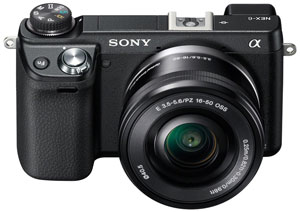
If you want a high-end Android phone, the Samsung Galaxy S 4 delivers a beautifully balanced package of high-end hardware and software extras. Best of all, it makes a 5-inch display actually seem reasonable, thanks to an incredibly sleek design.
For first-time Android smartphone users, the S 4 is the best choice. It delivers a full Android experience out of the box—no trip to the Google Play app store needed until you want to play games.
More advanced users should note that the S 4 still has the plasticky feel we've come to expect from Samsung and the S 4 doesn't have the best camera. So photo snappers will want to take a hard look at the currently available HTC One variants—the HTC EVO 4G LTE (Sprint), Droid DNA (Verizon), HTC One X (AT&T)—and HTC One, which will be available from the major carriers.
And, not much has changed on the iPhone 5 versus Android front. If you like a smaller phone and want access to what's still the best app store, you should choose the iPhone 5. The app gap has closed, though, to a point where fewer and fewer apps aren't available on Android at launch or a few months after. And the best map and navigation apps are still coming out of Google. If you find yourself squinting to read the iPhone's 4-inch display, the S 4 may cause you to make the shift.
Bottom line, whether you're an Android newbie or a veteran, you'll be more than happy with the Samsung Galaxy S 4. And even iPhone acolytes may be converted.
Rating: Highly Recommended
Image Sensor: 16.1 Megapixels (effective), Exmor APS HD CMOS
Kit Lens: 16-50mm (24mm-75mm 35mm camera equivalent)
Lit Lens Zoom: 3x Optical Zoom, 4X digital zoom
Like Lens Aperture Range: f3.5 (W) - f5.6 (T)
Display: 3.0" LCD 921K dots
Dimension: 4.75" (W) x 2.75" (H) x 1.06" (D) body only
Weight: 12.2 oz with battery and SD card, without kit lens
Stepping up to the high-end for entry-level/enthusiast cameras adds significantly to the price, but the extra money is worth it for people chasing great image quality and versatility. The NEX-6 offers excellent performance and speed bolstered by a 16.1MP APS-C sensor (same size as DSLRs). The kit lens has a good built-in optical stabilization system that reduces shaking and blur in images (including panoramas) and movies.
In addition to great photo quality, the videos is produces are excellent, and can be recorded in AVCHD Progressive or MP4 format. To top it off, Sony also included Wi-Fi connectivity for direct upload or connecting to the company's smartphones to transfer images. The implementation isn't as good as what Samsung offers, but is good to have as an alternative. The flash and electronic viewfinder are both tiltable and the LCD in back swings out, so no matter what position or angle you want you'll be able to frame a great shot.
For more cameras, check out our 2013 Digital Camera Buying Guide
]]>Image Sensor: 16.05 Megapixels (effective), Live MOS sensor
Kit Lens: 14-42mm (28 - 84mm 35mm camera equivalent)
Lit Lens Zoom: 3x Optical Zoom
Like Lens Aperture Range: f3.5 (W) - f5.6 (T)
Display: 3.0" touchscreen LCD 920K dots
Dimension: 4.72" (W) x 3.28" (H) x 2.79" (D) body only
Weight: 1.24 lb with battery, SD card and kit lens
Overall, this Lumix isn't as compact as most other compact mirrorless cameras, but that extra bulk makes for a comfortable grip and good balance. The "little DSLR" feel it has going on isn't just for show. This is a great camera for beginning photographers who want the ability to step up as they learn manual controls but also want great pictures as they learn.
The intelligent Auto function lives up to the name and the autofocus is fast, so getting great output doesn't require a lot of meddling. The DMC-G5 includes both a built-in flash and electronic viewfinder, cutting down on the accessories you have to buy and attach.
For more cameras, check out our 2013 Digital Camera Buying Guide
]]>Image Sensor: 20.3 Megapixels (effective), APS-C CMOS sensor
Kit Lens: 20-50mm
Lit Lens Zoom: 2.5x Optical Zoom
Like Lens Aperture Range: f3.5 (W) - f5.6 (T)
Display: 3.0" tilt LCD 921K dots
Dimension: 4.59" (W) x 2.46" (H) x 1.44" (D) body only
Weight: 7.68 oz without battery and SD card, body only
A camera with the features and functionality of a DSLR in a smaller body and with Wi-Fi connectivity? Sign us up. The NX1000 has a 20.3MP sensor and comes bundled with a sharp zoom lens that produces great pictures in all lighting situations. Including night shots.
It's not the fastest camera available, but the ability to send pictures and videos directly to social networks and smartphones makes up for it a little.
For more cameras, check out our 2013 Digital Camera Buying Guide
]]>Image Sensor: 16.1 Megapixels (effective), Exmor APS HD CMOS sensor
Kit Lens: 27-82.5mm equivalent in 35mm photography
Lit Lens Zoom: 3x Optical Zoom
Like Lens Aperture Range: f3.5 (W) - f5.6 (T)
Display: 3.0" tilt LCD 921K dots
Dimension: 4.63 (W) x 2.63 (H) x 1.69 (D) body only
Weight: 11.1 oz with battery and SD card, body only
The Alpha NEX series of cameras straddle two worlds. They have the sensors of DSLR cameras but compact bodies reminiscent of point-and-shoots. The large lenses signal their serious semi-pro nature, though small pancake lenses are available, too. The NEX-F3 proves why compact mirrorless cameras are a great idea. The 16.1MP APS-C image sensor (same as found in most DSLRs) and high ISO settings mean pictures detailed enough to print large without having to put in a lot of effort. The lens and sensor balance a wide range of contrasts automatically, but you still have access to the full range of manual controls (even when shooting video). Images come out sharp and balanced with rich color. The LCD in the back flips up all the way to make self portraits easier. We also like that the built-in flash can be tilted up for softer light bursts.
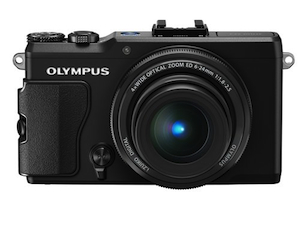
For more cameras, check out our 2013 Digital Camera Buying Guide
]]>Image Sensor: 12 Megapixels (effective) 1/1.7" BSI CMOS
Lens: 5.2 - 17.2mm (28-112mm equivalent in 35mm photography)
Zoom: 4x Optical Zoom, 2x digital
Aperture Range: f1.8 (W) - f2.5 (T)
Display: 3.0" swivel touchscreen; LCD 920K dots
Dimension: 4.45" (W) x 2.57" (H) x 1.89" (H)
Weight: 12.2oz with battery or memory card
The XZ-2's 12MP sensor, 4x zoom lens, image processor and fast auto focus speed combine for impressive photo quality from a camera this compact. The 28-112mm equivalent lens is super fast at f/1.8-2.5 and the resulting pictures have minimal noise, accurate tone and look really good at full size. However, don't look to this camera if you're uncomfortable out of auto mode. This is more for people who know how to work manual settings to their advantage.
For more cameras, check out our 2013 Digital Camera Buying Guide.
]]>Image Sensor: 20.2 Megapixels (effective), 1" Exmor CMOS sensor
Lens: 28 - 100mm equivalent in 35mm photography
Zoom: 3.6x Optical Zoom, 14x Digital Zoom
Aperture Range: f1.8 (W) - f4.9 (T)
Display: 3.0" LCD 1,229K dots
Dimension: 4.0 (W) x 2.38 (H) x 1.44 (D)
Weight: 8.5 oz with battery and SD card
The RX100 has a lot to live up to given that you can buy plenty of decent interchangeable lens cameras for the same price. Thing is, those cameras don't fit into a pocket and can't be whipped out at a moment's notice–this Cyber-shot can. Sporting an excellent f/1.8 Carl Zeiss lens and a big 20.2MP sensor, the RX100 produces images that will change what you think is possible with a compact camera. It performs well in all conditions even when light is harsh or low and is fast on the trigger.
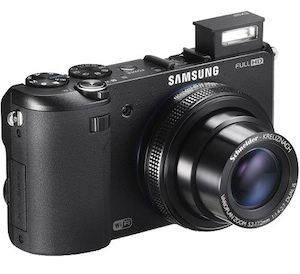
For more cameras, check out our 2013 Digital Camera Buying Guide
]]>Image Sensor: 12.4 Megapixels (effective) 1/1.7" BSI CMOS Sensor
Lens: 5.2 - 17.2mm (24-80mm equivalent in 35mm photography)
Zoom: 3.3x Optical Zoom, 4x digital
Aperture Range: f1.4 (W) - f2.7 (T)
Display: 3.0" swivel/rotating; AMOLED 614K dots
Dimension: 4.41" (W) x 2.44" (H) x 1.14" (H)
Weight: 10.38oz without battery or memory card
A little bulkier than most compact point-and-shoots, the EX2F makes up for the extra size with extra features that will make getting the perfect shot easier. The rear display swivels out so you can frame the shot perfectly even if the camera isn't right in front of you. Though the 3.3x zoom is modest, the f/1.4-2.7 aperture captures a lot of light for very rich and detailed pictures. You'll appreciate this even more when recording full HD video. Like most of Samsung's cameras, the EX2F comes with Wi-Fi on board for sending pictures directly to email and social networks or connecting to Samsung phones for image transfer.
For more cameras, check out our 2013 Digital Camera Buying Guide.
]]>